


Many gamers today enable NVIDIA DLSS when playing games to get a better gaming experience, as it not only boosts game FPS but also makes the visuals smoother. NVIDIA has also continued to improve this technology, and recently announced the launch of a new DLSS Frame Generation performance mode, “Preset C,” which reduces the computational load during frame generation so that graphics cards can generate additional frames more efficiently. According to official testing, on the RTX 5060, frame generation processing performance can improve by up to 35%.
Better yet, this feature isn’t limited to the latest RTX 50 series—the previous-generation RTX 40 series supports it too, and you can get early access right now through NVIDIA App Beta.
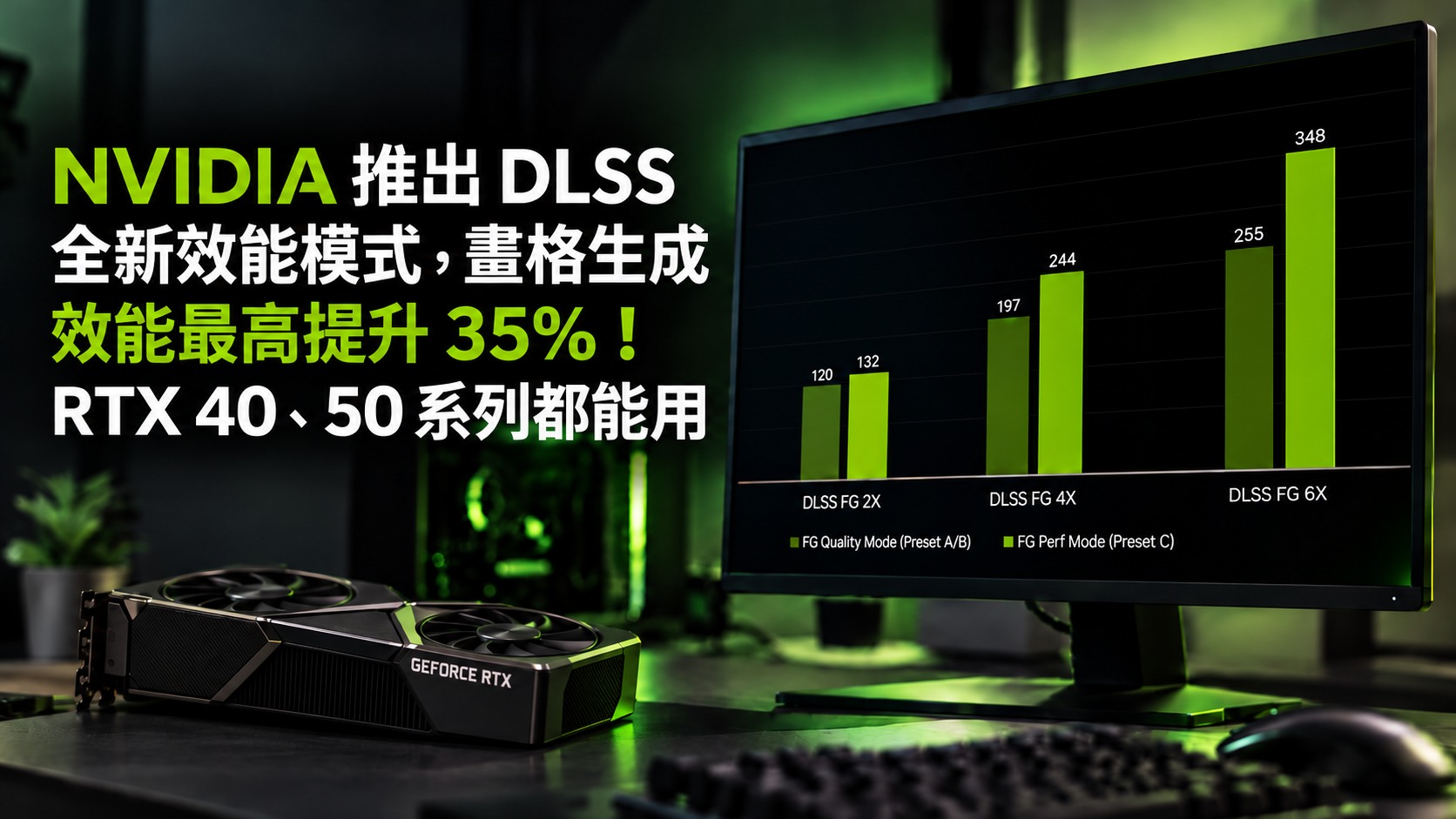
NVIDIA introduces a new DLSS Frame Generation performance mode, Preset C: compatible with both RTX 40 and RTX 50, delivering up to 35% improvement, and here’s how to enable it.
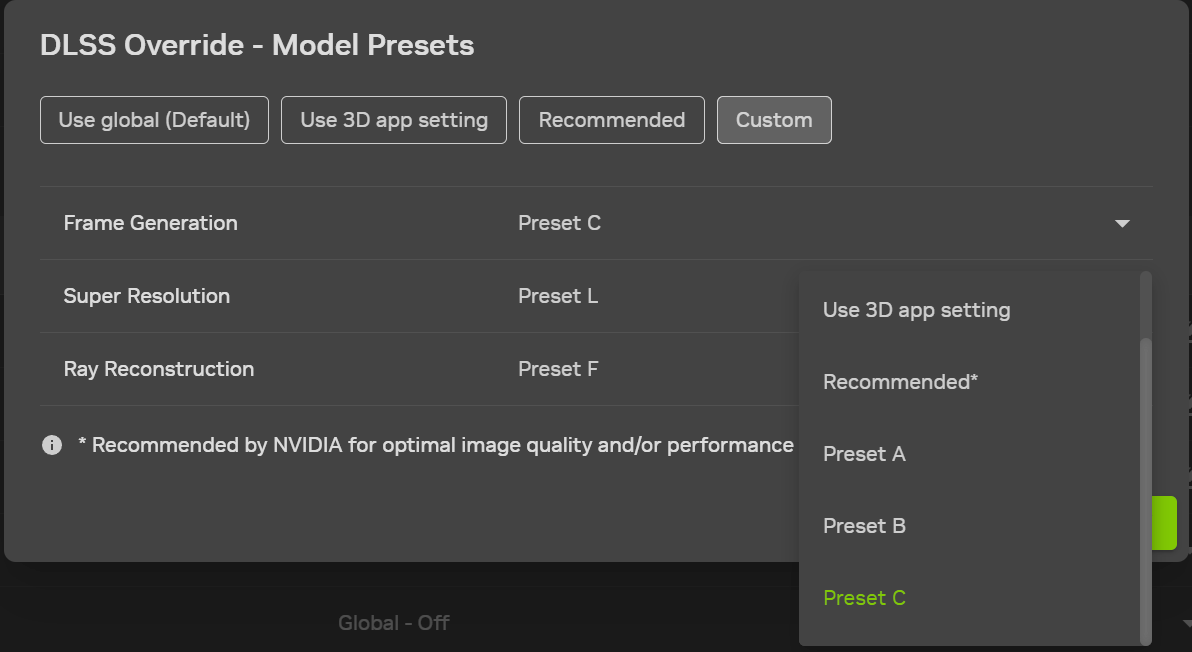
NVIDIA announced in an official announcementDLSS Frame Generation adds a new “Performance Mode.” Starting today, it is available for trial via the NVIDIA App Beta on GeForce RTX 40 and RTX 50 series graphics cards and RTX Spark laptops. In the settings menu, it is called Preset C, and it applies to three frame generation technologies: Frame Generation, Multi Frame Generation, and Dynamic Multi Frame Generation.
According to official statements, the current DLSS Frame Generation and Multi Frame Generation operate using two AI models.
The first model reads data provided by the game engine, such as motion vectors (which direction objects are moving) and depth information, to track the trajectory of object movement between two real frames. The second model calculates “optical flow,” handling things that game data cannot describe, such as the UI interface on screen and ray-traced reflections and shadows. These elements have no motion vectors to reference, so AI can only infer them from pixel changes between the previous and next frames.
Preset C, by contrast, changes the second model. NVIDIA replaces the original optical flow AI model with a lighter, faster algorithm, which shortens the compute time required to generate each frame. The GPU can then use the time saved to render more frames, so overall FPS naturally goes up.
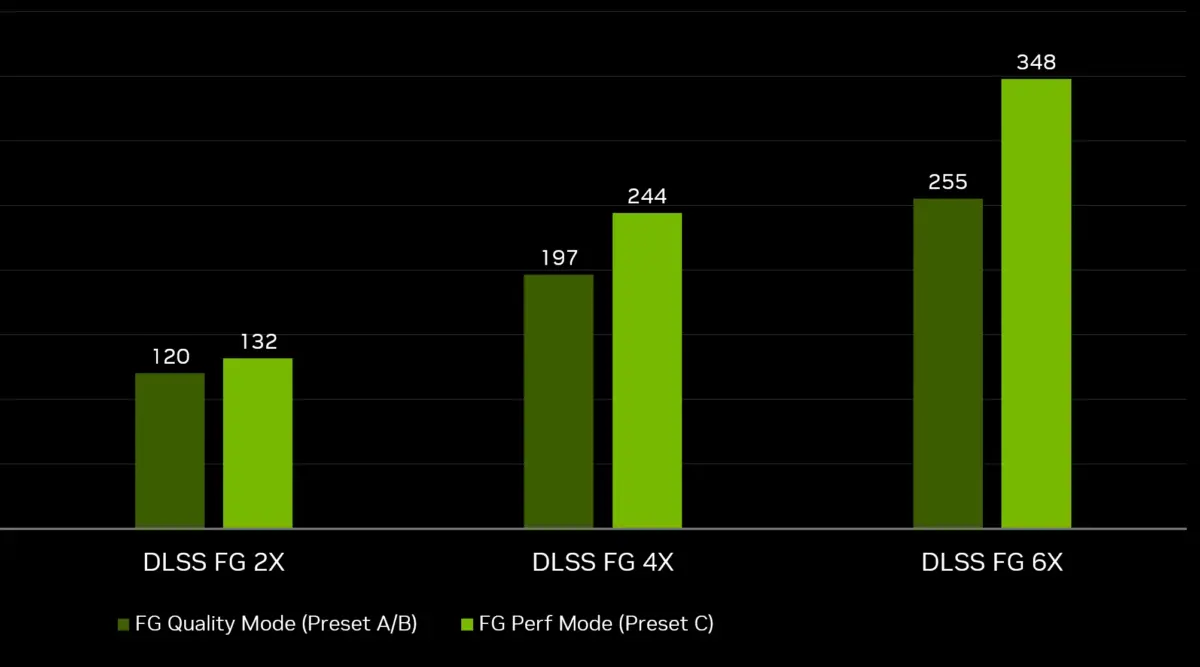
Below is the performance chart provided by NVIDIA. The test platform is a GeForce RTX 5060 8GB paired with an AMD Ryzen 7 9800X3D and 64GB of DDR5 memory, running the built-in benchmark in Cyberpunk 2077 at 1440p, Medium Ray Tracing, and DLSS Super Resolution set to Balanced mode:
| Frame Generation Multiplier | Original mode (FPS) | Preset C(FPS) | Extent of improvement |
|---|---|---|---|
| Disable frame generation | 83 | - | - |
| DLSS FG 2X | 120 | 132 | Approximately 10% |
| DLSS FG 4X | 197 | 244 | About 24% |
| DLSS FG 6X | 255 | 348 | About 36% |
As can be seen from the table, the higher the multiplier is set, the more obvious the benefits of Preset C become.
At 2X, it only adds 12 FPS, while at 6X it adds 93 FPS, so NVIDIA’s claimed 35% is for a multiplier like 6X, not the basic 2X mode. That makes sense too: the higher the multiplier, the more frames the GPU has to generate, and the time saved per frame adds up to a noticeable effect.
As for whether there is any cost? NVIDIA officially only mentions a “slight trade-off in image quality” and does not explain exactly where the difference will be.
Also, note that in the NVIDIA App’s DLSS Override, Super Resolution already has model options for Preset A through K, including a Preset C. The new Preset C this time is in the Frame Generation dropdown menu, and it is different from the Preset C in Super Resolution.
Preset C supports GeForce RTX 40 series, RTX 50 series graphics cards, and RTX Spark laptops equipped with RTX chips, and is not exclusive to RTX 50.
How do I enable DLSS Preset C’s all-new performance mode?
Preset C is currently only available in the Beta version of the NVIDIA App, and this option is not visible on the settings page in the stable version, so you need to switch the NVIDIA App to the Beta channel. According to the steps in NVIDIA’s official announcement, the whole process is as follows:
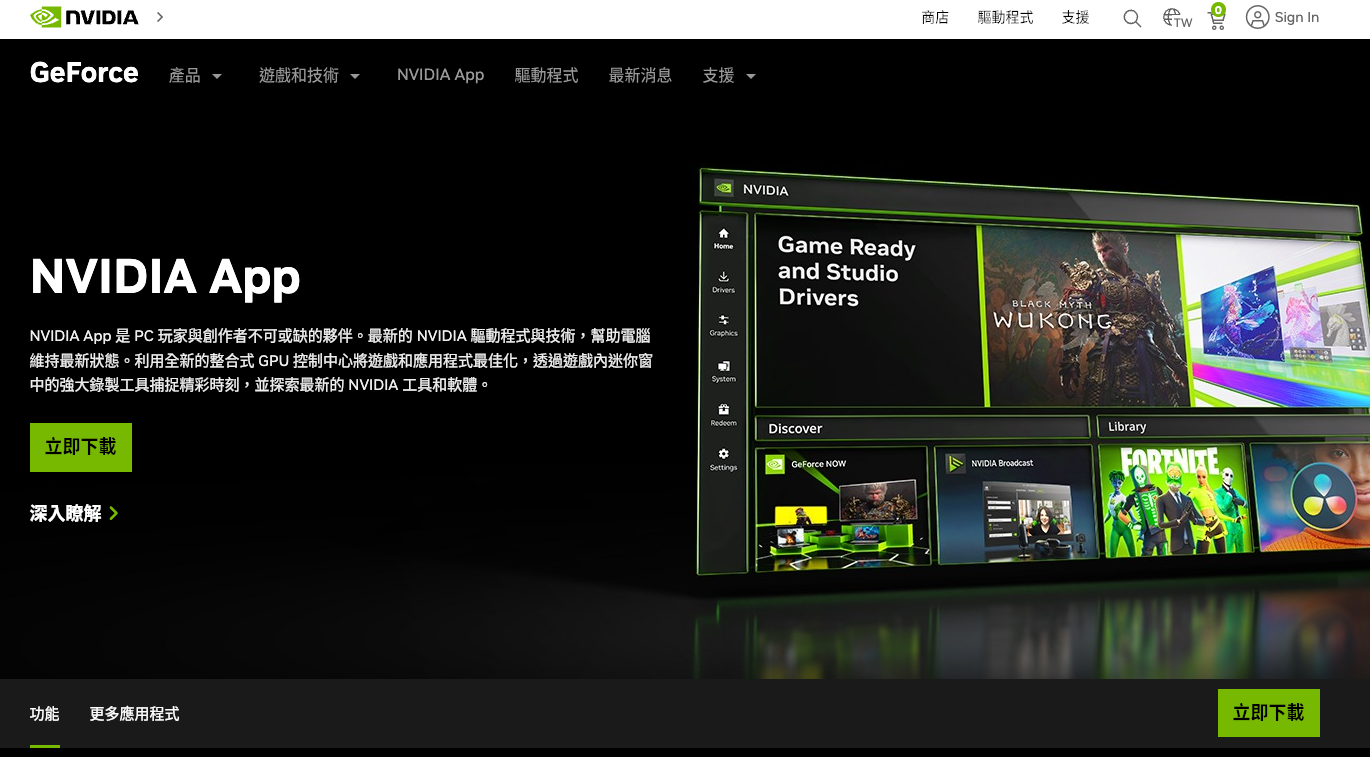
- Go to NVIDIA’s official website to download and install the latest version of the NVIDIA App. If you already have it installed, simply update to the latest version directly within the App.
- Open NVIDIA App, go to Settings in the bottom-left corner, and switch to the About tab.
- Check “Opt in to access Beta or experimental features” (join Beta or experimental features), and the NVIDIA App will begin downloading Beta updates.
- Once the download is complete, an install prompt will pop up on the screen. Click it to install the Beta version.
- Once installed, go back to the Graphics page and select a game that supports frame generation; if you want to apply it to all supported games at once, you can also just click Global Settings.
- Scroll down to Driver Settings and find “DLSS Override – Model Presets”.
- Switch it to “Custom” (custom).
- At this point, several additional dropdown menus will appear. In the “Frame Generation” column, select “Preset C.”
- Click Apply in the bottom right corner, and the setup is complete.
Source: KOCPC Chinese