


Recently AI browserIt can be said that more and more, not only Dia, Perplexity, even OpenAI Also planning to launch, but in fact there is already an open-source AI browser called BrowserOS that is super useful, with built-in free. AI Agent, you only need to use natural language to ask AI to operate any content for you, such as going to a shopping website to look up a product. The AI can also read the currently open webpage so you can ask related questions. More importantly, you can even open AI services like ChatGPT, Gemini, and Grok in the sidebar.
For those who care a lot about data, BrowserOS also supports connecting to specific models downloaded via local Ollama. I highly recommend giving it a try—it works on both Windows and Mac.
BrowserOS: Introduction and Tutorial for a Super Powerful Free Open-Source AI Agent Browser
BrowserOS is an open-source AI agent browser, and they’ve shared the source code on GitHub for anyone interested to check out. The official website offers installation files for both Windows and Mac, so even users without a programming background can easily install this browser.
Additionally, BrowserOS is also built on the Chromium core, which means you can import data from browsers like Chrome and Edge, allowing for a seamless transition.
BrowserOS itself has its own built-in BrowserOS AI. Once downloaded, you can use it directly for free, whether for general AI chat or AI agents. If you’re not used to it, you can also switch to OpenAI, Anthropic, or Gemini, but you’ll need to fill in your own API Key. As for Ollama, just download the supported models and you can connect and use it.
After following the link above to BrowserOS, enter your email to get download links for the Windows and Mac installation files:
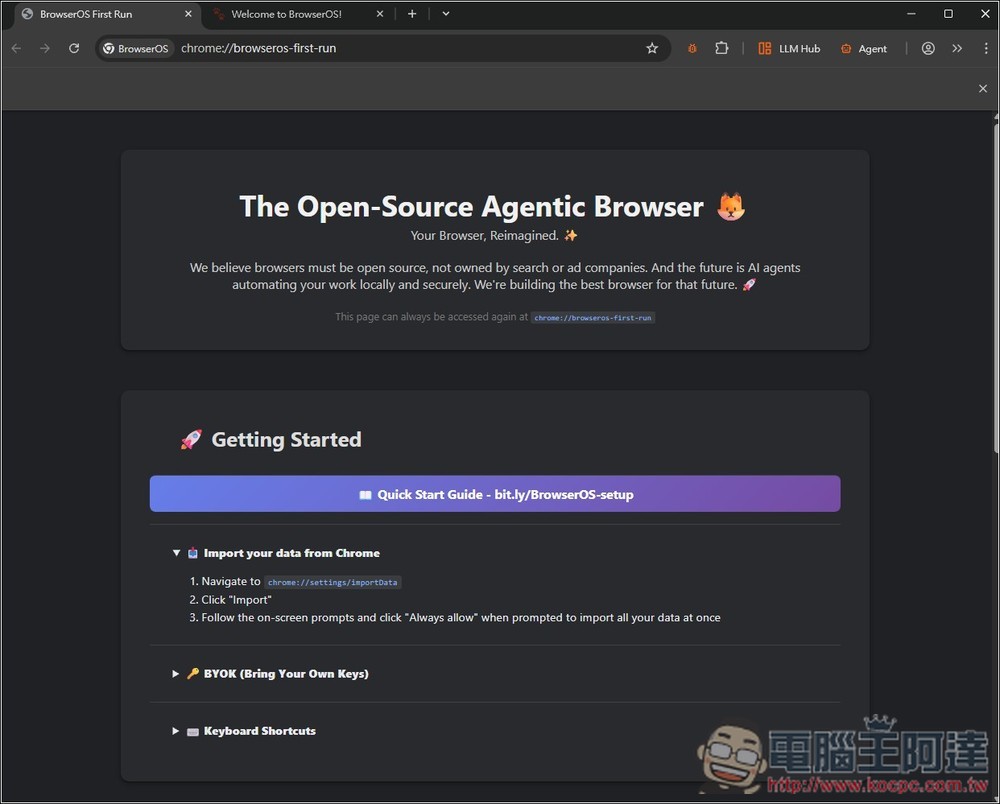
When you first open the BrowserOS browser, a start page will appear. If you want to import data from Chrome or Edge, click the URL to the right of Navigate in the first Import your data from Chrome option:
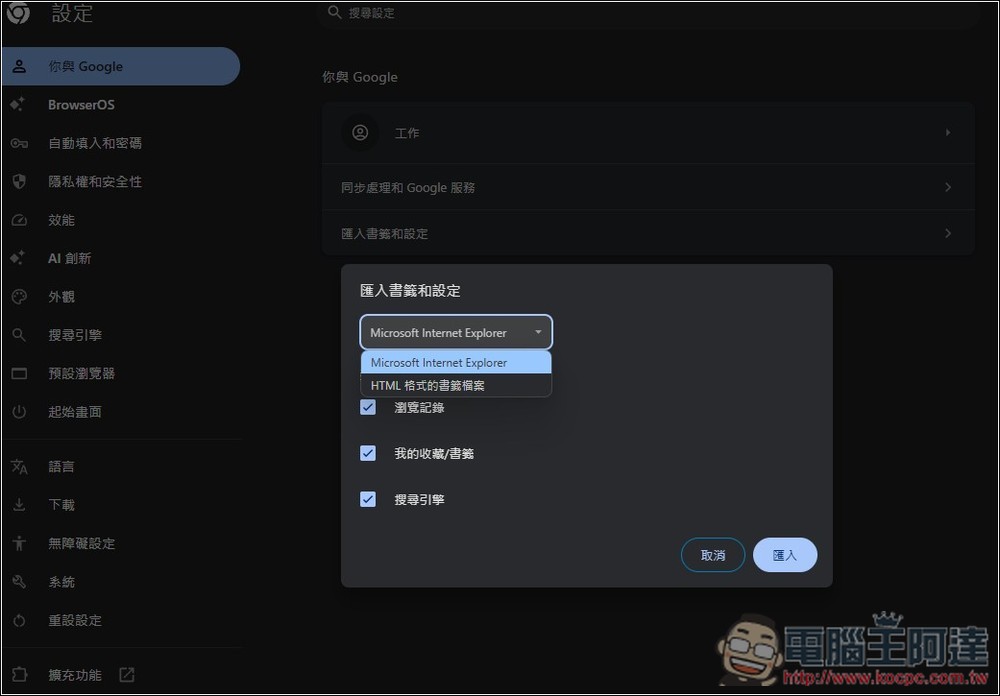
Then you’ll enter the settings, allowing you to import bookmarks and settings:
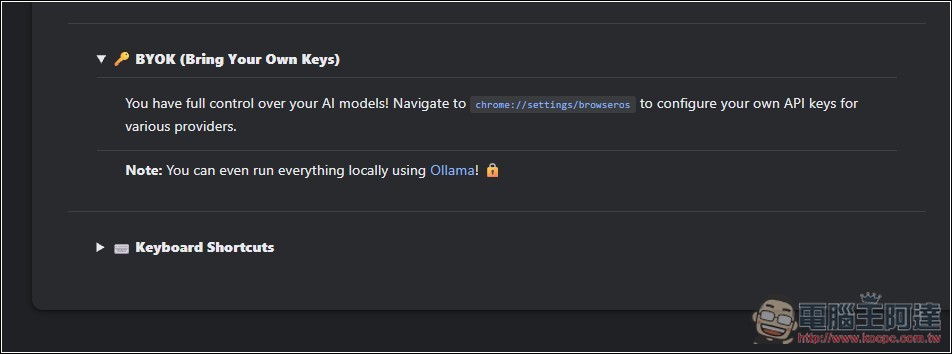
The second BYOK is for setting up the AI model. Click the URL above:
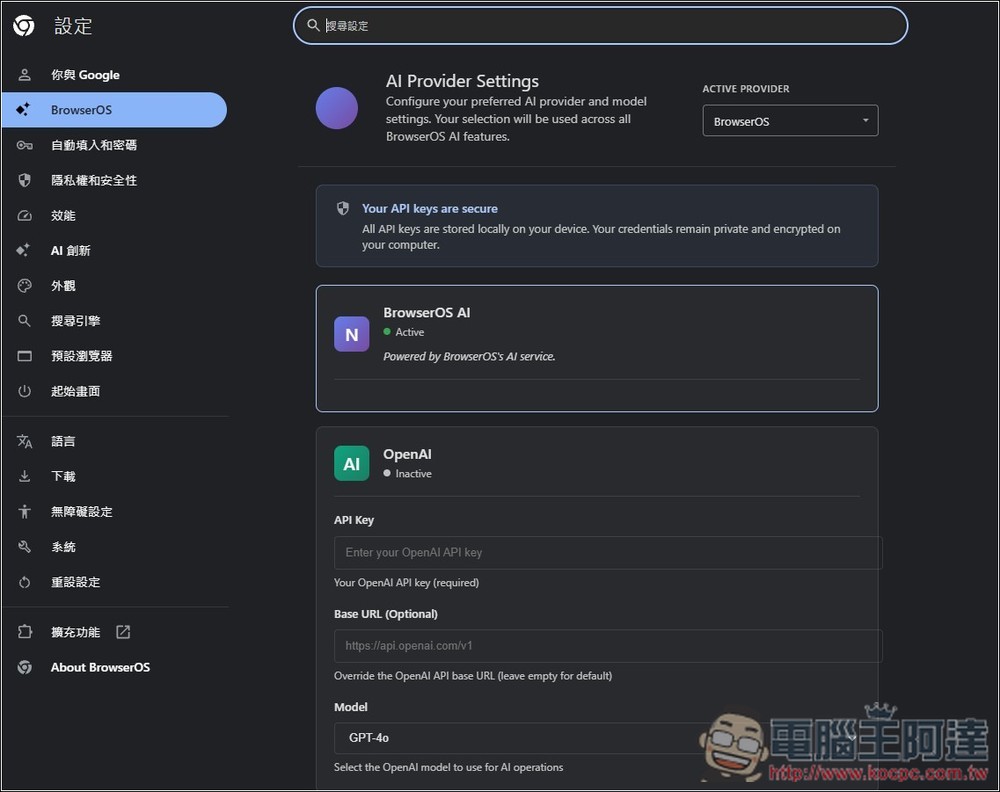
You’ll land on this page, which is the AI provider settings. The default is BrowserOS AI, and below are other AI services you can choose from:
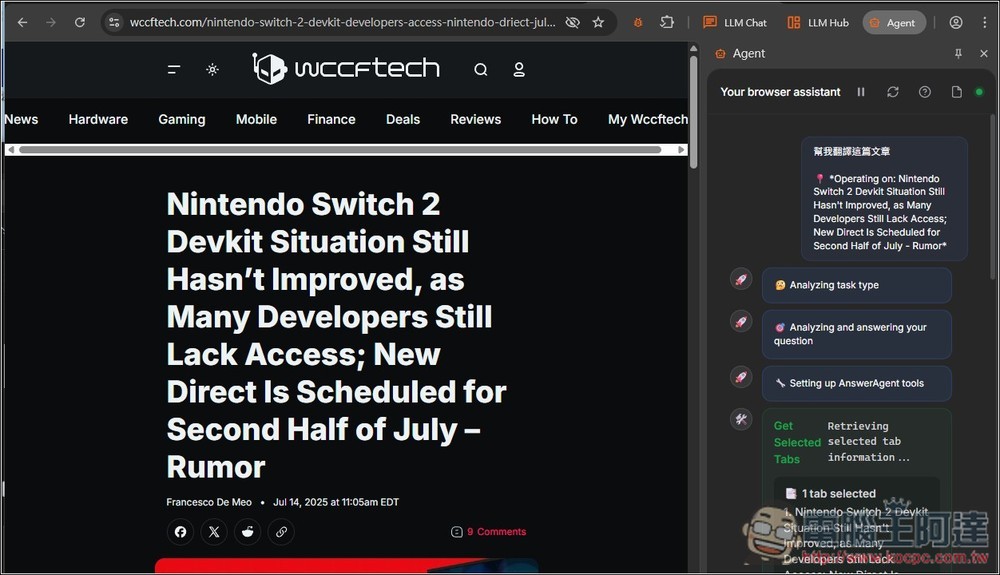
Using AI is very simple. For basic chat, just go to any page — for example, let me open an English news article at random — then click the Agent button in the top right corner, and a chat panel will slide open on the side. From there, you can give the AI your request. I asked it to help translate the article, and BrowserOS AI started executing the task and calling up the appropriate tools.
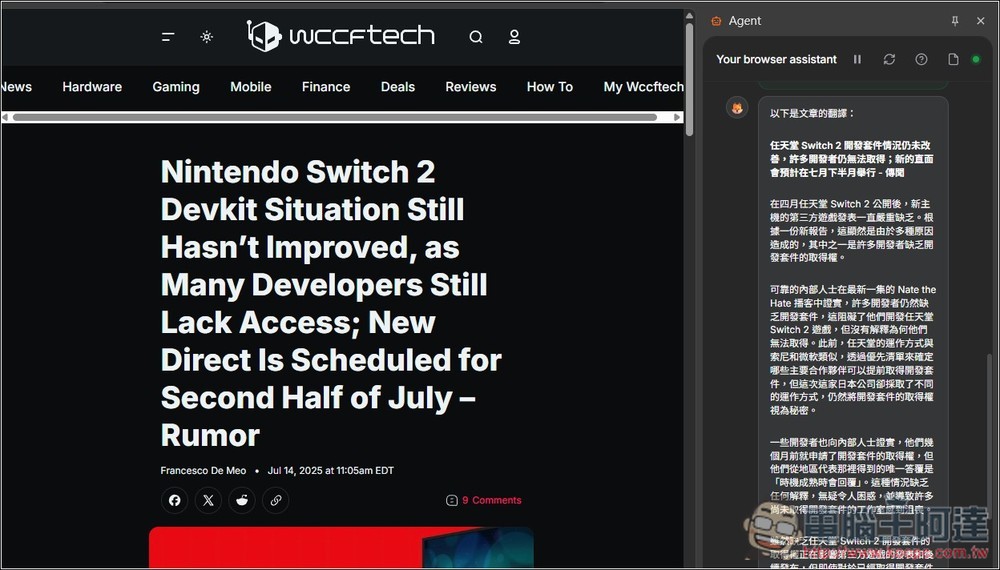
Then you can get the answer, which is the translation I requested.
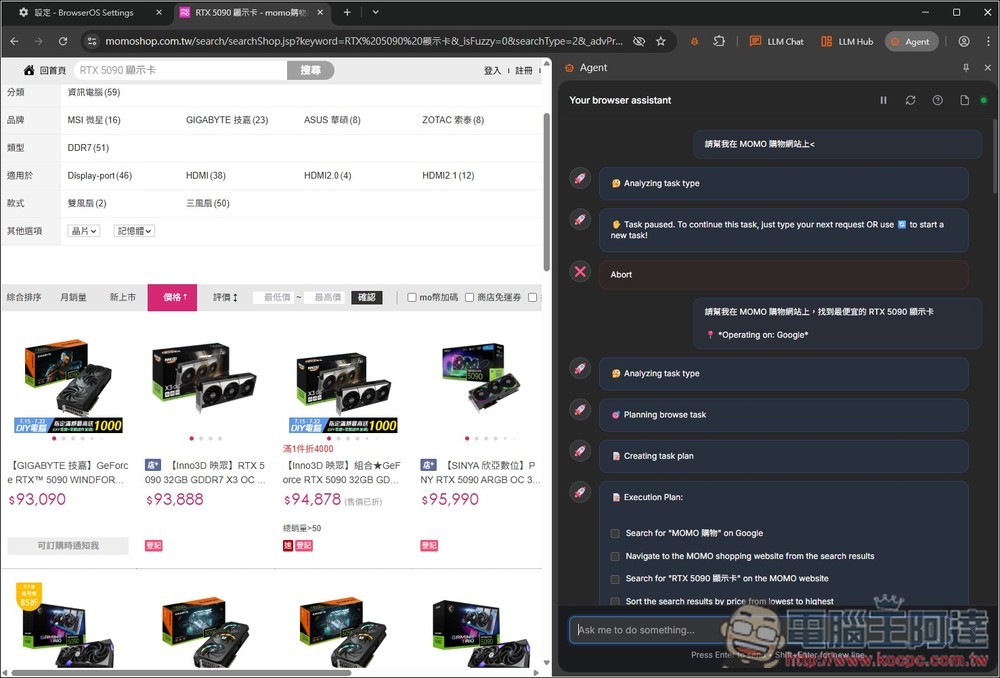
AI agent automated task operations work the same way—you just give it a task in the Agent chat. In the image below, I asked it to go to PCHome24 and search for the RTX 5090 graphics card:
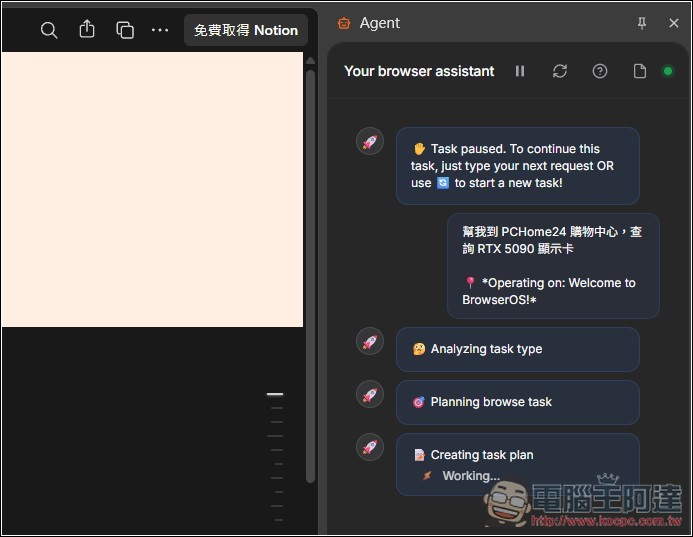
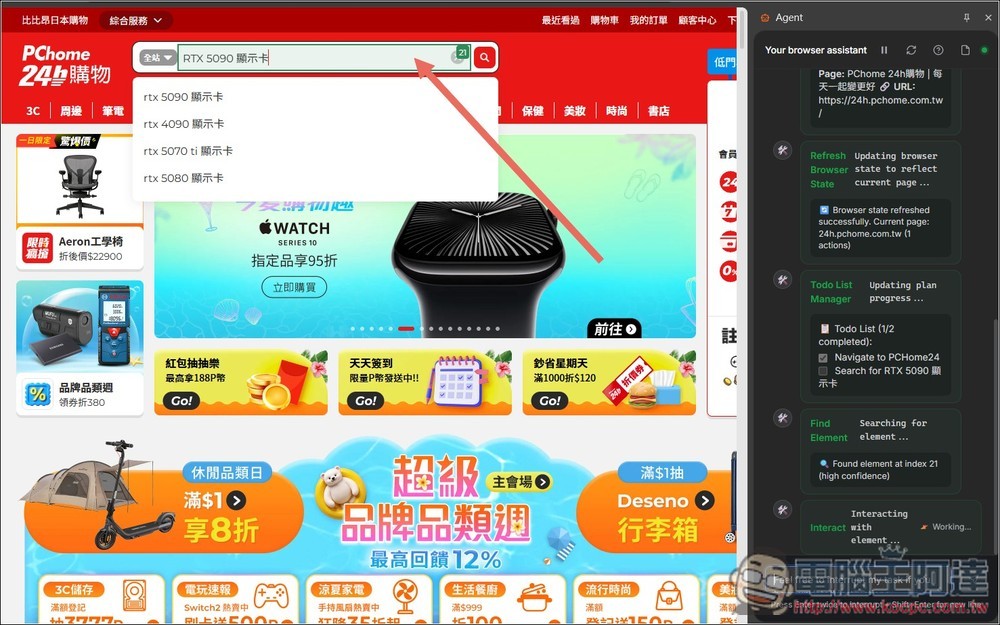
Once you hand off the task, you can sit back and relax. You’ll see the AI automatically operating the browser. In my case, it opens PChome24h shopping, finds the search box, and searches for the RTX 5090 graphics card. The screen shows its actions in real time.
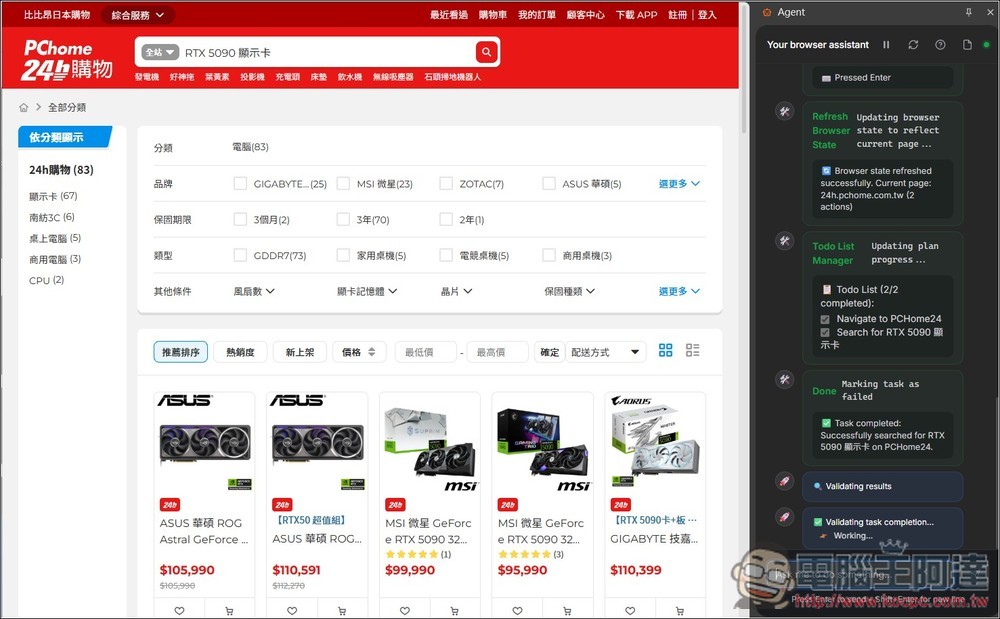
Complete the task I requested:
AI chatbots and AI agents are capable of many things, so you can go and play around with them yourselves.
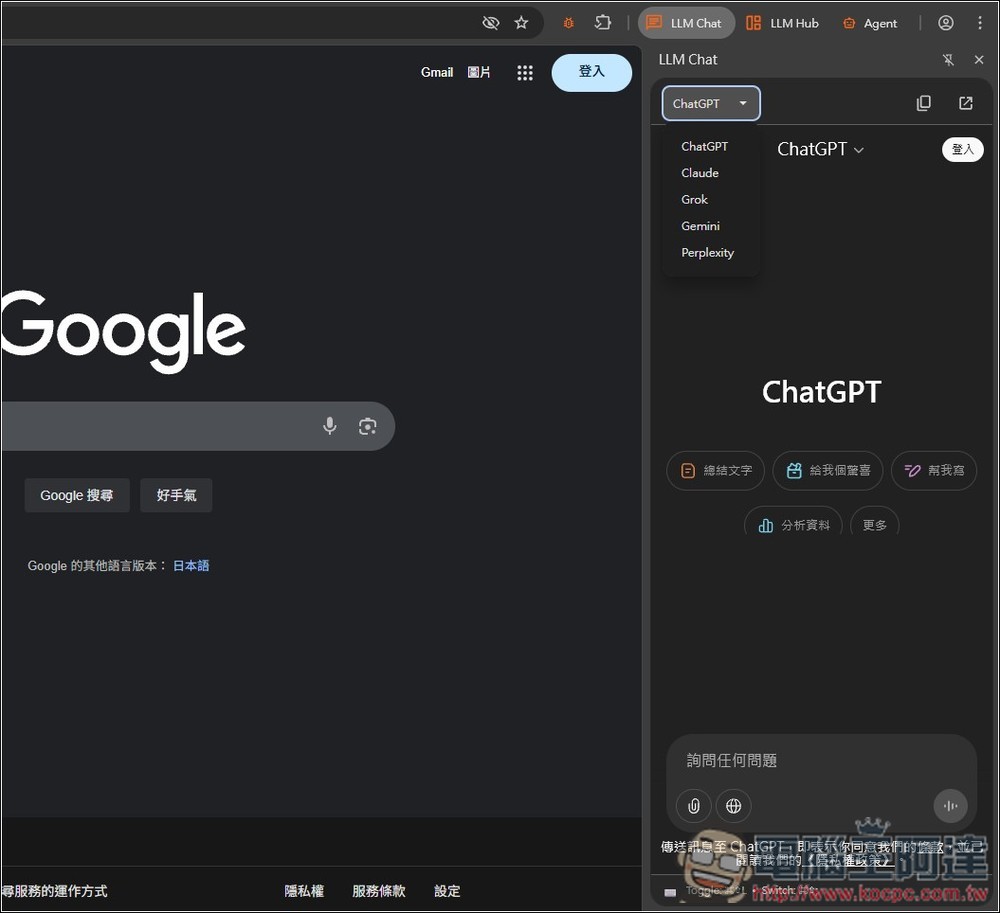
LLM Chat, on the other hand, opens well-known AI services in the sidebar, supporting ChatGPT, Claude, Grok, Gemini, and Perplexity for quick use, but it doesn’t support reading the content of the currently open webpage:
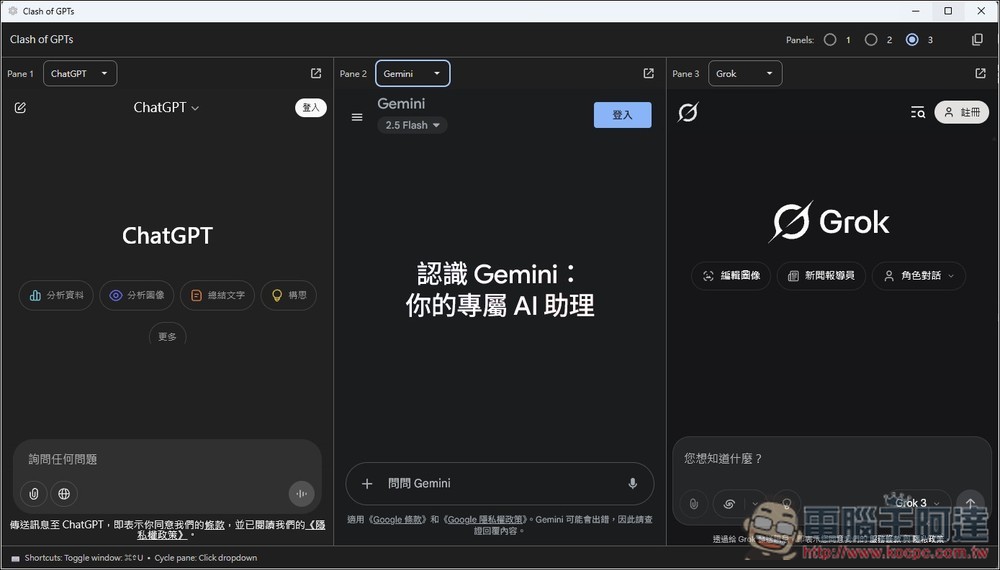
LLM Hub can open up to 3 AI chat services at once, letting you quickly compare answers from different AIs:
How to integrate local Ollama models
For those who care about their data, they can switch to integrating models downloaded via Ollama, but not all of them are supported. Even if they are supported, you have to set up the tools used for each requirement yourself, which is quite difficult. This is only recommended for advanced users, or for those willing to spend time researching.
Additionally, the models used all need to be 10B or above, which means your graphics card memory should be at least 16GB for better performance; 12GB will run very slowly.
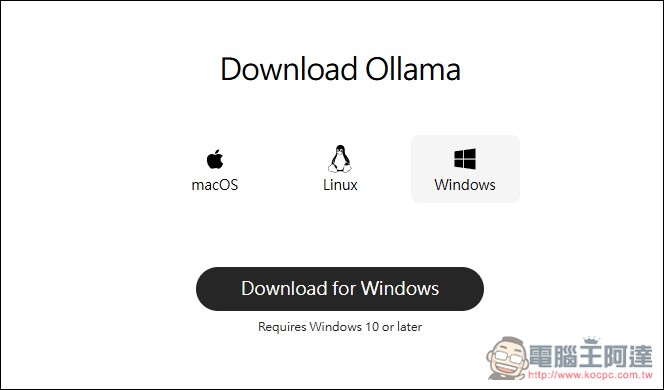
First, your computer must have OllamaFor those who don’t have it, you can download the installation file from the official website:
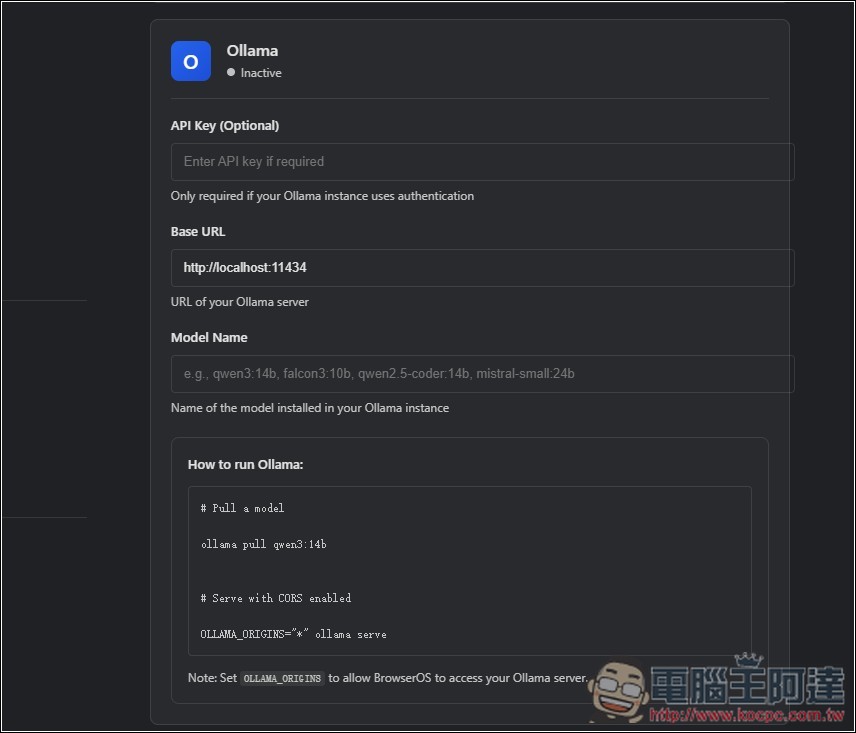
Ollama is right below in the BrowserOS settings—you basically just need to fill in the Model Name. The currently supported models are qwen3:14b, falcon3:10b, qwen2.5-coder:14b, and mistral-small:24b. Also, the “How to run Ollama” section below will come in handy, so you might want to jot it down.
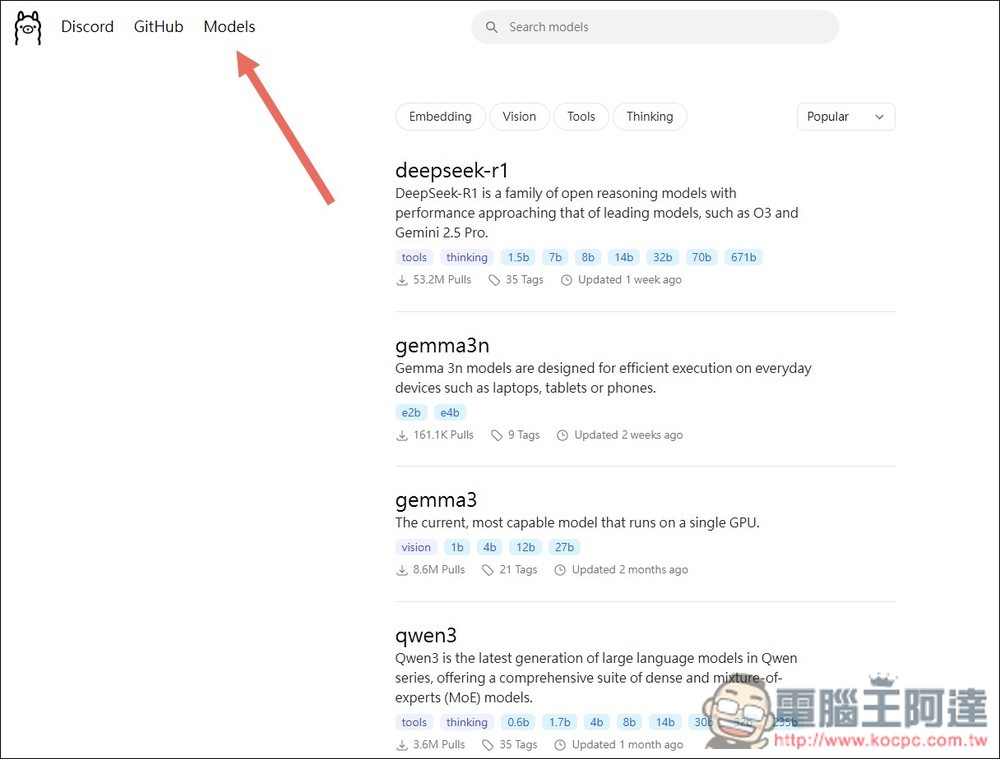
Downloading models with Ollama isn’t difficult either. First, go to the model list on the official website and find the model you want to use. Taking qwen3 as an example:
After entering the inner page, all downloadable qwen3 models will be listed. I downloaded qwen3:14b. At the top right is the command for installing the model with ollama, but since I downloaded 14b, I need to change it to ollama run qwen3:14b:
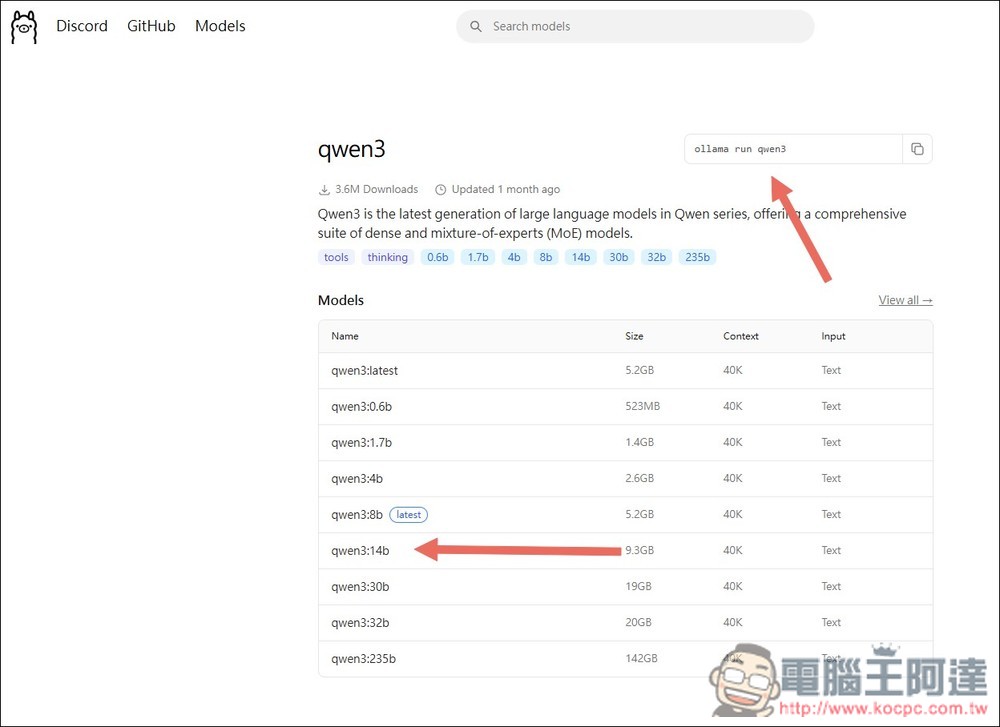
Copy the command, open Command Prompt (Windows) or Terminal (Mac), paste the command and press Enter.
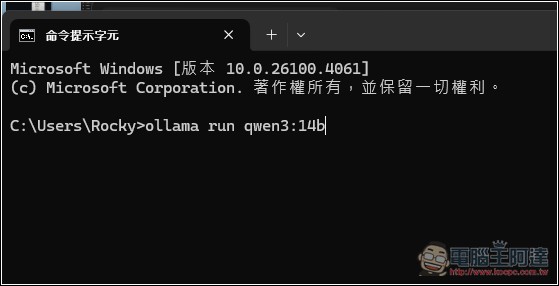
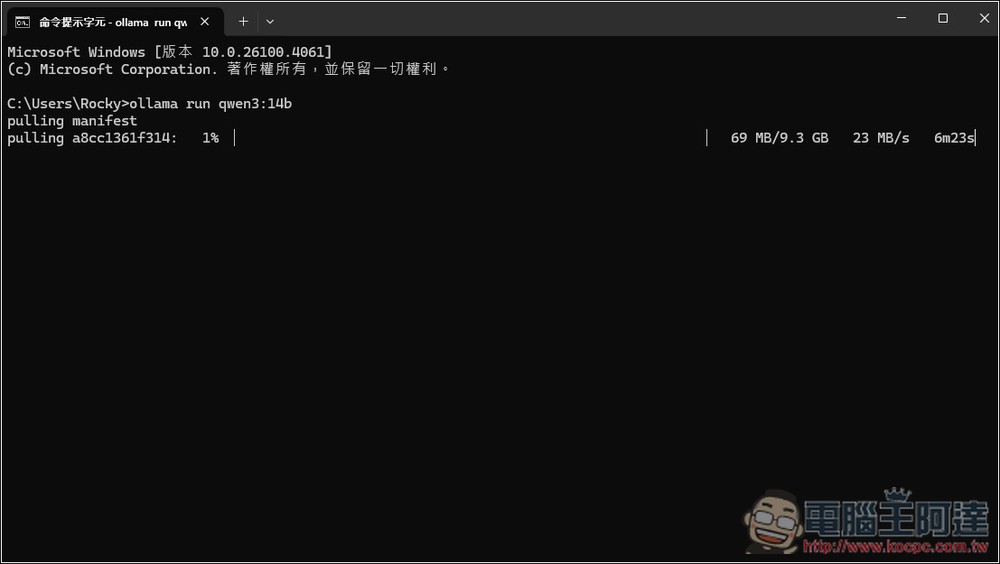
Ollama will start downloading, just wait for it to finish:
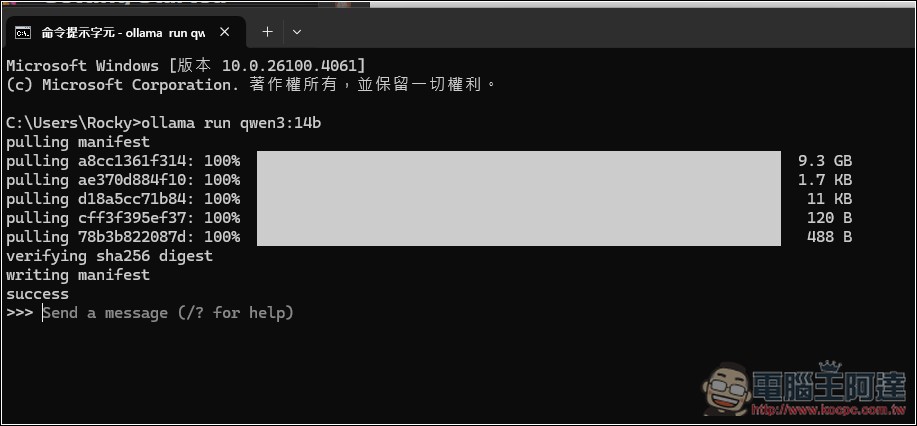
When the input changes to ‘Send a message’, it means the download is complete:
Return to the BrowserOS settings page and enter the model name. I entered qwen3:14b:
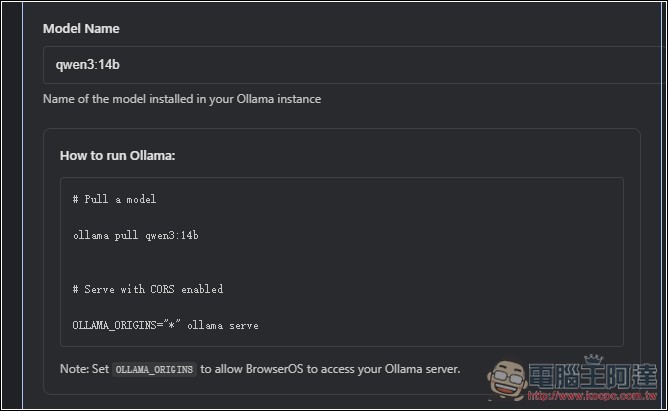
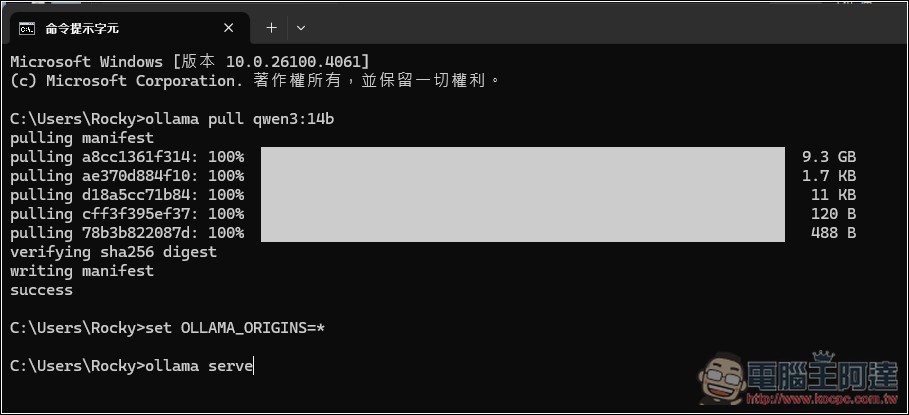
Next, open Command Prompt again and type ollama pull qwen3:14b (Remember to change the model name to the one you’re using), then input… set OLLAMA_ORIGINS=*and finally, ollama serve:
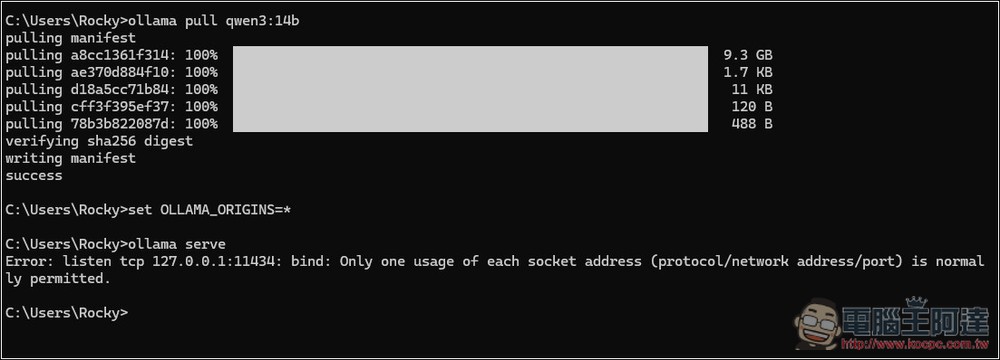
If you see an ‘Error’ message, it means Ollama is already running, so you need to close it first and then enter the command again.
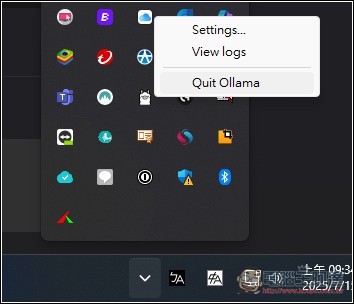
For Windows, open the menu at the bottom right, find the Ollama icon and open its right-click menu, then click Quit Ollama:
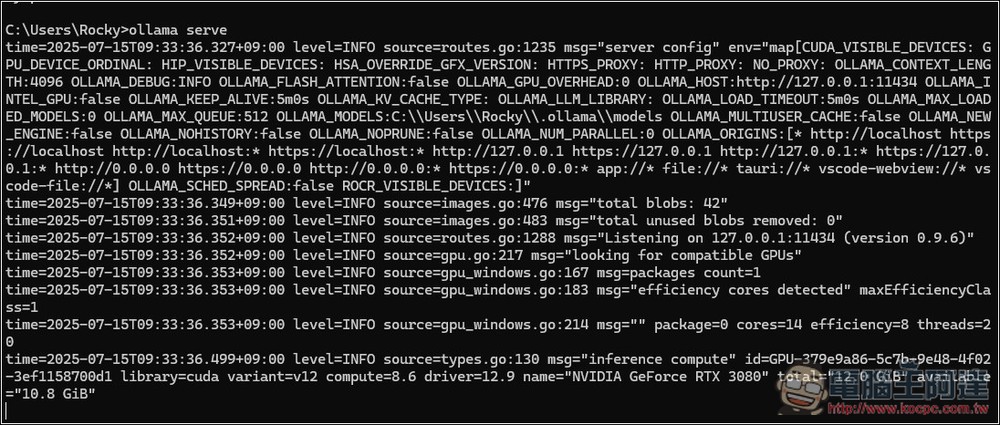
Then type ollama serve again. Only when this long string of text appears does it mean the activation was successful:
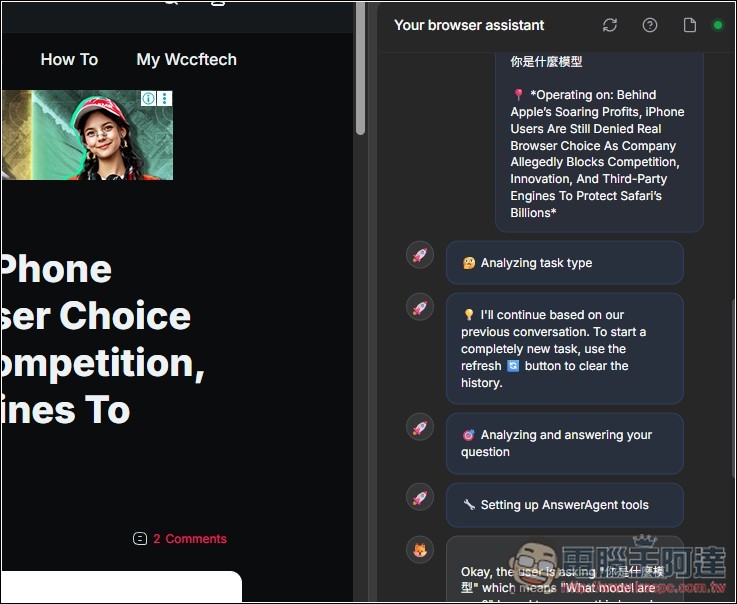
Then back to the BrowserOS test, I asked the AI: what model are you?
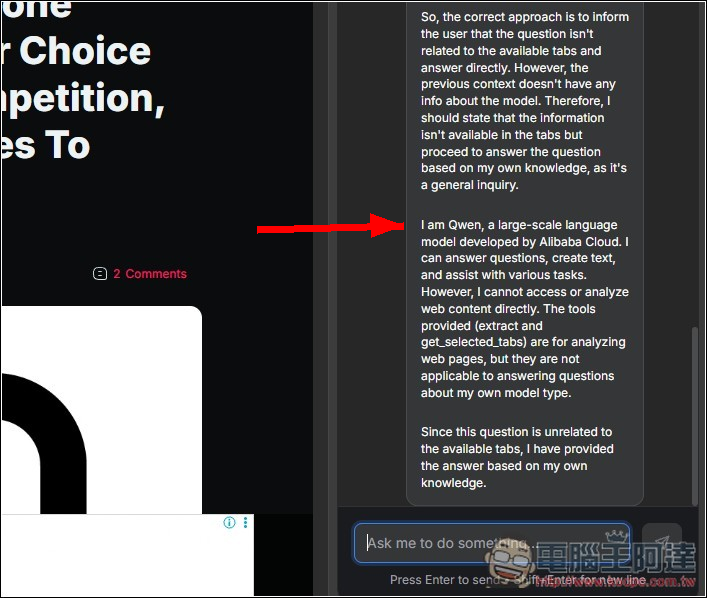
AI answers I am Qwen, representing success:
Source: KOCPC Chinese