


Now it seems that Google is ready to solve the experience gap of browsing PDFs in Chrome on Android. It was discovered that relevant functions have been prepared. It is estimated that it will be officially pushed to users after subsequent Android updates. Prior to this, foreign media who discovered this feature shared how to enable it first. Continue reading Chrome for Android can now support direct PDF preview. This article teaches you how to open it first to report the content.
▲Image source: Android Authority
Chrome for Android can now support direct PDF preview. This article teaches you how to open it first.
When it comes to the experience of using Chrome on mobile devices, although many parts copy the functions of the desktop version. Allowing people to switch between desktop and mobile systems more seamlessly. But in fact, there are still many situations that were intuitively possible on the desktop system, but became difficult to use when coming to the Android version of Chrome.
▲Image source: Android Authority
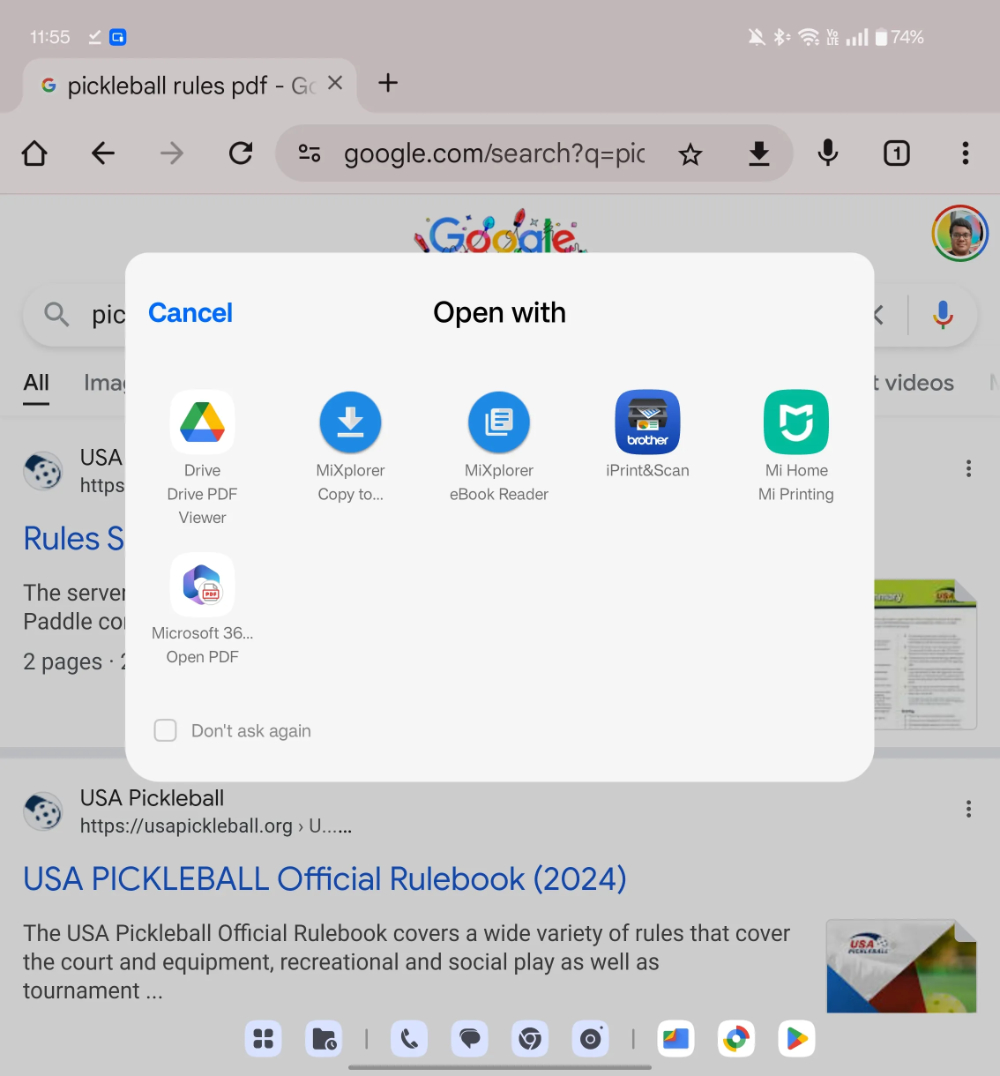
It’s like a very simple experience of opening a PDF file on a web page. When you come to the Android version, a bunch of third-party apps will pop up for you to choose from, which is a bit confusing. And because this cannot be supported natively, some mobile phone brands simply build in some PDF browsing functions to meet the possible needs of users.
Now it seems that Google is ready to solve the experience gap of browsing PDFs in Chrome on Android. It was discovered that relevant functions have been prepared. It is estimated that it will be officially pushed to users after a subsequent Android update – although we don’t know when that will happen.
Prior to this, foreign media who discovered this feature shared how to enable it first. Friends who often need to preview PDFs should consider opening them in advance.
How to turn on Chrome’s direct PDF preview function first
I believe everyone has already guessed how to activate this feature. That’s right, it’s the Flag function of Chrome for Android – available through chrome://flags Go to.
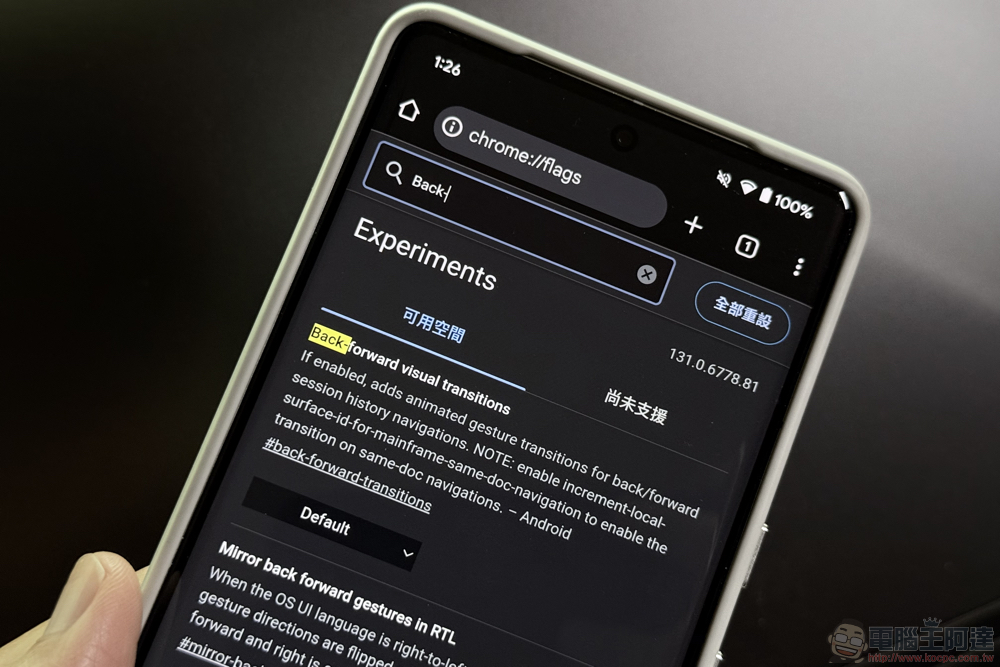
According to foreign media reports, as long as you find “Open PDF Inline on Android” and “Open PDF Inline on Android pre-V” in the Flag menu, the Android version of Chrome browser can get the new PDF quick preview function first.
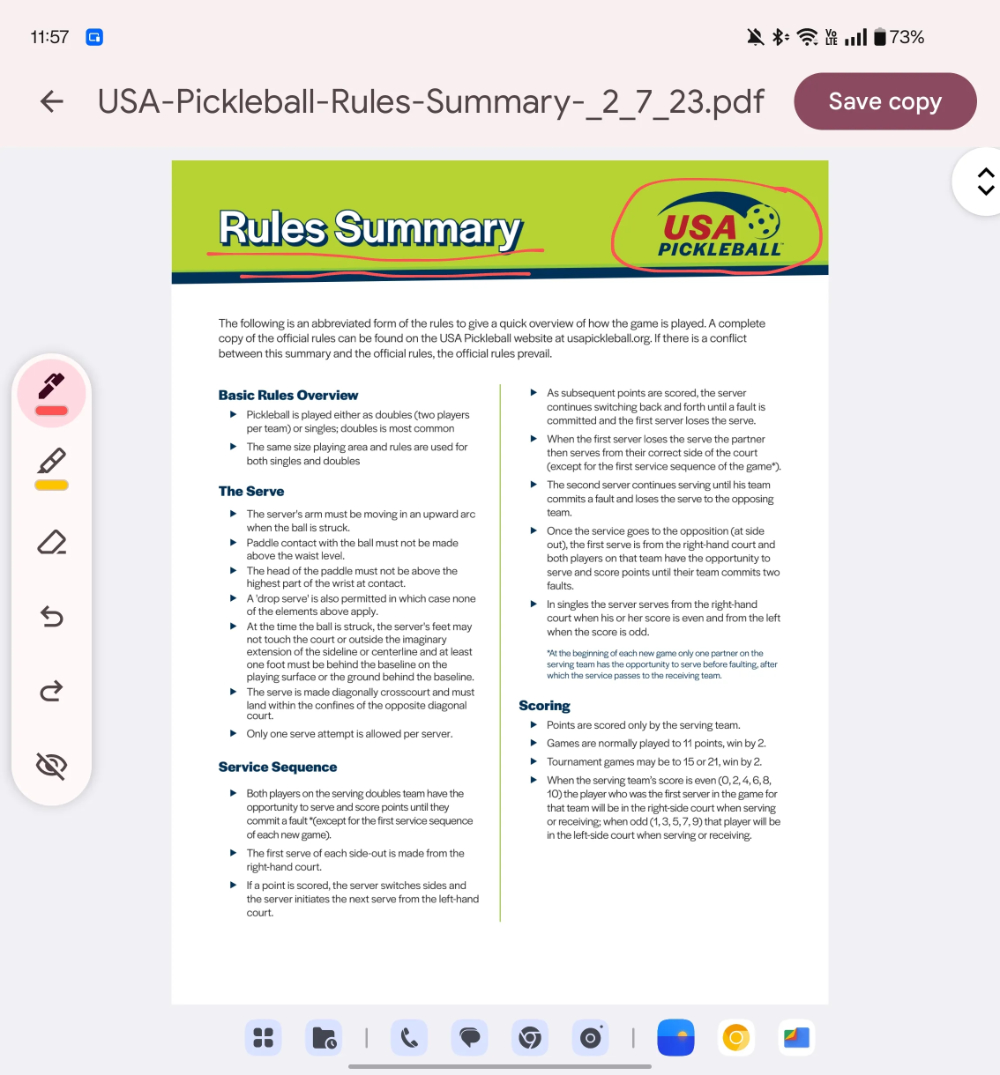
As can be seen from the usage experience of foreign media, it originally also brought out the “Open with” extended menu experience. It has become an experience very close to that of a desktop system – a full PDF page will be opened directly; on the right side, there will also be many small PDF-related functions, such as: chat ratio, eraser, etc.
Regardless of whether you have edited it or not, you can perform the next step of saving and other operations through Save copy in the upper right corner.
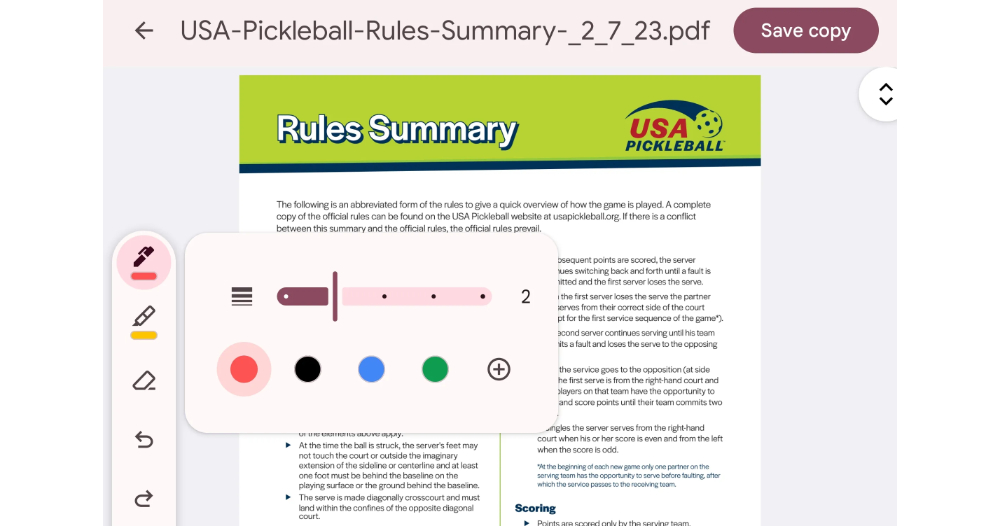
▲Image source: Android Authority
Quote sources:Android Authority|
Further reading:

Source: KOCPC Chinese