


Sometimes when we are out for a whole day without carrying a power bank or having a charging environment, and we often have to operate our phones from time to time, we inevitably worry that the power of the iPhone cannot sustain a full day of use. Instead of waiting until the battery level drops below 20% before activating the iPhone’s low-power mode, is there a way to enable it to automatically turn on at a certain battery level in advance? Today I’m going to share with you how to use a “shortcut” to automatically turn on iPhone’s low power mode at a specified battery level, which not only protects the lithium battery but also extends battery life.
iPhone low power mode automatically turns on for teaching|Enter power saving mode in advance to protect battery and extend battery life
When you want your iPhone’s battery to last longer, or when it’s about to run out of power, “low power mode” is your savior. Turning on Low Power Mode will help your battery last longer by pausing or reducing certain features, such as background activity, automatic downloads, and visual effects. Simply put, turning on “Low Power Mode” can reduce the power consumption of your iPhone when the battery power is low.
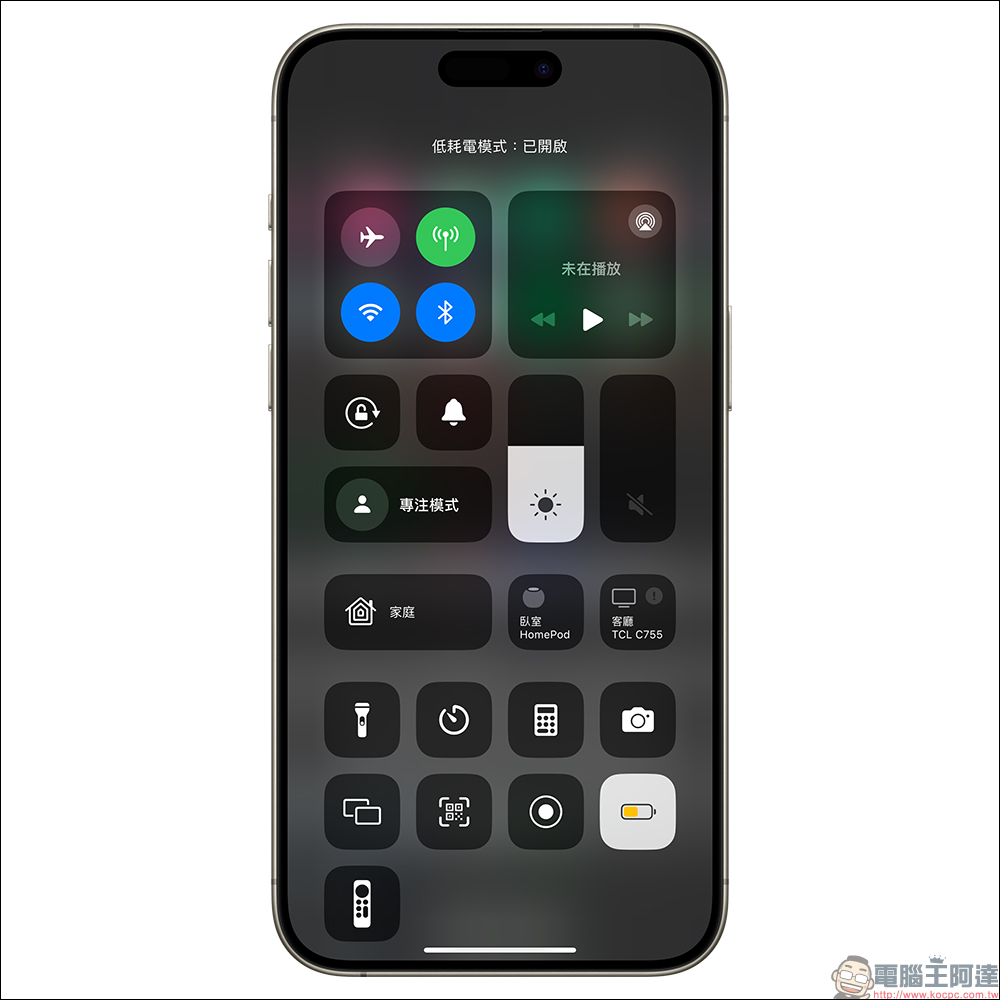
In the past, to turn on this feature, you needed to go to “Control Center” or “Settings” → “Battery” and then turn on “Low Power Mode”. So is there any way to enable “low power consumption mode” to automatically turn on? Next, I would like to share with you how to use the “automatic operation” function of “Shortcut” to set the iPhone to automatically turn on low power consumption mode when the battery power is lower than a certain state. This not only reduces power consumption and protects battery health, but also reminds yourself that the iPhone is ready to be charged.
How to automatically turn on “low power consumption mode” in advance?
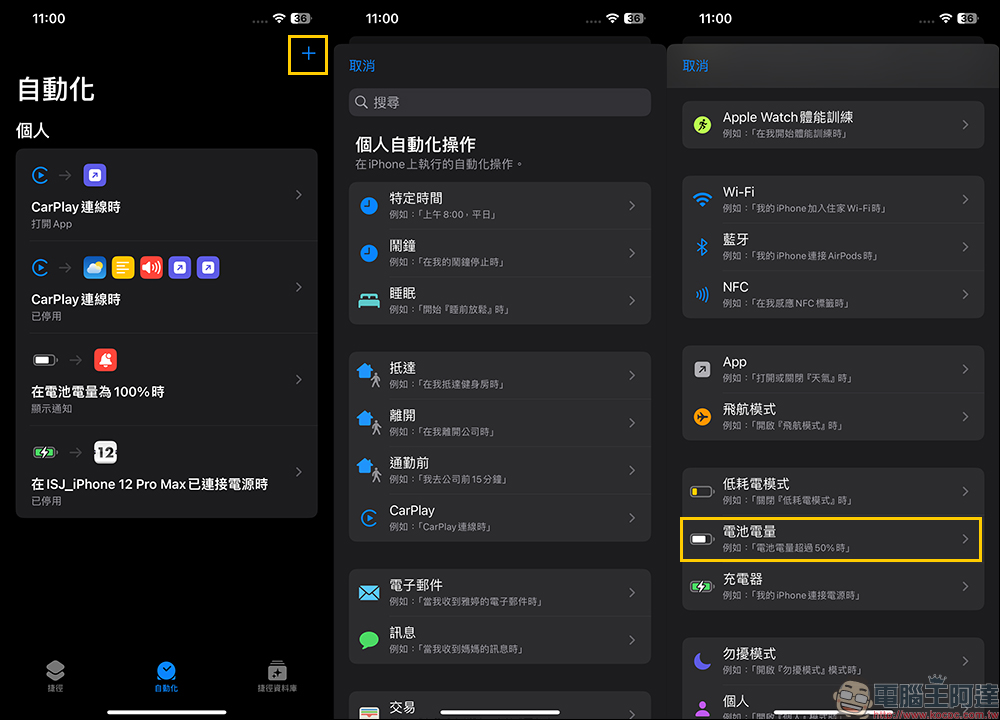
First, you need to confirm that you have downloaded “shortcut” APP, then open it and find “Automation”, find “Battery Level” on the automation page and go to the next step:
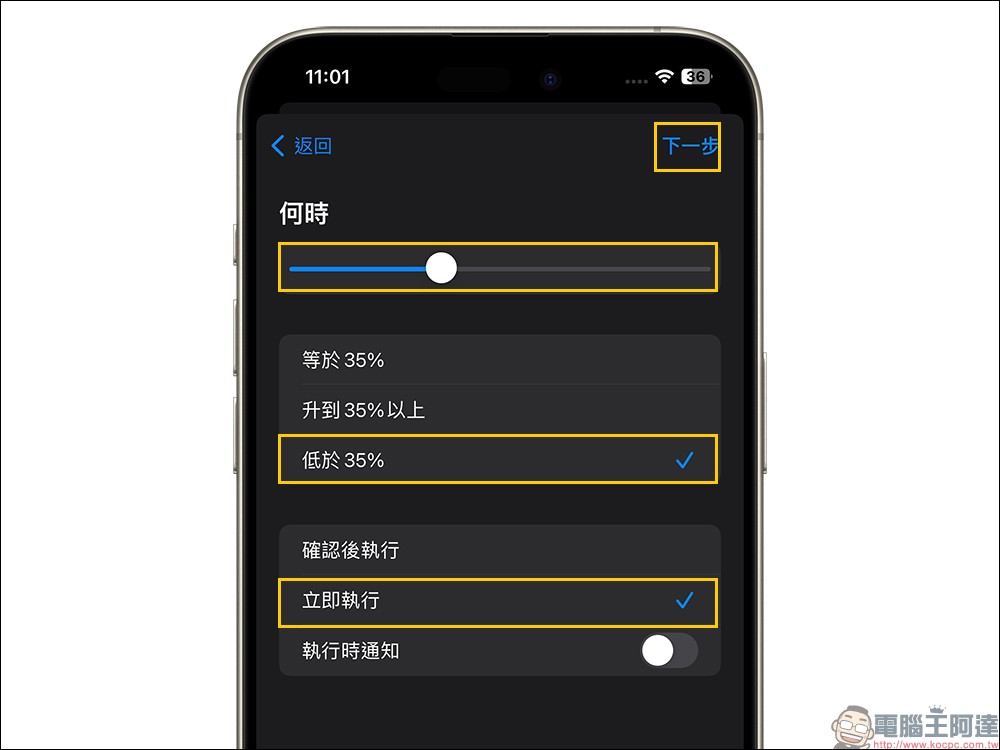
Next, set how much power is left to activate the low-power mode. In this part, it is recommended to set it to “less than 25%~35%” to evaluate your own usage adjustments. I would also like to add that the reason why this power setting is recommended is that charging the iPhone when the power is below 20% for a long time will also cause damage to the lithium battery, so setting it to at least 25% is more ideal. In addition, remember to check “Execute immediately” in the execution options and turn off “Notify when executing”.
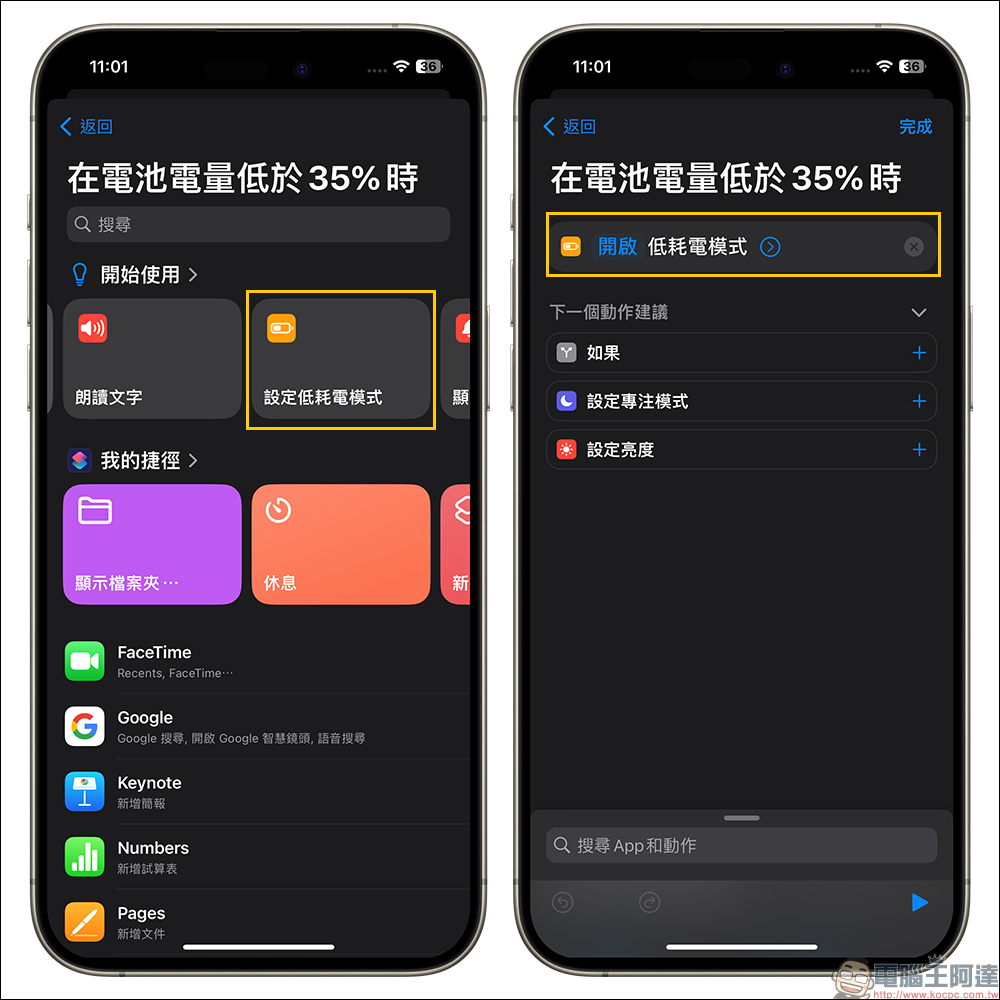
The next step is to select the action to be performed when the battery power is lower than the specified power. Here we find “Set Low Power Consumption Mode”:
Select “On/Off” in the “Turn on low power mode” operation, and then select “Show notifications” in the work command. The content of the notification display can be customized. This notification content will be displayed when the battery power is lower than the specified power and low power consumption mode is turned on. Finally, select “Done” to set it!
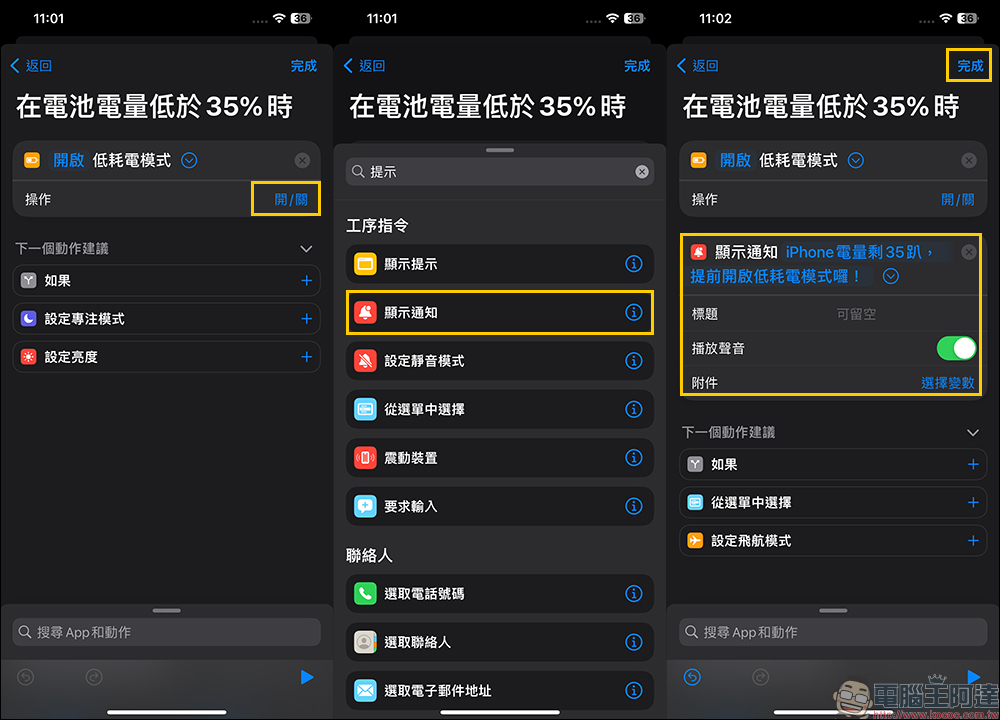
Take the iPhone’s battery power below 35% and the automatic operation to turn on the “low power mode” as an example. After that, every time the iPhone’s power is 34% left, the low power mode will be automatically turned on, allowing the iPhone to save power early and protect the iPhone’s battery when it is in a low power state.
Further reading:
Xiaomi Xiaomi 15 Pro is rumored to support “hundred-watt” wireless fast charging and be equipped with a 5400mAh battery

Source: KOCPC Chinese