


Although there are many on the internet AI The services are all free to use, but for those who care about privacy or don’t want their data uploaded, they’ll definitely still want to use local AI models. Local LLM apps are a good choice, but when you need to go online, you have to keep switching back and forth, which is a bit of a hassle. This article recommends a very useful browser called NativeMind.ExtensionIt can call locally downloaded LLM models via Ollama, letting you chat with AI directly in the browser’s sidebar without switching tabs. It even gives AI the ability to read web pages, meaning you no longer need to paste content to AI—just specify a webpage tab and start the conversation.

NativeMind Introduction and Usage Tutorial
NativeMind is an open-source Chrome extension that has been GitHub Share the source code online; those who need it can go and take a look themselves.
I tested that Microsoft Edge can also be installed and used, so basically any browser developed on the Chromium core should work, not just limited to Chrome.
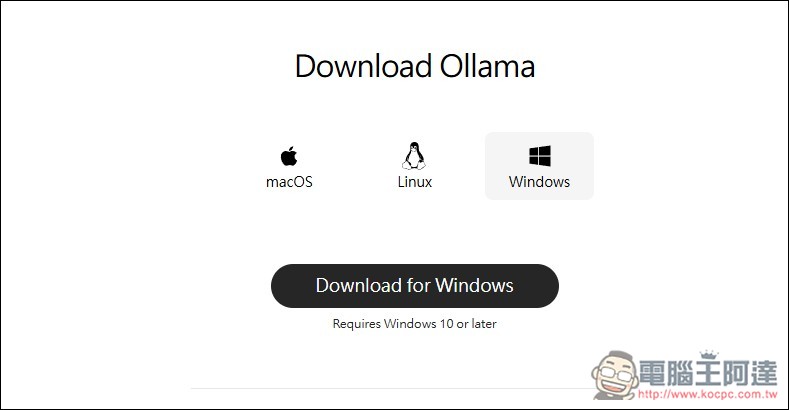
One thing to note is that NativeMind uses Ollama, so your computer must have Ollama installed in order to call LLM models. Installing Ollama is very simple—just go toDownload the installer from the official website.After that, keep clicking Next until the installation is complete:
Ollama is a command-line tool; chatting, model management, and so on are all done through the command prompt (terminal). For some users, this might seem difficult, but it’s actually very simple. Later on, I’ll show you how to download LLM models and what the common Ollama commands are. First, let’s get NativeMind.
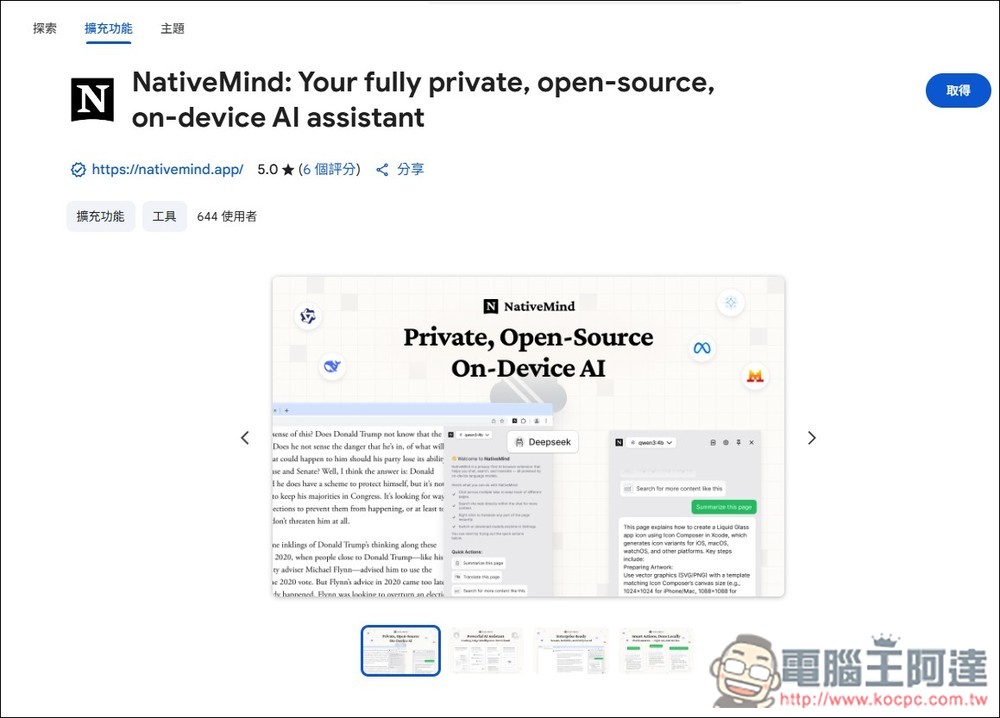
After clicking the link above to go to NativeMind’s Chrome Web Store page, click “Get” in the top right corner:
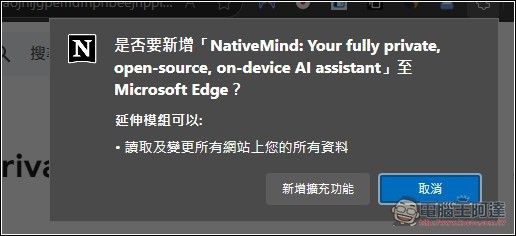
A similar message will pop up, click “Add Extension”:
After installation, remember to pin NativeMind to the icon bar in the top-right corner. When you want to use it later, click the extension and the sidebar will appear:

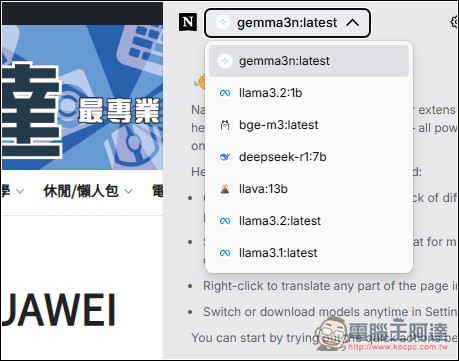
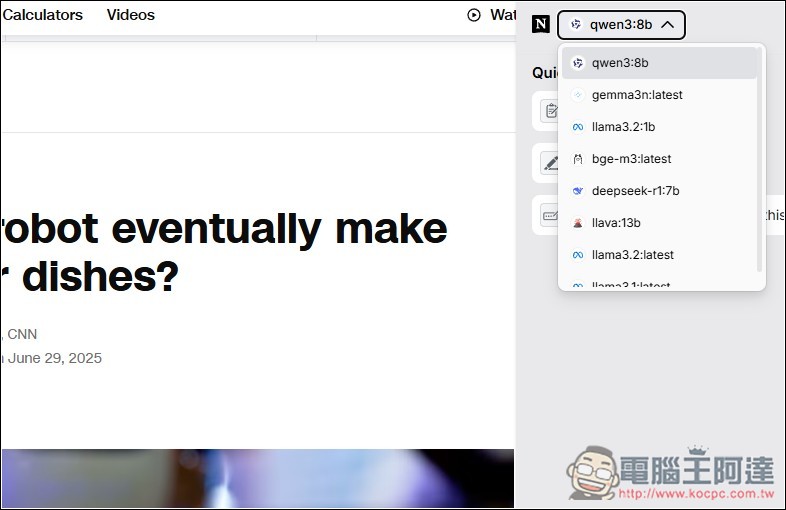
If your Ollama already has LLM models downloaded, you can select the model you want to use from the top menu, like I have downloaded many:
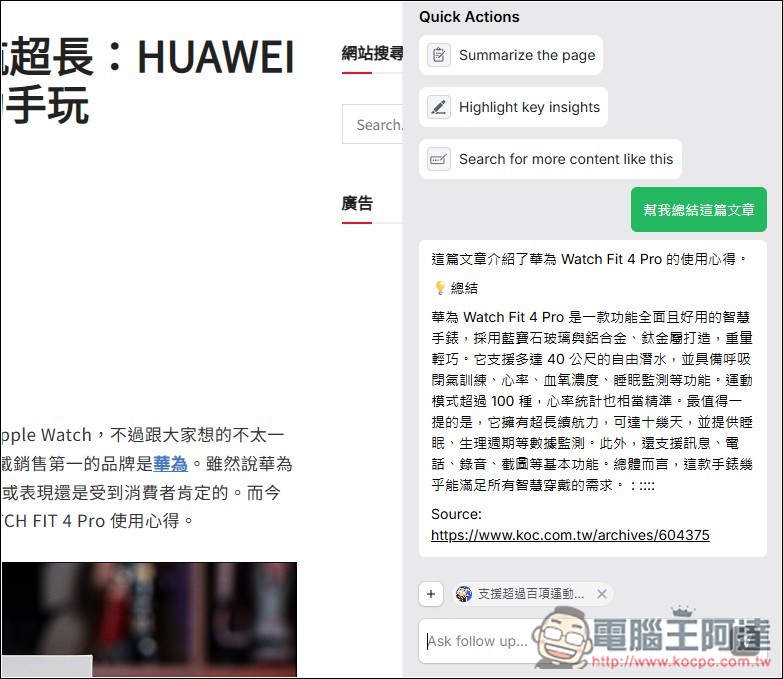
After making your selection, you can start chatting. NativeMind will read the current webpage by default, so if you want answers related to this page, you can simply ask the AI:
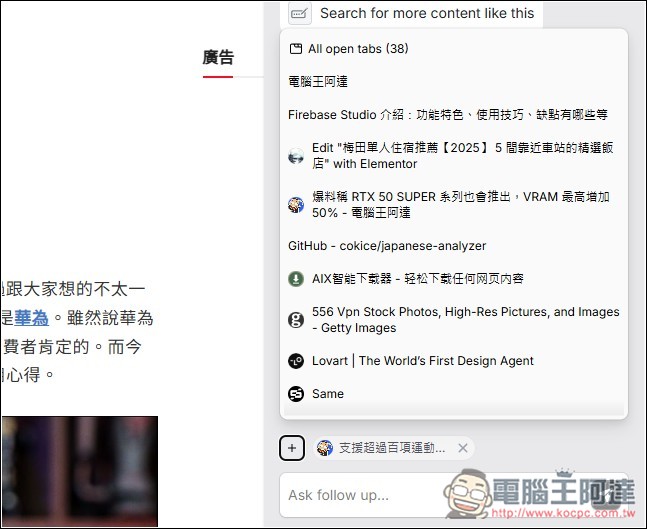
Pressing the + next to it lets you switch to other tabs you already have open.
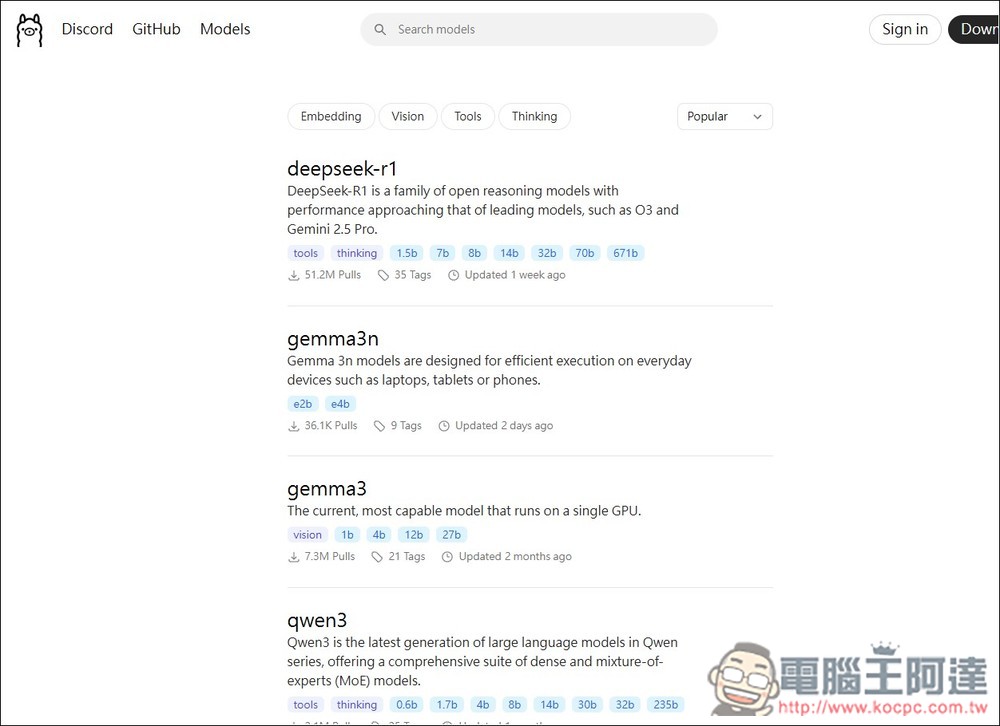
To confirm that it’s really calling the local Ollama downloaded LLM model, I downloaded a model that isn’t installed yet, qwen3,Here you can find the menu of installable Ollama models.:
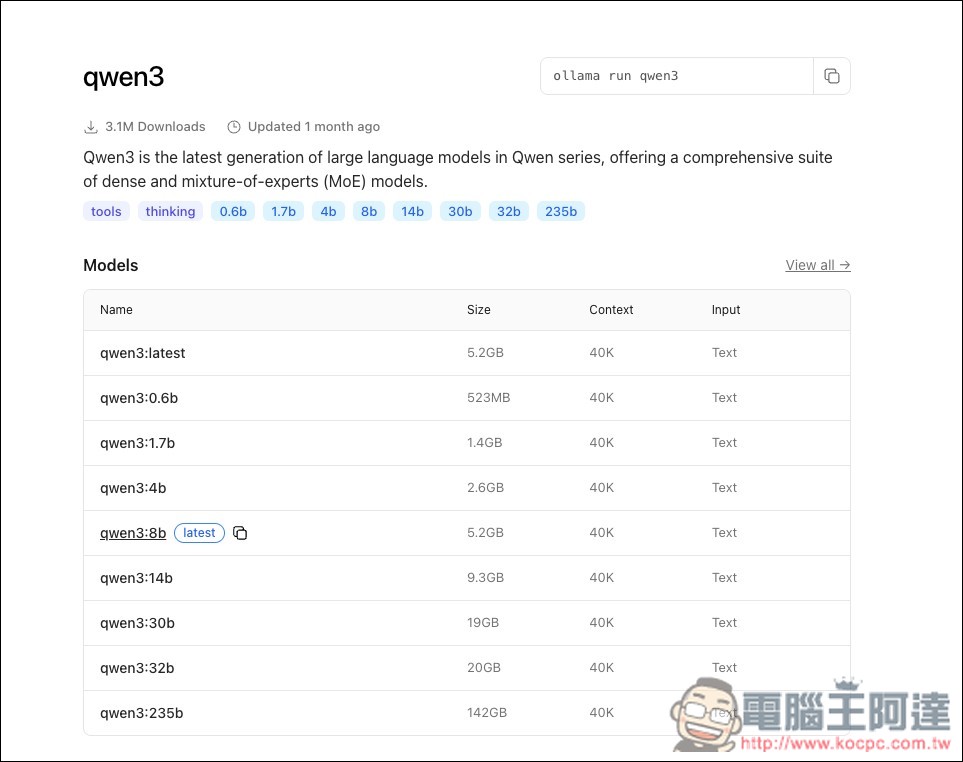
qwen3 has multiple versions. I downloaded qwen3:8b. When you hover your mouse over the right side of the model name, a copy button appears — click it to quickly copy:
Then open Command Prompt (terminal) and enter ollama run qwen3:8b (After “run” is the model name, just fill in the one you want to download), then it will start downloading:
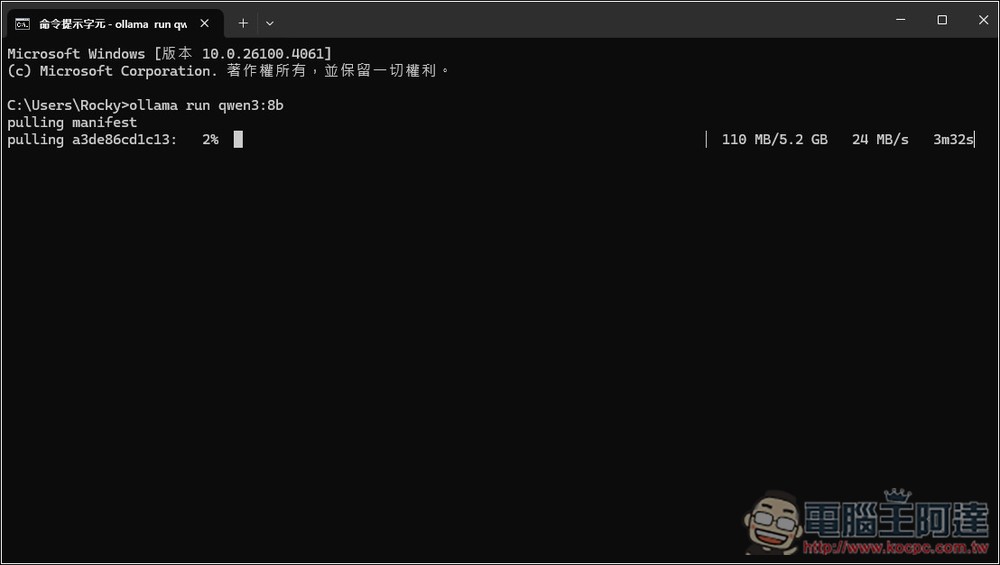
Once the download is complete, go back to the NativeMind extension and you’ll see the model in the menu (I downloaded qwen3:8b):
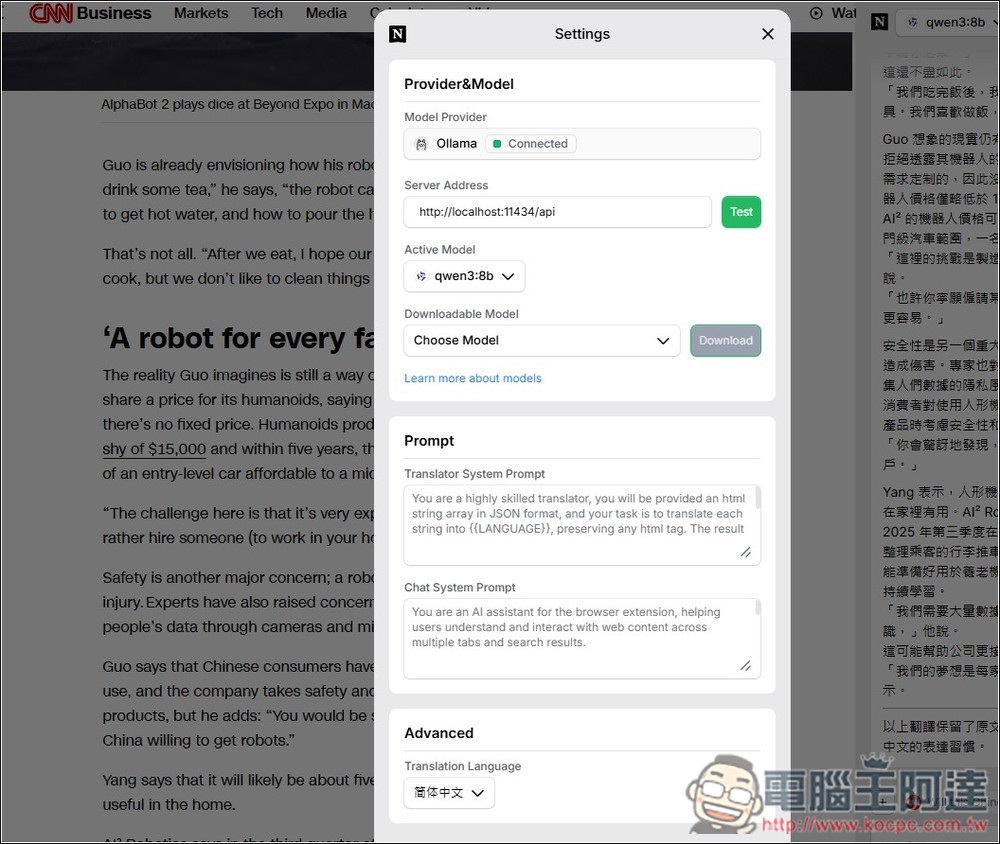
When reading foreign articles, you can ask AI to translate the entire content:

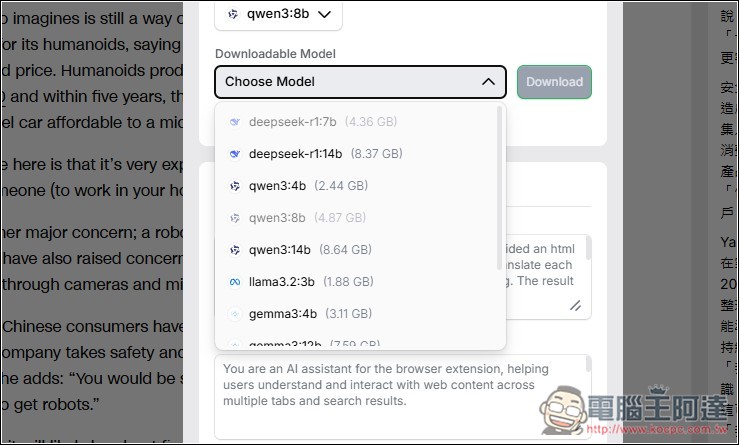
Additionally, in the settings, you can also download models (Downloadable Model), but not all models are listed. If you find the one you need, or if you find the command prompt inconvenient to use, you can also choose to download from here:
Most commonly used models have:
Below the settings, you can also set the Prompt, and those who need it can adjust it.
I also noticed that NativeMind doesn’t seem to have a feature for saving chat history. If you want to keep it, remember to back it up manually.
Source: KOCPC Chinese