


On Windows 11 computers, most users will set administrator rights and login passwords to prevent others from accessing the computer without their knowledge. However, if you want to protect sensitive files or folders on your computer, this alone is not enough. For those who need to protect a Windows folder from unauthorized prying eyes, setting a password for the folder is the safest option. Unfortunately, there is no direct option in Windows that allows you to set a password for a folder on your computer, but you can use some roundabout workarounds.
6 Ways to Password Protect Folders in Windows 11
After setting up password protection, you don’t have to worry about someone accessing the files you want to keep private (unless everyone knows your password). In this tutorial, we will discuss the 6 best ways to set up password-protected folders in Windows 11, so that you can lock them easily and worry-free.
Method 1: Password protect a folder with OneDrive
OneDrive, Microsoft’s cloud storage service application, is pre-installed on every Windows computer. There is an option called “Personal Vault” in the application that allows you to customize password-protected files. This password-protected folder can hold up to three files, but if you have a Microsoft 365 subscription, you can use this feature without any restrictions. Since it includes additional features to prevent unauthorized access to folders, this is probably the best method for protecting private folders on your Windows PC. To password-protect folders on Windows 11 using OneDrive Personal Vault, follow the steps below:
- Although the OneDrive app comes preloaded on Windows computers, if you don’t have it, you can download and install it from the Microsoft Store.
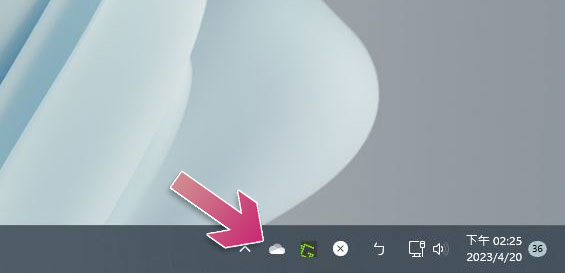
- Once installed, select it from the system tray or search for OneDrive and click to activate it.
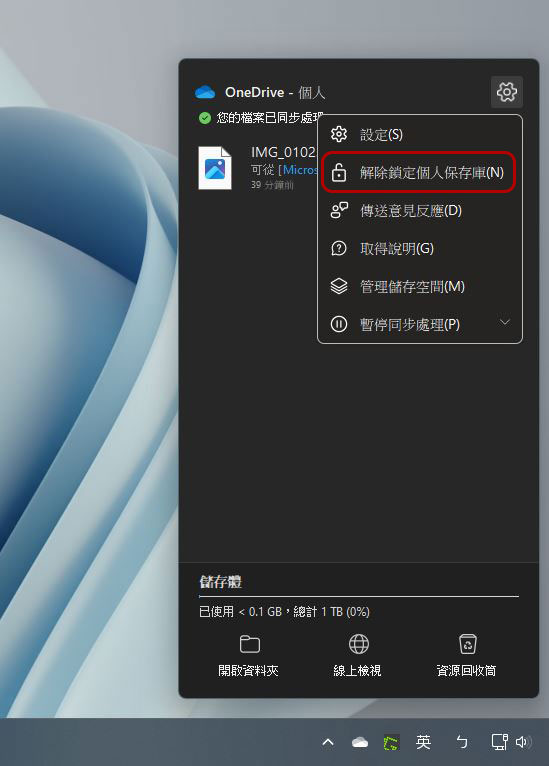
- Click the gear icon in the upper right corner of the expanded OneDrive panel and select “Unlock Personal Vault”.
- You will then be prompted to enter a two-factor authentication code sent to your email account or phone number to set up your vault, please do this and unlock your personal vault.
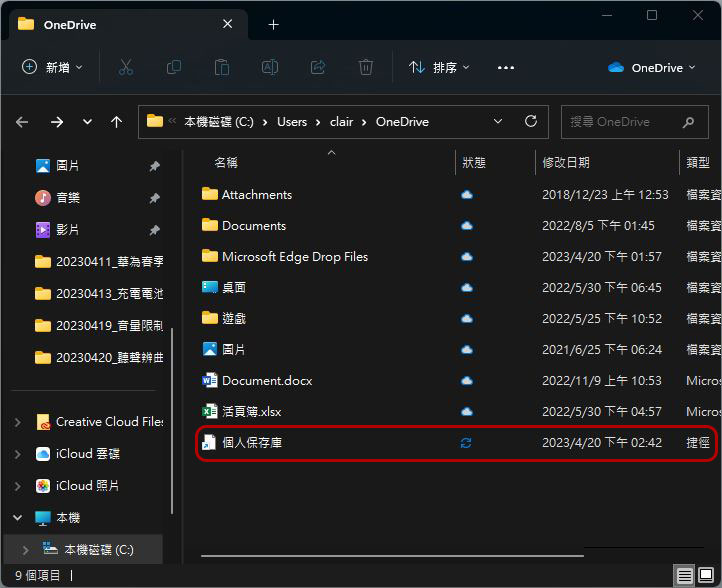
- You can now move the folders and files you want to password-protect to your personal vault, which will automatically lock after 20 minutes of inactivity.
Alternatively, you can manually lock your personal save library without waiting:
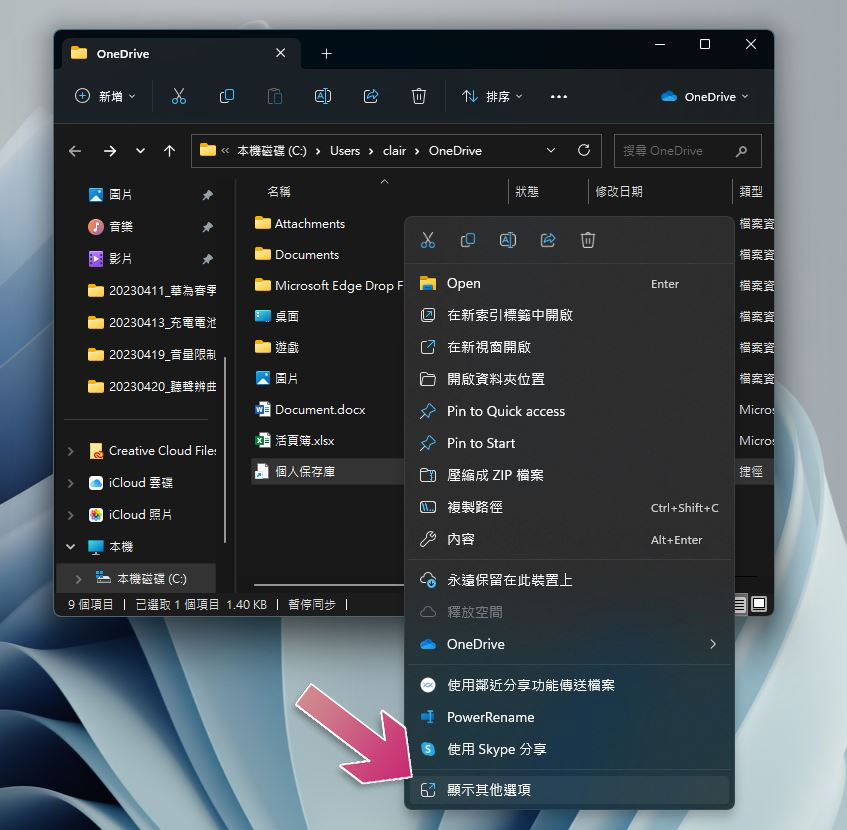
- Right-click on the personal library and select “Show other options”.
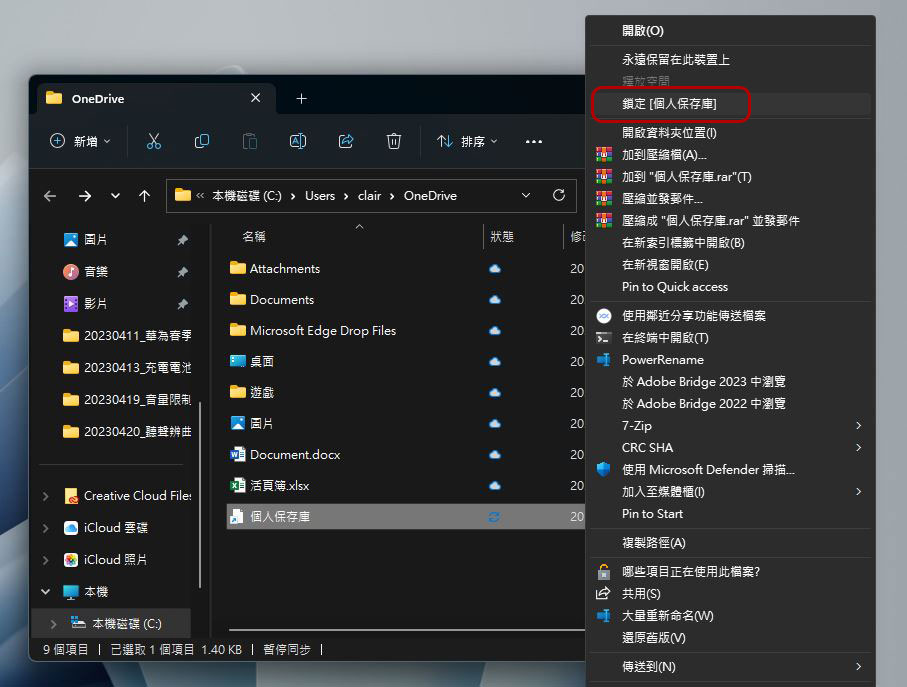
- Click “Lock Personal Vault” to lock it immediately without waiting for 20 minutes.
Method 2: Using 7-Zip
Another way you can password protect folders in Windows 11 is by using the well-known zip file tool “7-Zip”. The program uses high-level encryption protocols to protect password-protected folders so that no one can access them without your password. In addition, 7-Zip’s folder encryption is cross-platform, and even if you move the folder to another computer, the encryption status will remain. Here’s how to password-protect a folder using 7-Zip on a Windows computer:
- Download 7-Zip from the official website (Click here), install it.
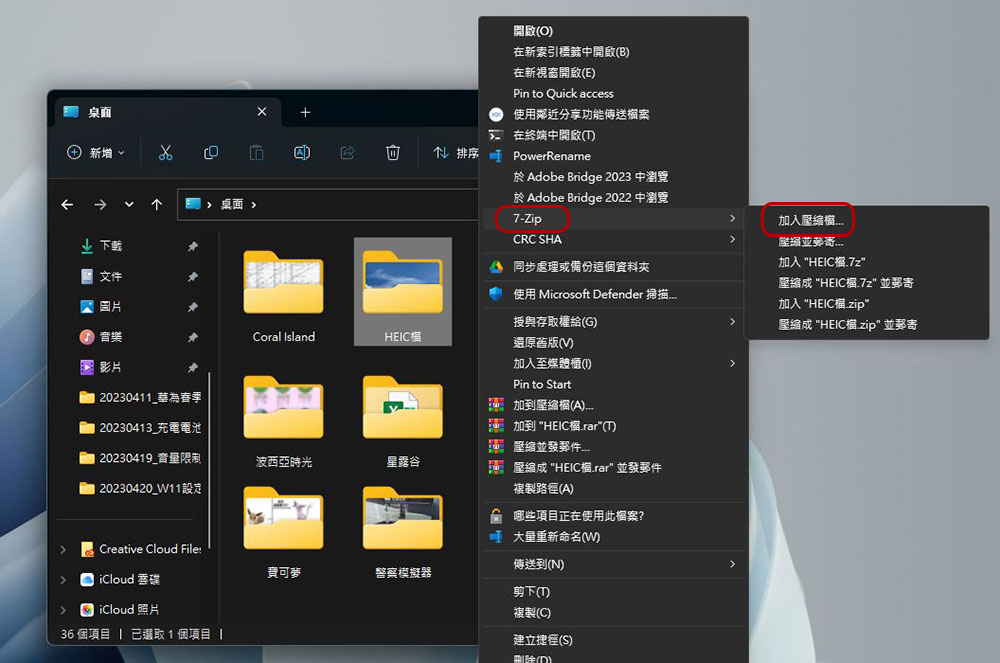
- Click on the folder you want to password protect, right-click, and select “Show more options” at the bottom.
- Next, move the cursor to “7-Zip” from the expanded function list, and select “Add compressed file” from the next menu.
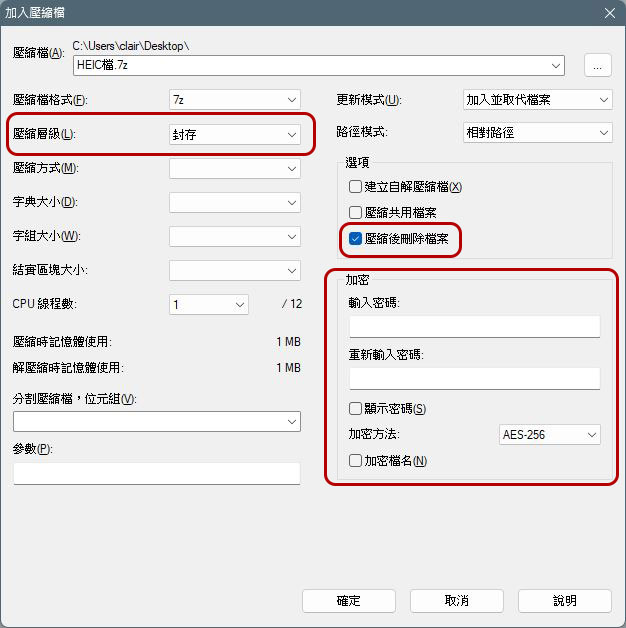
- In the dialog window that appears next, set the compression level to “Archive”, check the “Delete files after compression” option, then set the locked password in the encryption field, and finally click “OK”.
- After sending, the system will automatically create a new folder with the file extension “.7z”. You can use any compression program on your computer to open the folder, and you will be asked to enter a password each time you open a file in the folder.
Method 3: Use batch file to set password
This method of password protecting folders in Windows computers is very simple. You can also try it:
- Open the folder you want to password-lock and right-click anywhere in the blank space.
- Click “New” from the function menu, then select “Text Document.”
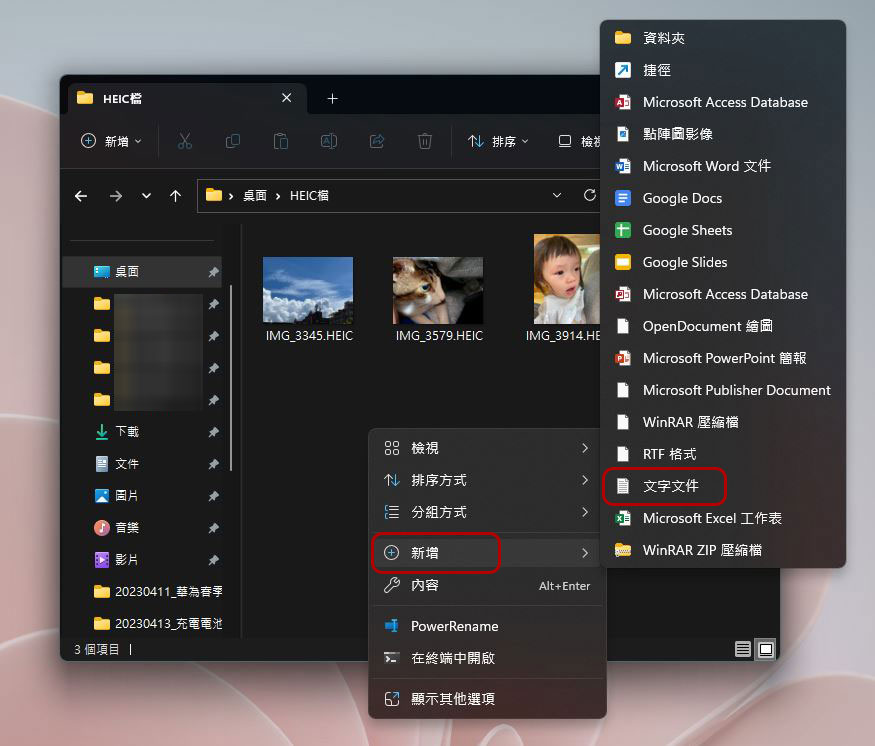
- Name the file whatever you want, preferably one you can easily identify, and press Enter.
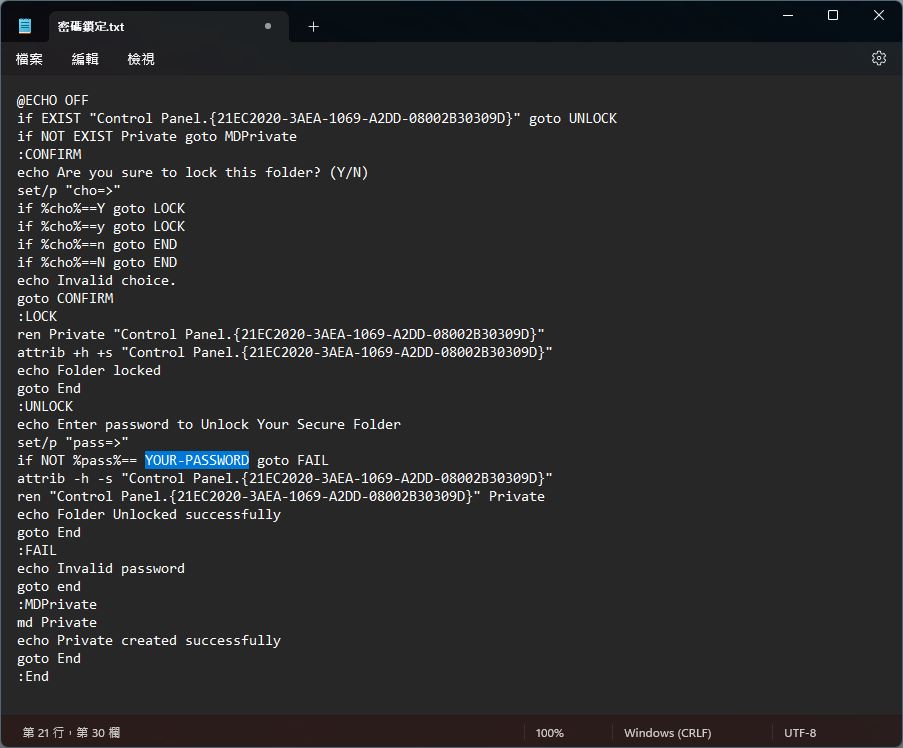
- Open the text file and paste the following text into it.
@ECHO OFF
if EXIST “Control Panel.{21EC2020-3AEA-1069-A2DD-08002B30309D}” goto UNLOCK
if NOT EXIST Private goto MDPrivate
:CONFIRM
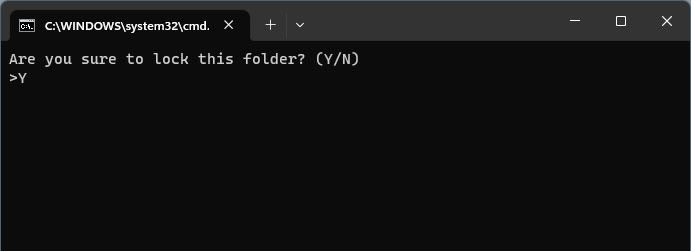
echo Are you sure to lock this folder? (Y/N)
set/p “cho=>”
if %cho%==Y goto LOCK
if %cho%==y goto LOCK
if %cho%==n goto END
if %cho%==N goto END
echo Invalid choice.
goto CONFIRM
:LOCK
ren Private “Control Panel.{21EC2020-3AEA-1069-A2DD-08002B30309D}”
attrib +h +s “Control Panel.{21EC2020-3AEA-1069-A2DD-08002B30309D}”
echo Folder locked
goto End
:UNLOCK
echo Enter password to Unlock Your Secure Folder
set/p “pass=>”
if NOT %pass%== YOUR-PASSWORD goto FAIL
attrib -h -s “Control Panel.{21EC2020-3AEA-1069-A2DD-08002B30309D}”
ren “Control Panel.{21EC2020-3AEA-1069-A2DD-08002B30309D}” Private
echo Folder Unlocked successfully
goto End
:FAIL
echo Invalid password
goto end
:MDPrivate
md Private
echo Private created successfully
goto End
:End
- Replace “YOUR-PASSWORD” in the text file with the password you want to use to protect the folder.
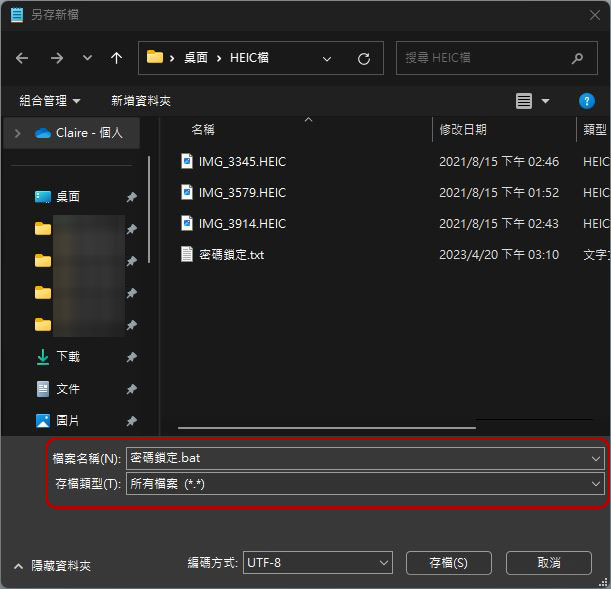
- Then click on the file in the upper left corner of the window, select “Save as new file”, then change the file extension to “.bat” in the file name input section, select “All files” as the file type below, click Save, and then close Notepad.
- Next, you will see a batch file (gear pattern) in the folder to be locked. Just click twice to execute and a folder called “Private” will be automatically created. You can move all the files you want to encrypt to this folder.
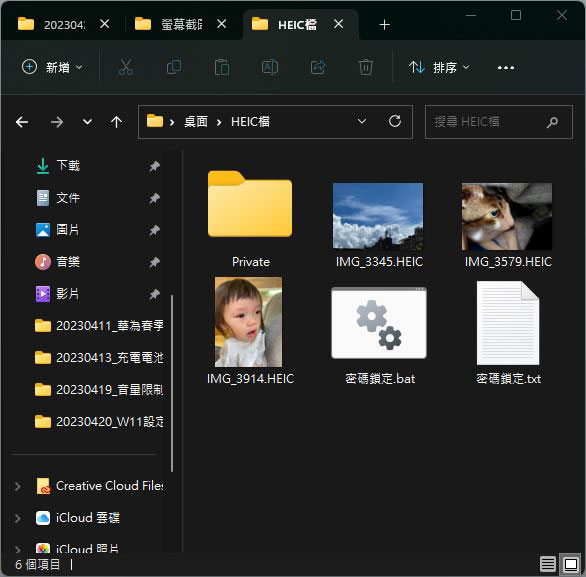
- After placing it, click the batch file again, enter “Y” in the window that appears, and then press Enter. After that, the Private folder will disappear and can only be opened by clicking on the batch file and entering the previously set password.
Method 4: BitLocker
BitLocker is an encryption method provided by Microsoft for users of certain versions of Windows 11 and other Windows versions. It is not applicable to the home version. It is used to protect the entire hard drive from unauthorized access through data recovery. It is also a method that can be used to protect folders on Windows 11 computers. you can go directly to Find out how to turn on device encryption on the Microsoft support page。
Method 5: Use a third-party application to set up password protection
There are several third-party applications on the market that allow you to password-protect folders, such as Folder Lock, Easy File Locker, etc. Compared with the above free methods, it should be easier. If you don’t want to spend time doing it yourself, you can consider it.
Method 6: Protect specific folders on shared computers
If the computer you are using is shared by many users (such as a home computer, etc.) and you want to protect the folders in it so that only you can access it, you can use the following method, but please note that this method does not apply to Windows 11 Home version:
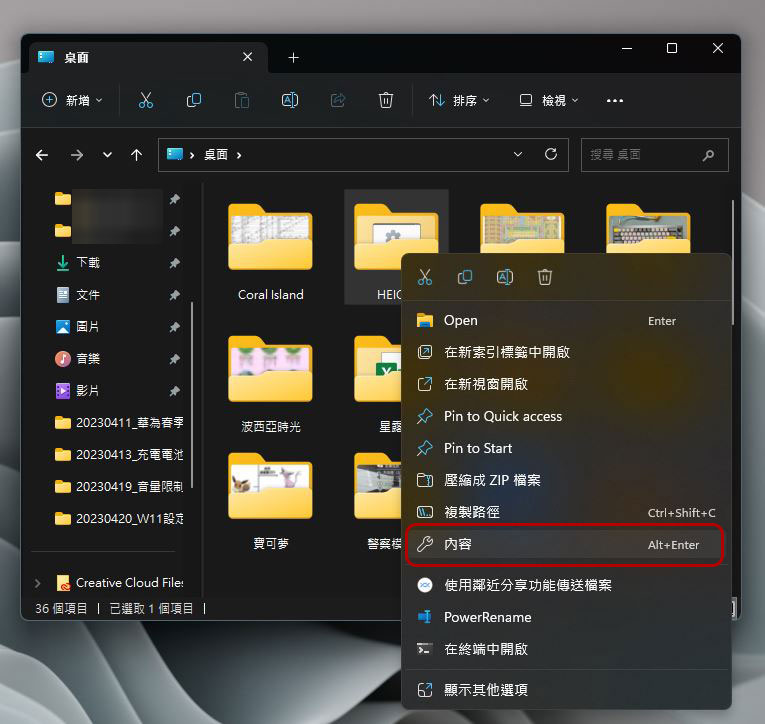
- Right-click the folder you want to protect and select “Contents.”
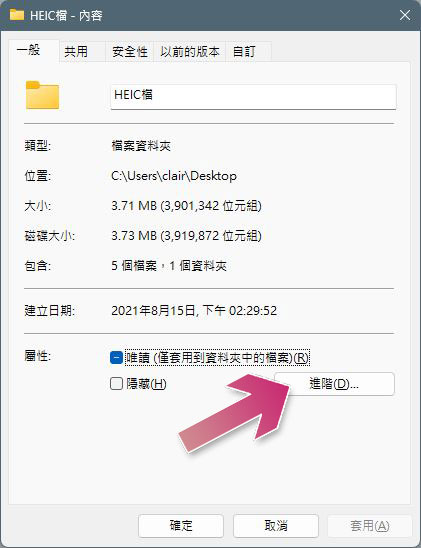
- Then click “Advanced” in the window that appears.
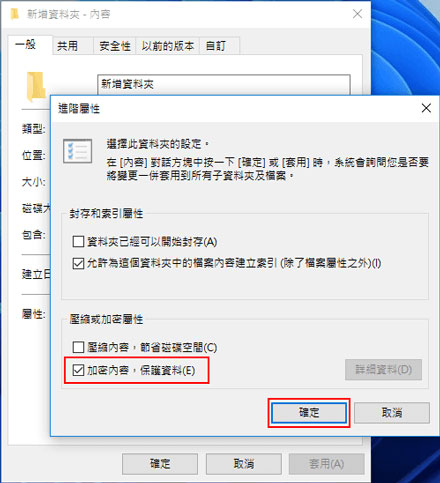
- Check “Encrypt content and protect data” and click OK.
You can prevent others from accessing your files by setting a password on the folder. Although there is no native built-in method for folder encryption in Windows 11, you can still use various other methods to work around it.
Source: KOCPC Chinese