


For users who usually only use LINE to chat with friends, LINE currently has many different backup methods. Are they always confused?We have previously introduced to you 2 must-learn backup skills, I believe some people are also curious about how this is different from LINE’s built-in chat history backup? So recently, LINE officials personally taught the comparison of the current four major LINE backup methods, so that everyone can easily figure out which backup method they need to choose now!

LINE officially teaches a comparison of the top 4 LINE backup methods, and you can figure out what kind of backup you need at once
For LINE users, the most worrying thing is to buy a new mobile phone, or the mobile phone suddenly encounters an abnormality, causing precious chat conversations with friends to disappear! If you want to preserve important memories, we have introduced various LINE backup methods in the past. The following is a comparison of the four backup methods officially shared by LINE, so that you can figure out at one time which backup method you need at the moment.
Automatic backup & backup enabler code (suitable for: daily and complete maintenance of chat records)
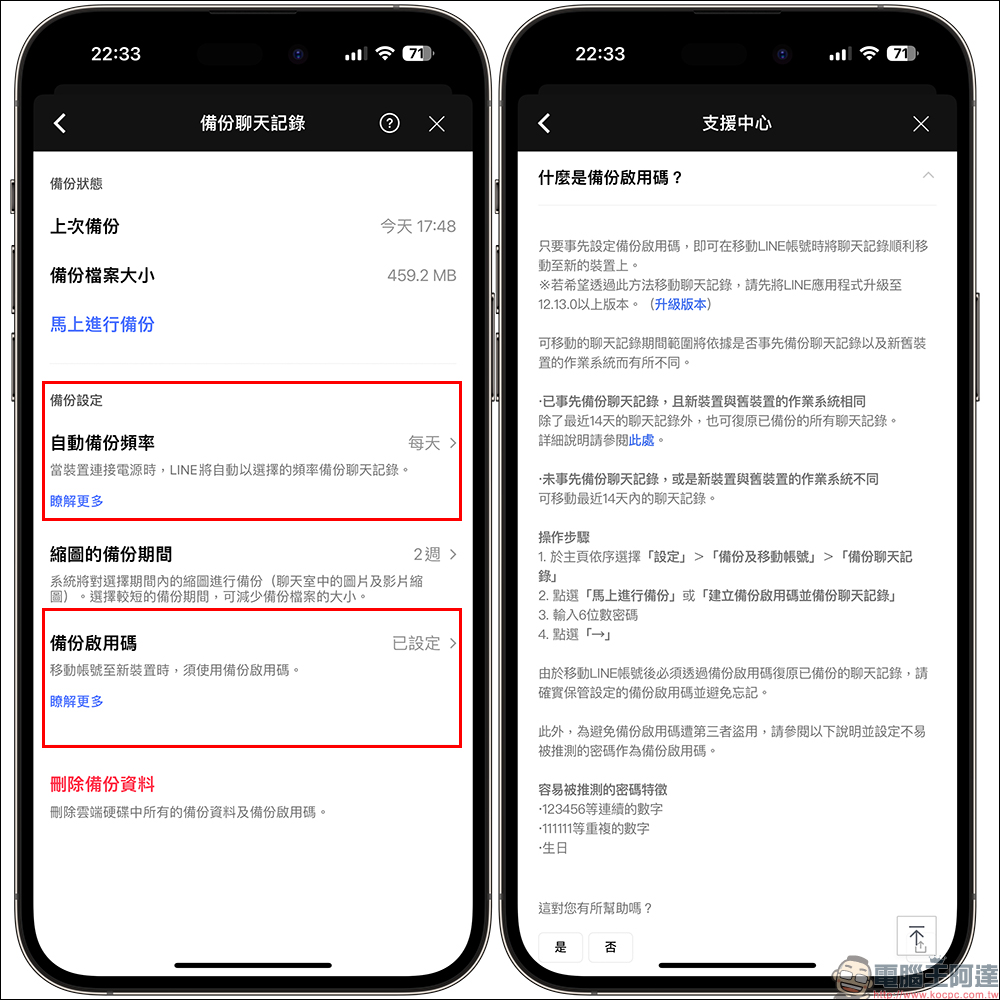
First of all, if you need to back up the most complete LINE chat history, you can select “Backup Now” on the “Backup Chat History” page for manual backup. You can also turn on “Automatic Backup” and set the frequency. As long as there is stable power, Wi-Fi and is locked during backup, the backup will be completed automatically. Other
In addition, if you don’t care much about the longer chat history, you can give priority to the “Backup Activation Code”, which can be set up with just one click. If the phone is lost or malfunctions, or when switching between systems, the chat history of the last 14 days can be restored on the new phone. Whether it is “Automatic Backup” or “Backup Activation Code”, it is very suitable for LINE users to completely maintain their chat history on a daily basis.
Send chat history or long screenshot (suitable for: other simple backup needs)
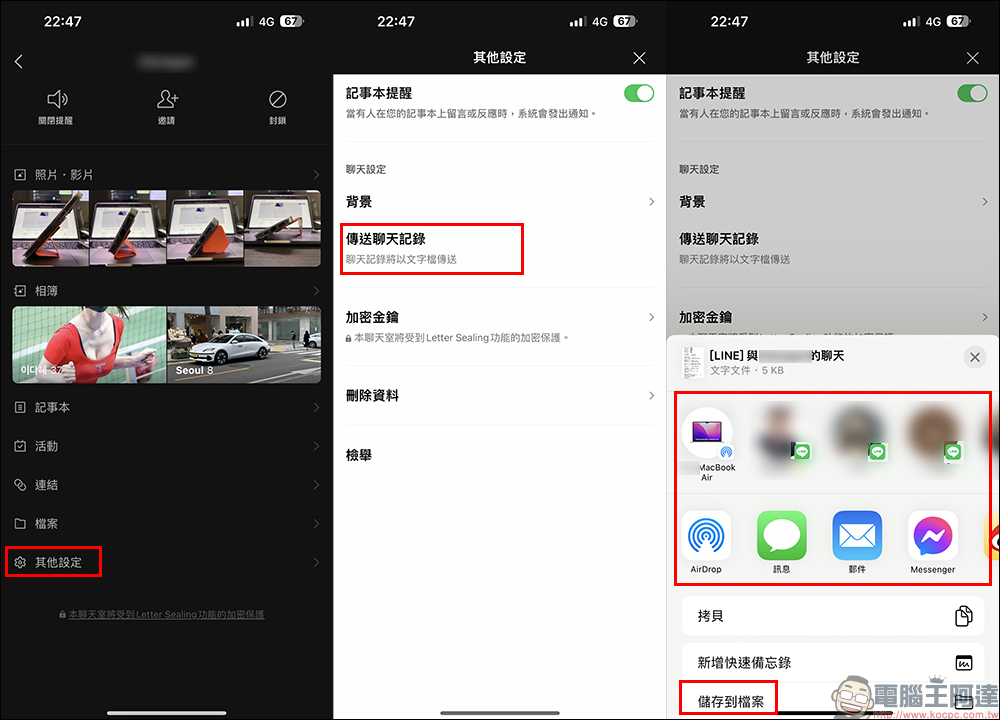
If you have many chatting partners, but not all the delicious conversation content needs to be backed up, you can choose to find “Send Chat History” on the chat room’s settings page. To send chat history, you can export the chat history text file of the chat room. You can choose to send it to other chat rooms, or store it in other applications or in the storage space of your mobile phone.
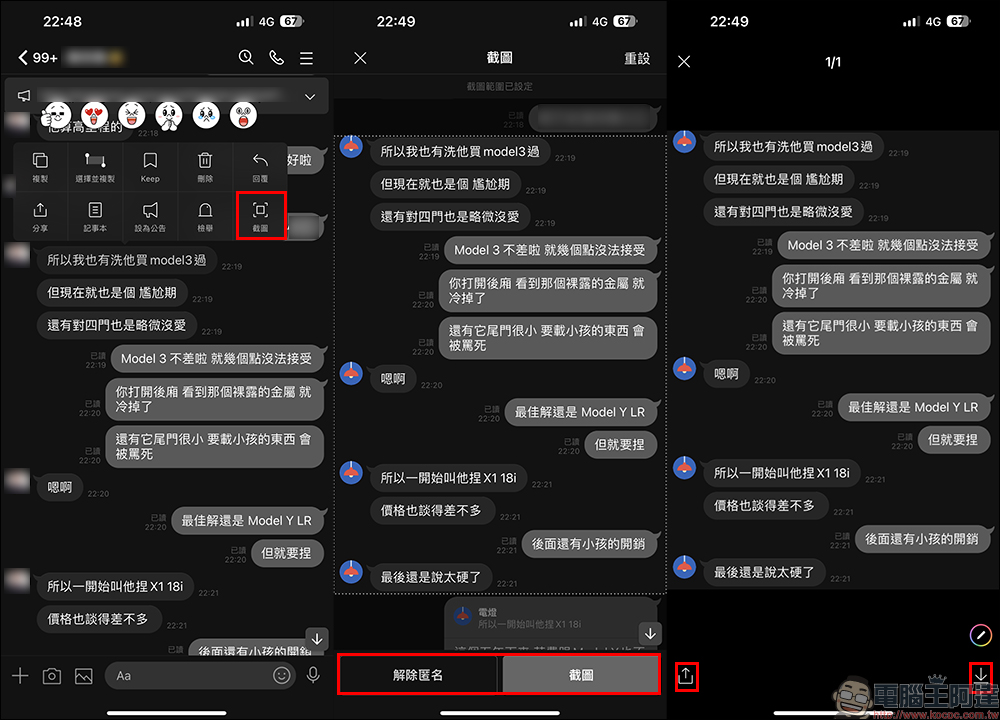
In addition, for short chat conversation records, of course, it is easiest and fastest to choose the “long screenshot” method to back up! I believe everyone is familiar with LINE’s screenshot function. You only need to long press the conversation in the chat room and select the “Screenshot” button and select the screenshot range. Then you can evaluate whether to take screenshots in “anonymous” mode. If you choose to take anonymous screenshots, the avatar and nickname of the chat partner will be hidden. After finally selecting the “Screenshot” button, a screenshot will be generated based on the user’s long screenshot selection range and privacy settings. At this time, the user can choose to directly save the image to the phone’s photo album, or directly click the “Share” button to share it with other LINE chat rooms or applications.
I believe that after reading the above four LINE backup methods, you will have a better idea of different backups, right? The four backup methods introduced above can all be set up and used by users at the same time. You may wish to evaluate your own needs and choose the method that is most suitable for your current situation!
Further reading:
All LINE photo album functions are now online! Easily view all albums across chat rooms (Usage Tips)

Source: KOCPC Chinese