


Modern smartphones come with a variety of features, but call log display is an essential feature that has been around since the inception of mobile phones. Your Android phone will record all incoming and outgoing calls, including call time, phone number, call duration and other related information. However, sometimes for some reason, the call history on your Android phone may suddenly not be displayed. This tutorial will tell you how to easily fix it yourself.
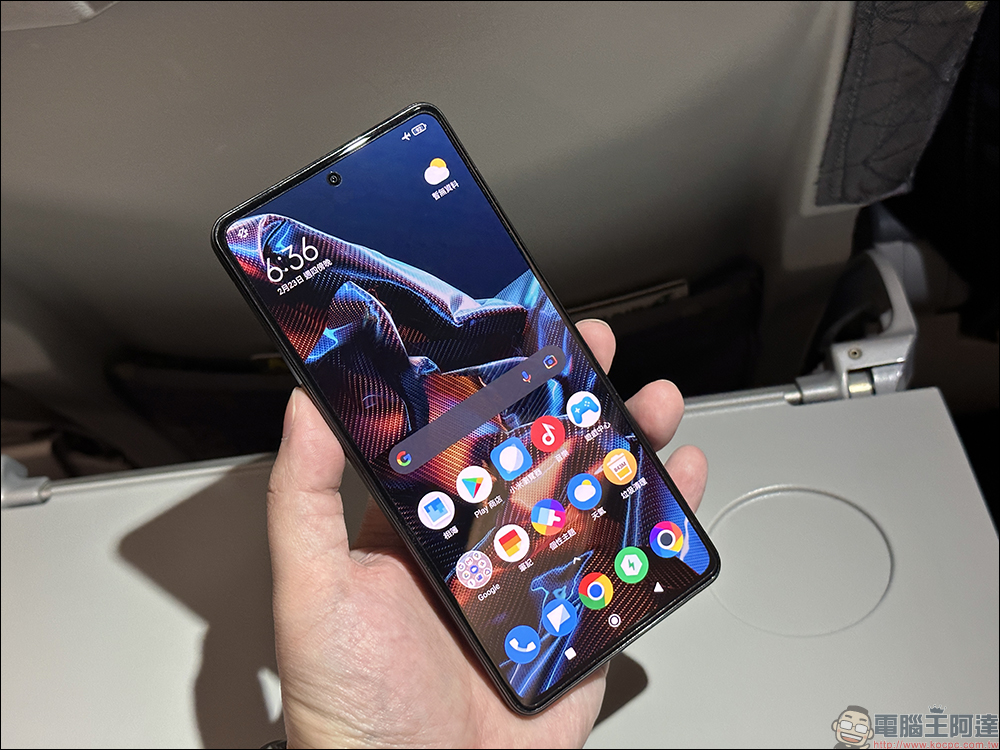
How to fix call history not showing up on Android phone?
There are many reasons why smartphones cannot display incoming call records normally, and the most common ones are as follows:
- Call history display is limited
Android phones can only store up to 500 call records. When the upper limit is exceeded, the phone system will begin to delete the oldest call records on the phone. - Not enough storage space
When there is not enough storage space on the device, the operating system may automatically delete old call logs to save space. - application error
Just like other apps, the Phone Dialer app has bug issues that can cause the app to not function properly and may also cause the call history not to show up. - No permission to display call logs
Almost every phone app running in the latest version of Android requires permission to call the phone, and if the system doesn’t allow the phone app to have access to call history, you may not be able to view the call history. - Problems with the smartphone itself
As with other issues, your system software may prevent calls from showing up on your phone, but you can fix this by updating your phone’s operating system.
In this tutorial, you can follow the instructions to solve the problem of call records not being displayed and avoid it happening again in the future (unless it is an Android system problem). Without further ado, let’s get to the topic!
★The following demonstration is mainly based on Pixel phones. Other brands may have different function setting locations and names, but there should be little difference. You can look for it yourself.
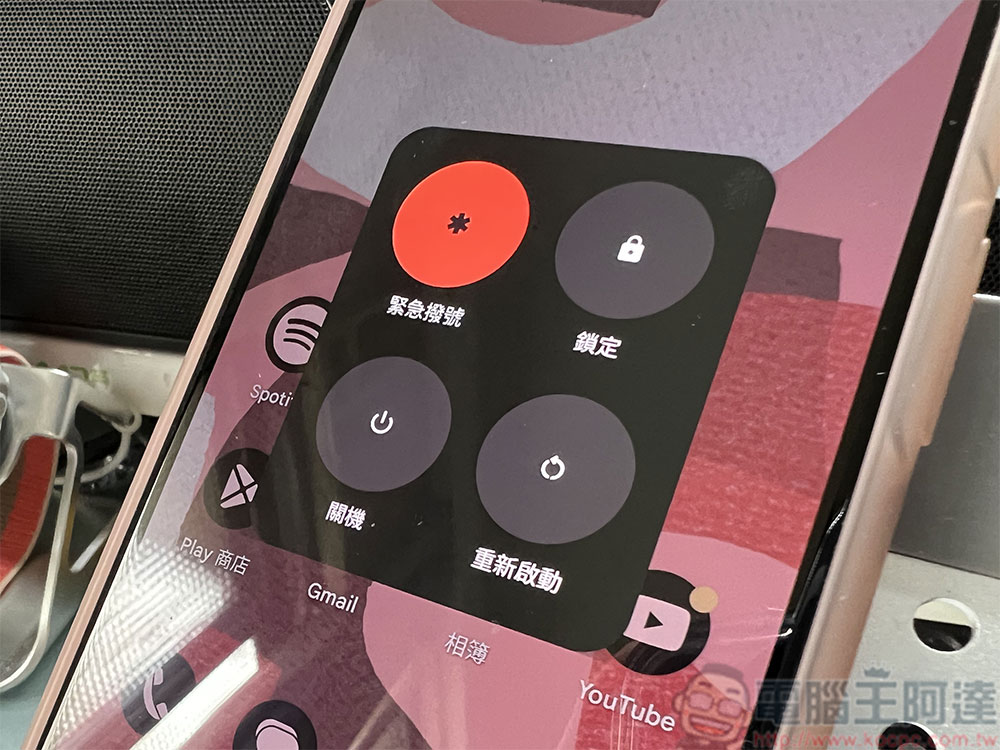
Restart the phone
Restarting the phone is the easiest and most effective way to solve the problem of the phone app not showing call history on your smartphone. When you restart your device, the system closes all running processes and applications and then reloads the operating system. This process clears the device’s memory and cache, which should resolve most app issues.
Allow phone app access to call history permissions
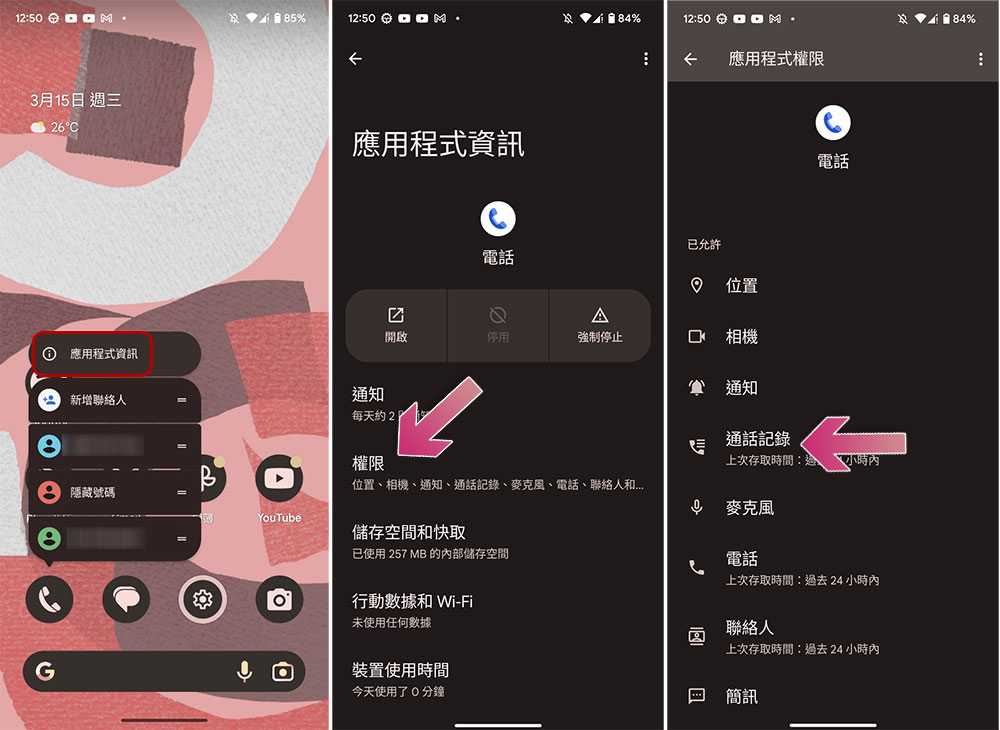
Apps need system permissions to access data on the device. With each new version, Google will make it more difficult for app developers to access data and storage to protect users’ personal privacy. Now, every app on your Android phone requires your authorization to access it, and you can turn permission on or off at any time in settings. If an app crashes on your smartphone, it’s possible that the app doesn’t have permission to read or write data, or that the app permissions have been reset. To resolve this issue, you can check the application permissions and check if the authorization required by the phone app is allowed.
- Press and hold on the Phone app and tap to enter App Information.
(If it is an old version of the system, you can go to Settings >> Applications to find the Phone application and enter it to view) - Click “Permissions” on the application information page.
- Check whether the “Call Recording” permission is allowed.
Set automatic date and time
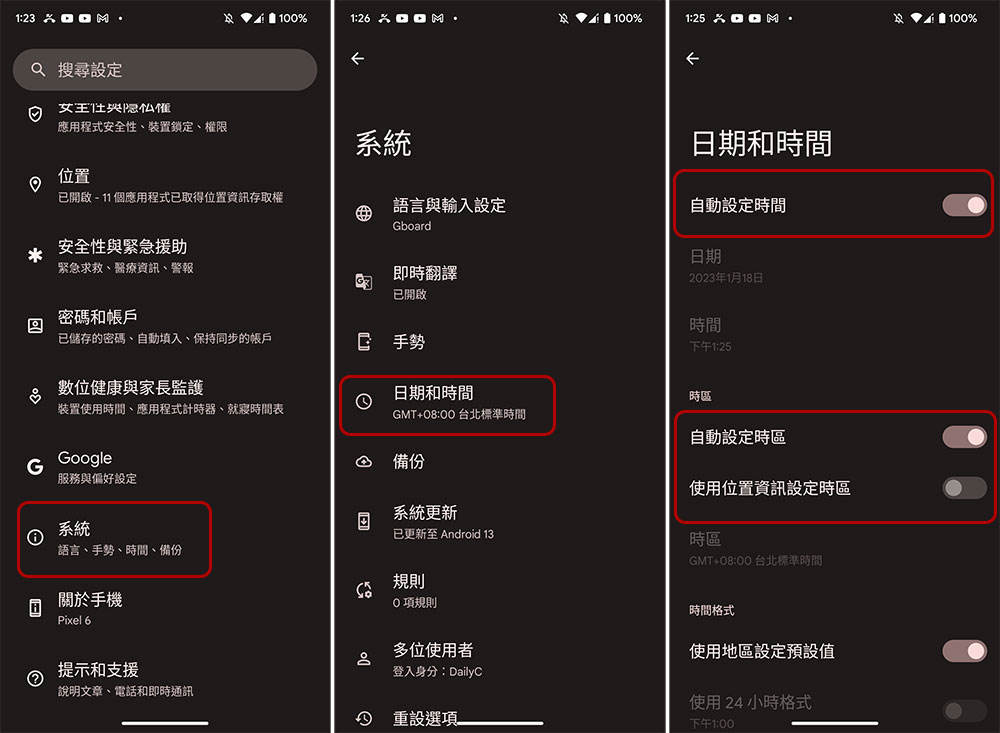
The phone app on your smartphone will synchronize your call logs with the current date and time on your phone, and if your phone is set to an incorrect date or time, it may show different call logs or no call logs at all. You can easily solve this problem by setting automatic date and time.
- Open the Settings app and scroll down to find System.
- Then click “Date and Time”.
- Then turn on the switches for “Automatically set time” and “Automatically set time zone”. If you want to ensure that the updated time of your Android phone matches any time zone, you must turn on the “Use location information to set time zone” by the way. You will find that the time will change depending on the location, most notably when the vehicle is moving (airplanes, etc.).
Force stop phone app
Android smartphones have a built-in “force stop” feature that allows you to pause and stop specific apps that are currently running in the background. When you force stop an app, the app will close and its background processes will stop. If your app is having issues or crashing, it may be helpful to force the app to stop. It can also help free up system resources and improve device performance when there are too many applications running in the background.
- Press and hold on the Phone app and tap to enter App Information.
(If it is an old version of the system, you can go to Settings >> Applications to find the Phone application and enter it to view) - Click the big “Force Stop” button on the application information page.
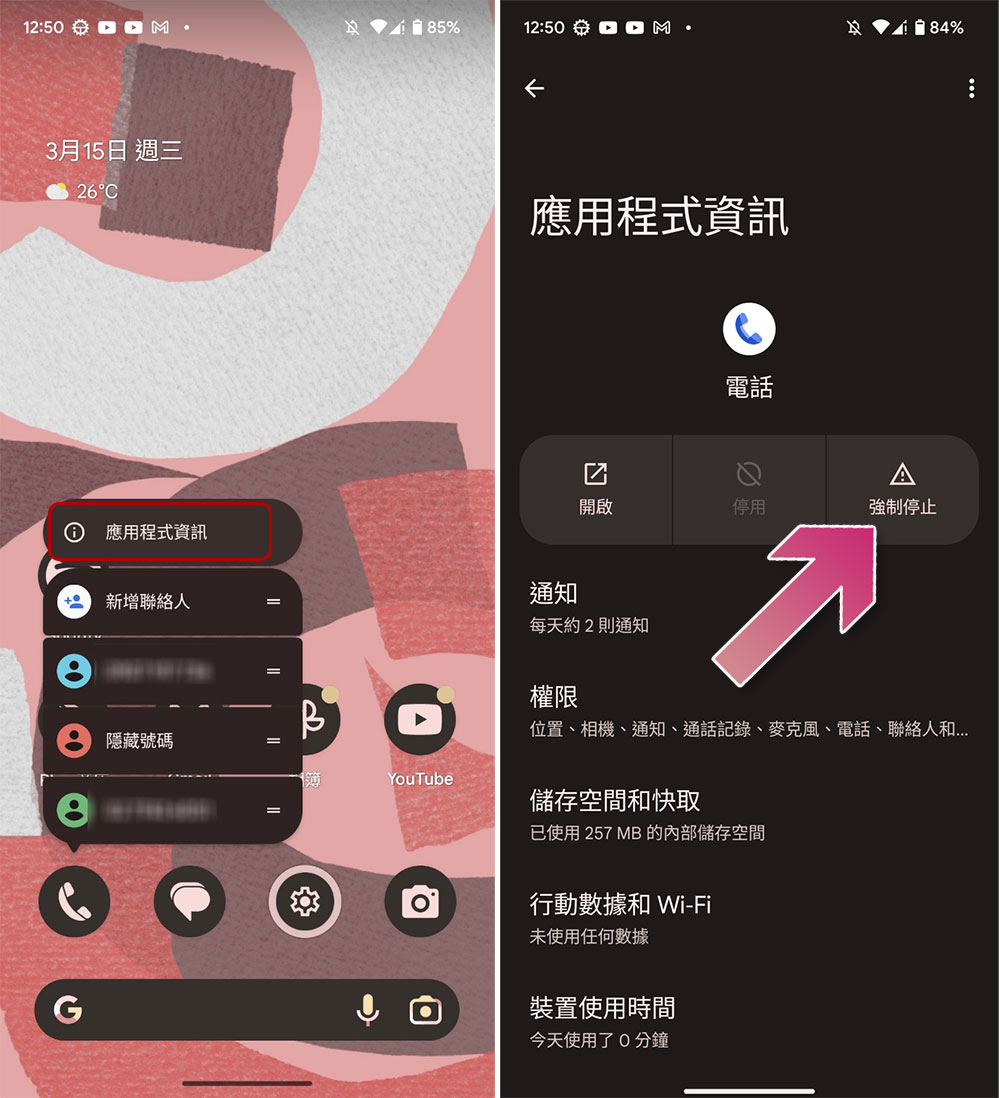
Force stopping an app will not delete any data or settings associated with the app, so you can continue using it by clicking on the icon as usual after force stopping the app.
Clear phone app cache
The application cache is the temporary storage on your smartphone that contains applications and the files within them (such as images, videos) and other data that the application needs to access frequently to make the application load faster. Almost every app, including phone apps, uses cache to load faster and run more smoothly. If your device has issues with its cache over time, which may cause apps to stop working, you can simply clear the cache to resolve the issue.
- Press and hold on the Phone app and tap to enter App Information.
(If it is an old version of the system, you can go to Settings >> Applications to find the Phone application and enter it to view) - Click “Storage and Cache” on the application information page.
- Click the big “Clear Cache” button.
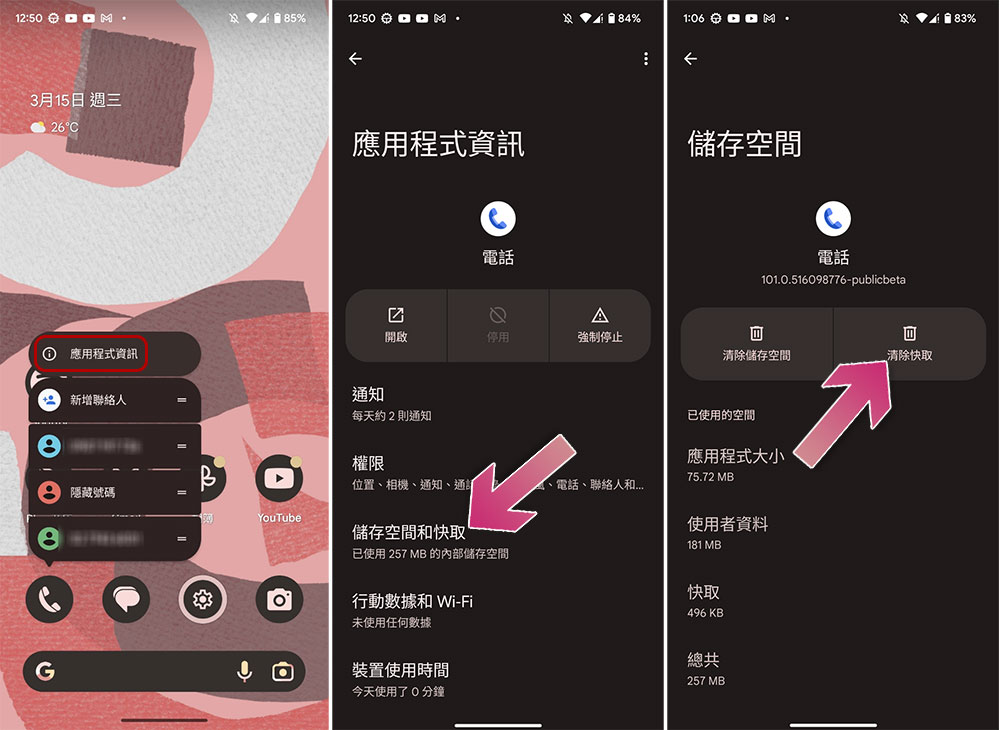
Clearing an application cache does not delete any personal data such as login credentials, saved settings, or files related to the application; it only deletes the temporary files and data that the application stores in the cache.
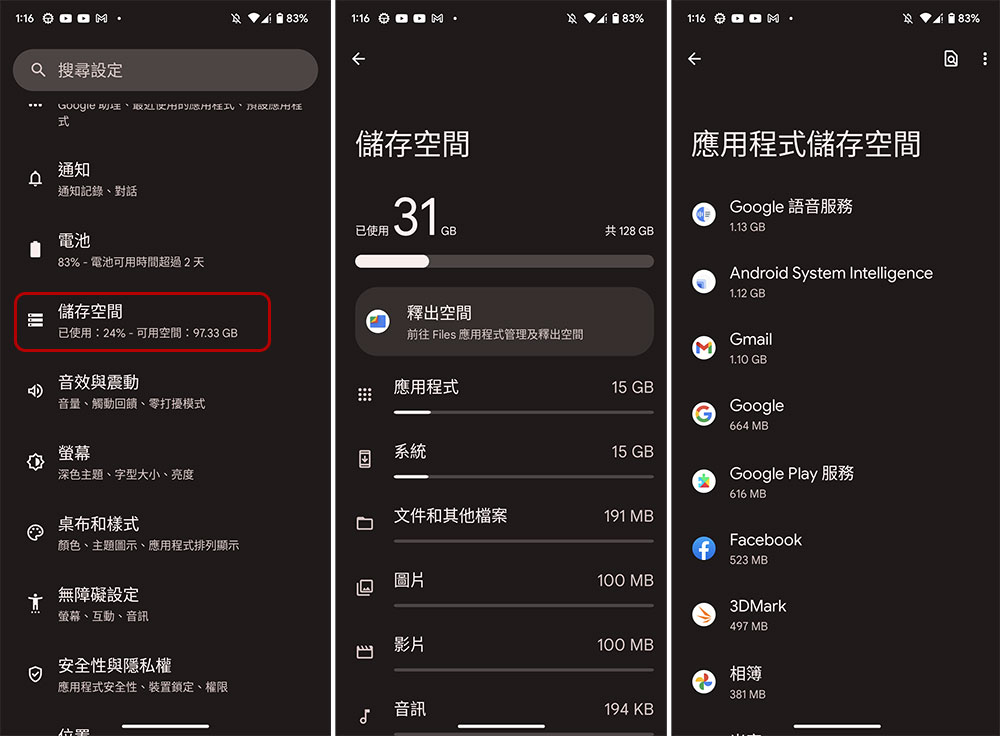
Free up device storage space
Sometimes insufficient storage space causes apps to display errors on smartphones. On most Android smartphones, you’ll see a warning in the notification shade that storage is low or full. When the system storage space is insufficient, the operating system will delete call logs to make more space for the system. If you’re running low on storage space, follow these steps to free up storage on your Android smartphone:
- Open the Settings application and click to enter the “Storage Space” item.
- Click “Apps” to see a list of all apps and see how much space each app takes up. Click on a single application to view the application size, and you can also manage space and clear cache of specific applications from here.
- You can also view the space occupied by other files including pictures, videos, documents, etc. from the storage and clean up the unnecessary parts.
Update phone app
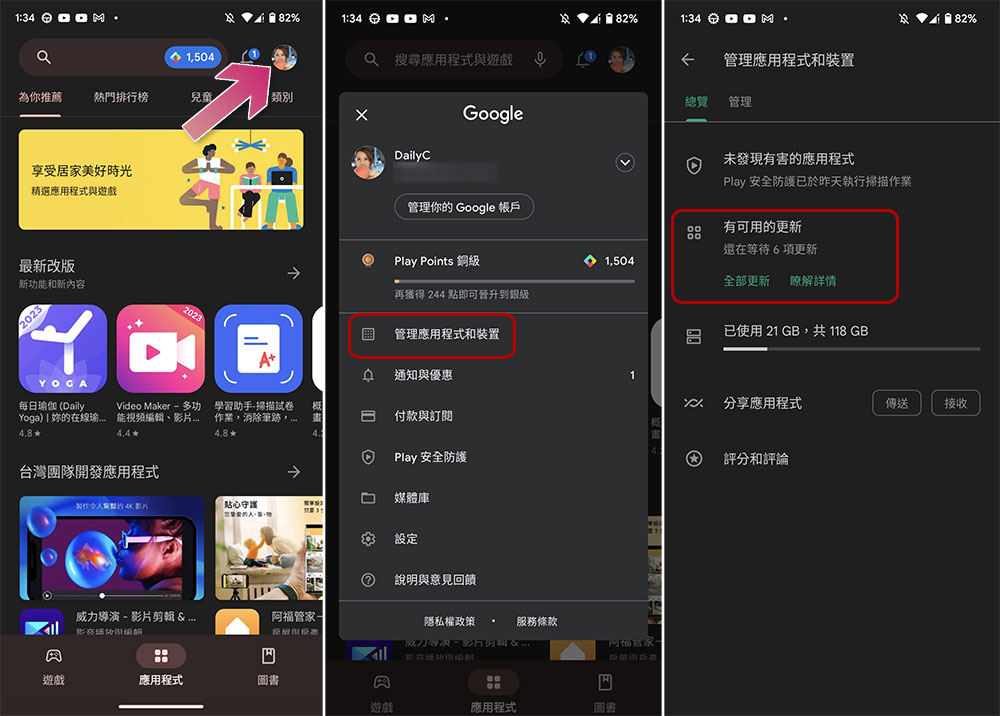
Sometimes, a specific version of an app can be the cause of smartphone crashes. This could be a developer error or a specific version of the app isn’t optimized for your device, which you can easily fix by updating the mobile app in the Google Play Store.
- Click on your profile picture in the upper right corner of the Google Play Store.
- Click “Manage apps and devices”.
- Below you can see if there are updates that need to be installed. If so, click “Update All”. Or you can click “Learn More” to directly check which applications need to be updated, and only update specific items.
Change default phone app
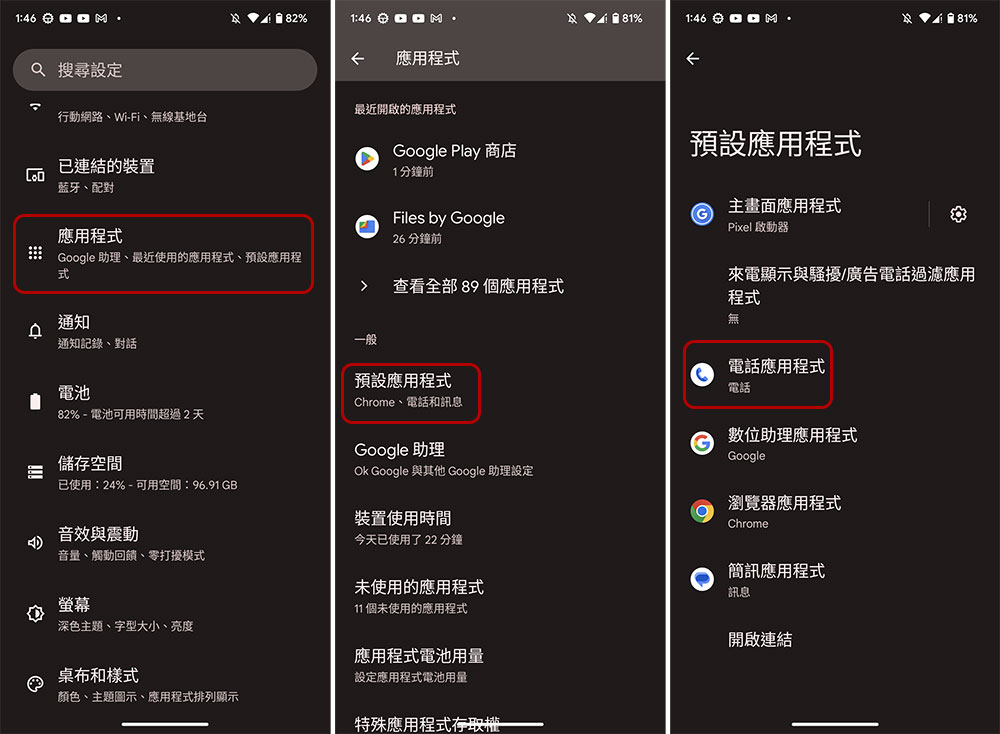
The best thing about Android smartphones is that they are almost completely customizable. You can easily replace system apps like the Phone app with third-party apps, which is helpful especially if you have some issues with the default Phone app. There are many third-party phone apps in the Play Store, and you can compare them and choose the one that suits you. After downloading and installing it, you can use the following method to set it as the default calling application in your phone:
- Open Settings and click to enter “Applications”.
- Click “Default Applications”.
- Click to enter “Phone Applications” and select the application you just installed as the default.
All of the above methods can help fix the problem of call history not showing on your smartphone. The author has listed the most likely scenarios and solutions for each problem. To avoid such problems in the future, make sure not to reset the permissions of the default phone app, make sure you have enough storage space on your phone, and restart your smartphone from time to time to clear unnecessary background running tasks on your phone.
Source: KOCPC Chinese