


After using a Windows computer for a long time, you will inevitably feel that it is not as fast as it used to be. You may not do DIY upgrades to your computer, or you may have a tight budget and don’t want to spend money on buying a new computer. Fortunately, there are many optimization settings in Windows that can be easily and quickly handled. If you want to speed up your computer slightly in the fastest time, you should try (one or all of the 5 methods I tell you today).
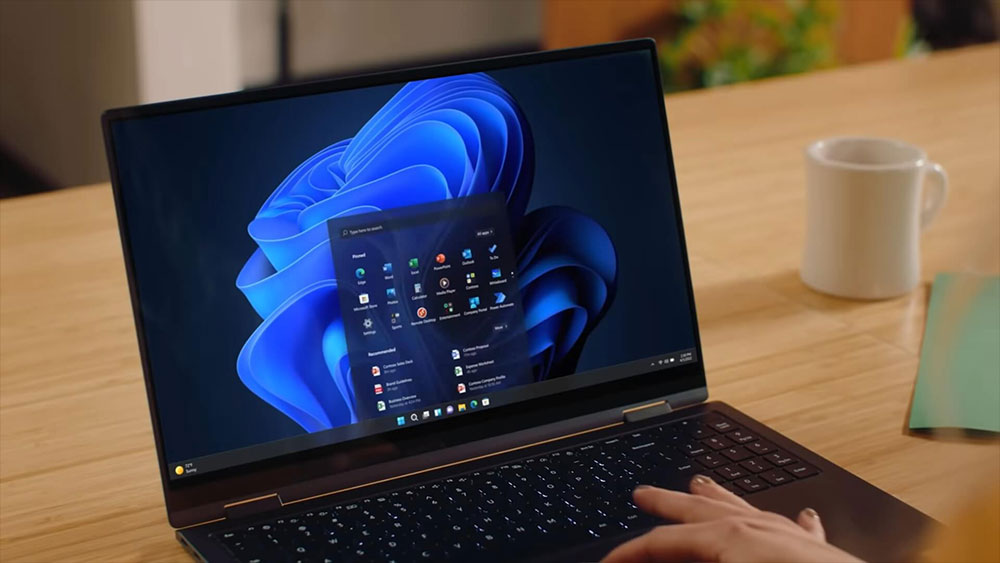
5 ways to make your Windows PC faster in 5 minutes
Check your startup login to start the application
When you install a lot of extensions for your web browsing, not only will it not achieve the effect you want, but it will also ruin your browsing experience. The same is true for Windows computers. When you start more and more applications, from the moment you log in to Windows, these unmanaged applications that accumulate over time will silently eat up your system resources behind the scenes. It is very simple to manage which applications can be launched at startup:
- Open Settings, click “Applications” on the left sidebar, and click “Start”.

- Next, you can decide which apps should launch automatically when you log in, just toggle the switch at the back.

This simple operation will have immediate results the next time you restart your phone, and you can close any unnecessary apps directly from the notification tray.
Disable unnecessary Windows animations
This comparison is more psychological than practical. There are a lot of little animations in Windows, such as minimizing windows and maximizing windows, but you may not really pay attention to them. These subtle animations that you can barely feel exist will be more noticeable on a slow computer, so disable them and you’ll immediatelyFeelComputers get faster, but you don’t actually see a change in CPU performance or other hardware performance. If you want to disable animation, you can turn off “Animation Effects” in “Settings >> Accessibility >> Visual Effects”.

Check hard drive utilization
Your phone will start to look weird when it’s full of apps and photos, and the same goes for your computer. Windows needs a certain amount of free space for daily operations, saving files for hibernation, etc., so it’s time to use Windows’ built-in disk cleaning tool to clean up and free up space. The built-in disk cleaning tool is located in the “Cleanup Suggestions” in “Settings >> System >> Storage”. Check one by one whether to clean the Recycle Bin, downloaded temporary files, unused or large files.

In addition, if you are willing to spend more time, you can consider upgrading your storage space. Whether it is upgrading from an old HDD to an SSD or expanding an SSD, you can increase the speed of your computer quickly and with a lower budget than buying a new computer.
Delete unused apps
If you have extra space and the app doesn’t launch at startup and may be needed in the future, it’s okay to leave this app around. But if you have a lot of unused apps that slow down performance when Windows starts or fill up your hard drive with large files, removing them is a great way to improve performance without spending money. After decluttering, Windows will load faster and the freed up disk space will make everything run more efficiently. The method of uninstalling is very simple. You can view them one by one from “Settings >> Applications >> Installed Applications”, then click the three-dot menu at the back and select “Uninstall”.

If you don’t want to spend time checking, but just want to see which apps have not been used for a long time and remove them directly, you can go to “Settings >> System >> Storage” and click “Cleanup Suggestions”. One of them will be “Unused Apps”, followed by the time you last used it. After checking the apps you want to remove, click the Clear button below. (After clearing one batch, another batch will be displayed. You can watch and clear slowly.)

In addition to the applications you have installed, also check the applications you have not installed. Especially when you buy a computer from an OEM manufacturer, it often contains preloaded applications you do not need. Please uninstall it manually.
Scan for malware
Older viruses and malware often have dramatic effects on computers, such as crashes due to the deletion of critical files. While these types of viruses never completely disappeared, the main motivation behind spreading malware was access to resources. As far as your computer is concerned, the resources are computing power and network connection. Many times, being infected with malware will make your computer feel slower because you have not used up all the system resources yourself.“other people”It will also help you use it up.

Make sure to keep Windows Defender up to date for a reliable antivirus solution. If you need further inspection and processing, you can use third-party anti-virus tools such as Malwarebytes and Avira to help. They can not only catch malware, but also notify you whether there are potentially harmful programs (PUP) on your computer. These software are not viruses, but you may not want them to exist on your computer.
Source: KOCPC Chinese