


Windows 11 brings many new designs and new features. The initial version provides some new gesture controls for tablets and 2in1 computers. There are more features coming in the new version 22H2, and gesture controls have been taken to a new level. If you also own a Windows 11 laptop with a touch screen or precision trackpad, today we will take a look at these useful gesture controls.
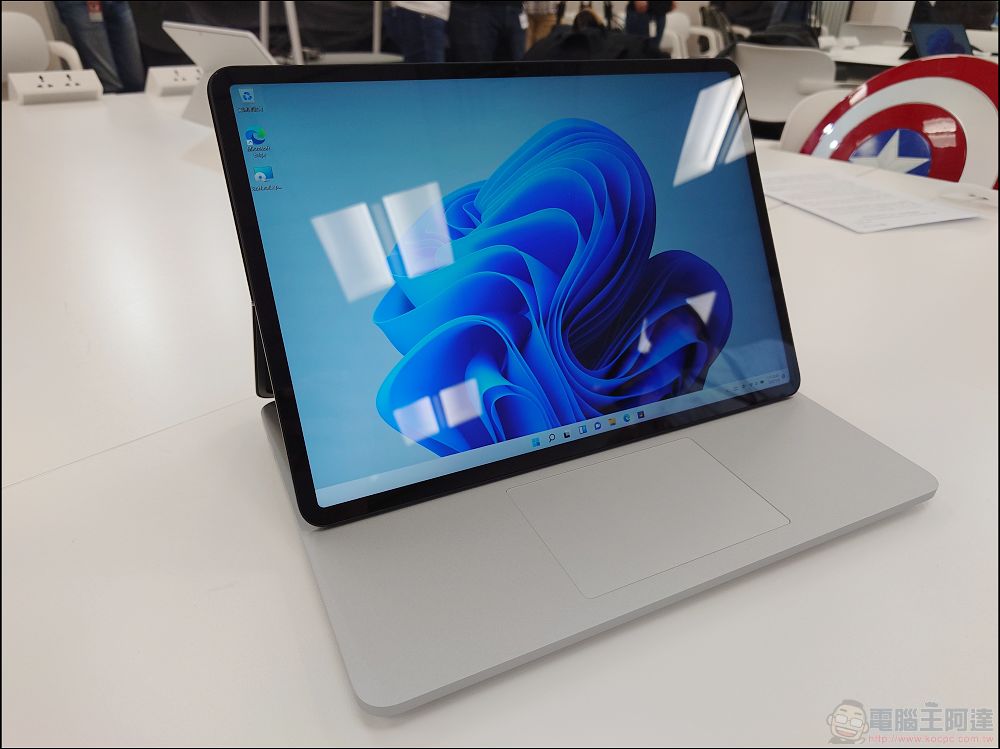
A collection of basic gesture controls on Windows 11, making full use of touch screens and trackpads
Gesture controls allow you to perform system operations through various swipes, such as swiping on a specific area or using multiple fingers to trigger specific actions. These gestures can make Windows 11 easier to use, but they’re not completely transparent or precise to users. In order to make everyone more familiar, the author has organized the basics of gesture control on Windows 11, focusing on more new content that will be added in the 22H2 version. Since the 22H2 version has not yet released an official version, unless you are a member of Insider, not all gestures are suitable for you, so you can use them as a preview.
★Content description
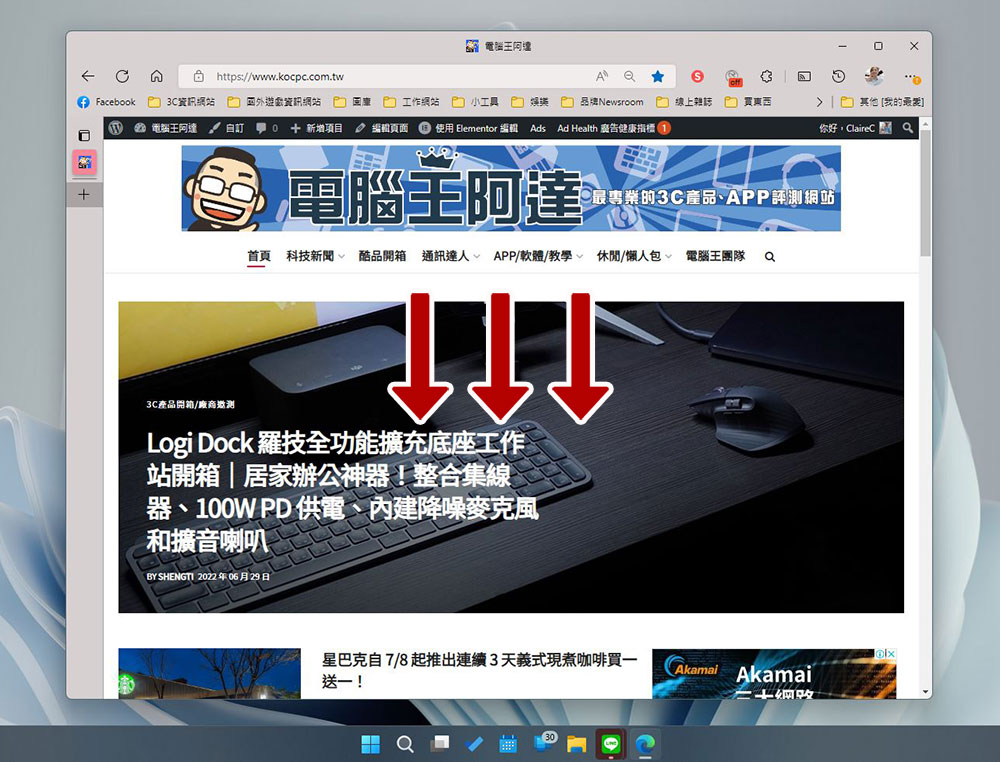
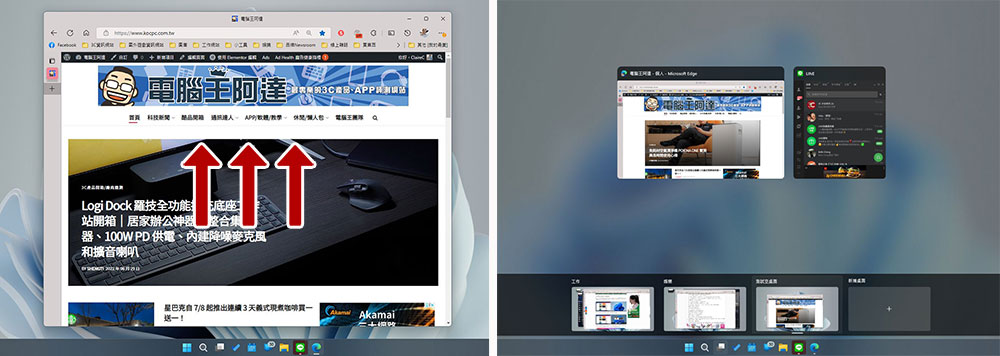
In this article, the number of arrows in the schematic diagram corresponds to the number of fingers. For example, if there is one arrow, it means one-finger touch, and three arrows means three-finger touch.
If there is a semicircle at the bottom of the arrow, it means starting from the edge of the screen.
Use the Start menu with gestures (touch screens only)
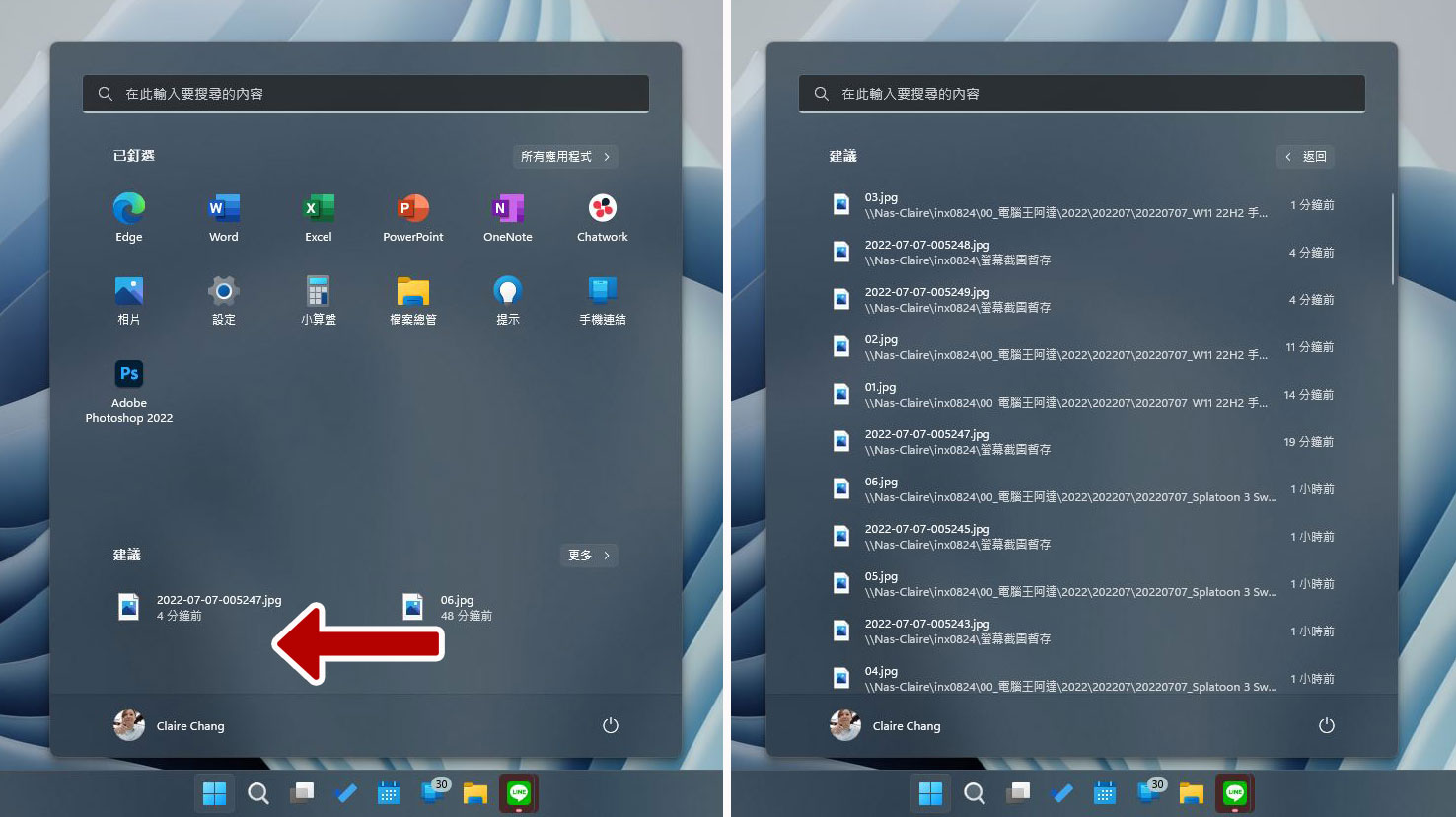
Starting in Windows 11 22H2, the Home menu is one of the core areas for navigation using gesture controls. First, you can now open the Start Menu by swiping up from anywhere on the taskbar (except the notification area). When you swipe up, the Start Menu will slowly expand upwards with your finger. When you regret it in the middle of driving, you can always pull it back down.
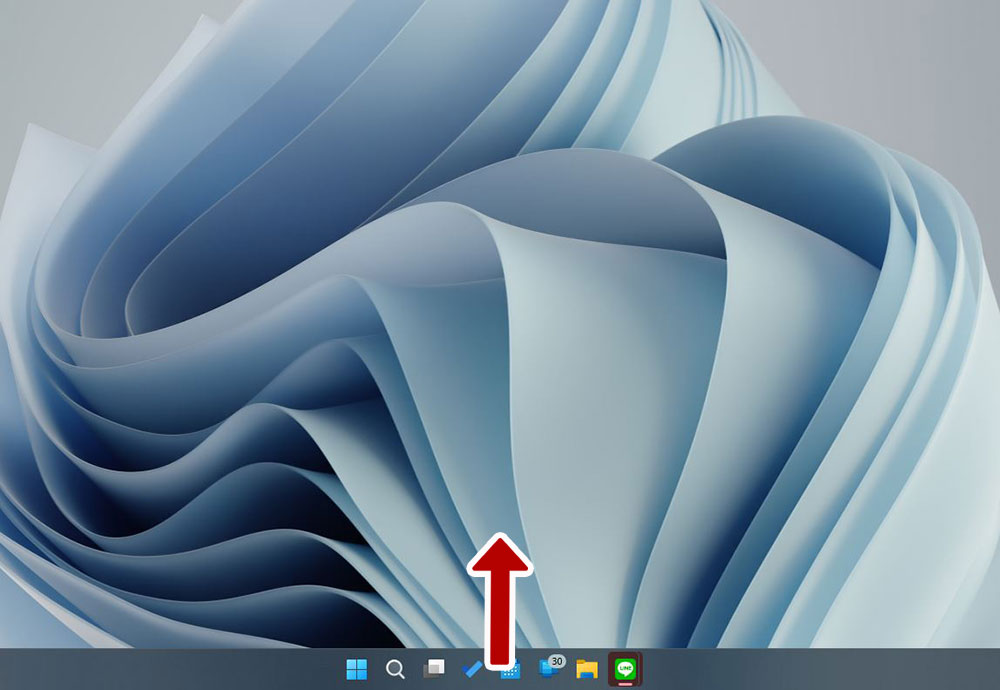
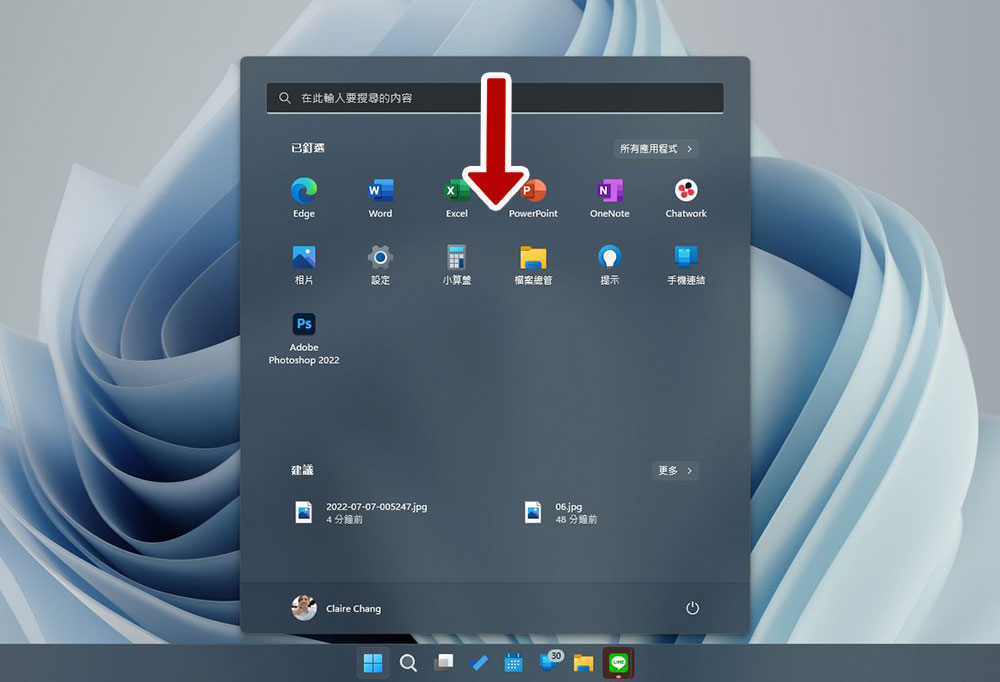
You can also swipe down from the Start menu to close it. The important thing to note here is that you have to start swiping from a blank area, such as the top of the start menu. If your gesture accidentally launches an application or file on the Start menu, the swipe operation will not be triggered.
Touch is also available in the start menu. When you swipe left on the “Pinned” section of the upper half of the Start Menu, you can see a list of all apps. You can swipe up and down in the list to browse; swipe right to return to the original home page of the Start Menu.
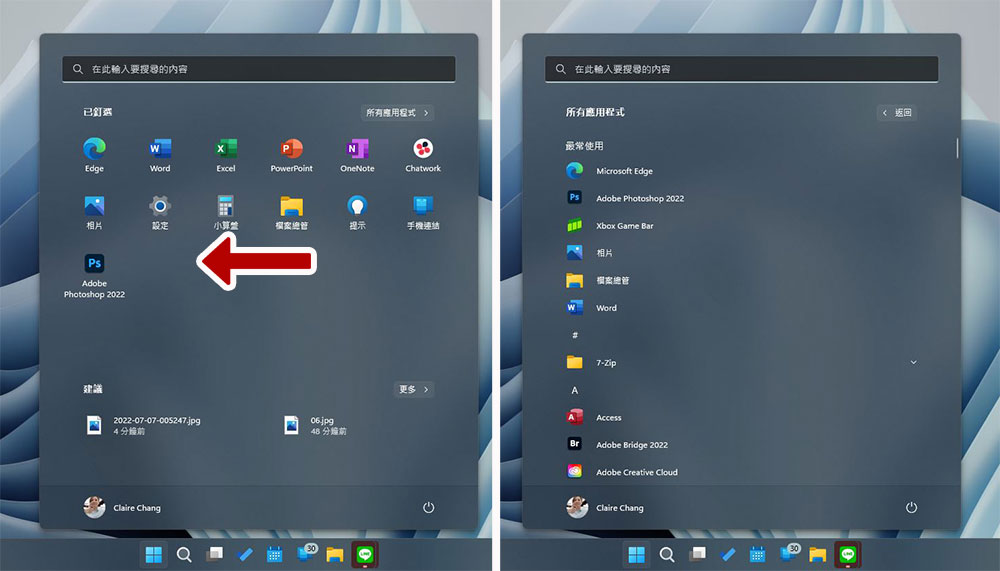
If you swipe left in the “Suggestions” area below, you can see a list of all the files and applications you have recently used. You can swipe up and down in the list to browse; swipe right to return to the original home page of the start menu.
Gesture controls for quick settings, widgets, and notification center (touch screen only)
In addition to the start menu, there are more parts of Windows that can be accessed through touch gestures. Among them, the touch gestures for gadgets and notification center already existed in the first version of Windows 11, while quick settings were new gestures added in the 22H2 version.
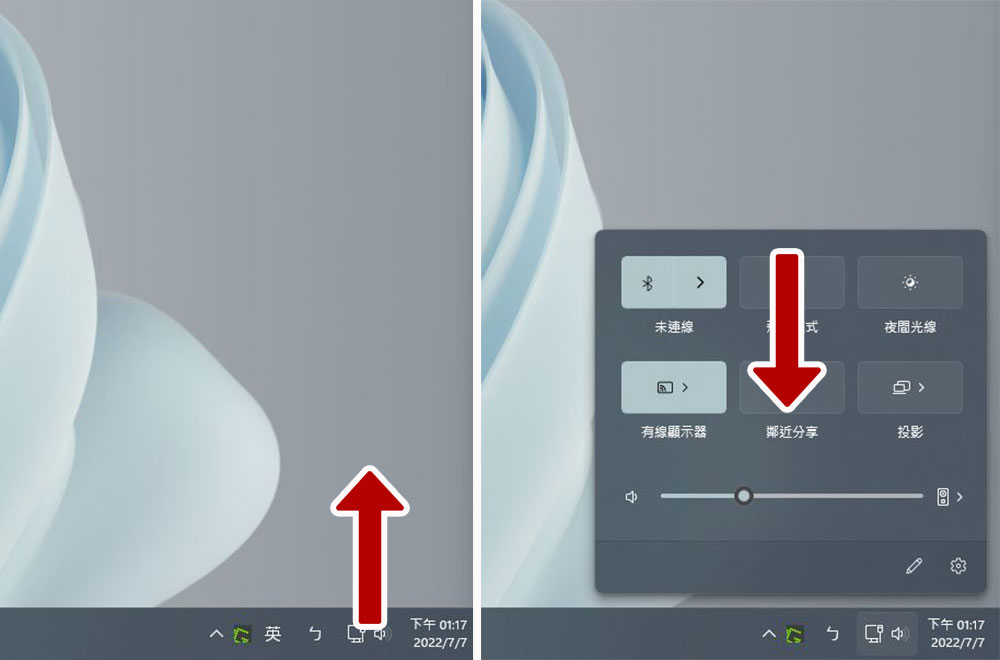
The quick settings panel allows you to turn on and off the connection to WiFi, Bluetooth devices, etc. without entering the settings app. You can swipe up on the block in the lower right corner of the screen to expand the panel, and swipe down from any area on the panel except for brightness and volume to close the panel.
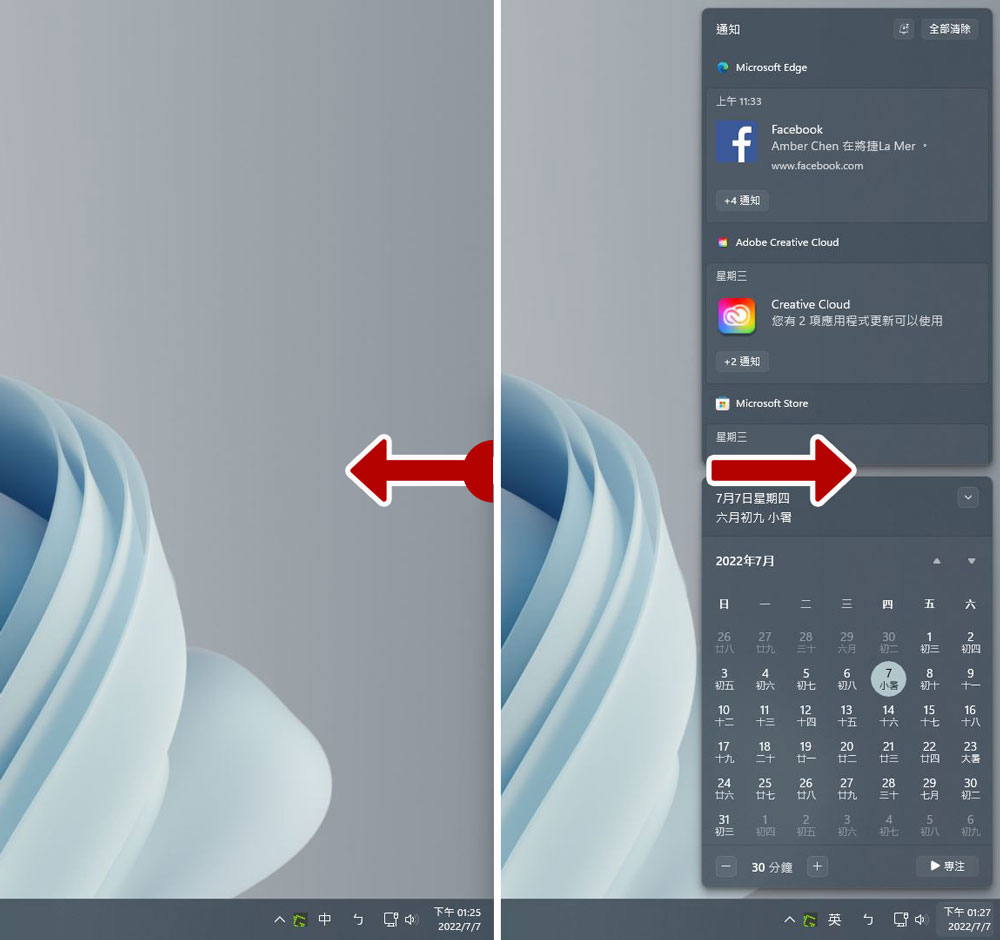
Access Notification Center and Calendar with gestures. You can swipe left from the far right side of the screen to bring up the Notification Center panel that contains notifications, calendars, etc., and swipe right from an empty area in the panel to close it.
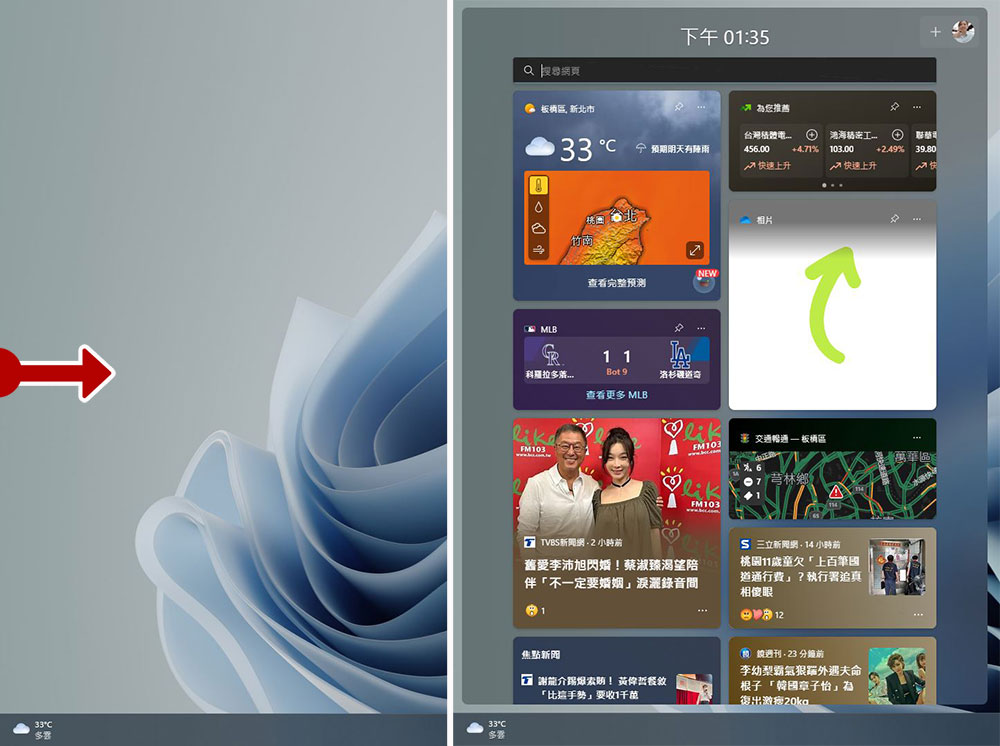
If you want to access the widgets panel, just swipe in from the far left side of the screen to expand the widgets tray. But what’s a little different here is that it will automatically display immediately after you touch it, and will not slowly expand with your finger; you don’t need to slide to close the gadget panel, just touch the desktop or other content to automatically close it.
If you are currently using a full-screen application, you must perform 2 touch gestures to display these panels or start the menu to avoid accidentally interrupting the work you are doing. When you swipe for the first time, a small drawer handle-like pattern will appear. Swipe again to confirm the panel you want to open and view.
Window management using gesture operations (both touch screens and trackpads are supported)
Here are some of the most basic touch gestures for managing open windows. Although they are suitable for beginners, they can help you make full use of the convenience of the touch screen more quickly and make your presentation look more professional. Now let’s take a look at the gesture controls that are already available in the initial version of Windows 11.
If you want to minimize all open windows, you can swipe down from anywhere on the screen with three fingers to quickly clear and display the desktop. After minimizing the windows, if you want to bring them all back, you can swipe up with three fingers to restore the windows at any time.
If you are using a virtual desktop, you can swipe up with three fingers on the screen at any time to bring up the window options of the virtual desktop, where you can view the open applications on each virtual desktop.
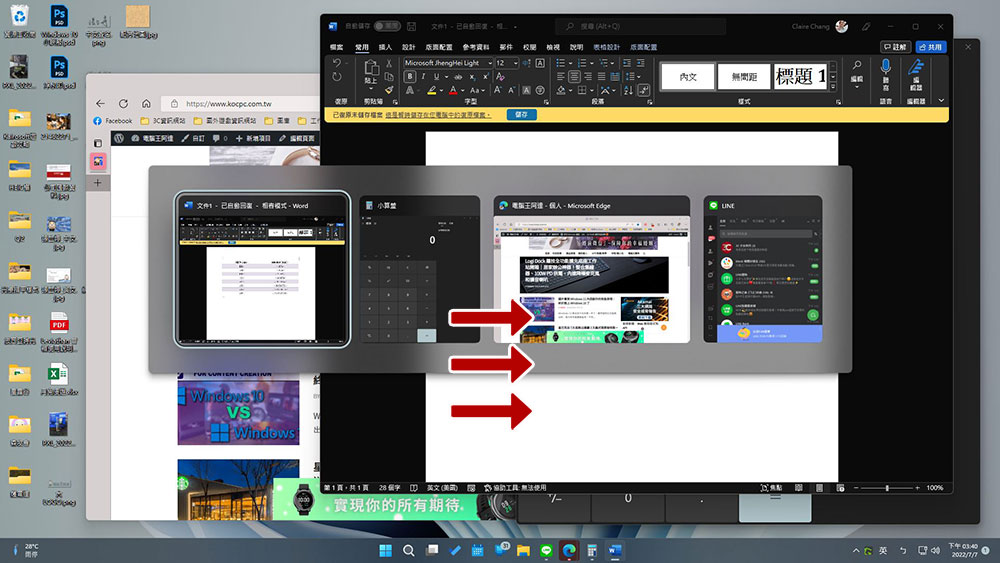
Next, let’s take a look at the new gesture “three-finger horizontal swipe” introduced in Windows 11 22H2.
If you swipe right or left on the screen with three fingers, you can switch to other apps you are using in addition to the currently active window. You can switch between apps more quickly when multitasking.
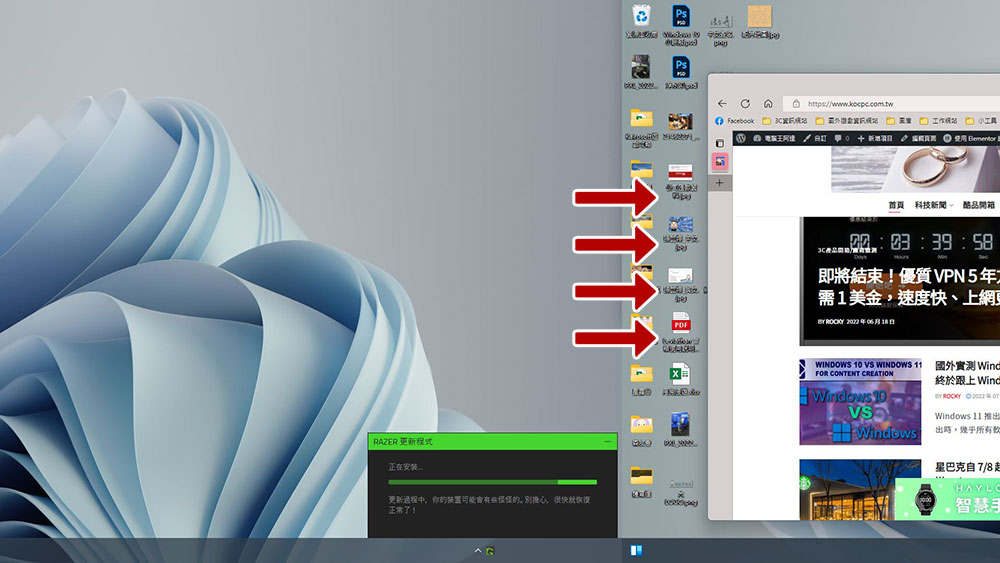
If you swipe horizontally with four fingers, you can quickly switch between virtual desktops, making it easier for you to quickly switch between different desktops. Especially if you, like the author, separate work and entertainment into different virtual desktops, this can help you switch between different environments faster. However, the logic of this gesture is different from the previous application switching. It is based on the order in which your virtual desktops are created. You can switch to any virtual desktop by repeatedly swiping horizontally with four fingers. (This touch feature is also available on the original version of Windows 11)
These are the touch gestures used in the current version of Windows 11 and the upcoming 22H2 version. They are not only suitable for touch screens, but are also compatible with precision trackpads. I would like to remind everyone again that because 22H2 has not yet launched the official version for everyone, so when you find that some touch controls do not work, you can wait patiently for the next 22H2 update and try it again.
Source: KOCPC Chinese