


Although no one wants to grow old, time is so ruthless. In addition to increasing your age and fine lines, it is also accompanied by irresistible natural decline such as vision degradation. If you also have vision problems, or your elders in the family always have a hard time looking at the computer, this time the author has compiled five settings in the Windows 11 system that can allow your eyes to use the computer in a more comfortable environment even if your eyesight is reduced.
 ※Picture source:xFrame
Five Windows settings that are considerate of the elderly and those with failing eyesight, making computer use easier on the eyes
As the elders in the family get older, it seems more difficult to see the content on the computer screen clearly than before. As a considerate and filial younger generation, of course, we must adjust the settings for the elders to make them easier and more comfortable to use.
Enlarge the mouse cursor
The mouse cursor is just so small, and if you always lose sight of it or have to work hard to find it, this setting is an absolute must. In today’s era of high-resolution displays, it’s quite simple to make the mouse cursor larger. There’s no need to endure having to find a small pointer every time.
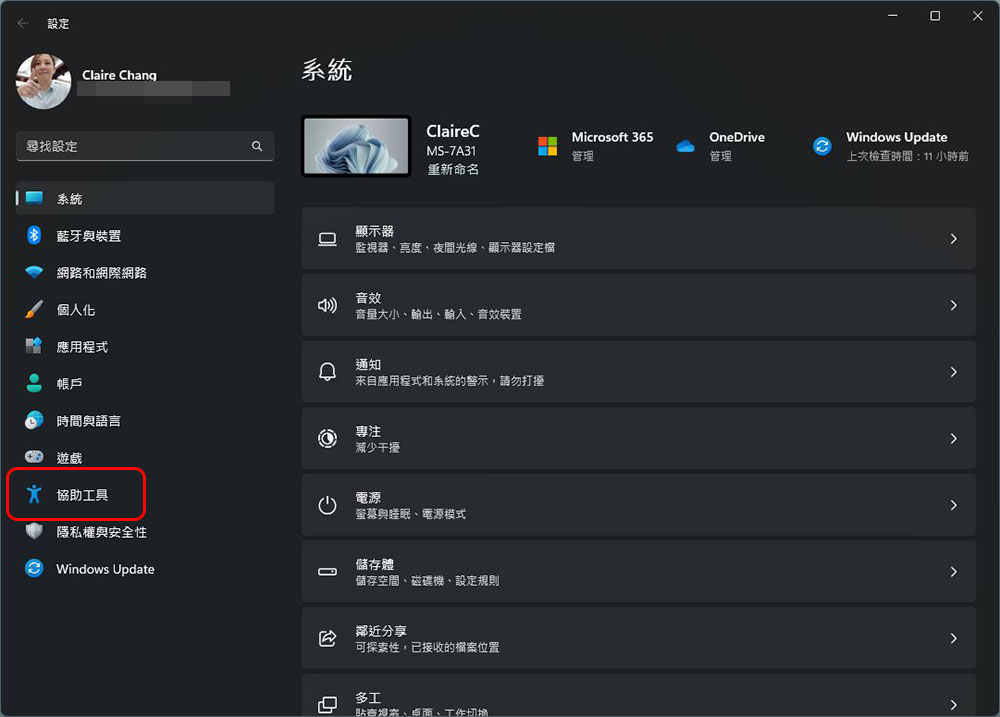
- Open “Settings” and click “Accessibility Tools” in the sidebar.
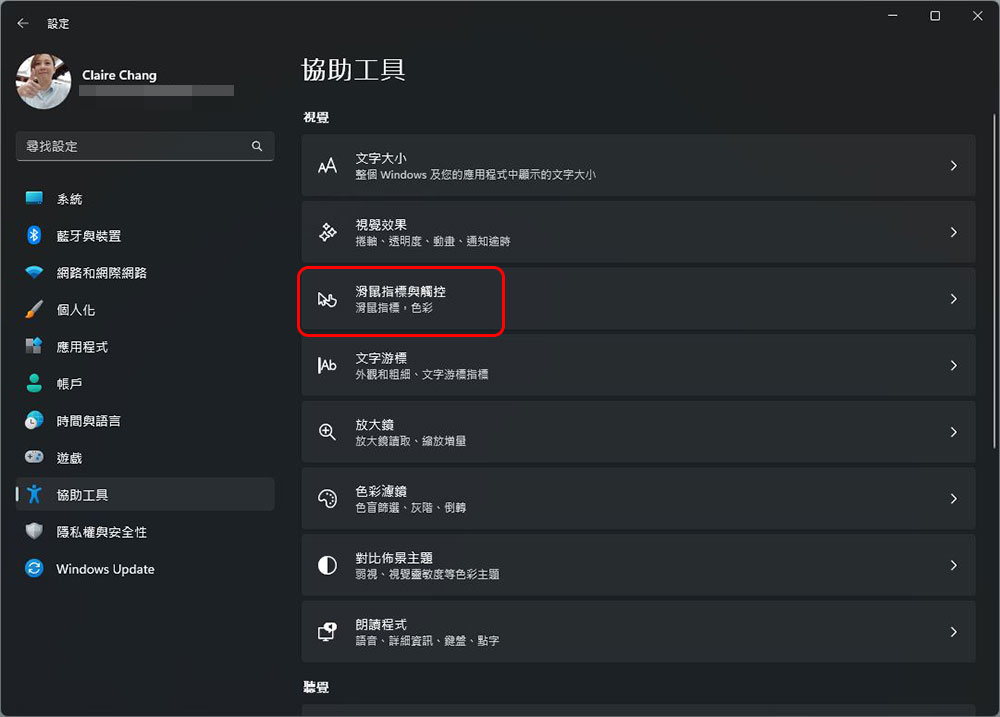
- Enter the item “Mouse Pointers and Touch”.
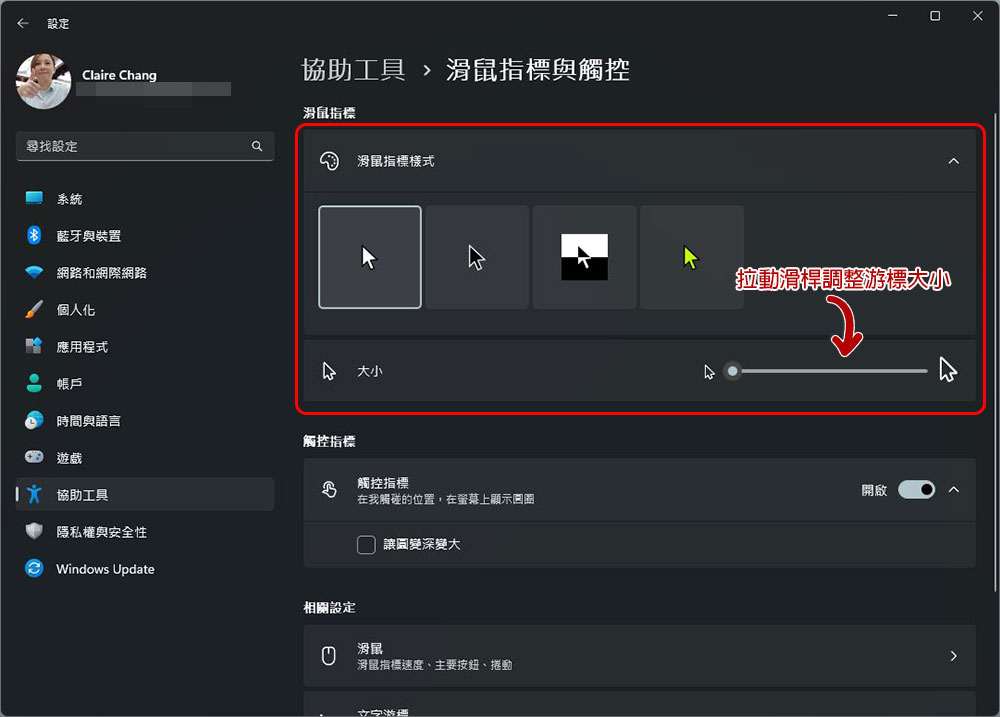
- At the top of this page, you can set the style and color of the mouse cursor, and you can also use the lever to adjust the size of the mouse cursor, so that you don’t need to always look for where the cursor is on the computer screen.
Make it easier to find with your mouse cursor
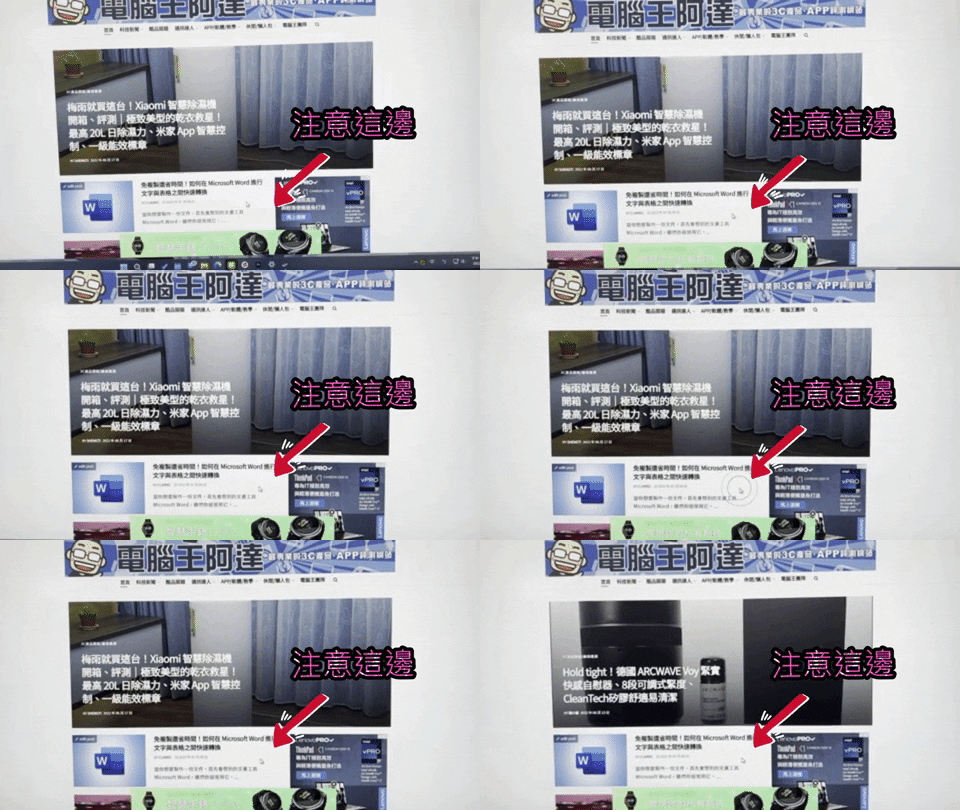
Windows 11 actually has a special cursor position guidance function. When you press Ctrl, a concentric circle pattern will appear at the cursor position to indicate the current location, but you must manually enable this function.
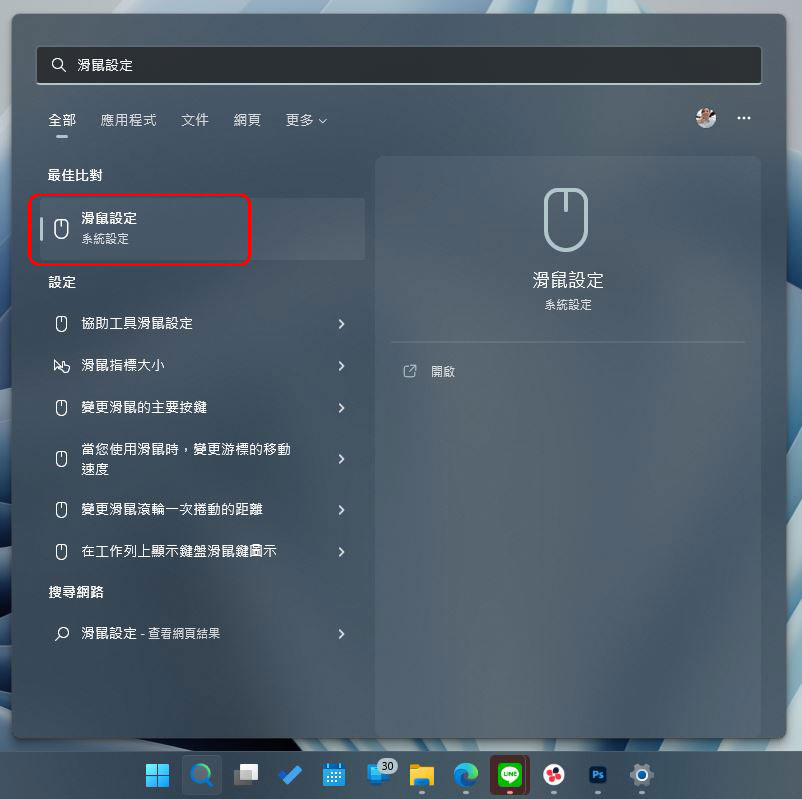
- Open Start, then search for “Mouse Settings” and turn it on.
- In the settings window that pops up, scroll to the “Related Settings” unit below and click “Other Mouse Settings” there.
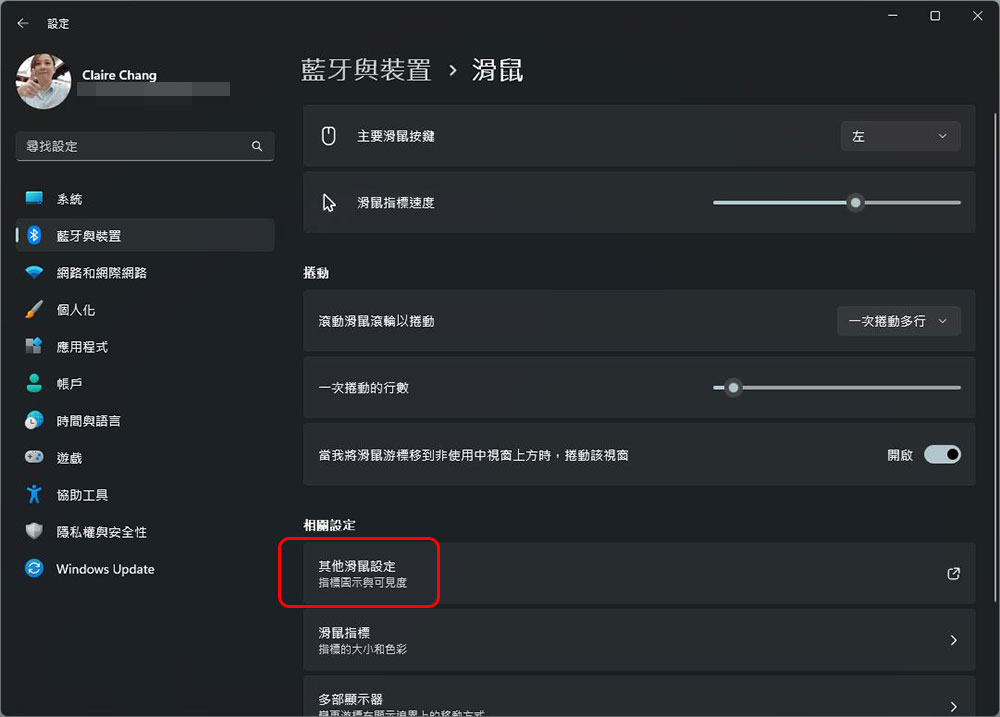
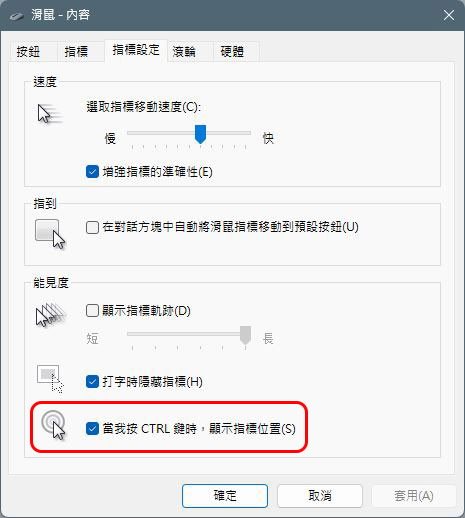
- In the pop-up settings window, switch to the “Indicator Settings” tab, then check the “Show indicator position when I press CTRL” checkbox at the bottom and apply and confirm.
- Next, when you can’t find where the mouse cursor is going, just press Ctrl on the keyboard and you can see the concentric circle animation as shown below, and you can immediately see where it is.
Enlarge system fonts in Windows
If you feel that it is becoming more and more difficult to view system text on the screen, and you have to squint just to see the system text, and your eyes are easily fatigued, then it is time to enlarge the system display font.
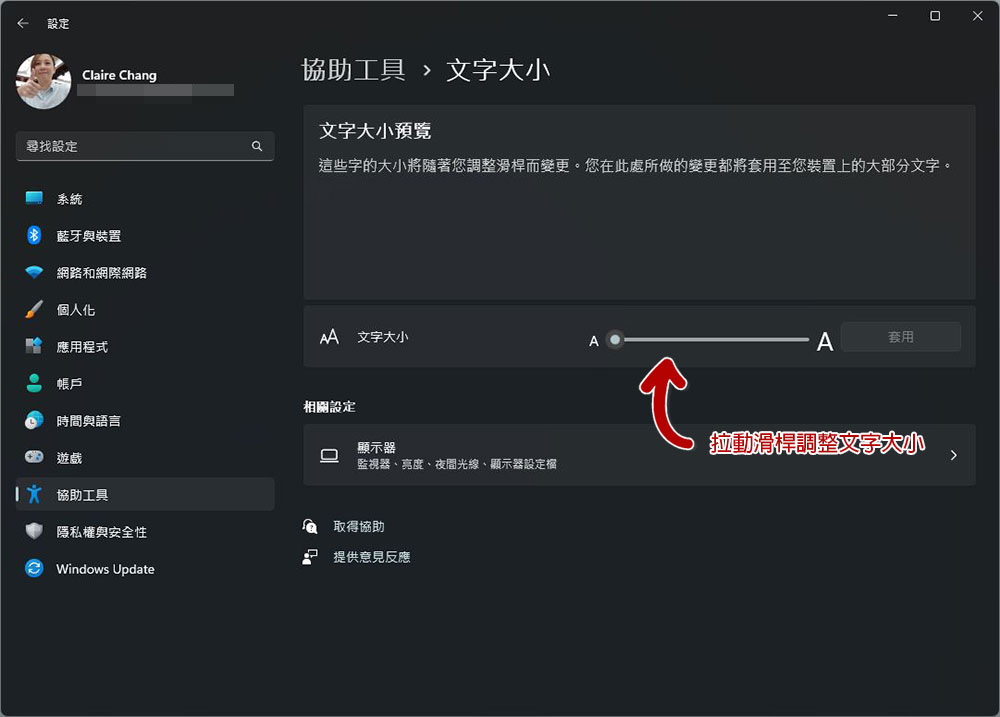
- Open “Settings” and enter “Accessibility Tools”
- On the next screen, select the “Text Size” option.
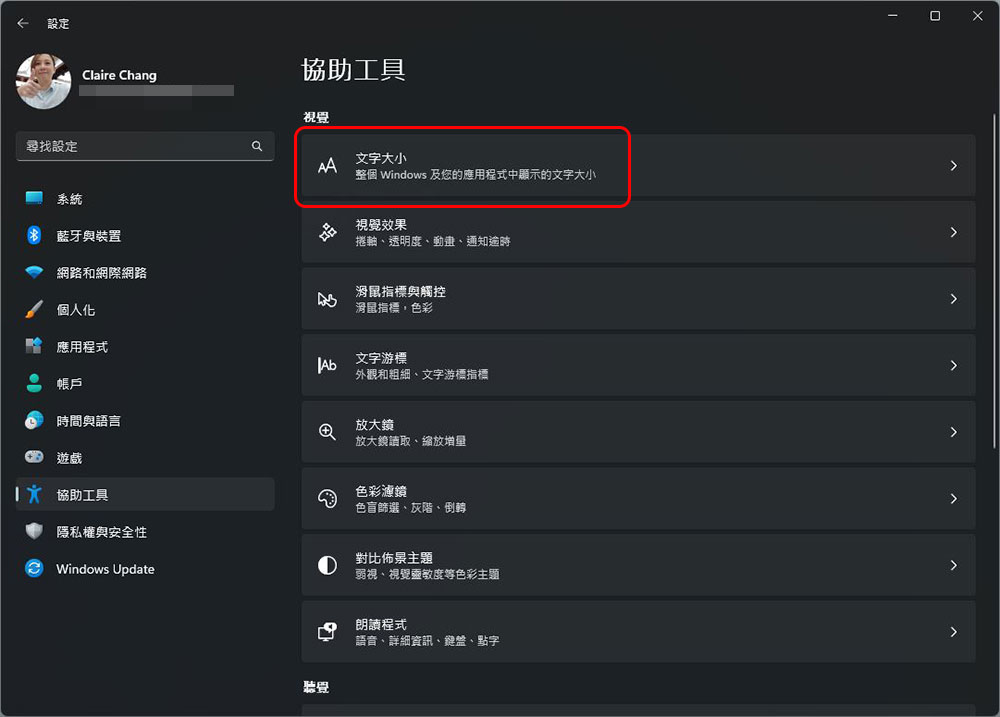
- Then use the slider to adjust the system text size. The settings here will be applied to most text in the entire Windows system. (There are occasional exceptions but they can be ignored)
Enlarge browser font
If you often read news, e-books and other text-related content on the Internet, but don’t want to enlarge the fonts in the entire system, you can set the font size for the browser individually, or use the built-in magnifying glass function to enlarge the fonts of each website.
- After opening the browser, click “Menu” in the upper right corner. Microsoft Edge, Chrome and Firefox all have related options. The author lists the display methods of the three browsers in the figure below.
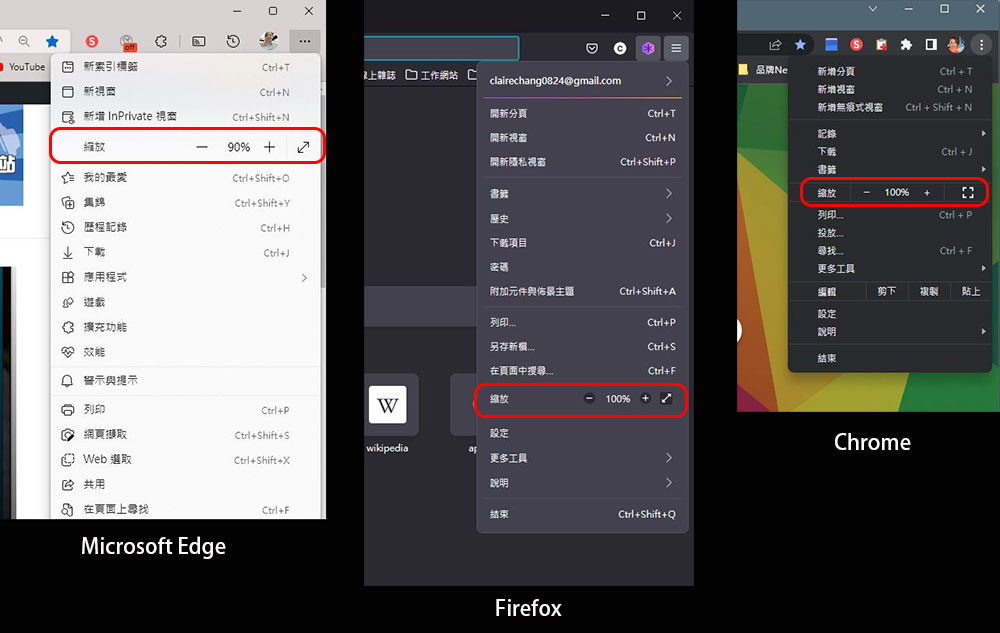
- Or you can hold Ctrl on your keyboard and press the + or – sign with your other finger to zoom text in the browser. When you press the + or – sign once, the browser zooms in at 10%.
Enlarge desktop icon
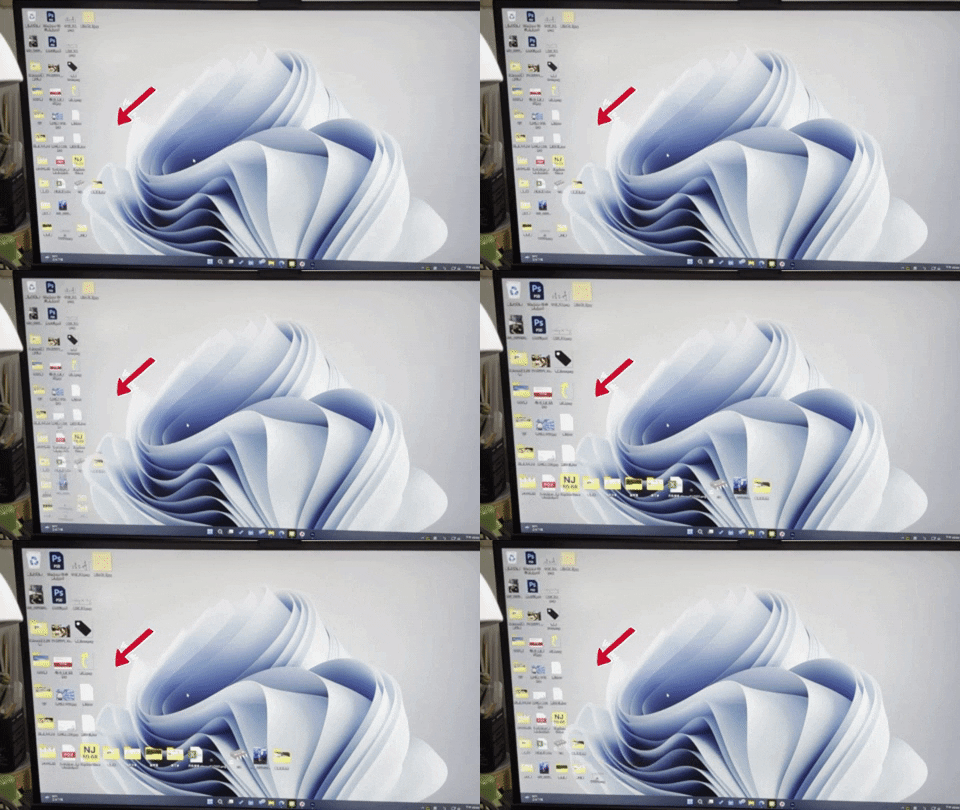
If you feel that the icon on the Windows desktop is too small to see clearly, there is a very simple way to enlarge it in Windows 11. This method is very simple. You don’t even need to make any settings at all. Just hold down Ctrl on the keyboard on the desktop, and then roll the mouse wheel. Roll up to zoom in and roll down to zoom out.
The above settings are provided for users with declining vision. Of course, if none of these work, you can only go to an optical shop or eye clinic to get a better pair of reading glasses to help you reduce vision problems and the burden on your eyes.
Source: KOCPC Chinese