


When you want to create a document, the first thing that comes to mind is Microsoft Word. Although you often use it, you may have never understood some of its small functions, let alone used it. Has it ever happened that after you finished typing a long string of text, you found that it seemed more appropriate to present it in a table? In the past, you might have had to do it all over again, but the little features in Microsoft Word can save you from that trouble.
No need to copy and save time! How to quickly convert between text and tables in Microsoft Word
When you feel that the content you are currently typing is more suitable for the form, you may have two methods in the past: the first is to open a new file and start over, the second is to pull out the form, copy the text one by one and paste it into it. No matter which of the above methods you use, it is obviously very time-consuming and labor-intensive, and it will be annoying when there is a lot of content. Whether the text is separated by tabs or commas, or a list separated by numbers or project symbols, converting to a table is super easy in Microsoft Word and takes less time than creating a table and manually moving all the text into cells.
Convert text to table (horizontal text) in Word
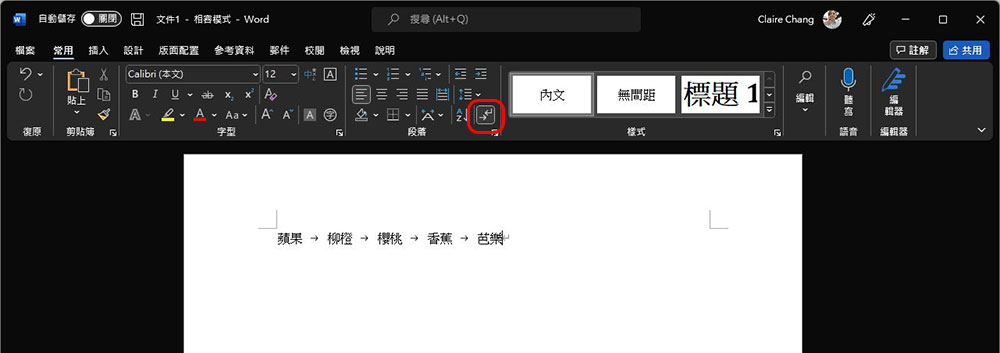
First of all, the text you enter must use an edit mark type that can recognize conversions in Microsoft Word. For example, you can use commas, tabs, spaces, or any other mark to separate each word. If you are not sure which one to use, you can check it through “Common >> Paragraph >> Show/Hide Edit Marks”. Especially when using the anchor point (Tab) to convert, you will find that it is completely invisible on the surface. When it is displayed, a small direction key will appear as shown in the picture below, which will help you with subsequent operations.
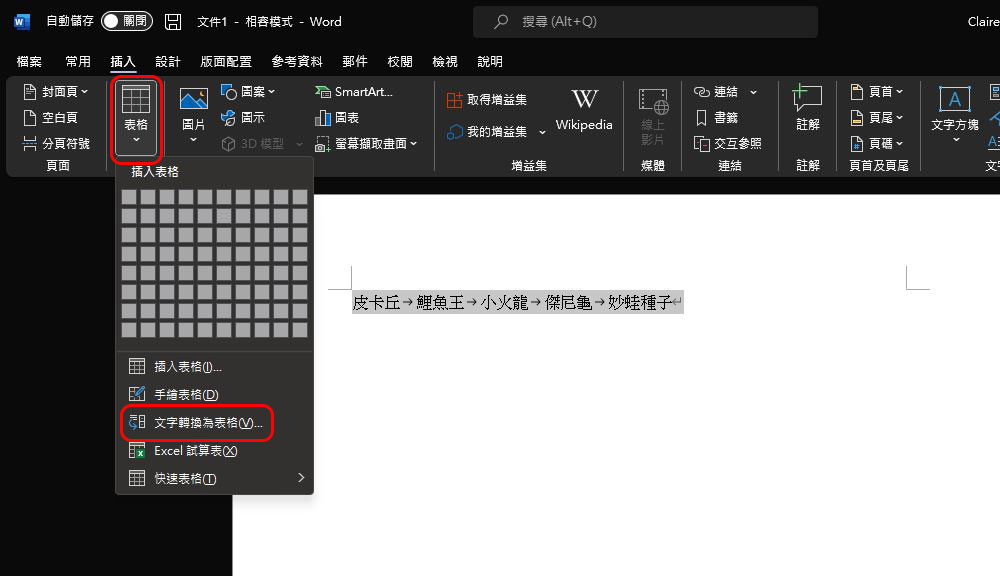
Next, highlight the text you want to convert, and select “Convert text to table” in “Insert >> Table” in the menu above.
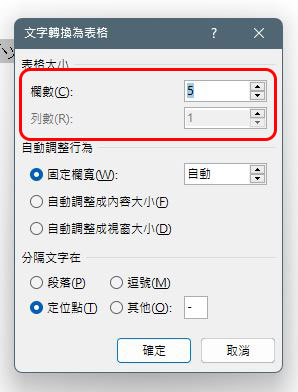
Set the required number of columns in the pop-up options window. By default, the text you select will be separated by columns (that is, a horizontal list). If you prefer to display it in columns (vertical list), where the number of columns is locked to the number of columns, reduce the number of columns so that the number of columns matches the number of items selected.
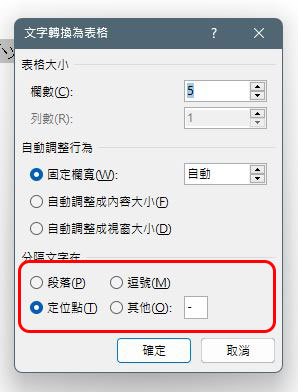
You can choose the automatic adjustment behavior part below according to the situation, but the default is to use automatic fixed column width. Then in the part that separates the text below, choose which method you use to separate the words. If you use spaces, commas, or other items not directly listed, select other items, and then fill in the separator you use in the following fields.
After the setting is completed and you press OK, you will see that the text you just selected is converted into a table. You can also add the number of rows, adjust the size, or position the text as you normally would when editing a table.

Convert a list to a table in Word
Converting a list to a table is slightly different than converting the most basic text to a table, because the list is already separated by bullets when you create it, which will put each word in a separate column instead of a column, but you can adjust the settings as needed. If you want to convert a list, you must first confirm whether you still want to retain the bullet points in the converted table. If you do not want to retain them, please cancel the bullet symbols in “Common >> Paragraphs”; if you want to retain them, you can skip this step.
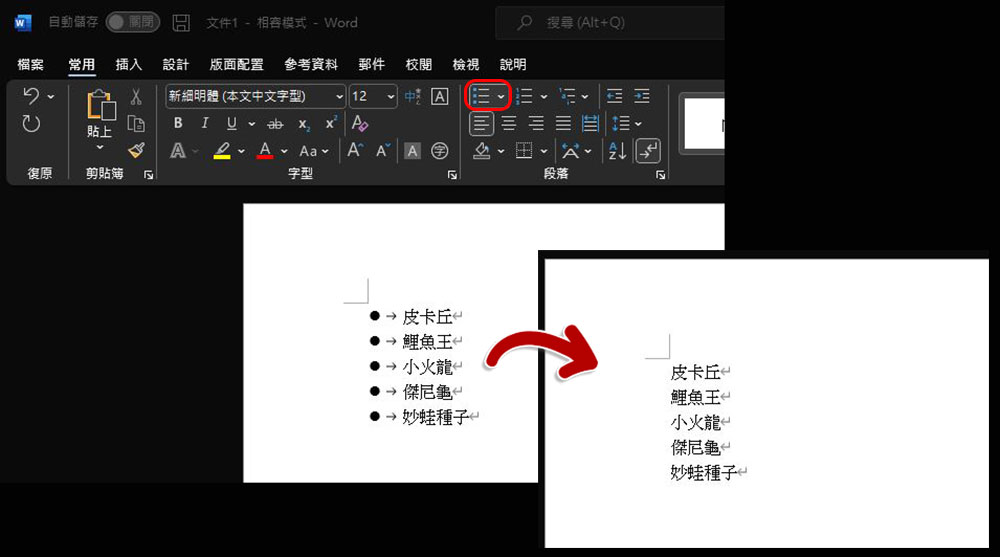
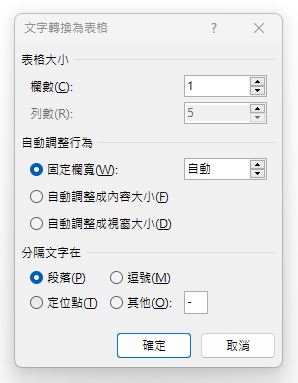
After highlighting the list you want to convert, select “Convert text to table” in “Insert >> Table” in the menu above. You will see the same pop-up window as when converting text. By default, it will be presented in columns. If you want multiple columns, you can adjust the number of columns to make the columns linked. As for the delimiter part, since the list is on a separate line, the default is “Paragraph” and don’t touch it.
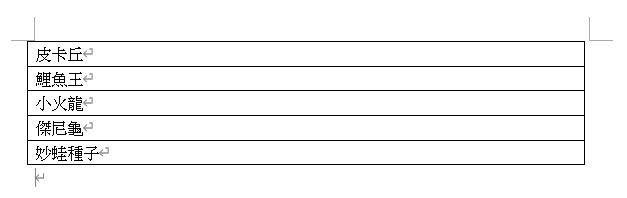
After setting and pressing OK, your original list will appear as shown below and can be edited by you.
Convert table to text
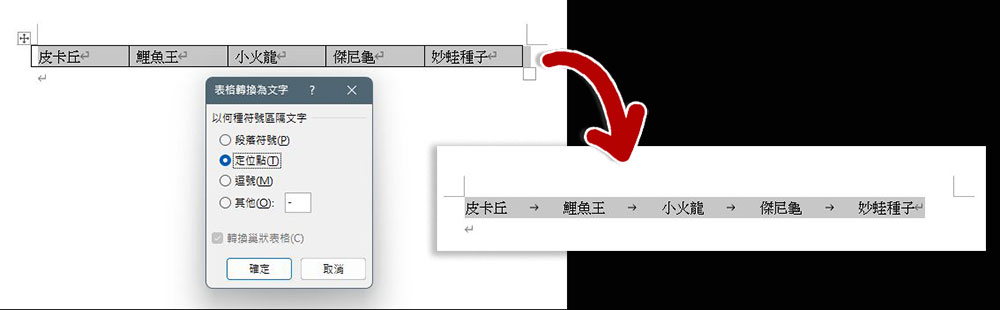
On the other hand, if you want to change the originally prepared table to retain text, or if you want to convert the table pasted from Excel into text form, you can reverse the above operation. First highlight the table you want to convert to text. Then select “Layout >> Data >> Convert to Text” in the menu above.
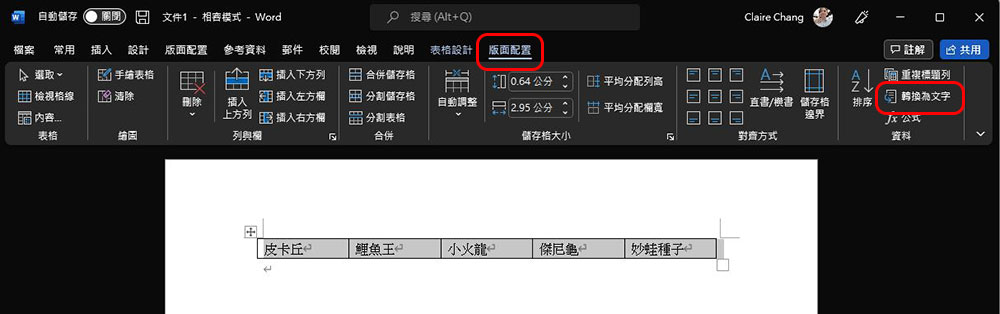
Next, choose which symbol to use to separate the converted words. After selecting, press OK. You can see that the original table is immediately converted into text.
In this way, you can quickly convert tables and text in just a few steps. Isn’t it much simpler than copying and pasting them one by one? Not many people know about such a practical trick. Learn it quickly and it will greatly improve your productivity and save more time on homework.
Source: KOCPC Chinese