


When you feel that your computer is a bit laggy and you want to upgrade the memory, you must first determine how many memory slots your computer has. In the past, you might check the manufacturer’s product configuration information online, or directly disassemble the case to confirm whether there are any empty slots available. However, there are three methods on Windows 11 that can help you know this matter more quickly. You can try it before you roll up your sleeves and prepare to dismantle it.
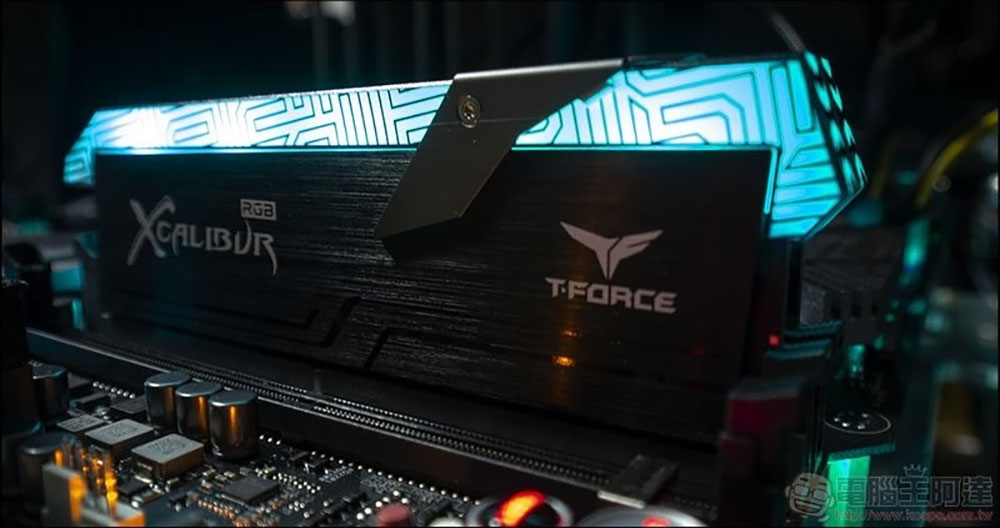
Three easiest ways to check how many memory slots a Windows 11 computer has
Before buying new memory and preparing to upgrade, the most basic thing to make sure is whether there are any empty slots on your computer or laptop. If you buy it first and then find out there is not, then you will really spend money in vain. Windows 11 provides a simpler method that allows you to check the number of memory slots immediately. Below, the author lists three methods and steps for you to get started quickly.
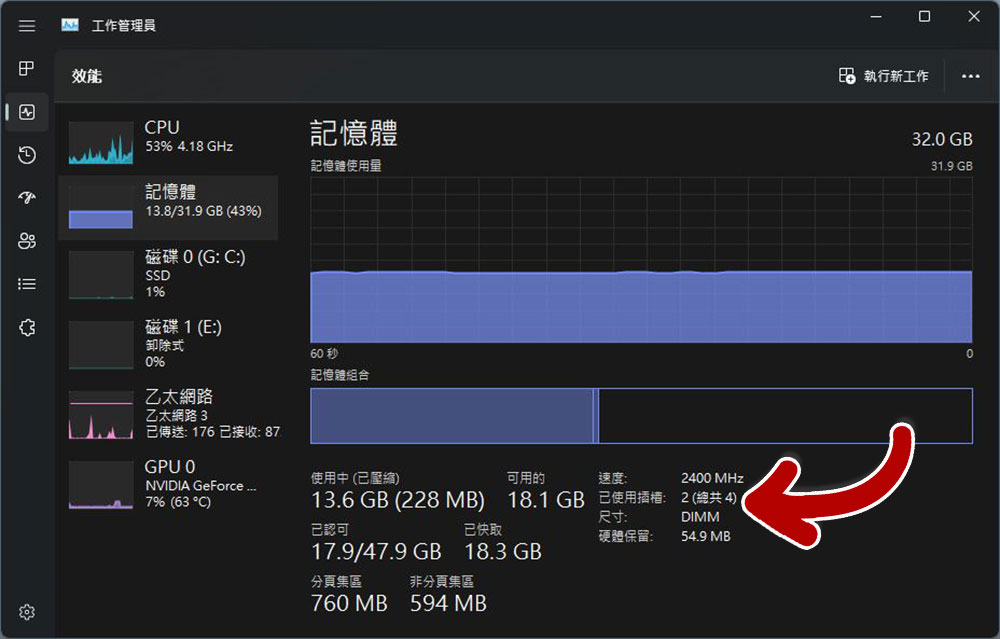
View from job admin
- Open the job manager. You can use the Ctrl + Alt + Del keyboard combination to call it up and click on the “Job Manager” item.
- Click the “Performance” tab on the left column, and click once on the “Memory” item.
- View the memory information that appears below to see how many slots there are in total and how many slots you have used.
Use “Command Prompt Characters” to check
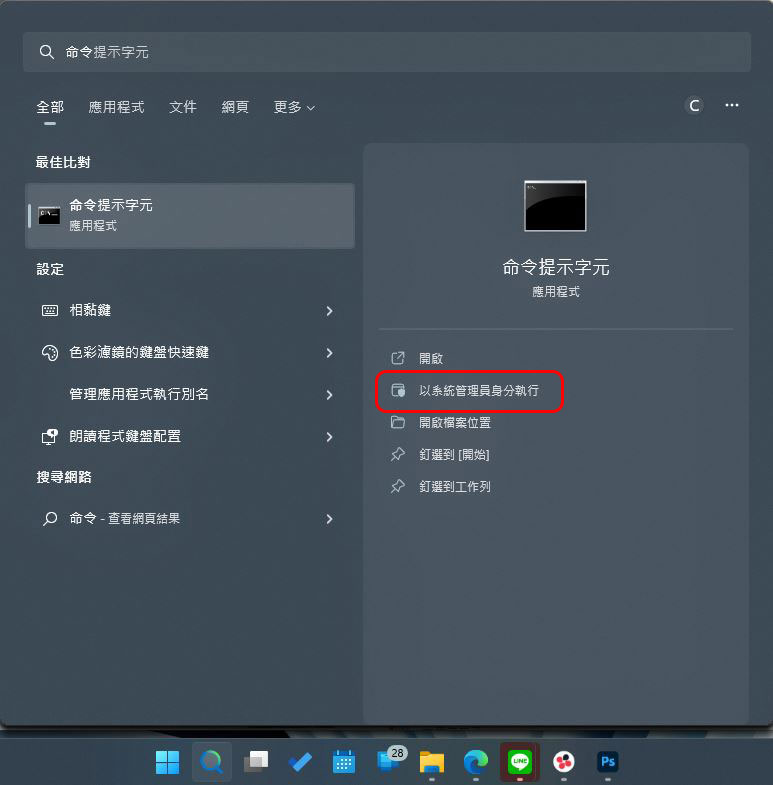
- Search for “Command Prompt” in the Start menu and select the “Run as administrator” option.
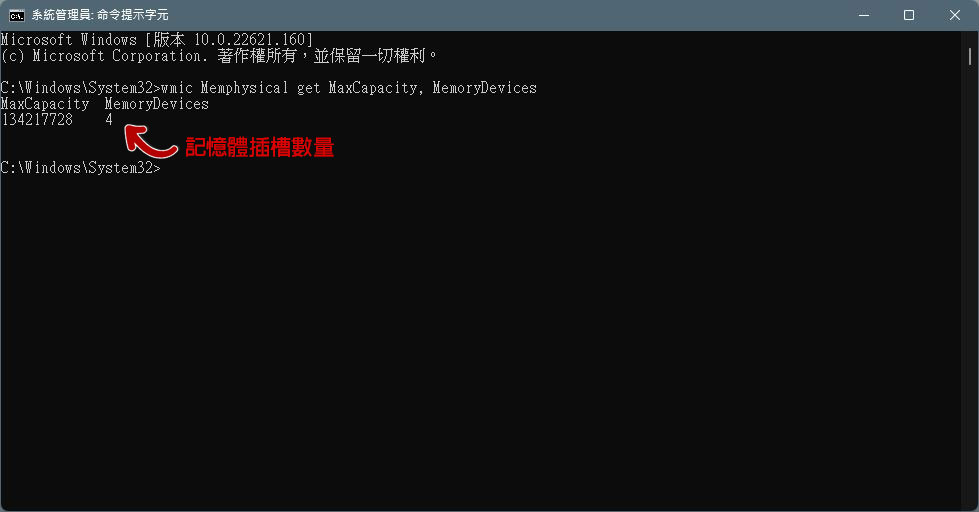
- Enter “wmic Memphysical get MaxCapacity, MemoryDevices” and press Enter. You will see the number of memory slots in your computer displayed on the screen.
- Next, enter “wmic MemoryChip get BankLabel, DeviceLocator, Capacity” and press Enter to check the occupied slots.
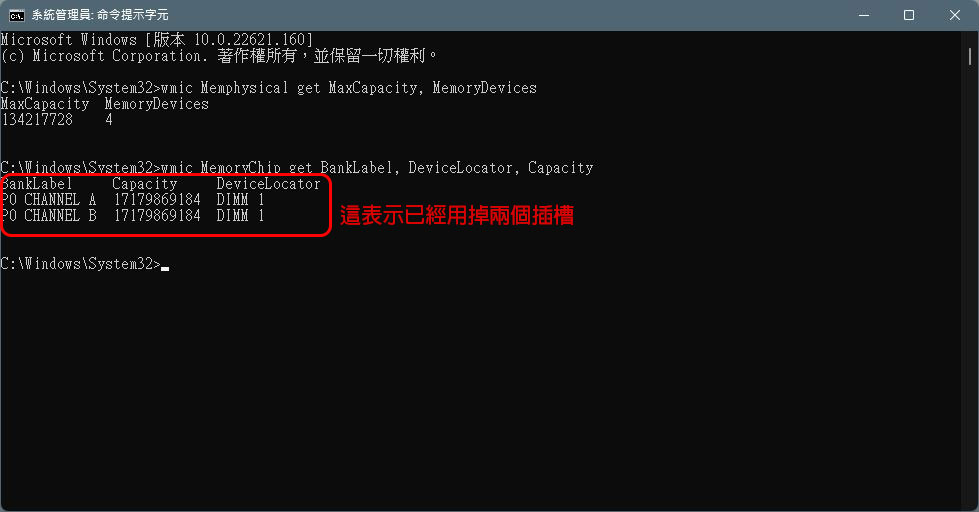
- Deduct the used slots from the total number of slots, and you will immediately know whether there is room for you to expand memory.
Check with PowerShell
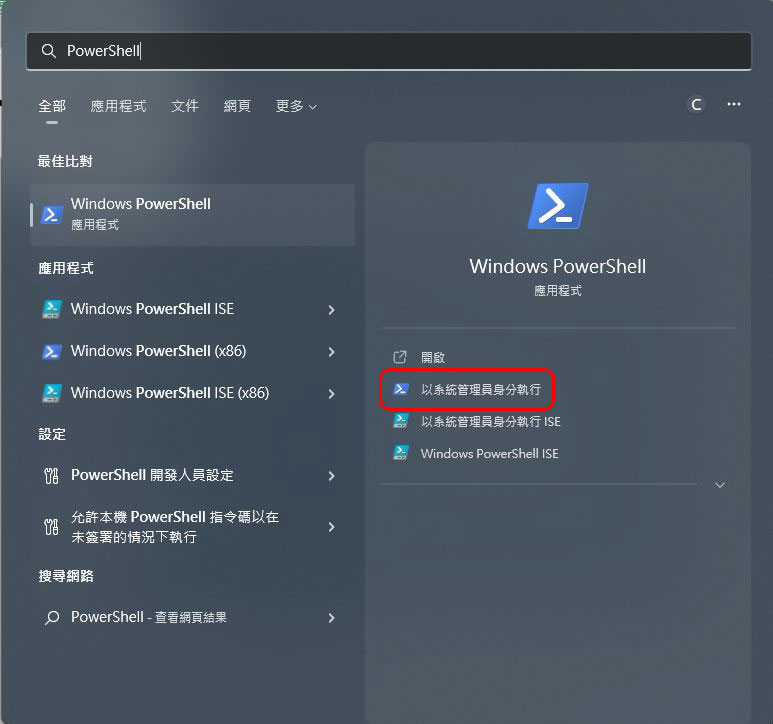
- Search for “PowerShell” in the Start menu and select “Run as administrator.”
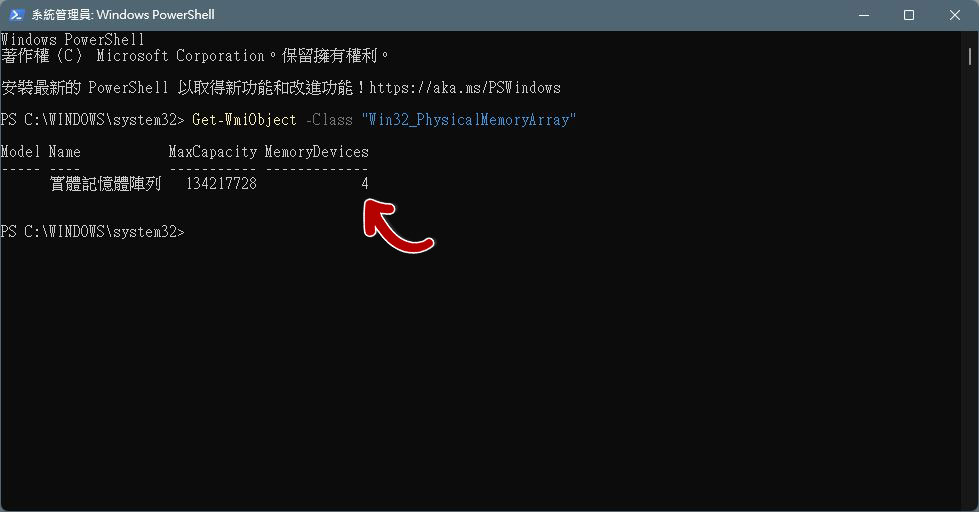
- Enter “Get-WmiObject -Class “Win32_PhysicalMemoryArray”” and press Enter to know the total number of memory slots on the computer.
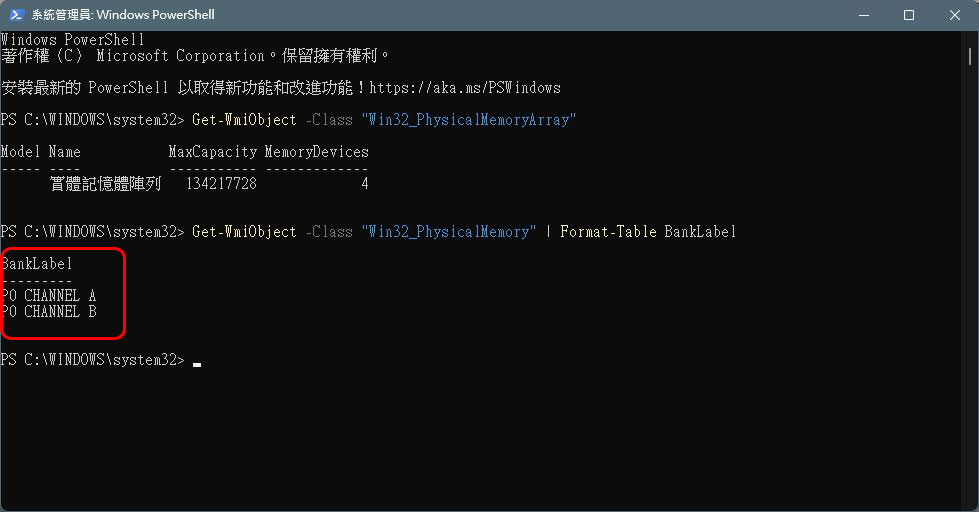
- Then enter “Get-WmiObject -Class “Win32_PhysicalMemory” | Format-Table BankLabel” and press Enter. You can see the amount of memory currently installed on the computer and the occupied slots.
The simplest method is to view it from the work administrator, because you don’t need to enter any command code, you can view it completely by clicking with the mouse, but no matter which one is mentioned above, it is much easier than disassembling the chassis if you disagree.
Source: KOCPC Chinese