


When using Netflix to watch movies or series, when you do not use any controls or interact with the application for a period of time, a prompt message “Are you still watching” will pop up on the Netflix screen. For users who want to have a long-lasting marathon of series, this may be annoying, so can I turn it off? There’s no clear way to turn it off, but you can get around it with autoplay.

How do I stop seeing the “Are you still watching” prompt on Netflix?
Let’s talk about the “Are you still watching” measure first? Its triggering is also regular. When you watch 3 episodes in a row without using any playback program controls, or watch without interruption for 90 minutes (whichever is longer), the system will display this prompt. When this feature was first launched, it caused great disagreement among users. On the plus side, it’s a great feature to make sure you’re not constantly consuming your data when you’re not actually watching anything, and it’s also a great way to avoid forgetting which episode you watched as you fall asleep, especially if you’re watching a show with multiple seasons. The flip side is that many users who enjoy binge-watching TV shows or listening to episodes as background music find pop-ups annoying.
Close on web browser
When autoplay is enabled, Netflix will automatically play the next episode in a series, which means you don’t have to deal with a prompt that appears every three episodes, although you can turn it off at any time:
- Open Netflix in any browser and log in to your personal account
- After entering, click the arrow next to the avatar in the upper right corner of the screen to open the drop-down menu, and click the “Account” item.
- Scroll down in the account and click the arrow behind the user you want to edit to expand the drop-down menu.
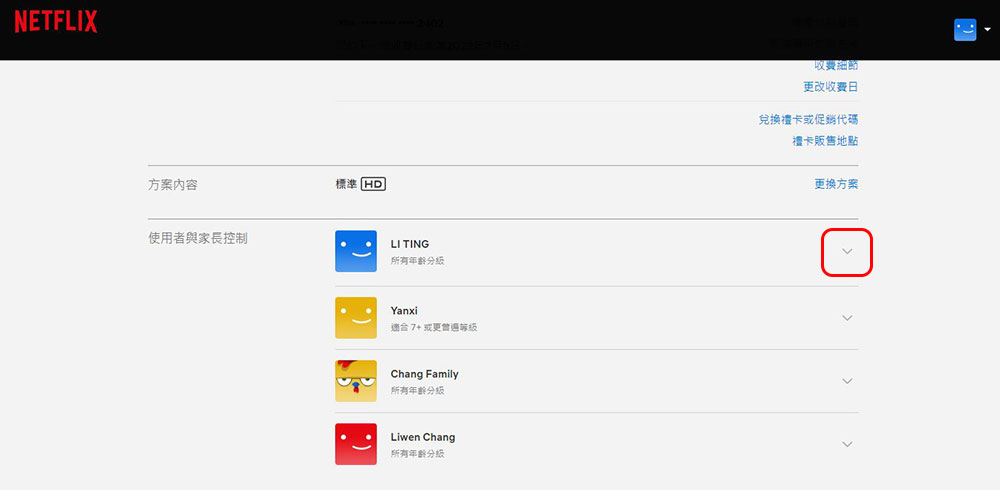
- Click Change behind the “Playback Settings” item.

- Check the box next to “Automatically play the next episode of the series on all devices” and click Save.

Close on mobile device
You can also use your iPhone, iPad, Android phone or tablet to turn off the Netflix “Are You Still Watching” feature? After enabling autoplay, you can enjoy uninterrupted video streaming on Netflix on the go. The operation interface of the application version regardless of platform is as follows:
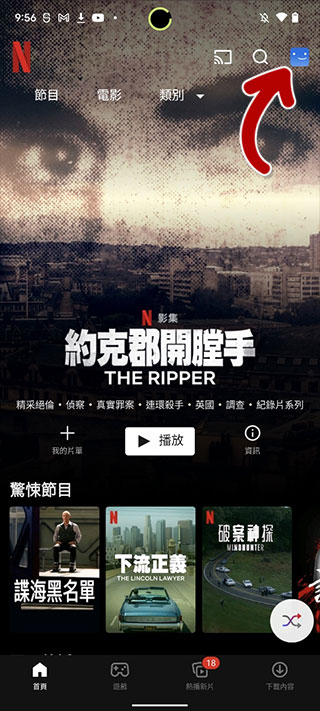
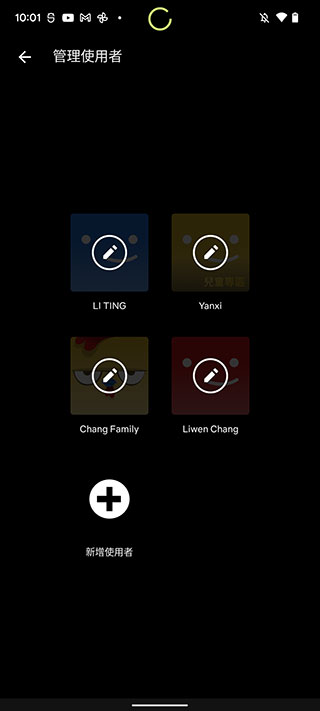
- With the Netflix app open, click your profile picture in the upper right corner of the screen and select “Manage Users.”
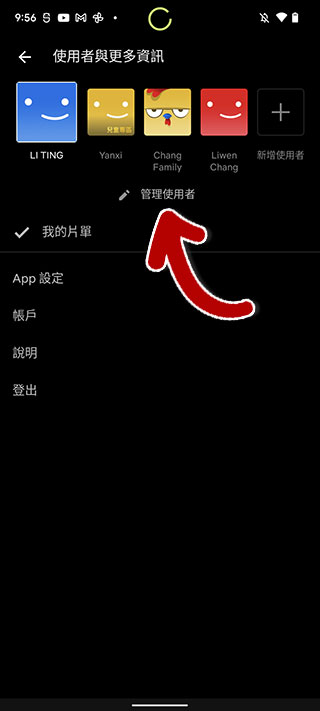
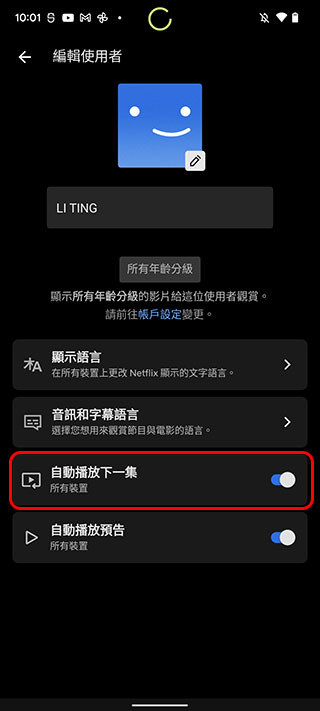
- Then select the user profile you want to edit and turn on the “Autoplay next episode” switch.
So, should I enable autoplay?
Since we are using automatic play to solve the problem of “Are you still watching?”, is it suitable for you to enable automatic play? In most cases, turning on auto-play is a very convenient function, but if you have the habit of falling asleep watching videos, or if you are not a mobile Internet user and are not connected to WiFi, I do not recommend that you turn on auto-play. In the first case, you may not be able to find or remember where you played it when you fell asleep yesterday when you wake up the next day. In the second case, it will silently consume your network traffic.
Source: KOCPC Chinese