


Chrome and Edge users should be like me. After using them for a long time, many extensions will be installed, which leads to more and more icons in the upper right corner. Although the browser itself has hidden functions, I feel that it is not so easy to manage. In some cases, certain extensions may be used, and at other times it becomes another set. It is very troublesome to switch them on and off, and in the end I will give up. This article will recommend a super easy-to-use and powerful “Extension Manager”. In addition to quickly managing activation/deactivation, it also provides a grouping function. We can first set the extension functions that will be used in various usage scenarios. In the future, we only need to switch groups with one click, and even name the extension functions.
“Extension/Extension Manager” Introduction to the ultra-powerful Chrome and Edge extension management tool
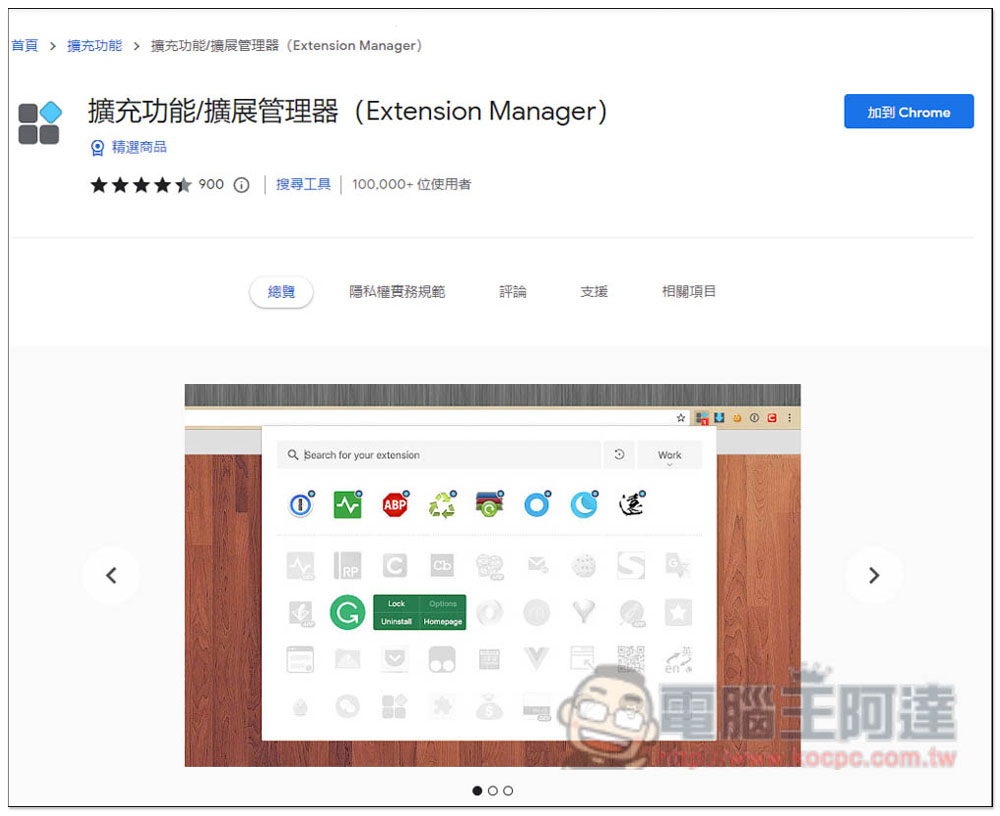
The full name of this is “Extension Manager”. It is an extension of Chrome. Microsoft Edge can also install it. After entering the Chrome store, click “Add to Chrome” on the right:
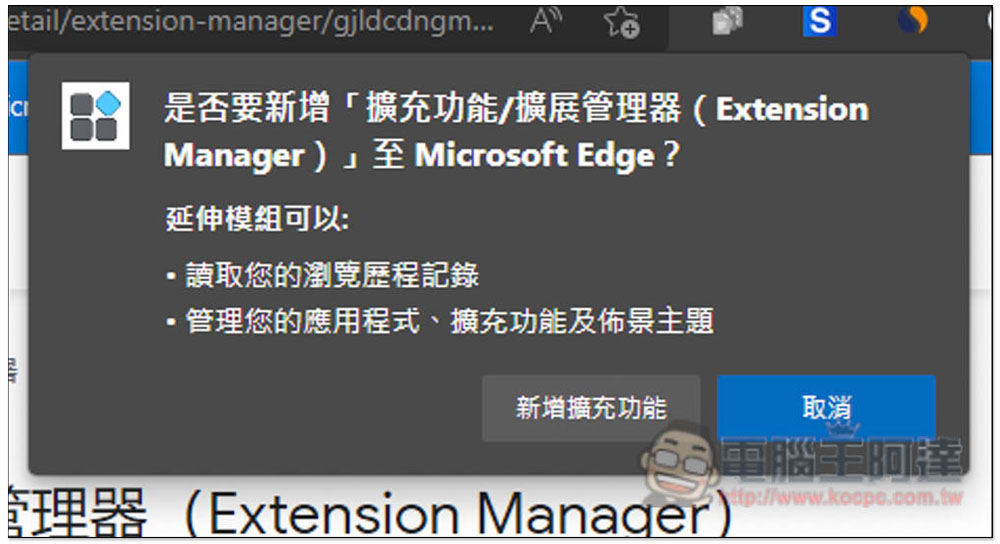
This message will pop up above, click on Add Extension to install it:
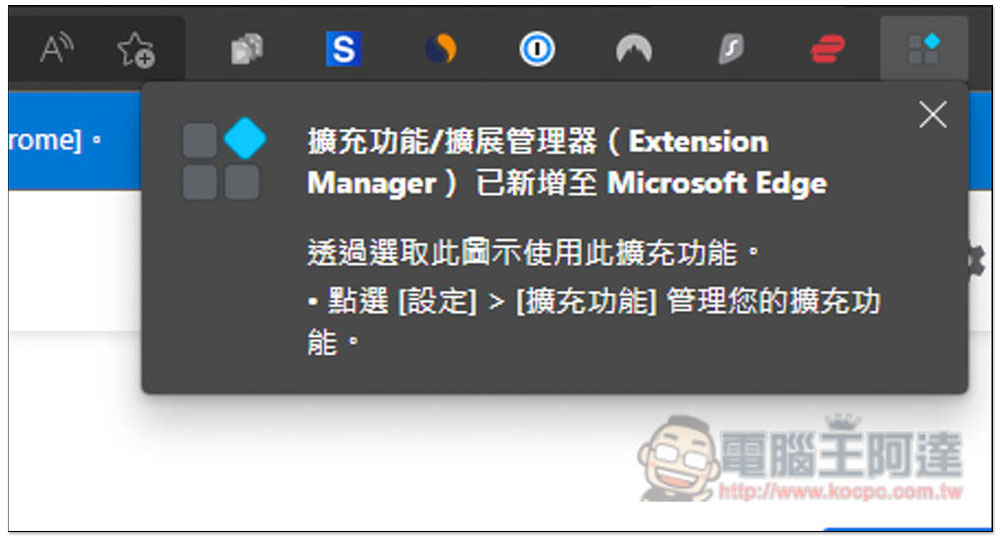
The installation is complete. However, by default, newly installed extensions in Edge/Chrome will be automatically hidden, so please click on the puzzle icon on the right:
When you open this extension, it will generally be located at the bottom:
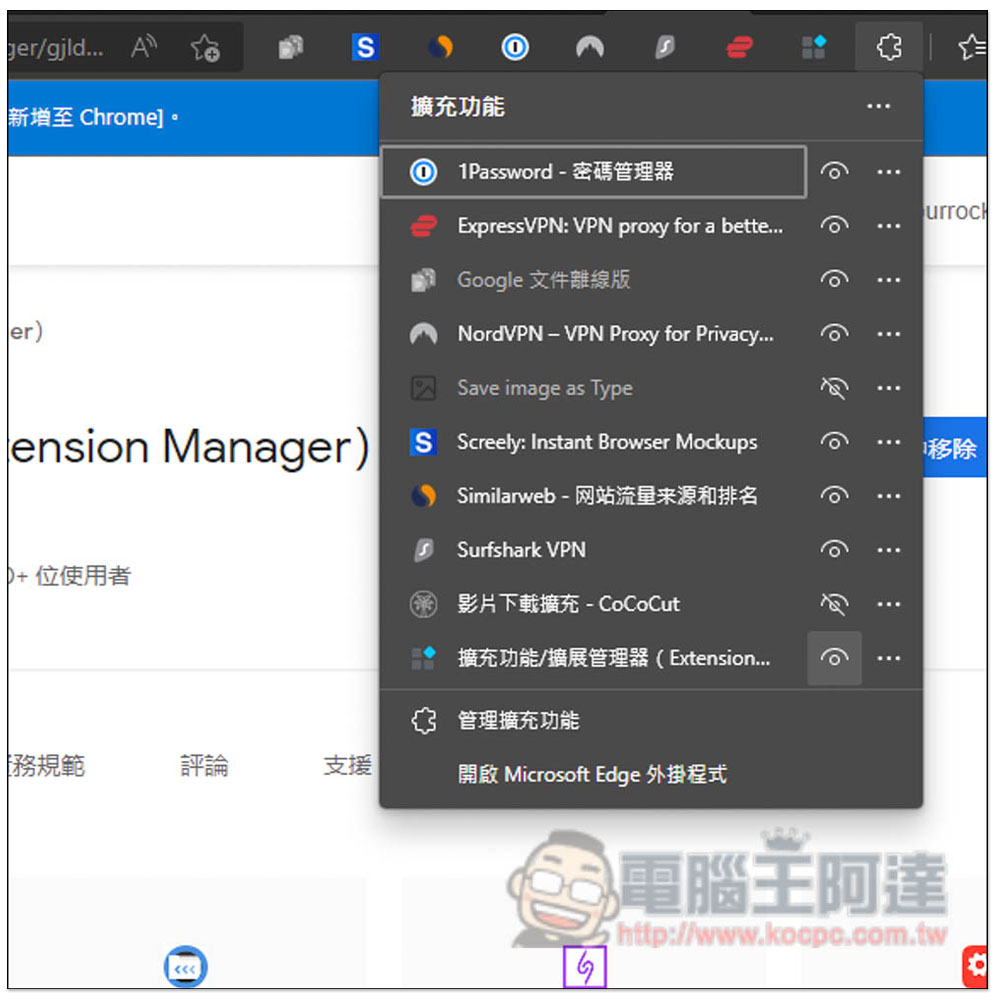
Now you’re good to go! The light at the top means you have an enabled extension. If you don’t want to enable it, just click on the extension icon:
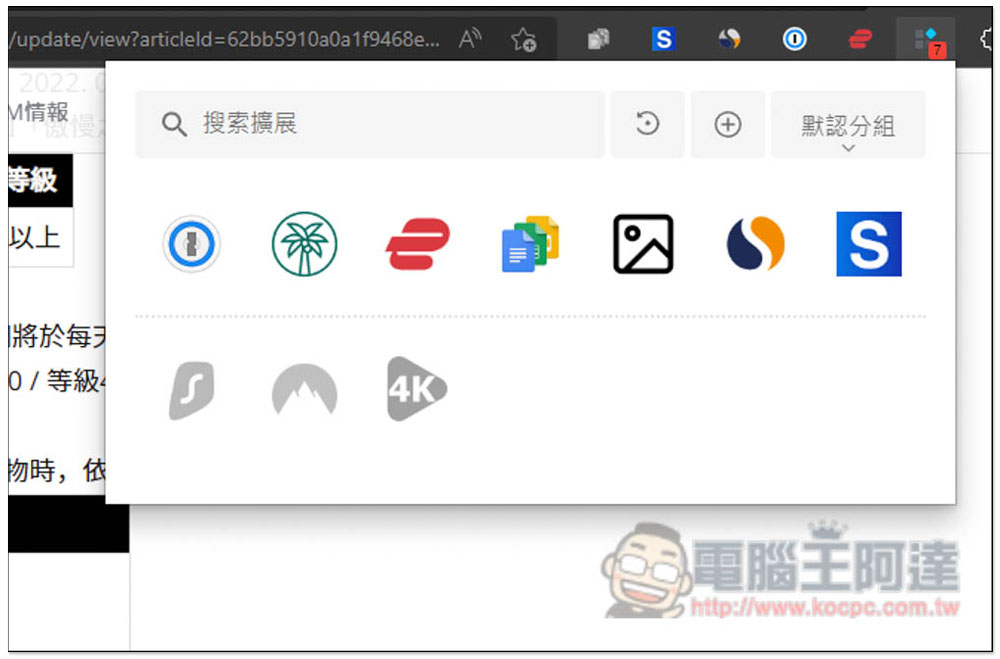
They will move to the bottom, become hidden, and indeed disappear in the upper right:
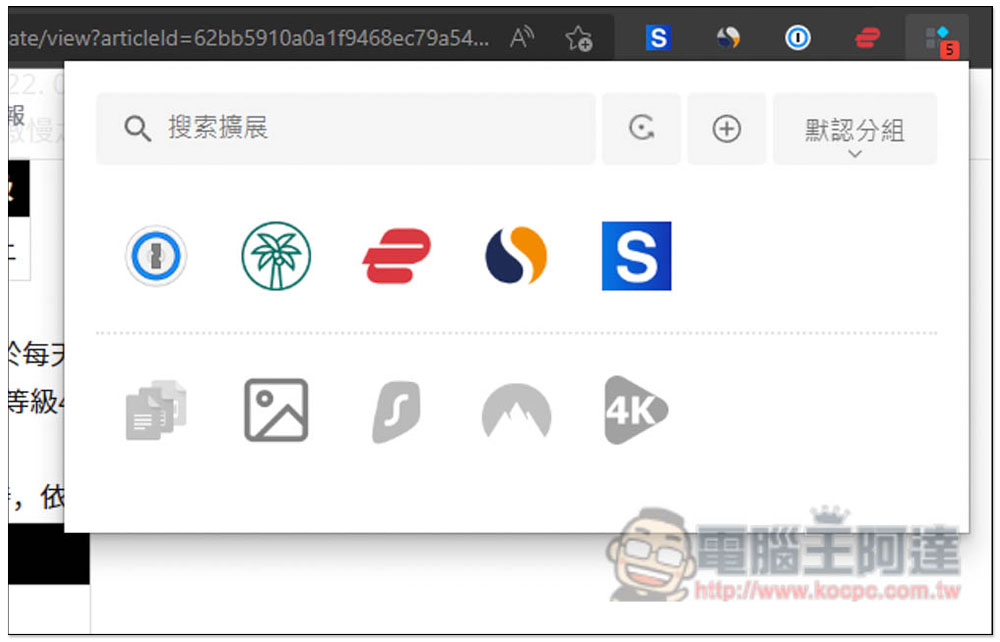
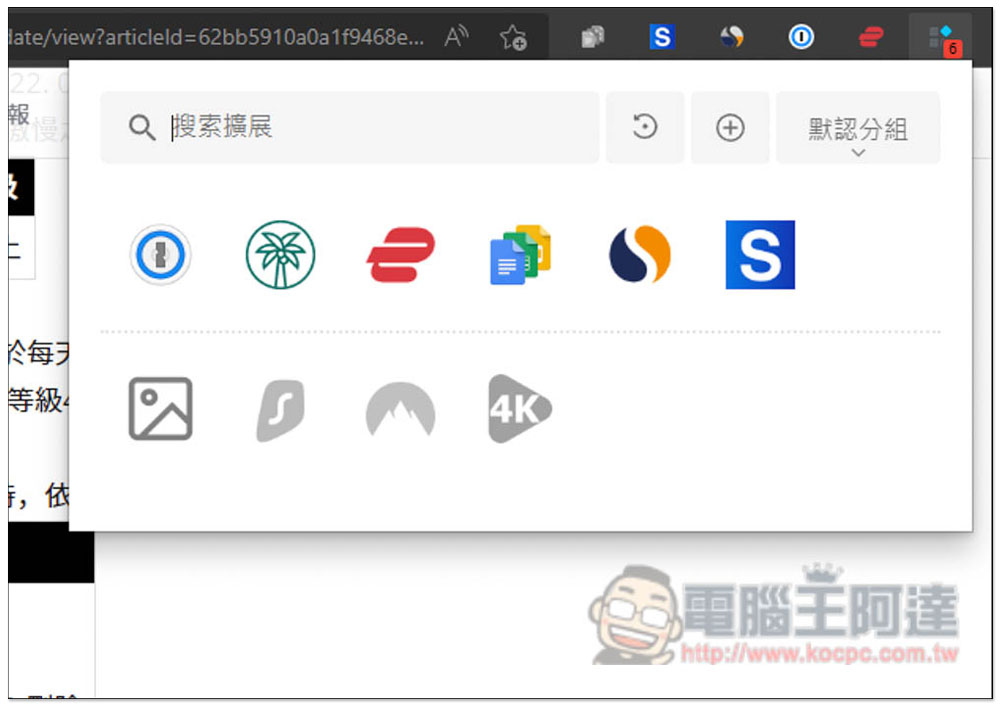
To add it back, just click on the extension icon below and it will be moved up. In addition, if you have too many extensions, there is a search function above. Enter keywords to quickly find the extensions you want:
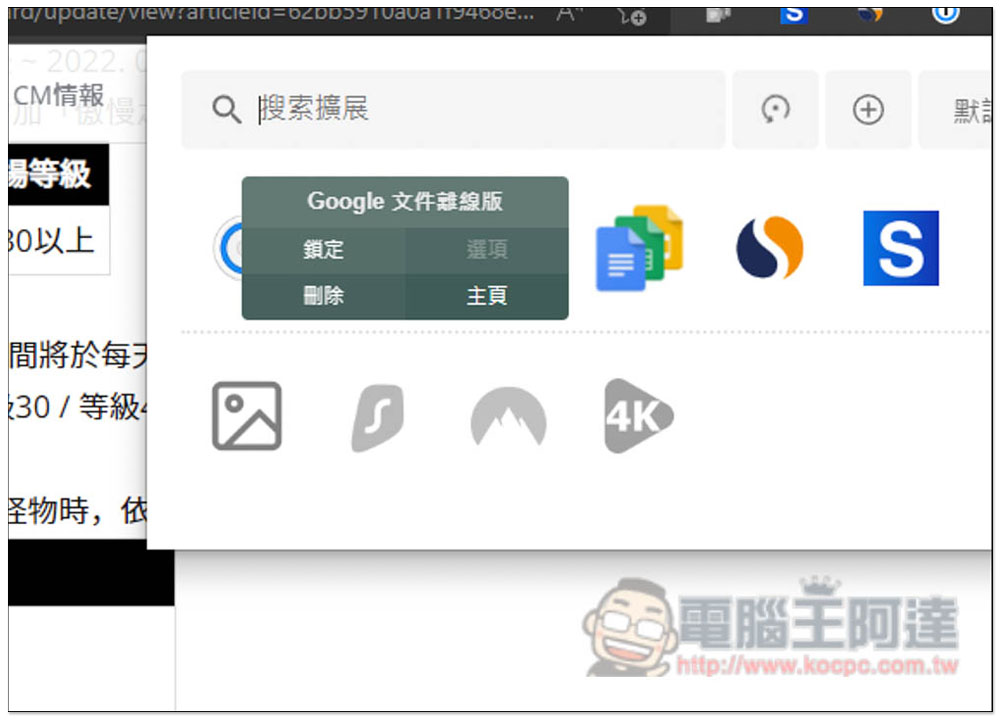
Move the mouse over the extension icon and there will be a menu, Lock, Options, Delete and Home. If you want to delete an extension, you can find the delete function directly from this menu:
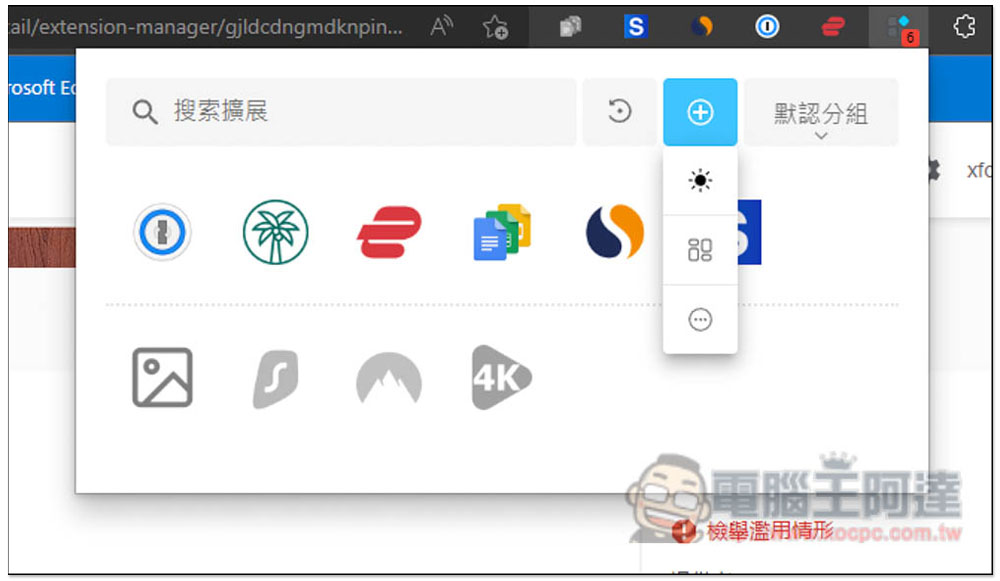
The + icon on the right expands and has four functions:
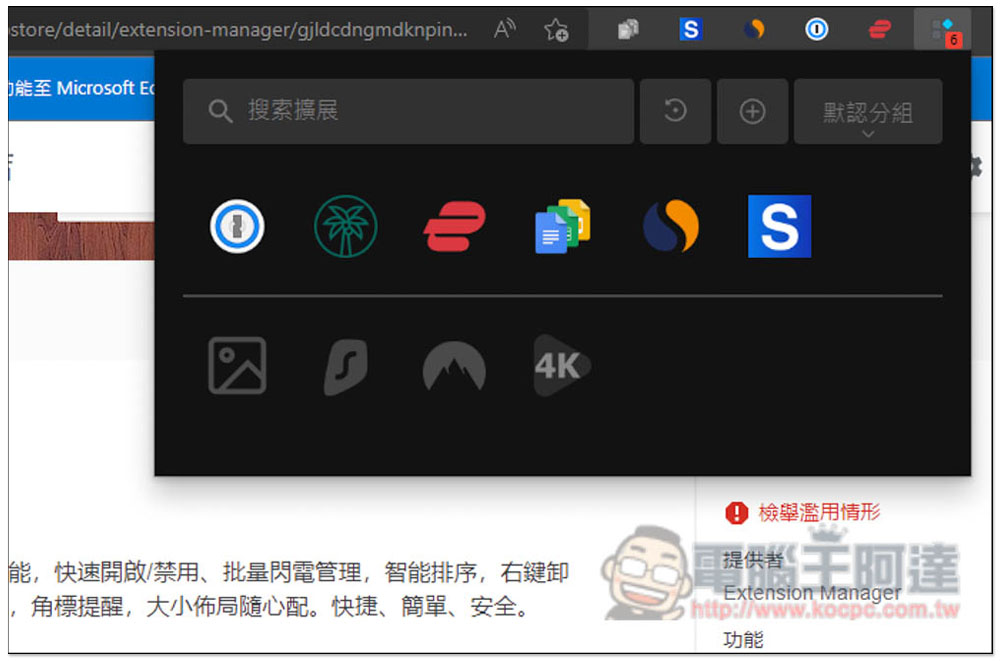
The first one is to switch the display theme, there is a dark mode, which one you like:
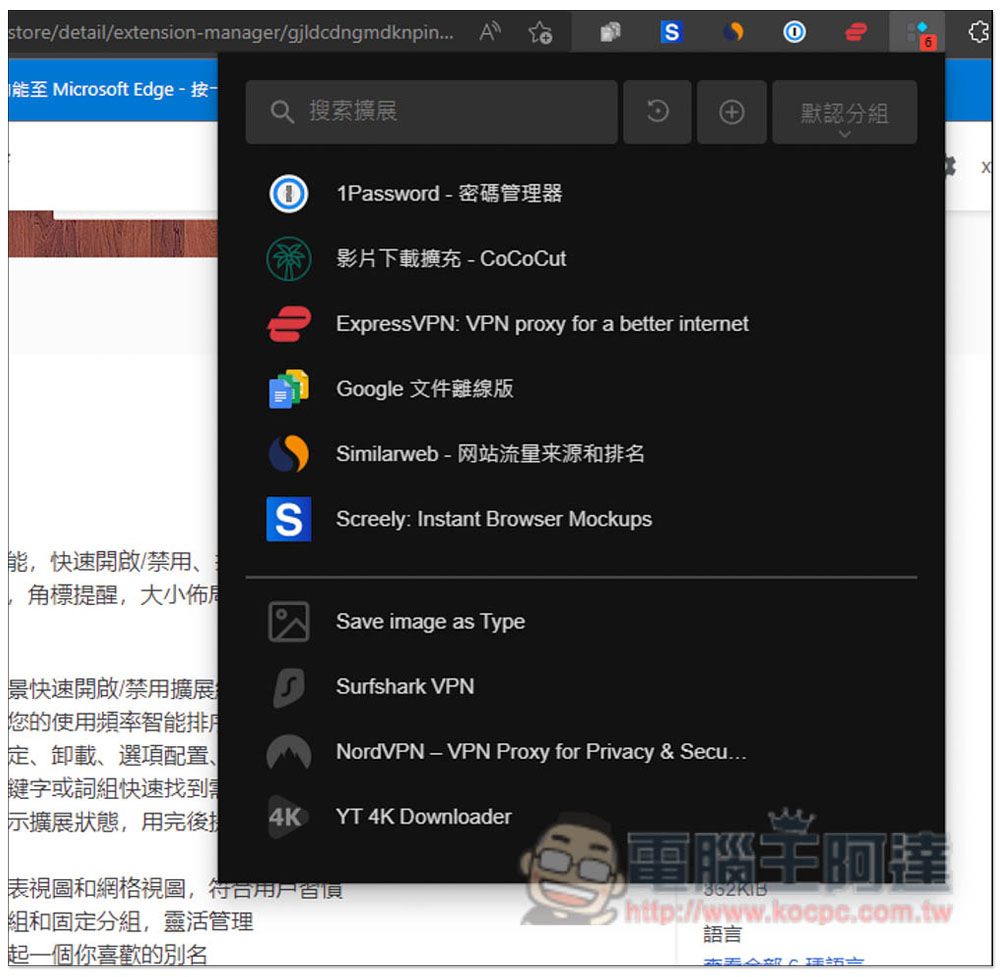
The way extensions are displayed can also be changed:
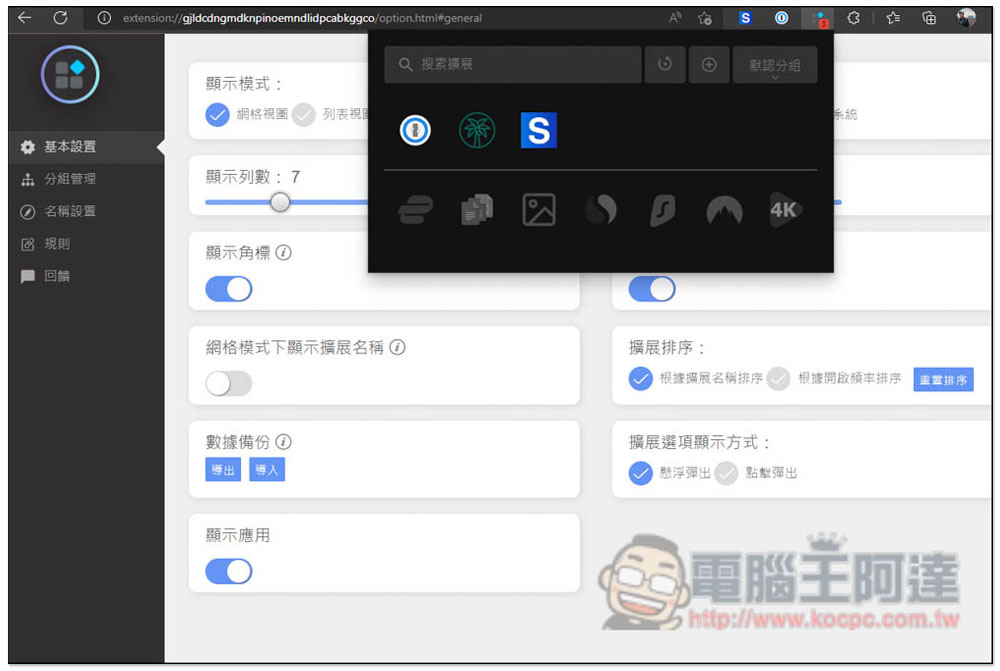
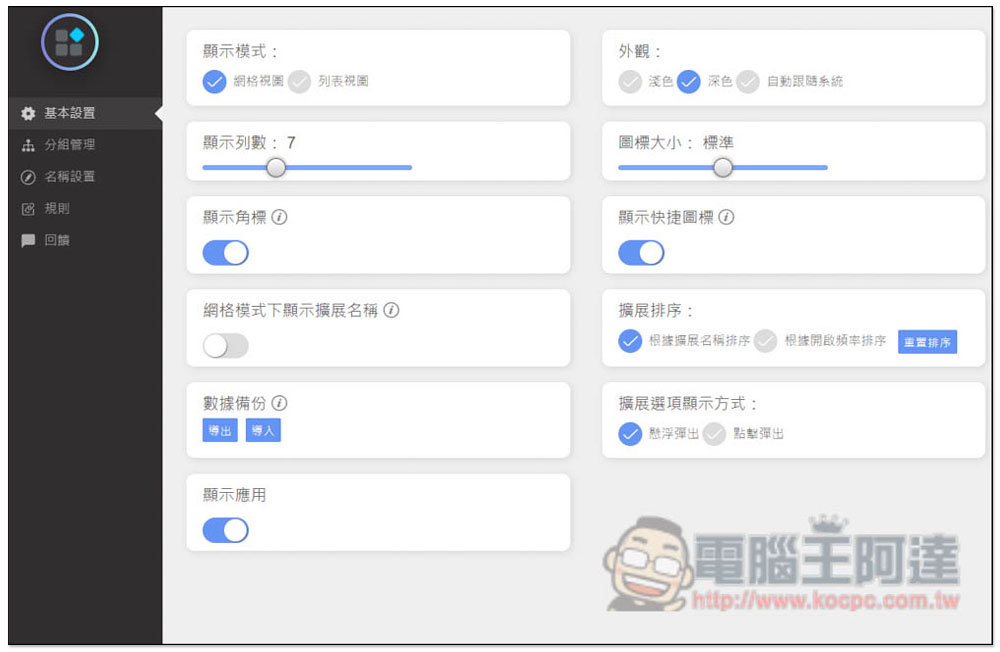
After entering the settings, there are more functions that can be adjusted, such as icon size, number of displayed columns, extended sorting, and even backup functions:
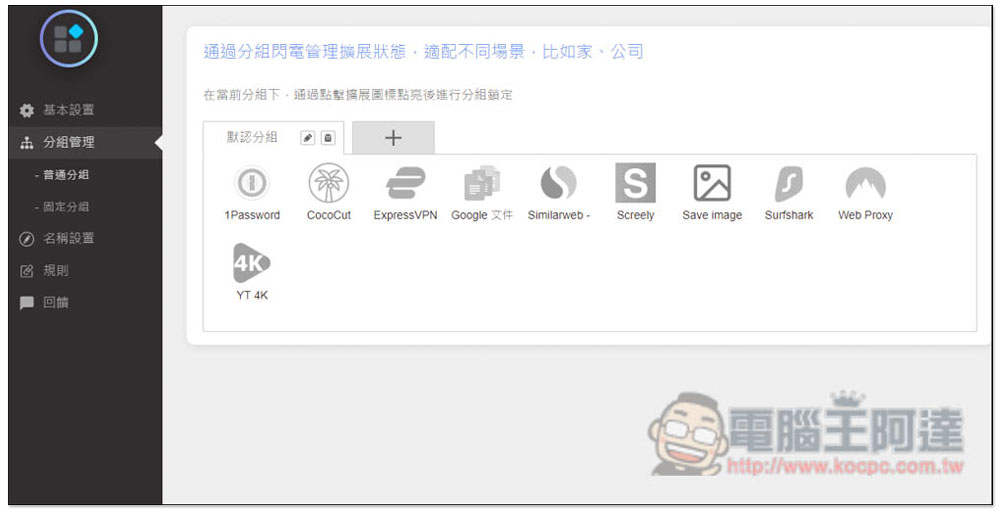
This grouping function is very easy to use. If the extended functions you use for work and general Internet use are different, you can use this function to achieve it. Click + to create a new group:
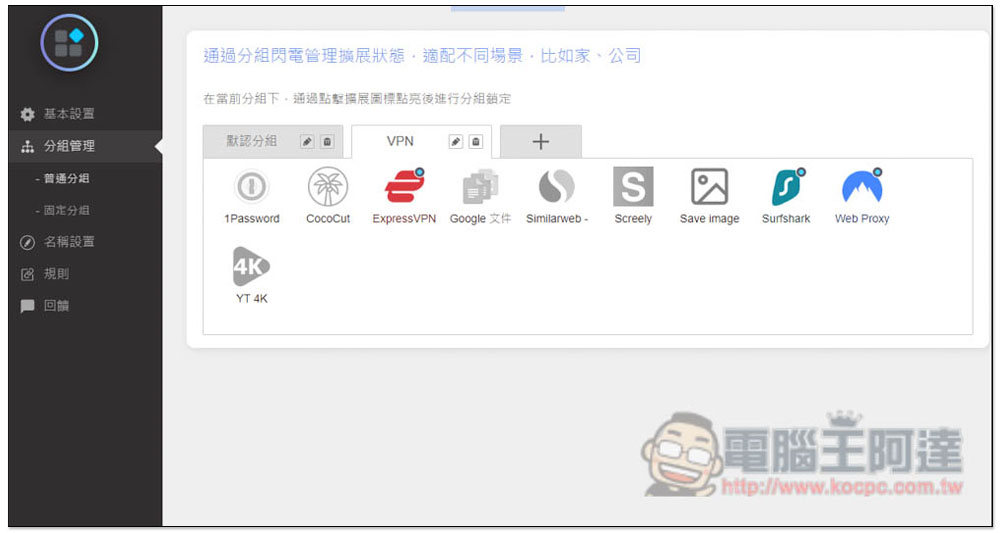
Like me creating a VPN group and turning on the extended VPN functions:
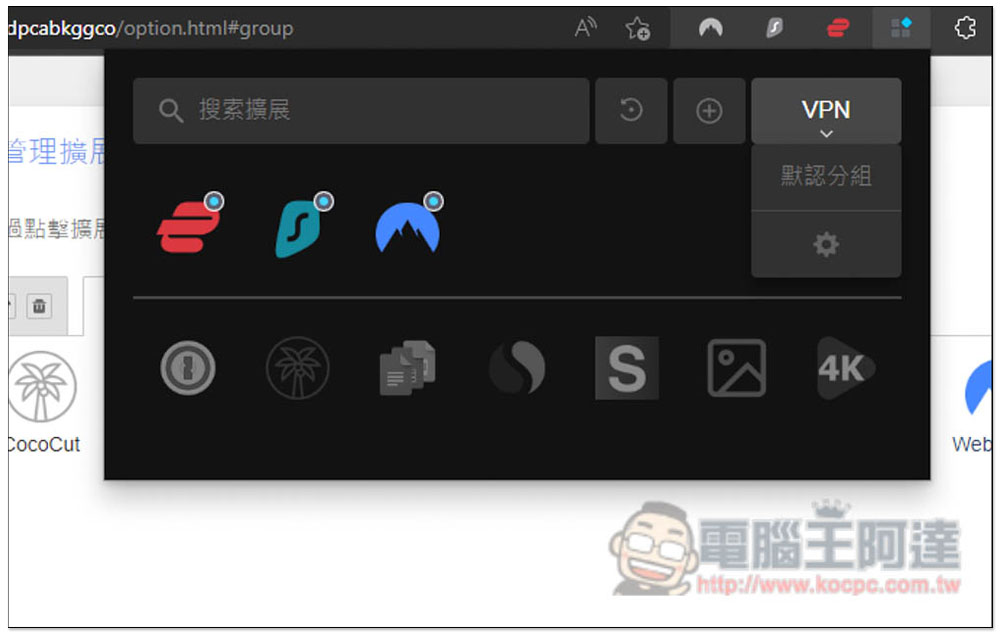
Then when I want to use the VPN extension, I switch the group section to VPN, and only the extension I opened will be retained, and the others will be hidden:
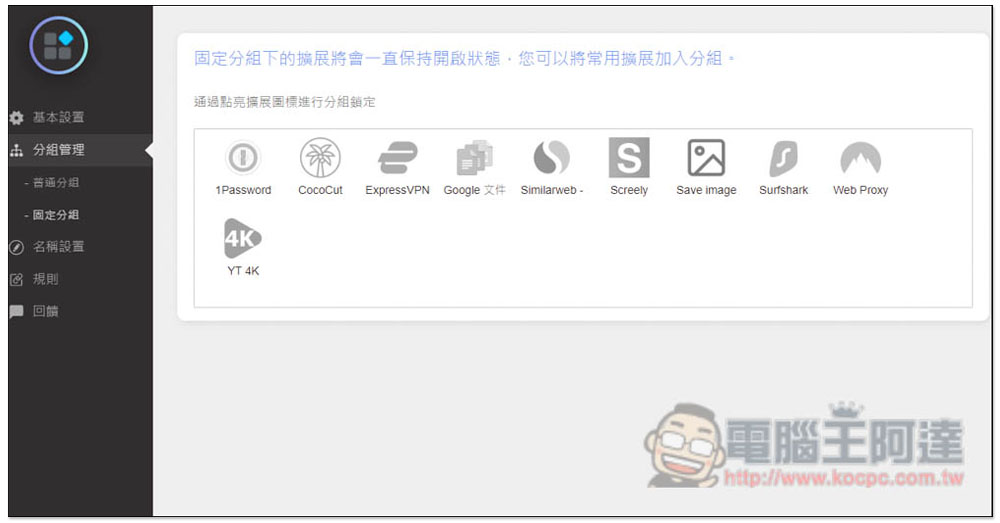
There is also a fixed grouping function. The difference is that these extended functions will always remain on and will not be hidden:
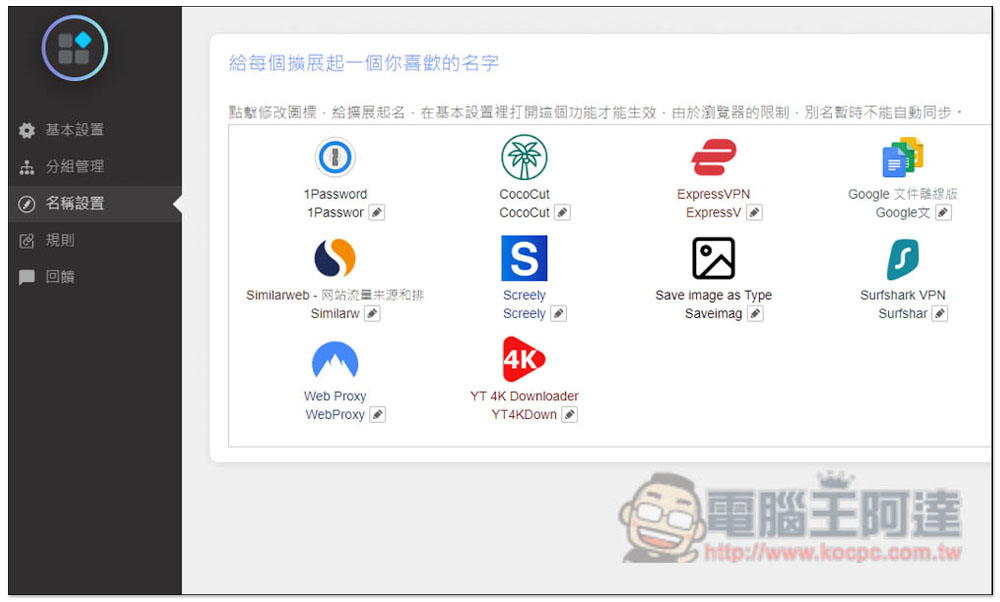
If you don’t like the name of an extension, or don’t want others to find out what it’s for, this app also offers the ability to change the extension’s name:
Source: KOCPC Chinese