


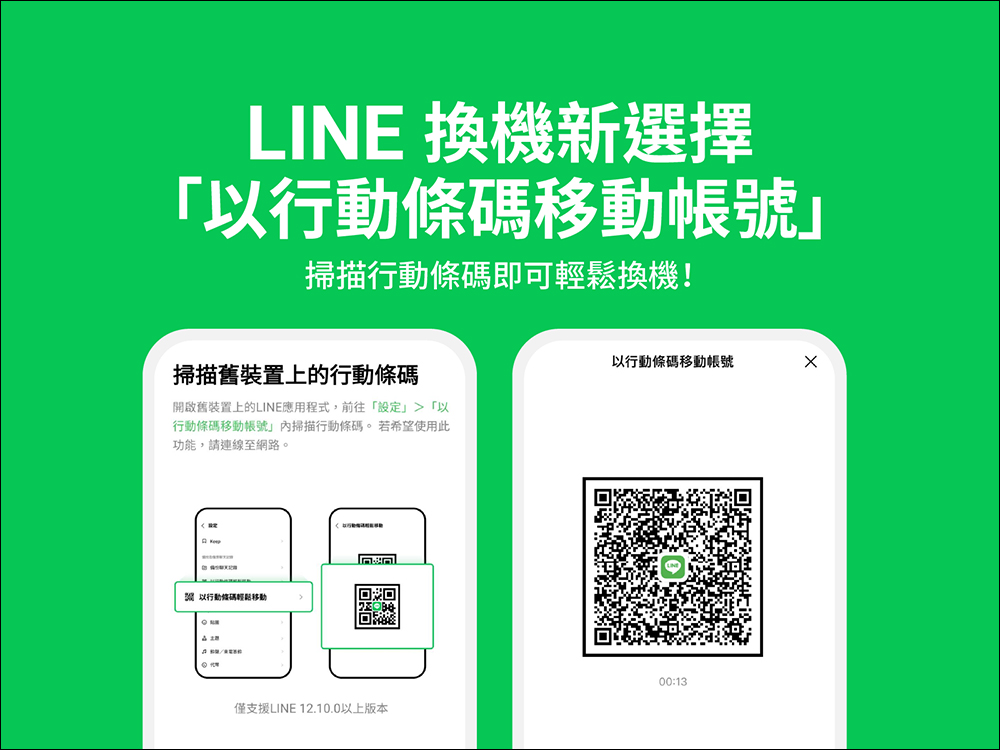
Is it troublesome to change LINE phones? Earlier today (27th), in the latest LINE 12.10.0 update, the “Mobile Account with Mobile Barcode” function was added to make it easier for users to switch devices. This version provides a new and faster way to move accounts. Continue reading this article to learn how to transfer your LINE account to a new device with this new feature!
▲Picture source:LINE Taiwan official BLOG
LINE 12.10.0 update: Added functions such as “Move account with mobile barcode”, change the order of pinning services, etc.
The LINE 12.10.0 version update released earlier today (27th) adds a number of new features, including:
- Added the function of “Mobile Account via Mobile Barcode”
- Improved the service list page on the homepage and added a function to change the order of “Pinned Services”
- It is expected to add a feature to temporarily save the webpages being browsed in the LINE app on iPad
- Added a setting that can restrict users who have withdrawn from the community due to illegal use from joining again.
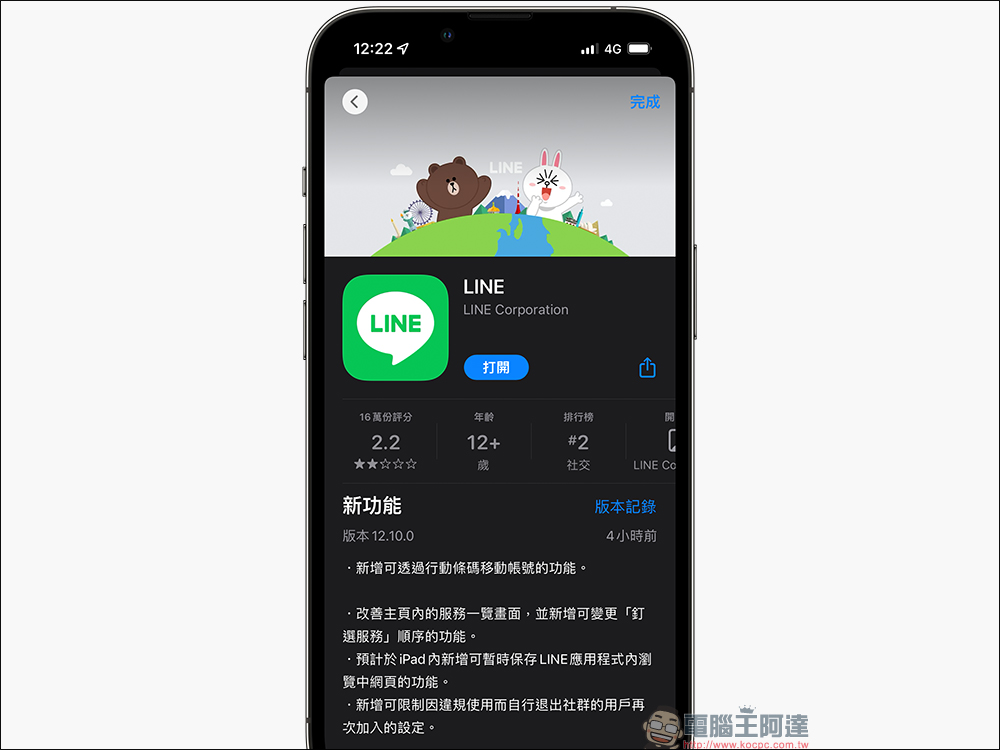
Among the above-mentioned updates, the new features related to LINE switching are probably the most interesting to many users! In addition to the previously introduced LINE replacement lazy package, it is still executable, but the newly added “Mobile Account with Mobile Barcode” function provides a simpler and faster way to move an account. Let us continue to look at it.
Mobile account with mobile barcode|Features & instructions for switching devices
In versions 12.10.0 (inclusive) and above, LINE has added this new feature of “Mobile Account with Mobile Barcode”, which allows users to directly scan the mobile barcode to switch devices without having to enter a LINE password or any other information.
- “Cross-system” replacement is also applicable:
When the old and new mobile phones have different systems, cross-system LINE switching operations have been relatively troublesome in the past. In particular, the transfer of chat history is a major obstacle to cross-system switching. But now, even if the old phone does not back up LINE chat history, when using “Mobile Barcode Mobile Account”, the conversation history (including pictures, videos, etc.) of the past 14 days can be restored on the new phone, making it more convenient for everyone to switch LINE phones across systems. - When installing a mobile account in “same system”:
If your old phone has backup chat history, you can choose to restore the chat history to the new phone as well when switching phones. If you choose not to back up the chat history, the chat history within about 14 days will also be automatically restored. - It also applies to changing mobile phone numbers and getting new mobile phones:
The “Mobile Barcode Mobile Account” function is not only suitable for users whose mobile phone number remains unchanged and changes to a new mobile phone, it is also suitable for users who “change a new mobile phone number and a new mobile phone.”
Preparations before replacement
Before replacing the machine, it is recommended to confirm the following two preparations:
- Complete the backup of LINE chat history on the old phone (only for switching phones with the same system)
- Confirm that the LINE App versions of both old and new mobile phones are updated to LINE 12.10.0 (inclusive) or above
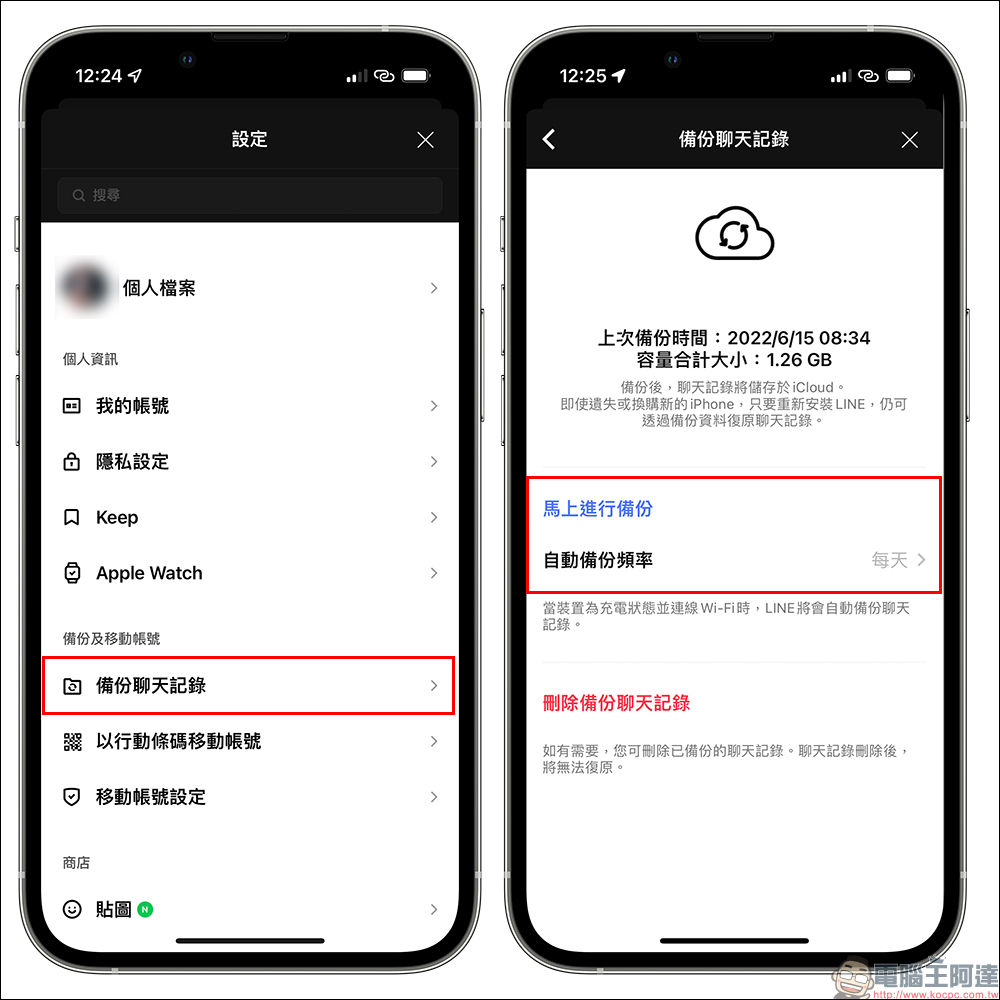
To back up LINE chat history, just click “Backup Chat History” in Settings, then click “Back Up Now” to perform a manual backup. At the same time, users can also turn on the automatic backup function to allow LINE to perform automatic backups on a regular basis.
Mobile account using mobile barcode|Steps to switch devices
After the preparation work is completed, you can then prepare to start replacing the machine! The following LINE official demonstration demonstrates the operation process for switching from an iPhone (old phone, iOS system) to an Android phone (new phone).
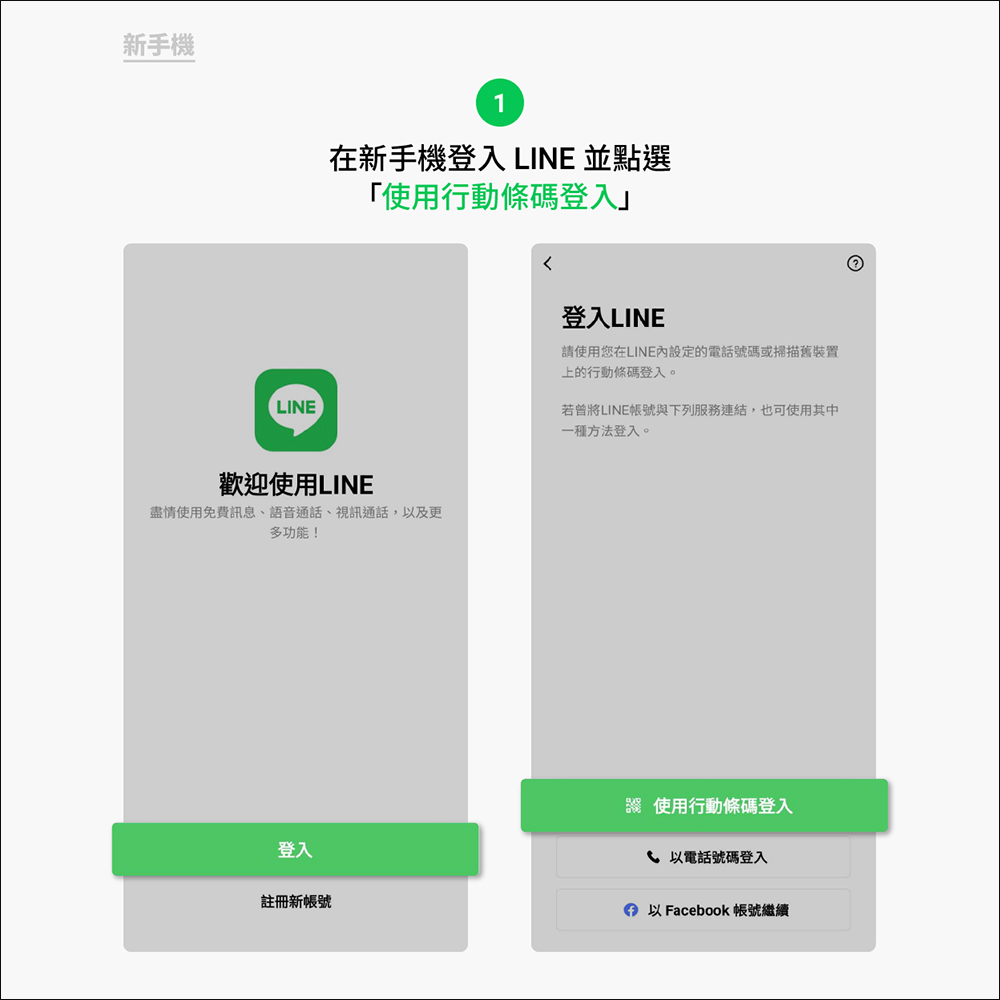
Step 1. Download LINE App on your new phone and select “Log in using mobile barcode”:
▲Picture source:LINE Taiwan official BLOG
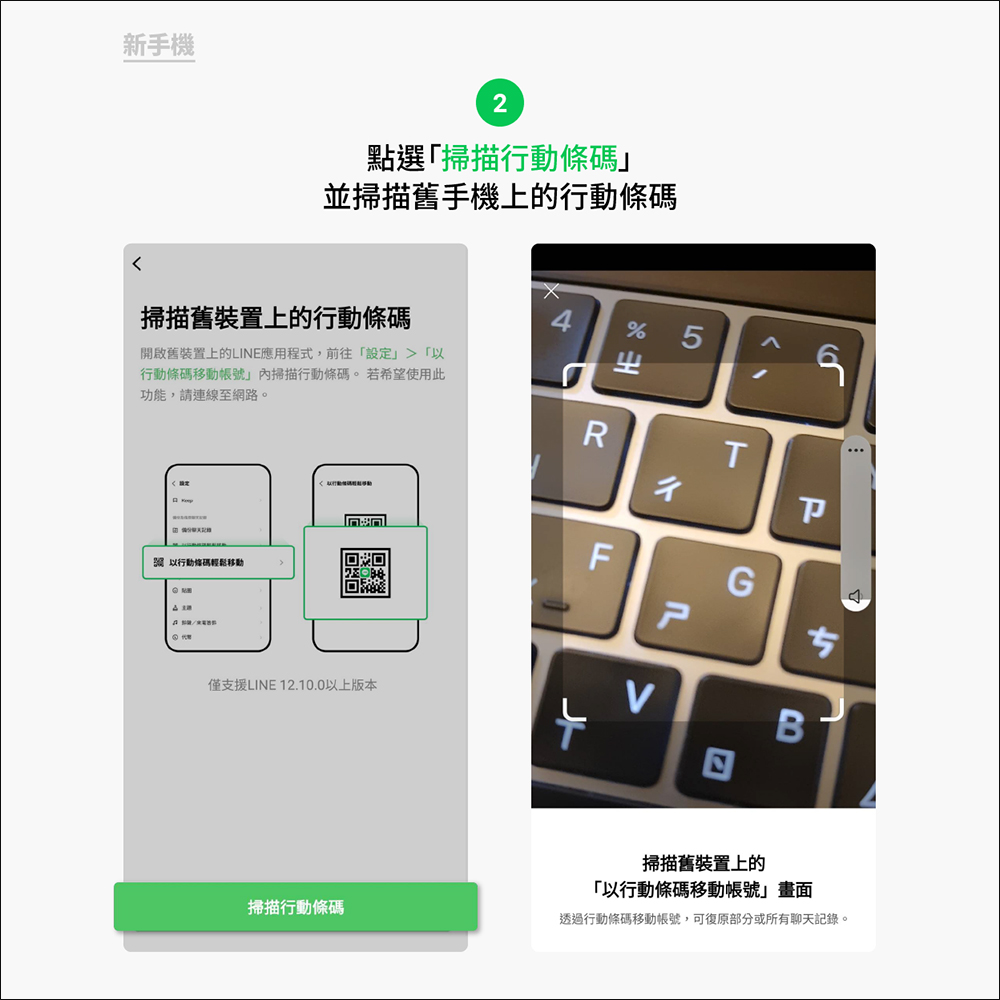
Step 2. Click “Scan Mobile QR Code” on the new phone and scan the mobile QR code displayed on the old phone:
▲Picture source:LINE Taiwan official BLOG
Step 3. Open the LINE App homepage on the old phone, and click “Move account with mobile barcode” in settings:
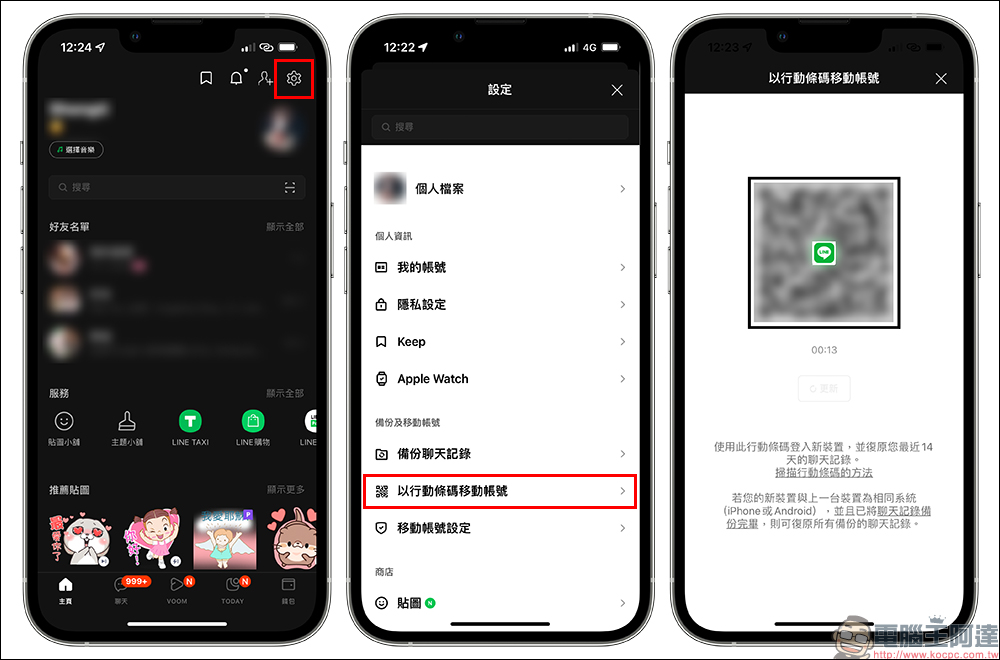
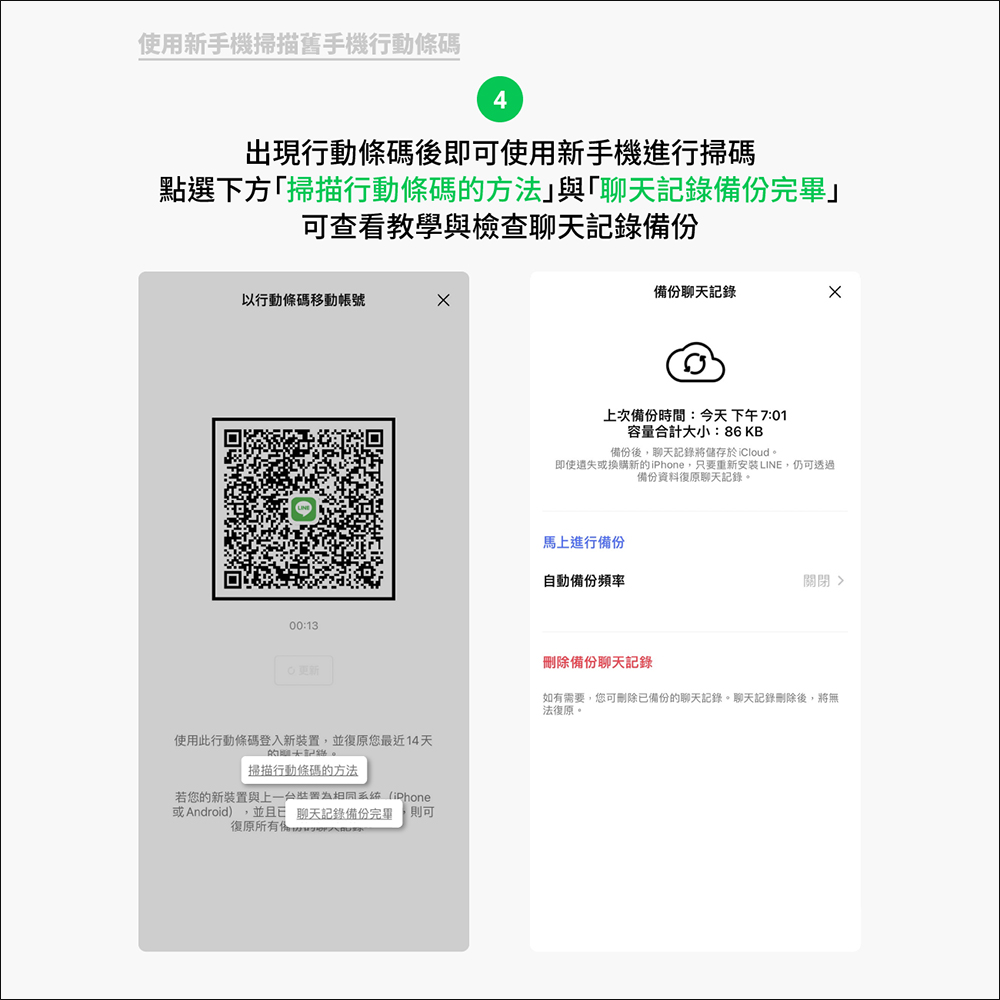
Step 4: When the old phone displays the mobile barcode, you can use the new phone to scan the code. You can also choose to click “How to scan mobile barcode” and “Chat history backup completed” under the mobile barcode before scanning the code to view the scan tutorial and check the chat history backup status.
Small reminder: Be sure to complete the scan within the limited time. If the time exceeds, click “Update” to update the mobile barcode before scanning again.
▲Picture source:LINE Taiwan official BLOG
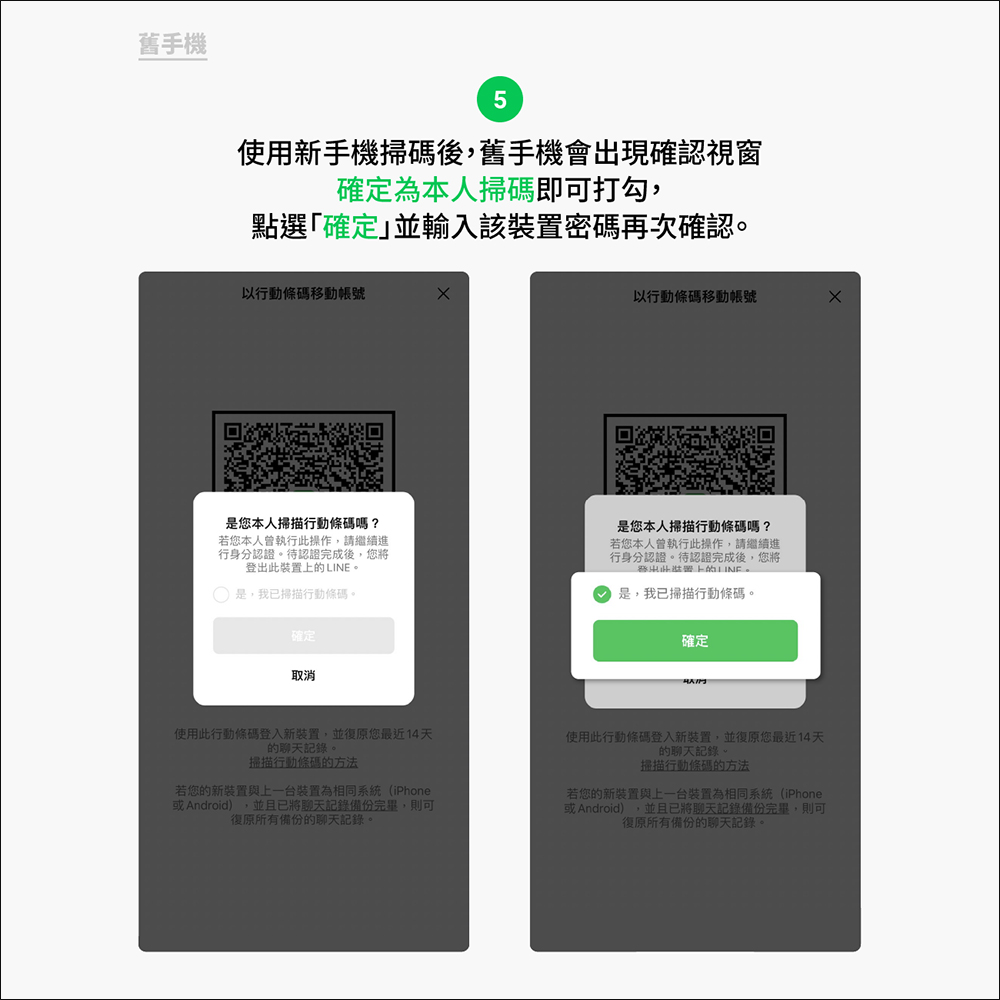
Step 5: After scanning the QR code with your new phone, a window will pop up to confirm whether it is you. Just check the box to confirm that the operation is done by me, and finally enter the device password to confirm again.
▲Picture source:LINE Taiwan official BLOG
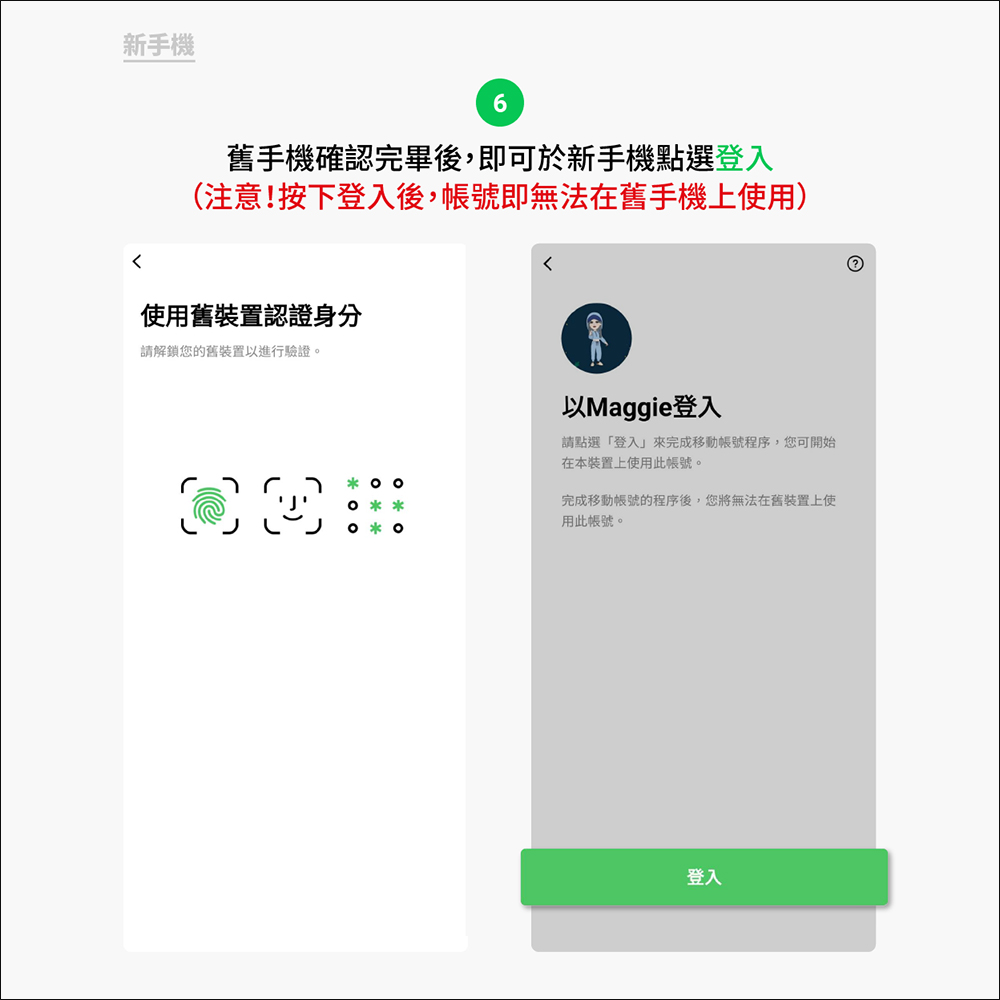
Step 6: Perform identity authentication on the old mobile phone. After the authentication is completed, you can log in on the new mobile phone.
*Tips: After pressing login on the new phone, the account cannot be used on the old phone. Therefore, it is recommended to confirm again before logging in with a new mobile phone. If you regret halfway through the operation, you can click “Previous” to return.
▲Picture source:LINE Taiwan official BLOG
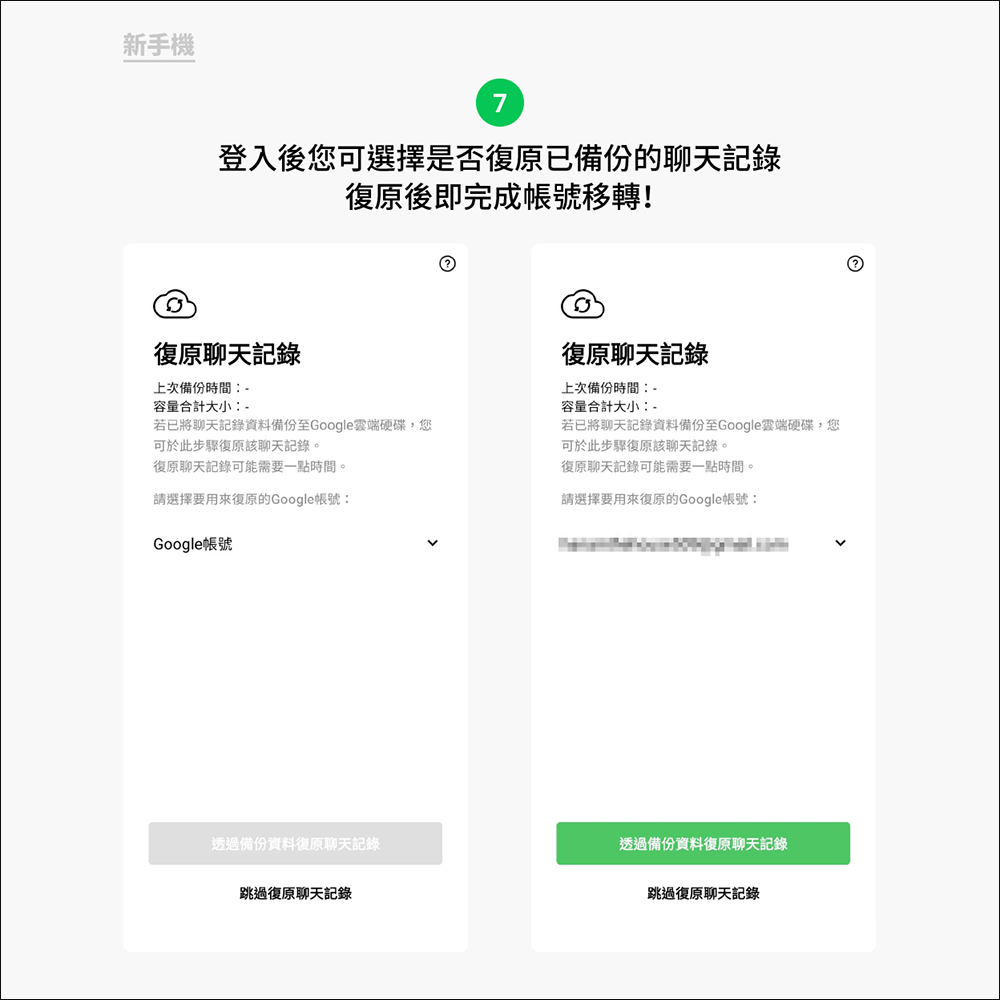
Step 7. After logging in, the user can choose whether to restore the backed up chat history on the new phone. Once restored, the account transfer can be completed.
*Tips: Restoring chat history is only possible when switching devices with the same system. Chat records cannot be restored directly after switching devices. However, from now on, you can choose to “skip restoring chat history”, and the new version will also automatically restore about 14 days of chat history.
▲Picture source:LINE Taiwan official BLOG
Also shown on the same scene: LINE home page adjusts the order of pin selection services, LINE’s lazy package for changing devices
Home page adjusts the order of pinning services
The LINE 12.10.0 version update not only makes it easier and faster for users to switch phones, but also makes small optimizations for LINE’s interface. For example, the “Services” on the LINE homepage can pin multiple LINE-related applications. After the update, users can also adjust the order of pinned services, allowing users to place commonly used LINE services in a more convenient position. Services such as LINE Shopping, LINE Pay, LINE POINTS, and LINE TAXI can be adjusted to the most convenient position according to personal operating habits.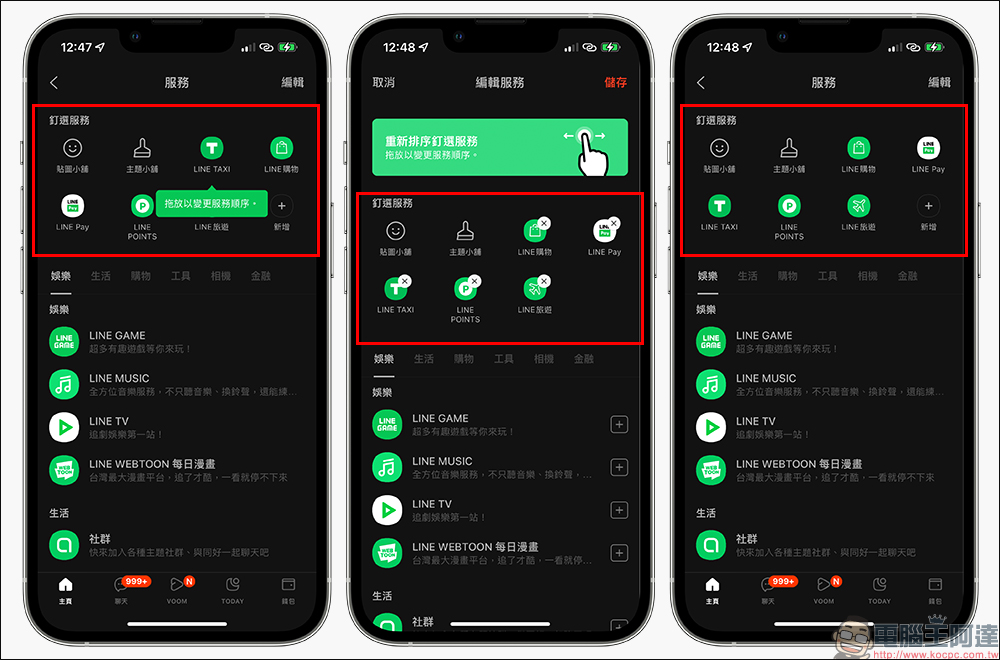
LINE replacement bag for lazy people
If you don’t want to use the newly launched “Mobile Account with Mobile Barcode”, we have shared with you in the past how to easily and successfully complete the LINE switch operation. In fact, as long as you follow the steps in order, the success rate of the original LINE switch is also quite high. Problems that are often encountered during the LINE switching process and some small details that need to be paid attention to are also introduced in this lazy bag:Review the LINE replacement process for lazy people (please click me)
Further reading:
LINE free sticker collection: 21 LINE free stickers, super cute stickers available for download for a limited time!
Source: KOCPC Chinese