


During the epidemic, some companies adopted WFH to allow everyone to work remotely from home. We have also shared this with you before LINE’s practical functions for long-distance communication and work efficiency improvement, this time I would like to share with you LINE’s official tips on how to make full use of LINE’s functions and improve WFH communication and work efficiency.
How to use LINE? Official tips for improving WFH communication and work efficiency
The epidemic has lasted for more than two years, and with the recent severe epidemic situation in Taiwan, many people continue to work in WFH (Work From Home) mode. Without face-to-face communication, many people will turn to LINE to communicate on work matters. But do you know what LINE tips can help you communicate more smoothly with colleagues, bosses, and clients? This time I’m going to share the official tips for using LINE!

LINE video call|Virtual/blurred background, screen sharing
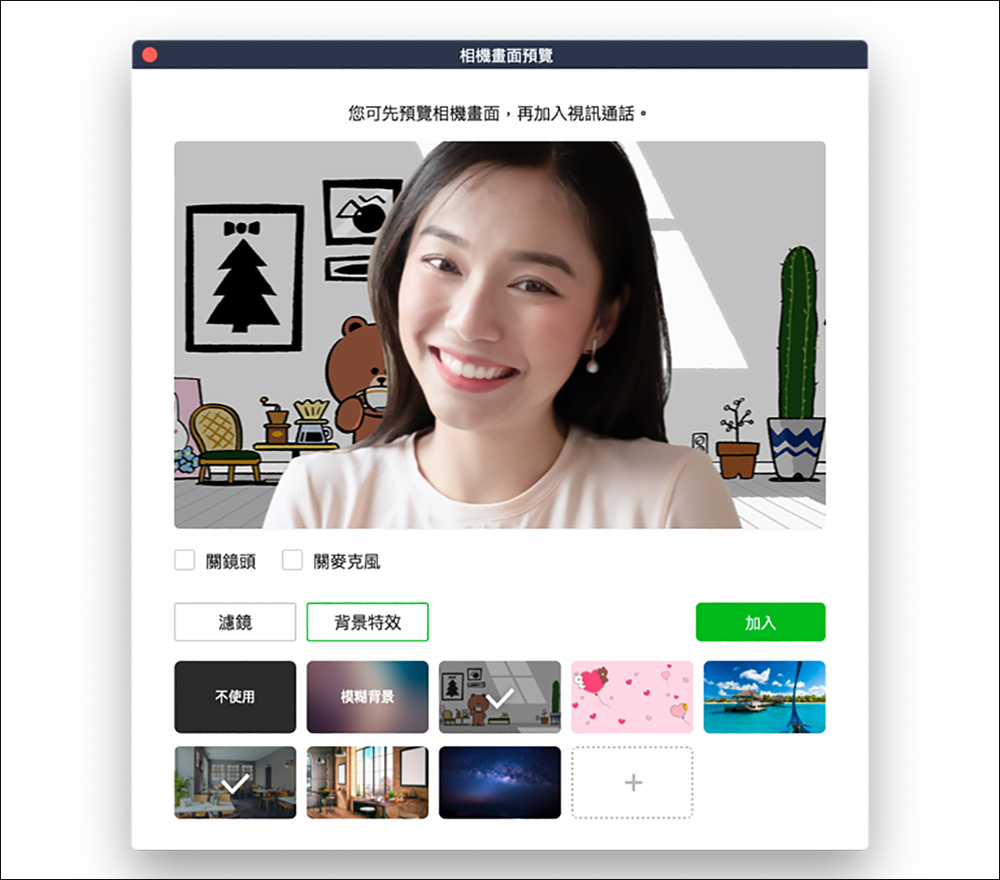
While working from home, it is inevitable that routine meetings will be held via video calls. At this time, it is very convenient to use LINE to enable free video calls on your computer, tablet or smartphone. However, when working from home, we often don’t have time to tidy up the environment, so how can we cover up the cluttered background and make ourselves look professional? LINE video calls have a built-in one-click blurred background function, allowing you to look focused no matter where you start the video call. In addition to the basic blurred background, LINE also has built-in multiple video background situations for users to replace.

▲Picture source:LINE Taiwan official BLOG
Blurred backgrounds or virtual background situations can also be used in the PC version of LINE.
▲Picture source:LINE Taiwan official BLOG
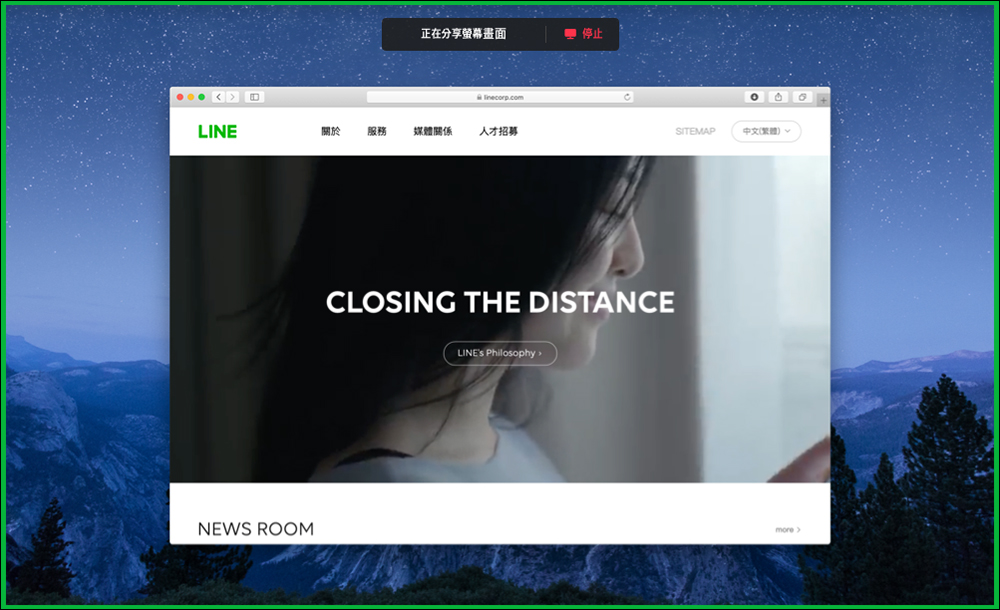
During a video conference, if you need to share presentations, pictures and other materials to assist the narration, you can use the built-in “Share Screen” function. Users only need to click “Share Screen” in the menu and select the window they want to share, so that all participants can see the screen!
 ▲Picture source:LINE Taiwan official BLOG
▲Picture source:LINE Taiwan official BLOG
LINE Chat Room|Silent Message, Keep
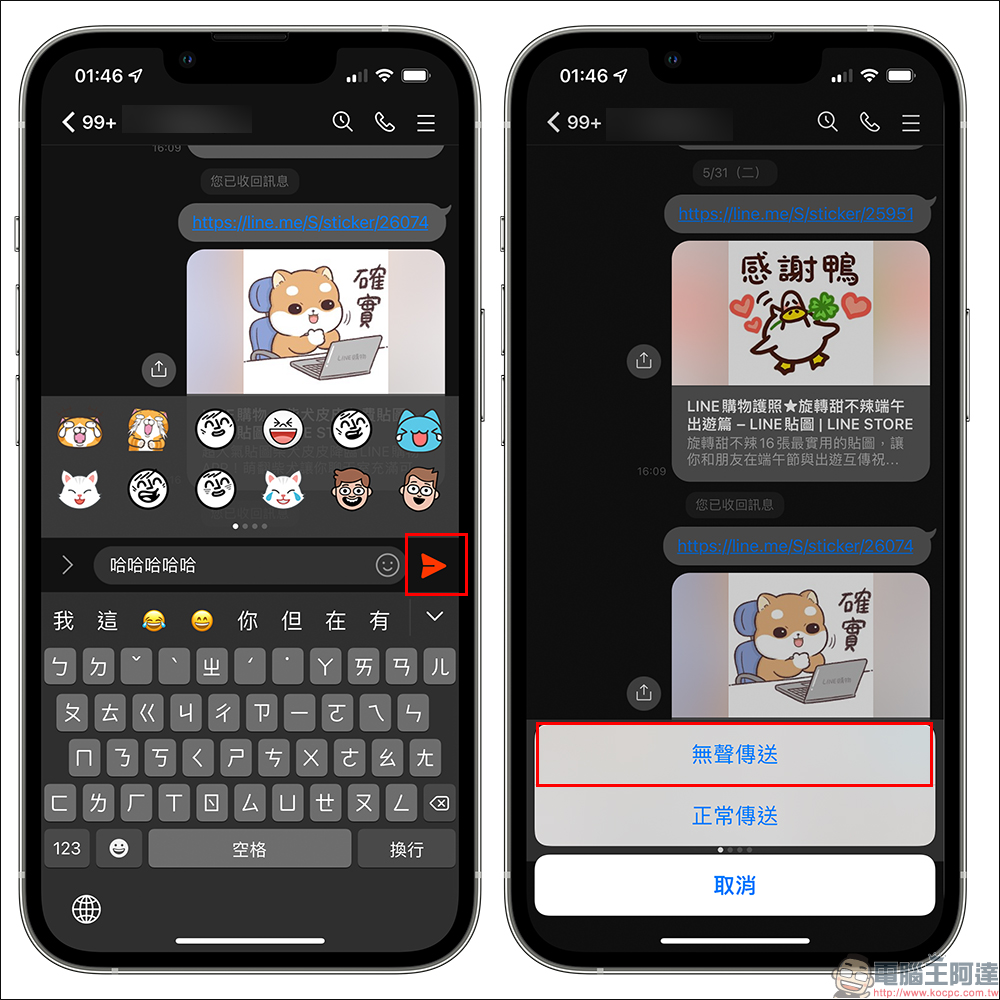
For those who have never had WFH experience, they may mistakenly think that it is easy to get up and work in pajamas without having to go to the office, but the disadvantage of many WFH is that the off-duty time is less fixed than in the past. After get off work hours, many colleagues and clients will use LINE to suddenly type messages to discuss work. Sometimes I have something I want to explain but am worried about disturbing the other person. At this time, I can use a LINE Labs experimental function “Silent Message”. Just click “LINE Labs” in LINE “Settings” and then turn on the “Silent Message” function to use it.
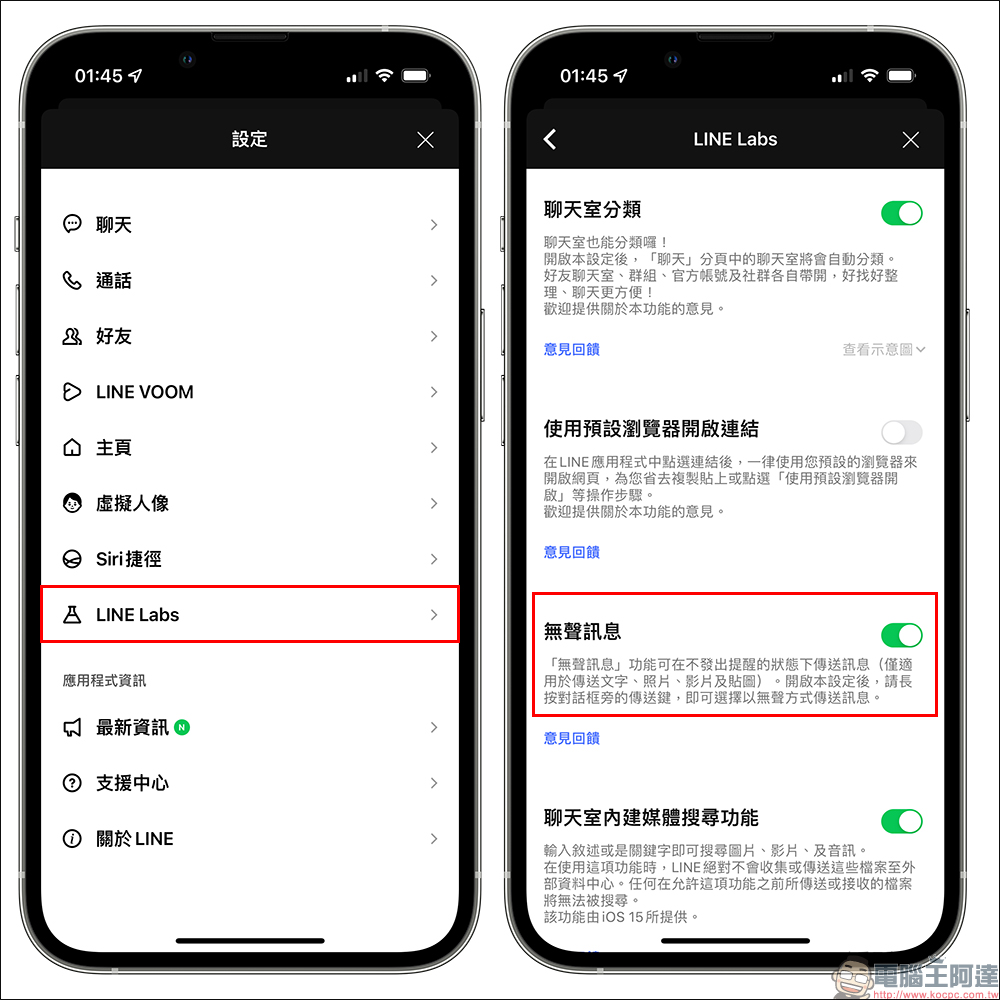
If the user wants to use the “silent function” to send a message, just press and hold the “send button” on the right side of the text box, and then click “Silent Send” to send the silent message to the other party. After a LINE silent message is sent to the other party, no prompt sound will pop up regardless of whether the other party has turned on the notification function. Therefore, if you want to leave a message to the other party late at night, you can choose this method to send the message.
If there are documents, links, videos, photos, text paragraphs and other content that need to be temporarily saved, you can use LINE’s Keep function to save them. LINE Keep provides 1GB of free space, allowing users to save text, photos, and files for a long time, and then go to Keep to find them when they need to use them. 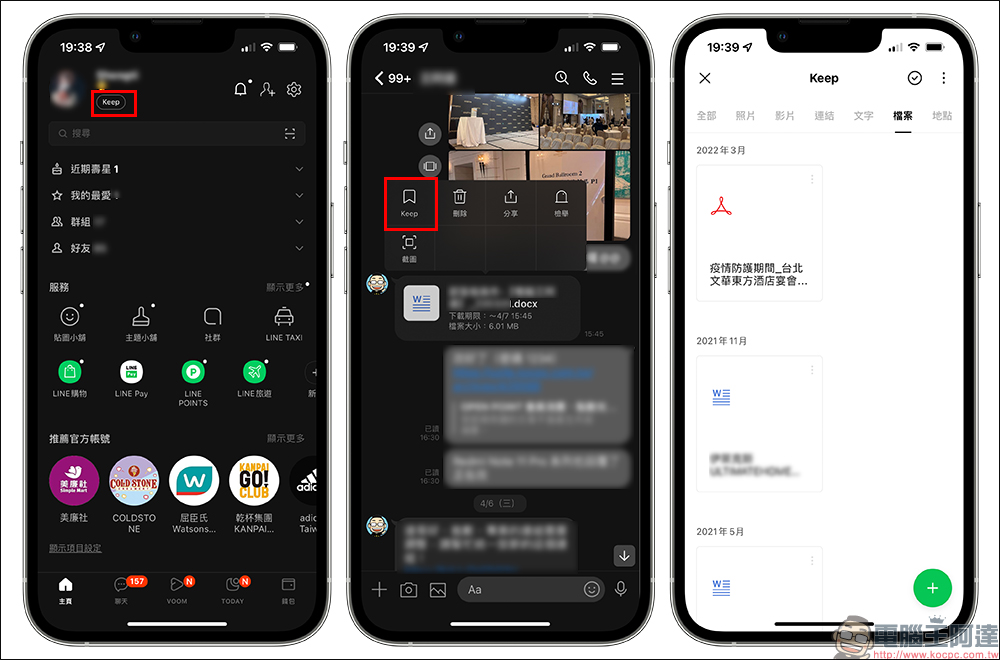
LINE PC version|Customized chat room categories, text effect menu
After the frequency of LINE usage increased during WFH, users often opened various work LINE groups, communities, and one-on-one chat rooms. At this time, if you want to avoid sending messages to the wrong person through “wrong frequency”, it is recommended to turn on LINE’s “chat room classification” function. The LINE chat room classification function can be enabled from “Settings” in the computer version.
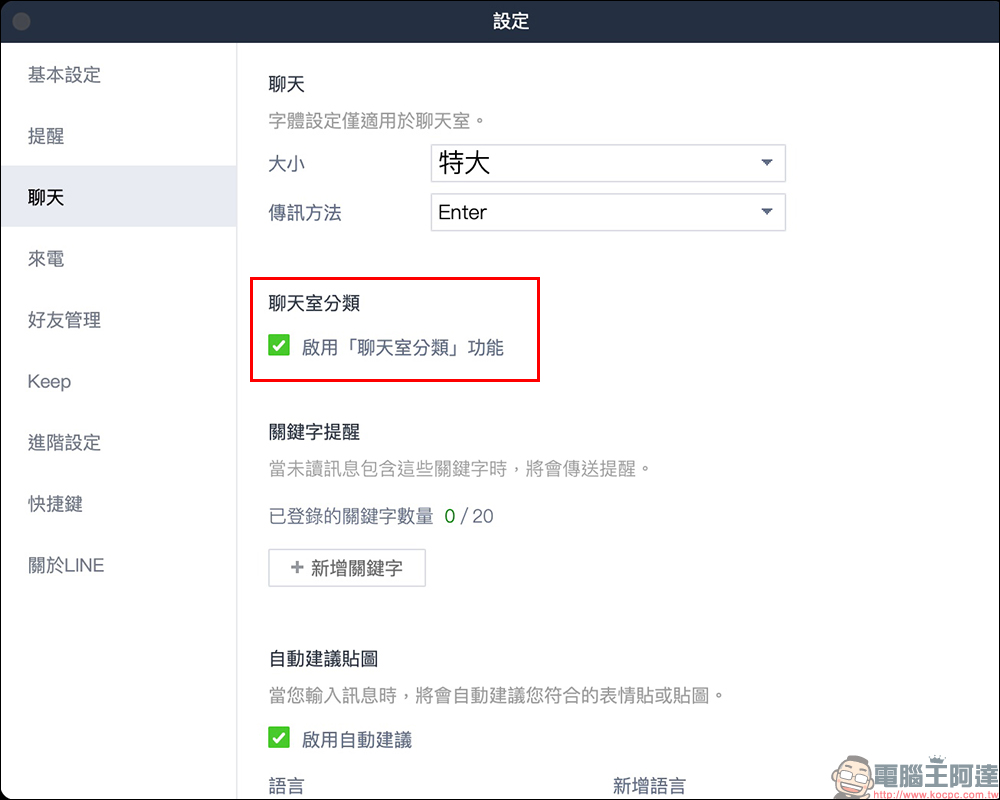
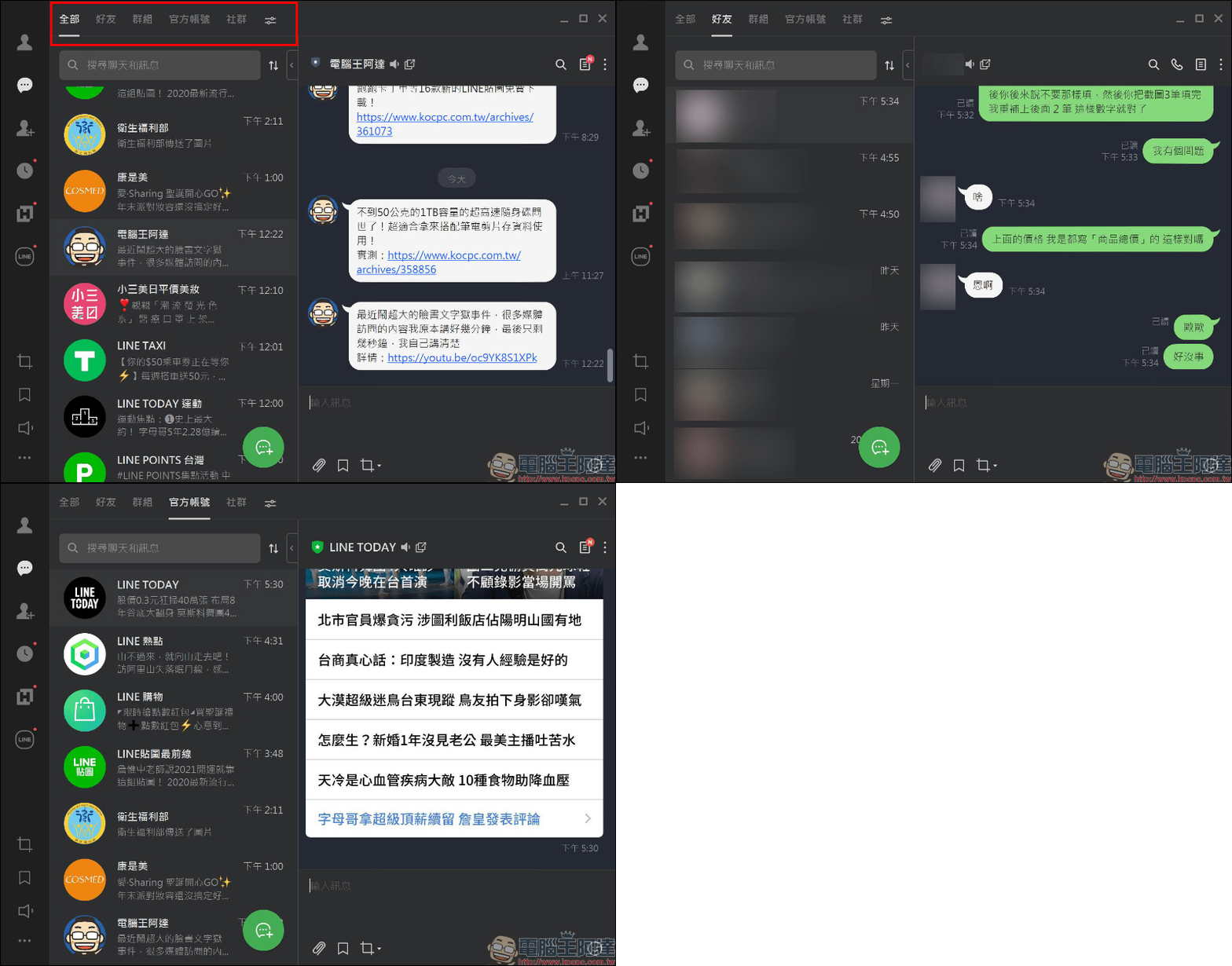
Then, in addition to the basic four categories of “All”, “Friends”, “Group”, “Official Account” and “Community”, if you want to edit the order and add new categories, you can click “Edit Category” to set up. Users can customize up to 10 chat room categories.
During WFH, people have more opportunities to use LINE PC version to communicate and work than LINE mobile version, and LINE PC version has been updated to version 5.20.0 in the past and added a “Text Effect Menu” that can be used here. The text effect menu is currently only supported on the PC version of LINE. Users can select the paragraph they want to create effects in the text input box, and then set “bold”, “italic”, “strikethrough”, “red box” and “paragraph box”. After setting the text effect menu, the text effect will not be displayed until the message is sent.
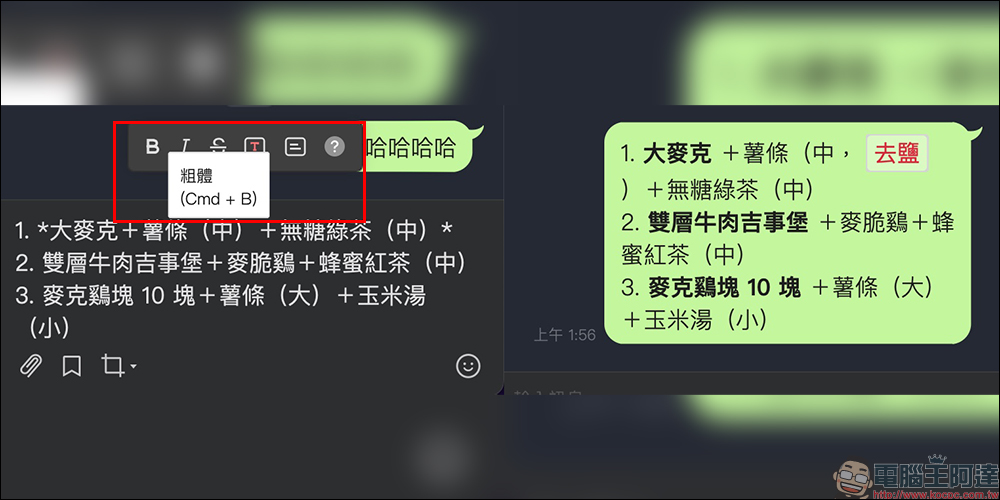
For more five practical functions of LINE that can improve the efficiency of long-distance communication, you can refer to our previous introduction:Click here to go
Further reading:
Xiaomi TV’s screen automatically falls off again! The official reply has found the cause and will provide free maintenance and extended warranty.
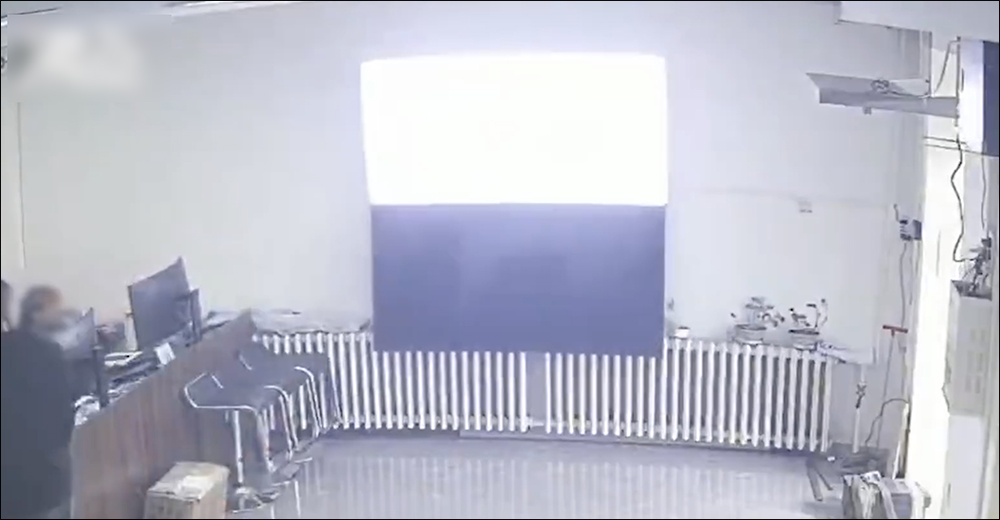
▲Picture source:Boiling Point Video (Weibo)
Source: KOCPC Chinese