


Although Mac has a built-in memo function that can be used to take notes and record things, it has to be switched back and forth every time it is used, which is really not that convenient, especially when there is not much time to take notes. The SideNotes Mac note-taking software is a pretty good one that I recently discovered. Not only does it have complete note-taking functions, the software will only be displayed on the side of the screen, which will hardly affect the screen operation. It can also switch between showing or hiding with shortcut keys. It also supports writing programs, Markdown format, and sharing notes. It is recommended to everyone.
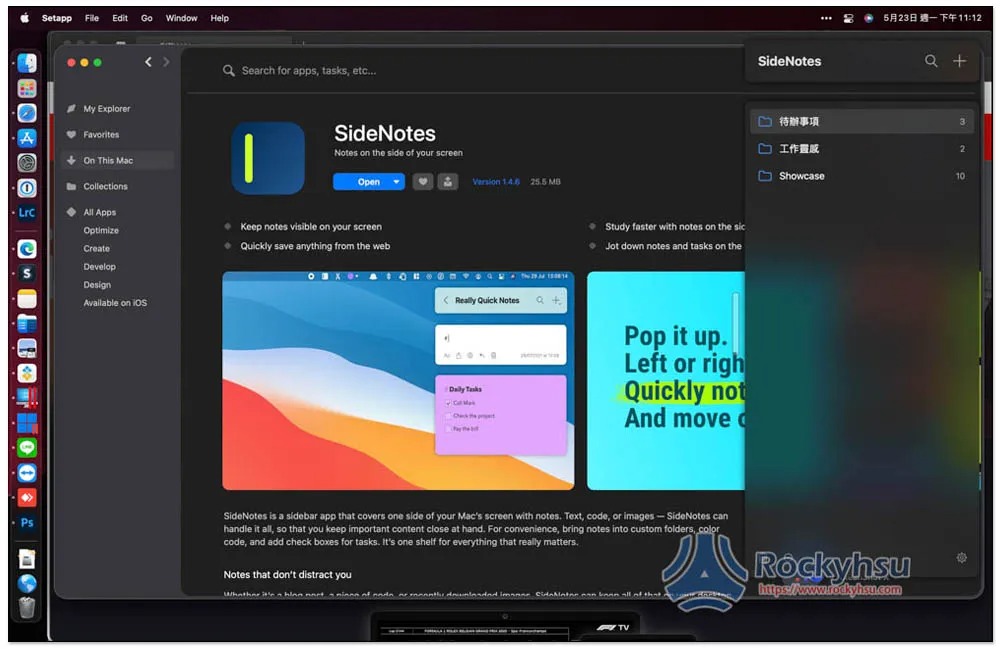
Is this software free?
SideNotes is a paid software, and the official website provides a free trial, so you can start withOfficial website downloadTry it. The paid version is a one-time fee of US$19.99. It is also available in the App Store. I installed it from Setapp.
Setapp is a Mac Apps subscription service, providing more than 230 professional paid software, SideNote is one of them, as well as well-known software such as CleanMyMac X, Bartender, and Be Focused. There is a 7-day free trial, and you can use all Mac Apps for only $9.99 per month. Compared with buying each software individually, it is much more cost-effective, and many Macs now adopt a subscription system.
- Further reading:Setapp Mac and iOS software recommended subscription service, one account can use more than 230 professional paid software apps
SideNotes Mac note-taking software evaluation and operation instruction
1. It will only be displayed on the side and supports shortcut keys to switch display/hide.
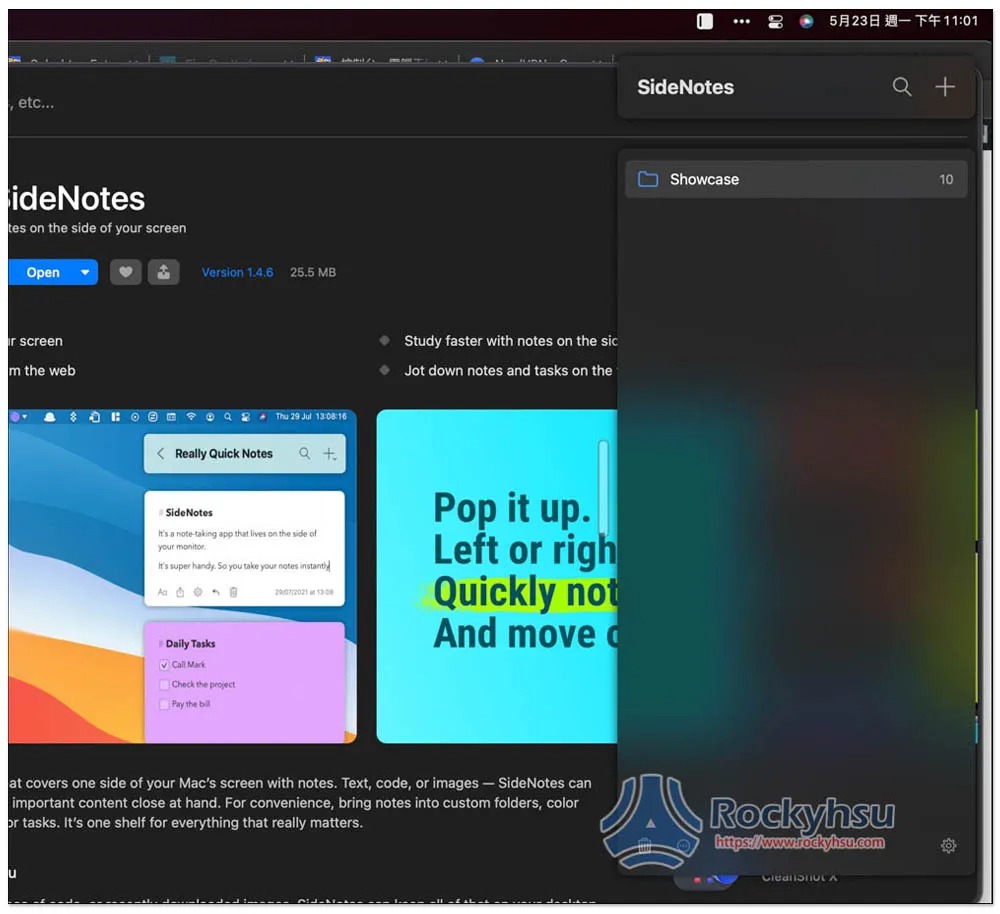
SideNotes is very simple to use. After installation, you will see it on the right side of the screen. It does not take up too much, about 1/5 of the Mac screen, and it is a floating block, so you can still see what is behind it. The Menu Bar has a small icon. You can “click it” or “press the shortcut key” to switch between display and hide. When displayed, it will be placed in front of all windows. There are some teaching notes in the Showcase folder. Those who want to know more about how to use it can take a look:
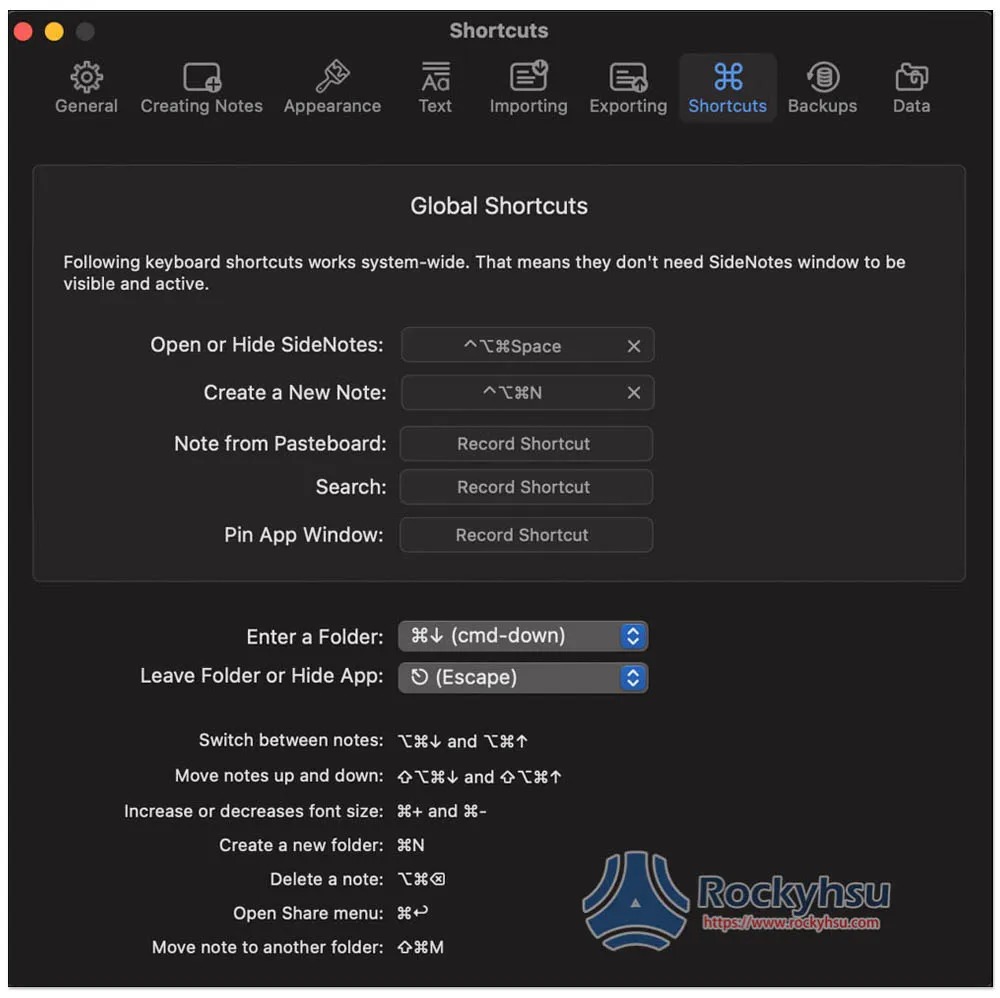
The default switching shortcut key is Control + Option + Command + Space. You can also change it to other shortcut keys:
2. Different folders can be created according to your note-taking needs.
Click the + in the upper right corner to add a new folder. See what you usually take notes on. It will be easier to create the folders you will use at the beginning and then take notes. I create two to-do lists and work inspirations:
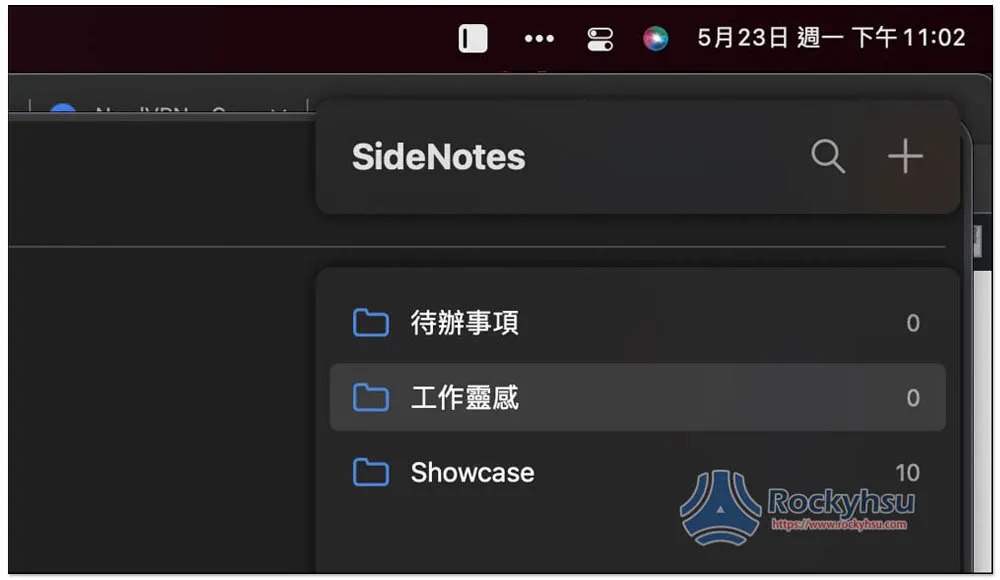
After entering the folder, press + in the upper right corner to add a new note:
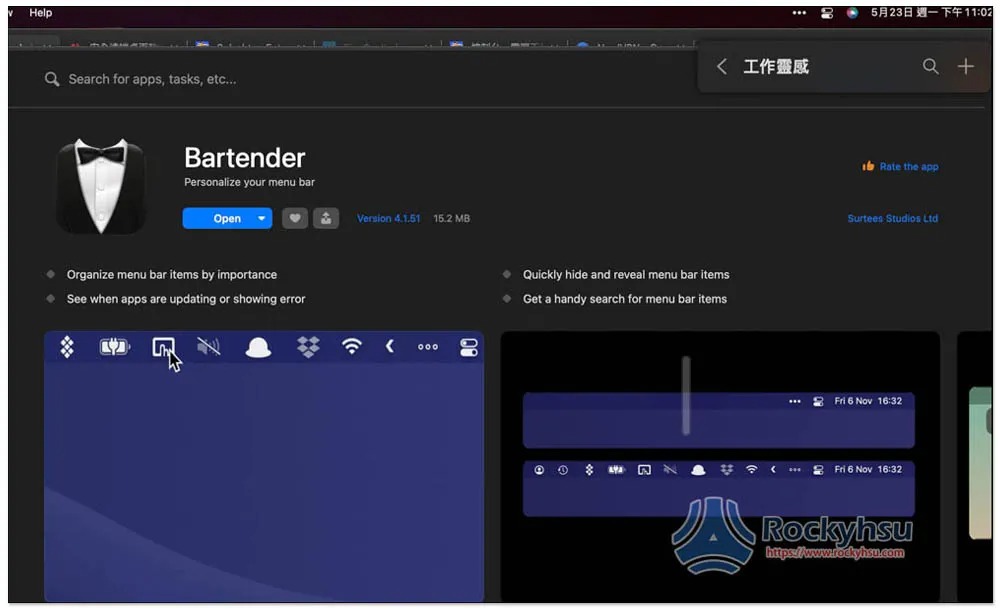
As mentioned before, these side notes are pinned to the top, so you can take notes while browsing the web, watching videos, or watching teaching:
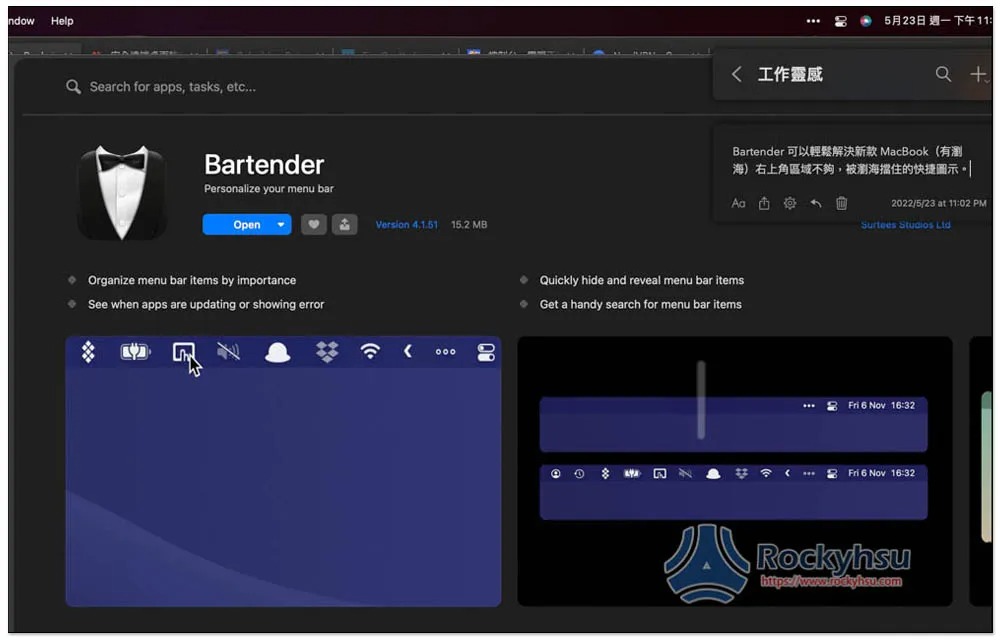
Press + again to add another note to this folder, and the note block will be separated:

3. Provide To do and list functions
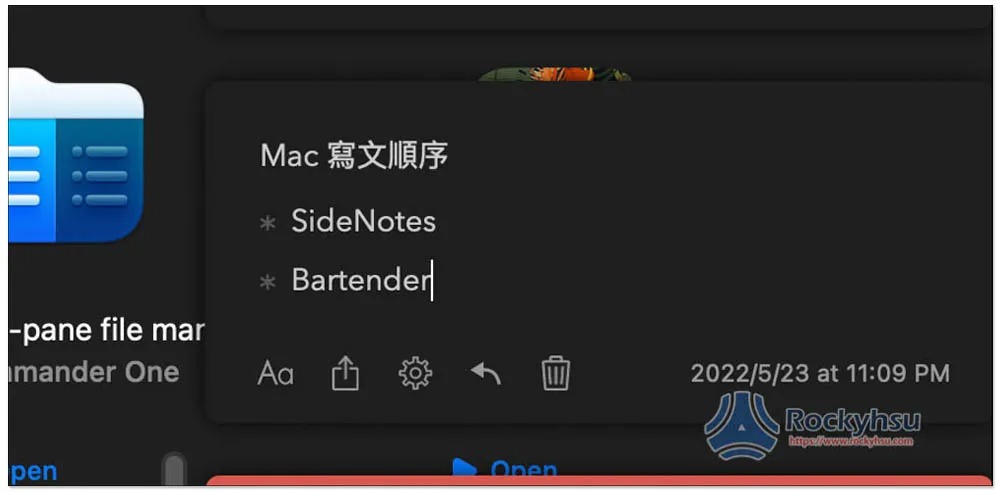
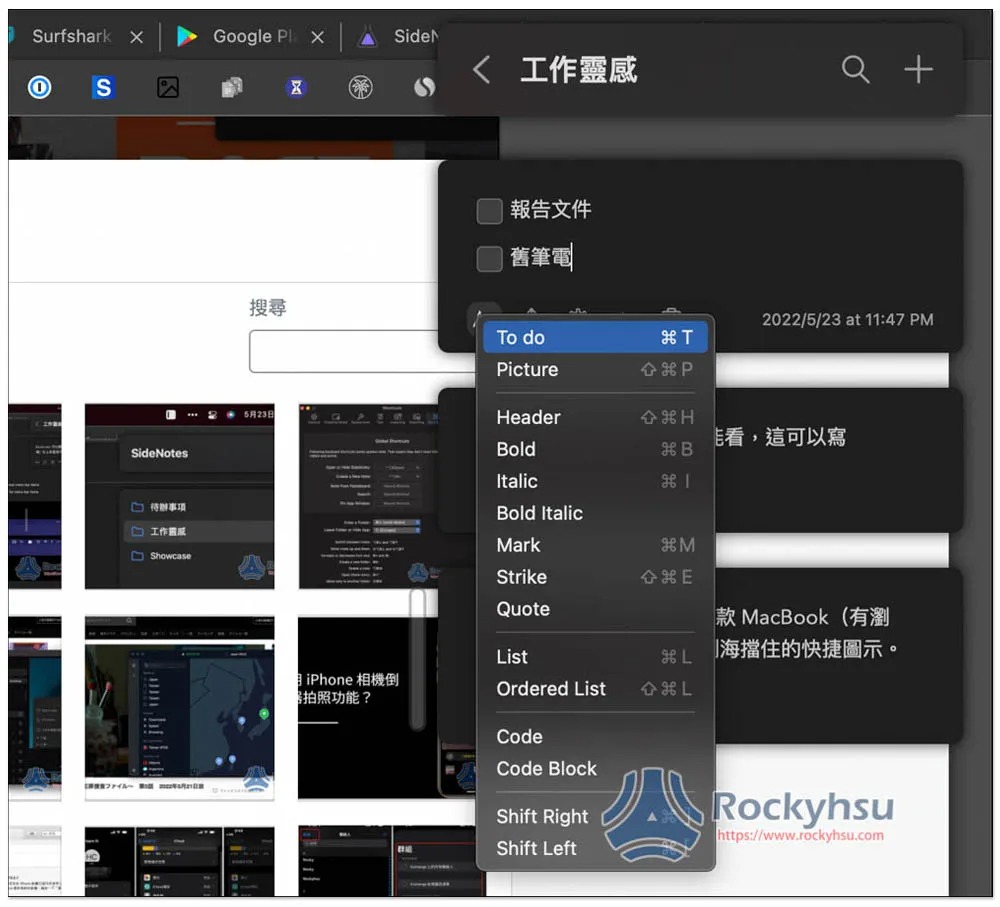
Not only notes, this one also provides To do and list formats, which means it can also be used to make to-do items, which is really good:
Open the Aa menu below to find:
4. Add color to your notes so you can quickly notice them
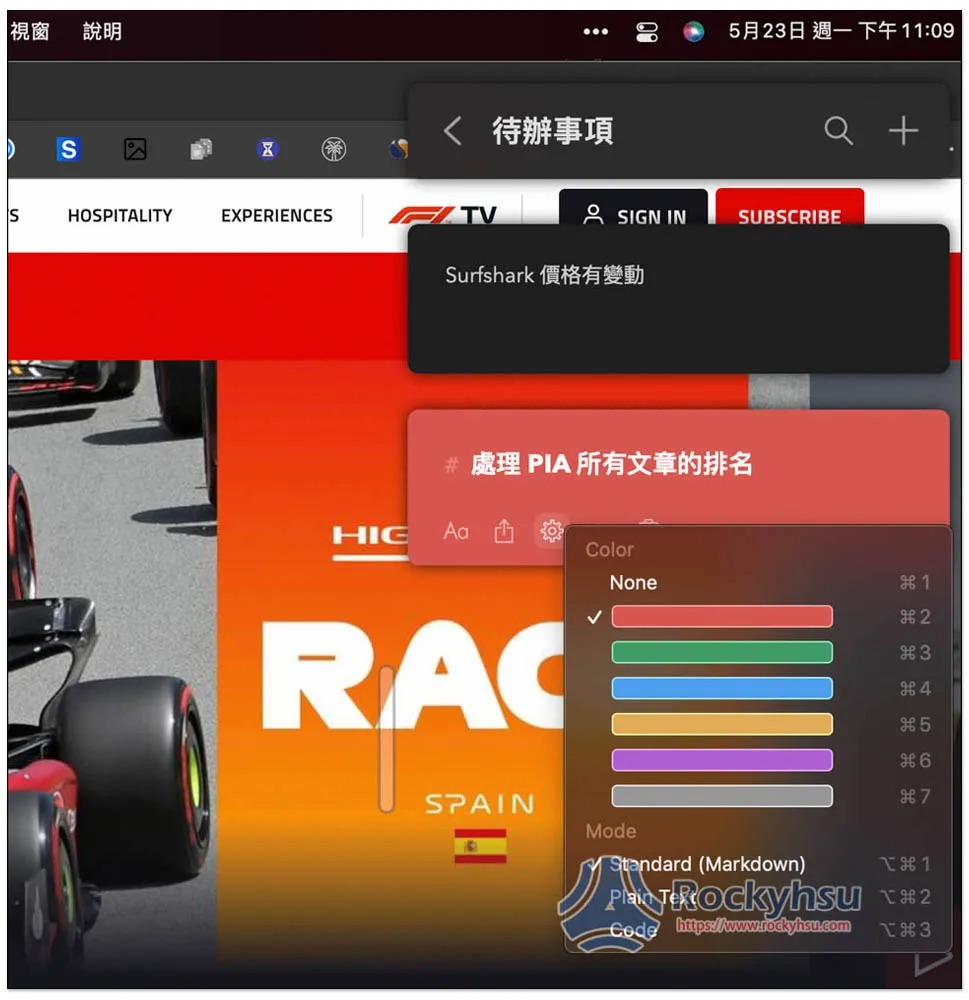
After using this kind of note-taking software for a long time, there will definitely be more and more users. At this time, it is very practical to use colors to note which ones are important and which ones are okay. Click the setting icon below to find the color options. There are currently 6 types. There are also Mardown and Code functions at the bottom:
Summarize
For those who have not found a good note-taking software, I highly recommend SideNotes. It is simple and easy to use, and can also be used as a to-do list.
The only pity is that it only provides a Mac version, not mobile phones or Windows. If you want to transfer the contents of your notes to other operating systems, you can use the built-in sharing function to convert the notes into messages, memos, reminders, or Dropshare formats.
Source: KOCPC Chinese