


Have you ever searched for files on Windows? Of course, almost everyone does it, when you want to quickly find a specific file on your computer from a huge database, but you have forgotten where it is. The search function of Windows can ensure that you get the results you want as soon as possible. This time I will tell you in depth what the Windows search index is and why it is important to Windows.

What is the Windows search index? How to program it?
Windows search index? Why should I learn?
Before we learn how to index, let’s first understand what “search indexing” is. The Windows Search Index (also known as SearchIndexer.exe) is what allows the system to provide fast results for local searches on your computer. Indexing lets you create a search index, a process that lets you view all the files, messages, and other key content on your computer and sort them all into a cohesive database of information. Therefore, indexing is very important if you want to get search results faster in Windows.
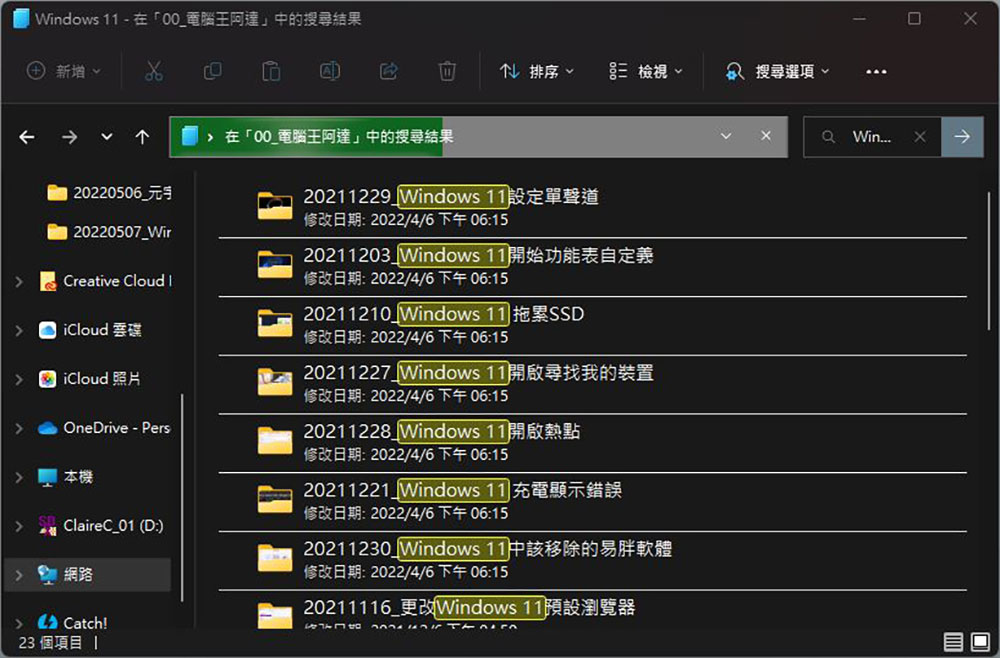
How to index files on Windows?
Now that you know the importance of search indexing, you will naturally want to know how to set up a personalized index in Windows. Let’s get started! To set up a search index on your computer, just follow these steps:
- Open the “Settings” app (shortcut keys Win + I) and click on the “Privacy & Security” item. Then find the “Windows Permissions” item on the page and click “Search Windows”.
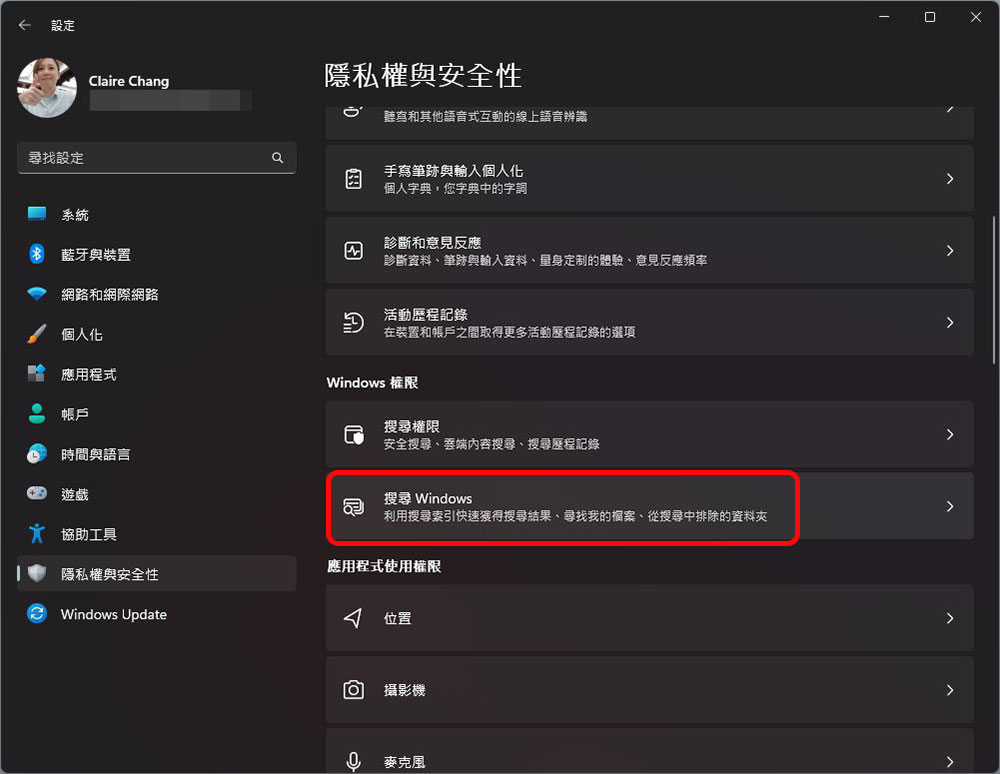
- Next, you can select the file location when you search. Microsoft offers two options:
Traditional – only searches files, pictures and music folders on your computer
Enhanced – Search your entire computer
Below you can also customize the folders to be excluded from the search, such as the folders where you store unspeakable secrets, so that they will be listed in the results and be seen by others when searching.

Although search by index, like many other features on Windows, is turned on by default, you can check to make sure it’s enabled on your computer. Or, you may want to disable it for any reason, and while I really don’t recommend this, I’ll tell you how to turn it off:
- Press the Win + R key combination to call up the “Execute” window, and enter “services.msc” and press Enter.

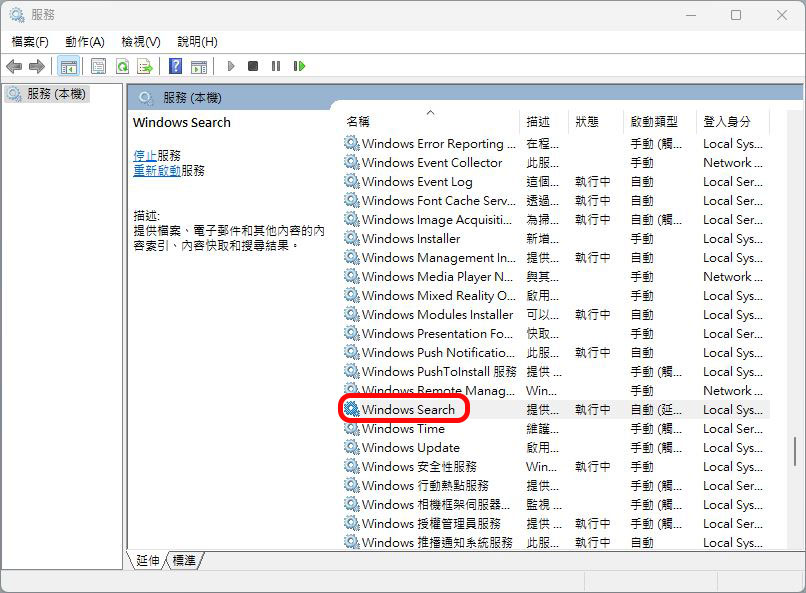
- Find the “Windows Search” item in the list on the right and double-click to bring up the Windows Search content window.
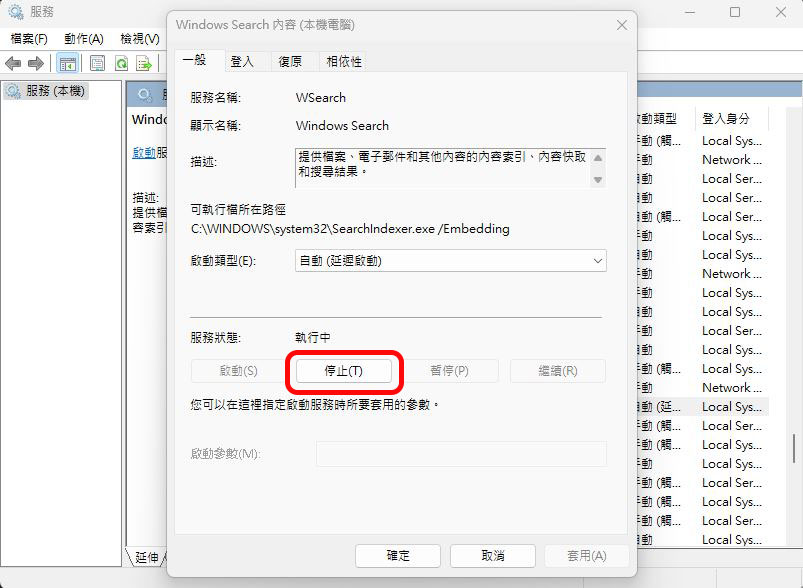
- In the “Windows Search Content” window, you can see that the index-based search function has been enabled by default. If you want to disable index-based search and close the functions that are running on the computer, just click the “Stop” button, wait for a moment for the system to execute the command, and then click OK.
The Windows search index is a convenient database that helps you easily find files in Windows. Just enter what you are looking for and you will see the results. I hope this tutorial will help you understand more about the search index and its importance.
Source: KOCPC Chinese