


There are a lot of new things introduced in Windows 11, but not every one of them is likable. There is no doubt that everyone will have different opinions on the new changes in the operating system, and the change of the Start Menu is also a very controversial part. Windows 11 replaces the live tiles of the past with simplified icons. The unpleasant thing is that the “suggestions” section that is difficult to ignore takes up more than half of the space.
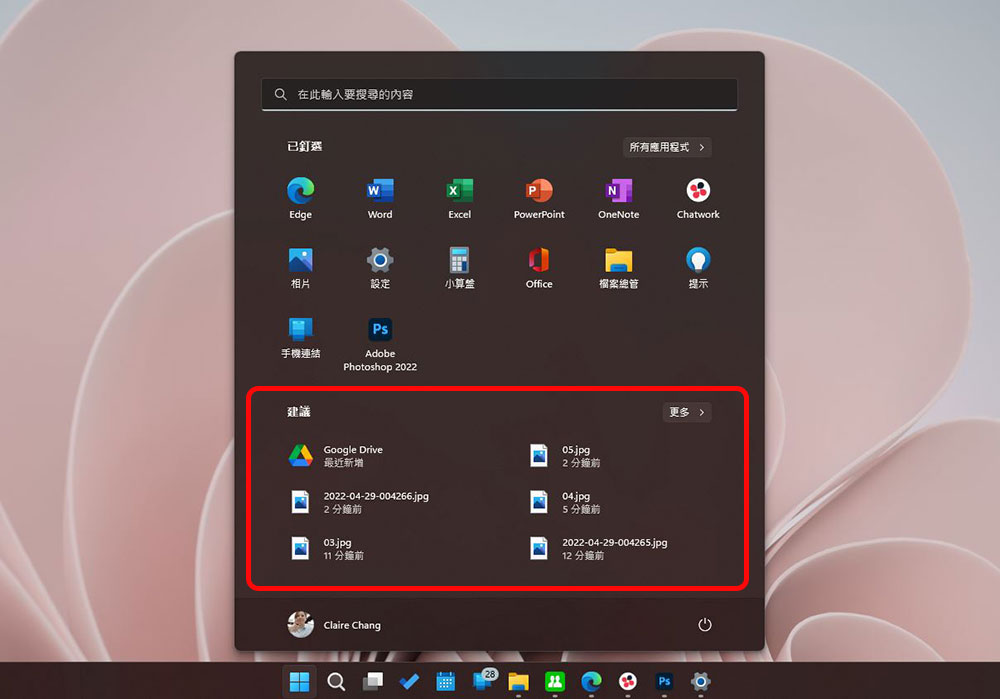
How to turn off suggested content in the Start menu in Windows 11 (Same scene: Reduce the recommended layout)
First, we need to understand the composition of “Recommendations”. Recommendations are mainly composed of two parts, including recently created or downloaded files and recently installed applications. His starting point is simple, which is to make it easier for you to find relevant content, but if you are not so eager to find new files and new applications, this area is actually a bit messy. So how do you hide suggestions from the start menu? But let me say it first, even if it is hidden, you will still get more extra space in the start menu.
How to hide “suggested” content
If you don’t want your latest files and apps to be displayed directly in the start menu, you can use this action to hide the entire suggested section. But this is only a half-solution, because even if the content is hidden, at most it will not be displayed in the layout and there will still be an empty space.
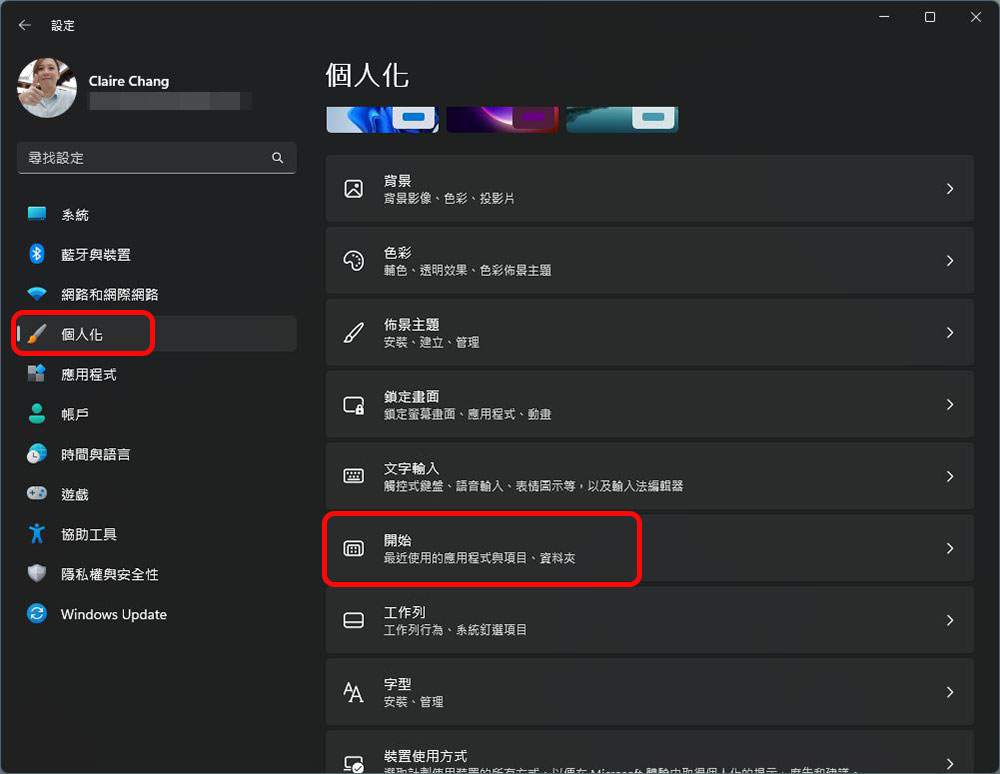
- Open the “Settings” app, click “Personalization”, and find the “Start” item.
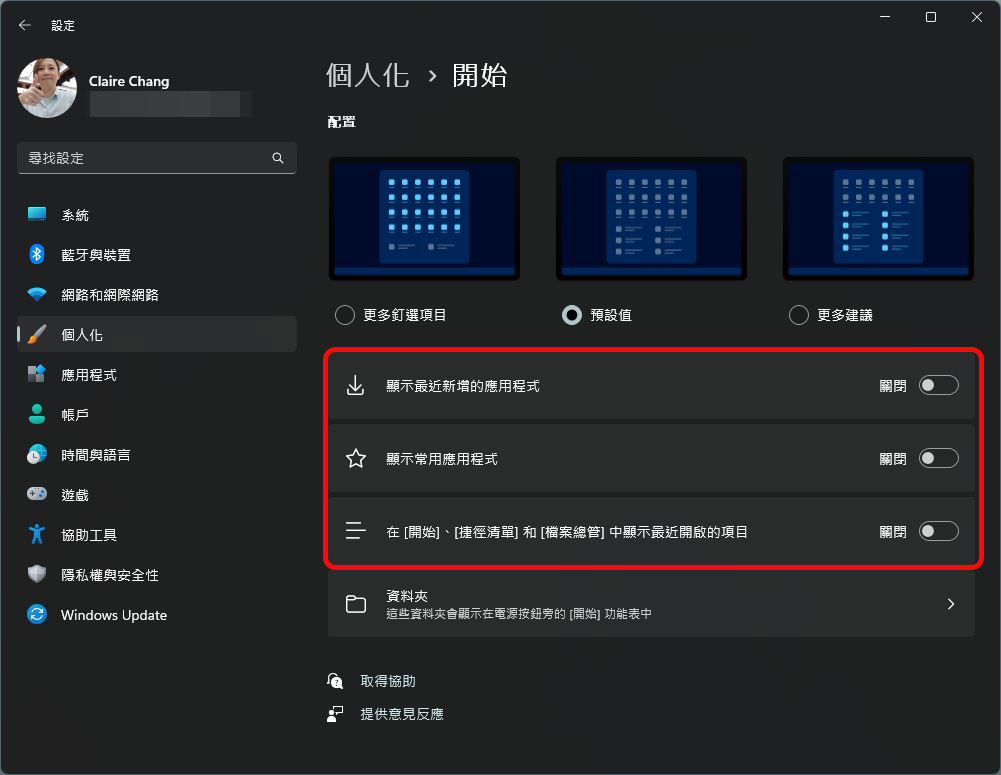
- Just switch all three display content settings framed in the picture below to “Off”. It should be noted here that after turning off these three items, it means that the recently opened files will not be displayed in the file manager, and it also applies to jump lists.
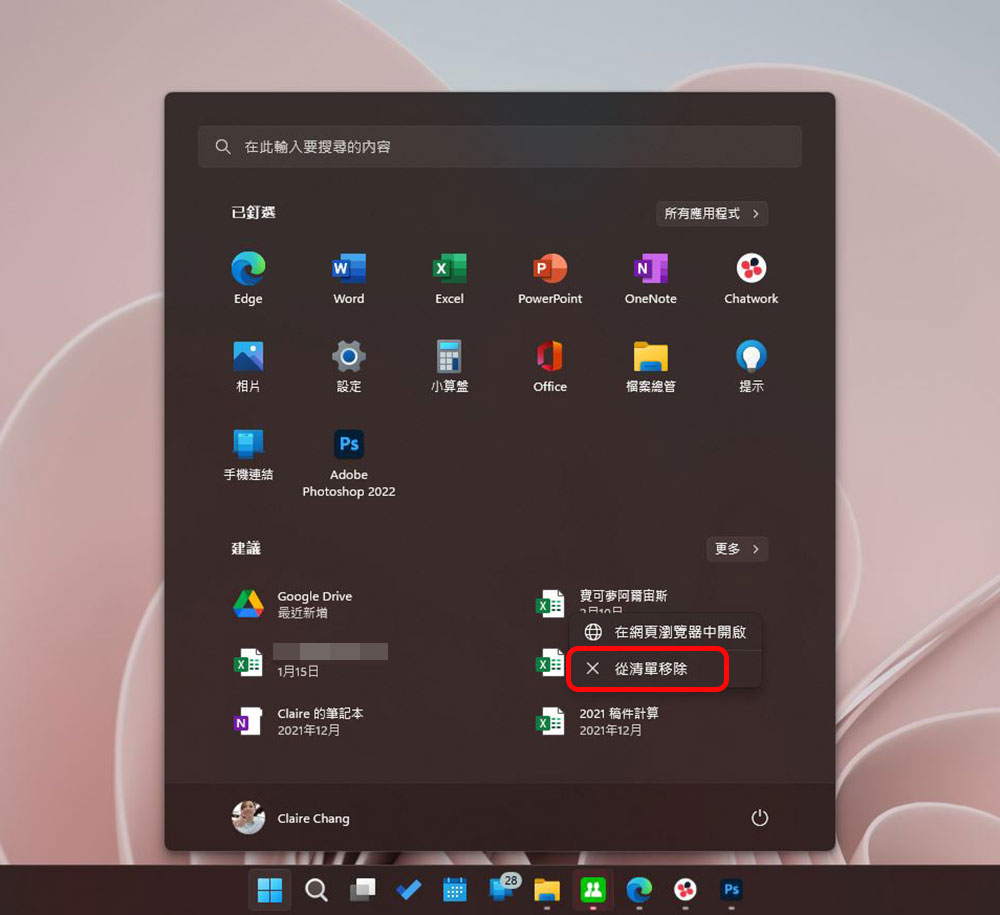
This is a fairly simple setup process. If you just want to hide specific files or applications from the Start Menu instead of hiding everything, you only need to open the Start Menu, right-click on the item you want to hide, and select “Remove from List.”
Additional screening at the same scene: Reduce the suggested layout
As we’ve mentioned before, you can’t completely remove the suggestions field in the Start Menu to free up more space for pinning more commonly used apps, but if you’re a Windows Insider Insider you can adjust the layout of suggestions to reduce wasted space. This feature will eventually be rolled out to everyone, so you can learn how to do it first.
- Open the “Settings” app, click “Personalization”, and find the “Start” item.
- At the top of this page, you can see that Microsoft provides three layouts with different proportions of applications and recommendations. You can choose the style you want.
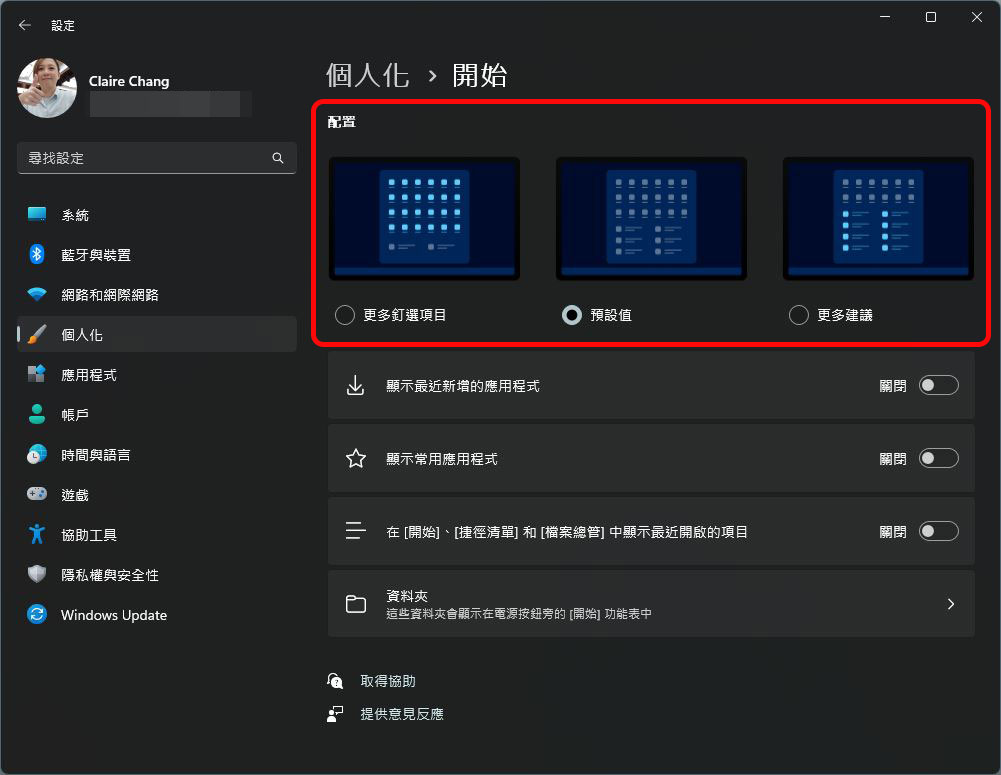
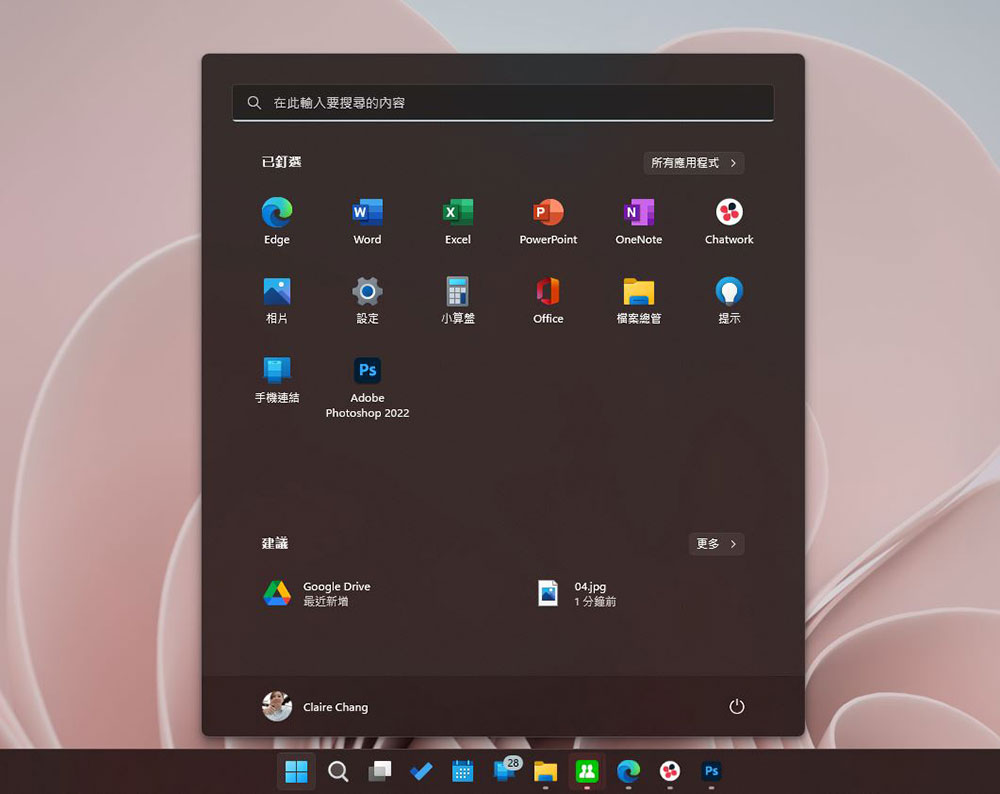
- As you can see from the picture below, if you choose the “More Pinned Items” configuration, you can have four rows of space for pinned applications and only one row of suggested placements. The overall look is much cleaner and fresher.
Source: KOCPC Chinese