


Although Windows 11 is very easy to use, there are some areas where it is very difficult to use, such as the inability to adjust the position of the taskbar, etc. If you, like me, work in a multi-screen environment, but want to set different backgrounds for different monitors, or create several virtual desktops, and want to set different background images for each desktop to visually adjust your mood, this time I will teach you how to perform the above settings without using a third-party application.
How do I set a desktop background for different monitors and different virtual desktops on Windows 11?
In fact, you don’t need to go through third-party applications to set background wallpapers for different monitors and different virtual desktops. Some can be operated from the settings, and some involve calling out the function window. This time we will learn it together!
Set backgrounds for different virtual desktops
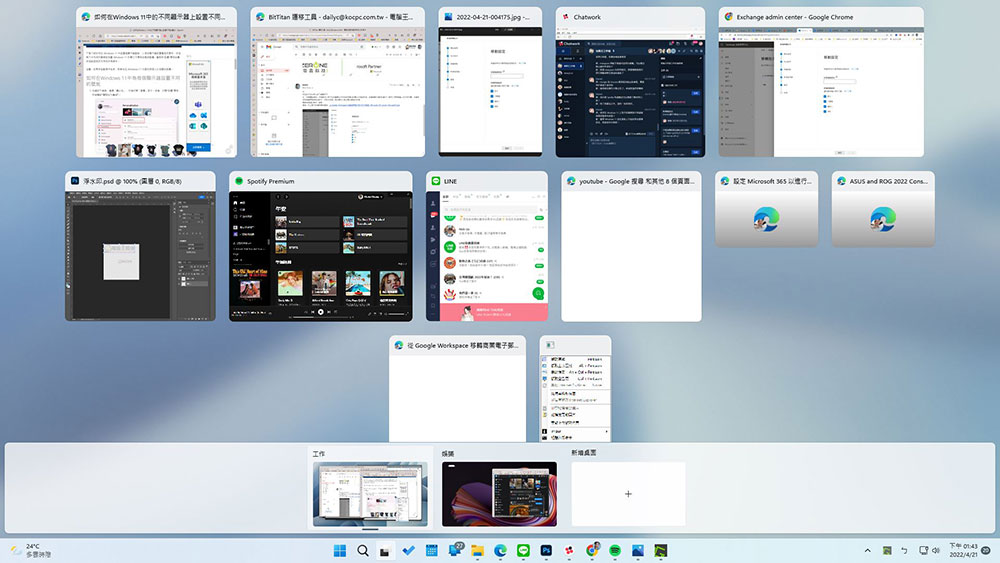
In Windows 11, you can set up virtual desktops for different purposes. What are they used for? For example, I personally have two virtual desktops, one for work and one for entertainment. Since the applications, software, and windows I open when working are very different from those in my spare time, I can use virtual desktops to quickly switch what is displayed on my screen. Of course, different virtual desktops need different wallpapers to enrich my vision! Follow me and set it up!
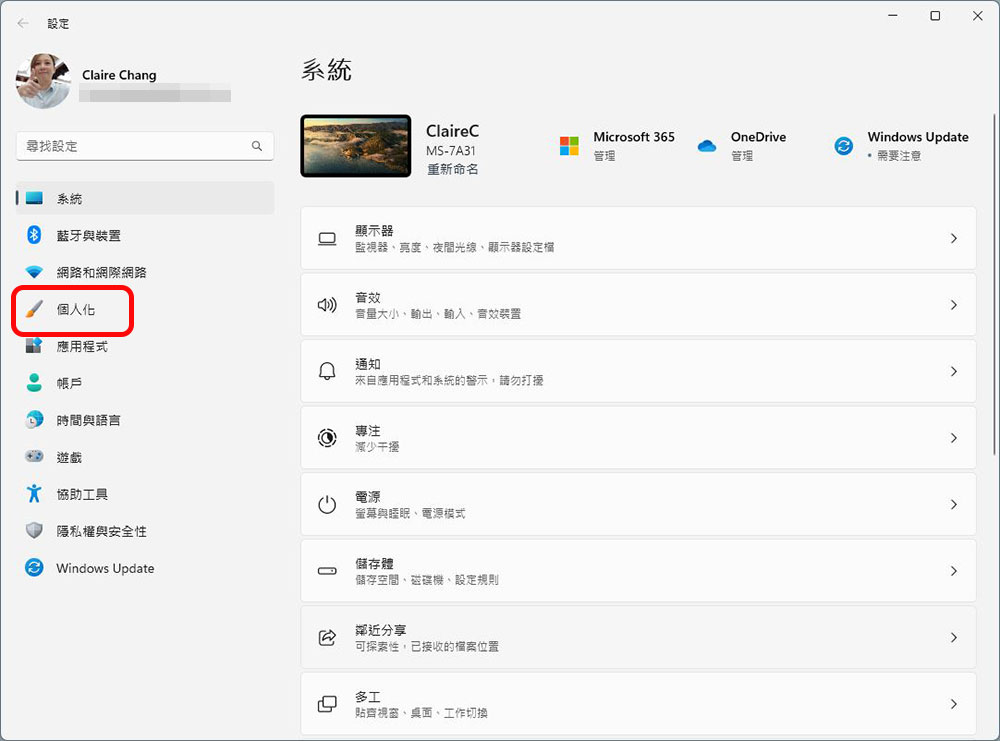
- First open the “Settings” app and click “Personalization”.
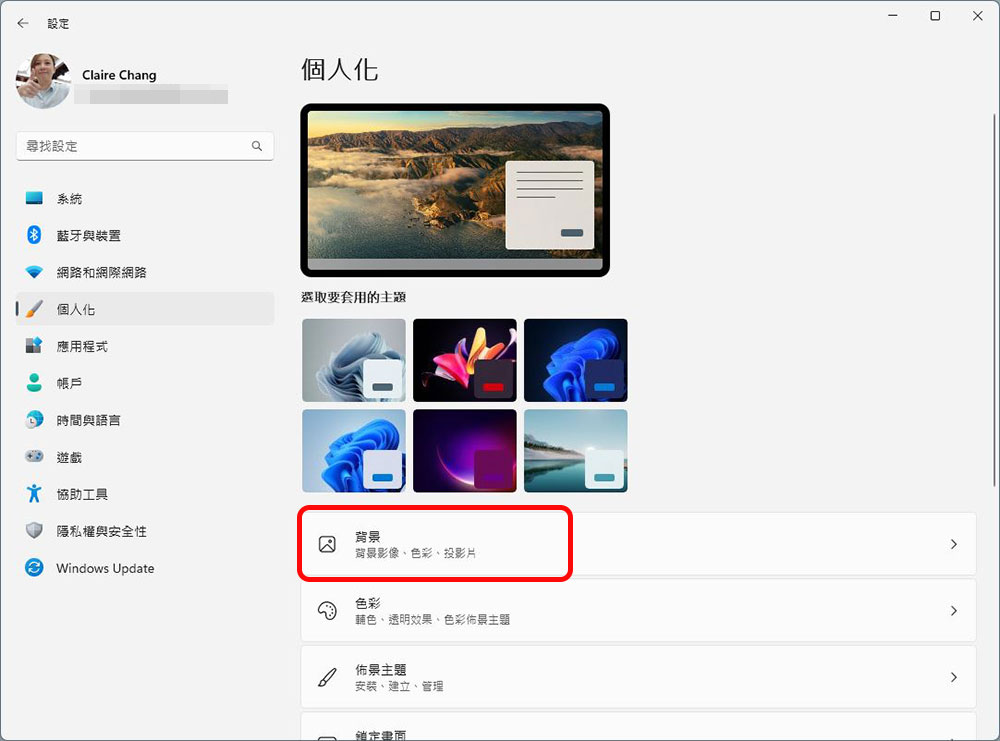
- Next select the “Background” option.
- Select “Pictures” from the drop-down menu in the “Personalize your background” section, and then you can see the most recent images displayed, or browse for the photos you want to use as your wallpaper.
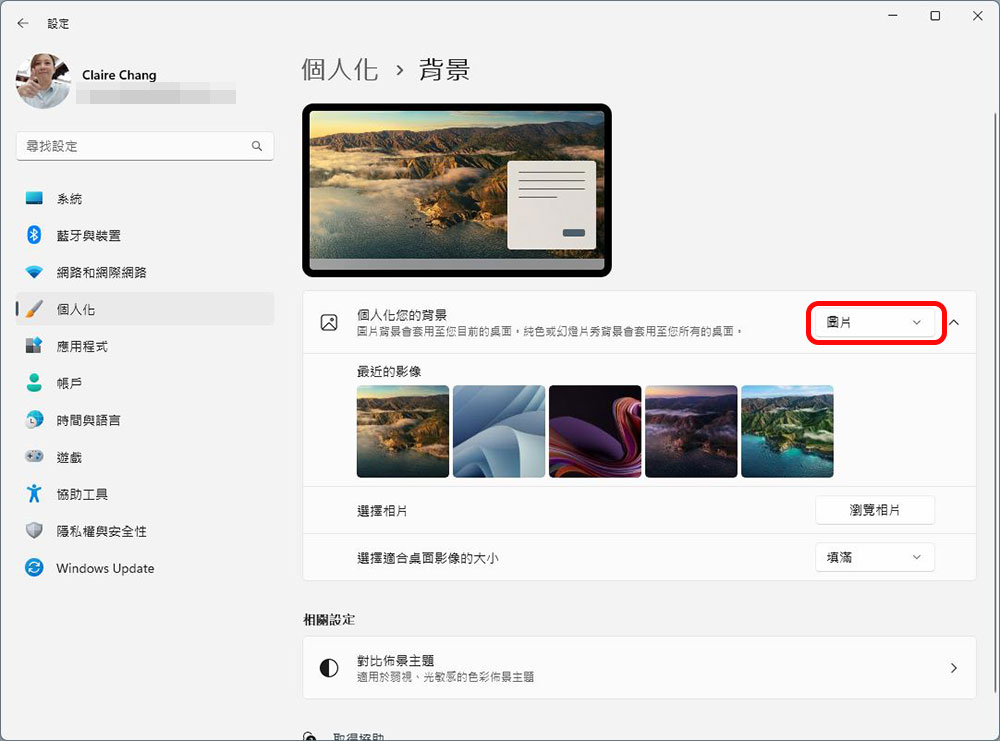
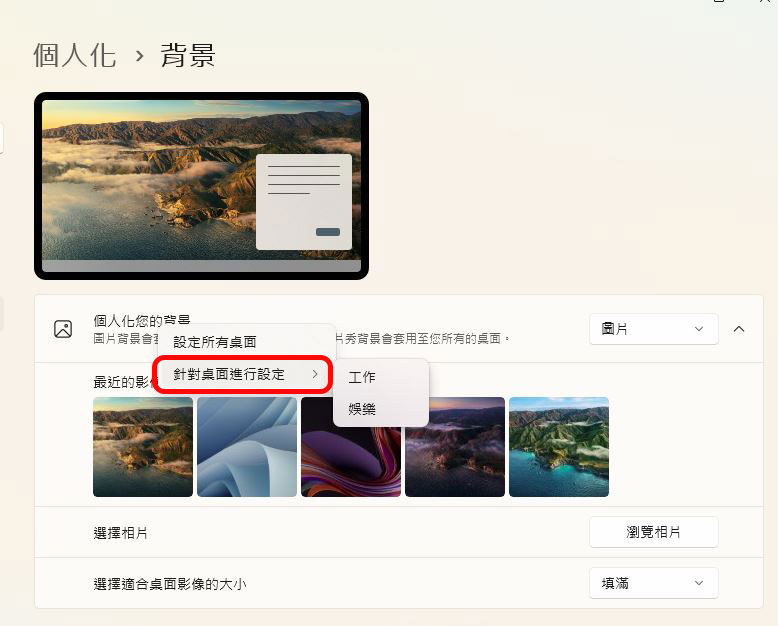
- Next, right-click the image you want to use, and you will see a menu appear. “Set all desktops” refers to setting the same wallpaper for all virtual desktops; “Set for desktops” allows you to set settings for each virtual desktop. From this item, you can select which desktop you want to use the image on.
Set background wallpaper for different monitors
In a multi-monitor environment, the Windows 11 surface settings do not provide you with the ability to set the wallpaper for each monitor, but we can do it in other ways.
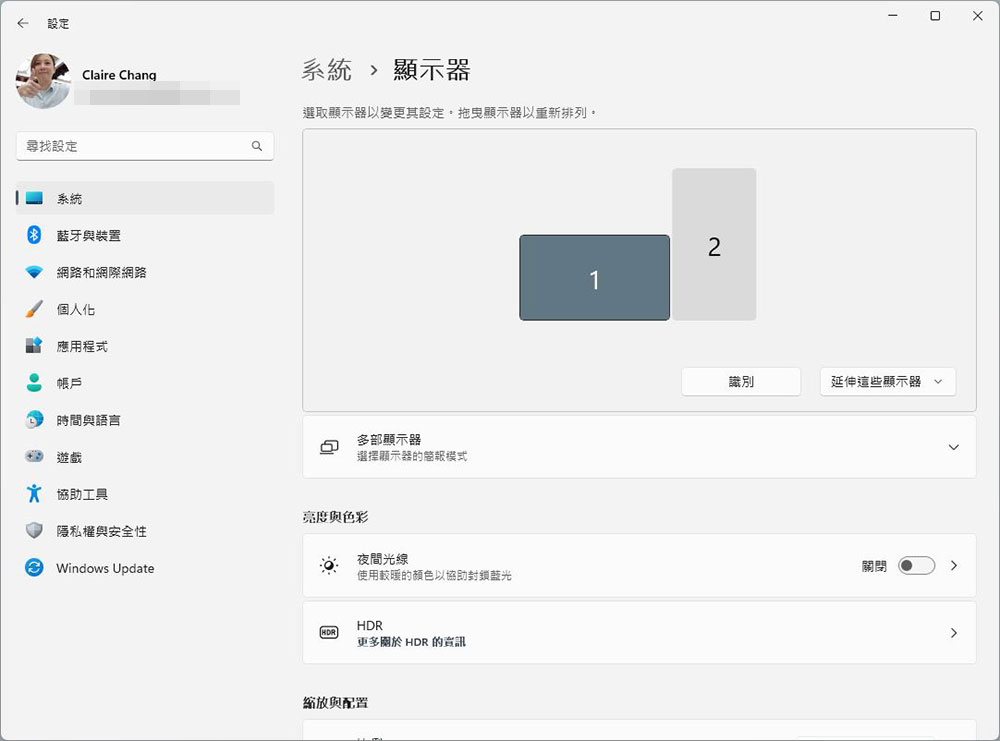
- Before setting the wallpaper, please set the number for each monitor in “Settings >> System >> Monitor”. If you haven’t already, click Identify to set up your monitor.
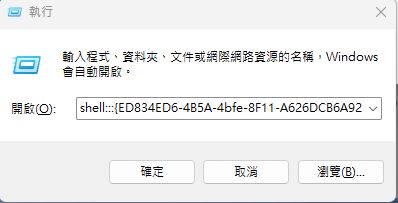
- Then press “Win + R” to call up the execution window, copy and paste this syntax and click OK (or press Enter) “shell:::{ED834ED6-4B5A-4bfe-8F11-A626DCB6A921} -Microsoft.Personalization\pageWallpaper”
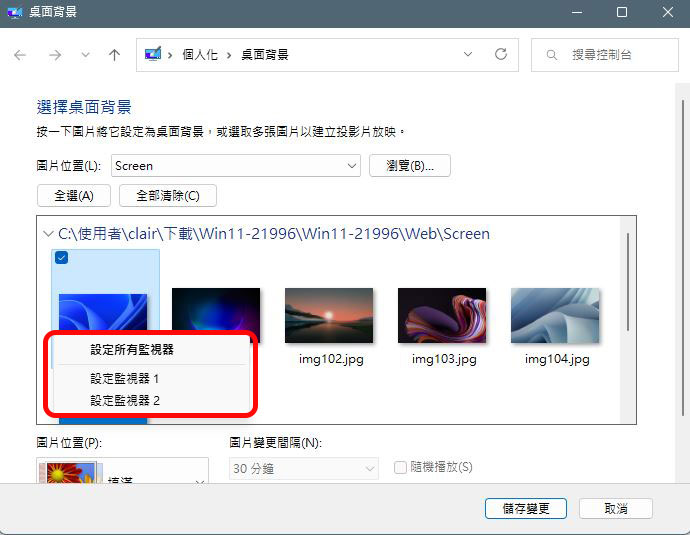
- The system calls up the old desktop background setting interface, and then you can right-click on the image you want to set as the wallpaper, and then select which monitor (display) you want to use the image on. After completing the settings, click “Save Changes” to complete.
Source: KOCPC Chinese