


Even newly installed Windows 10 and Windows 11 come with a large number of preloaded applications, such as mail, calendar, clock, recorder, painter, weather, etc. Sometimes Microsoft will also add some new applications, making the lineup increasingly larger. But not everyone is a big fan of Windows apps, and you may have better alternatives, so how do you remove those preloaded apps you don’t need or don’t like?
How to remove preloaded apps on Windows 11?
You must have discovered that some preloaded applications in the computer system are just taking up space. They may not be used from the first day to the day when the computer is retired. You want to remove them but can’t find a way. If you are like the author and like to remove as many applications as possible to keep the operating system clean and tidy, then the tricks I will teach you today can remove those applications that you really don’t need or want under Microsoft’s restrictions.
General removal
You don’t need to download apps designed to “optimize” the Windows 11 operating system to clean up apps. You can simply run straight into Windows to get rid of unwanted software.
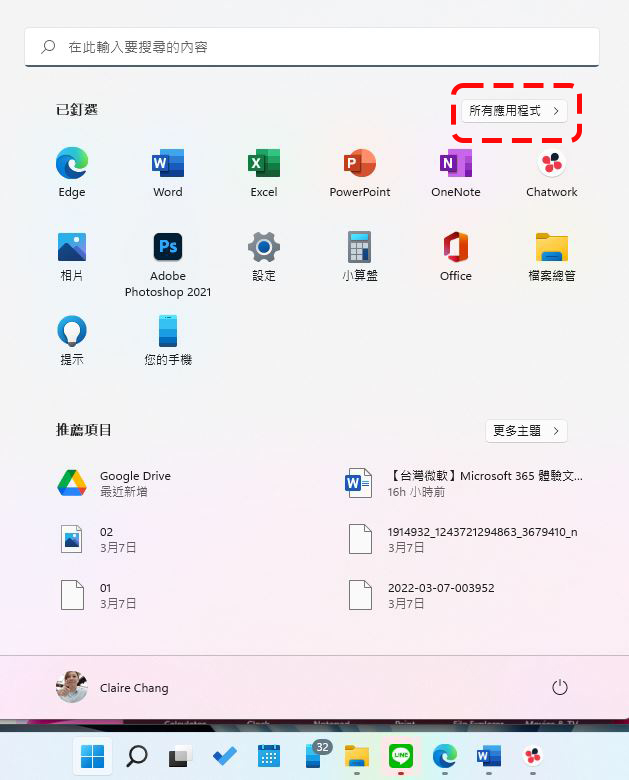
- Open the “Start” menu and click “All Apps” in the upper right corner.
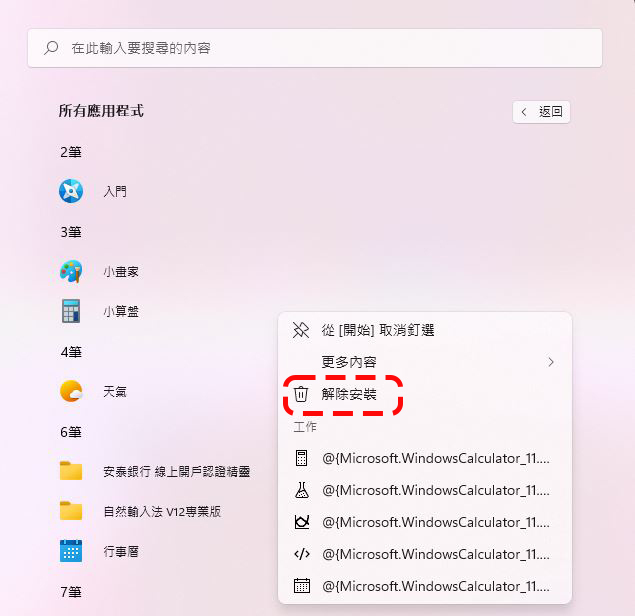
- Find the application you want to remove, right-click on the application name to open the menu, and then select “Uninstall”.
How to uninstall preloaded applications that cannot be removed by normal means
Some apps, such as Windows Maps, Cortana, Alarm Clock, Windows Camera, Your Phone, etc., Microsoft does not want you to delete, so the uninstallation option is locked and you cannot handle it with normal methods. However, you can still use this trick to safely remove without damaging the operating system, and you can restore and install them back from the Microsoft Store at any time.
★Note: If you have just performed a clean installation of Windows 11, you may need to update “application installer」。
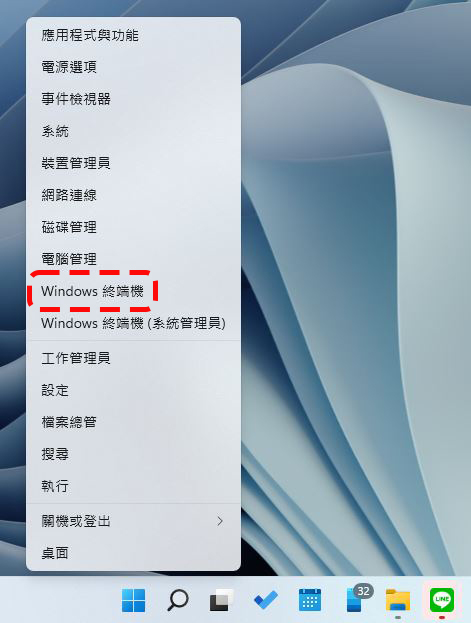
- Right-click the “Start” icon on the taskbar to bring up the options, and then click “Windows Terminal”.
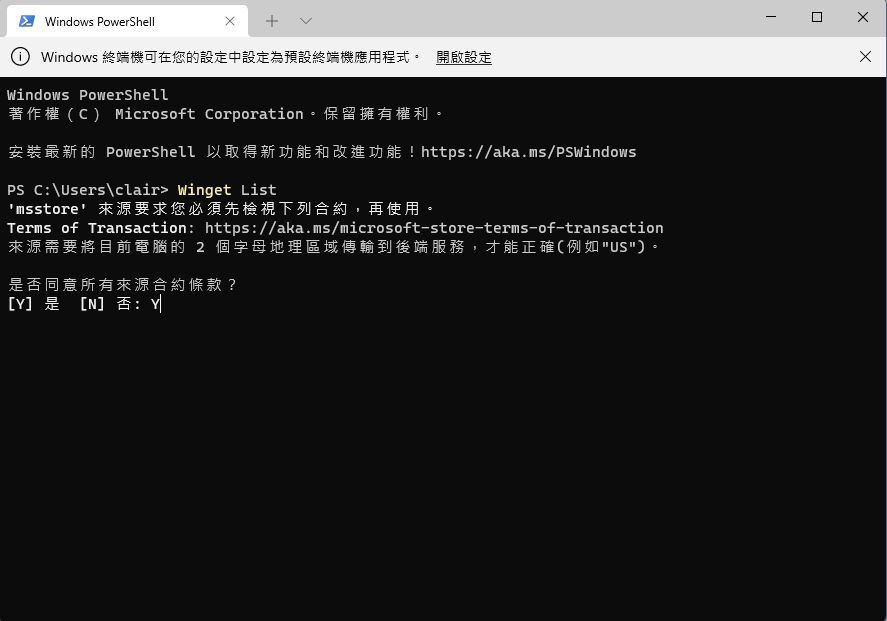
- Type “Winget List” and press Enter. If this is your first time using winget, you still need to agree to the terms of the agreement. Press “Y” and then press Enter. The Windows terminal will display a list of applications currently installed on your computer.
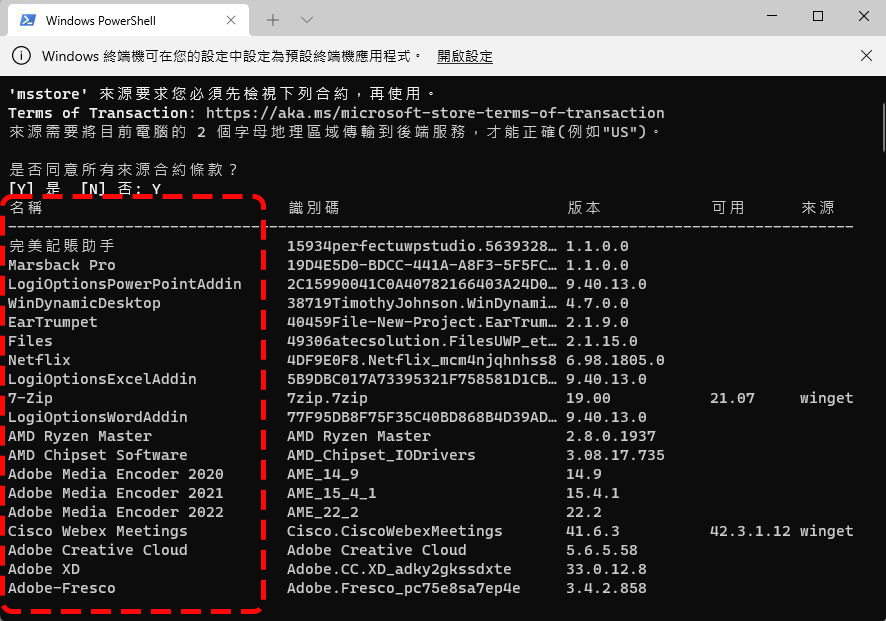
- What we need here is the first column labeled “Name”. Some apps have different names in the Start menu and Windows Terminal, such as Camera and Microsoft Camera, Weather and MSN Weather. All you have to do is write down the name displayed on the Windows terminal for later use. If there is any blank space in the middle, also write it down.
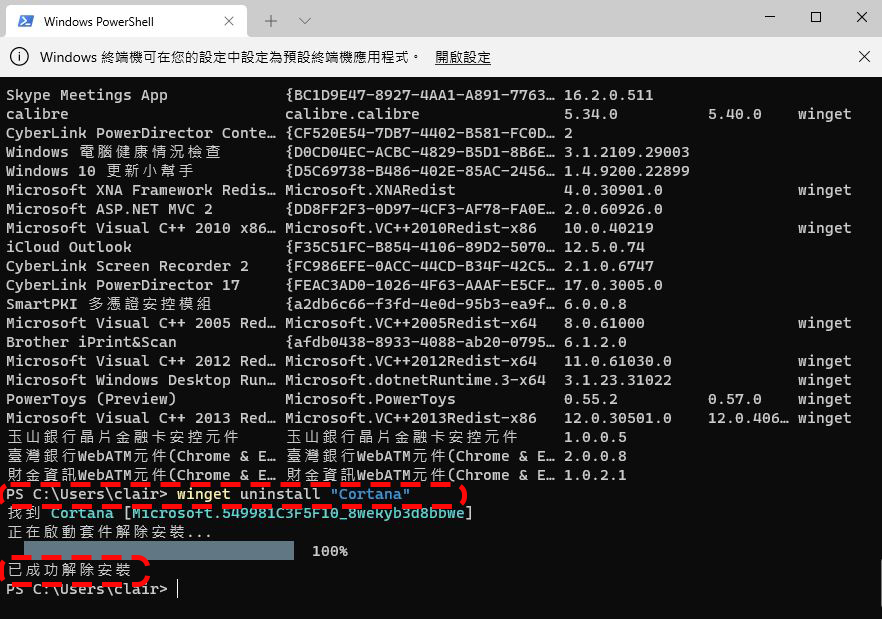
- To uninstall a non-user-removable preloaded app from Windows 11, enter winget uninstall “appname”. Change the “Application Name” part to the correct name you wrote down in the previous step. The following is an example of how to install Cortana. Repeat this step for any other programs you don’t want to see on your computer. Once you see “Successfully uninstalled” it says you’re done.
Don’t be afraid when you see the terminal screen. In fact, this method is super simple. With two commands, you can easily remove all those applications that are clinging to you like dead skin on your heels, cannot be removed and are annoying to your eyes. Especially for those who don’t have a large computer capacity, try it now!
Source: KOCPC Chinese