


When Apple users want to transfer files across devices, most of them choose to use AirDrop. However, sometimes when there are too many other people’s Apple devices around, you may worry about accidentally sending the message to the wrong person, or you may find the process of selecting a device through AirDrop too complicated. Today I’m going to share a few tips for quickly transferring image and text files across devices. You can do it with just a gesture!
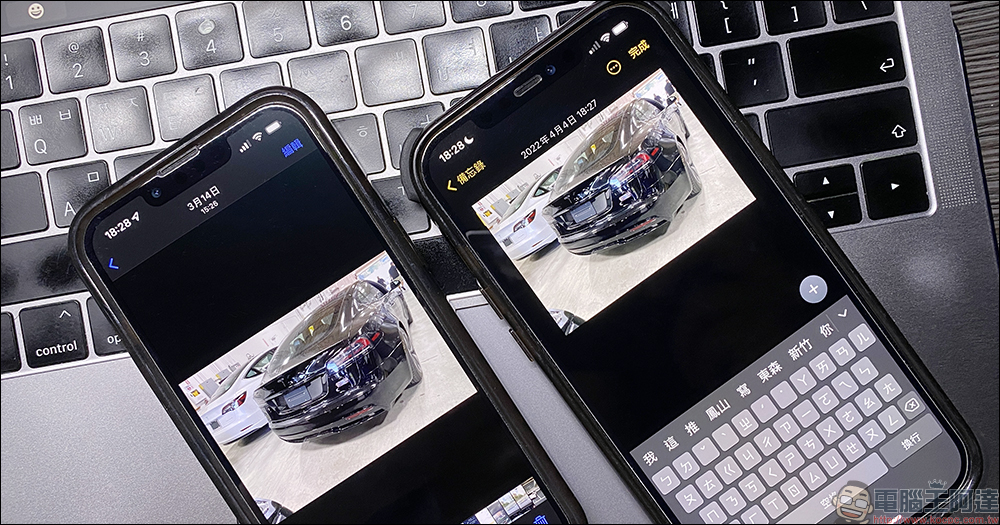
Faster than AirDrop transfer, a must-learn trick for iPhone, iPad and Mac users to transfer pictures and text to each other!
When we want to transfer a photo from iPhone to Mac or iPad, in addition to choosing AirDrop to transfer, we can also quickly transfer it with just one “grab and drop” gesture. How to achieve this convenient file transfer function? Just keep reading!
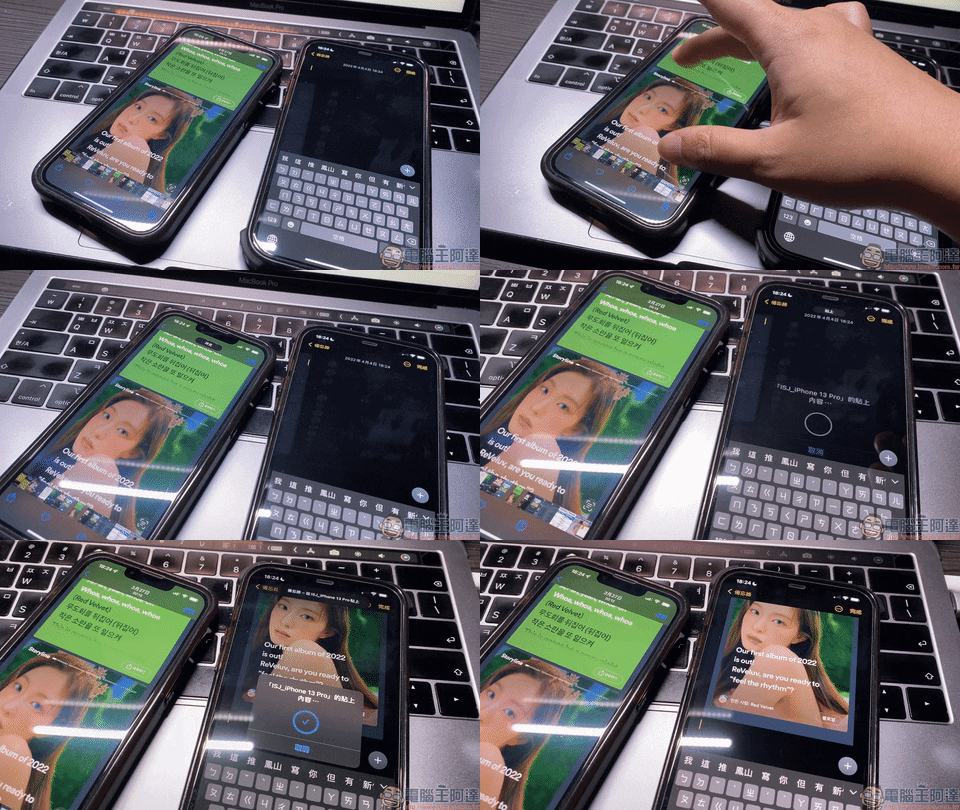
Preparation: Turn on the “Relay” function
Before using the tips introduced this time, the “relay” function must be enabled on all devices to be transmitted. For iPhone or iPad, you can go to “General” in the system’s “Settings”, select “AirPlay and Handoff” and then turn on the “Handoff” function.
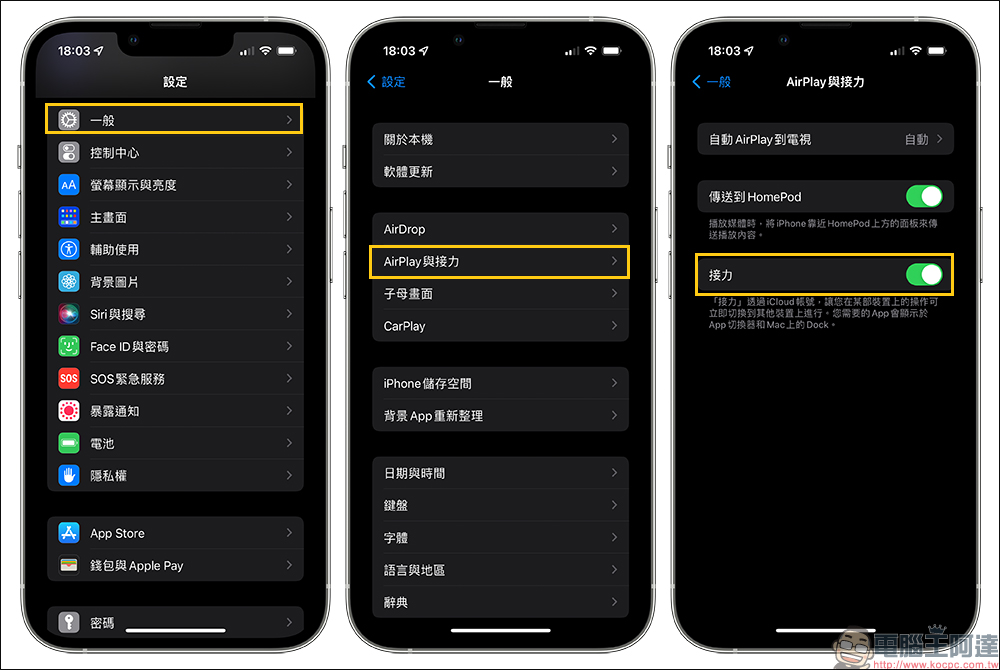
If you are on a Mac computer, you can select “General” from “System Preferences” and then turn on “Allow handover between this Mac and your iCloud device”.

How to quickly transfer photos, connect, and use a universal clipboard?
To achieve the universal clipboard that introduces continued interoperability, all devices must meet the following conditions:
- Mac computer system needs to be upgraded to macOS Sierra or above
- iPhone and iPad must be upgraded to iOS 10 (inclusive) or above, iPadOS 10 (inclusive) or above respectively
- All devices are logged into the same Apple ID
- Turn on the “Bluetooth” function on all devices
- Turn on the “relay” function on all devices
How to quickly transfer images and text across devices?
Once the above settings are turned on and the conditions are met, you can make good use of “relay” and gestures to make file transfer easier!
1. Copy on the first device, then click and paste on the other device.
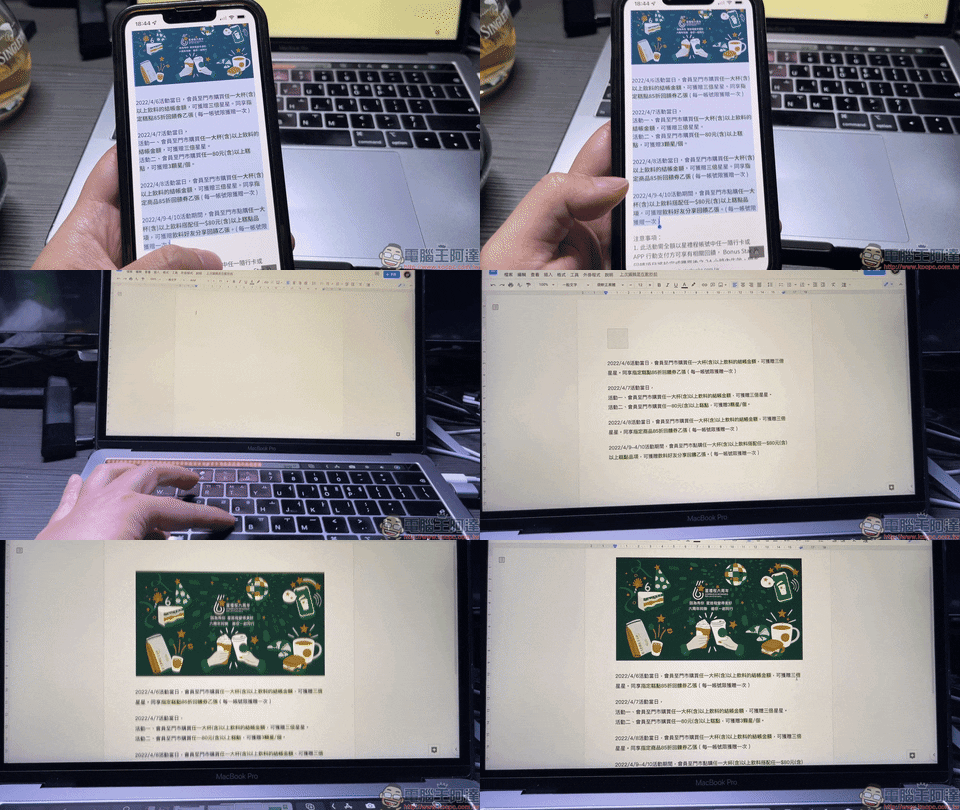
First of all, the first step is to select the images, text and other content you want to copy on the original device and click “Copy”, then go to another device and click “Paste”. Of course, if the text content you want to copy is in a picture, you can use the “original text” function supported by iOS 15 to first select the text in the picture, copy it, and then paste it directly to another device.

In addition to transferring between iPhones, users can also use the relay function between iPhone and Mac computers to quickly copy images and text to computers.
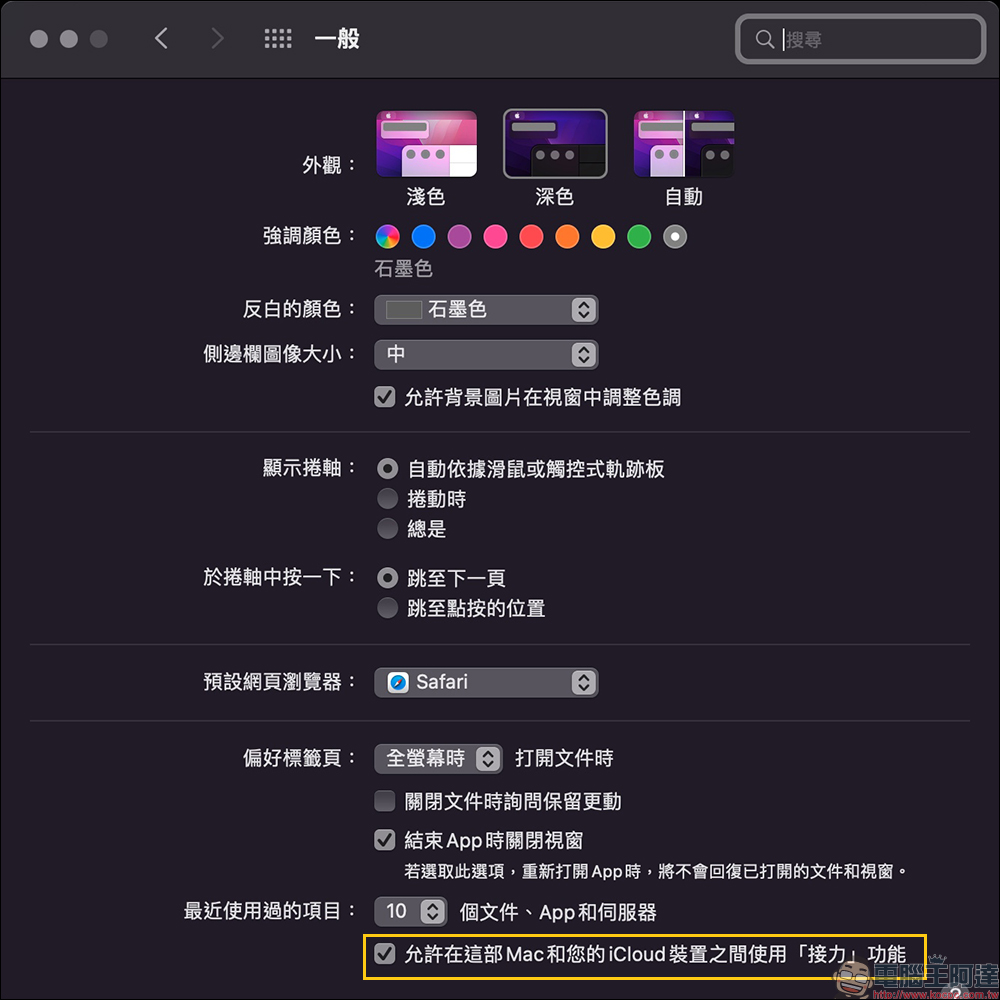
2. Grab the gesture with three fingers inward on the first device, and then release the gesture with three fingers outward on the other device.
After looking at the basic relay function, I will finally share how to use “gestures” to copy and send pictures. First use “three fingers together” to copy on the iPhone, and then use “three fingers apart” to paste on another device. If you are not sure whether the copy is successful at the moment, you can pay attention to the “Copy” prompt displayed on the screen above the iPhone when the gesture is completed, and the “Paste” prompt will also be displayed when the paste gesture is successfully executed.
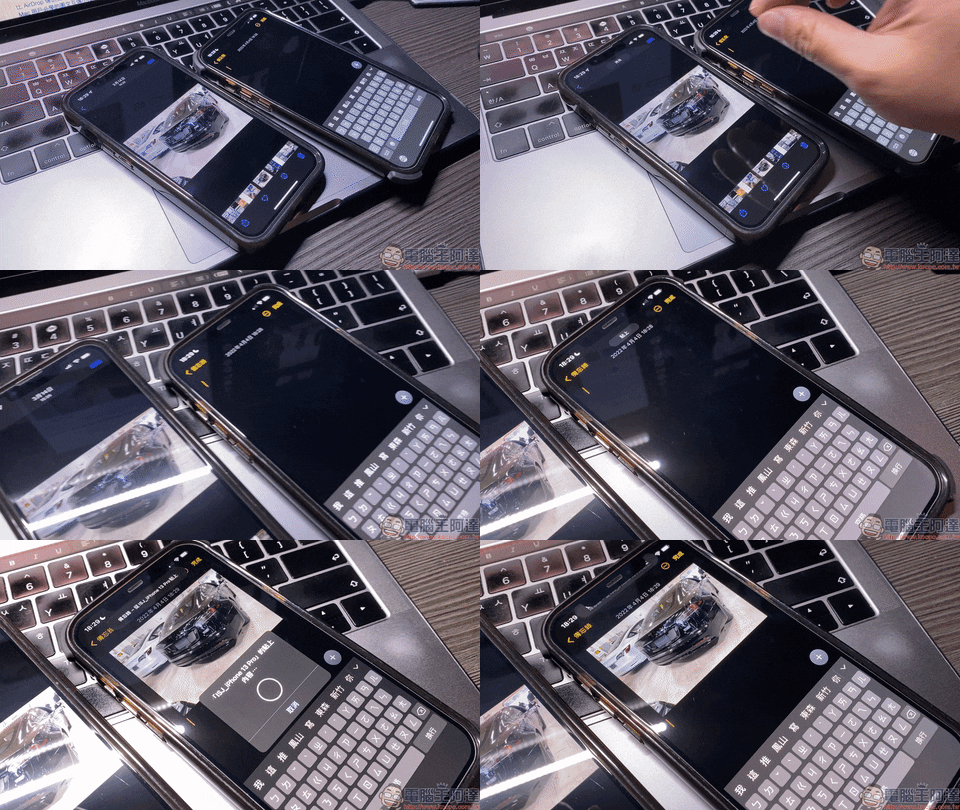
The method introduced this time is to use “Universal Clipboard” with gesture operations on iPhone or iPad. Of course, you can also simply click copy and paste after turning on the relay to do this.
Source: KOCPC Chinese