


Since iOS has the shortcut (Siri Shortcut) function, not only has the iPhone become smarter, but in fact, even your Apple Watch has the opportunity to become smarter because of it. Implementing advanced features not found in the stock settings, it can understand changing surfaces at specific points in time, even sunrise and sunset, and even through geo-fence conditions. Continue reading Apple Watch can also automatically change the watch face according to time. How to set it up. This article will teach you the content of the report.
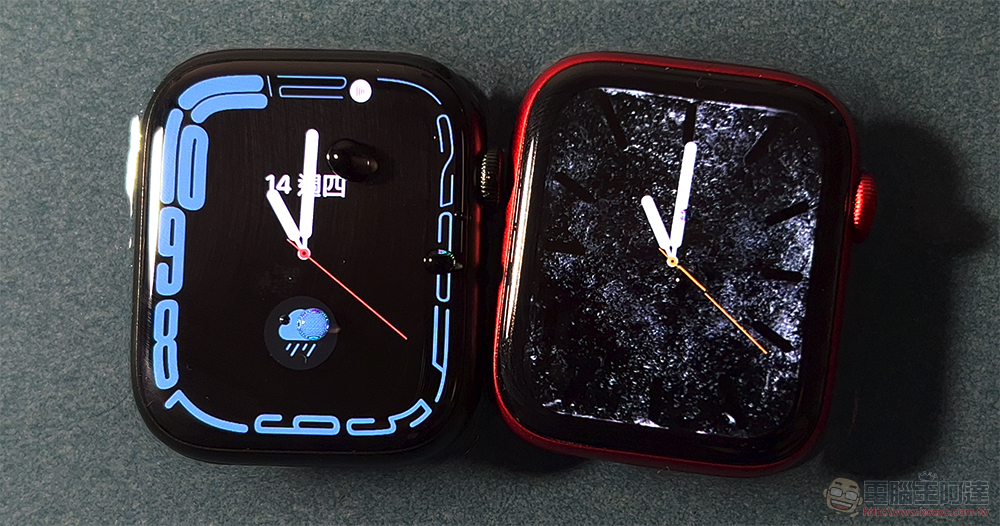
Apple Watch can also automatically change the watch face based on time. This article will teach you how to set it up.
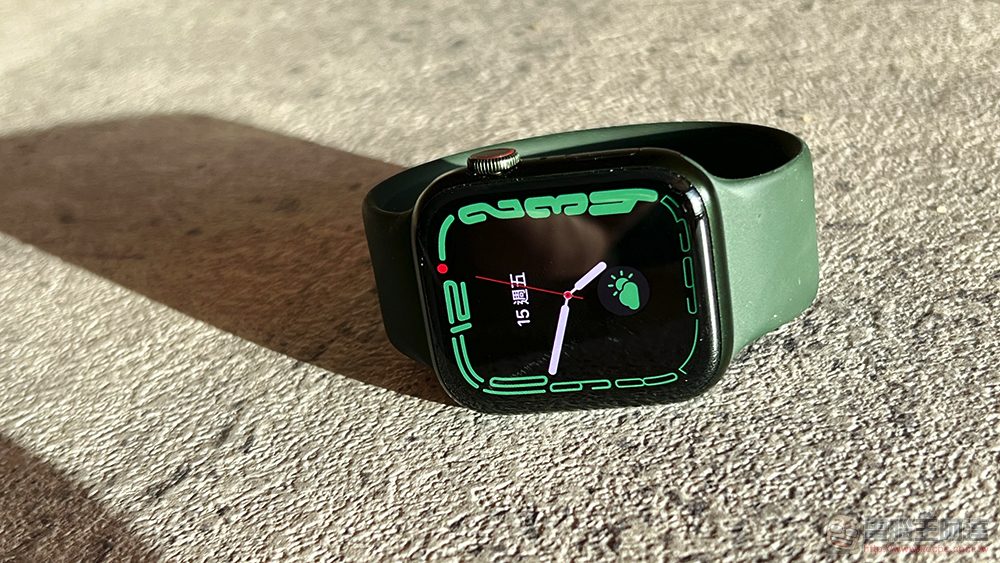
As Apple Watch’s surface functions become more and more abundant. In fact, in our review of the Apple Watch Series 7, we felt that the screens of Apple smart watches are getting bigger and bigger, if the watch can be switched to suit different usage scenarios. To a certain extent, it is like using a small mobile phone, so you can use this smart watch more efficiently. Now, we can cooperate with the shortcut function of iOS to further make Apple Watch more considerate and smart to match time and place, and even “mode” to keep up with the rhythm of your life.
If you want to activate a specific Apple Watch surface at a specific time/place/focus mode – such as changing to a less dazzling surface after sunset, displaying information more relevant to commuting after leaving home, etc. – you can follow our tutorial to set it up simply!
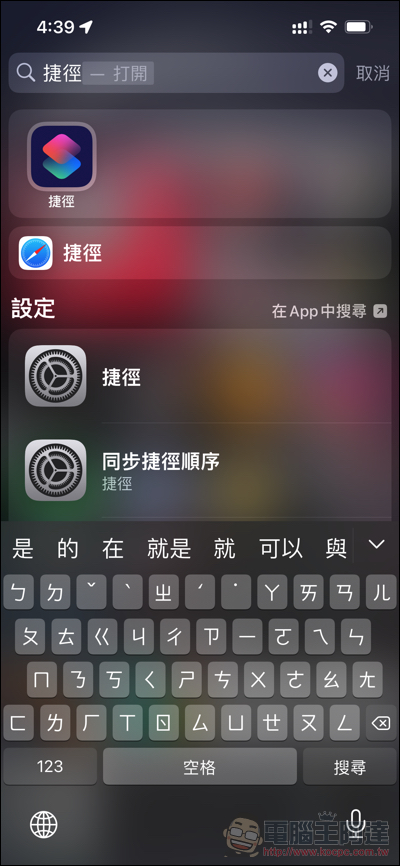
First, open “Shortcuts” in the iOS app, or directly launch the search for “Shortcuts” with a pull-down gesture on the desktop. After startup, you can click “Automation” below and use the “+” in the upper right corner to create a new automation function:
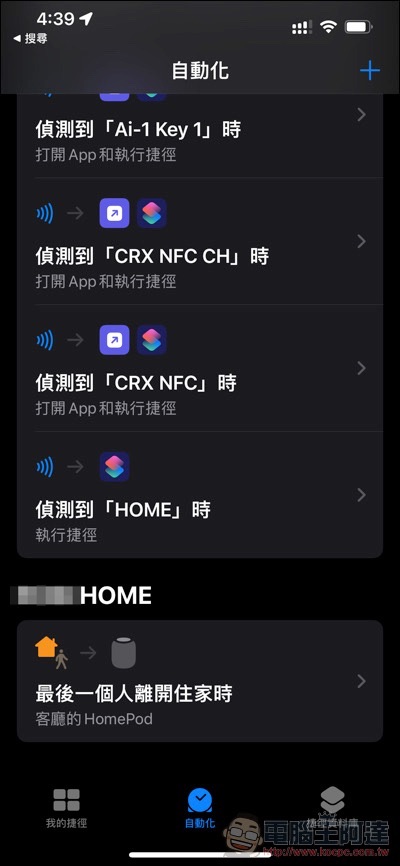
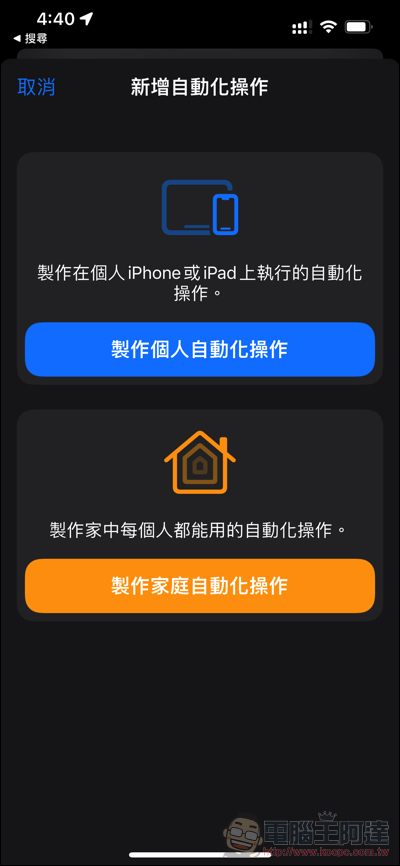
Then select “Create Personalized Action” to see various conditions that trigger automatic functions:
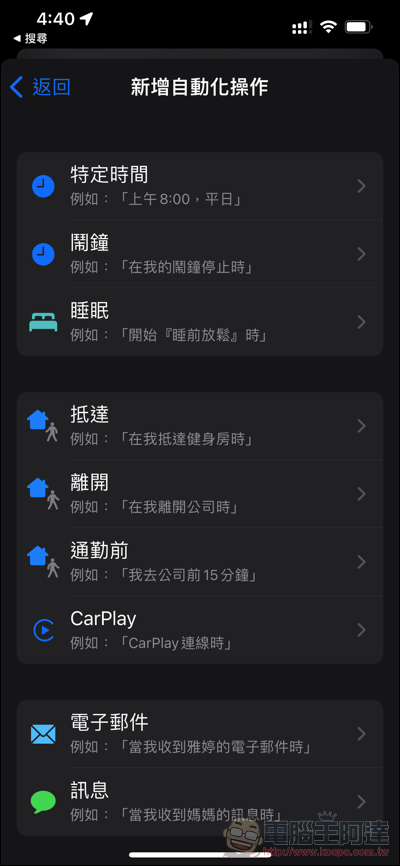
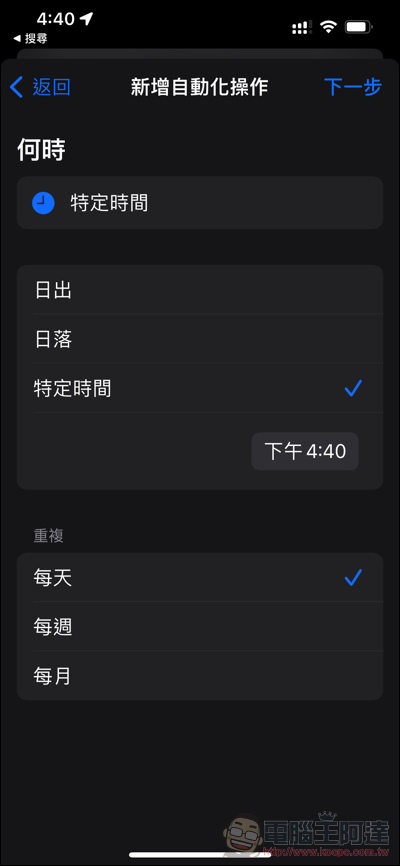
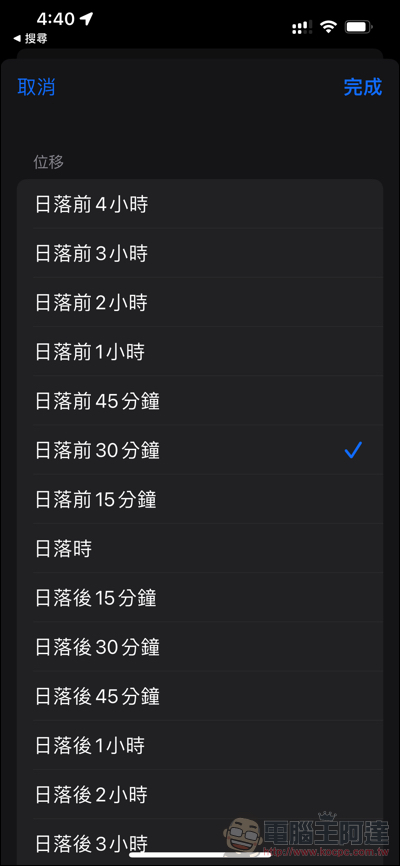
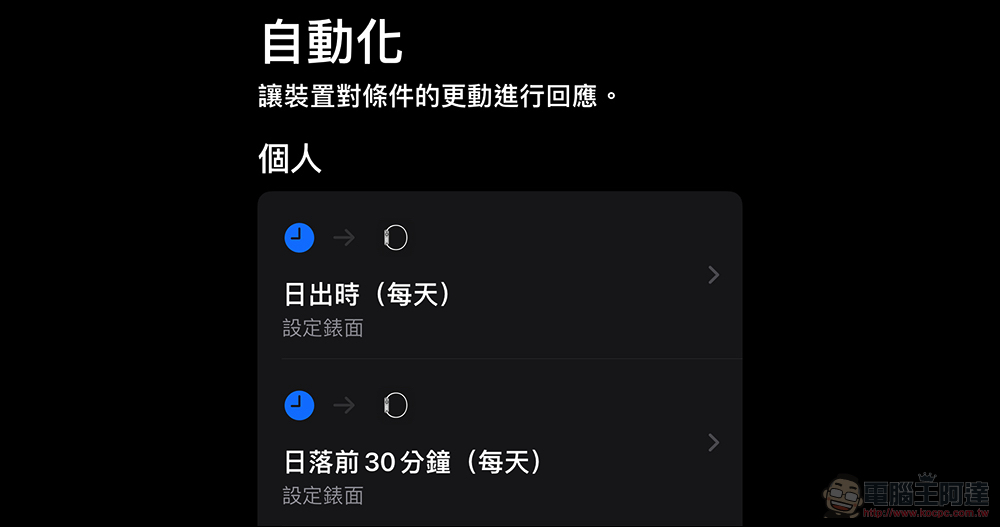
Let’s use “specific time” as an example first. You can directly specify the time point, or sunrise and sunset – this option also allows you to choose to delay or advance 4 hours, allowing you to trigger actions according to your needs:
Then select “Add Action” and search for “Watch” to see related functions:
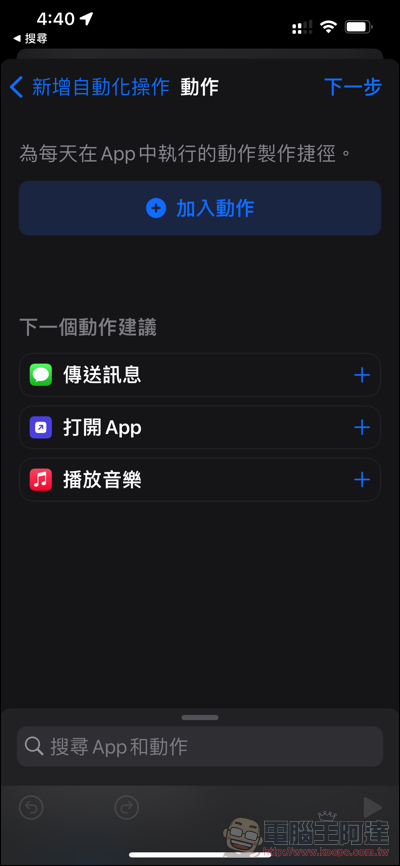
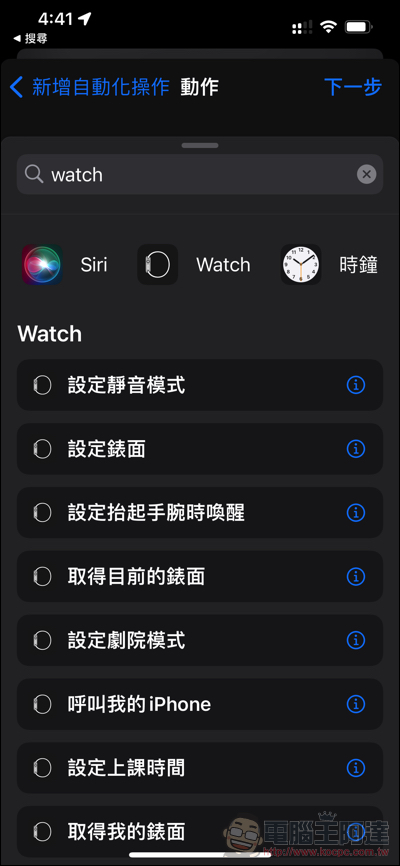
After finding “Set Surface”, you can use this automated function to select the surface you want to switch to:
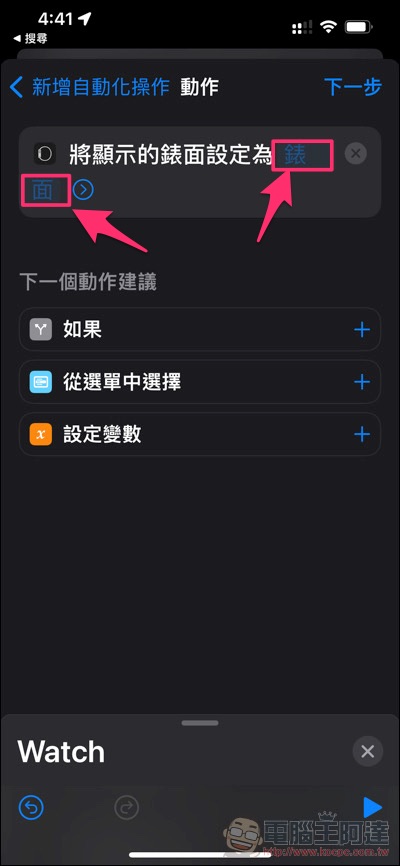

If you want everything to be automatic and prevent the iPhone from asking whether to execute, you can cancel the “Ask before executing” option (Note: This feature can skip the query directly starting from the iOS 15.4 beta version):
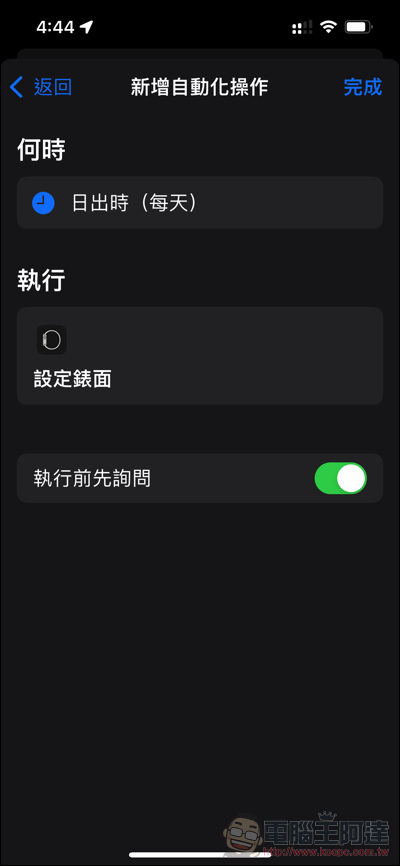
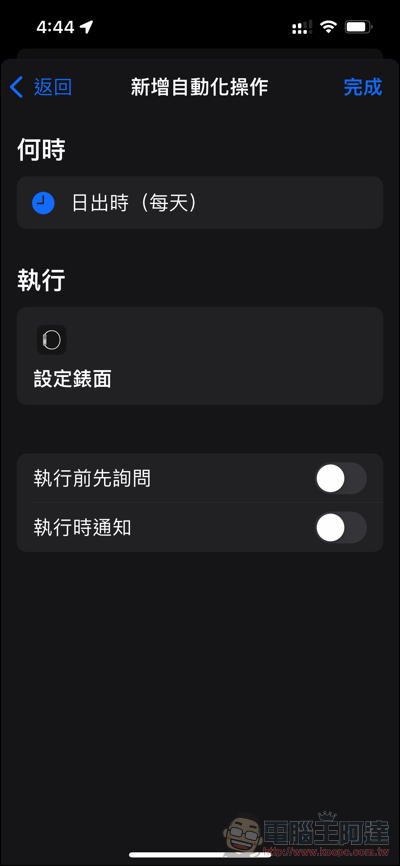
After completing the settings, although the execution notification will still pop up, these automated tasks will basically run automatically:
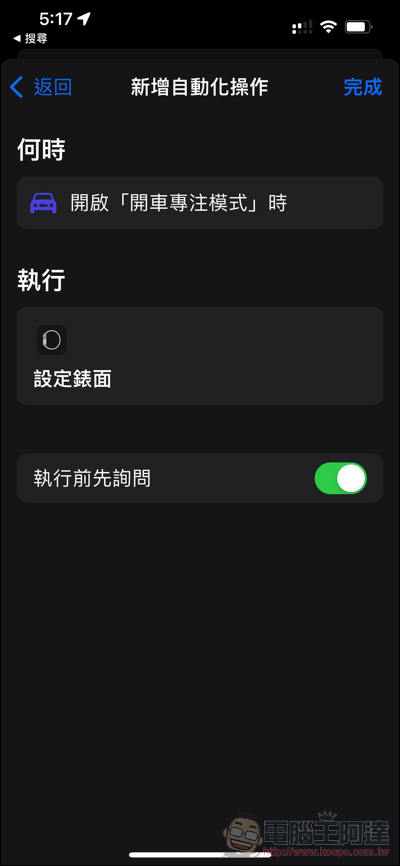
In the same scene, it is also possible to let the Apple Watch change the surface according to the focus mode! And it can also be executed automatically without asking:

It is also possible to switch to geofences, but currently it can only be used after being notified and prompted. I would prefer the reminder to be less “automatic”:

Further reading:
Source: KOCPC Chinese