


In recent years, smartphones have gradually replaced digital cameras and become the cameras used by most people to record their daily lives. It is also very convenient to share photos with friends through LINE after going out for dinner. However, if you find that the photos uploaded to LINE are always of poor quality, it may be due to LINE settings! Today I will share a few LINE photo transfer techniques and teach you how to transfer original, high or standard quality photos. In addition, iOS users can also send moving “original photos” on LINE.
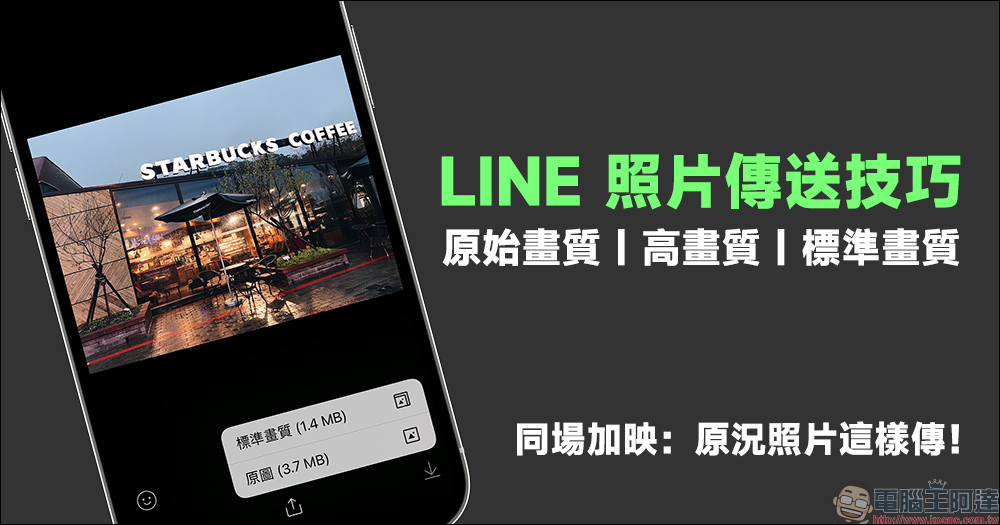
LINE photo transfer tips: How to transfer original quality, high quality, and original condition photos
During the severe epidemic period, people can not only use LINE for text messages, free voice calls, and free video calls to connect emotionally. If you want to share the beautiful photos of your life taken during this period with your relatives and friends, you can directly send them to them on LINE. But sometimes the photos sent out always look a bit different from those viewed on your own mobile phone. In fact, it may just be caused by the settings. If you are a user who cares about the quality of your photos, today I will share with you how to send high-quality or even original-quality photos on LINE.
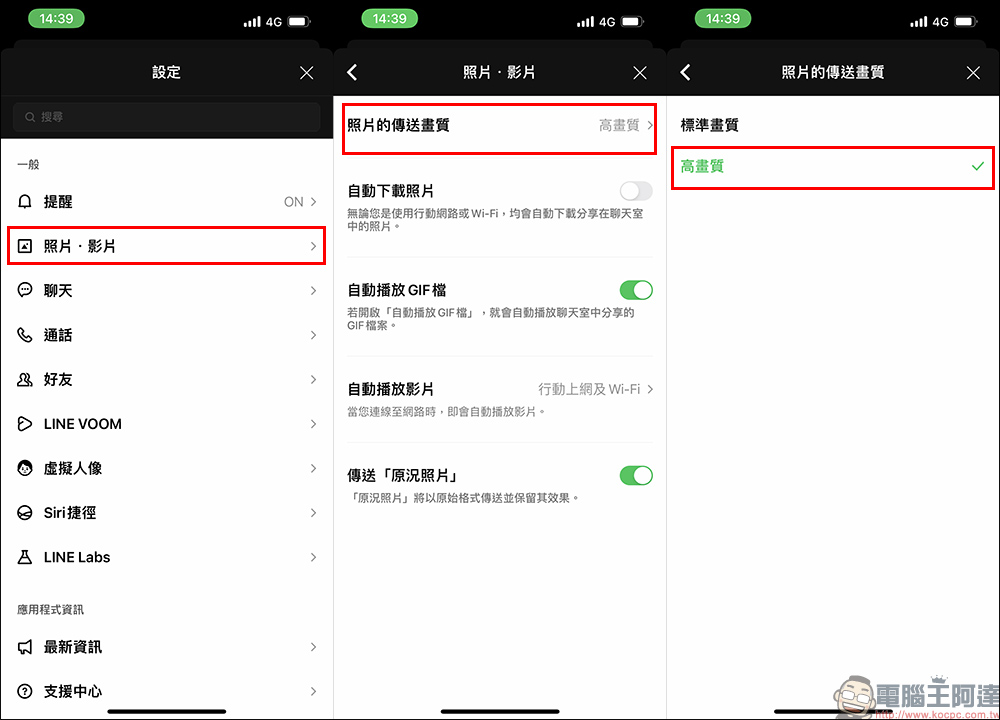
First, click “Photos and Videos” in the settings of the LINE App, then click “Photo transmission quality” and set it to “High Quality”.
Later, the author will also share with you the file differences between original image quality, high image quality and standard image quality.
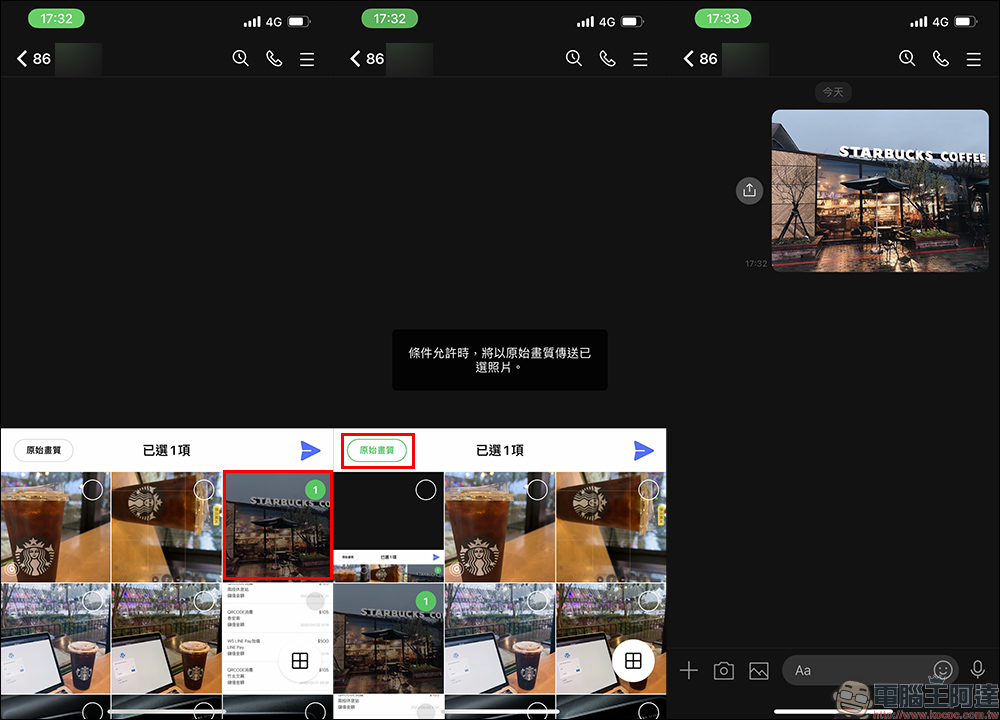
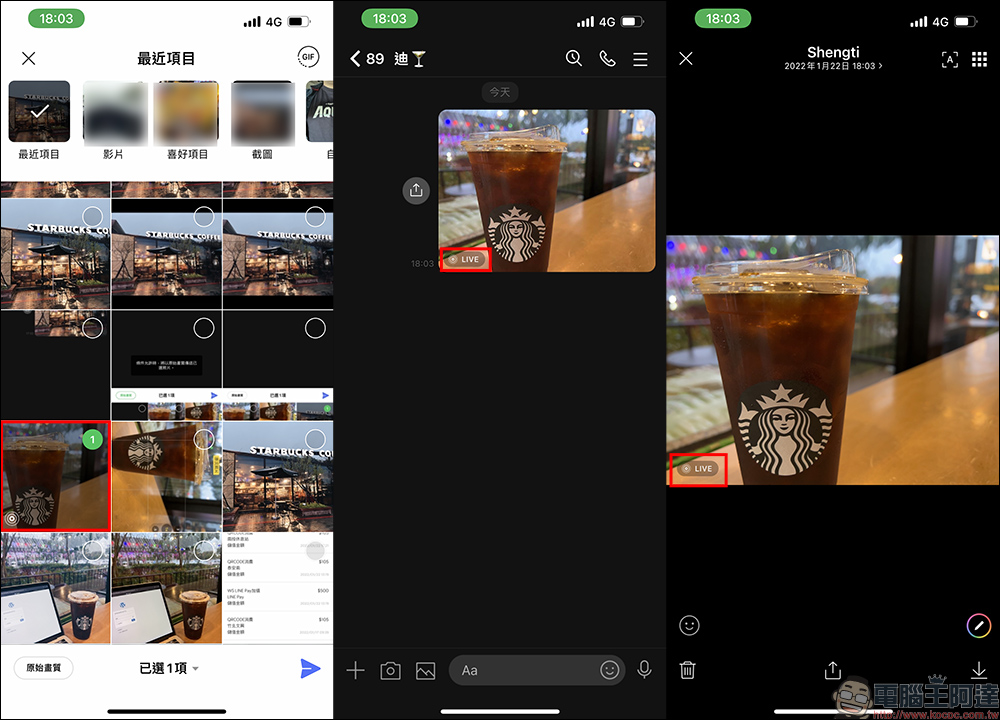
When you want to send “Original Quality” pictures, you can select the photos you want to send in the LINE chat room. Before sending the photos, you can click “Original Quality” and click Send. In this way, the original pictures can be sent directly in LINE.
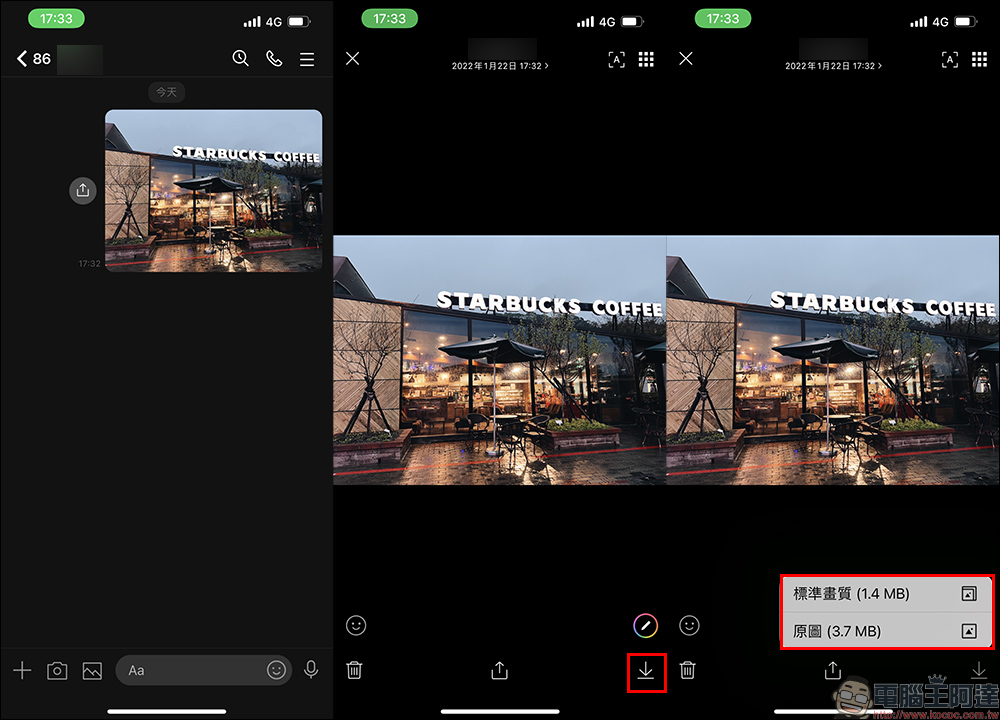
After the photo is sent, if everyone in the chat room wants to download the photo, they only need to click on the photo and press the “Download” button. Two options, “Standard Quality” and “Original Image” will appear. The “standard quality” referred to here is not the lowest photo quality, but the transmission quality preset by LINE users in the settings. To put it simply, if the user has set the transmission quality of LINE photos to “High Quality”, the standard quality here actually refers to “High Quality”.
Original quality/high quality/standard quality comparison
The following uses the same photo as a demonstration to compare the difference in image resolution and file size when LINE sends it in “Original Quality”, “High Quality” and “Standard Quality”.
Original image quality (original image):
If sent as “original image” (original image quality), the resolution of the image is 4032×3024 and the file size is 3.7MB.

HD:
If the transmission quality of the LINE photo is set to “High Quality”, the resolution of the image is 2365×1774 and the file size is 1.4MB (the file size is approximately 37.8% of the original image).

Standard image quality:
If the transmission quality of the LINE photo is set to “Standard Quality”, the resolution of the image is 1478×1108 and the file size is 583KB (the file size is approximately 15.3% of the original image).

Considering the resolution and file size of the image, in fact, given the current mobile network conditions, it is still recommended that everyone who has an all-you-can-eat online plan can directly set it to “high quality”. In addition to the fact that the file size is not as large as the original image, the image can be sent more quickly, and the image quality is also good for most social platform applications.
original condition photos
In addition, the “Live Photo” that iOS users can take can also be turned on or off in the settings. If you find that the photo you want to send accidentally turned on the original photo when taking it, you can turn it off in the settings before sending it. This will avoid the problem of accidentally sending the original photo to your friends.
The steps for setting up original photos are: “Settings” > “Photos & Videos” > “Send original photos”.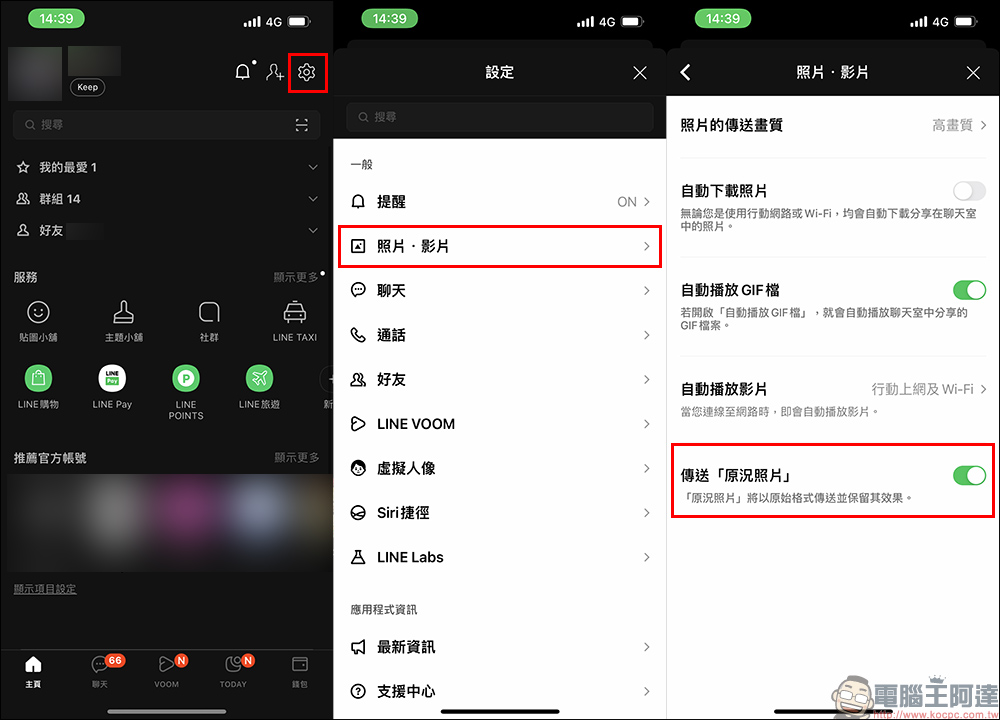
If the photo sent is an “original photo”, the “LIVE” icon will be displayed in the lower left corner when selecting the photo and sending it.
Further reading:
LINE’s automatic messaging function is super convenient! iOS automation operation, schedule sending messages like this (tutorial)
Source: KOCPC Chinese