


When you first receive your Mac, you are refreshed by its shiny appearance and fast speed. However, as you use it for a longer time, the operation of your computer seems to start to get a little tired. If your Mac has started to cause you to see spinning read circles more frequently, now is the time to perform a little maintenance, speed it up, and clean out the invisible junk that has accumulated over time.
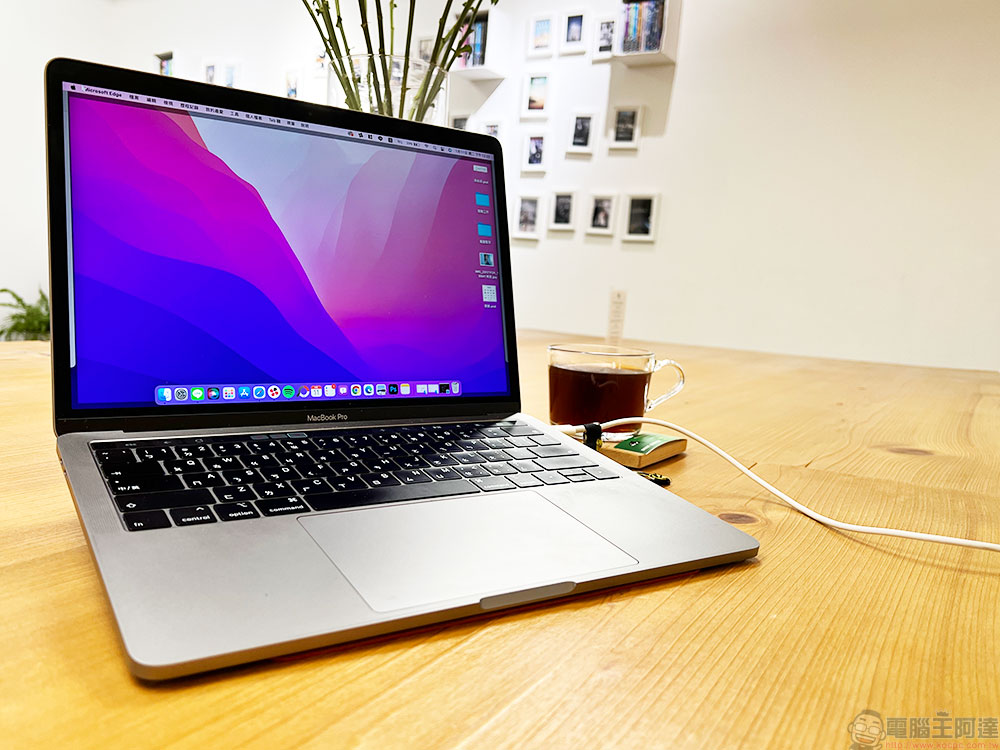
Your old Mac is getting slower and slower, five ways to tidy up your computer!
The vast majority of MacBooks launched in the past 10 years use SSDs, and the RAM and SSD are welded to the motherboard, so it is almost impossible for most users to manually upgrade them. The old computers have already expired, and it is an expense to send them to the original factory or a third-party for repair. If you want to be simpler and more economical, what I want to share with you this time is to increase the speed of your Mac without changing any hardware.
【Tips】
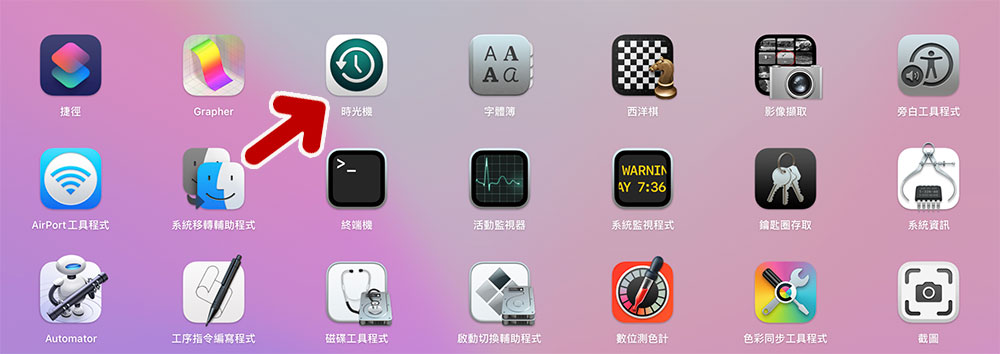
Before we begin, if you want to be cautious, make a backup of the data on your computer. This part is very simple. You only need to connect the external storage device, run “Time Machine”, and then wait for the backup to complete.
Free up storage space
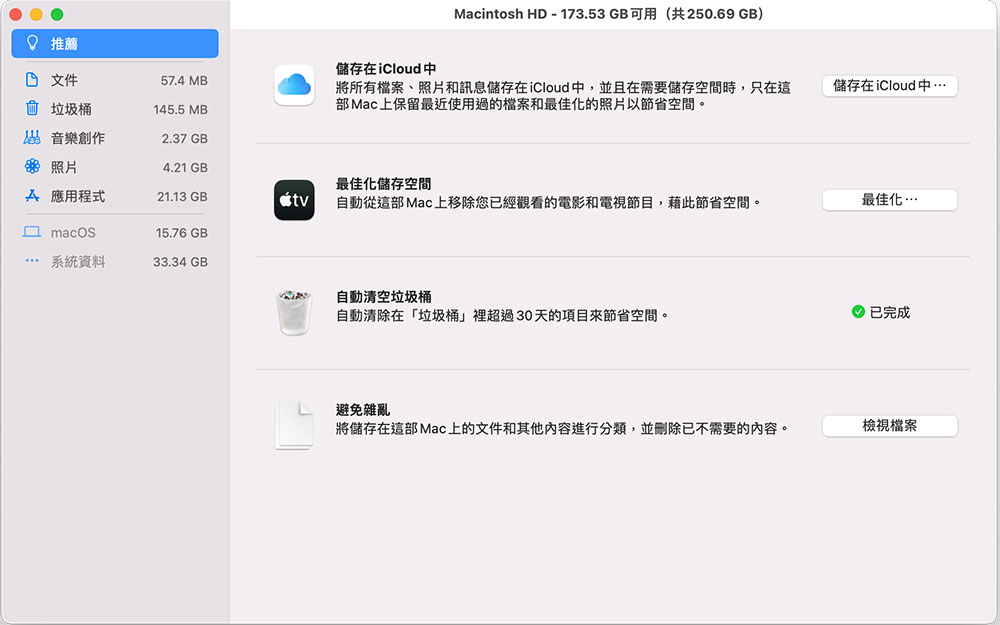
The more data stored in the SSD, although the weight will not become heavier, the slower it will run. Sometimes, your Mac just needs to clean up the data stored in it. First, you can check the remaining available space in the SSD. Click the Apple icon in the upper left corner of the screen to enter “About this Mac.” Then click to switch to the “Storage Space” tab and wait a moment for the system to calculate. If the capacity is nearly the maximum capacity, please click the management icon behind the bar chart.

In the next screen, the system will give you four options with their respective uses. The author will explain them one by one below:
- Store in iCloud – Recommended for those with premium iCloud subscriptions
You can move all files stored on your desktop and in the Files folder from storage on your Mac to iCloud. You can choose to store full-quality photos that take up a lot of space in iCloud and keep compressed versions on your Mac, significantly reducing the space occupied. Although there is a fee for an iCloud subscription, it’s cheaper than buying a new Mac by any means. - Optimize storage space
This option allows you to optimize TV app storage by deleting downloaded movies and shows after watching them. - Automatically empty trash can
After this function is turned on, files and files that have been thrown into the trash for more than 30 days will be automatically cleared to avoid the accumulation of uncleared garbage taking up space. - avoid clutter
You can use this function to check what large files, downloaded content, and unsupported applications are on your computer, and manually delete unnecessary applications to free up space.
appropriate first aid measures
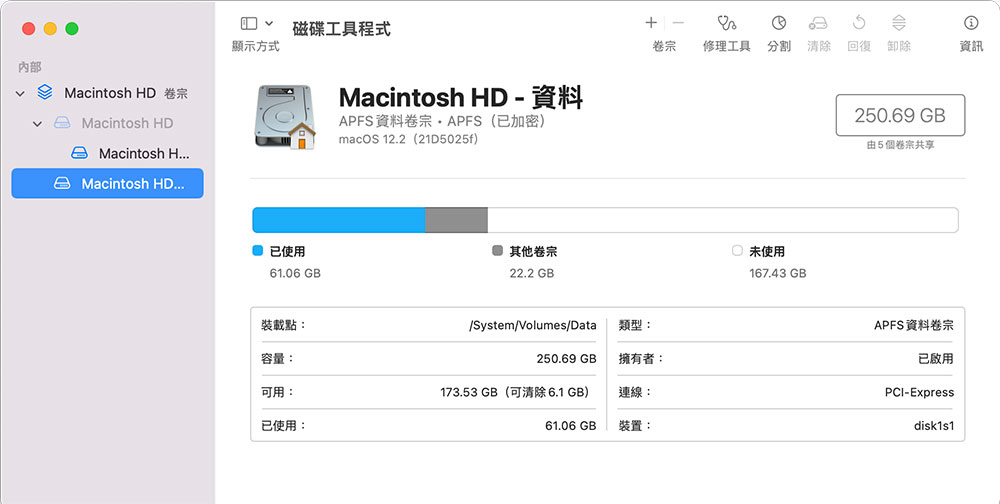
Next, we need to sort out the applications that we want to keep. When you install an application on your Mac, it is downloaded to your computer as a file package and tells MacOS which users are authorized to perform what operations on specific files. Over time, application authorizations may change, causing file storage to become fragmented, causing the Mac to slow down, freeze, or even crash. In summary, the method to be done now is equivalent to rearranging and shuffling various authorizations so that they can perform their respective duties and return to their original place.
To solve this problem, MacOS has a built-in application called “Disk Utility” that allows you to perform first aid on your Mac disk and repair disk partition and boot process problems. You have to start your Mac in restore mode and then follow Apple Support Instructions for Using Disk Utility to Repair。
Find out which apps are wasting resources
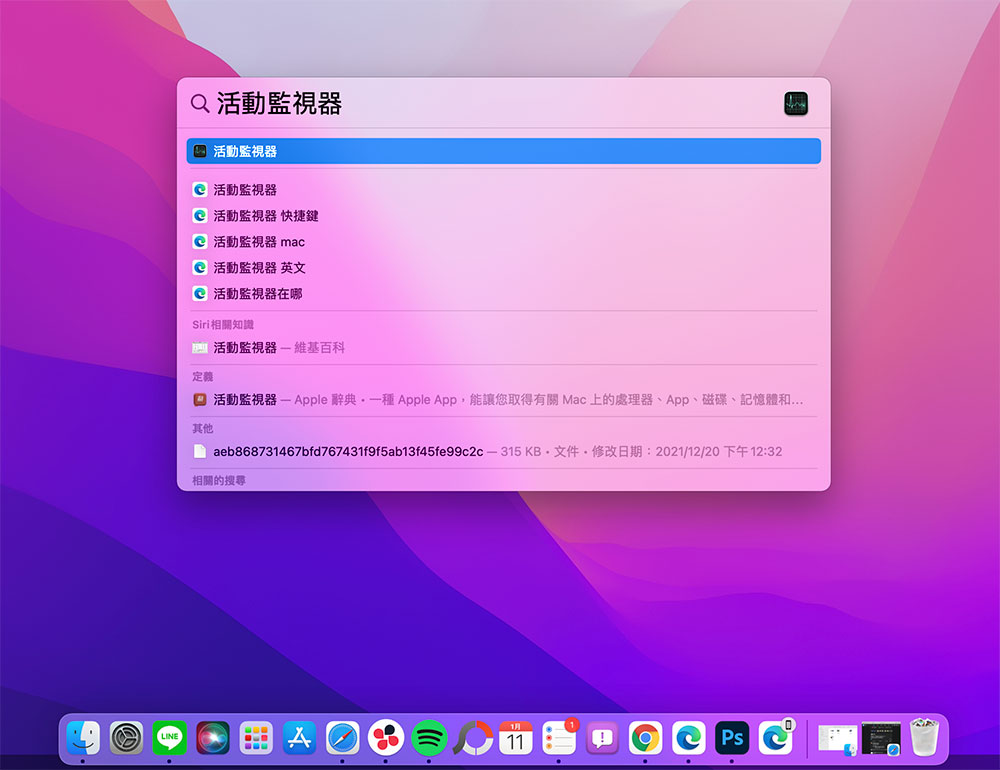
If your Mac hangs out every afternoon when you’re at the peak of your multitasking, there’s one of the easiest ways to see which open apps are taking up the most system resources. You can search for Activity Monitor through Spotlight (the magnifying glass icon in the upper right corner of the screen) and open it.
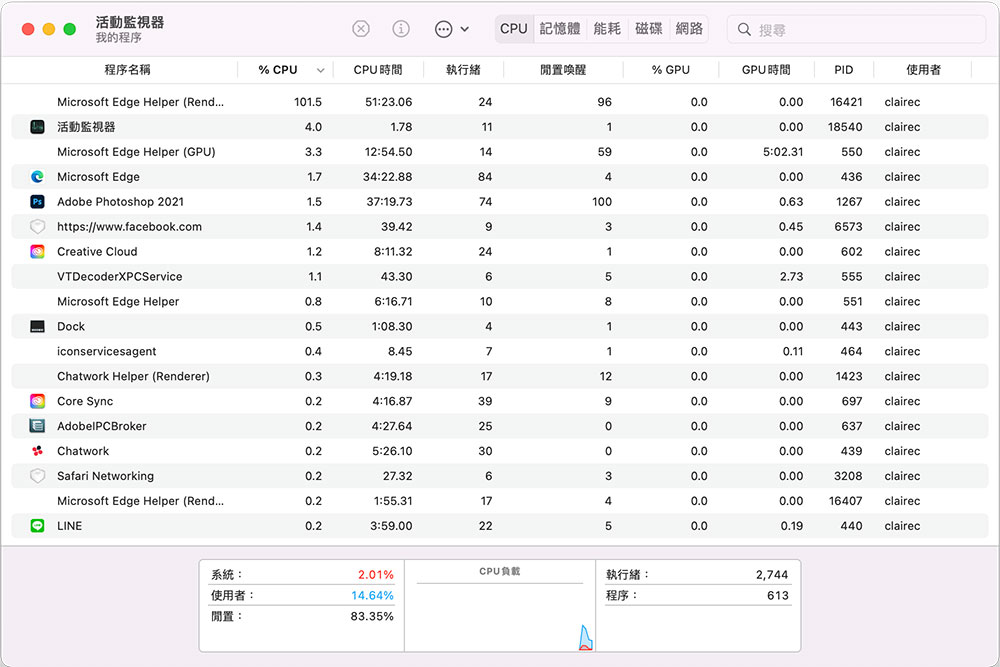
After turning it on, you can see the numbers fluctuating in the Activity Monitor interface, showing the CPU and RAM resources being used by each application. Mainly look at the two tabs of “CPU” and “Memory” to understand which applications use the most. For example, you can see from the picture below that Chrome is the top browser. Maybe you should use Safari instead.
Reduce startup applications
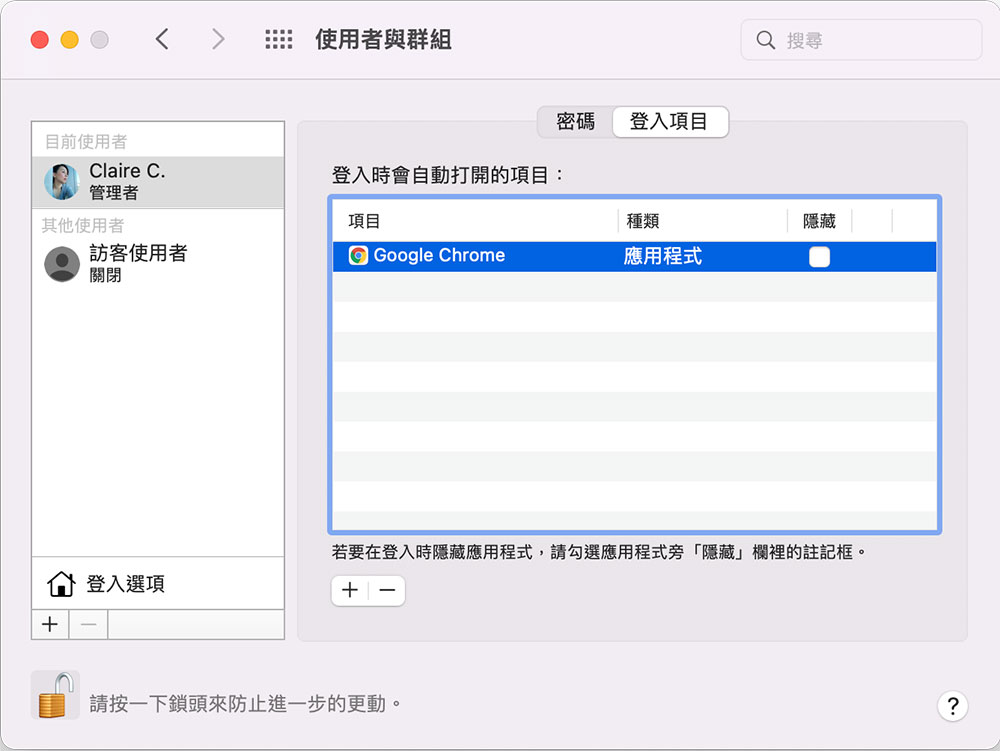
If your Mac is slow to boot and takes a long time to complete, the problem may be that there are too many applications that are opened simultaneously at startup, but you may never notice that this application is automatically launched when you turn on the computer. You can go to “Users & Groups” in “System Preferences” and switch to the “Login Items” tab to see which applications will open when you start up. If you don’t want the application to be enabled when you start up, you can click it first and then press the “-” at the bottom to remove it (remember to open the lock in the lower left corner before setting it, and then click the lock after setting it).
Keep your Mac up to date
From time to time, Apple will launch free new versions of MacOS for users to download and upgrade. From time to time, it will also launch security and repair updates. Since the new version of MacOS updates may include performance optimization and security improvements, it can ensure that the Mac runs in a more stable and secure environment. Although bugs may sometimes be found, in general it is recommended that everyone keep their computer systems in the latest version.
If you find it troublesome to check for updates manually, then let’s set up automatic installation of updates! Open “System Preferences”, click “Software Update”, and then check the box in front of “Keep my Mac automatically up to date” that appears in the window. If you want to further select the type of automatic update, you can click the “Advanced…” button at the back to check it. In advanced projects, the author strongly recommends that the “System Data Files and Security” item must be checked. The other items depend on personal needs and preferences.

The above are the five tips for cleaning up your Mac that we have put together this time, so that your old Mac can (somewhat) regain its glory and continue to fight (mainly by spending less money)!
Further reading:
How do I change Safari’s default search engine? (iOS, Mac)

10 macOS Monterey tips you may not know (Part 1)

Source: KOCPC Chinese