


If you buy a new laptop this year, it will probably be powered by the Windows 11 operating system. The new laptop and the many new features in the new system will bring you higher work efficiency. However, every new laptop may come with some preloaded software that you won’t use, which already takes up a lot of valuable space from the beginning.
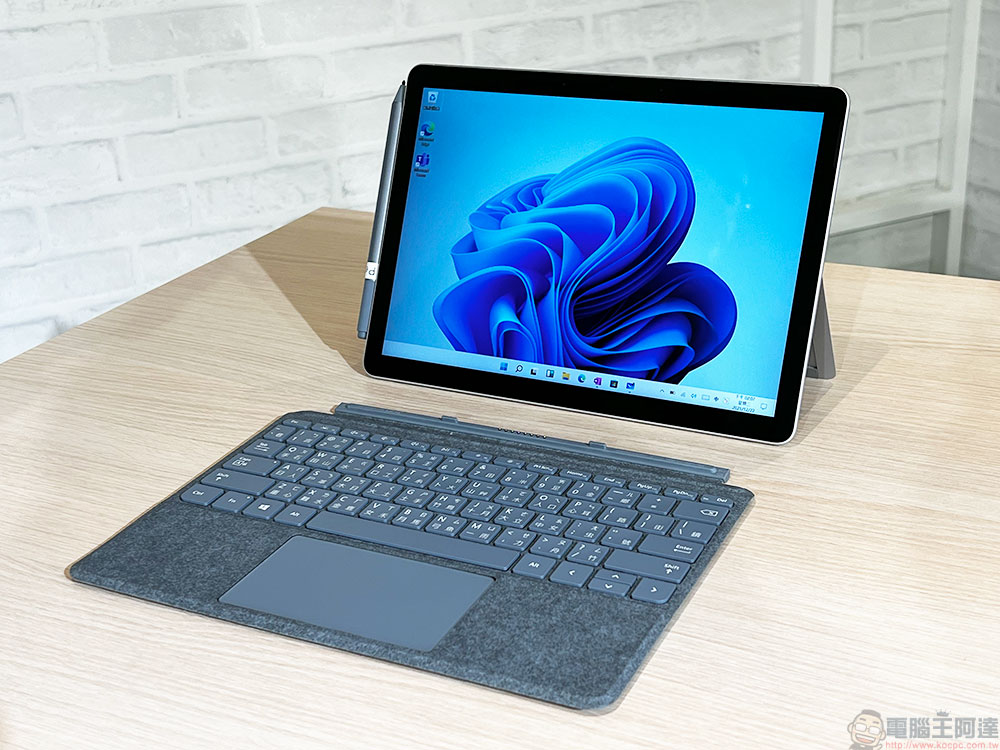
After buying a new Windows 11 laptop, you should remove several “fat-prone software”
Unused software remains in the computer system, invisibly occupying the computer’s storage space, and some are constantly receiving updates, making it fatter and fatter. This means that you lose a lot of space to store valuable photos, videos, even games and other content. So the author compiled this user guide, which lists the “easy fat” software that you may most want to remove on your new laptop, allowing you to reclaim precious storage space.
Trial versions of anti-virus software
When you buy a new computer or laptop from various brands, it may already have preloaded anti-virus software from McAfee, Norton or other companies. In most cases, this type of anti-virus software is a trial version with a limited period. If you want to continue using it after the trial period, you have to pay extra, otherwise notifications will pop up from time to time to remind you that it is time to spend money.

Windows 11 can be regarded as one of the most secure Windows versions currently. The built-in Microsoft Defender is actually very powerful and easy to use, so deleting any trial version of anti-virus software will not affect you. Although you may have heard rumors that Microsoft Defender is not as good as anti-virus software, like other anti-virus software, Microsoft keeps releasing updates to keep Defender up to date with new threats.
Preload a game or app
When you start a new computer and log into Windows 10 or Windows 11, you can see certain games or applications pinned to the start menu. These are just shortcuts. When you connect to the Internet or accidentally double-click an icon, the game or application will automatically start downloading. These applications include Microsoft Solitaire Collection, Candy Crush, etc. If you don’t like this type of game, please delete them to save space.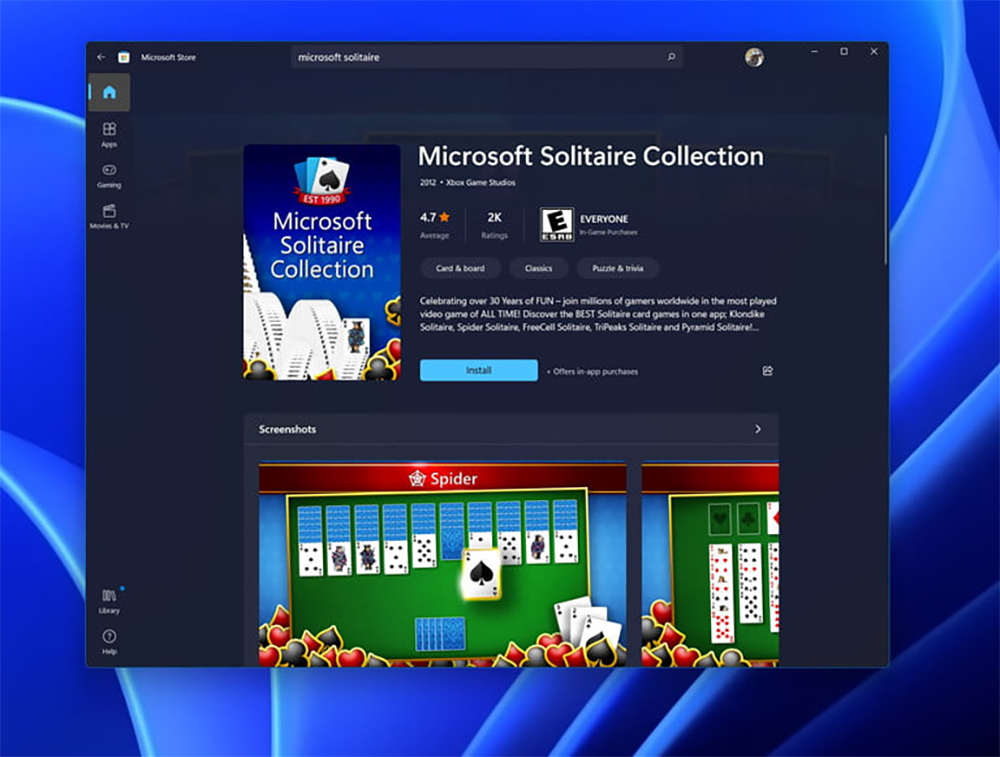
Consumer version of Microsoft Teams
Microsoft Teams, one of Microsoft’s main projects in recent years, is pre-installed on Windows 11 laptops to increase the chances of consumers using it. This application is displayed on the list and allows you to chat and connect with family and friends. The purpose is of course to facilitate users to communicate with each other. If no one you know uses Teams outside of work, you can choose to delete it from your computer system.
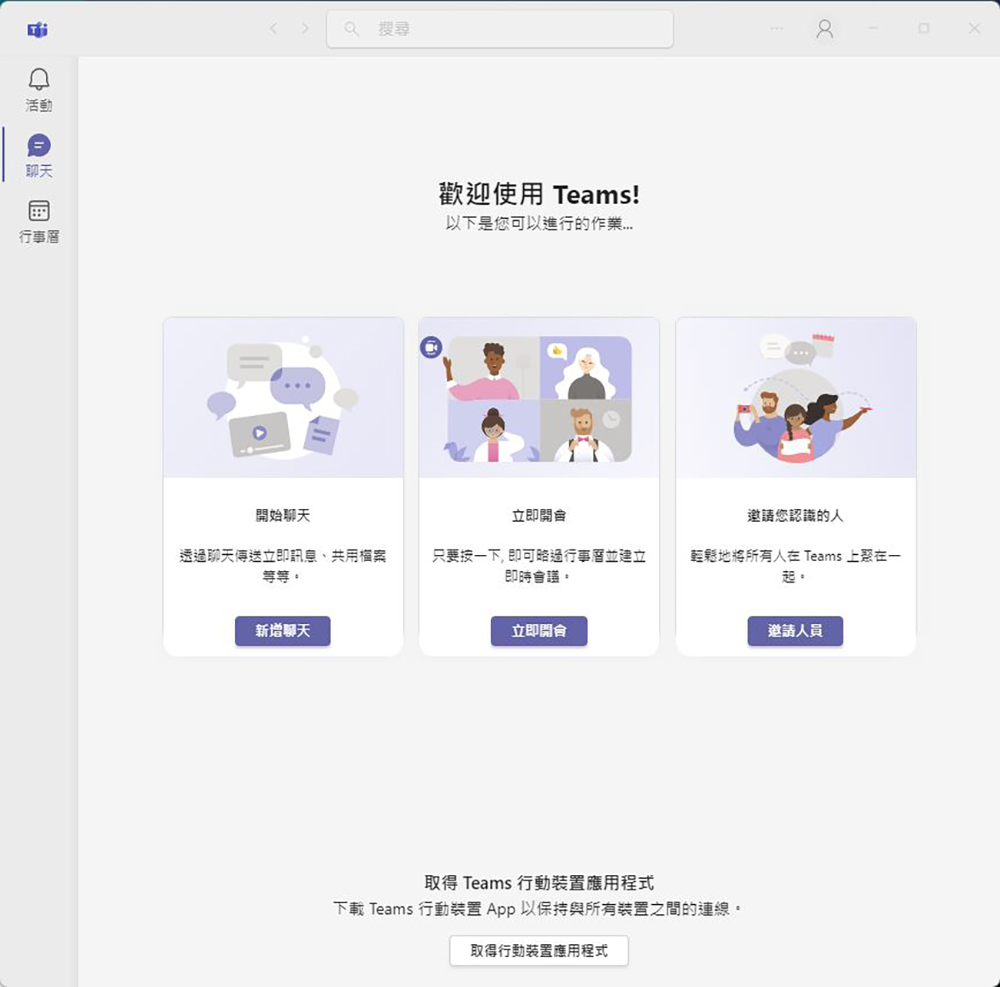
First, you can right-click on the taskbar and enter “Taskbar Settings”, and then turn off the switch of “Chat” so that it disappears from the default pin on the taskbar. How to remove it can be found in the uninstall instructions I listed at the end of the article.
Select system applications and software
The consumer version of Microsoft Teams is one of the system preloaded applications that can be removed in Windows 11, but if there are other applications that you don’t use, don’t need, or don’t want to use, you can delete some of the stock software. These include apps like Print 3D, Groove Music, Microsoft News, To-Do, Mixed Reality Portal, Movies and TV, Snippping Tool, Sticky Notes, Voice Recorder, and Xbox Console Companion.
How to uninstall software and applications from your computer
Now that we have talked about which preloaded applications and software are dispensable, easy to gain weight, and will not be affected by deletion, of course we will tell you how to remove them.
Method 1: Start from search
If you already know the name of the software or application you want to remove, you can directly use the magnifying glass-like “Search” icon on the taskbar to enter the software name, and then you will see the “Resolve Installation” option below.
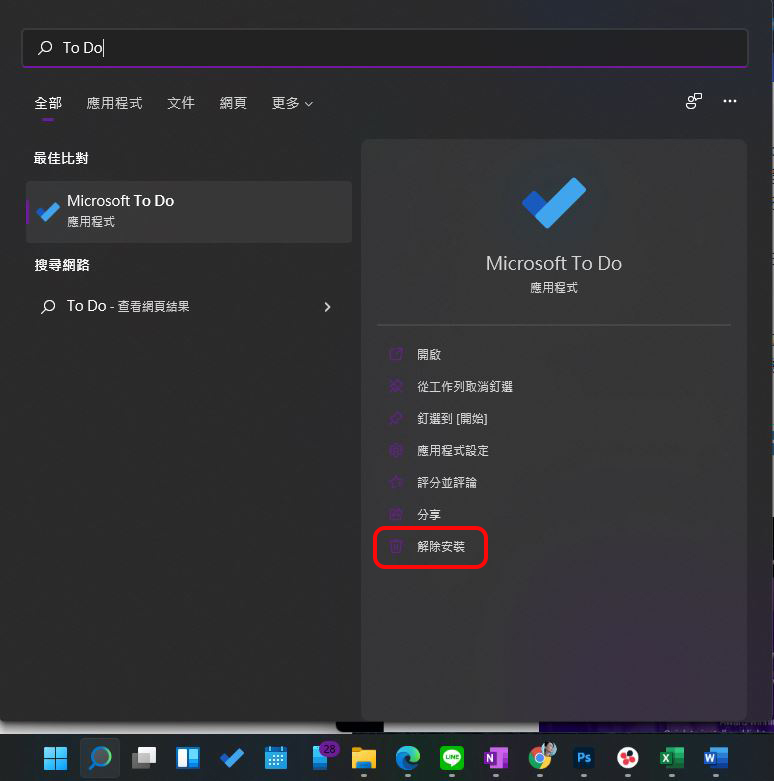
Method 2: Proceed from settings
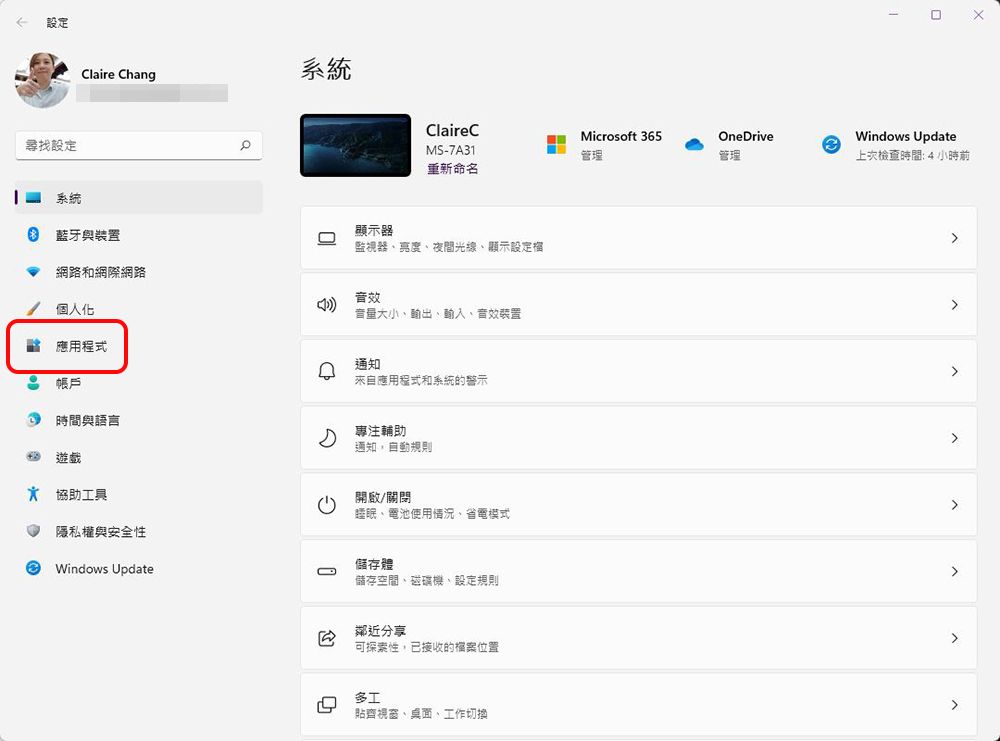
If you want to select from all installed applications on your computer at once, you can use the steps below to enter the settings to view the application list and remove them.
- Go to “Settings” and click “Applications” on the left column.
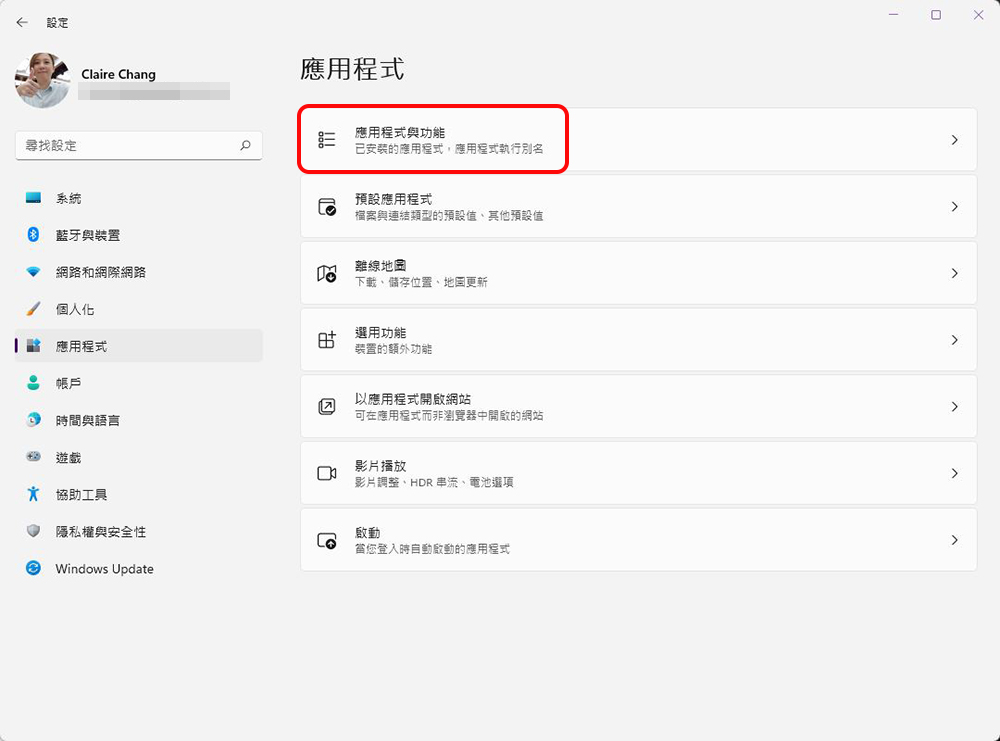
- Click the “Apps and Features” item. After entering, a list of applications currently installed on your computer will be displayed at the bottom of the page.
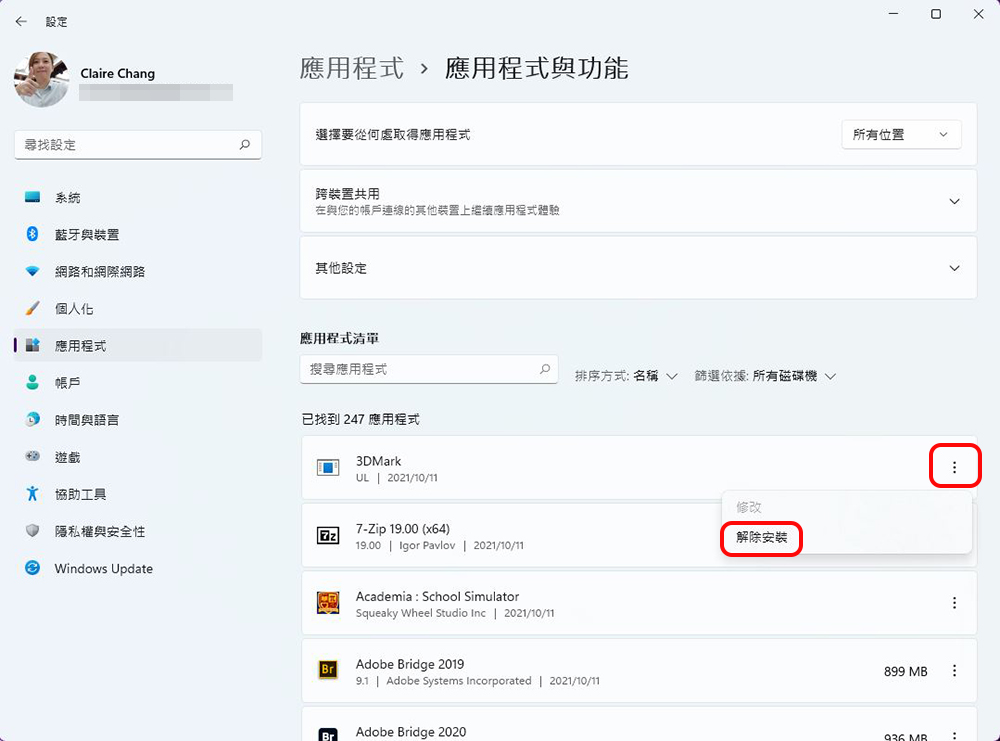
- Click the three-dot option behind the target application, then select “Uninstall” to follow the next prompts to remove it.
Source: KOCPC Chinese