


AirPods Pro have great features like noise cancellation and an all-in-one in-ear design. To switch between these and other features, AirPods Pro (and AirPods 3) have force sensors on the stems, giving users easier control. The new AirPods 3 are launched, have you bought one? No matter if it is your first time using it, this time I will teach you how to customize the operation of the force sensor.
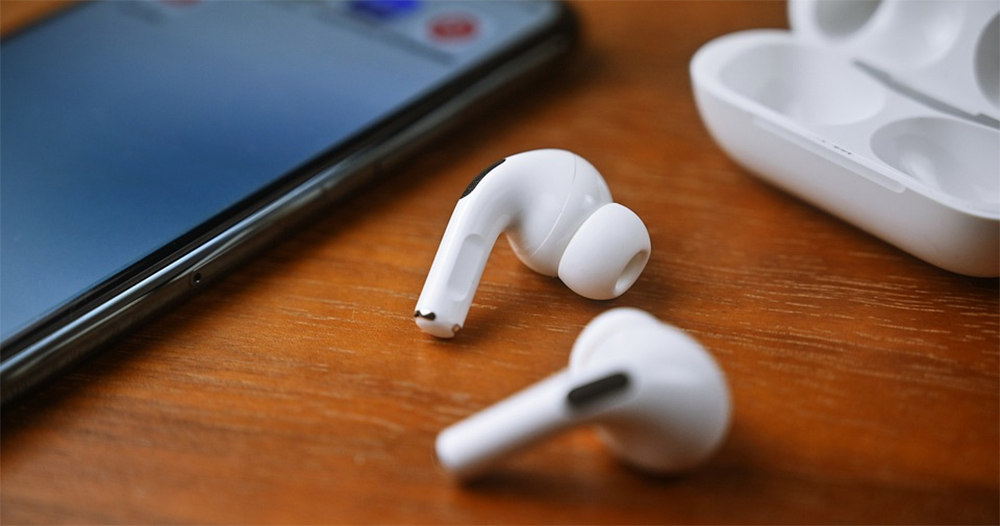
How to change force sensor operation on AirPods 3 and AirPods Pro?
AirPods Pro and AirPods 3 are equipped with force sensors on the headphone stems. By default, a long press can switch between noise reduction mode and transparency mode, while single, double and triple presses can control audio playback. This time I will tell you how to customize the control of the force sensor and how to activate the noise reduction function only when using a single AirPods Pro headset.
Independently set the left and right headphone volume controller functions
- First, make sure the headphones are connected to your iPhone, then open the “Settings” app and enter the “Bluetooth” item.
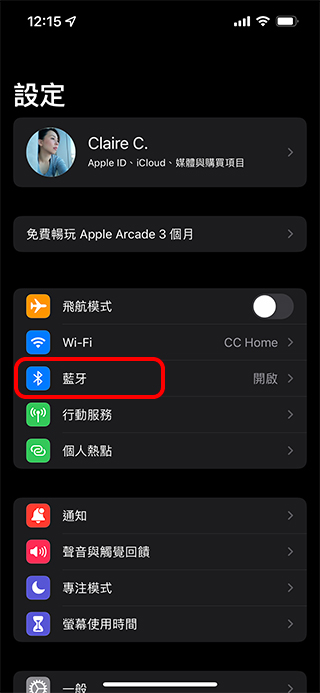
- Click the “i” icon next to AirPods. (Be sure to click i when the phone is connected to the headphones to see the AirPods setting items)

- In the “Press and hold AirPods” column, you can see the individual settings for the left and right ears. By default, both will be noise control, that is, long press to switch between noise reduction and transparency modes.
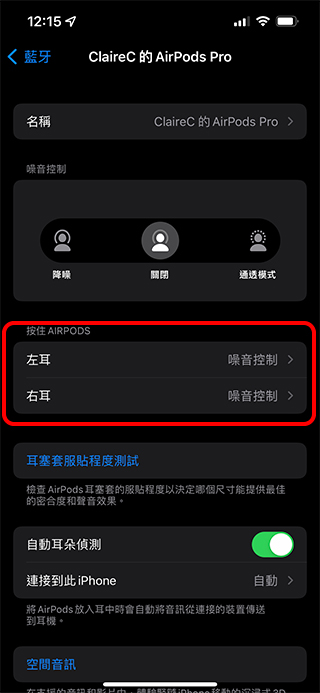
- Next, just select a few clicks to customize the functions of the left and right ears. You can set an additional off option in the noise control item, or set up unilateral control of noise (from the original two options of noise and transparency mode to three levels of noise, off and transparency mode), and listen to Siri on one side, which is a very open and free setting space.

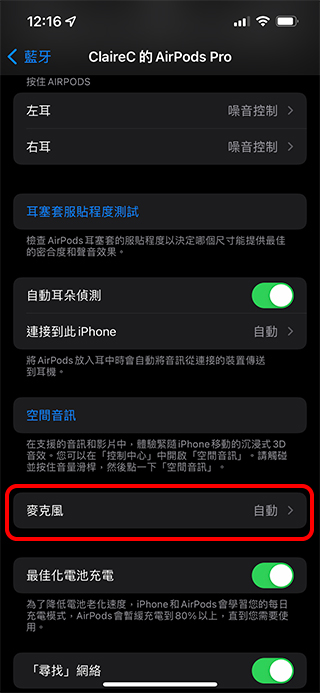
- In addition, you can also set the function of the microphone in the headset settings. The default is to automatically switch between left and right ears, or you can set the headset to be fixed on one side.

Change the speed and duration of presses when controlled by AirPods
Because when using force control on AirPods, the operation must be pressed twice, three times or long. This part will involve the length of continuous pressing and the interval between consecutive presses. The setting of this part is different and is not set in Bluetooth!
- Open the Settings app and find Accessibility.
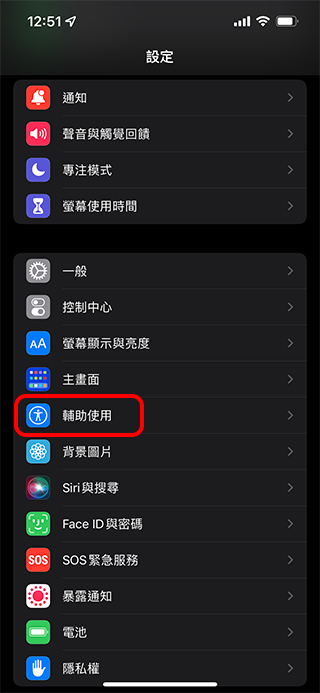
- Enter “Assisted Use” and find the “AirPods” item from the body action column, click to enter.
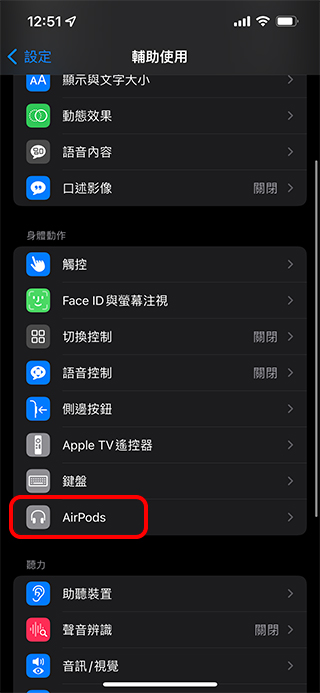
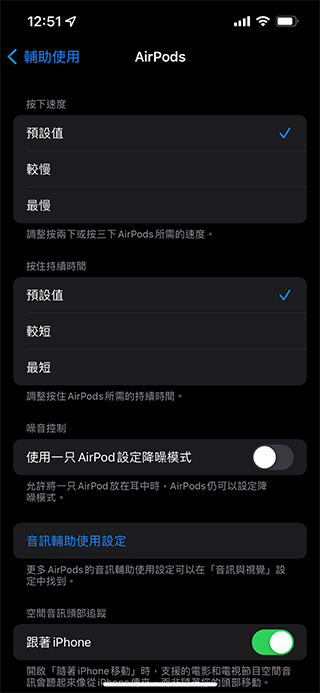
- From this page, you can set the press speed and press and hold duration to make the operation closer to your personal usage habits.
The function taught today is available for AirPods Pro and the latest AirPods 3 with force sensors. As for the old AirPods 2, it is not applicable because it does not have a force sensor. The so-called tools mean that you need to truly adapt them to your own usage and habits in order to be more comfortable with them. I hope today’s teaching will be helpful to you.
Source: KOCPC Chinese