

• About Us
King of Computer Media
  • Home
  • Tech News
  • AI News
  • Apps & Tutorials
  • Mobile & Telecom
  • Lifestyle
  • About Us
No Result
View All Result
  • Home
  • Tech News
  • AI News
  • Apps & Tutorials
  • Mobile & Telecom
  • Lifestyle
  • About Us
No Result
View All Result
King of Computer Media
No Result
View All Result

Home - iPhone/iPad usage tutorial - How do I change Safari’s default search engine? (iOS, Mac)

How do I change Safari’s default search engine? (iOS, Mac)

Claire by Claire
December 30, 2021 - Updated on August 4, 2026
in iPhone/iPad usage tutorial

When the user enters a keyword search on the Safari browser, the application will display the search results as Google. This is due to the huge amount of money Google pays Apple every year to make it the default search engine for Apple products. However, Apple has not restricted binding because of this, and still retains the option for you to change the settings yourself. So, how to do it?

How do I change Safari’s default search engine? (iOS, Mac)

For many reasons, many people don’t want to use Google’s services and turn to other search engines like DuckDuckGo, which provides a free ad-blocking feature. This time I will tell you how to change the Safari default browser on iOS and Mac.

Safari for iOS

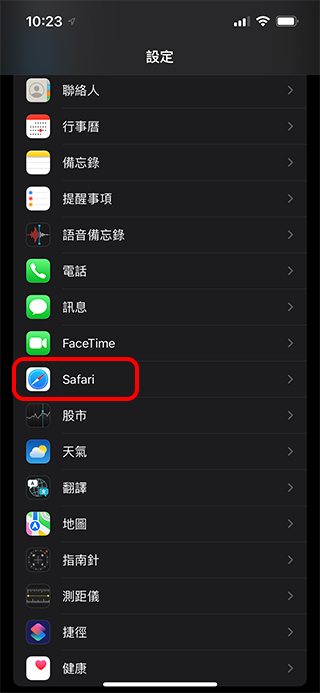
  • Open the “Settings” application, scroll down to find “Safari”, and click the back arrow to enter the settings page.
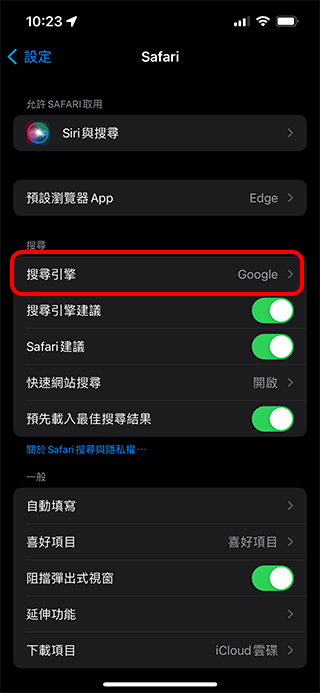
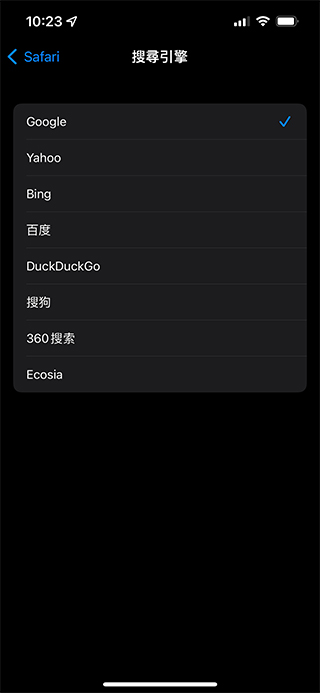
  • You can see “Search Engine” on the settings page. After clicking it, you can select your favorite items from the drop-down menu. After the setting is completed, any future keyword searches through Safari will use the search engine you selected to find information.
Safari for Mac

  • First open a Safari window to bring up the taskbar above.
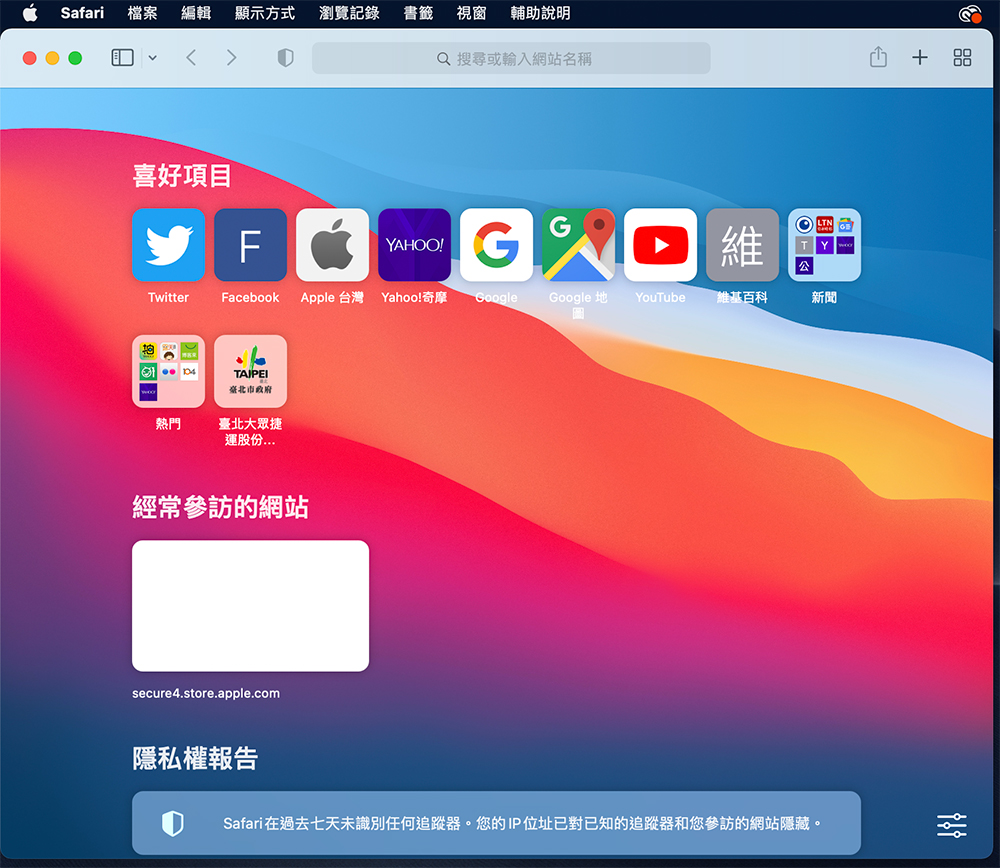
  • Click “Safari” in the upper right corner of the screen and select the “Preferences…” item.
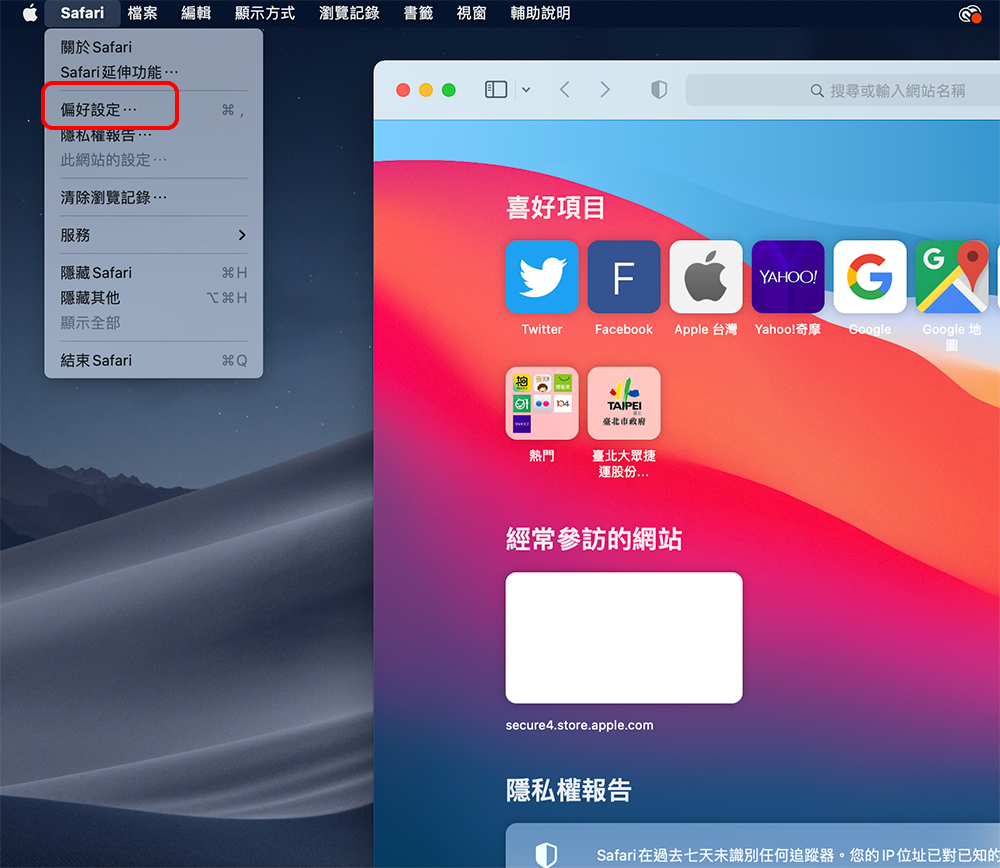
  • In the next window, switch to the “Search” tab and you can see the “Search Engine” item.

  • Select your favorite search engine item from the drop-down menu and close the window after making your selection. Your selected search engine will be used to find and display it when you search on Safari in the future.

Using the above method, you can change the search method of Safari browser at any time. This is also thanks to Apple’s willingness to leave such a space for users to freely choose after cooperating with Google, and not directly kidnapping you.


Source: KOCPC Chinese

Tags: BrowserDefault search engineiOSMACSafarisearchsearch engineSetup tutorialTeaching

Recent Posts

  • The Xiaomi Pad 8S Pro has passed network access certification and will debut with the self-developed XRING O3 chip.
  • The entire Google Pixel 11 lineup has been leaked! Official promotional renders of the Pixel 11 Pro XL have also surfaced
  • Are Chinese phone battery capacities falsely labeled? A brief look at the “capacity locking” phenomenon in Chinese silicon-carbon batteries.
  • NCC is leaderless, recklessly sending out national-level alert messages!?
  • What does “QR” in QR Code mean?

Recent Comments

No comments to show.
  • About Us

We welcome partnership inquiries and product review opportunities from smartphone manufacturers, iPhone accessory brands, and app developers.koc kocpc.com.tw|Privacy Policy |Hosting & Maintenance: Fast Line Taiwan, A-Chang Digital Technology

No Result
View All Result
  • Home
  • Tech News
  • AI News
  • Apps & Tutorials
  • Mobile & Telecom
  • Lifestyle
  • About Us

We welcome partnership inquiries and product review opportunities from smartphone manufacturers, iPhone accessory brands, and app developers.koc kocpc.com.tw|Privacy Policy |Hosting & Maintenance: Fast Line Taiwan, A-Chang Digital Technology