• About Us
King of Computer Media
  • Home
  • Tech News
  • AI News
  • Apps & Tutorials
  • Mobile & Telecom
  • Lifestyle
  • About Us
No Result
View All Result
  • Home
  • Tech News
  • AI News
  • Apps & Tutorials
  • Mobile & Telecom
  • Lifestyle
  • About Us
No Result
View All Result
King of Computer Media
No Result
View All Result

Home - Computer Applications and Other Tutorials - How to set sound effects to mono in Windows 11? Three ways to learn

How to set sound effects to mono in Windows 11? Three ways to learn

Claire by Claire
December 29, 2021 - Updated on August 4, 2026
in Computer Applications and Other Tutorials

When you play music or videos on a Windows 11 computer, the system will automatically divide the sound into different channels for output. This is something that everyone understands for granted, so unless there is a special need, they are unlikely to adjust the sound output channels themselves. But what if you only have one speaker? Or only one-sided headphones? At this time, the need for mono settings becomes apparent!


How to set sound effects to mono in Windows 11? Three ways to learn

Let’s first talk about when mono will be used, and some of the characteristics of mono. When you are wearing a single-ear headset or an integrated speaker, if you still use the system’s default two-channel playback, you may not be able to hear some sounds in the sound effect combination. Although everyone is very accustomed to two-channel, 5.1-channel, etc., mono is not without its advantages! There is no need to consider the sweet spot when listening in mono, so the listening experience will not change due to your body movement, and you can hear the details in the mix no matter where your body is.

How to set the sound effect to mono or turn off mono? There are 3 ways to set it up:

Method 1: Set from “System”

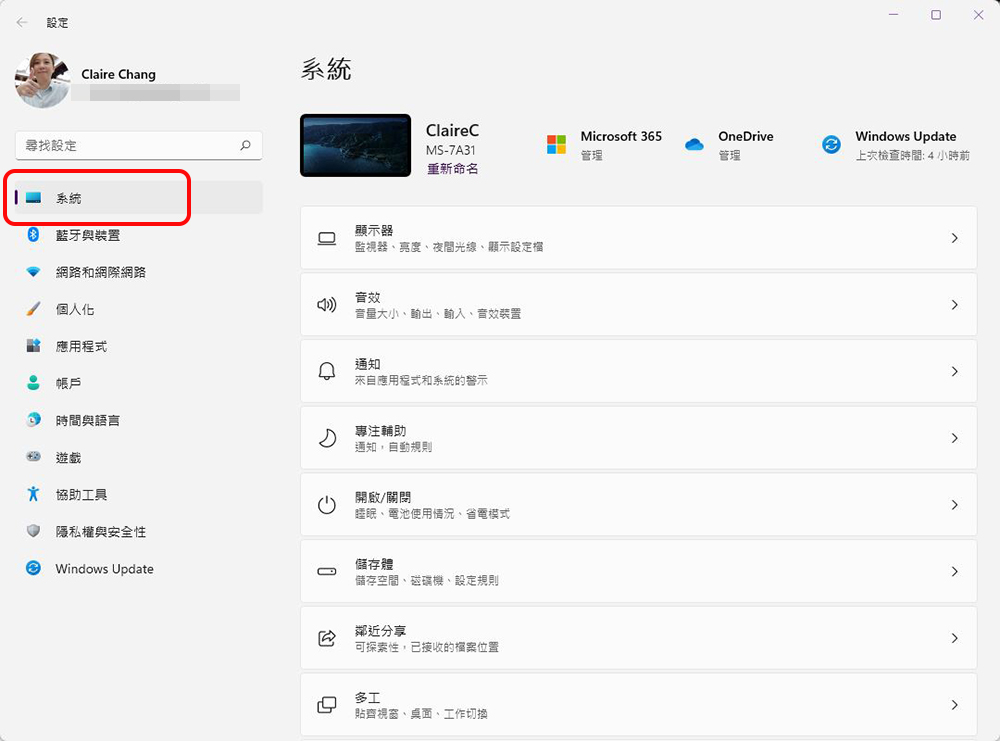
  • Open “Settings” and click “System” in the left column.
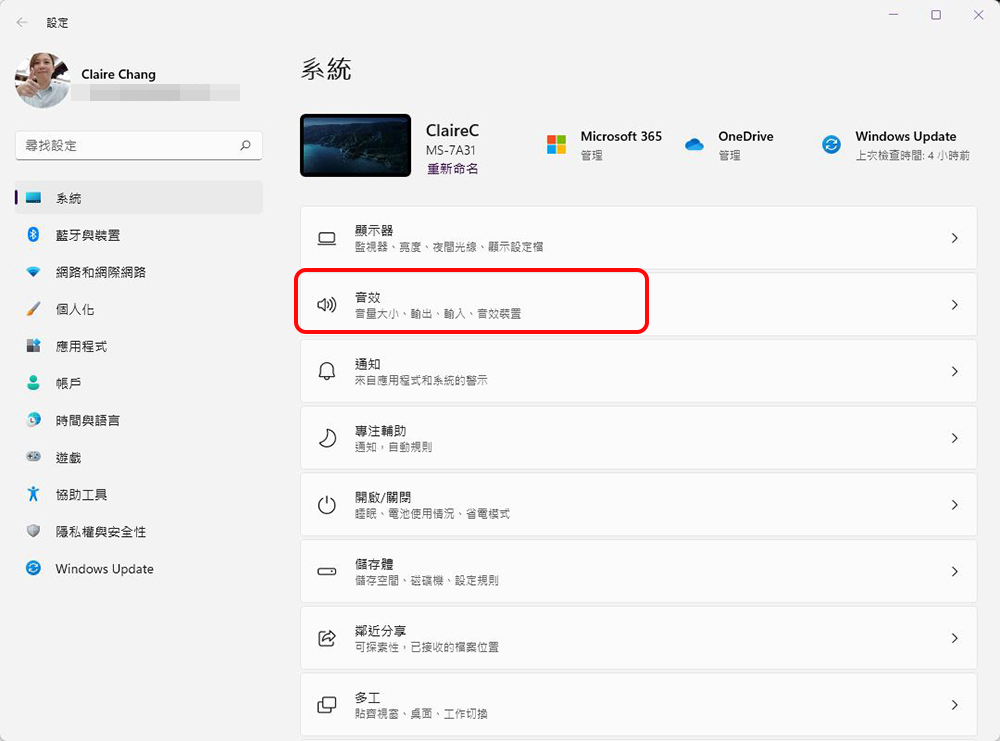
  • Click on the “Sound Effects” item on the right.
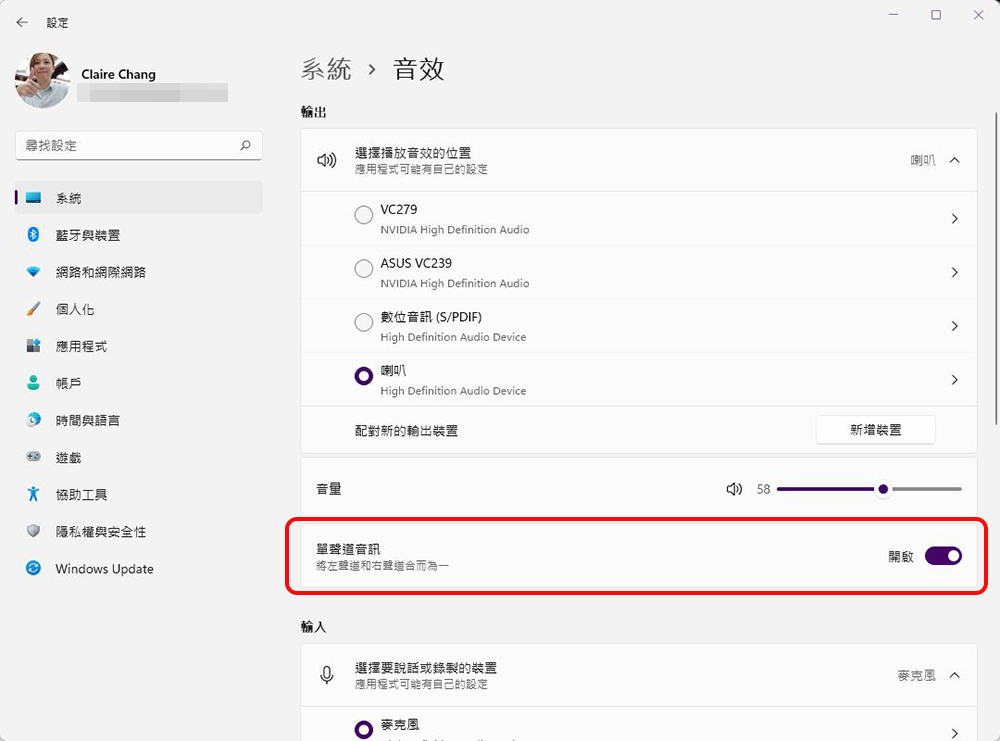
  • Turn on the “Mono” switch.

Method 2: Set from Help Tools

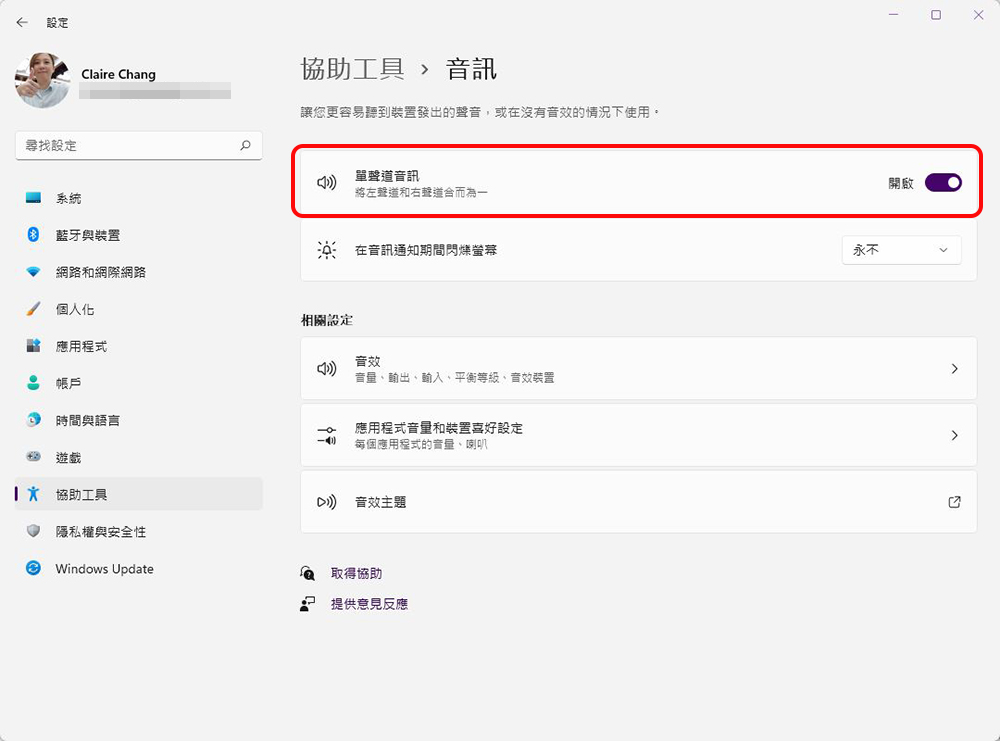
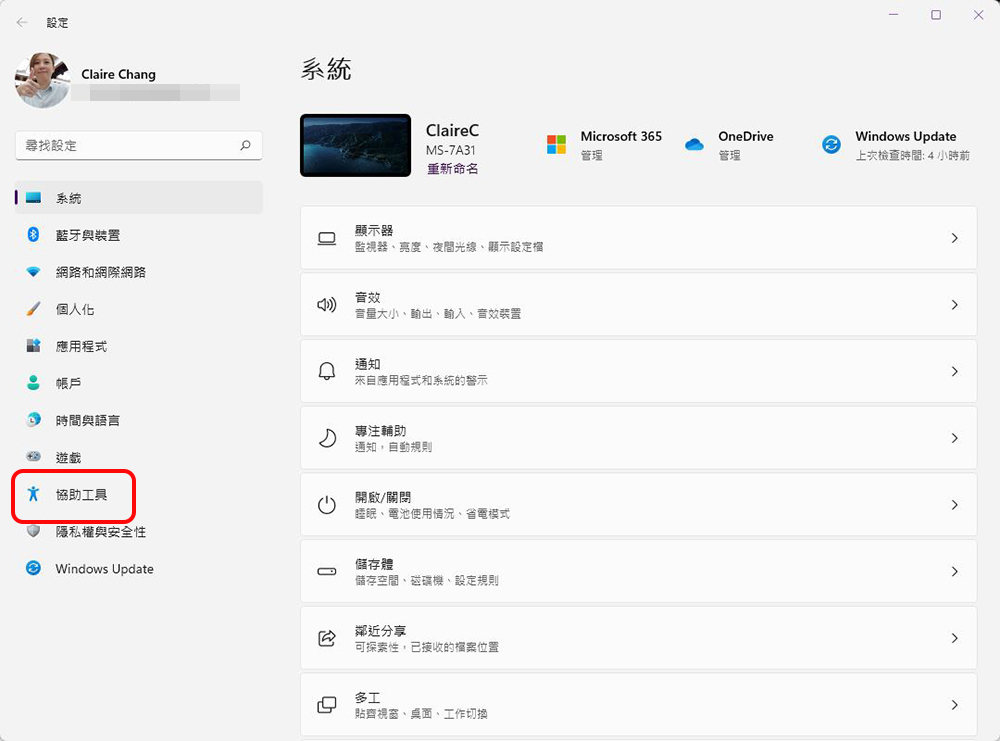
  • Open “Settings” and click “Accessibility Tools” in the left column.
  • Click on the “Sound Effects” item on the right.
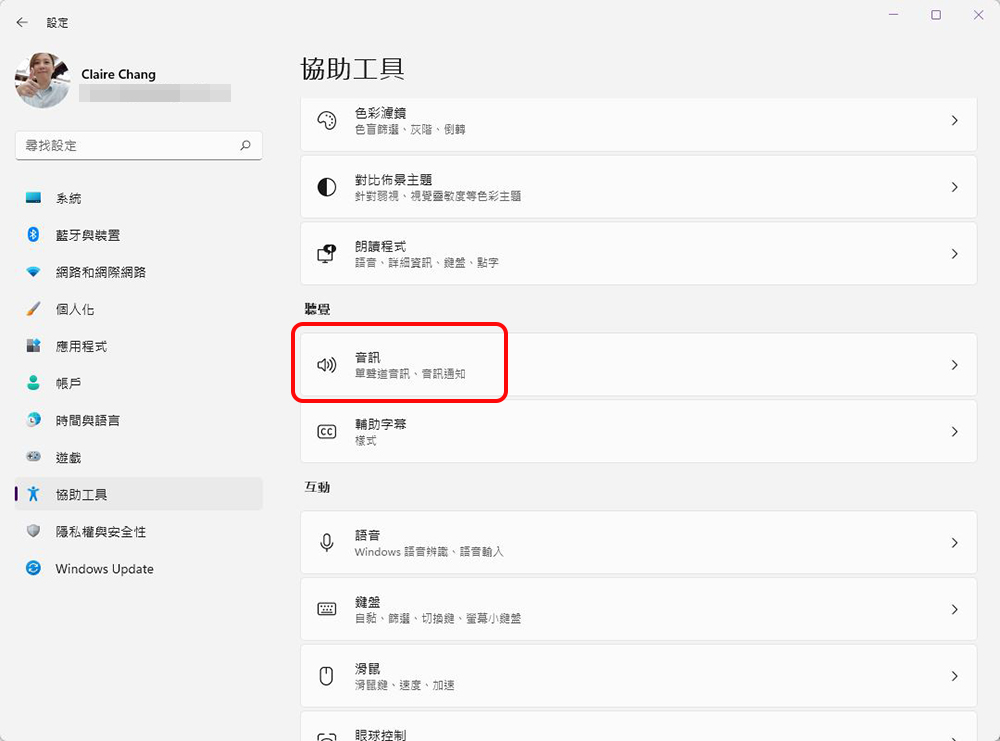
  • Turn on the “Mono Audio” switch.

Method 3: Enter “Settings” from the taskbar

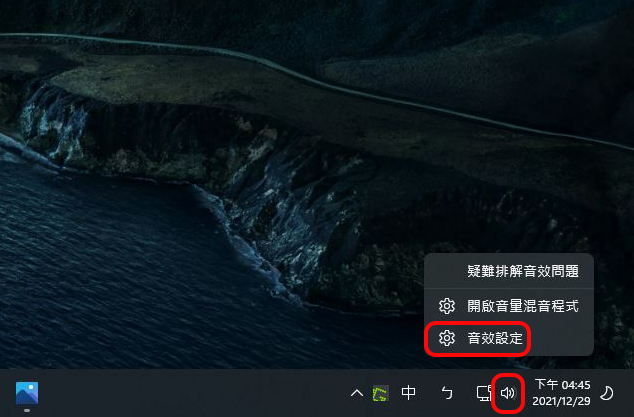
Right-click the speaker symbol representing sound effects on the taskbar and click “Sound Effect Settings” to quickly enter the settings page.
These three methods allow you to turn on and off mono. If you have needs in this regard, I hope today’s teaching will be helpful to you.

Source: KOCPC Chinese

Tags: Setup tutorialSound effectsSystem settingsSystematic teachingTeachingWindows 11

Recent Posts

  • The Xiaomi Pad 8S Pro has passed network access certification and will debut with the self-developed XRING O3 chip.
  • The entire Google Pixel 11 lineup has been leaked! Official promotional renders of the Pixel 11 Pro XL have also surfaced
  • Are Chinese phone battery capacities falsely labeled? A brief look at the “capacity locking” phenomenon in Chinese silicon-carbon batteries.
  • NCC is leaderless, recklessly sending out national-level alert messages!?
  • What does “QR” in QR Code mean?

Recent Comments

No comments to show.
  • About Us

We welcome partnership inquiries and product review opportunities from smartphone manufacturers, iPhone accessory brands, and app developers.koc kocpc.com.tw|Privacy Policy |Hosting & Maintenance: Fast Line Taiwan, A-Chang Digital Technology

No Result
View All Result
  • Home
  • Tech News
  • AI News
  • Apps & Tutorials
  • Mobile & Telecom
  • Lifestyle
  • About Us

We welcome partnership inquiries and product review opportunities from smartphone manufacturers, iPhone accessory brands, and app developers.koc kocpc.com.tw|Privacy Policy |Hosting & Maintenance: Fast Line Taiwan, A-Chang Digital Technology