


Everyone is already familiar with sharing mobile hotspots from your phone, but did you know? Windows 11 devices can also turn on mobile hotspots to share the Internet with other computers, mobile phones, and tablets. There is no need to install other software or troublesome steps. The built-in function can be done easily! Let’s take a look at where to turn it on and where to set it. It’s a big loss if you don’t know the convenient functions.
Can be connected to eight devices! How to share a mobile hotspot from a Windows 11 device?
In many cases, the function of setting up a wireless hotspot is very practical. For example, if you are in an environment where you can only have a wired connection to the Internet, but you want to connect your tablet or mobile phone to the Internet, or you want others to connect to the Internet together, no matter what the reason is, Windows 11 can easily share the network connection, and you can easily do it from the built-in “Settings” of the computer.
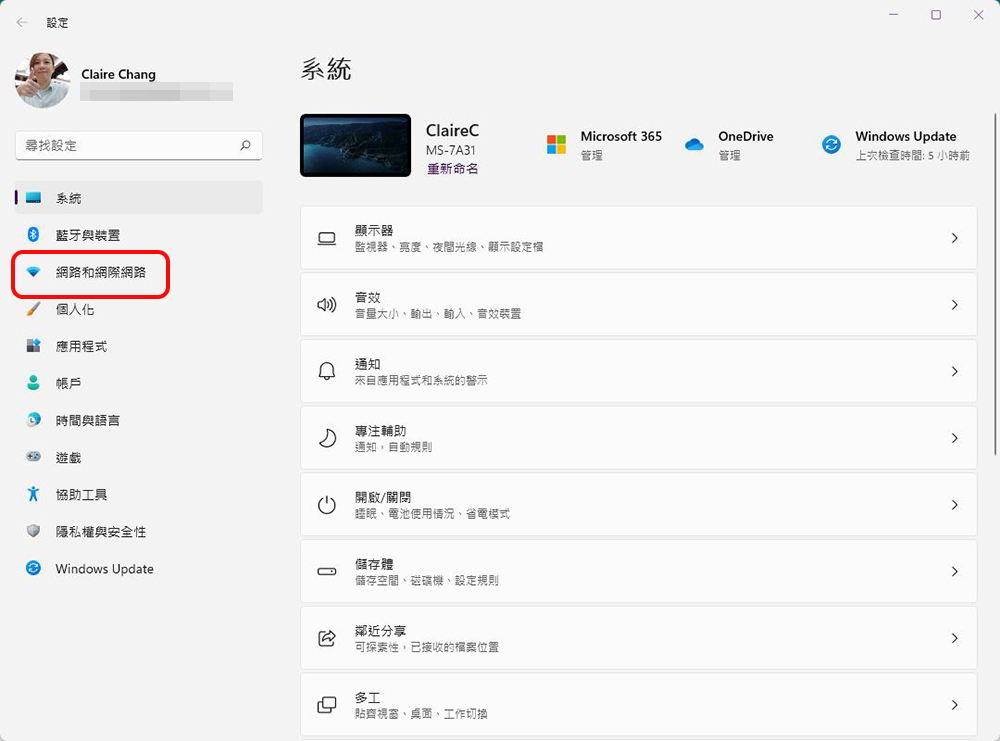
- Open “Settings” and click “Network & Internet” on the right.
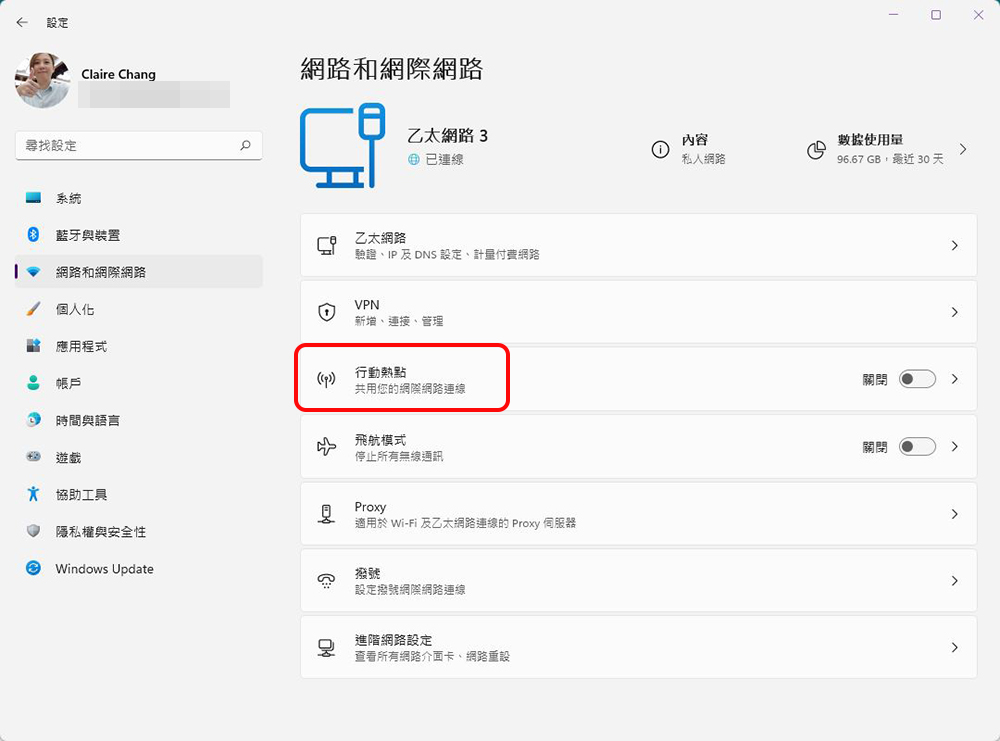
- After entering the “Network and Internet” page, click the “Mobile Hotspot” item to enter the settings. After completing the entire setup, you can turn on and off the mobile hotspot from this page in the future.
- On the next page, you must first select the source of the network, which may be a wired network or a SIM card inserted into the computer.
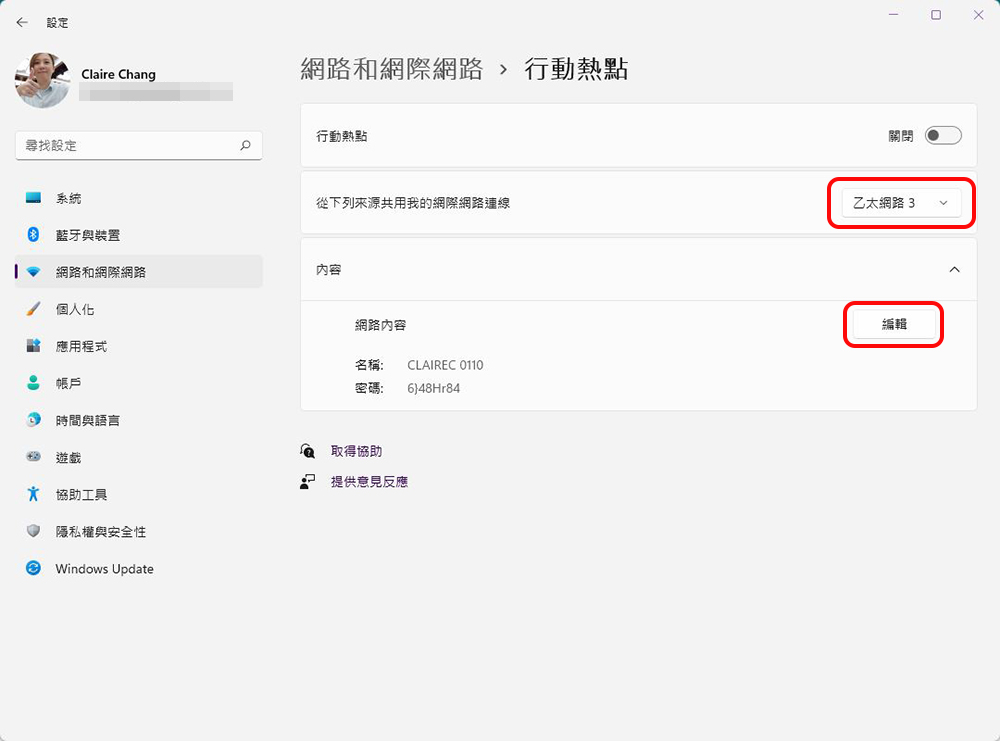
- In addition, in the content column, click “Edit” to set the network name and password, and then click the “Save” button.
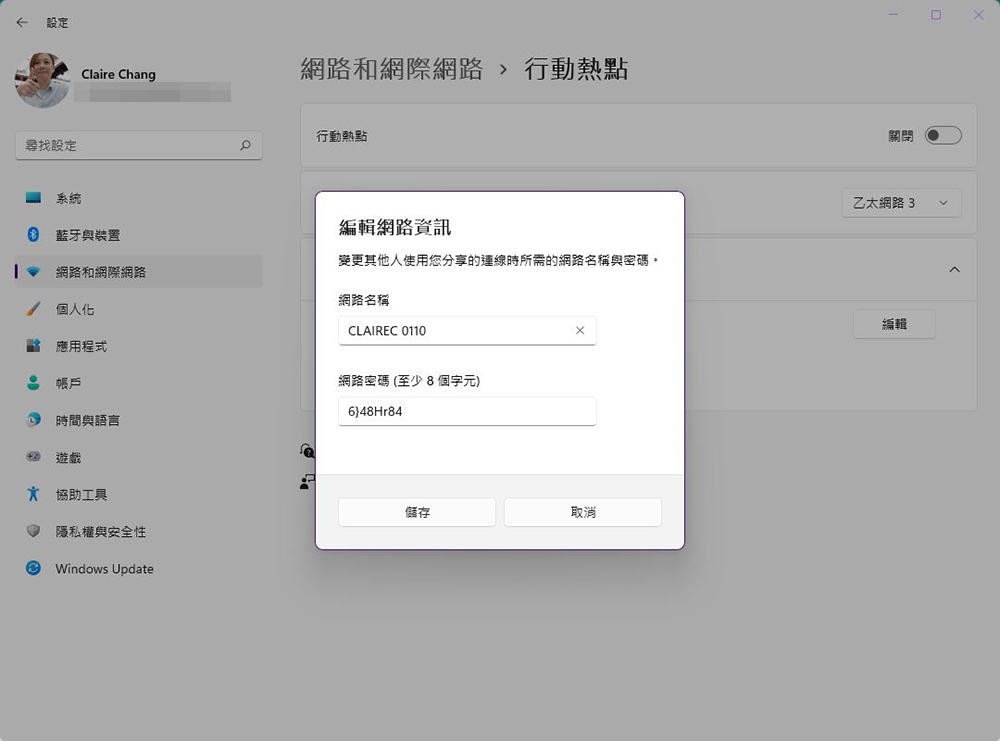
- Finally, turn on the mobile hotspot to start sharing the Internet with people around you. It is strongly recommended that laptop users turn on the “Power Saving” option to automatically turn off the mobile hotspot when no device is connected to your hotspot to save power for your device.
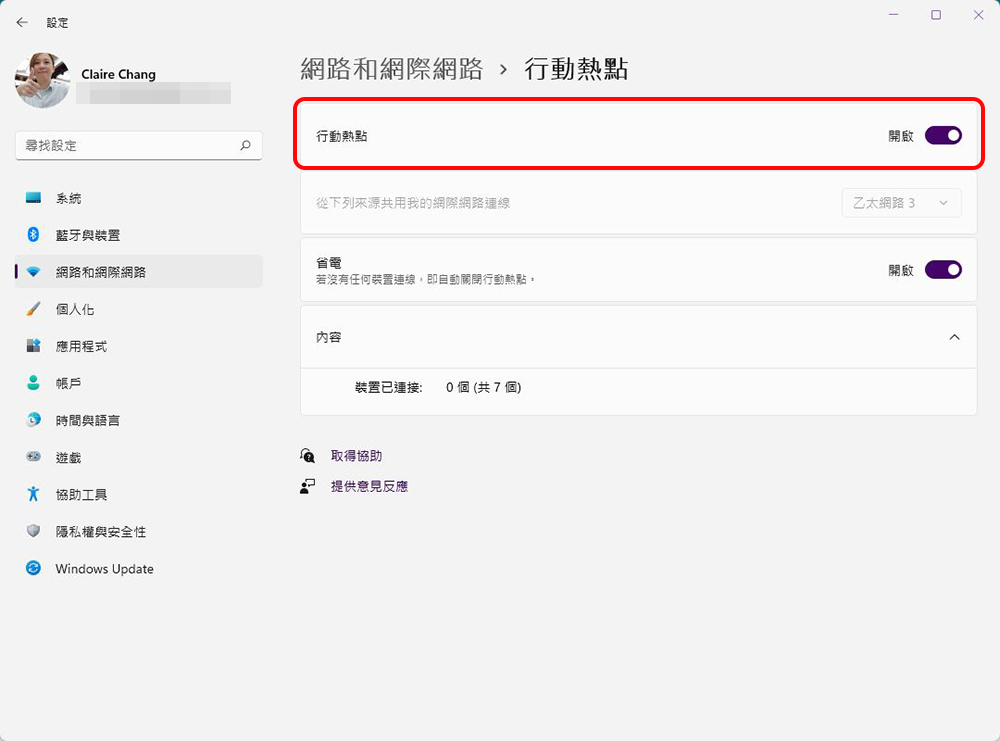
You can share the network with up to 7 other devices through Windows 11 hotspot sharing, but of course you share the same bandwidth as when sharing a hotspot with a mobile phone, so if someone downloads or uploads large files, you will also be affected. However, it is very convenient for work and can be used when there is no wireless network.
Source: KOCPC Chinese