


There are many parts of Windows 11 where you can see the shadow of Microsoft borrowing from mobile devices, including the quick search function, which helps you quickly locate the location of your laptop, tablet or desktop when it is lost or stolen. This time, we will tell you how to enable this feature on Windows 11 devices. The steps are very simple, so you can start it quickly!

How to enable “Find My Device” on Windows 11?
The principle of the Find My Device function on Windows 11 is different from that on mobile phones. It uses your Microsoft account to synchronize information to the cloud. When you open Find My Device, Windows 11 will regularly send the location of your device to Microsoft. When your device is lost, you can log in to your personal Microsoft account on the web to find the last known location in the record. How to enable it? How to check the location of the device?
Enable “Find my device”
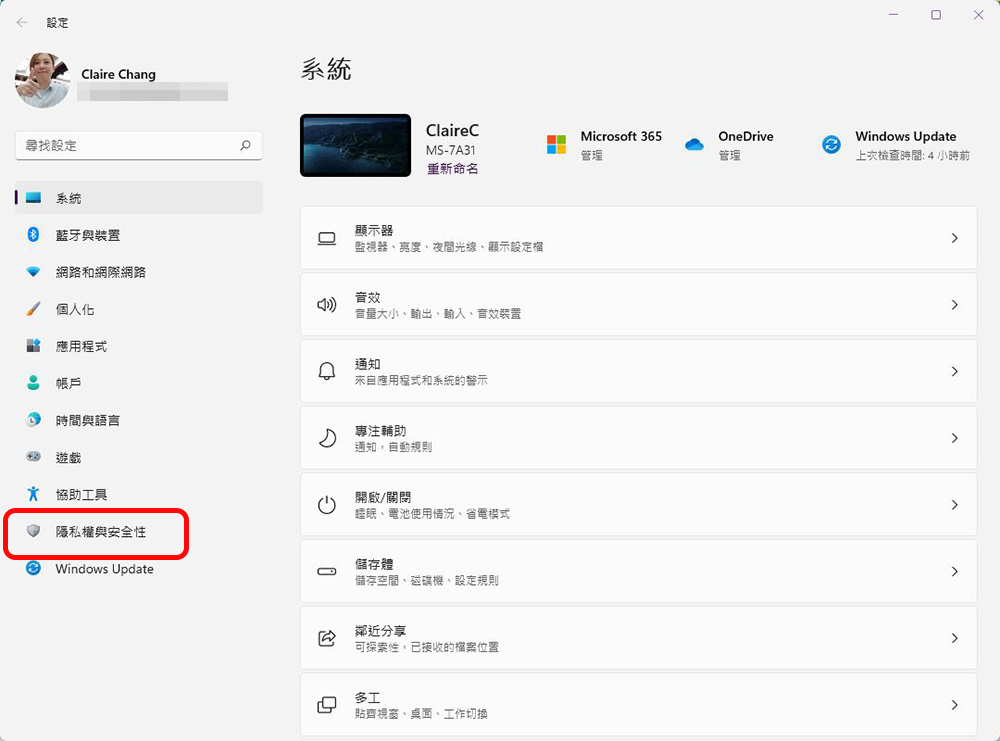
- Open the “Settings” on your computer and click the “Privacy & Security” tab.
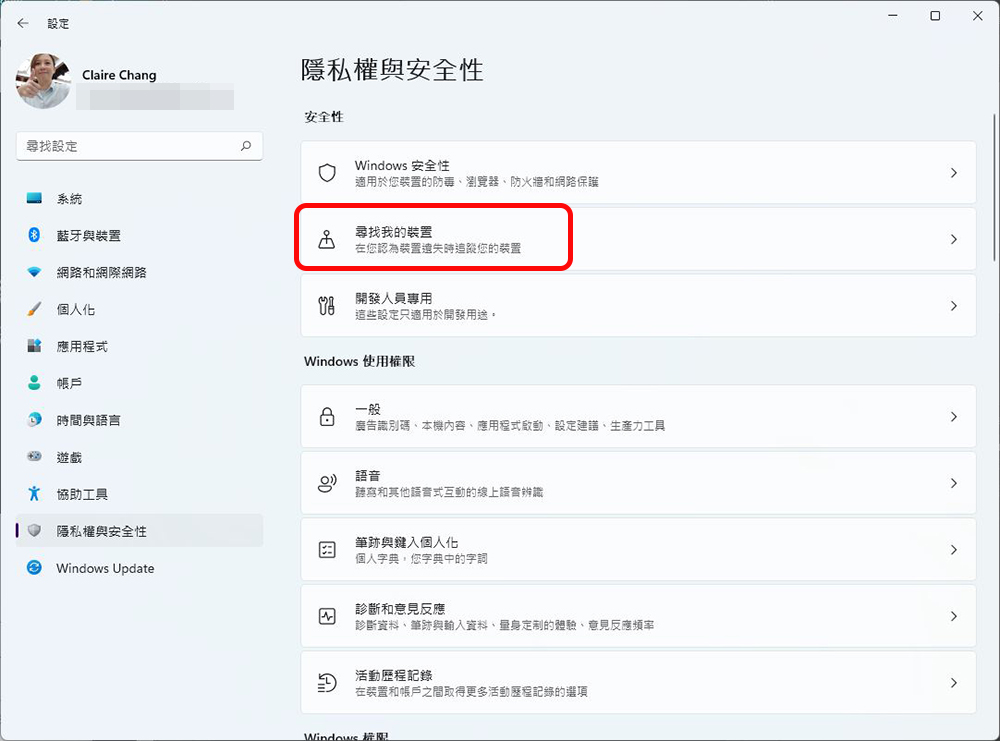
- In the Privacy & Security tab, select “Find my device.”
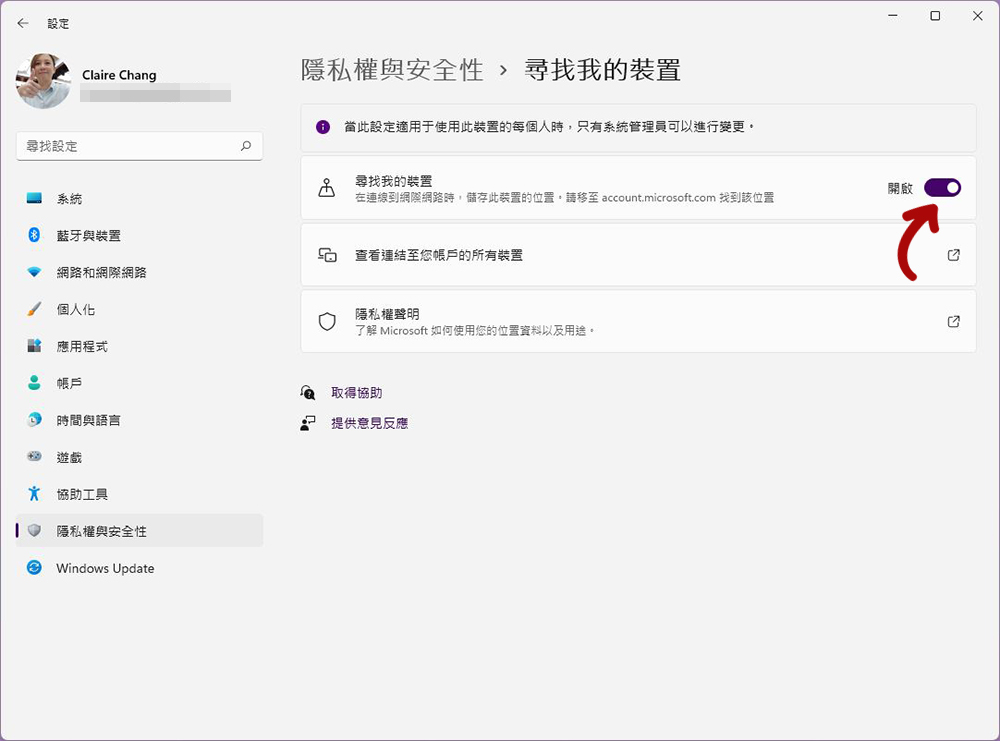
- Turn on the switch behind “Find my device”.
View devices linked to your account & find devices
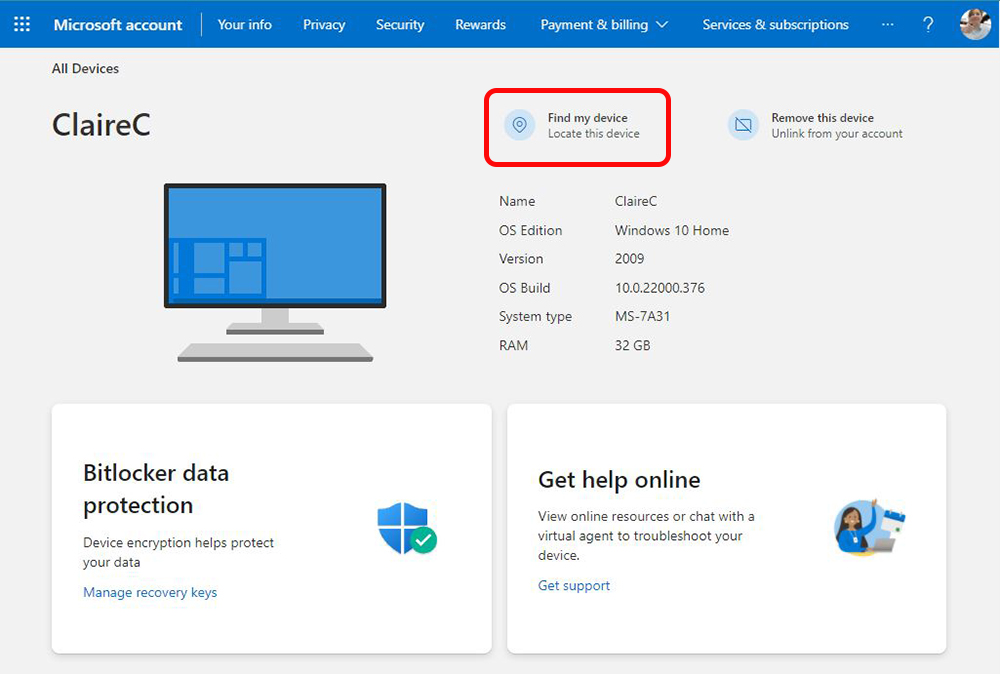
When you enable Find My Devices on the device that’s signed in to your personal Microsoft account, you can view all the devices linked to the account in Settings. If you want to see all your devices, you can go directly toMicrosoft account” website, log in to your Microsoft account and view it from the Devices field. In addition to checking which devices are there, you can also see the details of each device, such as version, memory, etc.
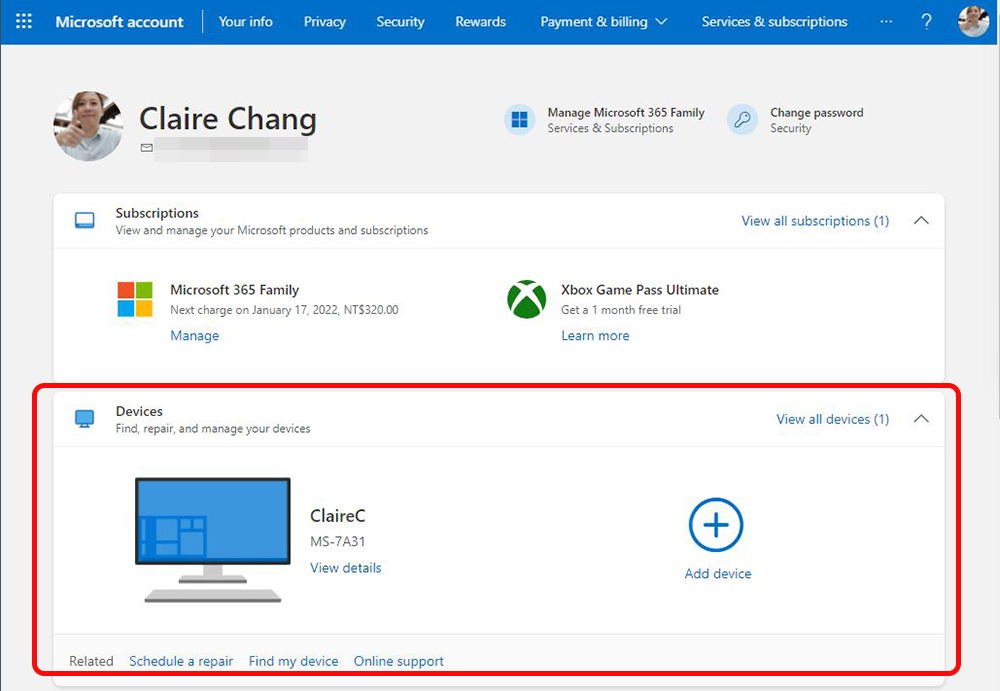
When you want to find a specific device, just click on the device and click “Find my device” on the page to view the location of the device on the map.
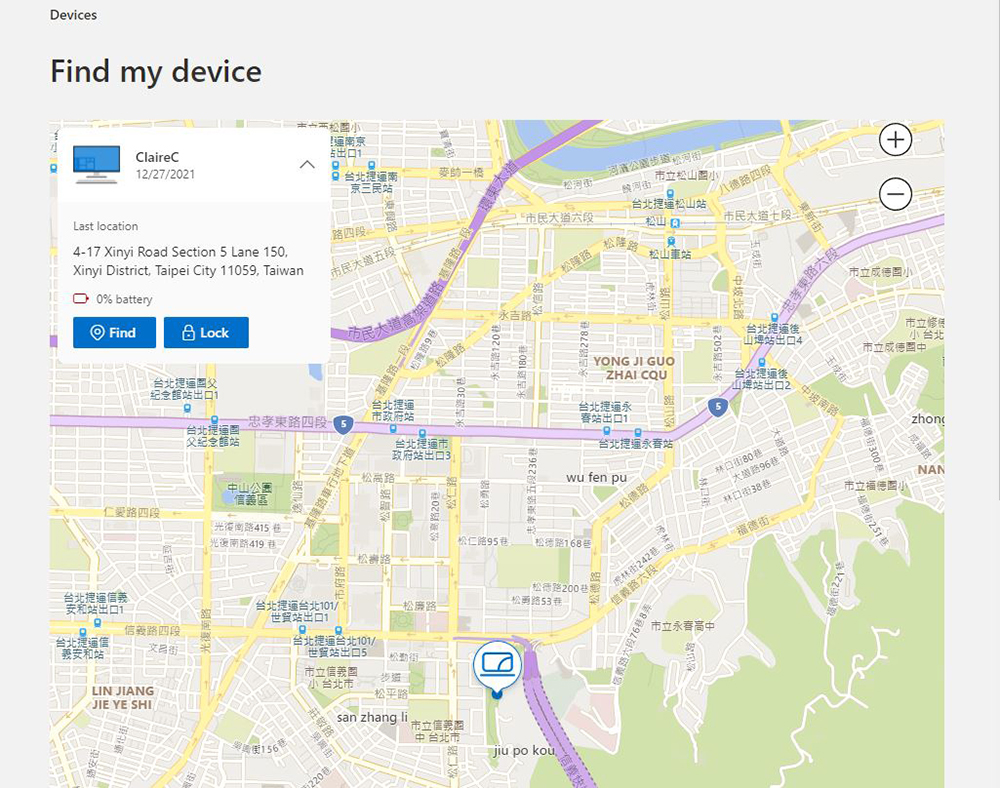
Although there is a search function, it basically points out the location of the last synchronization. If the thief has not connected the computer to the network for synchronization, it will be difficult to find. The hardware is not as accurate as the GPS positioning on mobile phones and tablets. It can be used as a reference. Just like what I tried, the computer has obviously not left Banqiao, but it is located in Xinyi District, so the best way is… don’t lose the computer.
Source: KOCPC Chinese