


Today, from some perspectives, iOS and Android have become more similar operating systems than in the past, but there are still many differences between the two. For the author, I like to hear notification sounds when the battery is full on Android. This does not exist on the iPhone by default, but it is not impossible to achieve. Today I will tell you how to set it.
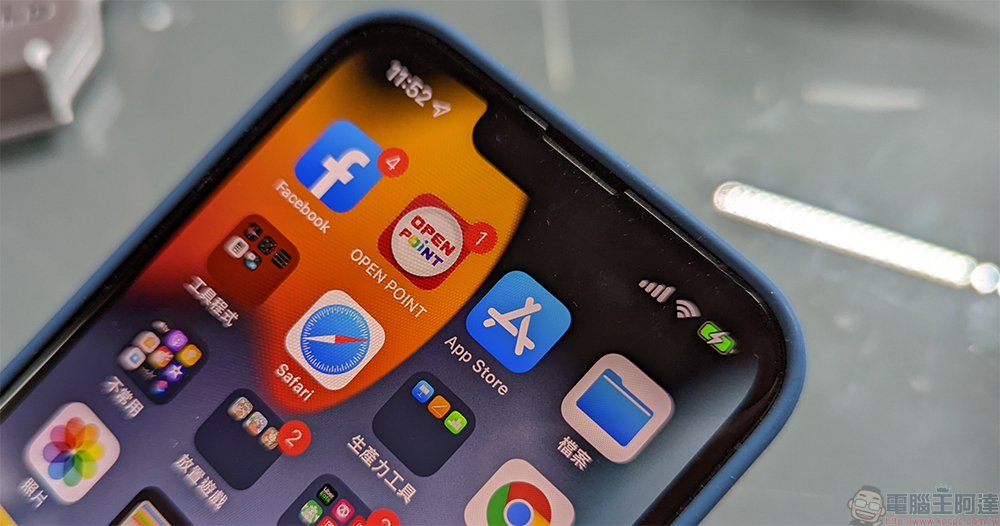
How to set low battery and full battery sound notifications on iPhone?
Currently, the low battery reminder on the iPhone is displayed in the form of a text notification, but it is difficult to notice if you put the phone aside, and there will be no reminder when the phone is fully charged, so this time I will tell you how to add sound effects to the battery notification. The process of setting the battery reminder sound effect on the iPhone is a bit circuitous, because there is no quick switching function in the iPhone. Please follow the steps below.
- First open the Shortcuts app (you can find it by searching).
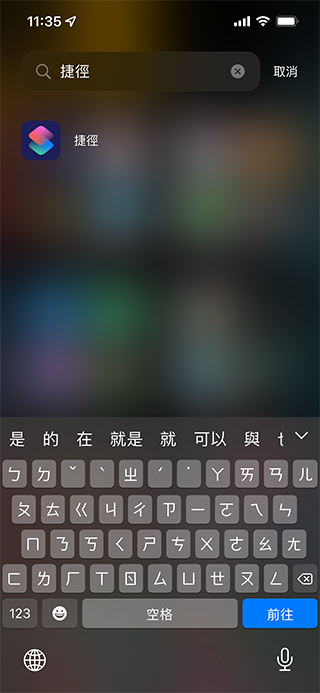
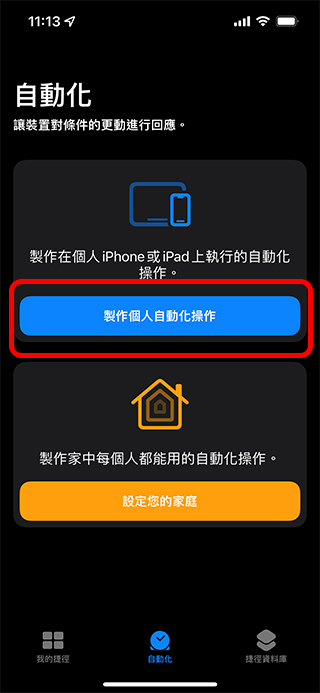
- Switch to the automation tab and select the “Create personal automation operation” item.
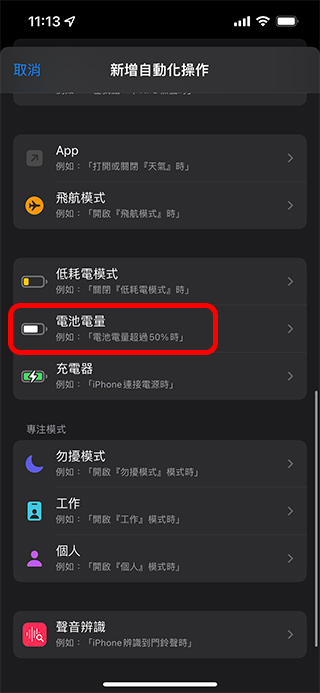
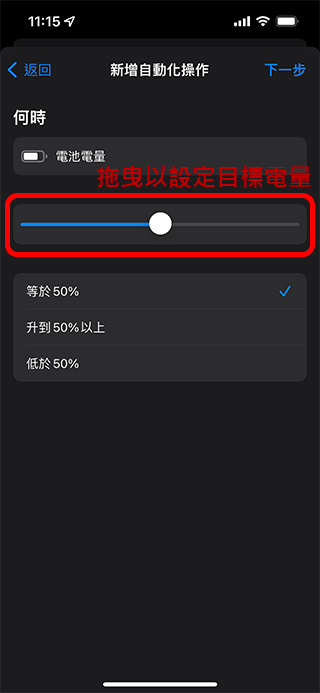
- Scroll down, find the “Battery Power” item and click on it.
- Then decide whether you want to get sound notifications when the battery is low or when the battery is fully charged. Drag the slider above to set it. After the setting is completed, click Next in the upper right corner.
If you want a full battery notification: Move the slider to the far right.
If you want a low battery notification: Drag to the left. until the percentage you want is displayed.
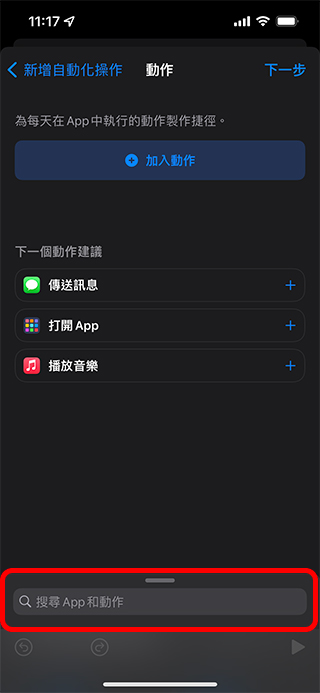
- Click the search field at the bottom of the screen, type “notifications,” then click the “Show notifications” option.
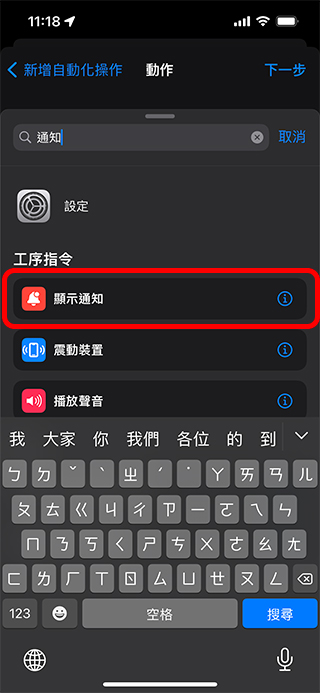
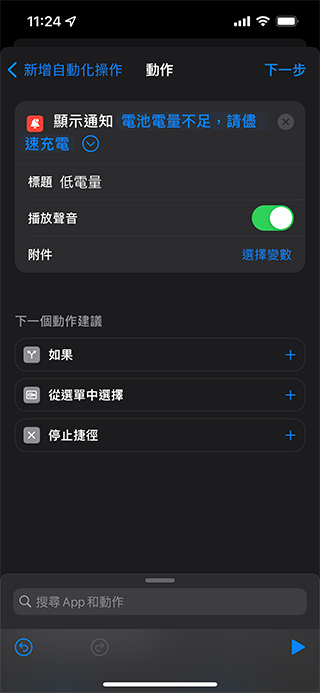
- Click the arrow next to Show notifications to open the action list. In the title section, you can enter a name for the notification (such as Low Battery or Full Charge), and then make sure the “Play Sound” switch is turned on. Then delete “Hello, world” next to the display notification and enter the text you want to display, such as “The phone battery is low” or “The phone is fully charged.” Of course, you can also change the text to other content you want to display when encountering this situation. After all settings are completed, click Next on the upper right.
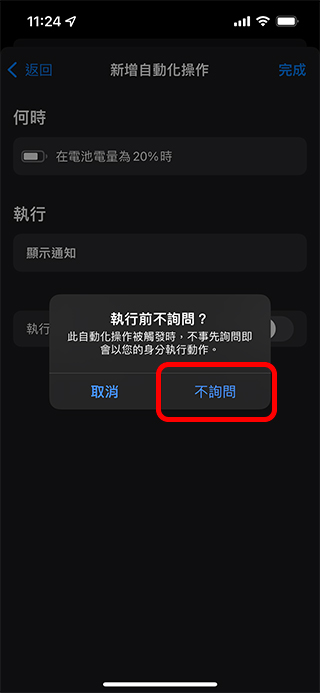
- Turn off the “Ask before executing” option, otherwise this setting will keep reminding you of manual permission in the future, losing the meaning of automation, and prompting will not work properly. After setting this, you can click “Done” in the upper right corner.
- The next page will display the automation projects you have set. You can also set one for low battery and one for fully charged like the author.
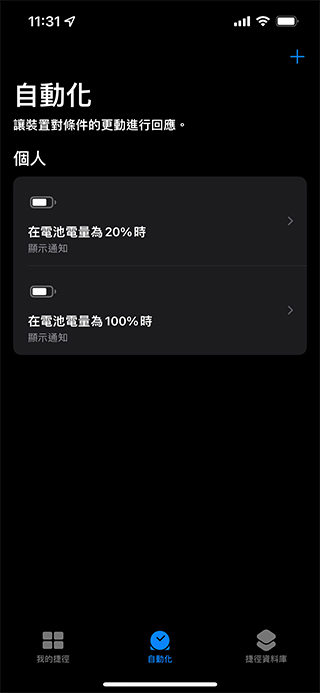
The author personally thinks that the battery sound effect notification is very practical, otherwise I would not notice the fleeting text prompts on the phone at all, and you can also customize the amount of battery you want. Everyone can give it a try!
Source: KOCPC Chinese