


Computers are an important device for modern people to deal with work and schoolwork. Once a computer problem occurs, no matter what the reason is, it will make people feel world-weary, especially when there is no omnipotent IT department at home to help you deal with it. The most common situation that ordinary people encounter is that the computer takes a long time to start up, and the operation suddenly becomes very slow, and you have to spend a lot of time waiting. If your computer has such a problem, follow the author and spend a few minutes to troubleshoot it. As long as there is no hardware problem or it is too old, a few simple free actions can give you a better user experience.

Why has my computer become so slow? Three common causes and basic solutions
Computer-run magic mirror: work administrator (will be used later)
Before getting to the point, let’s first get to know the “work administrator” of the computer system’s magic mirror. Job Manager is your main window into what’s going on with your computer, and the app lets you drill down to see what’s putting a lot of load on your processor, how much memory your apps are using, and even how much network data they’re using. If you want to open the job manager, you can press “Ctrl + ALT + Del” at the same time and then click the job manager item.
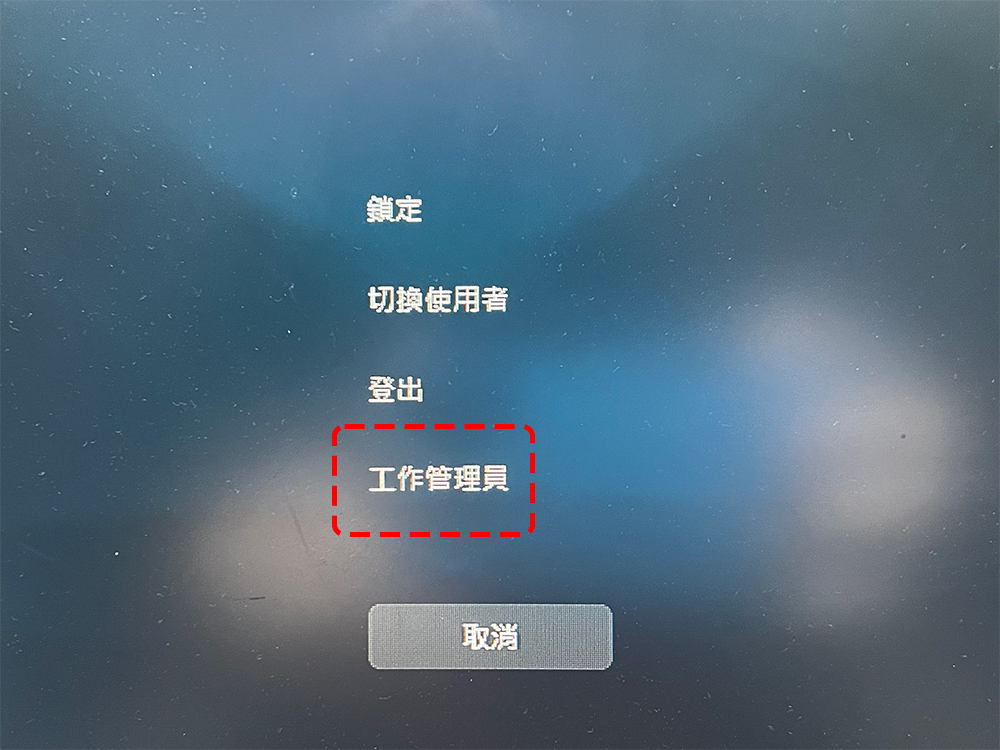
The currently running applications and a large amount of related information will be displayed in the work manager. You can see the details directly in Windows 10, but when you open the work manager in Windows 11, you will see the currently launched applications first by default. If you want to see more details, click “More Details” below to see more details of the applications.

In the work manager window, you can pay attention to the contents of the applications and background processes, which will be constantly updated. My suggestion is to open the task manager and let it run for a few minutes and watch the list. Pay attention to the applications that are updated to the top of the list during this time and then disappear within a few seconds. If you find something you don’t know what it is called, you can Google its name to learn more. To close an application or thread that you suspect may be causing performance degradation, just click on the item and press End.
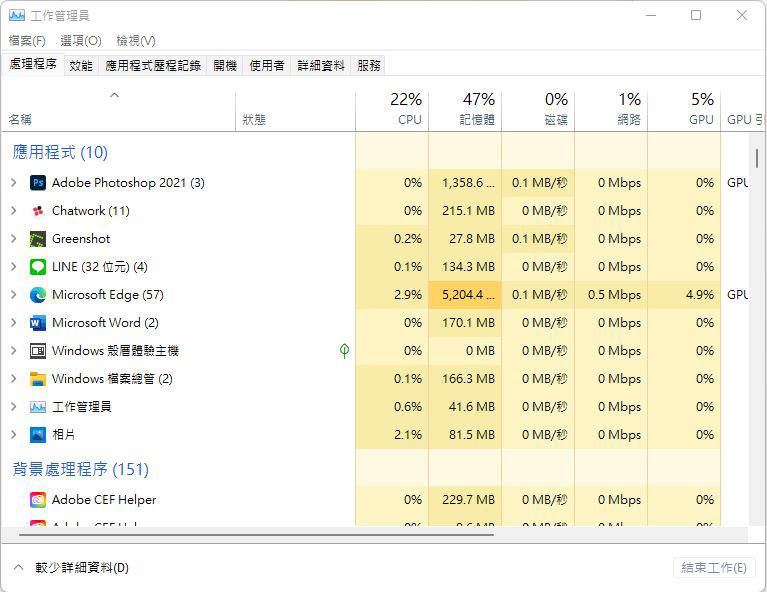
If you do not have the ability to solve computer problems, please do not take action on Windows processing programs, because you may not be able to eliminate system problems caused by ending certain programs.
Three common problems that cause your computer to slow down
When your computer runs too slowly, although it is most likely that your computer is too old and cannot keep up with new technologies, it is more often due to the following three most common problems. The author will explain them to you one by one below.
- Antivirus software scan
When your computer becomes slow, you can first open the work manager to see who is slowing down your computer. If you have anti-virus software installed on your computer, they will usually be at the top of the list. Antivirus software will actively scan your computer for malware and viruses, which may slow down your system.

This is not to say that installing anti-virus software is a bad idea, but you should not leave it to the anti-virus software to decide when to scan appropriately. You can set the anti-virus scan time at a time when you don’t use your computer much, such as when you go to bed at night or during your lunch break, so that the anti-virus software will not affect your work.
- web browser
Your web browser is probably the culprit slowing down your computer, especially if you open a lot of windows and tabs. Each browser window and tab uses memory and processor power, which over time starts to slow down your computer. You can view the computer resources occupied by each tab and extension by clicking the arrow next to the browser name in the work administrator, and close these tabs directly from here.
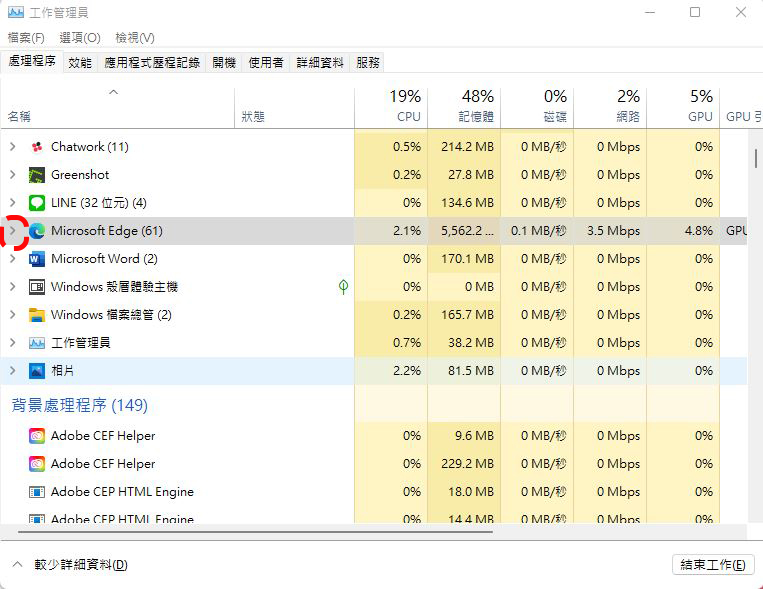
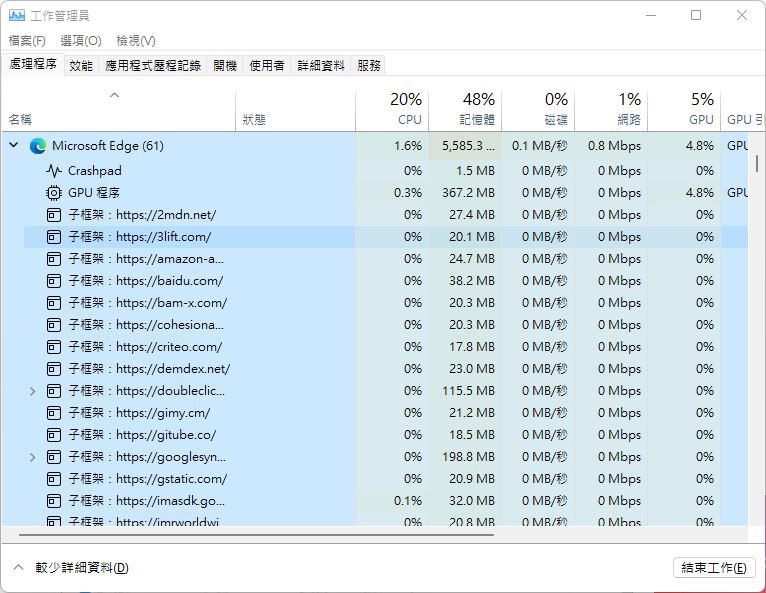
If you are using the Chrome browser and have your own work manager built into Chrome, you can press “Shift + ESC” when opening Chrome to open the menu to view it, or click the three-dot menu in the upper right corner, click “More Tools” and then select “Work Manager”.
- Too many programs are launched at startup
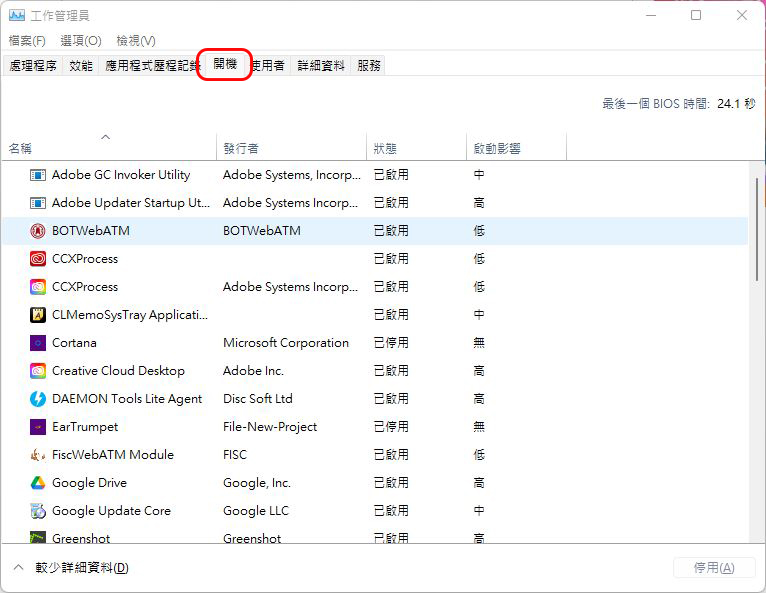
If your computer takes a long time to get ready after you turn it on, it’s likely that you have too many applications set to start automatically when you turn it on. You can edit the list of applications and services that automatically start at startup by opening the work manager and switching to the “Startup” tab. Select items from the list that do not need to be started at startup, and then click “Disable” in the lower right corner.
The most commonly used computer rejuvenation solutions
There are several ways to easily troubleshoot and speed up your computer. Here are some steps you can take to make your computer at least a little faster. (Of course, physical problems such as hardware and old computers are not included)
- Close the application completely after use (be sure to do it thoroughly!!!)
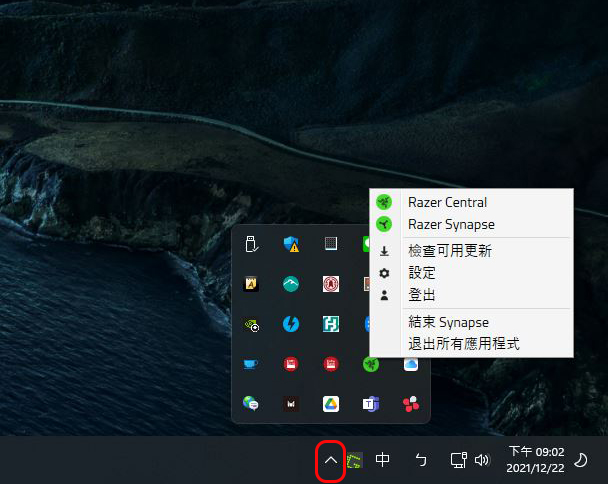
Some applications will continue to run in the background even if you close the window, such as Slack. You can click the up arrow next to the taskbar input method to open the drawer to see which applications are still running in the background. Then right-click the icon of the application you do not need to completely exit and close the application.
- Pause OneDrive synchronization (if you are not using it, simply close the OneDrive app)
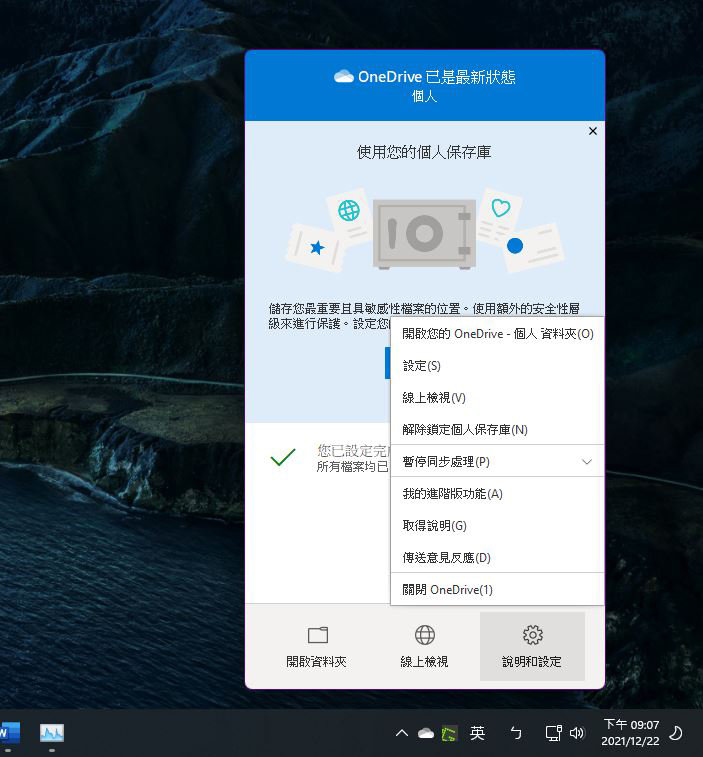
Microsoft also admits that OneDrive synchronization may slow down your computer. I would like to emphasize this, especially if your OneDrive changes are very active, such as for work collaboration. When you need to speed up your computer, you can click the OneDrive icon in the drawer, then select “Help and Settings”, click “Pause Sync Processing”, and then select the pause time.
- Check storage capacity and hard drive health
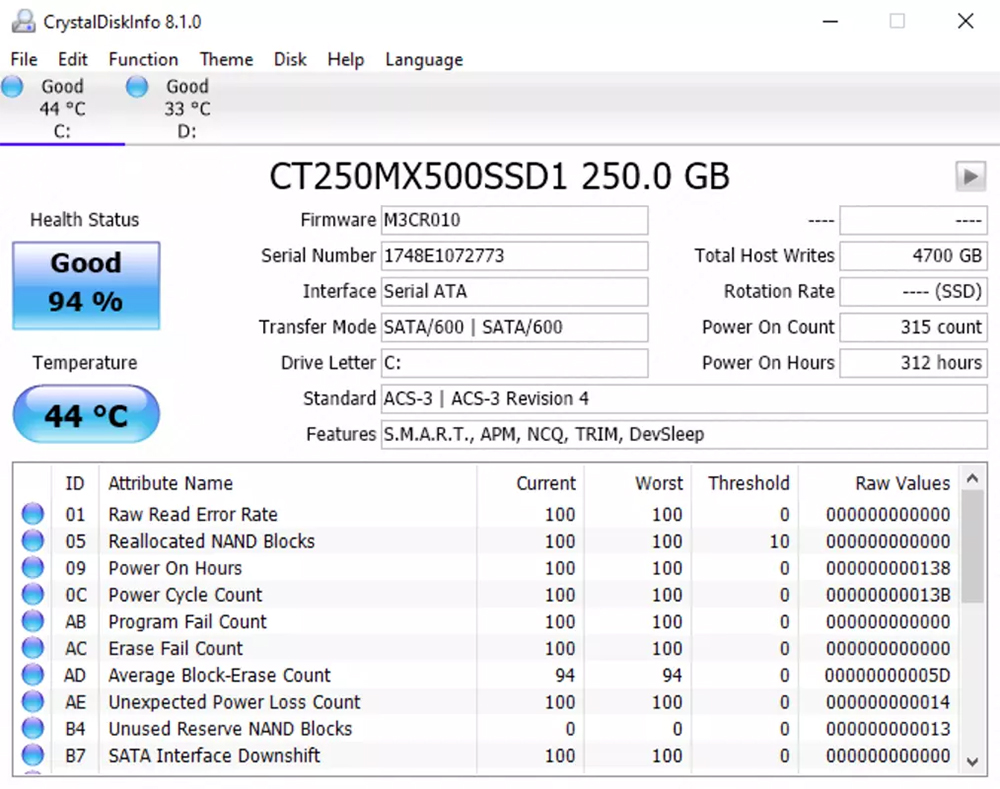
If your hard drive or SSD has insufficient space or is old, it may cause the computer to slow down. You can use some applications to scan the status of the hard drive to test whether there is a problem with the hard drive, or have it diagnosed by a technician and upgrade the storage device if necessary. The most commonly used hard disk testing tool is CrystalDisk Info (Standard Edition Standard Edition), free and easy to use.
- Computer shuts down regularly
Many people should be like the author and almost never shut down their computers, but I would like to remind everyone to completely shut down their computers regularly, instead of restarting them! You must shut down the computer and let it rest for a few minutes to give it time to clean up the memory and give you a fresh start the next time you turn it on.
If none of the above suggestions have improved your computer speed to a level you are satisfied with, I suggest you try reducing the animation effects in the system, changing themes, and adjusting settings. If none of them work in the end, then… you still need to seek help from technical experts to further diagnose and treat computer dementia.
Network bandwidth limitations
Your ISP controls everyone’s usage. For example, when you play online games, the speed of playing Netflix movies will slow down. ISPs actually know what users are doing online and can control your bandwidth in real time, so bandwidth restrictions may be one of the culprits of slowdowns. This is why downloading files, streaming media, and playing online games slow down at night. Use a VPN to avoid bandwidth limitations. What is a VPN? A VPN is a virtual private network that encrypts Internet traffic and hides your IP address, so Internet service providers cannot know your real IP address, monitor your online activities, and limit your Internet speed. Additionally, a VPN can help you bypass geo-restrictions and browse blocked websites and services. Among them, NordVPN is a trustworthy and reliable provider. With the help of the new generation NordLynx encryption protocol, it provides a fast VPN experience, allowing you to get rid of the limitations of network bandwidth and enjoy a safer, faster and more private network experience. With a super discount, you can try NordVPN immediately, with a 30-day money-back guarantee, and enjoy the ultimate Internet speed risk-free.
Download NordVPN now for a fast and smooth browsing experience.

Source: KOCPC Chinese