

• About Us
King of Computer Media
  • Home
  • Tech News
  • AI News
  • Apps & Tutorials
  • Mobile & Telecom
  • Lifestyle
  • About Us
No Result
View All Result
  • Home
  • Tech News
  • AI News
  • Apps & Tutorials
  • Mobile & Telecom
  • Lifestyle
  • About Us
No Result
View All Result
King of Computer Media
No Result
View All Result

Home - iPhone/iPad usage tutorial - How to delete Siri voice history on Mac and iPhone

How to delete Siri voice history on Mac and iPhone

Claire by Claire
December 20, 2021 - Updated on August 4, 2026
in iPhone/iPad usage tutorial

In the past few years, voice assistants have become very common in life, and Apple’s Siri is also loved by many people. Especially when your hands are busy or you are simply lazy, you can ask Siri to help you query, enable functions, play music, etc. Your voice assistant gets smarter as you use it, thanks to machine learning, making it more personal and more accurate.
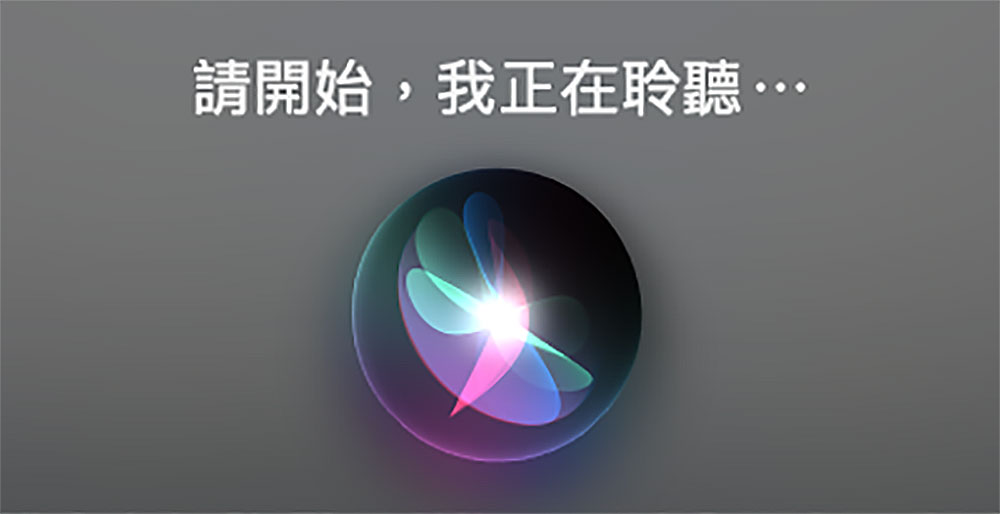
How to delete Siri voice history on mac and iPhone

While voice assistants are convenient, the always-on microphone also raises privacy concerns for many. The voice listens to you and stores your queries to improve accuracy. While this sounds beneficial, there are certain sensitive data you may not want to save, which is why it’s a good idea to delete your assistant’s voice history from time to time. This time I will tell you how to delete Siri voice records from Mac and iPhone.

Mac

  • Open “System Preferences” and select the “Siri” item.
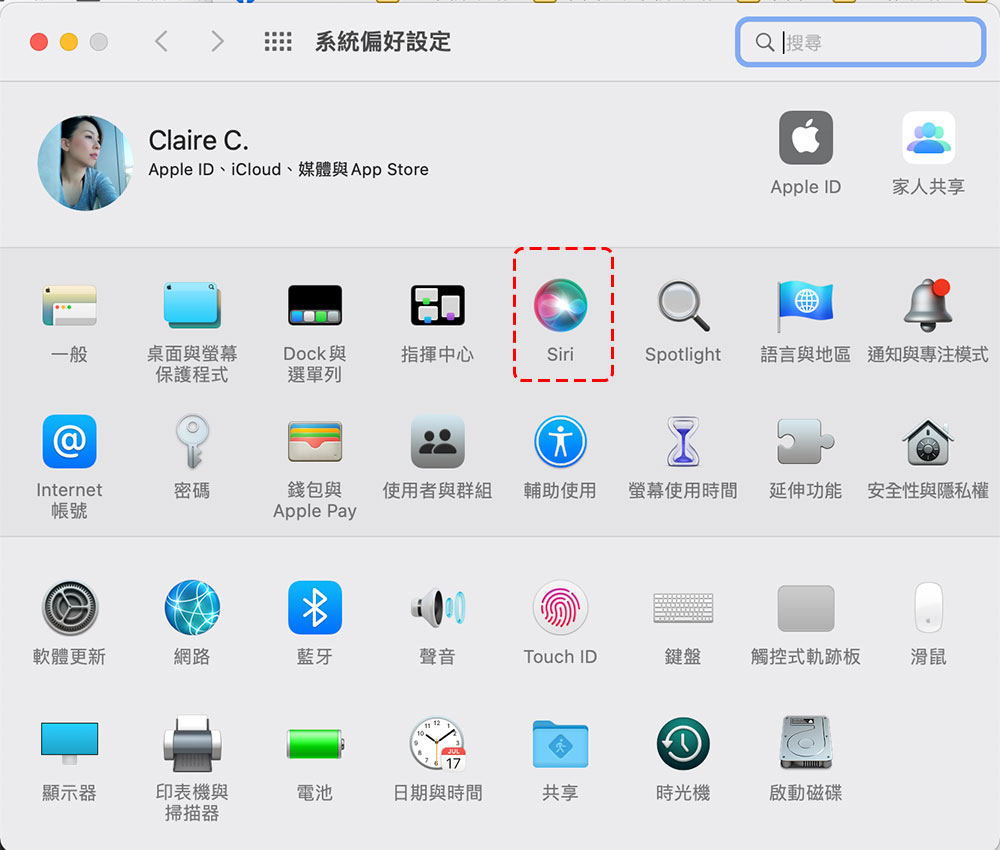
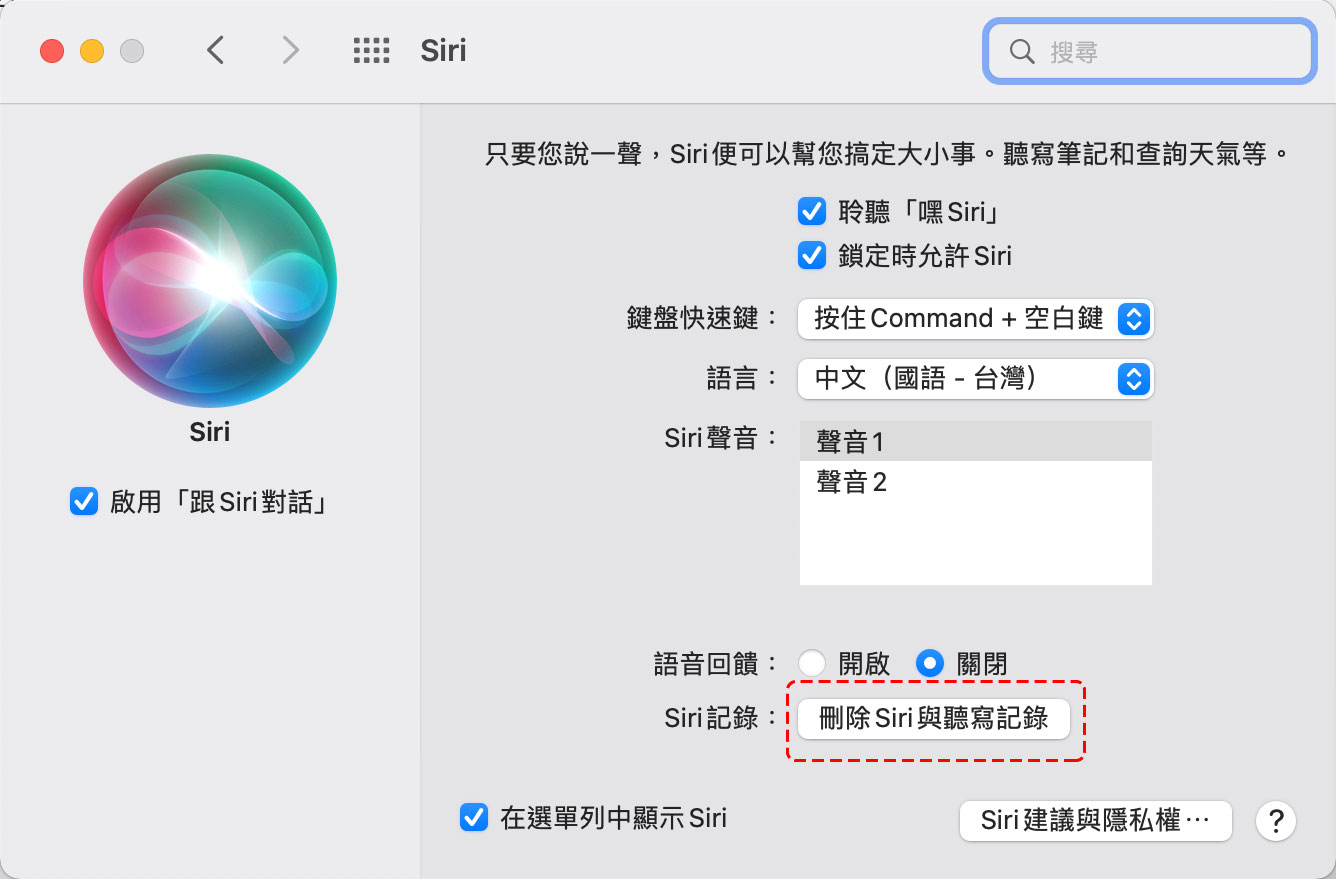
  • Click “Delete Siri and Dictation History” at the bottom of the window.
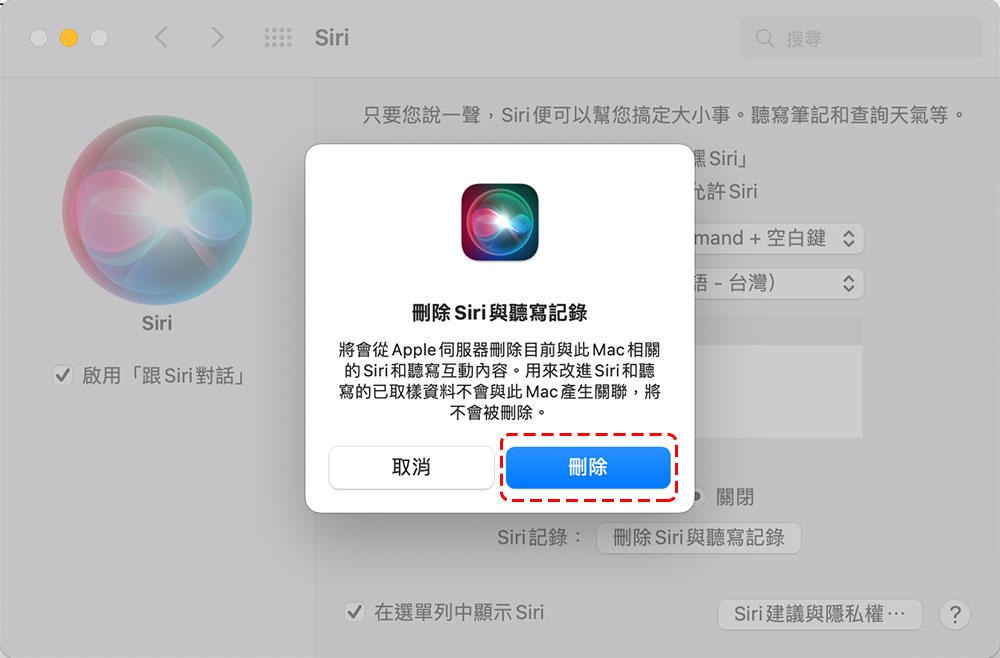
  • Then click “Delete” in the confirmation window.
iPhone

  • After opening the Settings app, find the item “Siri & Search.”
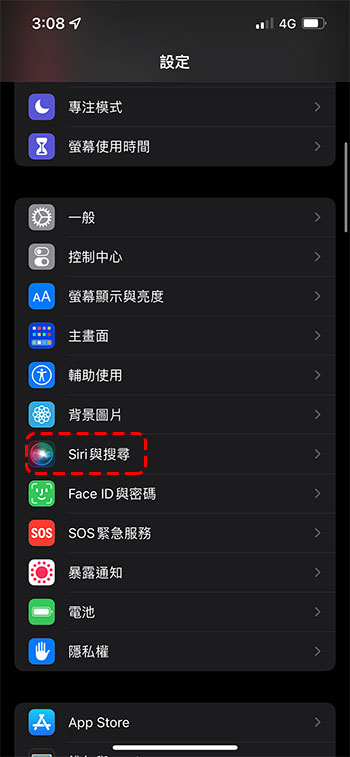
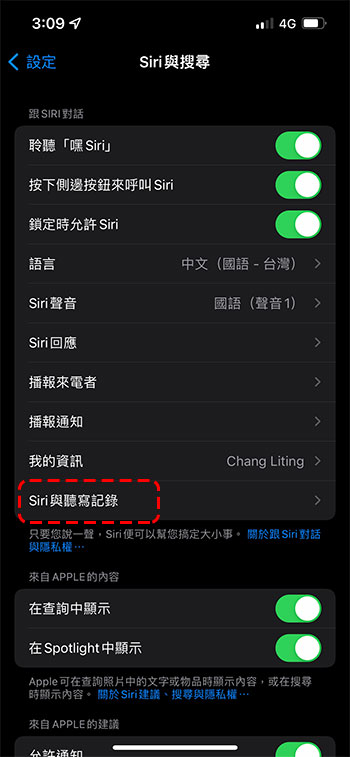
  • Click “Siri and Dictation Recording” on the next page.
  • Then press “Delete Siri and Dictation Records” at the end.
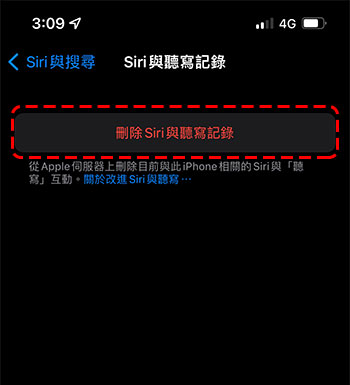
After deleting Siri’s records, the voice commands and dictation input you have made will be removed. However, the great thing is that the improvements made to the voice assistant after being sampled will not be affected. That is to say, Siri will not be reset to zero and need to be re-trained. It can still choose appropriate words and text for you based on your speaking style and input habits.


Source: KOCPC Chinese

Tags: AppleiPhoneMACSetup tutorialsiriTeachingvoice assistant

Recent Posts

  • The Xiaomi Pad 8S Pro has passed network access certification and will debut with the self-developed XRING O3 chip.
  • The entire Google Pixel 11 lineup has been leaked! Official promotional renders of the Pixel 11 Pro XL have also surfaced
  • Are Chinese phone battery capacities falsely labeled? A brief look at the “capacity locking” phenomenon in Chinese silicon-carbon batteries.
  • NCC is leaderless, recklessly sending out national-level alert messages!?
  • What does “QR” in QR Code mean?

Recent Comments

No comments to show.
  • About Us

We welcome partnership inquiries and product review opportunities from smartphone manufacturers, iPhone accessory brands, and app developers.koc kocpc.com.tw|Privacy Policy |Hosting & Maintenance: Fast Line Taiwan, A-Chang Digital Technology

No Result
View All Result
  • Home
  • Tech News
  • AI News
  • Apps & Tutorials
  • Mobile & Telecom
  • Lifestyle
  • About Us

We welcome partnership inquiries and product review opportunities from smartphone manufacturers, iPhone accessory brands, and app developers.koc kocpc.com.tw|Privacy Policy |Hosting & Maintenance: Fast Line Taiwan, A-Chang Digital Technology