


If the iPhone 13 in your hand has power consumption problems, you are not alone. Since the release of the iPhone 13 at the end of 2021, you have seen a lot of complaints about the battery life of the iPhone 13 in foreign forums. Many iPhone 13 battery problems can be solved by turning off features such as 5G. Although 5G network connections are great, using 4G LTE can save more power. If you don’t want to turn off 5G, you can also try some other techniques to extend battery life. This time I have compiled some of the most influential options. You can try to use these methods to find the monster that eats up your phone’s power or adjust your usage habits.
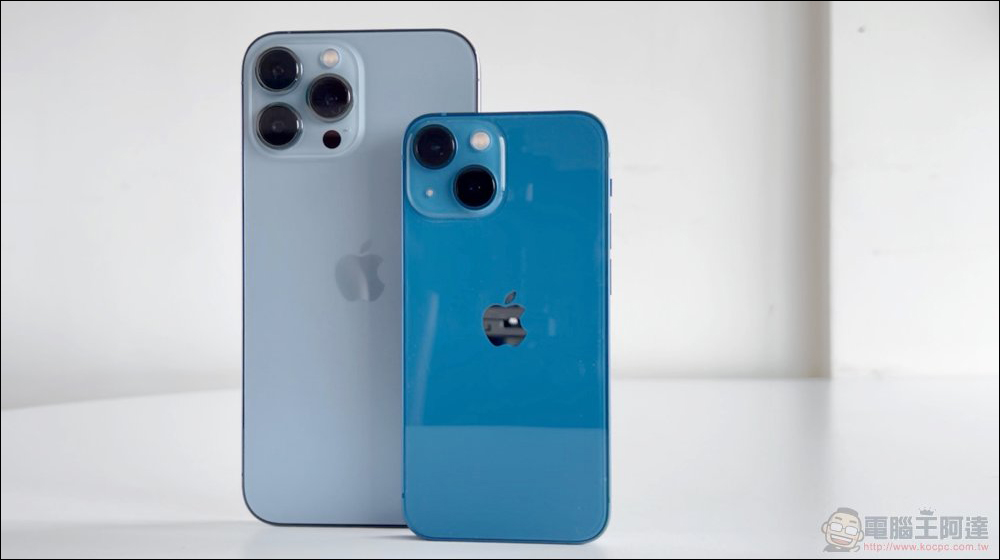
Is your iPhone 13 draining battery? Several ways to eliminate the power eater in your mobile phone
For modern people, running out of battery on their phone may be more frightening than not carrying a wallet. We have heard of the iPhone 13’s battery consumption problem from time to time. If your iPhone 13 also suffers from this symptom, here are a few setting methods to help you eliminate obstacles. The author suggests that you can follow the order from top to bottom. If a method works in the middle, then there is no need to go to the final ultimate move.
- Restart phone power
One of the easiest ways to fix iPhone 13 issues is to reboot. Restarting can clear the currently occupied memory and close all applications that are open and running in the background on the phone. To restart, you can bring up the power control interface by pressing and holding the power button and the volume down button at the same time. When the power control option appears, just slide the top lever to the right to shut down the phone. After it is completely shut down, press and hold the power button to turn it back on.
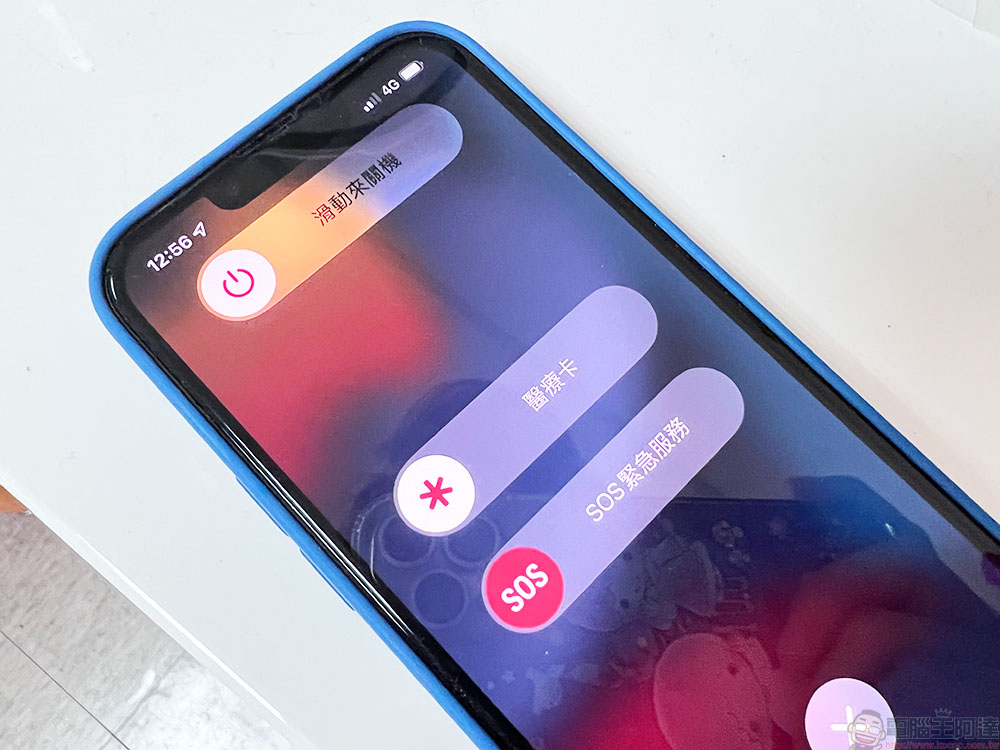
When your phone is restarted, pay as much attention as possible to the apps you have open. The more apps you have open but not closed, the more power these background processes will consume, especially apps like Spotify, Twitter, and other apps that continuously update content. If you still have a lot of power consumption after restarting, then you have to go to the next step.
- Close battery-consuming apps
As mentioned above, apps are likely to use more power than any other function, so it’s helpful to keep an eye on which apps are using the most power. Now Apple has made it easy for everyone to see which apps are power monsters.
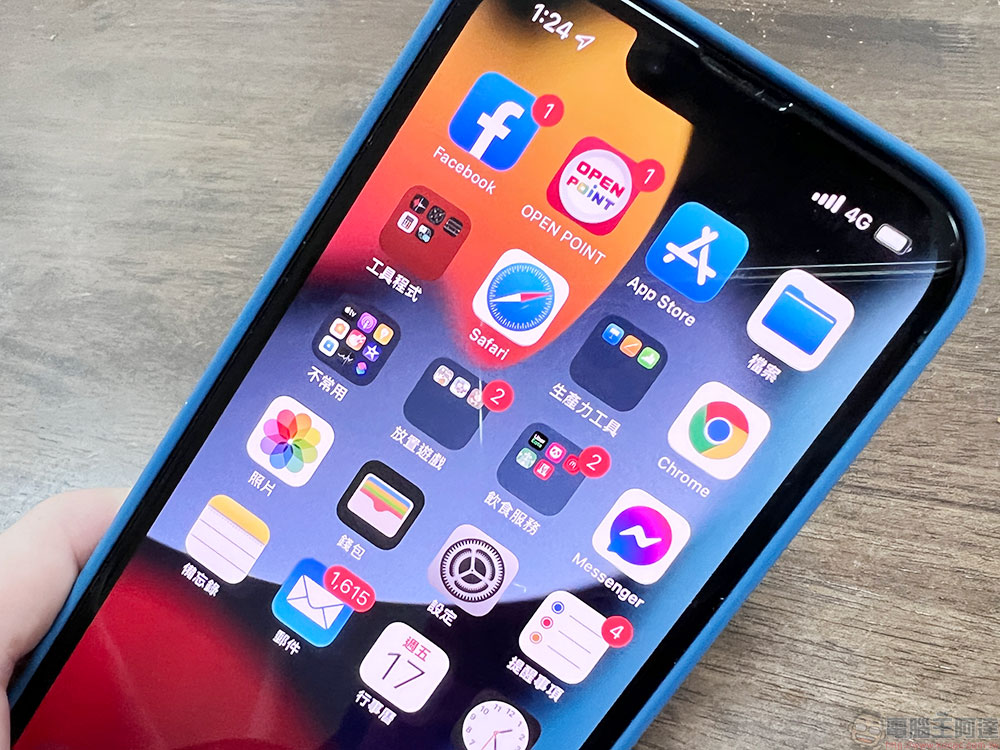
To check battery usage, open iPhone 13’s settings and then open the “Battery” option. You can check when the phone was last charged and which apps are consuming power in the background. Apple breaks down the phone’s power usage into different presentations for the past 24 hours and the past 10 hours. You can swipe down in the interface to see the usage of each app.
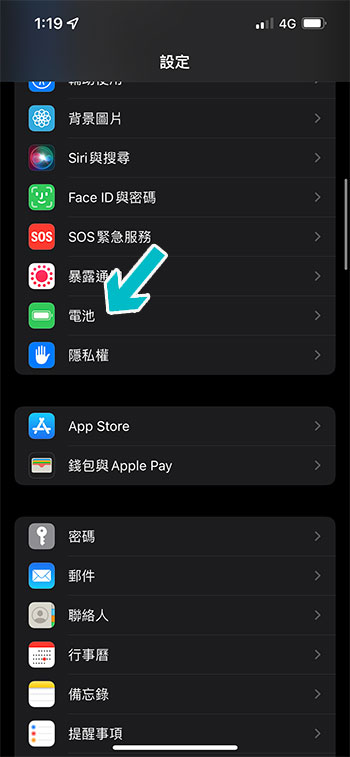
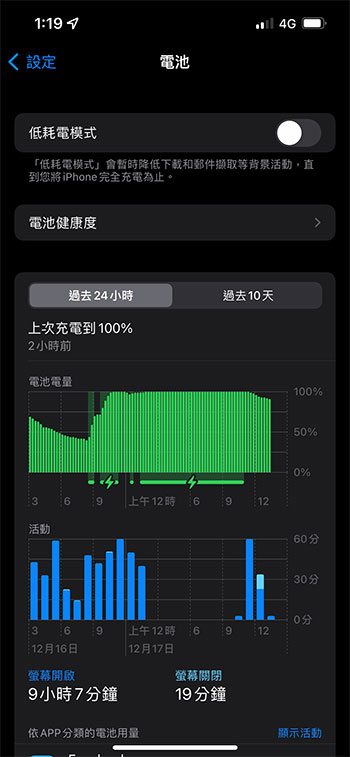
Google Maps, built-in maps, and other apps with background updating capabilities will usually be near the top of this list. Also, if you play a lot of games on your iPhone, you might see them here. You can select each app to see more details about it, including how much screen and background power it uses.
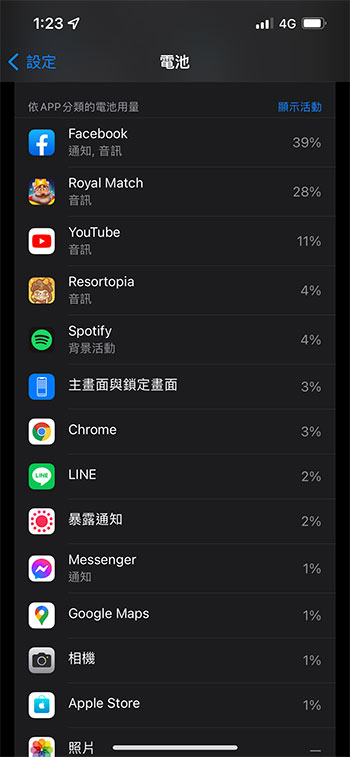
If you want to change the amount of power your app is using, try following Apple support documentation Change notification settings in app-specific options. If you don’t use an app but it consumes a lot of power, it is recommended that you uninstall and delete it.
- Change location tracking settings
Another great way to save battery is to change the location settings on your iPhone 13. By default, when you install a new app, it will ask you whether you want to always have access to your location on the app, or never give it access to track your movements and collect data about the places you visit.
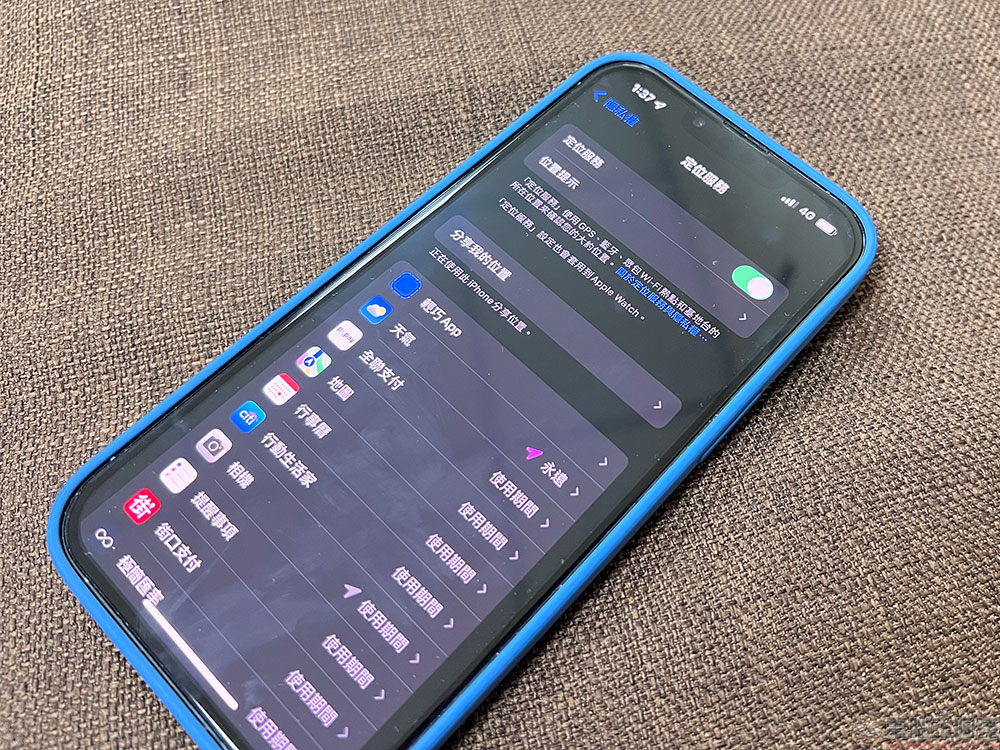
Regardless of the privacy issues here, turning on location access will indeed cause a huge consumption of mobile phone power. Therefore, it is recommended that you use tracking for some applications that do not require location tracking, or set it to track only when the application is opened. Although it will not be useful every time, it is still a small improvement! If you want to modify the location tracking permissions of each application, you can go to “Settings >> Privacy >> Location Services” to modify it; other applications such as navigation and maps that must track location at all times should close it after use.
- Try low power mode
If you have tried the above tips and still haven’t solved the battery life issue on your iPhone 13, you have no choice but to resort to other options. There is an important feature in the iPhone called “Low Power Mode”, but turning this mode on is treating the root cause rather than the symptoms, and it is not recommended to use it all the time.
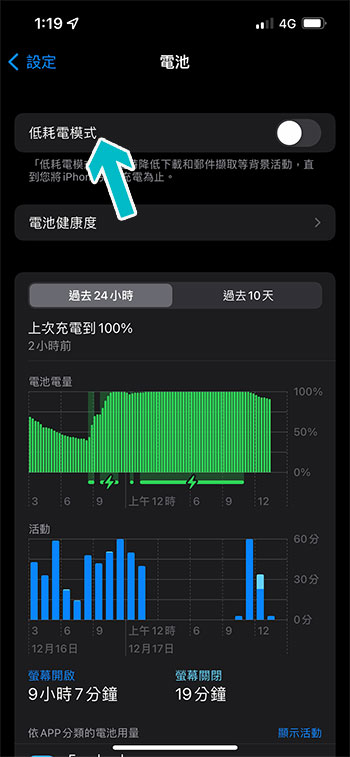
After enabling low power consumption mode, background activities such as receiving messages, automatic updates, and automatic downloads will be turned off to save power. In addition, animated visual effects will be reduced so that the phone can run more smoothly without consuming too much power. At the same time, you will find that the “Hey Siri” voice command will also be disabled. It’s not a long-term solution since it disables many features, but it can be a good way to get some extra power out of your phone once the battery starts to get low.
- Reset the phone (restore original settings)
If all else fails and your iPhone 13 is still draining battery, the last resort is to try resetting the phone back to its factory settings. Since you may have unknowingly enabled a certain setting that makes some content in the system unstable, or you may have forgotten when to install an application that consumes battery power, then resetting your phone will be a way to eradicate hidden problems. The path to reset the phone is “Settings >> General” and scroll the page to the bottom.
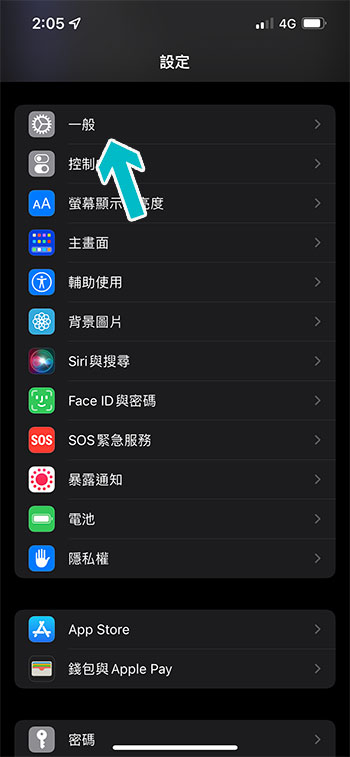
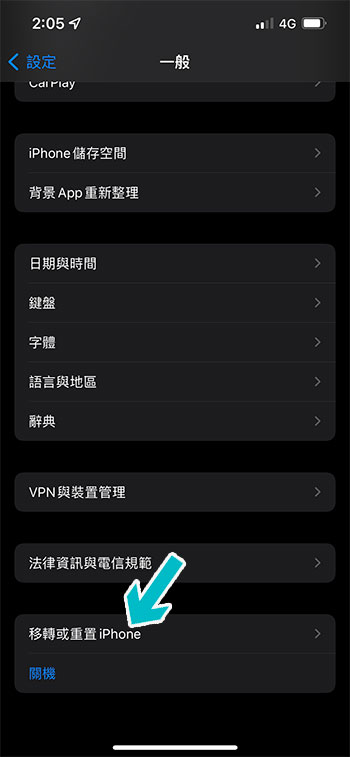
However, resetting your phone also means that you will lose all the apps you have downloaded and all the data, photos, contacts, and information stored in your phone. Since a backup procedure is also required, the author recommends this as the last resort.
The above methods have almost eliminated all possibilities at the software and application level. If your iPhone 13 still insists on excessive power consumption after trying the above methods, then you really have to contact Apple support or go directly to an authorized repair center to seek other troubleshooting, because the situation is likely to be caused by hardware problems, and professional troubleshooting is required before a conclusion can be made.
Source: KOCPC Chinese