


In the past, people would typically connect OpenClaw to messaging apps like Telegram or LINE so it could be used on phones. Now that’s no longer needed, as OpenClaw has officially released its iOS and Android apps. Once paired with an already running OpenClaw Gateway, you can remotely control OpenClaw from your phone and even authorize it to use your phone’s camera, screen, location, photos, contacts, calendar, reminders, and other capabilities.
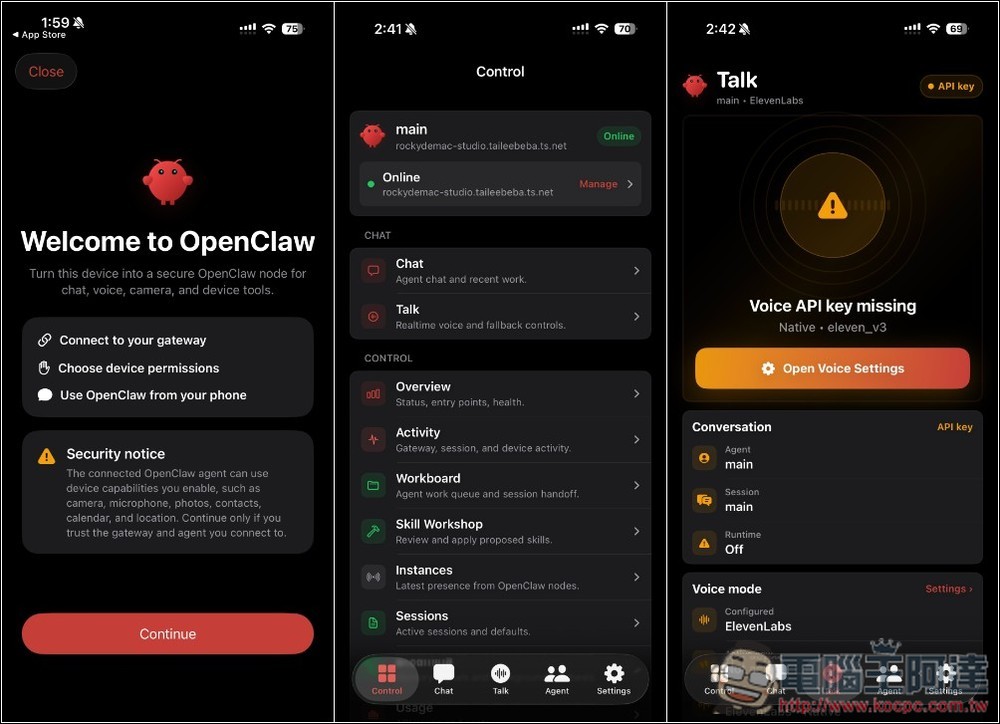
OpenClaw Mobile officially launches on iOS and Android: the AI Agent can chat and handle voice commands on your phone, and can also review automated actions.
With the iOS and Android apps now launched, OpenClaw’s use cases have officially expanded to mobile devices.
In the past, if you wanted to call OpenClaw from your phone, you usually had to wire up additional messaging tools like Telegram or LINE; now, simply pair the mobile app with your own OpenClaw Gateway, and your phone becomes part of the entire architecture.
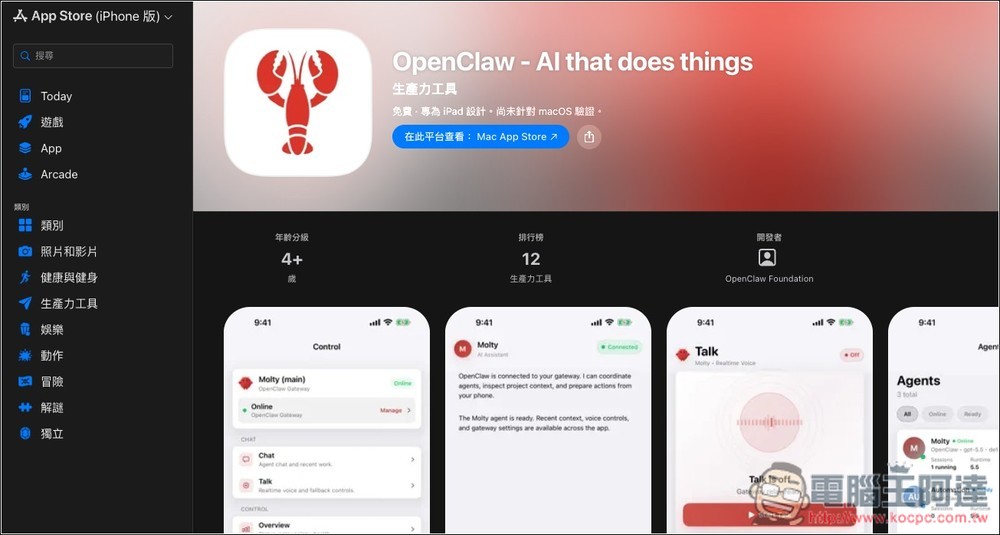
Based on the iOS app description on the App Store, once the iPhone is paired, you can chat directly with OpenClaw on your iPhone, use real-time Talk mode or background Talk mode, and also review automation actions the Gateway wants to execute on your phone.
Beyond that, text, links, and media from iOS can be shared directly into OpenClaw, turning your phone from a mere remote chat tool into a gateway that brings mobile data into your AI workflow.
More interestingly, once users grant permission, the OpenClaw App can also expose certain phone capabilities to OpenClaw workflows, including camera, screen, location, photos, contacts, calendar, and reminders.
For voice, there are two modes: Mic and Talk. Talk mode continuously listens until the user manually turns it off or the node disconnects.
Additionally, the Android version may enable more command families (command family) depending on the device, permissions, and user settings, such as notifications, photos, contacts, calendar, SMS, call logs, and activity detection.
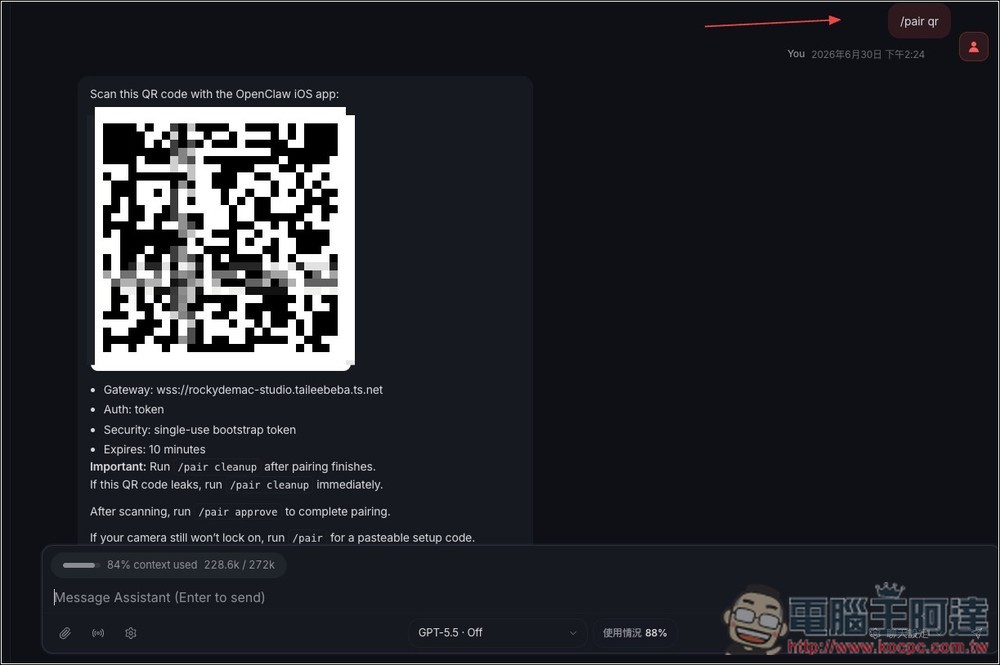
The pairing method is also very simple. Download and open OpenClaw on your phone, and it will ask you to connect your gateway. There are two options: Scan QRCode and Set Up Manually. Scanning the QRCode is easier—just type /pair qr in the OpenClaw chat and the following will appear:
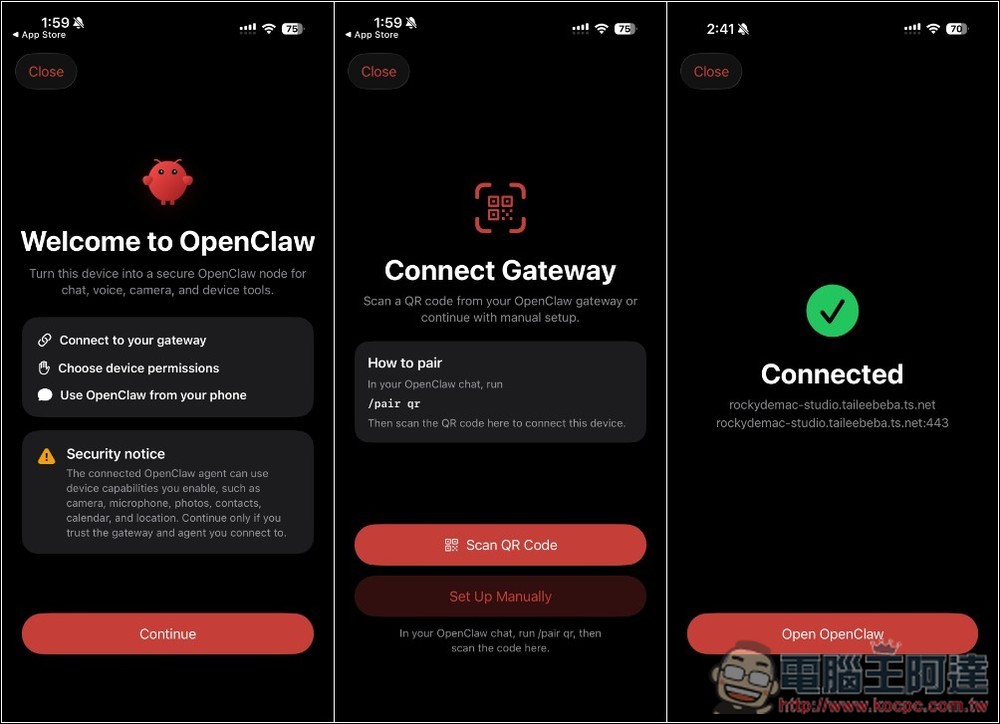
As shown below, then tap Scan QR Code on your phone to complete the pairing. If you run into any issues during the process, feel free to ask OpenClaw for help:
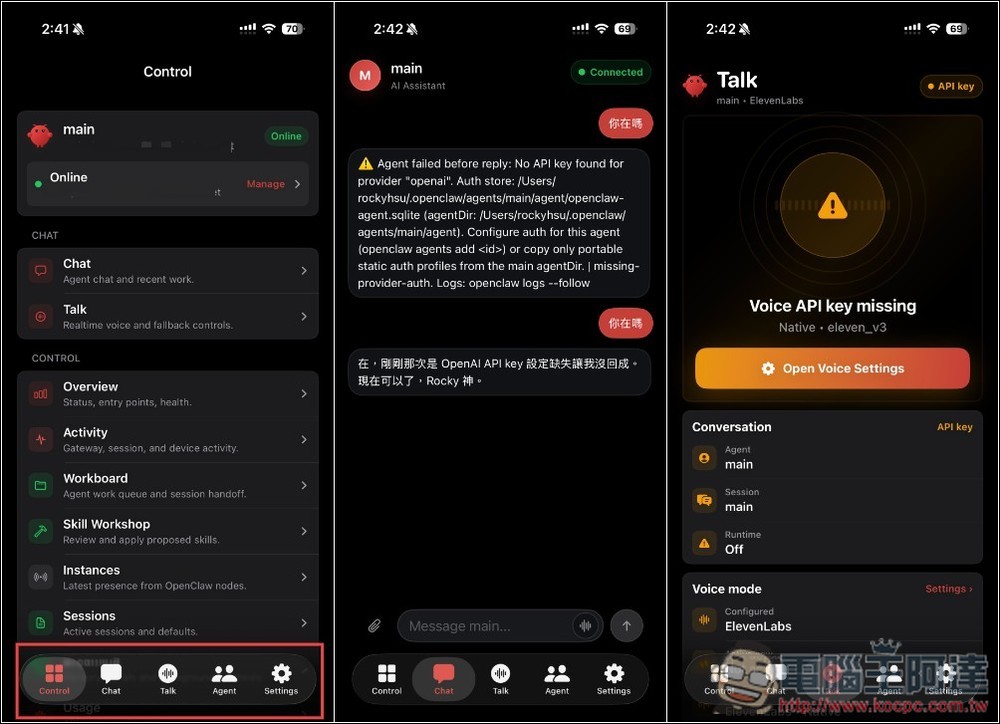
Next, you’ll enter the main screen, which has many features; we won’t go through them all here. Tap Chat to start chatting with OpenClaw. Talk is the voice feature and requires the Voice API:
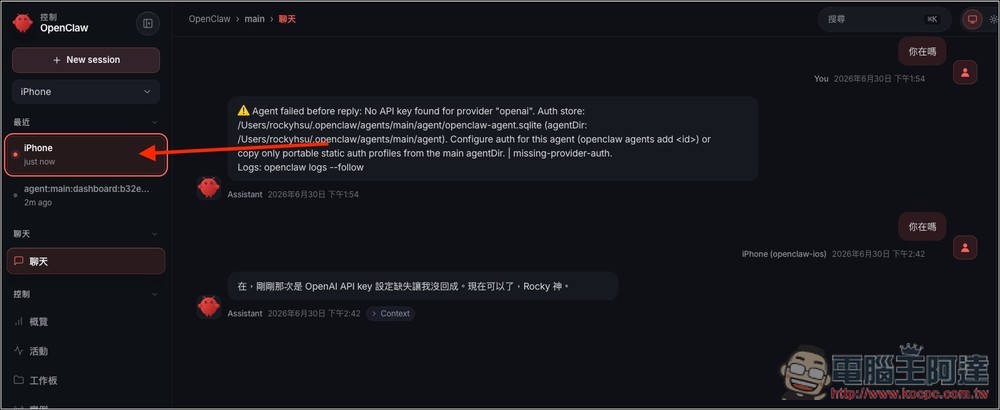
On the desktop version of OpenClaw, the chat history will have an extra mobile-only entry:
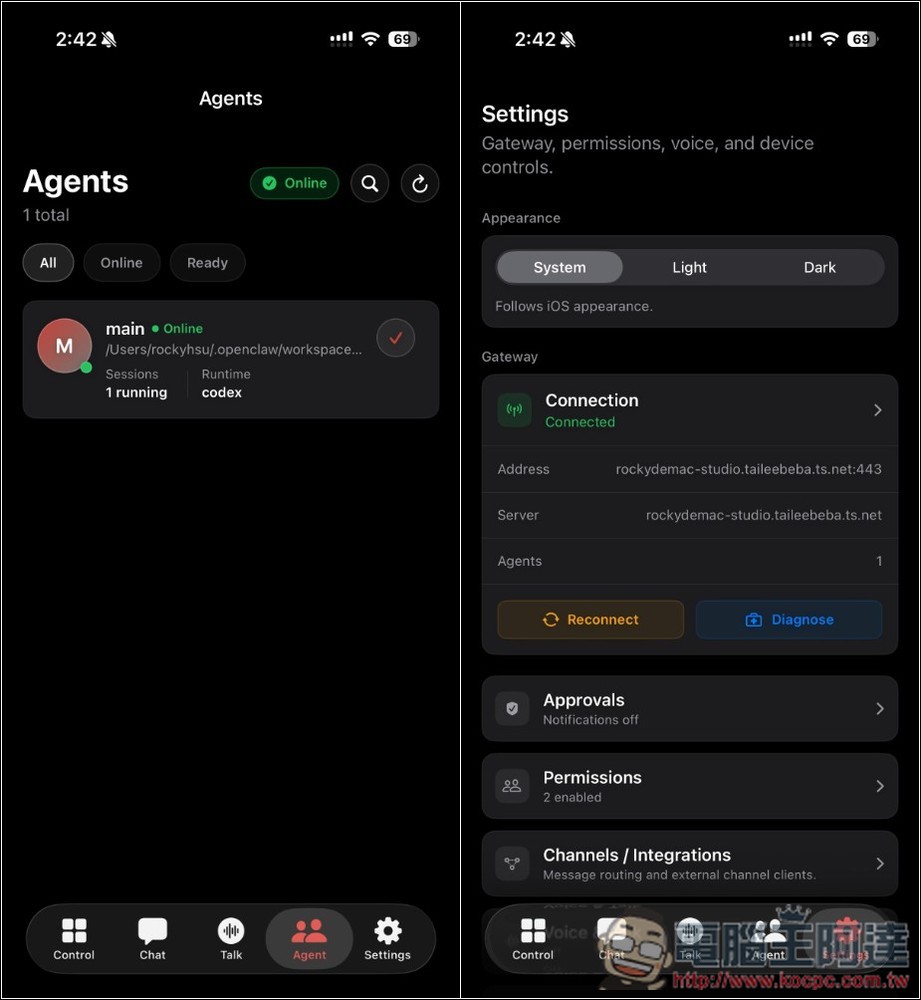
The screenshot below shows the Agents page. You can also enable the various mobile capability permissions mentioned earlier in Settings:
Source: KOCPC Chinese