


Although the epidemic has been going on for a year and a half, a more powerful variant of the virus has recently appeared, which means that it may be a long time before we can go back to the days of not wearing masks. At this time, it must be very troublesome for iPhone users with Face ID facial unlocking, especially when downloading free apps from the App Store, which by default require Face ID verification. If you usually download free apps and do not make any in-app purchases or purchase iTunes content, you can actually consider turning it off. After turning it off, you will only need to click “Install” to download it directly. Here I will teach you how to turn it off.

Turn off Face ID verification so you can download free apps from the App Store in just one click
Before I start the introduction, let me remind you that after this function is turned off, you will need to enter a password when downloading paid apps, making in-app purchases, or purchasing iTunes products. There is no way to quickly verify it with Face ID, so it is only recommended for friends who use free content to turn it off.
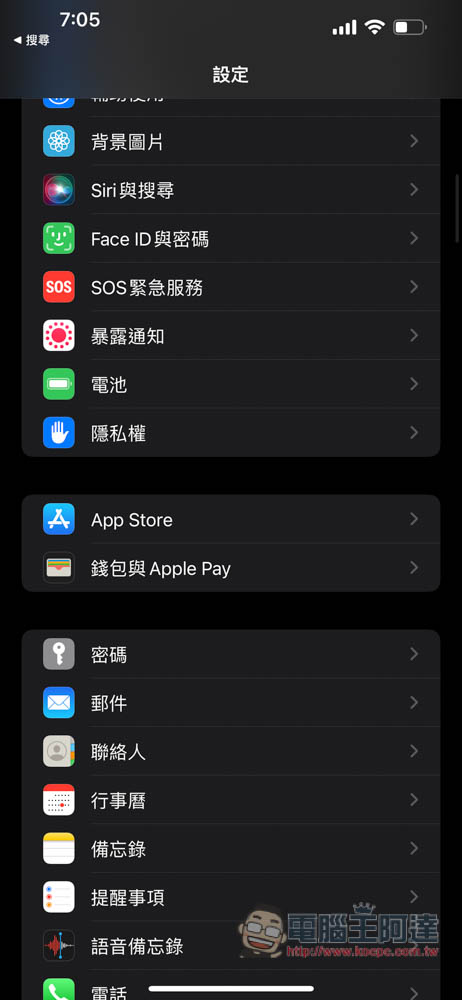
First open the iOS settings, find the Face ID and Password option and click to enter:
You will then be asked to enter your iPhone’s unlock password:

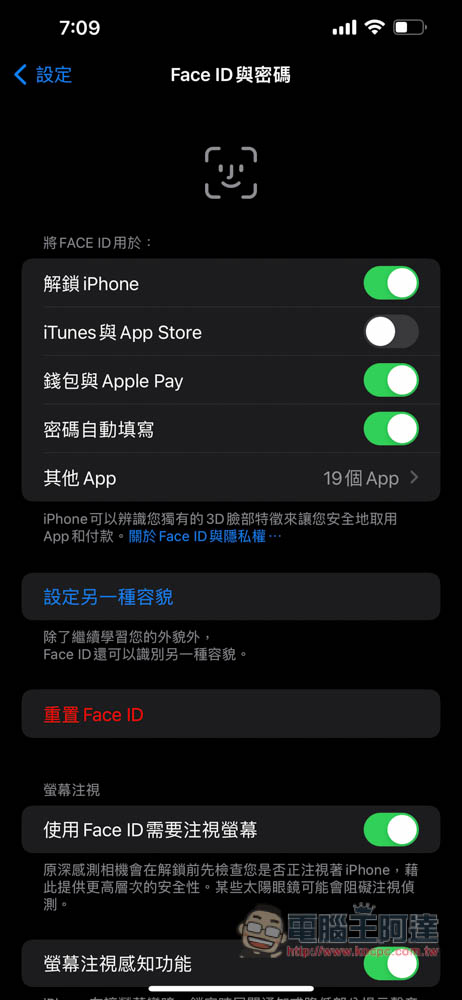
Turn off the iTunes and App Store option. When it turns gray, it means it is closed:
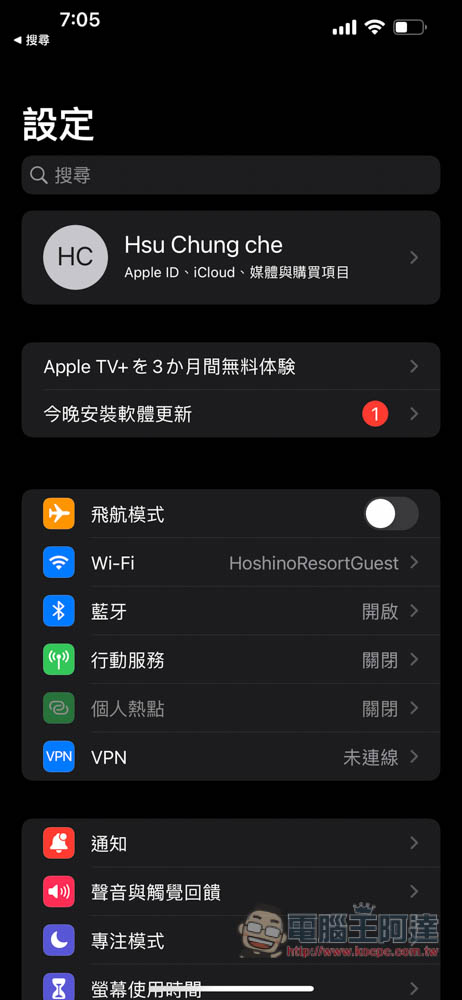
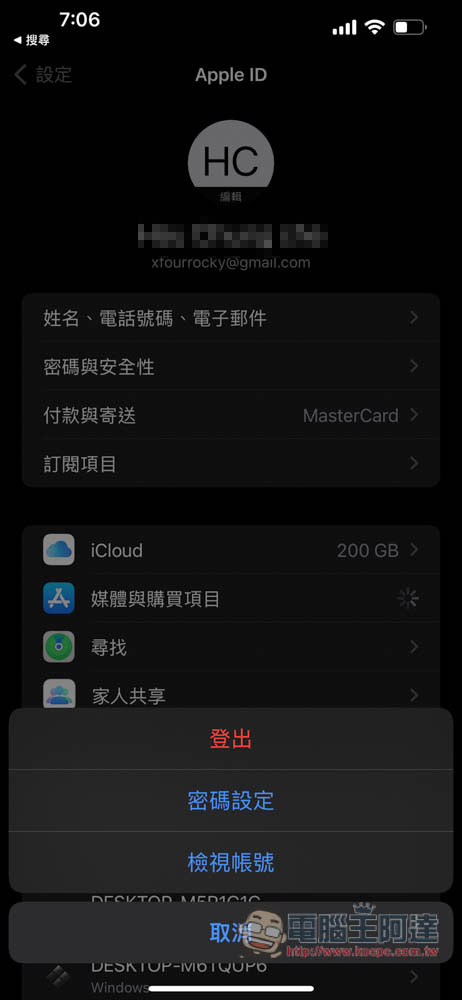
Then you need to close another option, return to the settings homepage, and click on the Apple ID at the top (the one that displays your name):
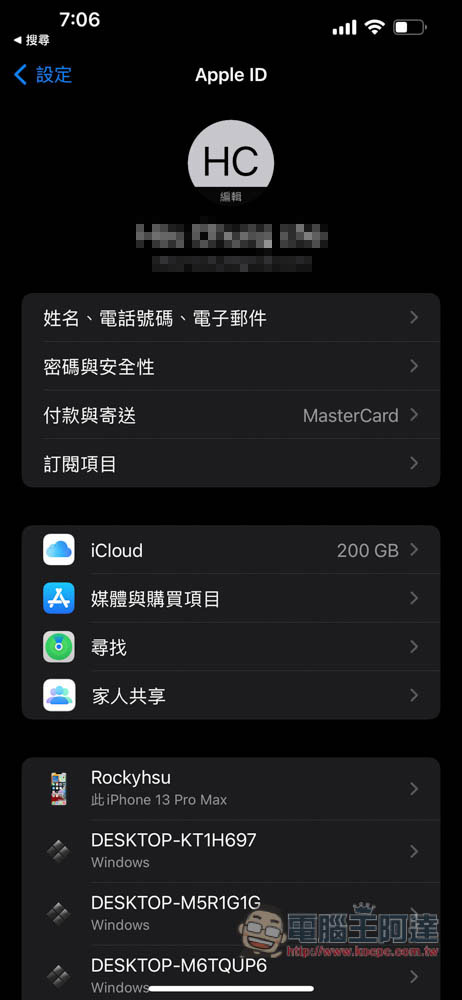
Click on “Media & Buying Options” below:
These options will pop up, select “Password Settings”:
Make sure the “Require Password” of the “Free Download Items” below is turned off. If not, please turn it off (grayed out):

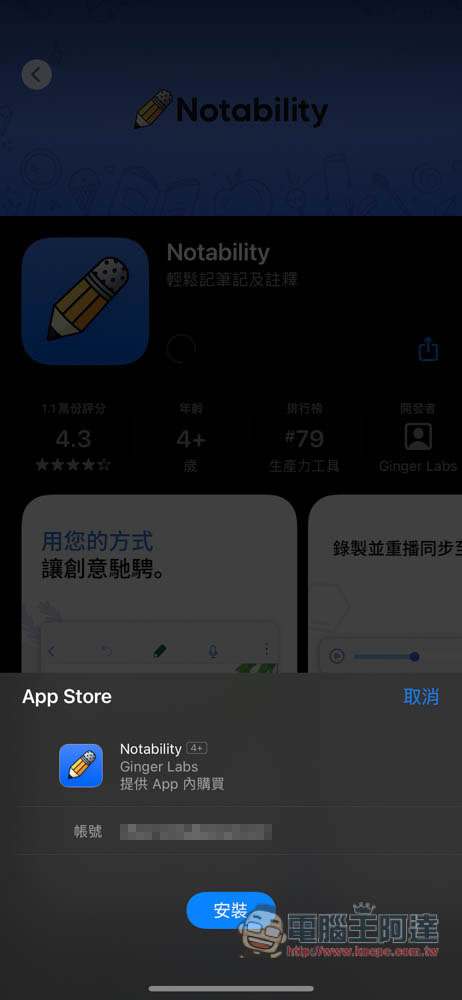
After the above two options are turned off, when downloading free apps in the future, the installation button will pop up and the download will start with one click. Face ID will no longer be required, so it doesn’t matter even if you are wearing a mask:
If you are not sure whether there will be paid downloads or in-app purchases, you can also turn it off first. When you find it troublesome to enter the password every time, just turn on iTunes and the App Store. The “Require Password” for free download items in the password settings remains turned off and does not need to be turned on.
Source: KOCPC Chinese