


Many people have upgraded to Windows 11. After a period of adaptation, it is actually quite easy to use, especially the search function, which I often use. However, for some people, the powerful search function may be a bit troublesome. This time we will teach you how to hide specific types of files from search results, so that things you don’t want others to see are hidden deeper and more privately.
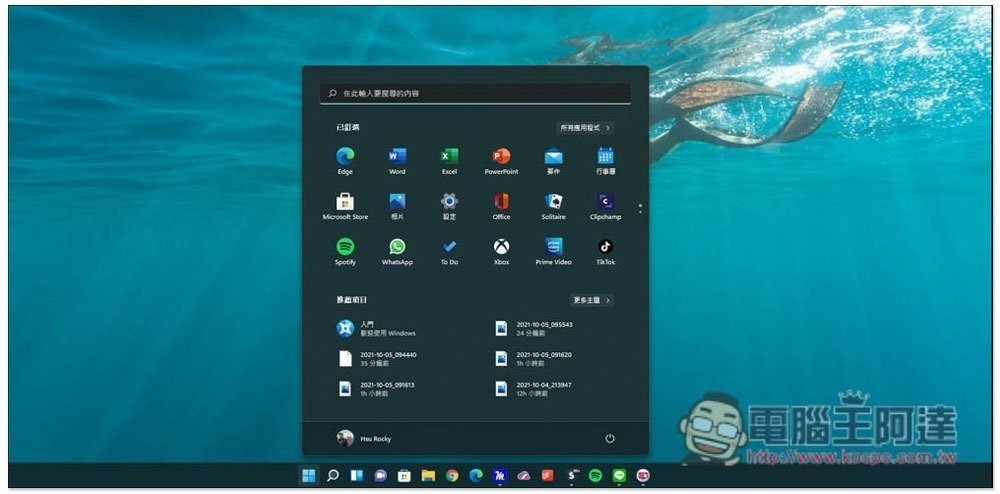
How to hide certain file types from search results in Windows 11?
Want to hide photo or video files from search results in Windows 11? If your answer is “yes”, then you have to learn this trick today. In fact, in Windows 11, you can customize the exclusion of any type of files and how to exclude these files from the list.
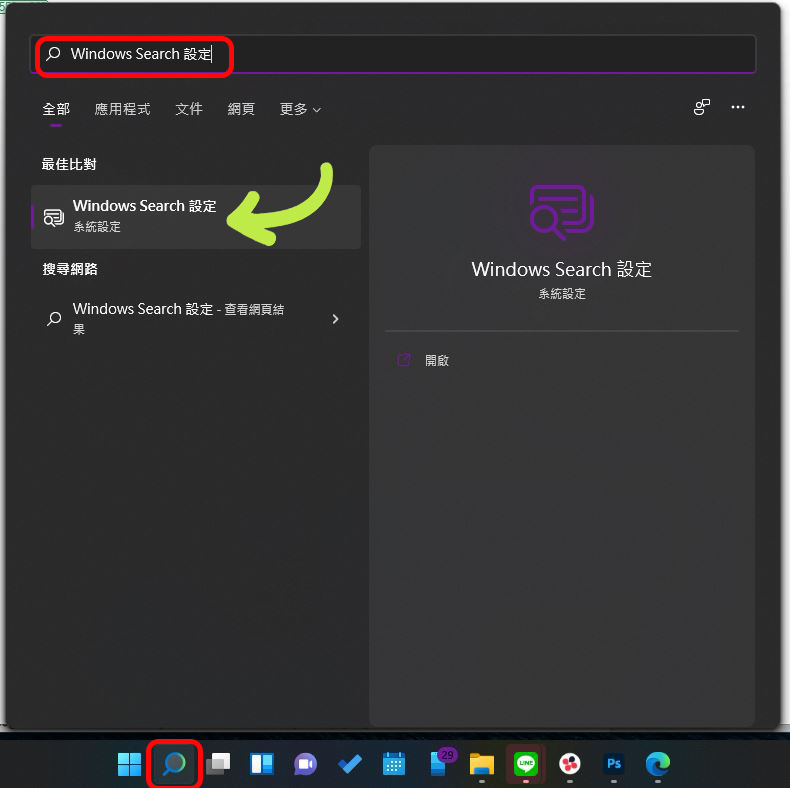
- First, open the search function in the taskbar, then enter “Windows Search Settings” in the search keyword, and click twice to open it.
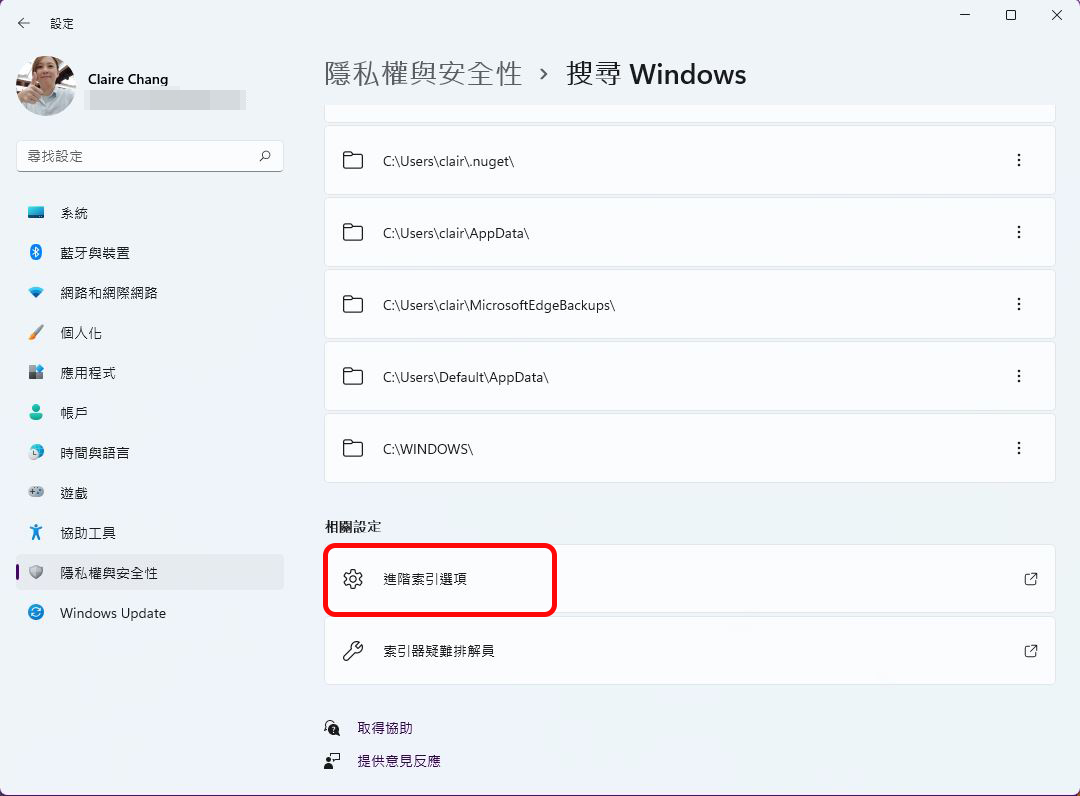
- In the window that opens next, you can actually select excluded folders. If you want to set the exclusion of specific file types, scroll to the bottom and click “Advanced Indexing Options”.
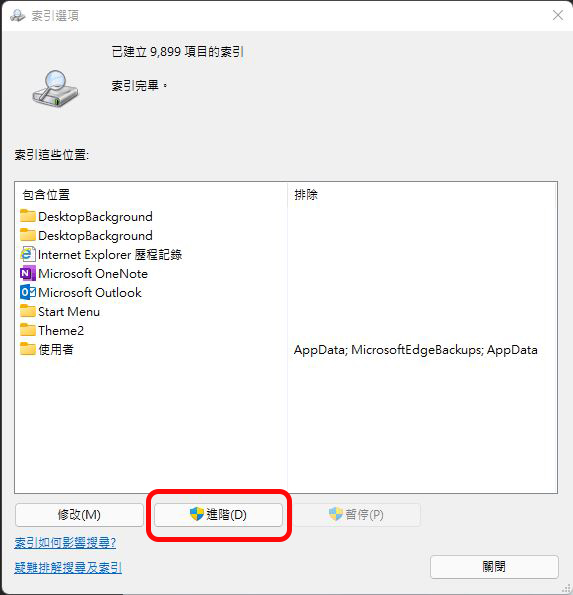
- Click the “Advanced” button in the pop-up window.
- Switch to the “File Types” tab in the advanced window.
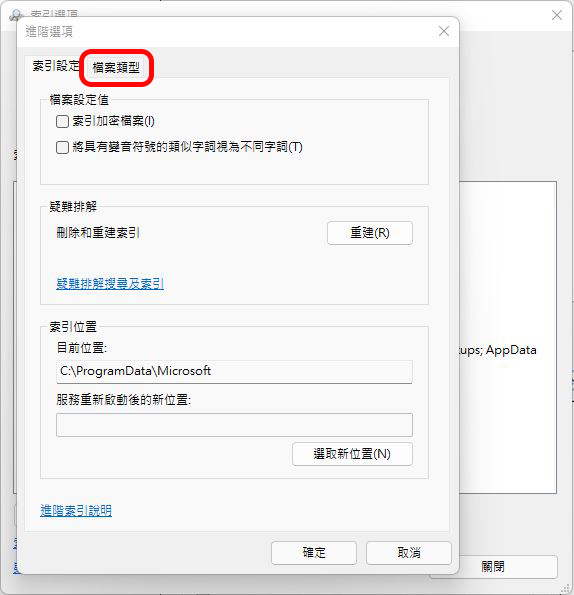
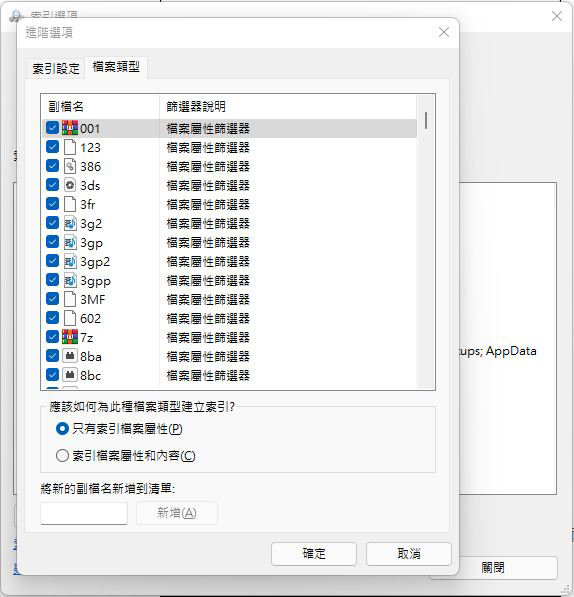
- In the File Types tab, you can see all the file types that Windows currently displays in search results. Then just uncheck the file formats you don’t want to display in search results. etc! Don’t rush to click OK yet, there are still steps below!
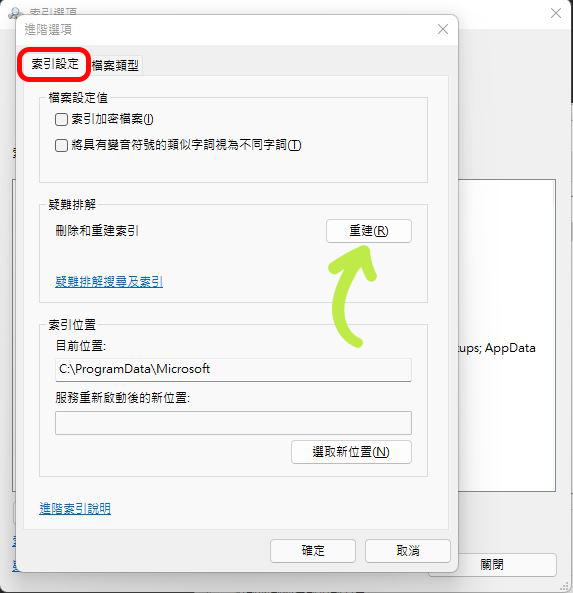
- After selecting the file type, return to the “Index Settings” tab and click the “Rebuild” button behind the “Delete and Rebuild Index” item to regenerate the search index. The file types you selected to exclude will be removed from the regenerated index.
- A prompt message will pop up. Click “OK” to continue the index generation task.
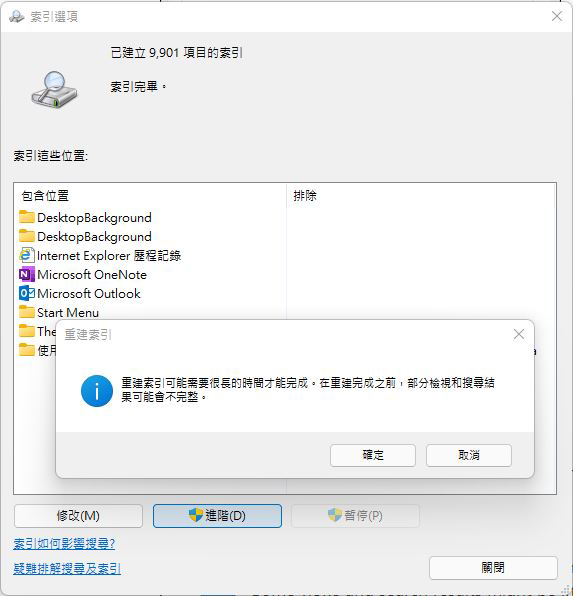
I would like to remind everyone that the time required to regenerate the index depends on how many files are in your computer. As long as you wait patiently for the system to automatically complete the work, you will be able to automatically exclude file types that you do not want or do not want to be seen when performing system searches in the future!
Source: KOCPC Chinese