


Compared with the Android version of Google Maps, which launched the dark mode option earlier, the iOS version of Google Maps launched it insome time agoIt has only quietly begun to support dark mode one after another. If you are used to dark mode in the appearance of iOS system, you can also turn on dark mode on Google Maps from now on to make it look more consistent! Today I will quickly share how to turn on dark mode for maps on iOS, and how to switch to dark mode for navigation.
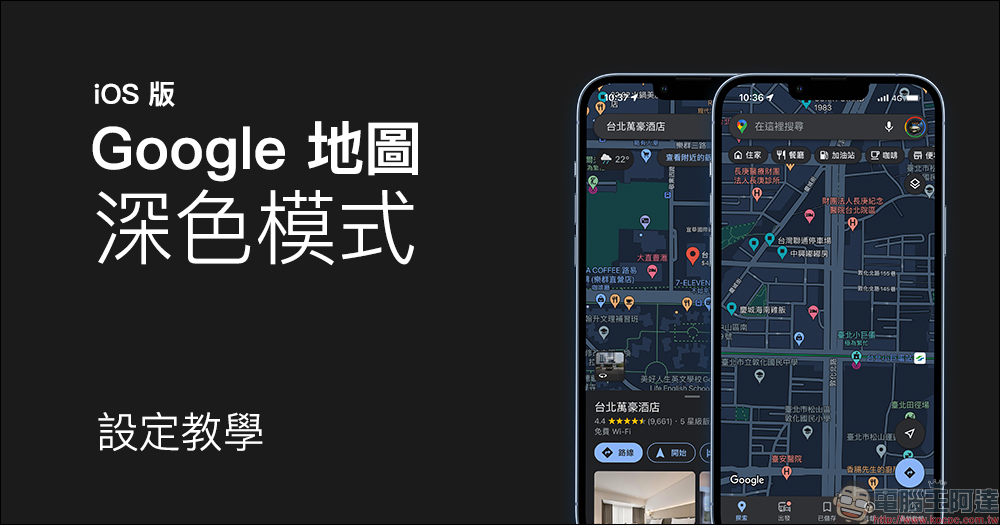
Google Maps iOS version “Dark Mode” setting tutorial, maps and navigation can use dark themes!
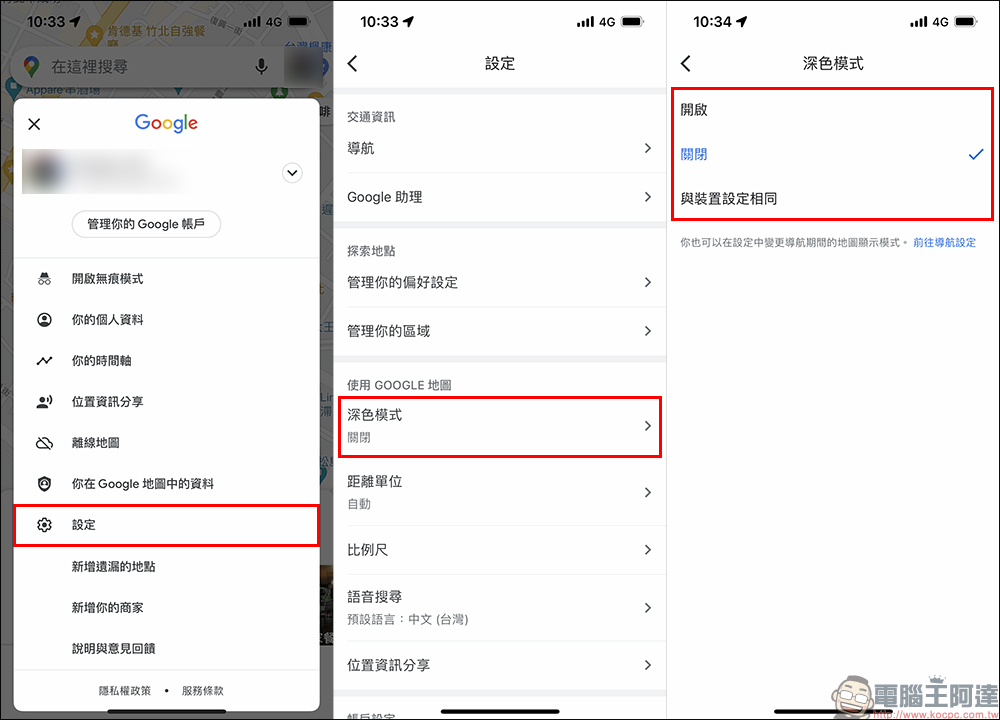
Currently, as long as you update the Google Maps App to iOS 14 to the latest version, you can use the Google Maps “Dark Mode” in the settings menu within the app. After clicking “Dark Mode” on the settings page, you can then see three options: “On” (turn on dark mode), “Off” (turn off dark mode), and “Same as device settings” (apply light/dark mode according to system appearance mode settings).
If you select “Same as device settings” for the dark mode setting, the appearance of Google Maps will be synchronized with the user’s iOS appearance settings. For example, if iOS is set to “dark mode”, Google Maps will also be in dark mode.
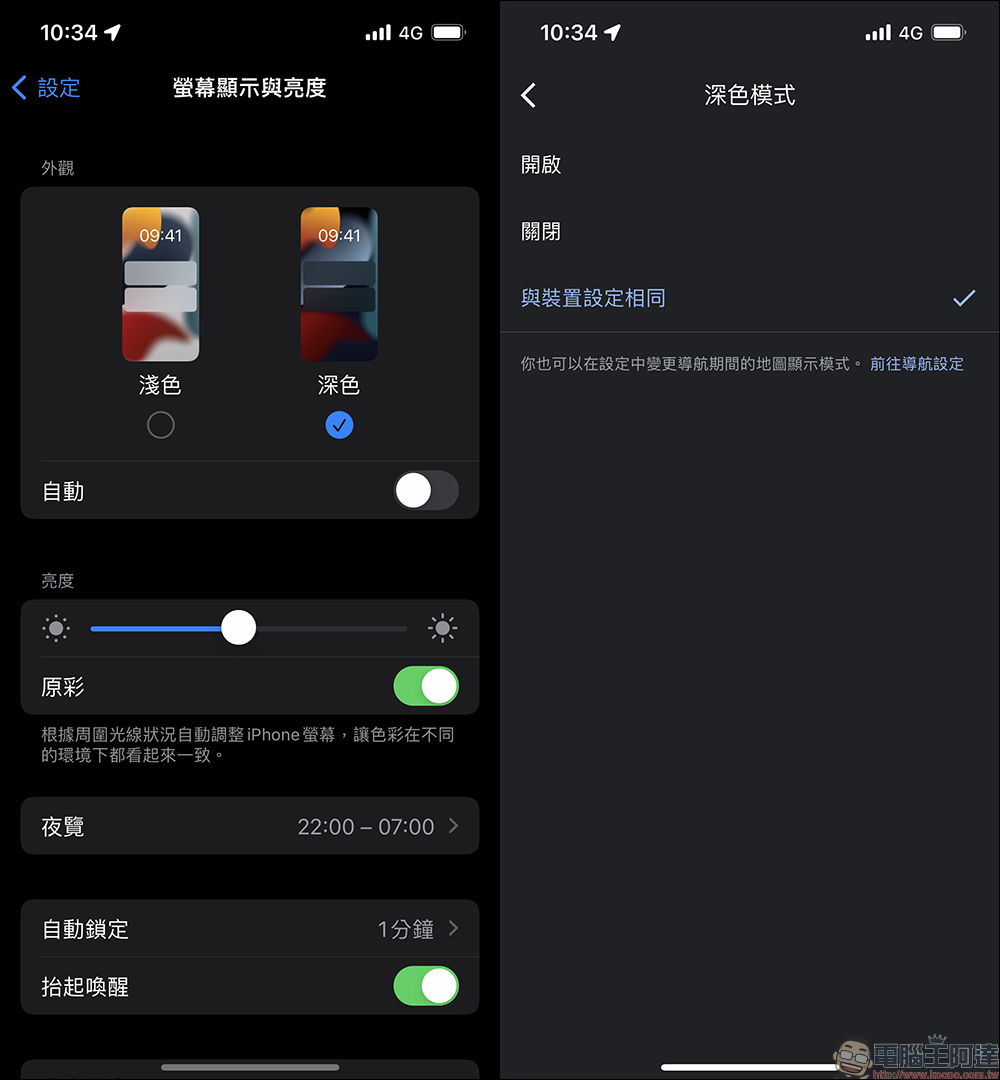
On the other hand, if the iOS system uses light mode, Google Maps will also be presented in light mode.
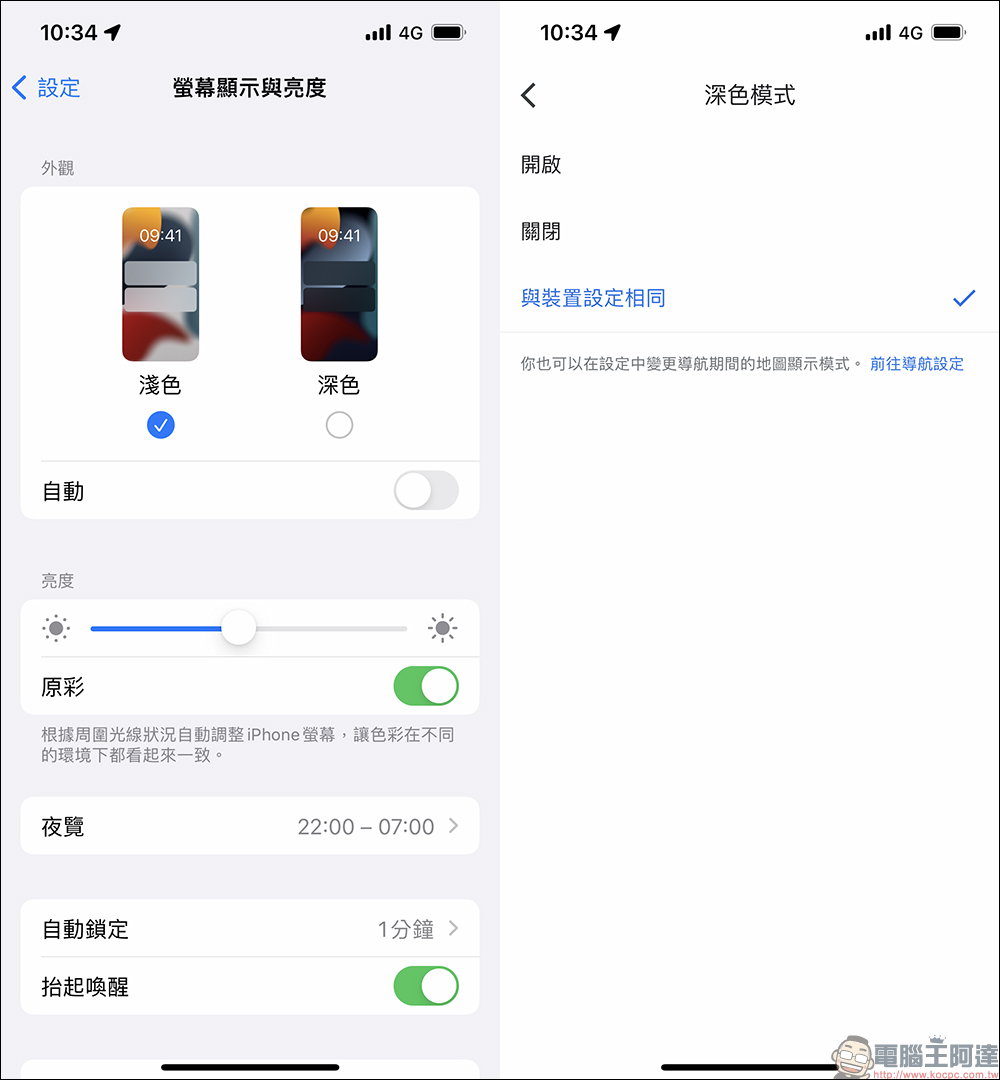
Let’s briefly compare the differences between light mode and dark mode in map display. As for whether to turn on dark mode, it depends on the user’s personal preference.
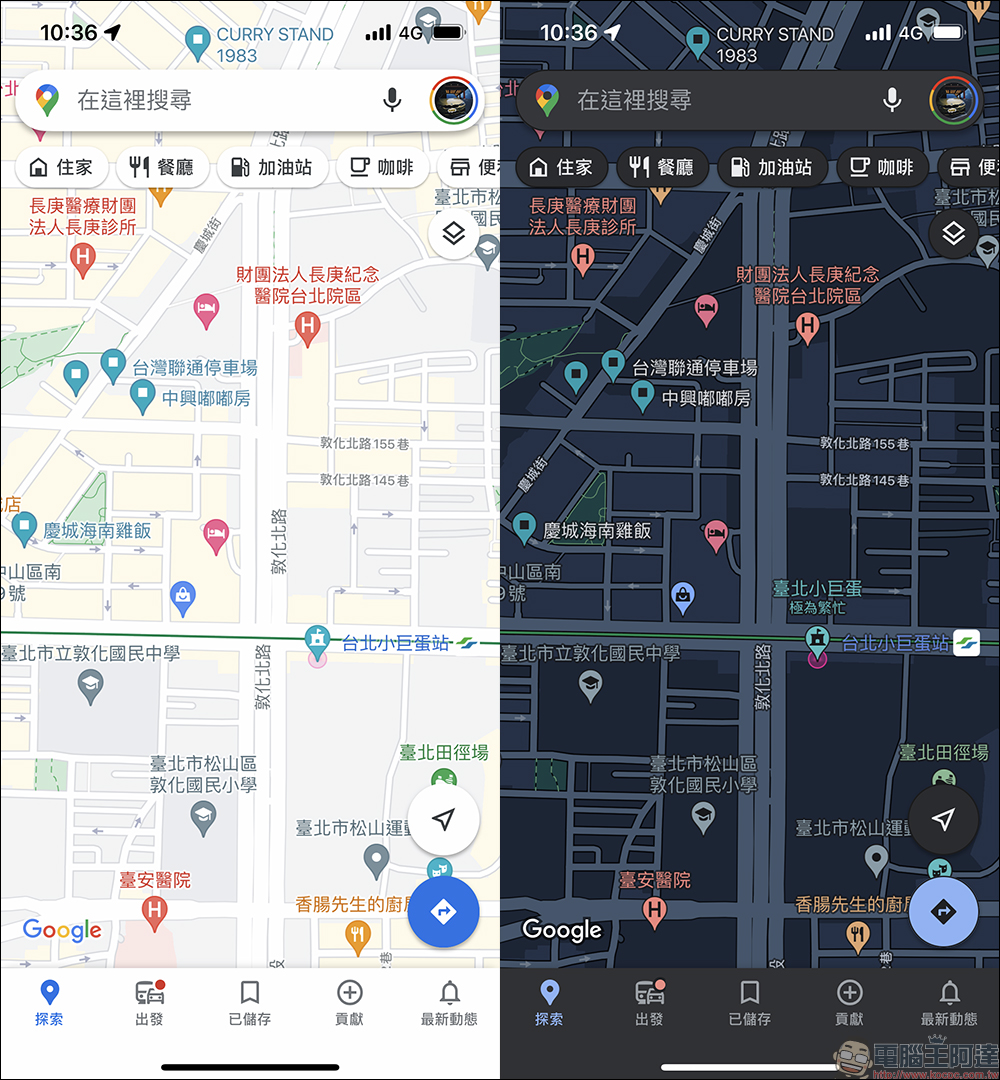
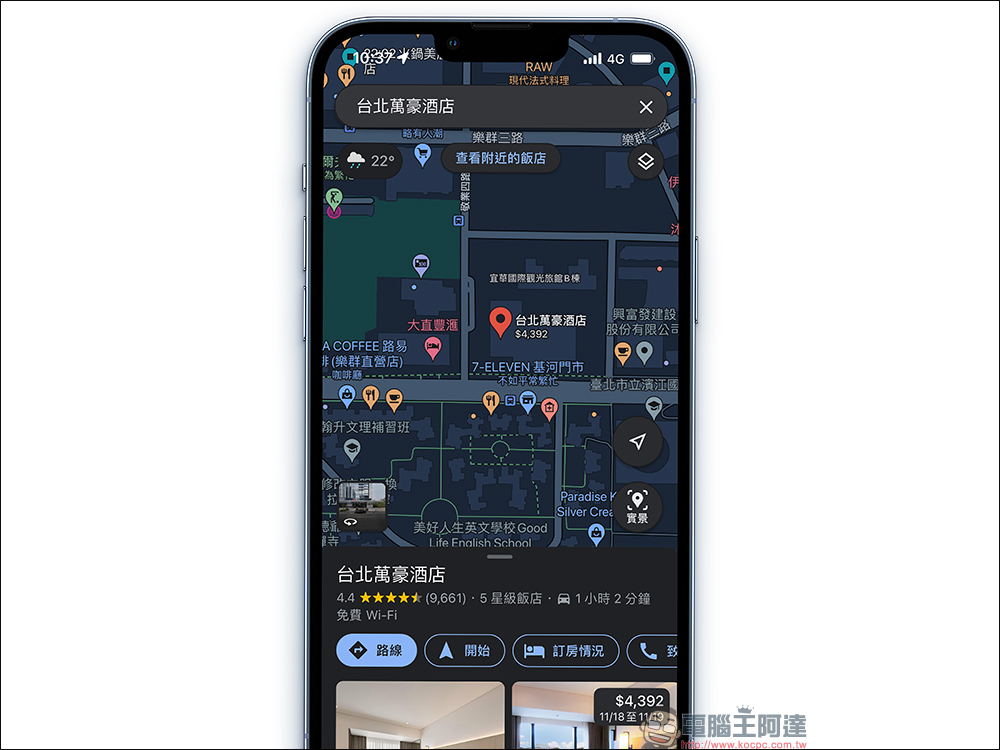
When dark mode is turned on on Google Maps, map information will also be presented in dark mode.
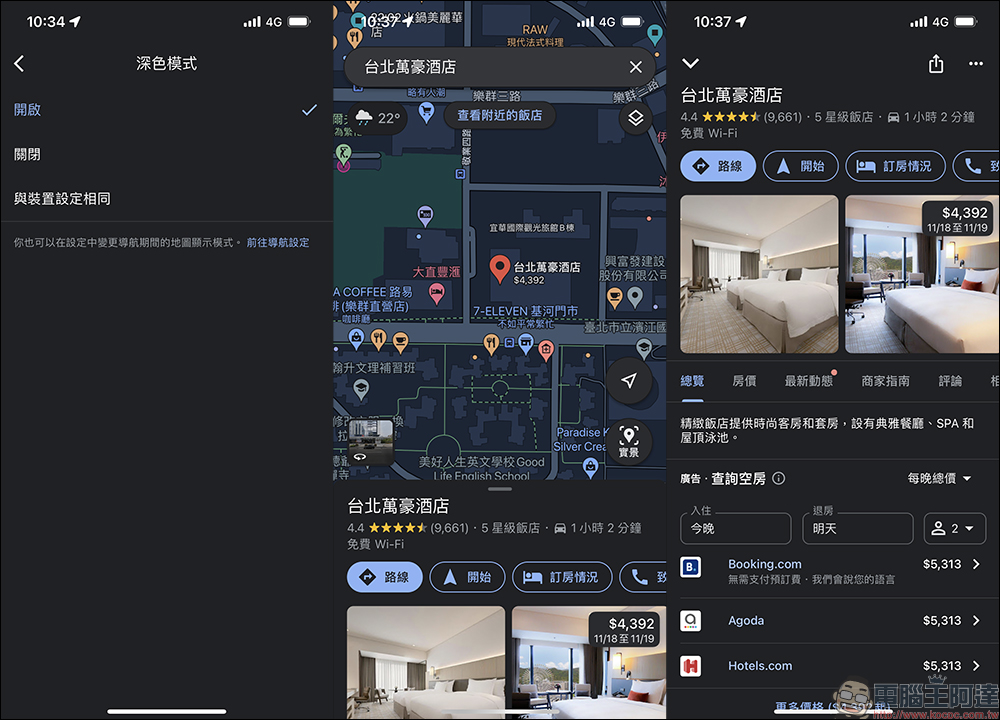
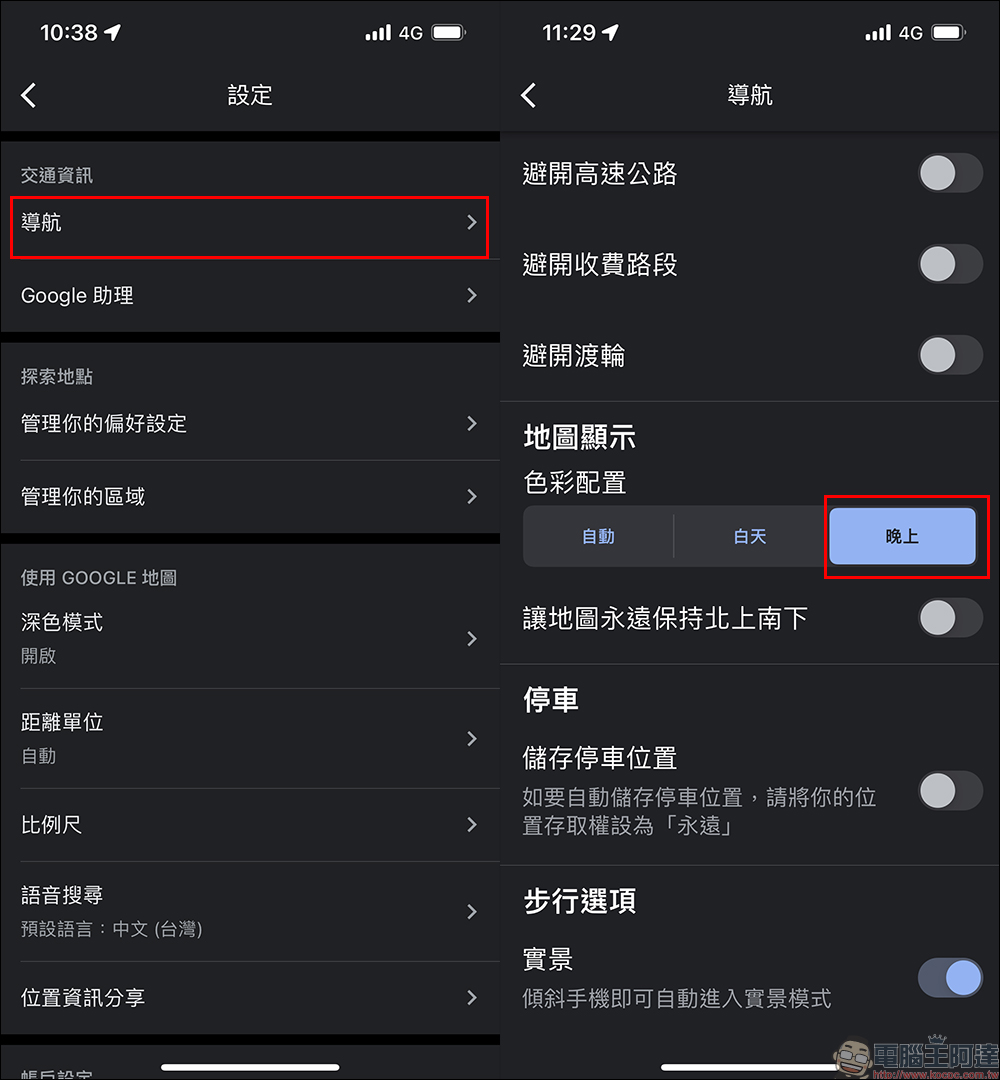
Even map navigation will directly apply dark mode during the route stage of search. However, if you want to enable dark mode after turning on the navigation function, you need to make additional settings. Otherwise, the default display will not be in the dark mode as shown on the right, but in the traditional light mode for navigation.
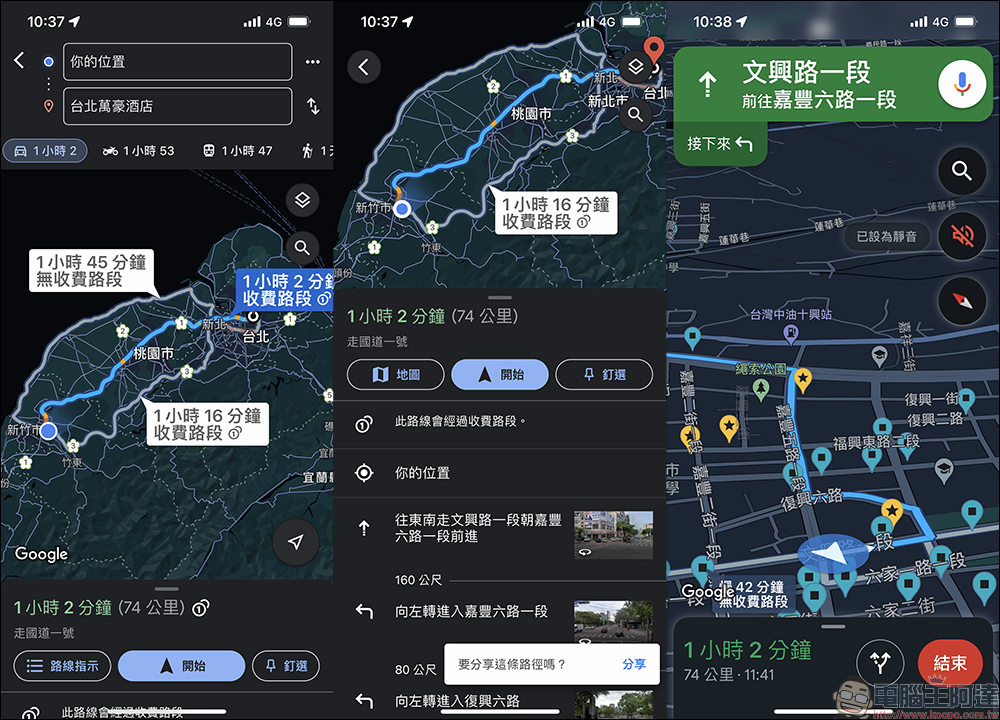
If you want to set “Navigation” to dark mode in Google Maps, you need to select “Navigation” in Settings > Map display color scheme and set it to “Night” to enable it in the daytime state. If you want to automatically switch to dark mode navigation at night, you can select “Auto”.
Further reading:
Apple releases firmware update for AirPods Pro and AirPods 3


Source: KOCPC Chinese