


Nowadays, with the advancement of technology, your GPS positioning information will be left when taking photos, so that you can later record and understand where you have been, what photos you have taken, etc. However, there are some situations that you really don’t want to be recorded (what kind of situation?), such as sneaking out to play or something, wouldn’t you be caught immediately? If you are an iPhone or iPad user, today I will tell you how to delete GPS positioning information in photos.
How to delete the location information of photos on iPhone or iPad? How can I turn off the map indication function directly in one go?
With the new iOS 15, you can easily view the EXIF data about the photo directly from the Photos app, which also includes location details on the mini map. If you do not turn off the location access permission of the Camera app first, then each photo taken will display the relevant GPS raw data. Unfortunately, you can’t delete location information from all photos at once, so you have to filter through all the photos in your photo library one by one.
Next, let’s learn how to delete the location information of a single photo:
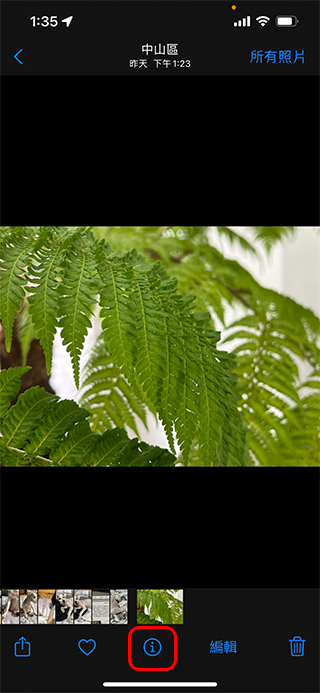
- First open the Photos app, select the single photo you want to delete location information from, and tap the “i” symbol below.
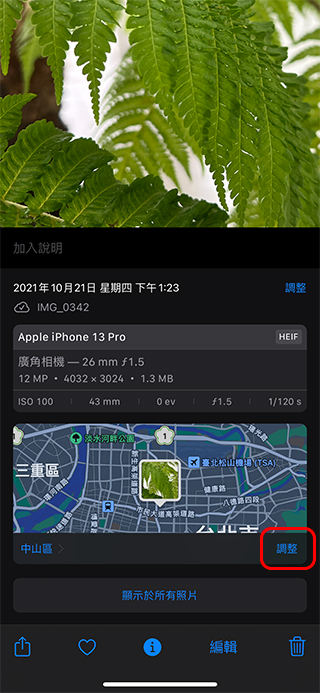
- You can see that the EXIF information belonging to the photo is displayed below. Scroll down to see the mini map. At this time, please click the “Adjust” button at the bottom right of the mini map.
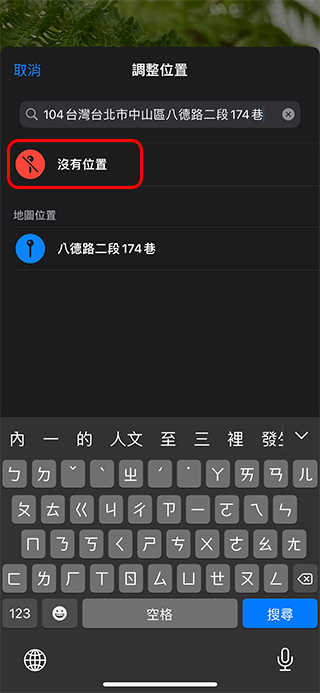
- Then change the location to “No Location”. If you want to replace it with other geographic information, just enter the address you want to target.
If you think this is really troublesome and you have to delete one by one every time, here is another way to prevent the camera from recording GPS information at all:
- Open the “Settings” app and enter the “Privacy” item.
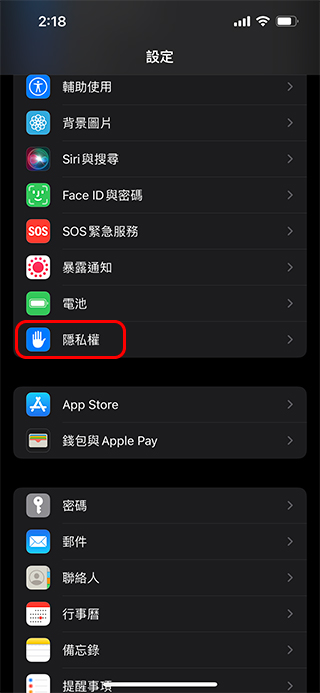
- Click “Location Services” at the top.
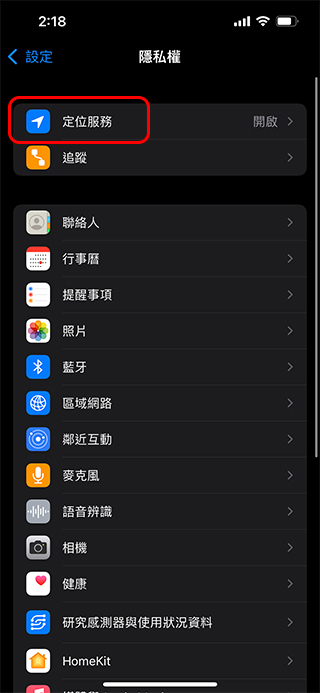
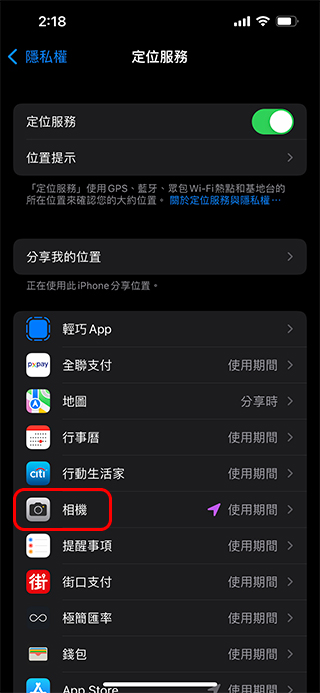
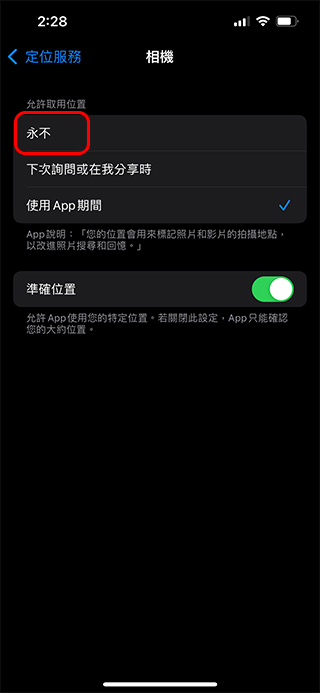
- Select the “Camera” item, and then change the allowed location there to “Never”, so that the photos you take in the future will not include location information.
Source: KOCPC Chinese