


A netizen on Weibo recently pointed out that he turned on the new “Record App Activity” feature built into iOS 15 to see what data the app has been used in the past 7 days and what data it has viewed. Unexpectedly, he found that many apps would still frequently access data such as the user’s photos even if they were not in use. Since these apps happen to be Chinese apps, the whole incident becomes more sensitive. If you want to know which apps on your iPhone are secretly accessing data behind the scenes, continue reading this article to learn how to set up and query them!
How to set up iPhone to record app activities? Quickly check whether the app is accessing data!
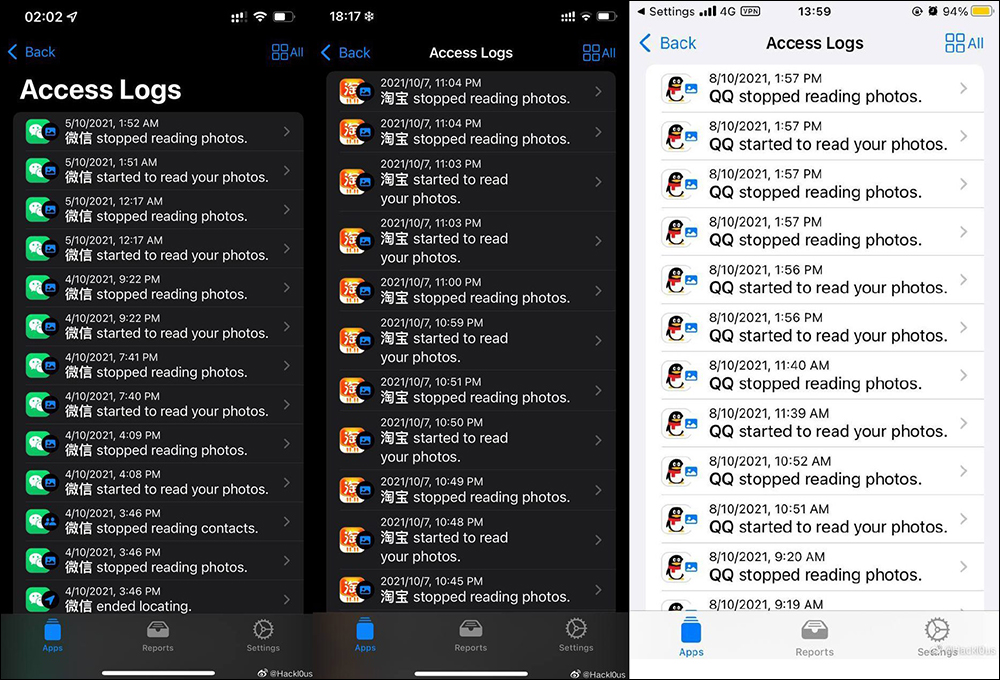
Recently on Weibo by Hackl0us It was mentioned that Chinese apps such as WeChat and Taobao will repeatedly and secretly read users’ photos in the background, and each reading time ranges from 40 seconds to 1 minute. Therefore, it also causes users to worry about privacy infringement, and it will also make the iPhone consume more power. Perhaps it is because the apps mentioned in this news are all from China and are relatively “sensitive”, which also makes users more afraid of privacy issues. However, how do you check which apps are secretly reading the data on your phone behind your back?
▲Picture source:Hackl0us (Weibo)
How to turn on “Record App Activity”?
To check whether an iPhone/iPad application has read the user’s photos and other activities, you must first turn on the “Record App Activity” function. However, before you can use “Record App Activity”, you must first upgrade your device to at least iOS 15 and iPadOS 15 before you can use it. After the update is completed, this function will be turned off by default, and users must manually turn it on to record.
Setting steps: Go to “Settings” and select “Privacy”, then slide to the bottom of the page and click “Record App Activity”, and finally turn on the “Record App Activity” function to start recording.
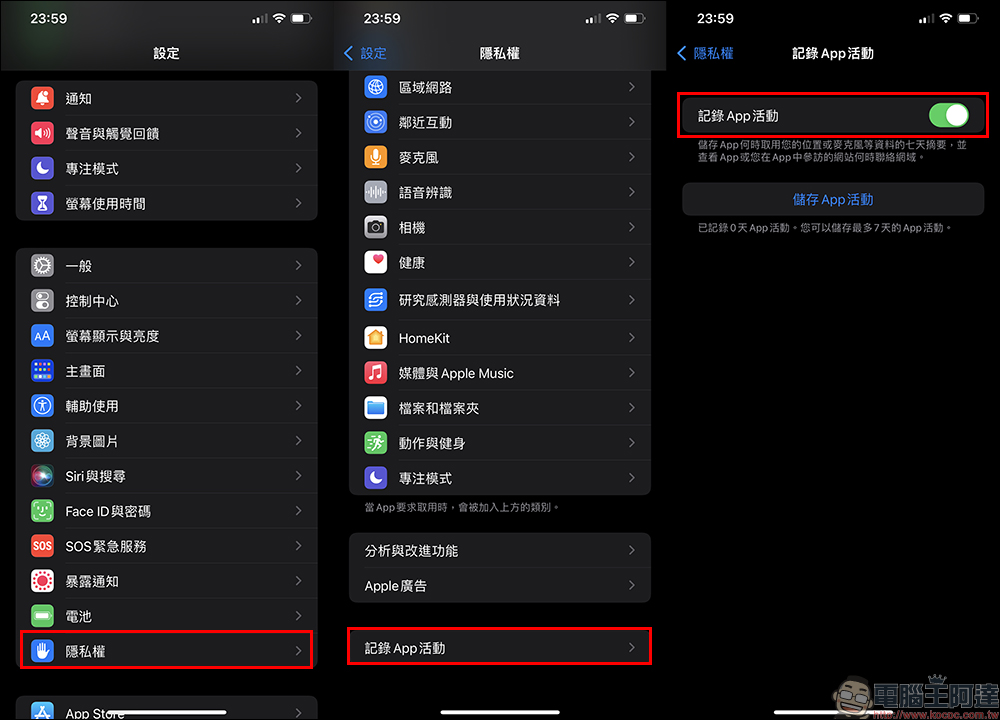
After turning on this setting, the system will begin to record the user’s App activity data, resources, and network access records in the past 7 days. Common record types include photos, cameras, microphones, contacts, location, screen recordings, etc.
Download “Privacy Insights – App Privacy Insights” to view the “Log App Activity” document
Due to the built-in system, it is temporarily unable to directly read the “record App activities” file, so it is recommended to go to the App Store to download “Privacy Insights – App Privacy Insights“This app.
Privacy Insights – App Privacy Insights download link:(Click here to go)
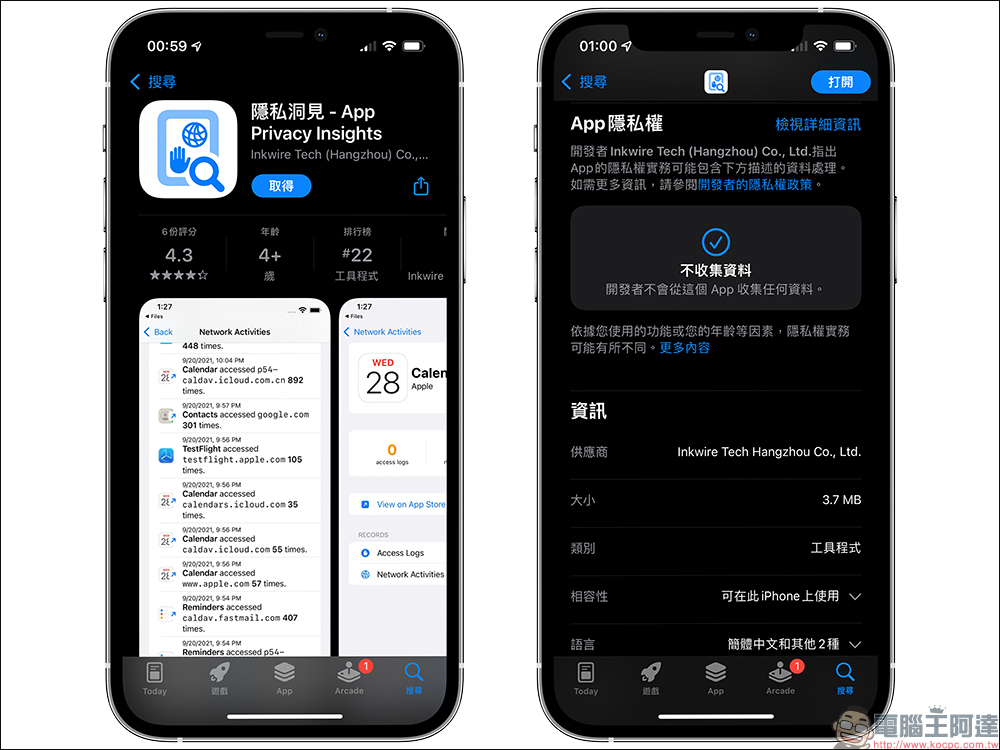
After the download is complete, return to “Settings for recording app activity” and click “Save App Activity”. Then select “Import to Privacy Insights” and “Import.”
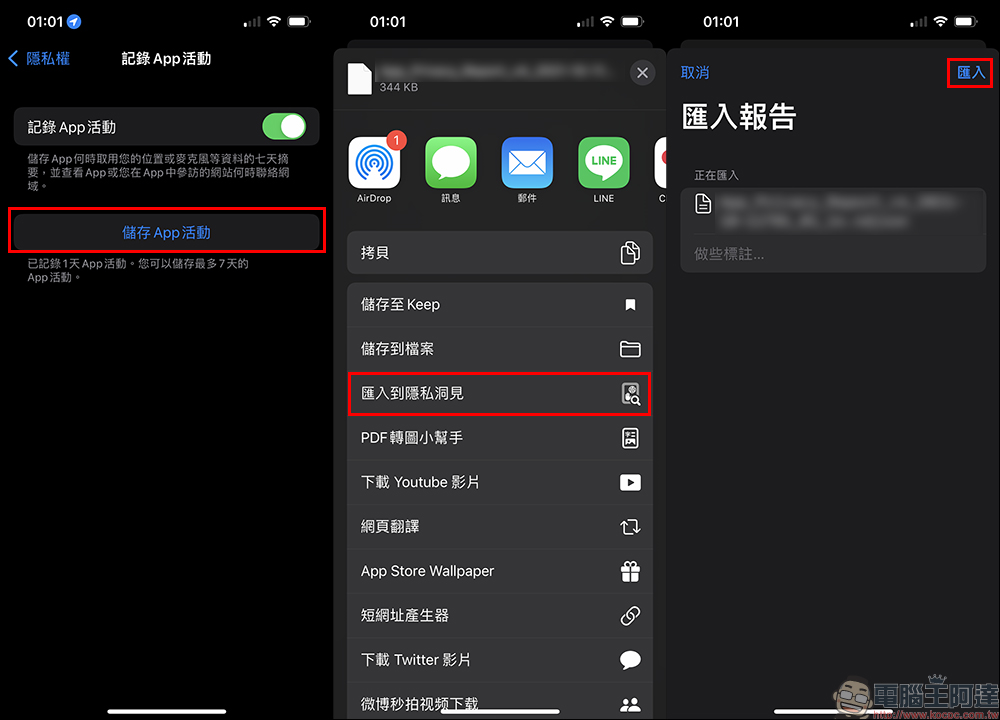
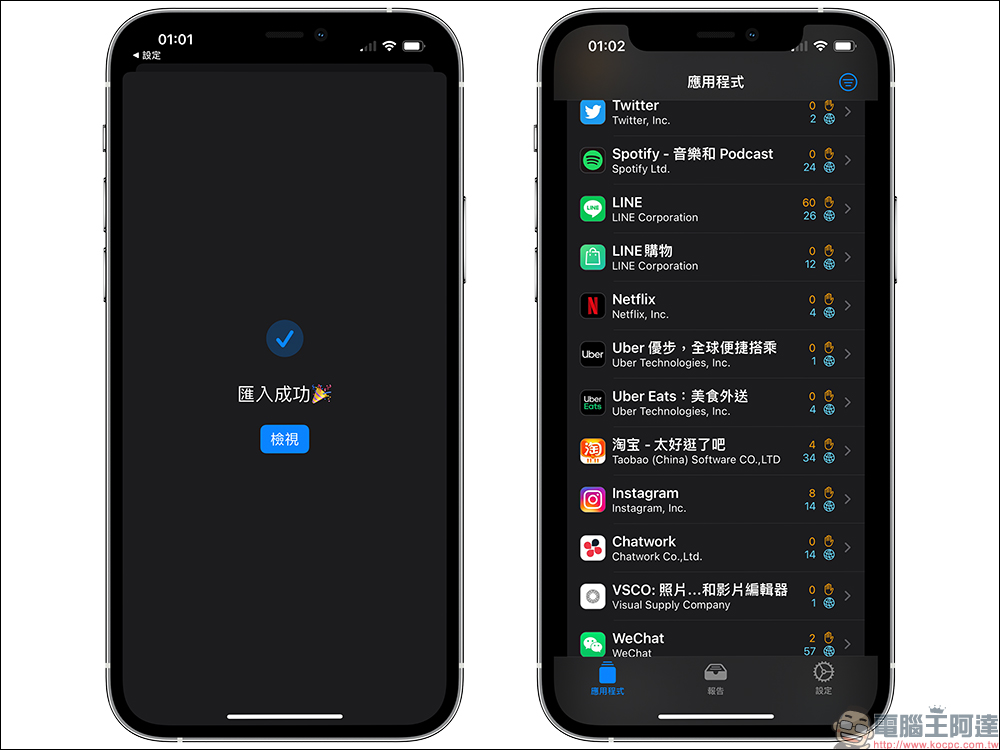
When the screen displays “Import Successful”, it means that the file has been successfully imported into the Privacy Insights App. After successful import, the App icon may not be displayed for the first time. In this case, just close and restart the “Privacy Insights” App from the background, and it will display normally.
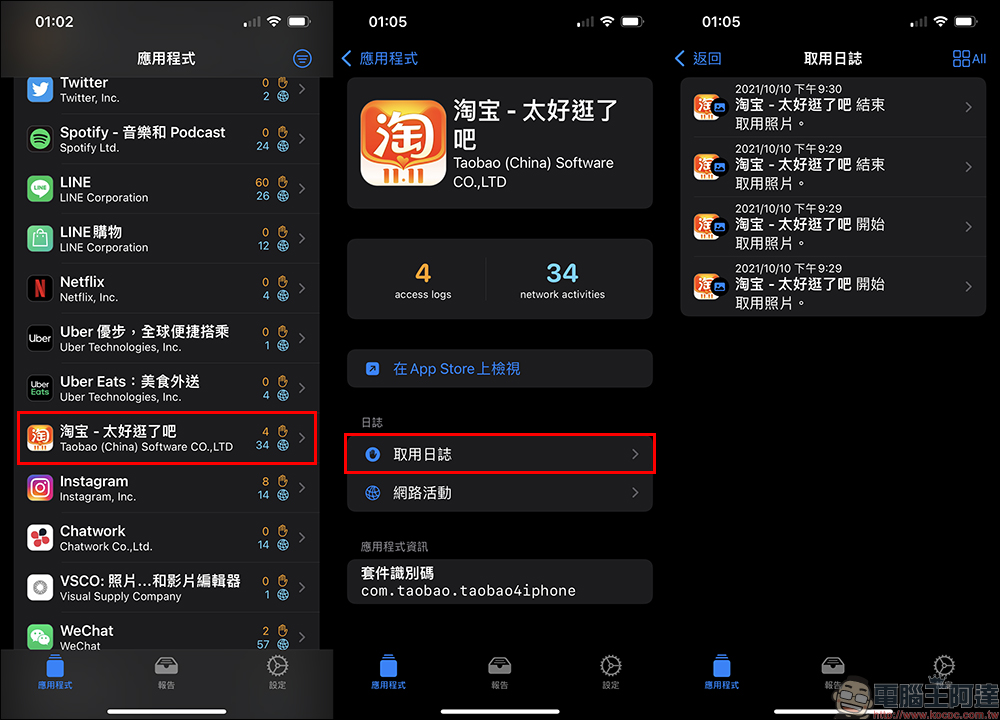
Just click on the app you want to query in the Privacy Insights App, and you can view the “Access Log” to view the app’s behavior.
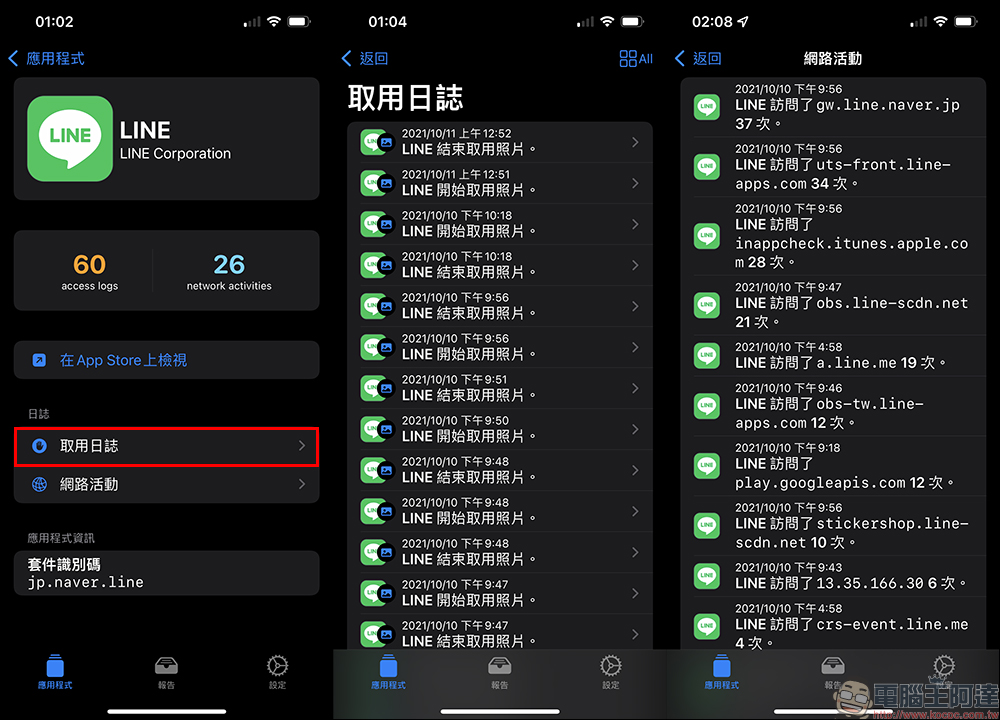
You will find that in addition to Chinese apps, there have also been many unknown reading behaviors in LINE. Even if the photo album is not opened to transfer photos, photos and even positioning may continue to be read in the background. But this cannot be reversed to determine whether the app secretly reads user information in the background.
To identify whether an app’s reading behavior is suspicious, it is easiest to first confirm that the app is closed in the background and has not been opened for a period of time. After a period of time, if you import the app’s activity records into the Privacy Insights app and see that the app frequently accesses photos in the background when you have not opened it, it means that the app is somewhat suspicious.
How to prevent an app from running in the background?
If after checking the App activity record above, you find that an App is not used but is running in the background, such as reading album photos, positioning, etc., you can modify the following settings to block it.
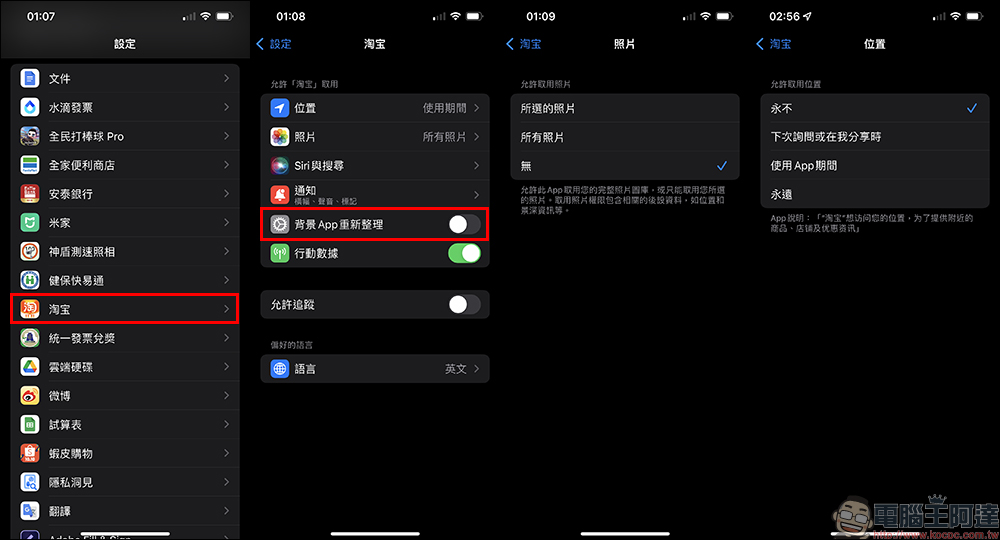
In “Settings”, select the app whose access permissions you want to change, and then modify the settings in sequence as follows:
- “Background App Refresh”: Close
- “Location”: Change to “While using the app” or “Never”
- ‘Photos’: Change to ‘Selected Photos’ or ‘None’
- “Camera”: Changed to “Off”
- “Microphone”: Changed to “Off”
Further reading:
A suspected iPhone SE 3 prototype is circulating on the Internet? It’s actually just an iPhone 8 with a modified frame

Source: KOCPC Chinese