


Whether you just got the new iPhone 13 series or you are an old iPhone user, I believe you have recently upgraded to the latest iOS 15 operating system, right? In addition to bringing many new features, iOS 15 also brings many changes and practical functions to its own Safari browser. Today, I will quickly compile a few tips for hiding apps in iOS 15’s Safari browser. Check out this article for tips on using the new Safari!

Tips on hiding apps in iOS 15’s Safari browser
Adjust tab column position
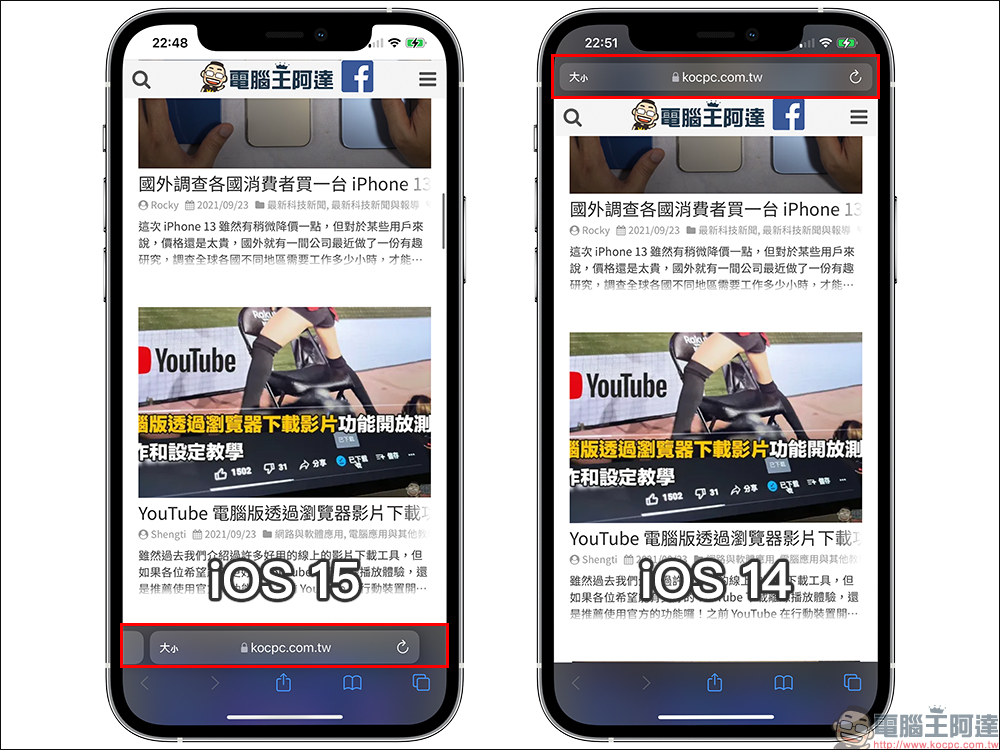
The Safari browser in iOS 15 will adjust the tab column with URLs from the top of the screen to the bottom by default. This change may take some time for users who have used Safari for a long time to get used to it. If you want to change Safari’s tab column back to its traditional top position, here are two methods to share with you.
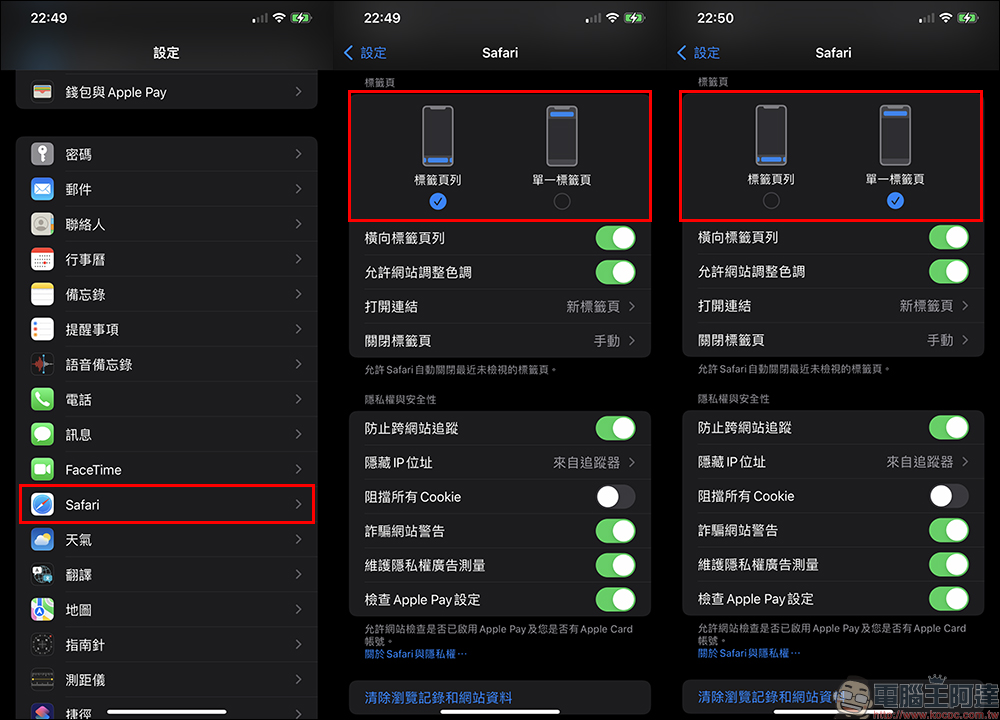
First of all, the first method requires entering “Settings”. After selecting “Safari”, you will see that the default tab is “Tab Bar”. If you want to change it back to the traditional tab bar at the top of the screen, just change it to “Single Tab”.
If you frequently adjust the tab position, or feel that it is too troublesome to make settings and changes, you can actually modify it directly in the Safari browser.
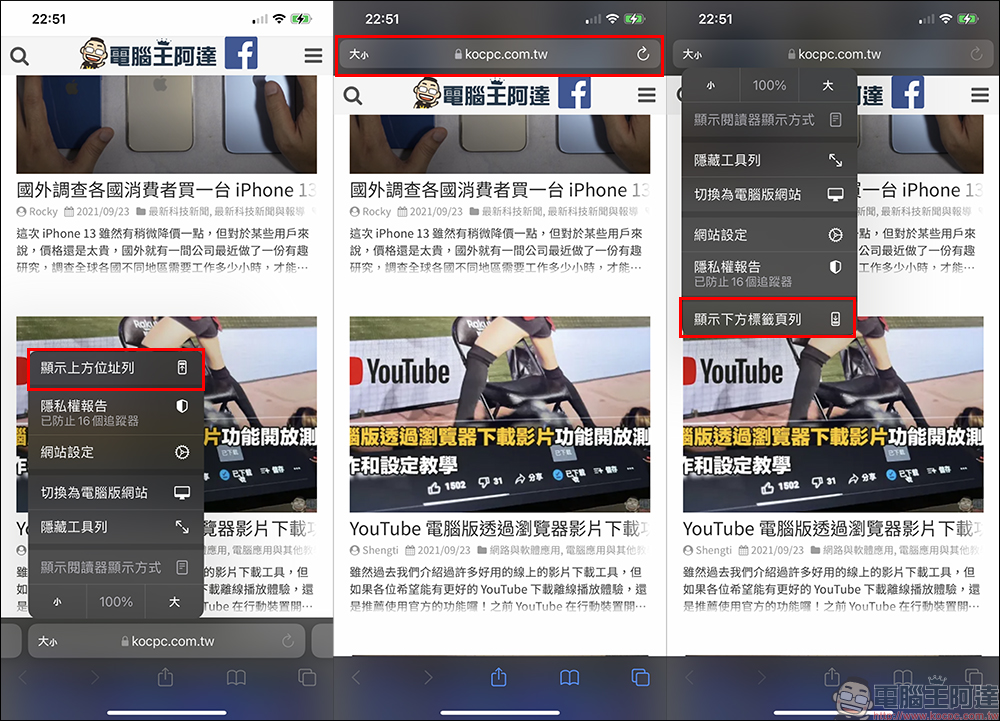
Just click the “Size” button written on the left side of the tab column first. In addition to adjusting the display mode, hiding the toolbar, switching to a computer website and other settings, you can also click “Show the upper address bar” to adjust the position of the tab column. If you want to adjust the tab bar to the bottom of the screen, follow the same steps as the upper tab bar and select “Show lower tab bar”.
Swipe to quickly switch between paginations
When the tab bar is at the bottom, users can slide left and right on the tab bar to quickly switch between different tabs, which is very convenient for one-handed operation. Of course, if you want to switch to the previous or next page of the web page, you can also slide left or right in the blank area of the screen.

Automatically adjust colors according to website
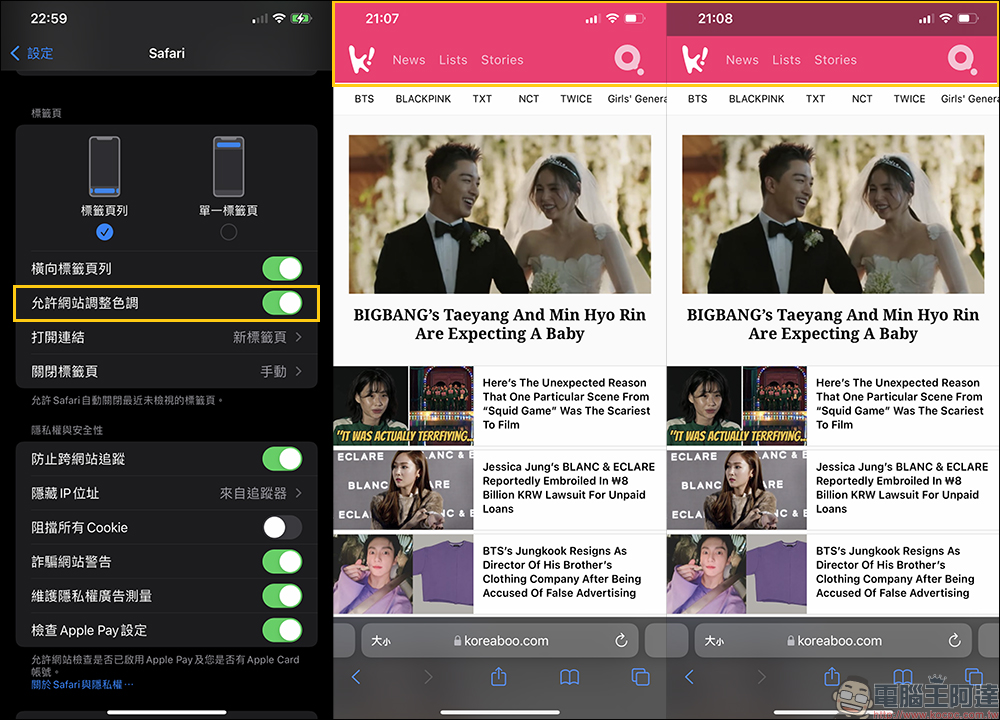
This is also a feature that is turned on by default in the Safari browser starting from iOS 15. The browser will automatically adjust the color tone at the top of the screen based on the website currently being browsed. It can be seen that the author is using dark mode, which will also be applied to the tab bar and various function buttons of the Safari browser. However, when the “Allow websites to adjust color tone” setting is turned on, the areas at the top of the screen that display the time, network signal, and battery will be adjusted to the same color or similar color tone. Once this feature is turned off, the dark tone of dark mode will be applied to the top of the screen.
Tab group
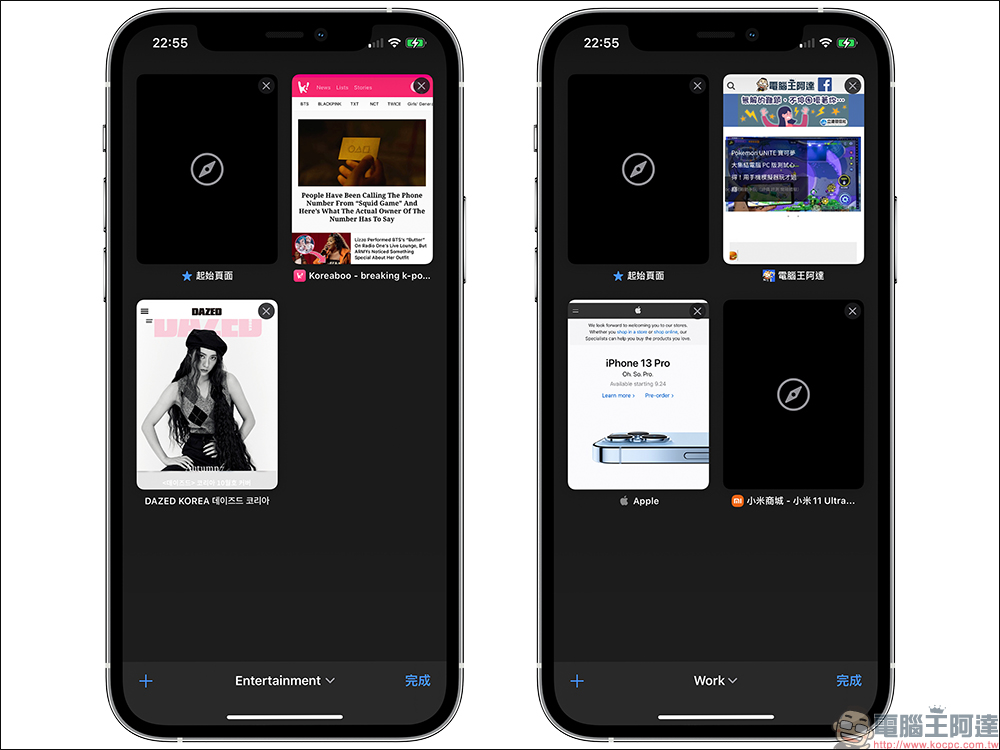
In the new Safari browser, in addition to changing the default display arrangement of pagination, tabs can also create various groups to facilitate classification of work and private matters. In addition to general tabs and private browsing, users can create new tab groups by themselves, and even directly add all existing tabs to a new tab group.
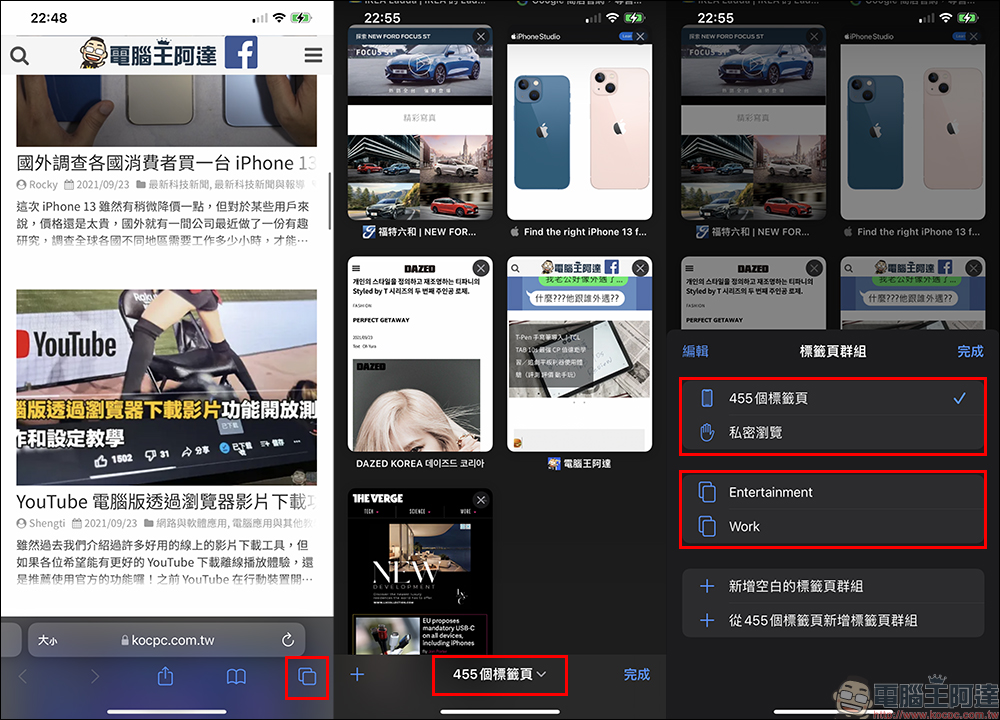
In the past, many people would unknowingly open hundreds of tabs and tabs, but the actual opportunities to open them were very few. But now with tab groups, users can quickly switch between different types of web pages. At the same time, if you want to perform related searches, you can also add tabs directly to the tab group, so that hundreds of tabs are no longer cluttered.
Display tab pagination horizontally
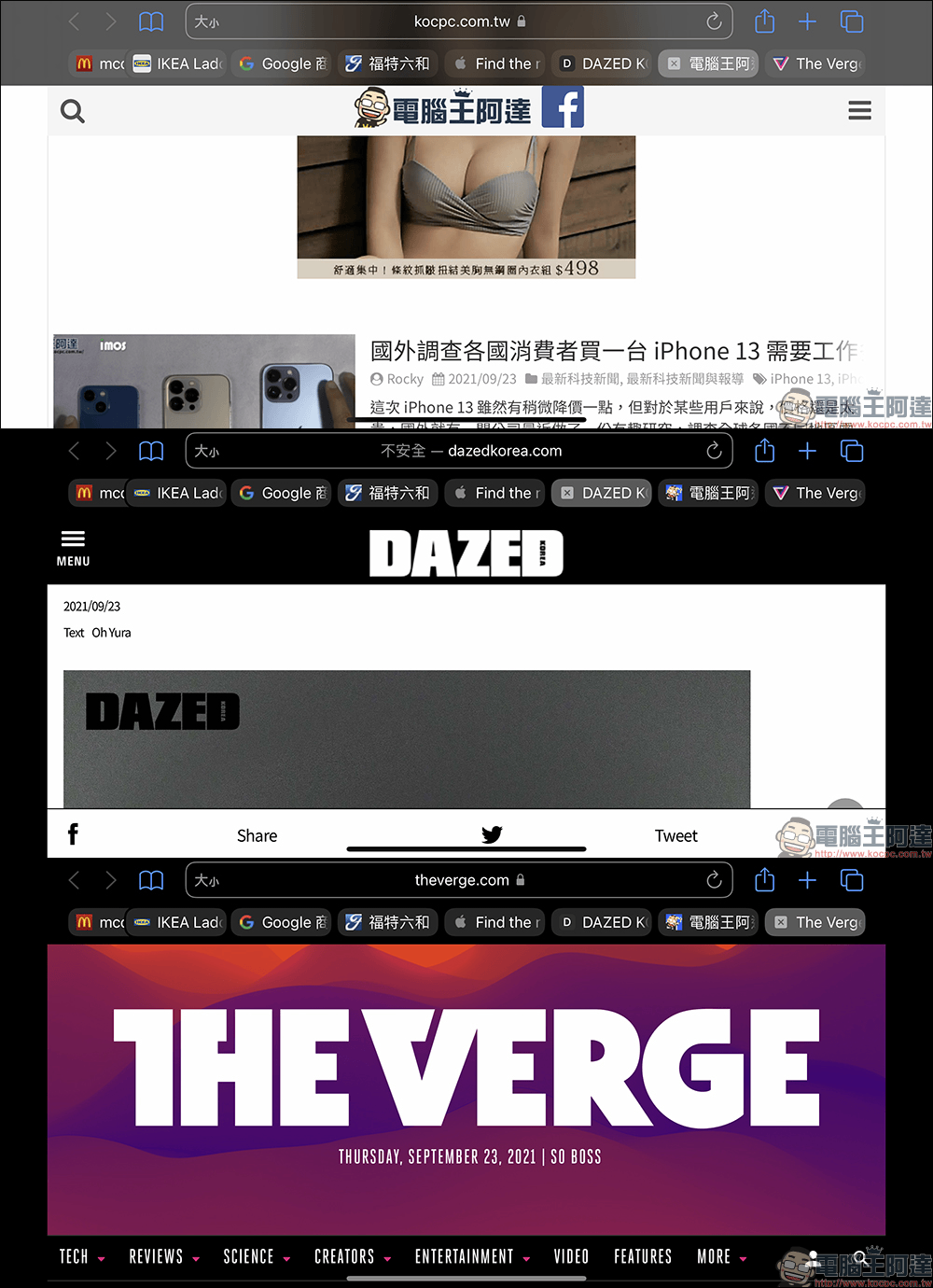
When the iOS 15 Safari browser displays the screen in landscape orientation, each tab will be displayed in the same tab format as the computer version, making it easier to switch between tabs.
Rearranging the screen is easier
If you want to rearrange the page, there is no need to click the refresh button on the right side of the URL! Simply press and hold an empty space on the screen and swipe down to rearrange the page.

Customize start page background image
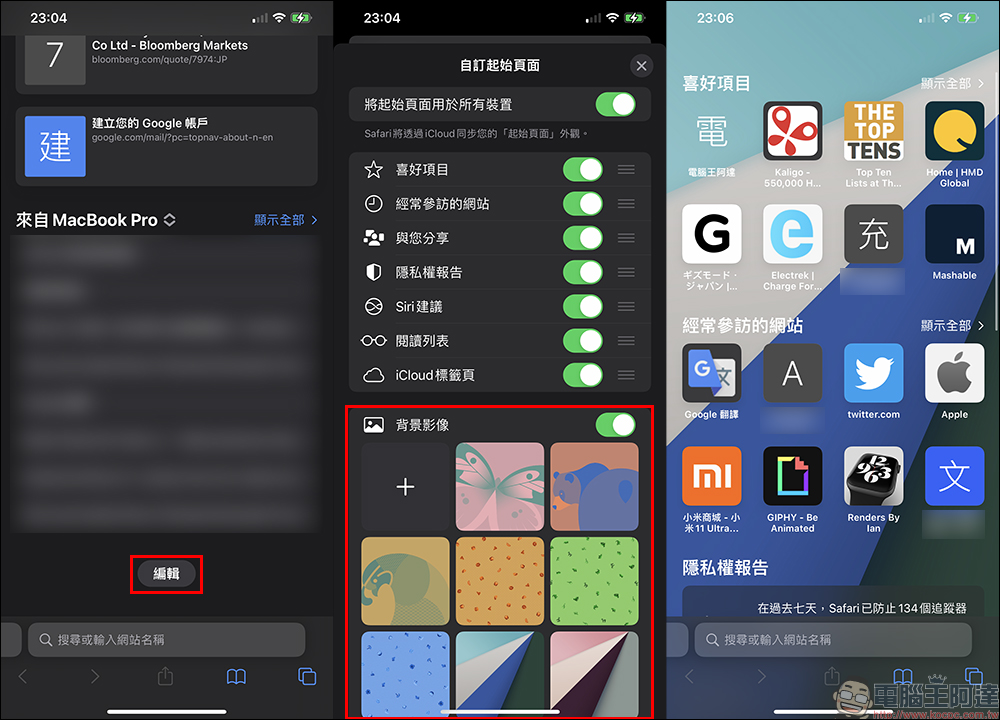
In the past, when opening a new blank tab, the start page would always have a monotonous background. Now Safari browsers starting from iOS 15 can also customize background images! Just click the “Edit” button at the bottom of the new blank tab page, and then turn on the “Background Image” function on the customized start page. Users can choose from various built-in background images or add their own images as backgrounds.
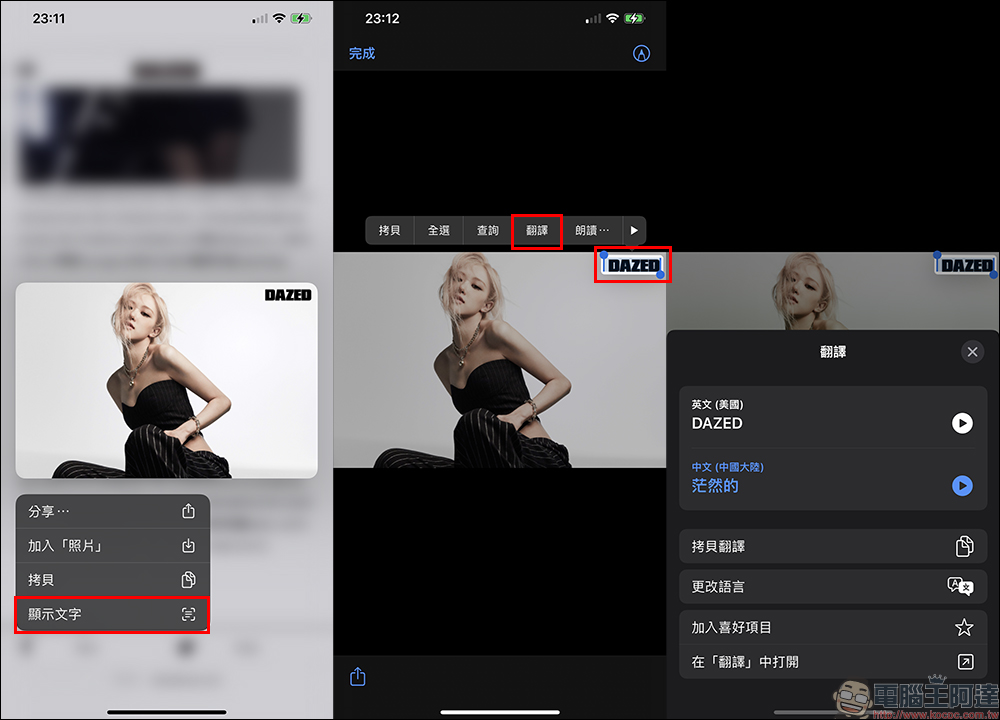
Original text, easily translate text in images on web pages
Starting from iOS 15, “original text” has been added to identify practical information in photos and online images, including various images on web pages in the Safari browser. If users see text in an image that they cannot understand while browsing the web, they can just long press the image to open the function menu and click “Show Text”. At this time, the system will first recognize the text in the screen, and then just select the text they want to translate for translation.
Further reading:
Foreign media compiled the top 10 new features of iOS 15, which are a must-read for users who have updated iOS 15!

Source: KOCPC Chinese