


Speaking of several common problems when using LINE, what many people need most is whether their chat history with their friends can be backed up smoothly. Currently, LINE App supports convenient manual backup and automatic backup settings on both iOS and Android. In the past, many users have encountered some difficulties in the chat backup process. Now LINE officials have specially compiled the official LINE backup lazy package for everyone, so that everyone can solve the backup problems at once!

▲Picture source:LINE Taiwan official BLOG
Recommended iOS data backup and transfer software
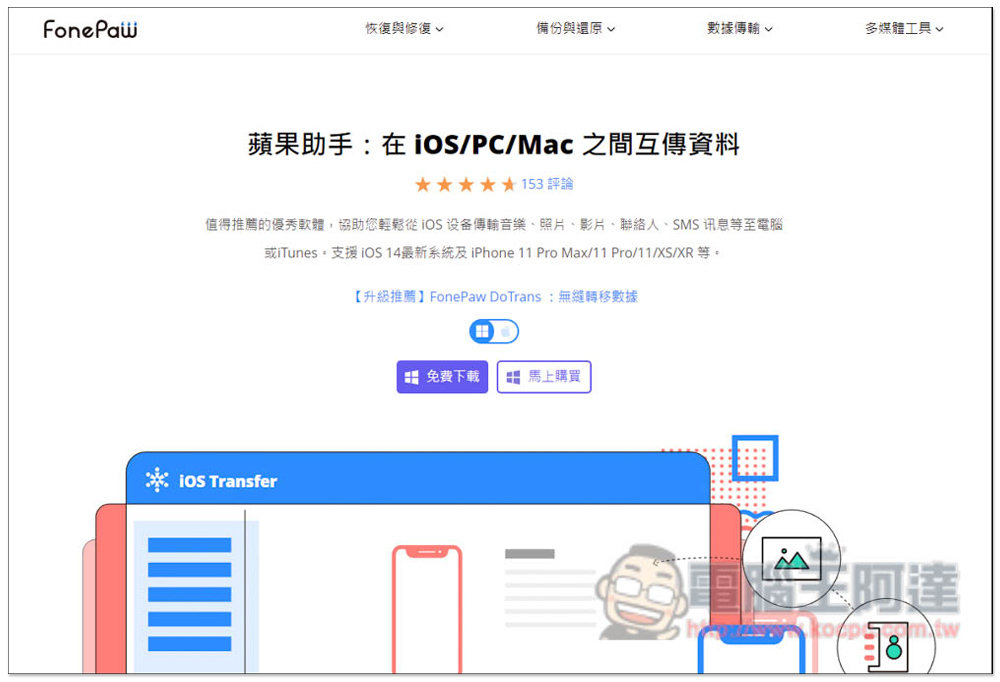
Although you can use iTunes and iCloud provided by Apple to back up LINE chat history or transfer LINE attachment data, everyone who has used it knows that it is not very easy to use.
We also recommend the FonePaw Apple Assistant software, which is available in both Windows and Mac versions. It is super simple to operate, and even people who are not very computer savvy can easily get started. In just a few steps, iPhone/iPad/iPod can easily transfer photos, videos, music, e-books, etc. to and from the computer. It also supports data backup functions, which can help you save LINE chat history to your computer, so you no longer have to worry about not finding important LINE messages.
When you upgrade to a new iPhone, this device can also quickly transfer data from the old iPhone to the new iPhone. It is worth using for friends who have been holding iPhones for a long time.
FonePaw Apple Assistant official website
LINE Backup Official Lazy Pack: LINE Chat History Backup Methods, Preparations and FAQs Read this article!
Before starting to back up LINE chat history, you also need to confirm the following things.
Preparation before backup
- Check whether the network connection is smooth. It is best to connect to a stable Wi-Fi environment. (iOS automatic backup must be connected to Wi-Fi)
- Check the remaining power of your mobile phone, it is better to plug in the charging cable! (For iOS automatic backup, the charging cable must be connected)
- Check whether there is enough cloud space. For iOS users, check iCloud and for Android users, check Google Drive. You can refer to the file size of the previous backup record to evaluate whether the remaining space is sufficient.
- Update LINE and mobile operating systems to the latest version
- If you back up your LINE chat history for a new phone, you can also confirm whether your LINE account has a phone number and email account set up, and you can also confirm your LINE login password again.
iOS chat history backup
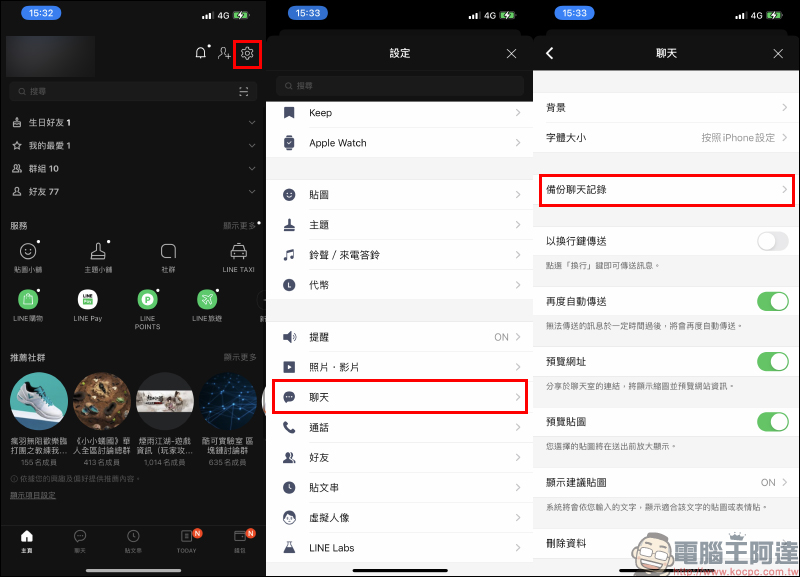
iOS users open LINE App and enter the homepage, then click “Settings” > “Chat” > “Backup Chat History”:
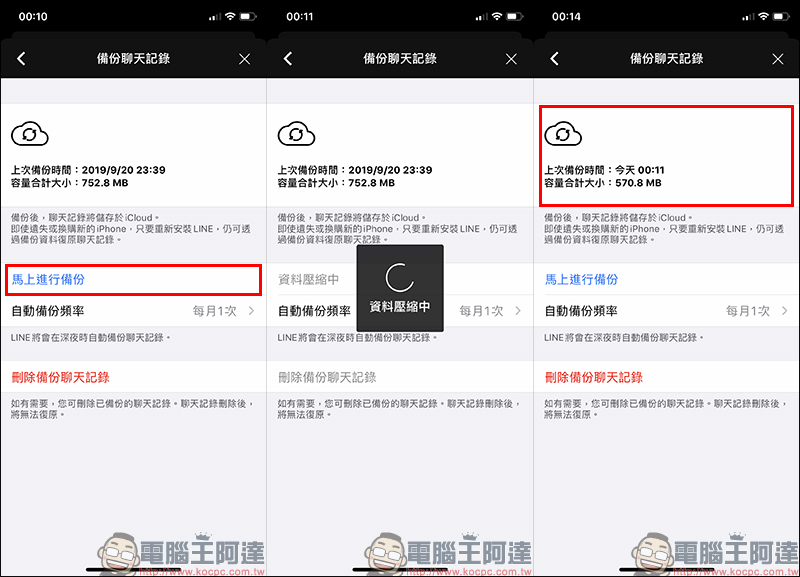
Then you can click “Backup Now” to start the manual backup steps. After the data is compressed and the backup is uploaded, the latest backup time and file size will be displayed on the screen. It is recommended to keep your phone charged when backing up chat history, and try to connect to a Wi-Fi connection in the network environment. The backup process will be smoother and faster.
iOS Chat History Backup FAQs & Answers
Q: Chat backup shows insufficient space?
Answer: If the backup process screen displays an out of space screen, it may be because there is insufficient remaining storage space on your phone and iCloud. It is recommended that you clear iCloud space through the following steps.
- Delete unnecessary applications or data on your phone
- Delete unnecessary data in iCloud
(Path: iPhone “Settings” > Click the “User name field for Apple ID” displayed at the top of the screen > iCloud “Manage Storage Space” to delete unnecessary data)
Question: The chat backup screen displays an “error” message or encounters a crash?
Answer: This is because there is a problem during the compression process of the backup file. It is recommended that you refer to the following steps to try to eliminate the obstacles:
- Update the LINE app and iOS system to the latest version
- Confirm the settings of iCloud/iCloud Drive: whether it is correctly linked to your iCloud account and can log in normally
- Make sure there is enough remaining storage space on your mobile device and iCloud
- Restart your mobile device and LINE app
- Try deleting the old backup (path: LINE homepage “Settings” > “Chat” > “Backup Chat History” > “Delete Backup Chat History”)
- Try the backup operation again when the network connection is good.
Android chat history backup
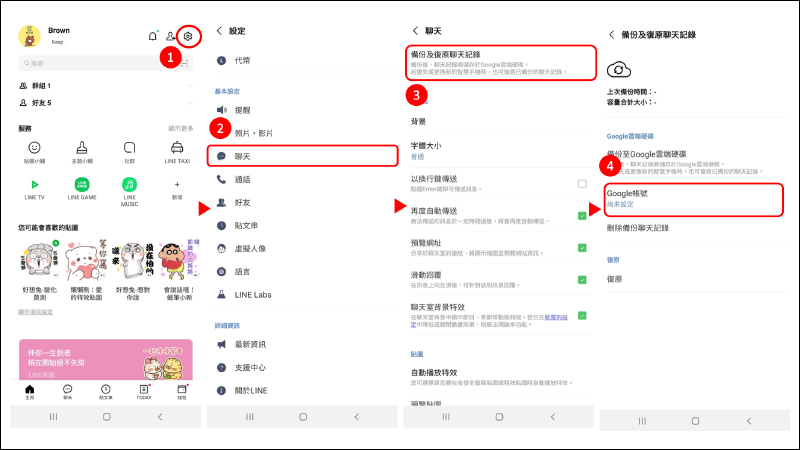
On the LINE homepage, click “Settings” > “Chat” > “Backup and Restore Chat History” > “Set up Google Account” > “Backup to Google Drive”:
▲Picture source:LINE Taiwan official BLOG
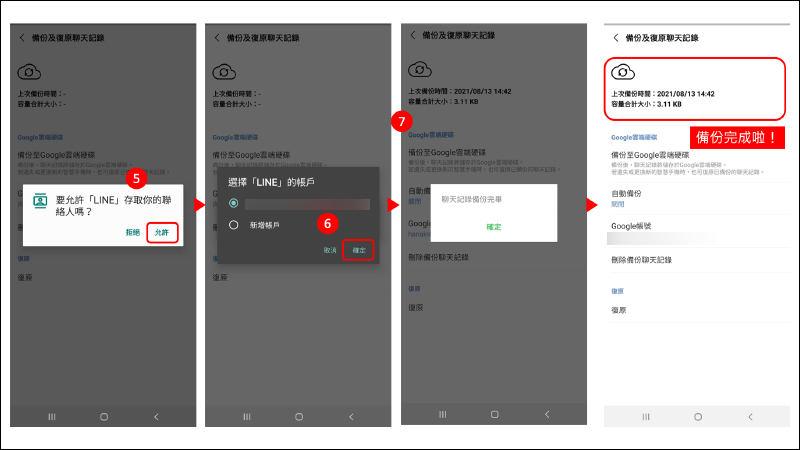
▲Picture source:LINE Taiwan official BLOG
Android Chat History Backup FAQs & Answers
Question: When the Google Cloud backup reaches 70%, the message “Backup failed, please try again” appears on the screen?
Answer: It is recommended that you refer to the following steps to try to eliminate obstacles:
- End all active applications
- Restart the LINE app and mobile device
- Upgrade the LINE app and mobile device operating system to the latest version
- Make sure there is enough remaining storage space on your mobile device and Google Drive. Try to install the “Google Drive” application simultaneously to improve the backup success rate and efficiency.
- Confirm or remove Internet usage restrictions and web filtering services
- If the backup operation still cannot be completed after a while, please try to back up the chat history to another Google account
LINE chat history automatic backup
Currently, both iOS and Android LINE Apps support the “automatic backup” chat history function. You only need to turn on chat history backup and set the automatic backup frequency. When the time is up and the phone is charging and connected to Wi-Fi, the user’s chat history will start to be automatically backed up.

▲Picture source:LINE Taiwan official BLOG
Other chat history backup highlights
- The backup process for iOS and Android is similar, the main difference is the “storage location”. The LINE chat history backup for iOS will be stored in the user’s iCloud, while the LINE chat history backup for Android will be stored in Google Drive.
- Currently, it is not possible to import LINE backup across platforms, such as importing text message backup from iPhone to Android phone.
- At this stage, the main thing that can be backed up is “text chat” messages, so it is recommended that if there are important pictures or files, you can save them to Keep or LINE albums
Source:LINE Taiwan official BLOG
Further reading:
LINE free sticker collection: 16 cute LINE stickers for free download!


Source: KOCPC Chinese