


Sometimes you may want to add a new object to a photo or image, such as adding sunglasses or a hat to a selfie. The “Stylar” AI tool recommended in this article can do exactly that: just enter the prompt description you want to add, or upload an image of the object, and it can generate very impressive results.
Every day you get 200 Credits (resets if below 30), allowing for many generations, almost free to use. The only minor drawback is the watermark; to remove it, you must upgrade to the paid version.

Stylar uses AI to add any objects you want to images, and also offers a text-to-image generation feature.
Stylar is an overseas AI tool that doesn’t support Chinese yet, but it’s not too difficult to use. Below, I’ll walk you through it step by step.
It also has a text-to-image generation feature with multiple style options, and the quality of the AI images it produces is quite good. So if you have any related needs, you can also use this tool to get it done. (Though it does have a watermark.)
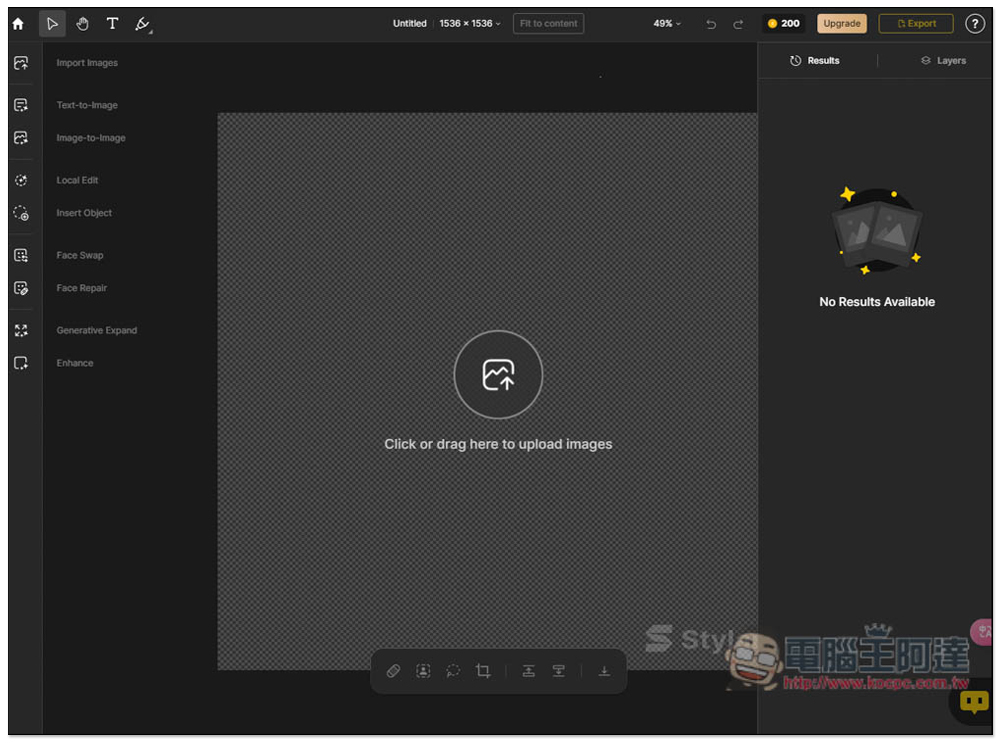
Stylar’s backend interface has the menu on the left. Import Images is for importing images; if you want to modify an existing image or photo, use this one, and just drag the image into the window. If you want to generate an image from text, use the second option, Text to Image. It also supports the Image to Image feature:
Text-to-image generation feature
I wanted to first test the effect of using AI images with other objects, so I started by using its text-to-image feature.
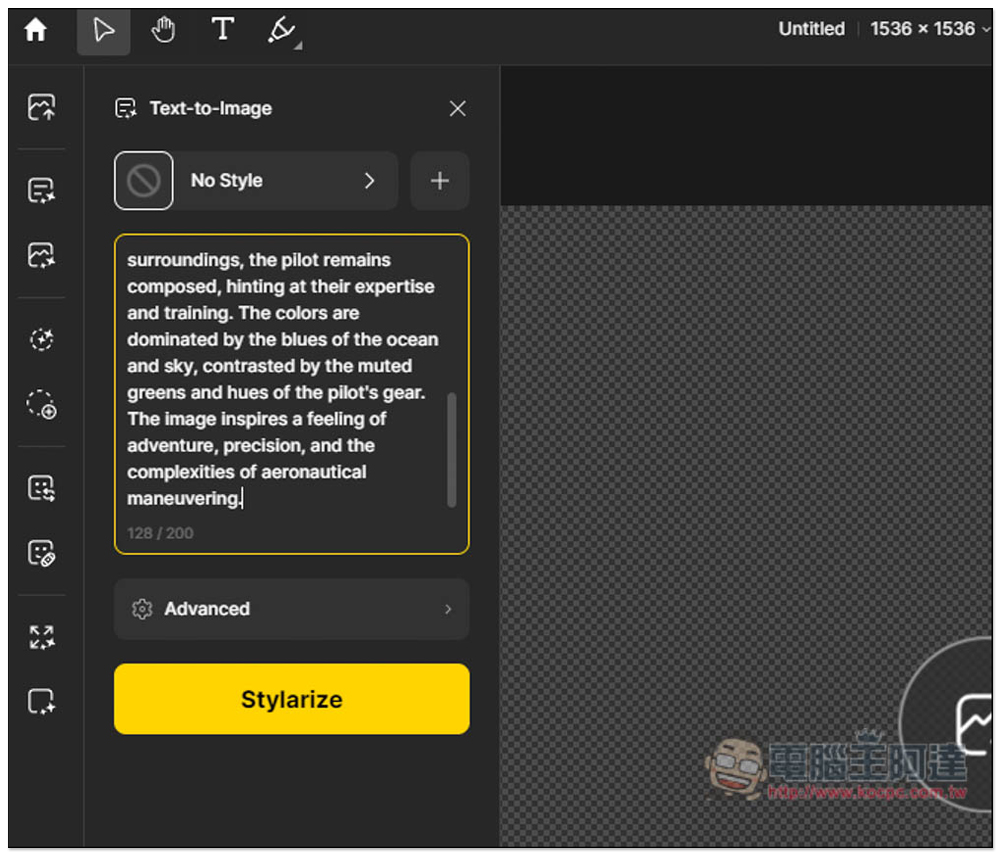
Once you’re in the Text-to-Image feature, type in the description of the image you want to generate. The Style option at the top lets you change the image style.
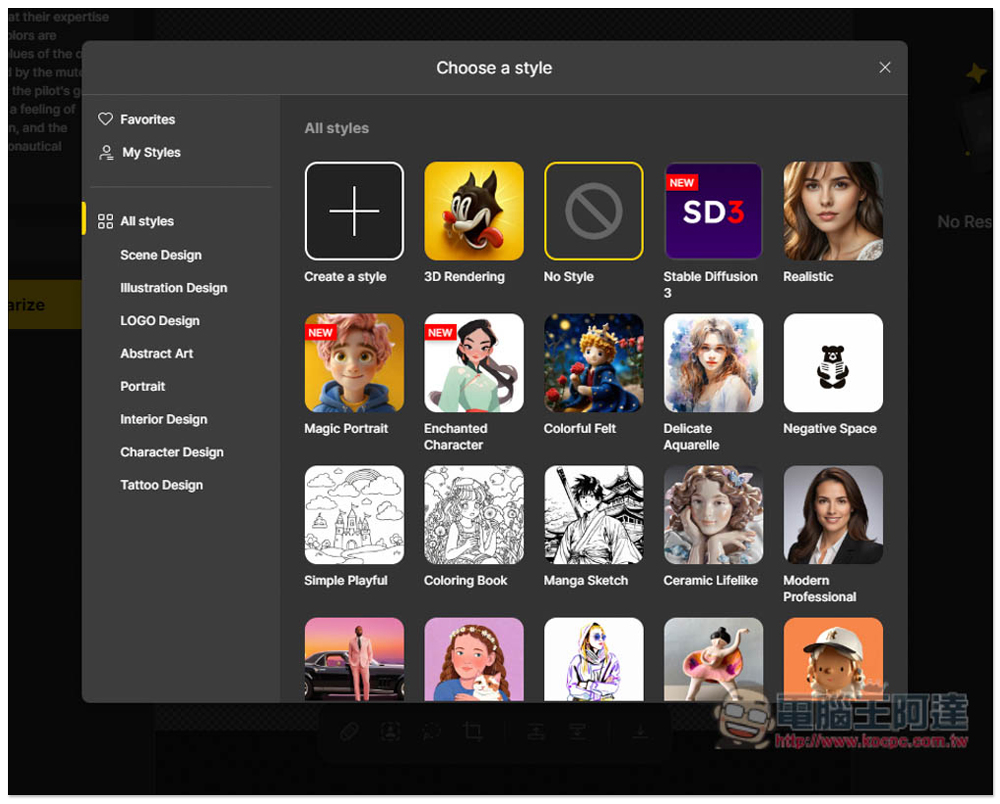
There are many style options, I use the Realistic style:
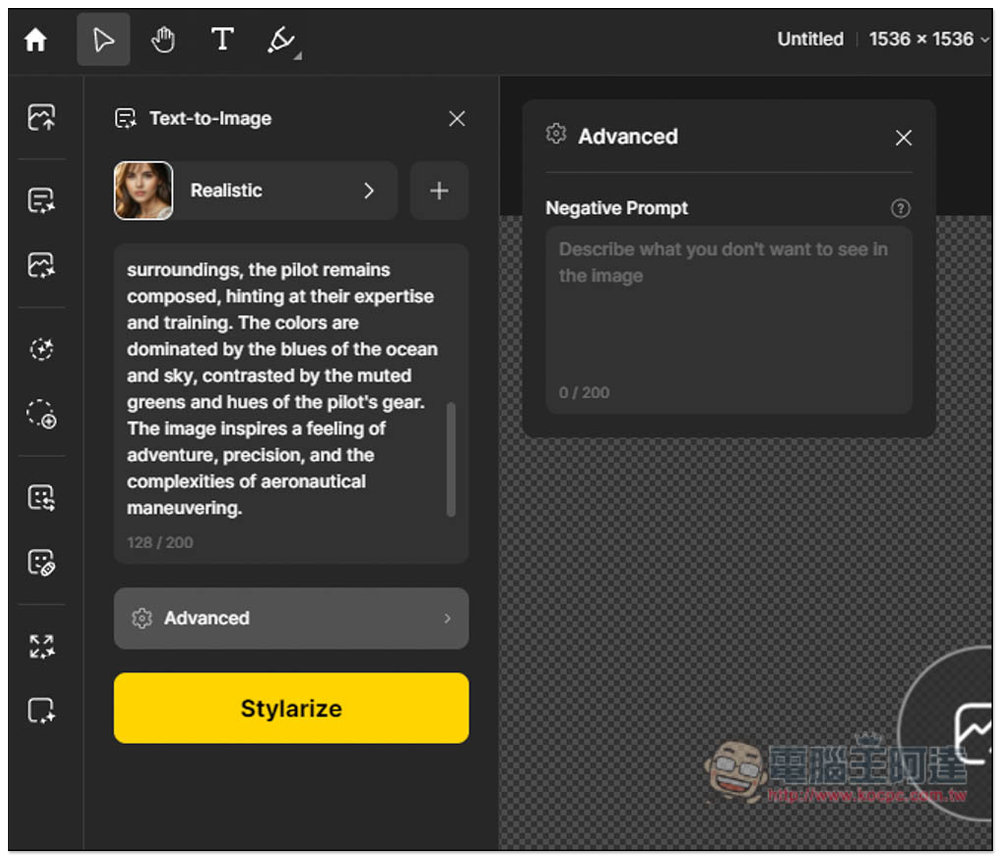
In Advanced, you can enter a Negative Prompt for things you don’t want to appear in the image:
During use, you may occasionally see a pop-up window prompting you to “Skip the Queue” or upgrade to the paid version; you can just close it:

Sometimes when too many people are using it at once, you may need to wait a bit, but it usually doesn’t take too long—at most a few dozen seconds.
Next, you’ll get four AI-generated images. Hover over them to see a larger version, and if you like one, double-click to import it into the document. I’ll use the image below:

Add any objects you want to the image
There are two ways to add objects to an image: “Local Edit” uses AI to add them, while “Insert Object” imports an object image. I’ll use the former first.
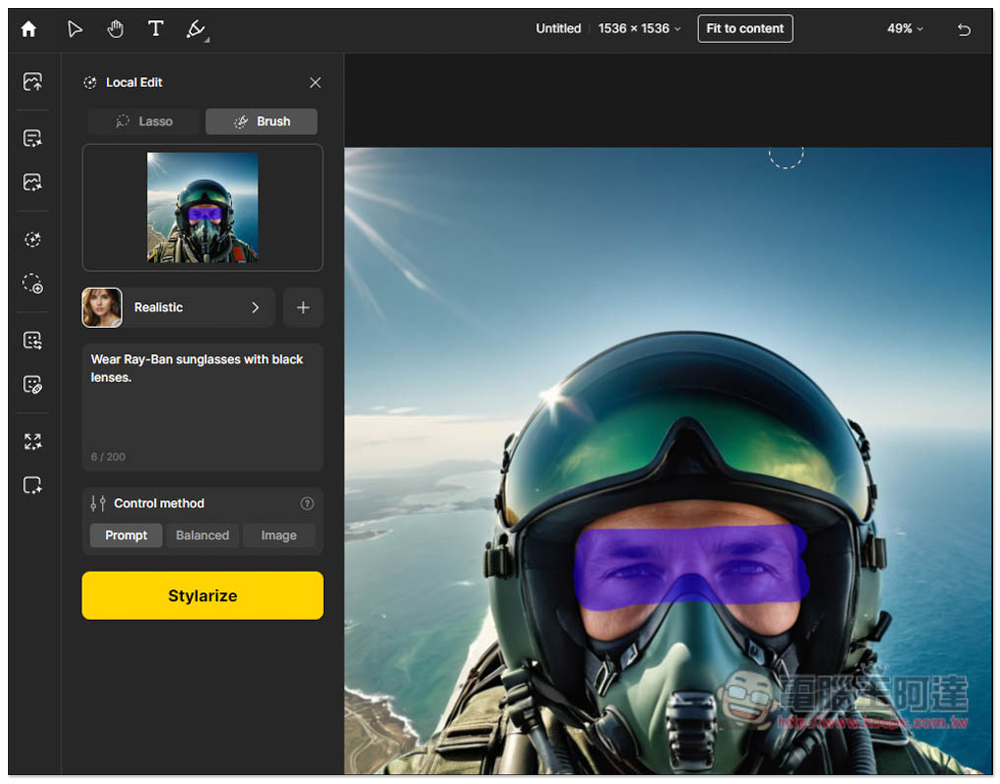
I want to make the person in the picture wear sunglasses. I use the Brush to paint over the glasses area, and in the Prompt section, I enter “Wear Ray-Ban sunglasses with black lenses” (i.e., wear Ray-Ban sunglasses with black lenses).
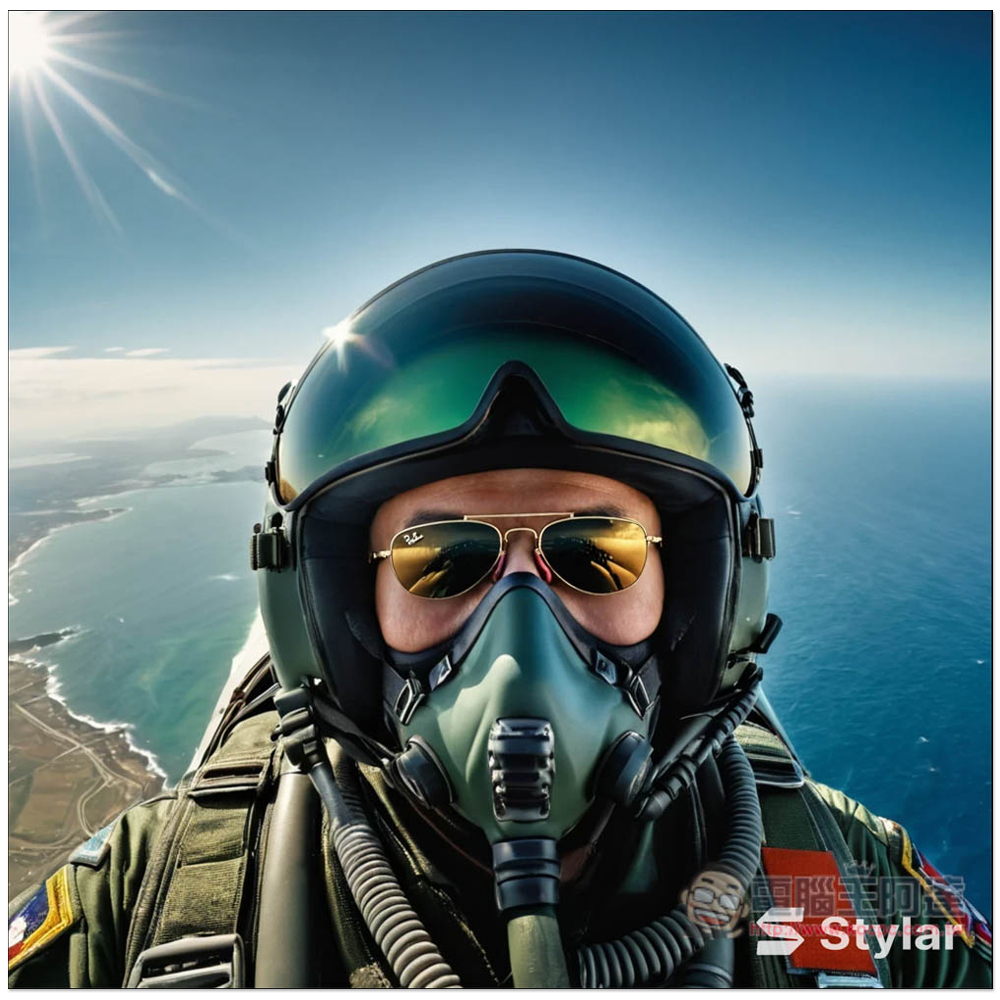
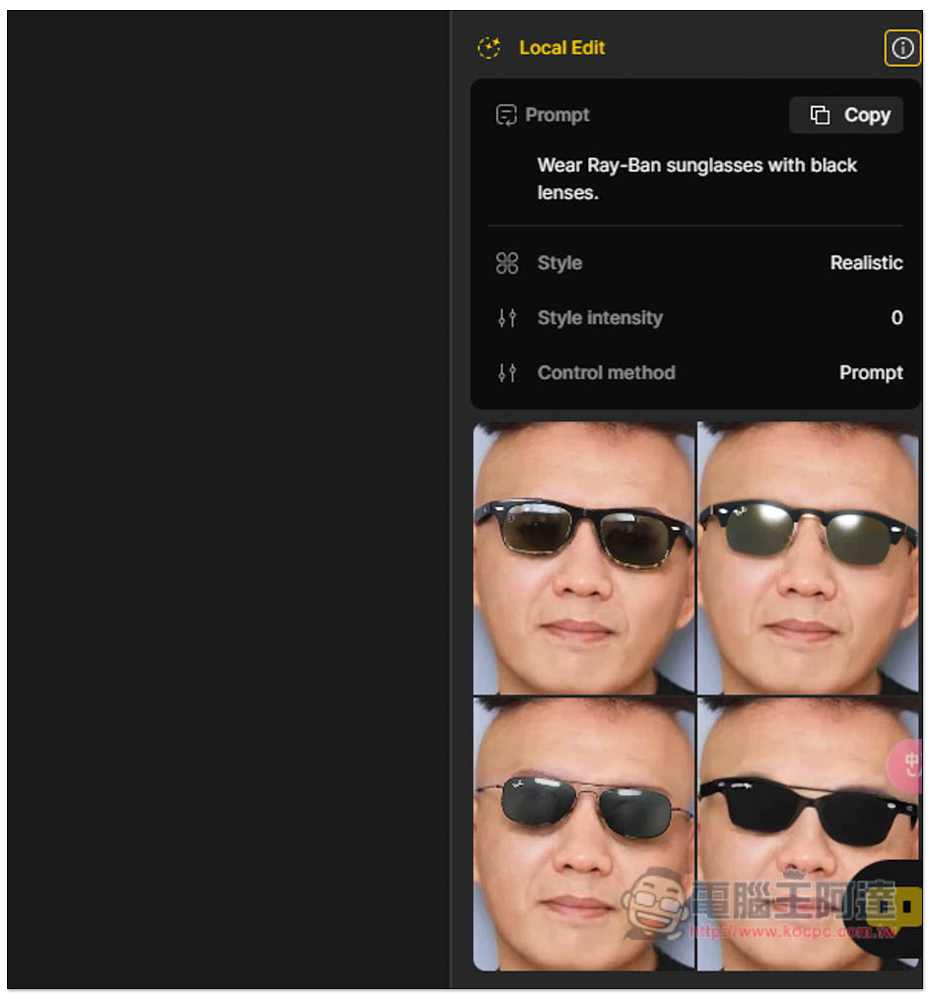
Then you’ll see the AI add Ray-Ban sunglasses to this area of the image. Also, I kept adjusting the prompt during the process, so it wasn’t a case of getting the best result on the first try:

If you’re happy with the image, tap the download icon below to save it to your device:

This is the effect after I added the sunglasses. It’s really great—you can hardly tell it was added separately in post-processing. It feels like this Prompt was already included when the image was originally generated. Especially the nose bridge area didn’t turn out weird from the recalculation, and the eyebrows look just as natural too:
Add objects to real photos.
Next, I’m curious if real photos have the same effect? I use Ada’s selfie here, and I add sunglasses the same way, but this time there will also be a hat:
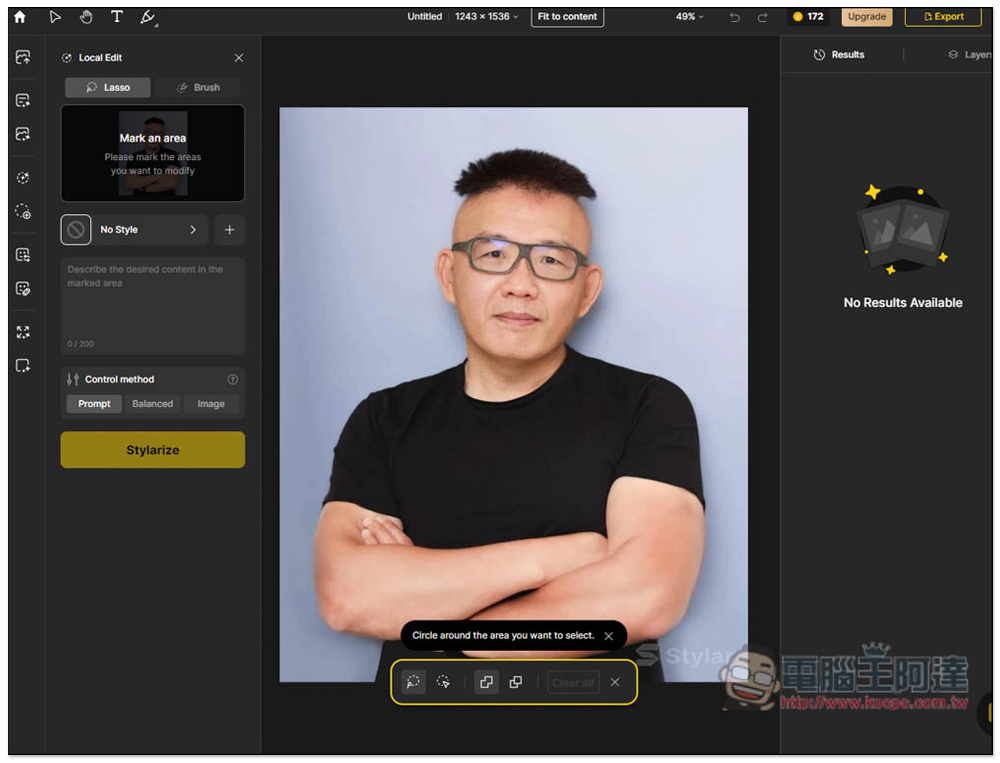
Similarly, draw the glasses area, then enter “Wear Ray-Ban sunglasses with black lenses” and select the realistic style.
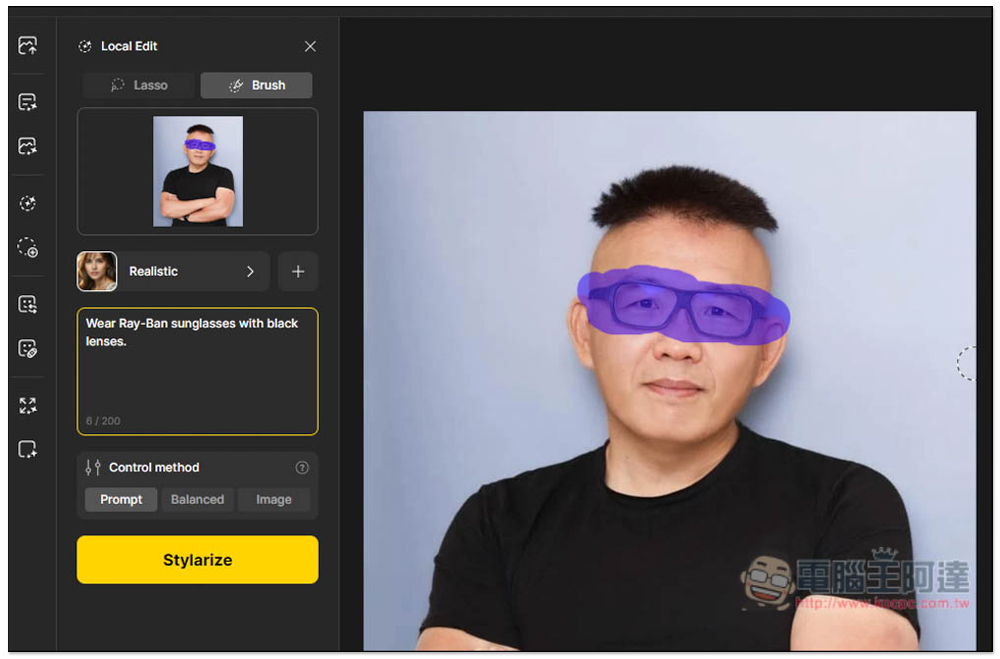
Among the four generated images, the one in the bottom-left corner happens to be the one I’m quite satisfied with:
Next, I added a hat. Let me first try wearing a black baseball cap backwards:
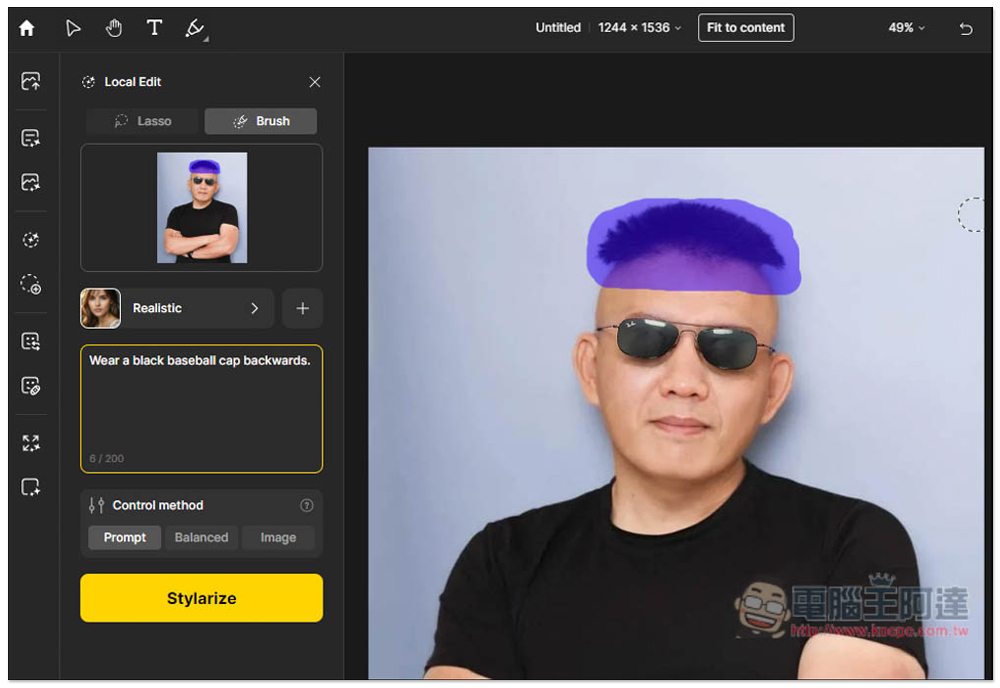
This effect is just so-so, not that great, but still acceptable (one of the generated images was actually bald?):
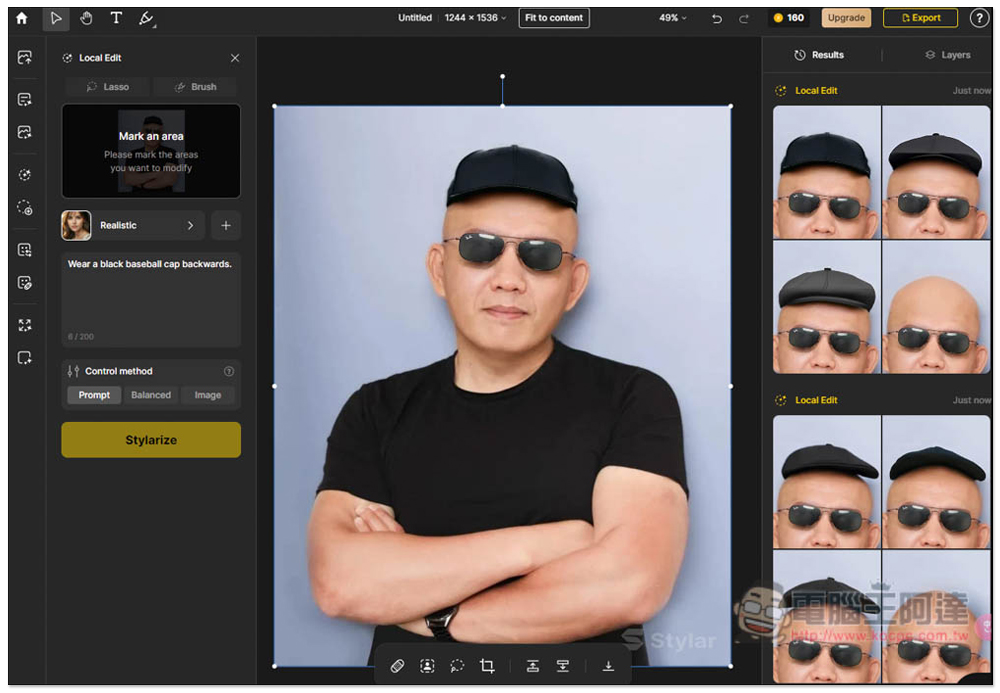
I also tested fedora hats, but the fedora hats generated by AI are a bit weird. I guess this model isn’t very good at generating hats yet:
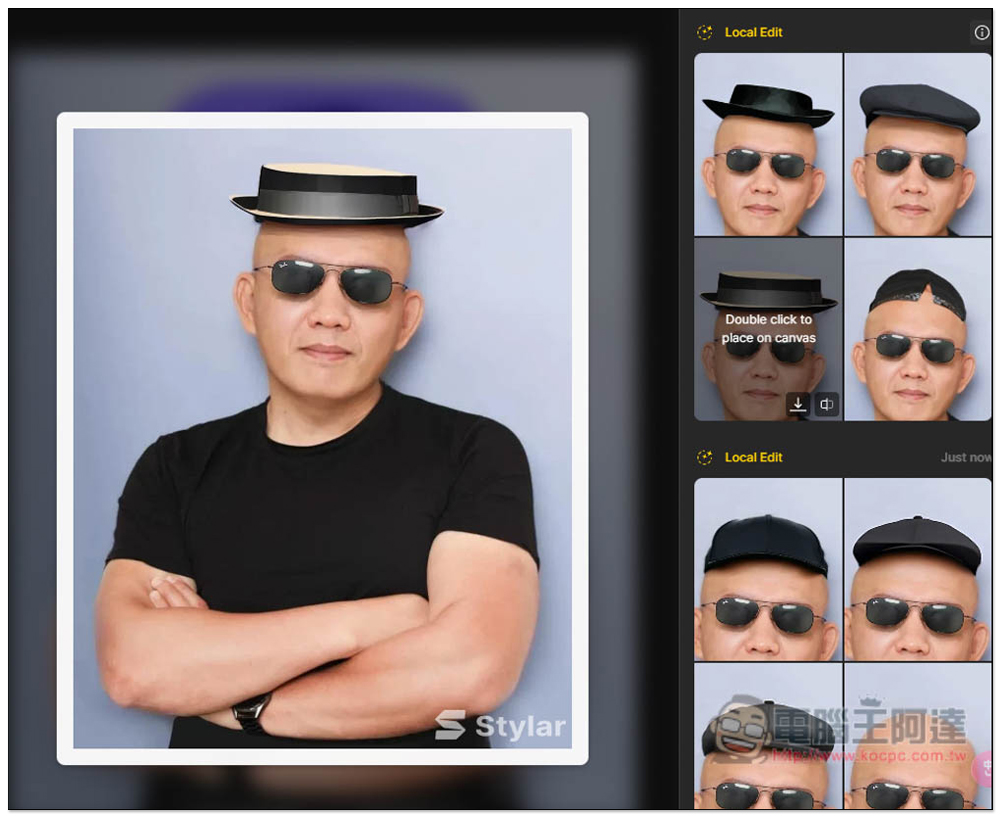
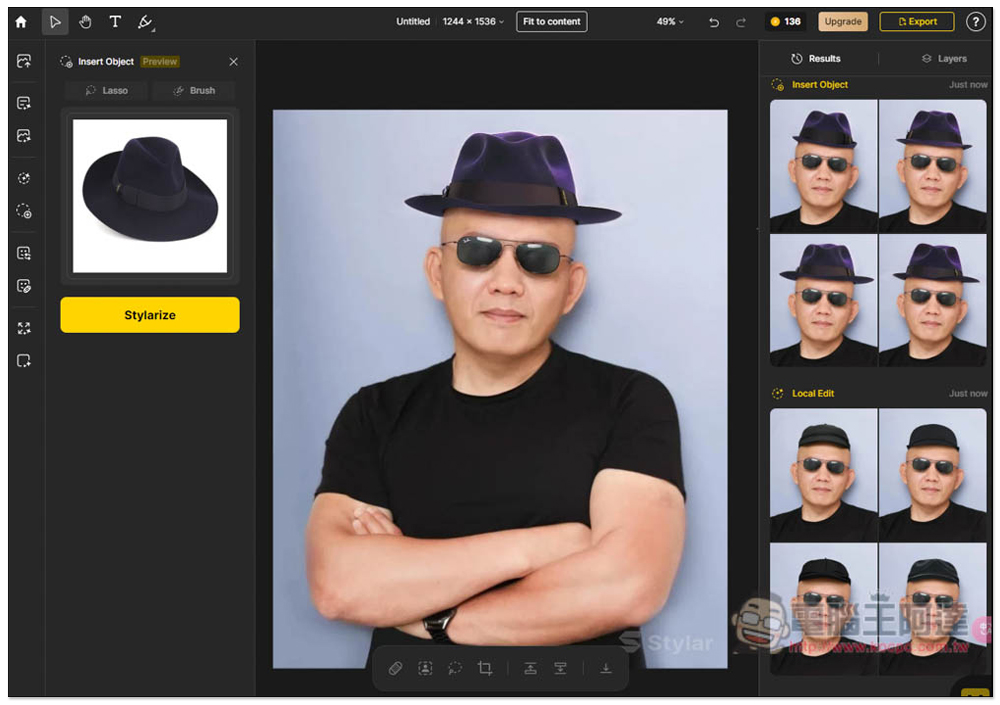
So I changed to testing importing objects, drawing an approximate outline on the image, and uploading an image of a gentleman’s hat on the left:

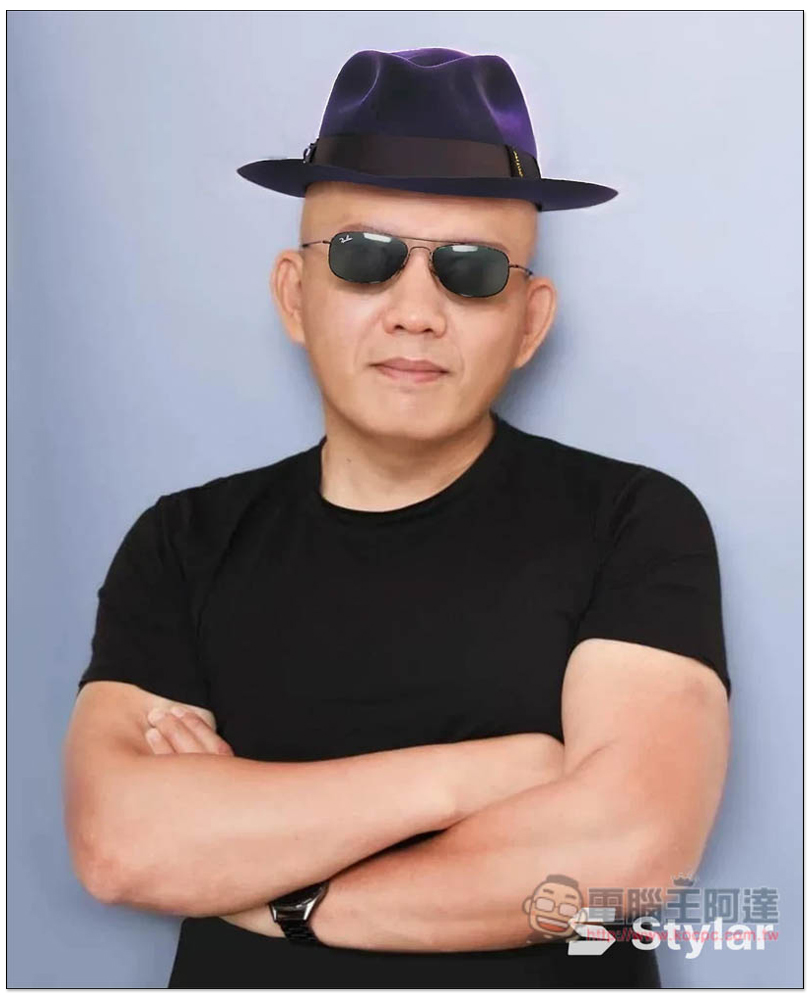
Then the generated effect is much better than pure AI, but still not as natural as sunglasses:
Result image:
Stylar There are other AI features too—interested readers can try them out on their own. If you don’t have enough Credits, just wait until the next day and they’ll reset to 200. If you really like it and use it often, you might also consider the paid version.
Source: KOCPC Chinese