


Google has launched a new feature that lets everyone quickly use Google’s generative AI chatbot, Gemini, directly in the Chrome address bar. You can generate images, plan itineraries, summarize article content, and more right from the address bar. It’s simple, but before using it, you need to confirm one thing. Let’s take a look at how to use it!
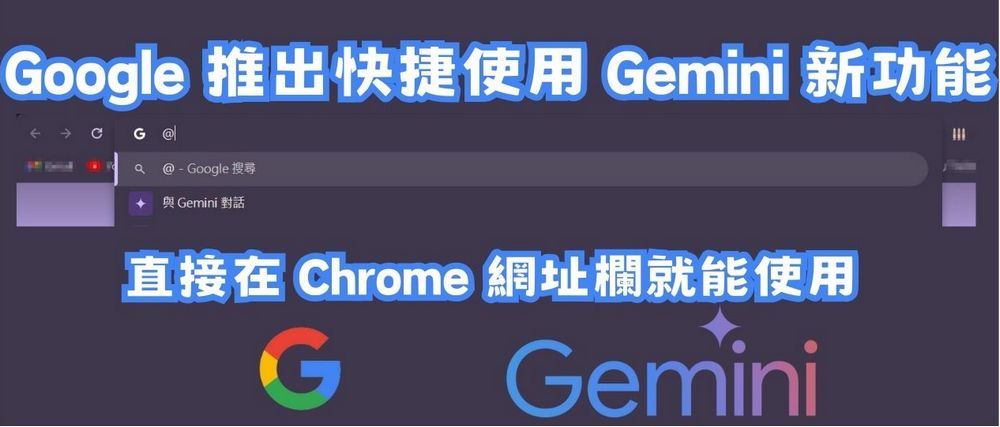
New Chrome feature! Use Google Gemini right in the address bar to generate images, plan trips, and summarize articles.
Google is rolling out a new way to quickly use its AI chatbot Gemini, letting users launch it right from the Chrome address bar. After testing, whether it’s…Generate an image.、Recommended Attractions、Recommended photo poses、Plan the itinerary.、Summarize the article content.All can be done directly through the address bar.
Preparations for using Gemini in the address bar
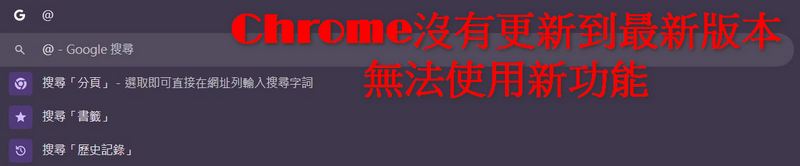
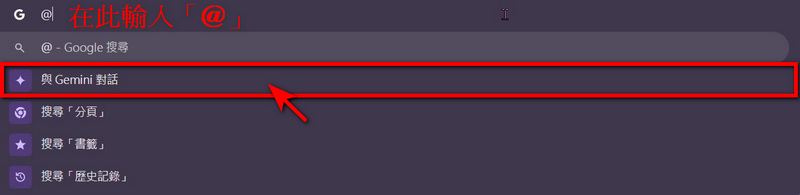
Based on observations, users who want to quickly use Gemini in the Chrome address bar need to update their Google Chrome to the latest version. If it’s not updated to the latest version, typing “@” in the address bar won’t respond, just like in the image below.
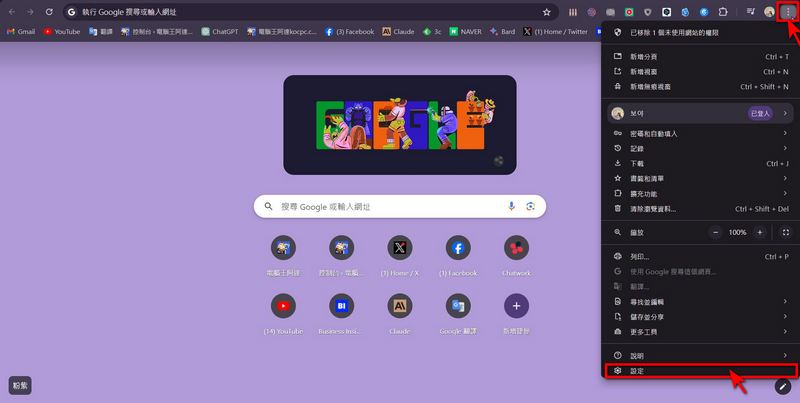
To check if the Chrome you’re currently using is the latest version, click the “three dots” on the toolbar, then click “Settings”.
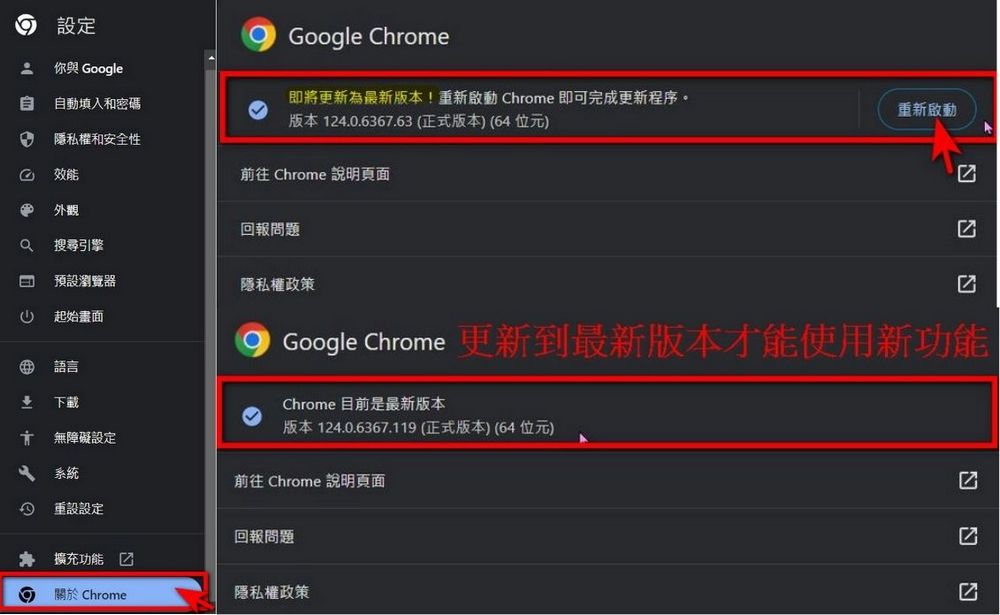
Once the settings screen appears, click “About Chrome” in the bottom-left corner. If you see a prompt saying “Updating to the latest version,” click “Relaunch” to update your Chrome to the latest version. If it already says “Chrome is up to date,” you can start using Gemini right away in the address bar.
Use Gemini in the address bar
After updating Chrome to the latest version, you can type “@” in the address bar. After typing it, an option “Talk to Gemini” will appear. Click it and enter the action you want to perform after it. Note: This feature currently only accepts English; entering Chinese commands will result in garbled text.

Use Gemini to generate images in the address bar.
Type “@” in the URL bar, select the “Chat with Gemini” option, then enter “Help me generate a picture of an orange kitten” and Gemini can generate the image for you. The editor also happened to notice that Gemini can now generate images again, but it still only responds when you input English prompts.

In the address bar, use Gemini to recommend attractions
In the URL bar, type “@”, select the “Talk to Gemini” option, then enter “Recommend five tourist attractions in Tainan for me,” and Gemini will recommend places for you. Gemini recommended five spots for me: Anping Fort, Chihkan Tower, Confucius Temple, Anping Tree House, and Garden Night Market. Along with the recommendations, it also provided websites you can click to check details like phone numbers and opening hours.

Use Gemini in the address bar to recommend photo poses
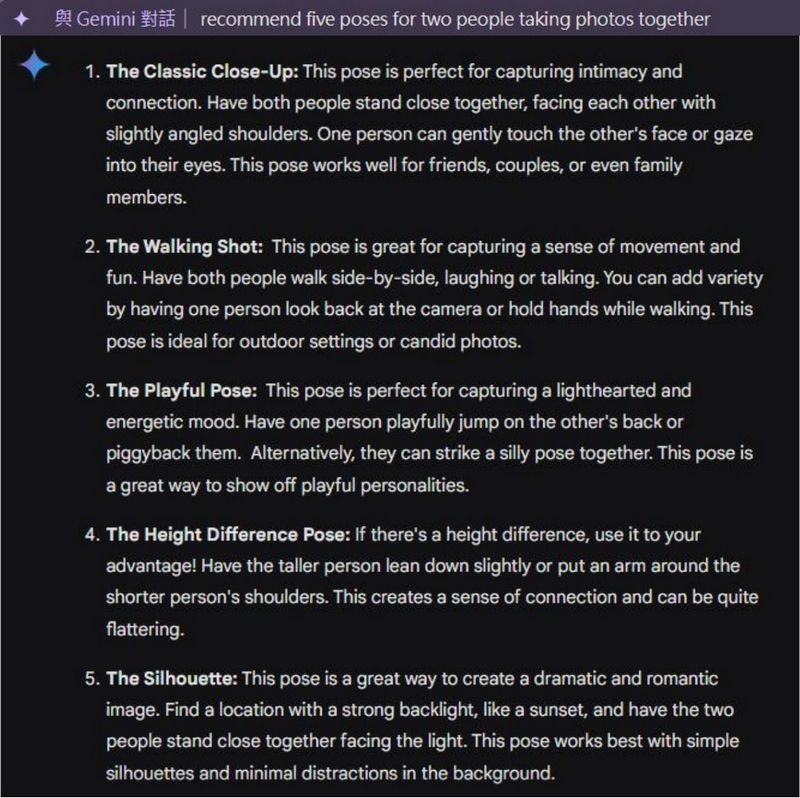
In the address bar, type “@”, select the “Chat with Gemini” option, then enter “recommend five poses for two people taking photos together,” and Gemini can help you recommend photo poses.
Use Gemini in the address bar to plan your trip.
In the address bar, type ‘@’, select the ‘Chat with Gemini’ option, then type ‘plan a five-day and four-night trip to South Korea,’ and Gemini will help you plan the itinerary. Since I asked about South Korea, Gemini also included Gyeongju, which is about a 2-hour train ride from Seoul Station.
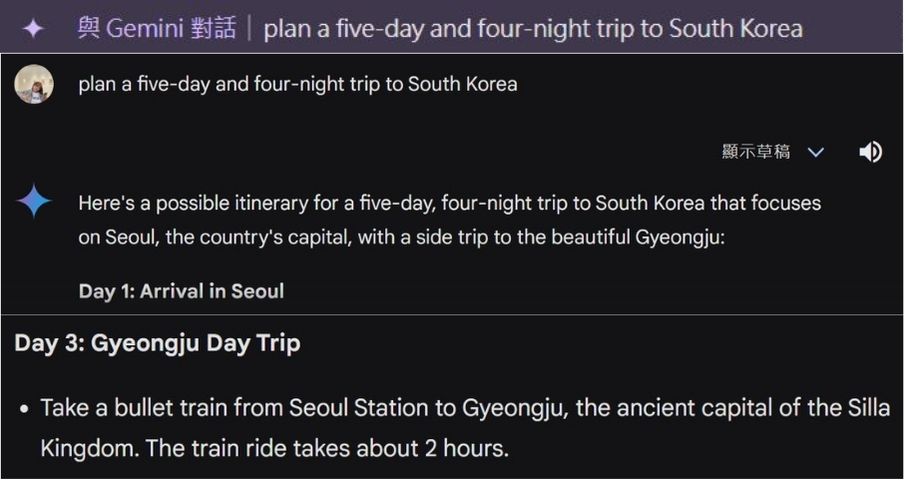
One benefit of using Gemini to plan your itinerary is that while it arranges your schedule, it also provides websites you can reference, so you don’t have to spend extra time searching for information.

Use Gemini in the address bar to summarize article content.
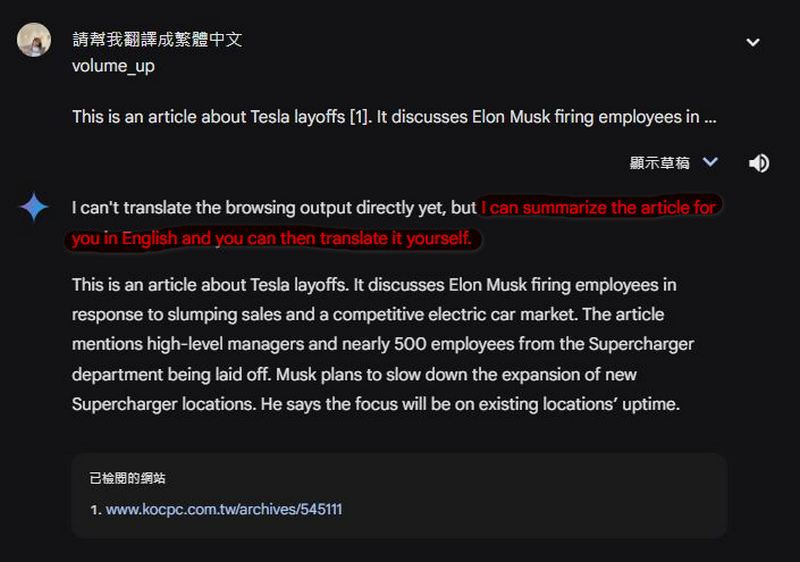
I think the most useful feature is this: type “@” in the URL bar, select the “Talk to Gemini” option, then enter “Help me summarize the content of this article + the article or website you want to summarize”, and Gemini can summarize the content for you in English. In my case, I used it on our website’s article about Musk again laying off the head of new car development and nearly 500 Supercharger department employees.ReportAfter checking, the editor found that Gemini did indeed compile the key points from the article, including the dismissal of senior executives and the 500 employees in the Supercharger station department. Personally, I think it’s very convenient.

Although I asked Gemini to translate the content it compiled into Chinese, it told me to translate it myself. Still, I personally think Google’s new shortcut for using the AI chatbot Gemini is pretty good. If you’re interested, you can try it out yourself. To use Gemini in the address bar, first make sure your Chrome is the latest version, then just follow the earlier tutorial and give it a try!
Source: KOCPC Chinese