


After Microsoft officially released the first preview version of Windows 11 yesterday,, many people should want to give it a try. In addition, there seems to be no major disaster reported at present, and the software support seems to be okay. If your computer is mainly used for leisure, you can really try it. This article will teach you how to apply for the Windows tester program, as long as you have a Microsoft/Azure account.
However, let me remind you that Windows 11 is currently in a very early beta version, so there must be many bugs or instability. People who are worried are advised to wait for a few more versions.
Teach you how to upgrade to Windows 11 preview version
Windows 11 minimum hardware requirements:
- Processor: Compatible 64-bit processor or System on Chip (SoC) with 1+ GHz and 2+ cores
- RAM:4GB
- Storage space: 64GB or above storage space device
- System firmware: UEFI, secure boot capability
- TPM: Trusted Platform Module (TPM) version 2.0
- Graphics card: DirectX 12 or later compatible (includes WDDM 2.0 driver)
- Monitor: High-definition (720p) monitor that measures more than 9 inches diagonally, 8 bits per color channel
Those who are not sure whether the symbol is suitable can useDetection tools made by foreign netizens, if there is any discrepancy, it will tell you directly, making it easier to upgrade the hardware:
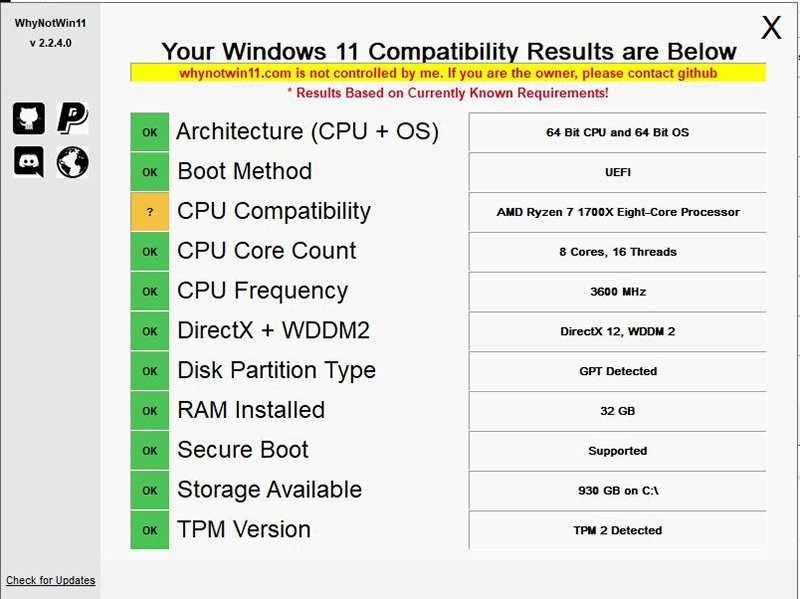
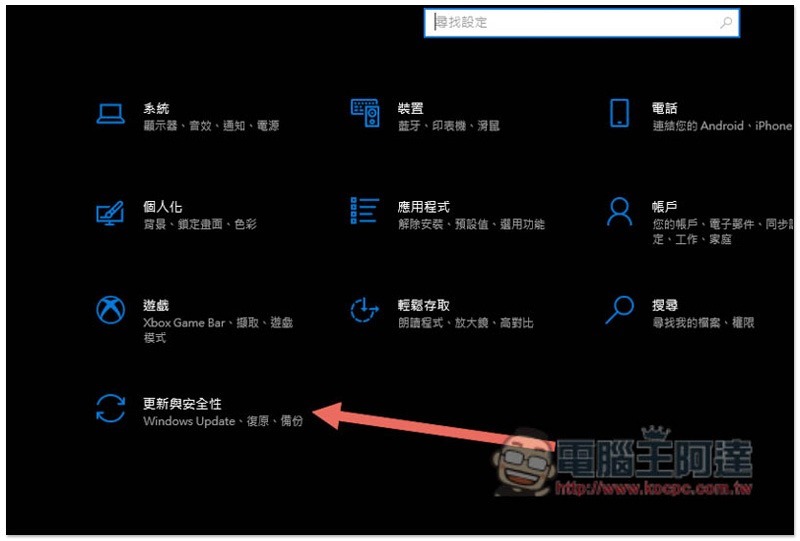
After confirming that you can upgrade to Windows 11 (the current preview version requirements are relatively loose, even computers that do not meet the minimum hardware requirements may be able to upgrade), first back up important data, then open settings and enter “Update and Security”:
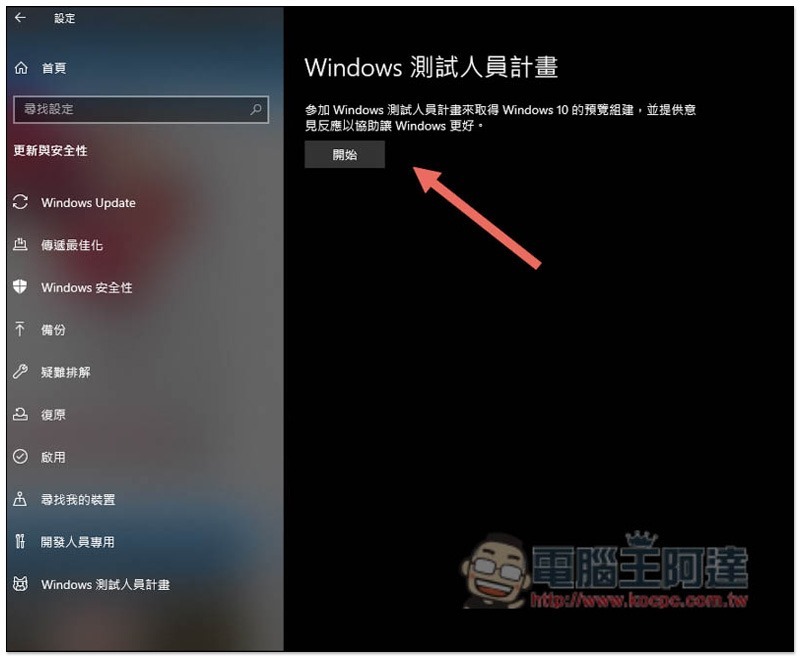
You’ll find the “Windows Tester Program” at the bottom left:
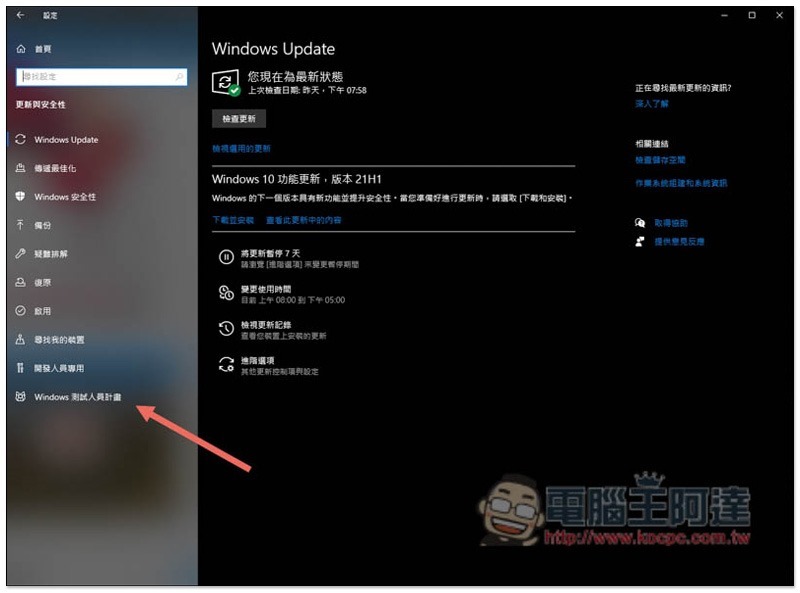
Press Start on the right:
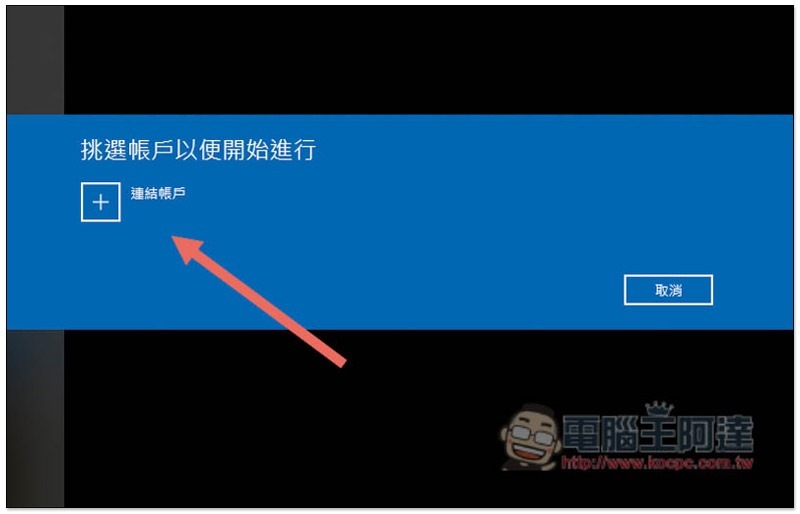
Click “Link Accounts”:
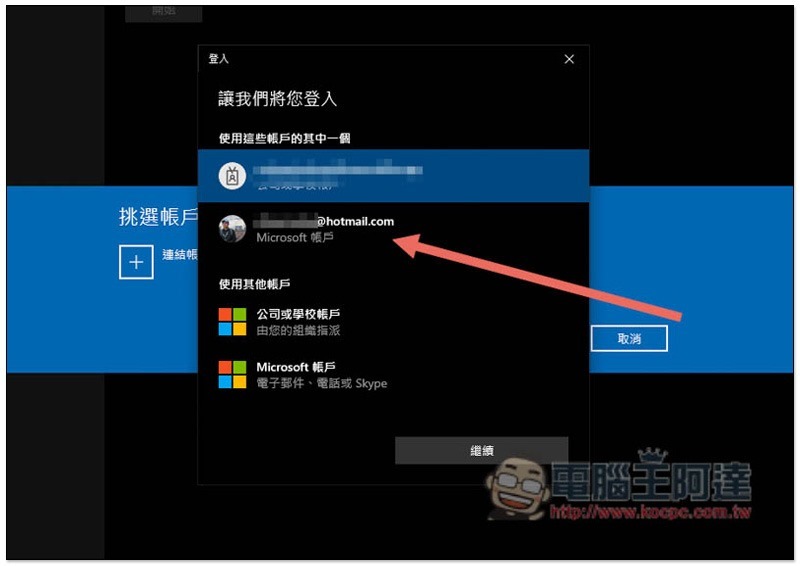
If your computer has already logged into a Microsoft account, you can select it directly above. If not, click the account type you want to log in below:
Select the first Dev channel and press OK:
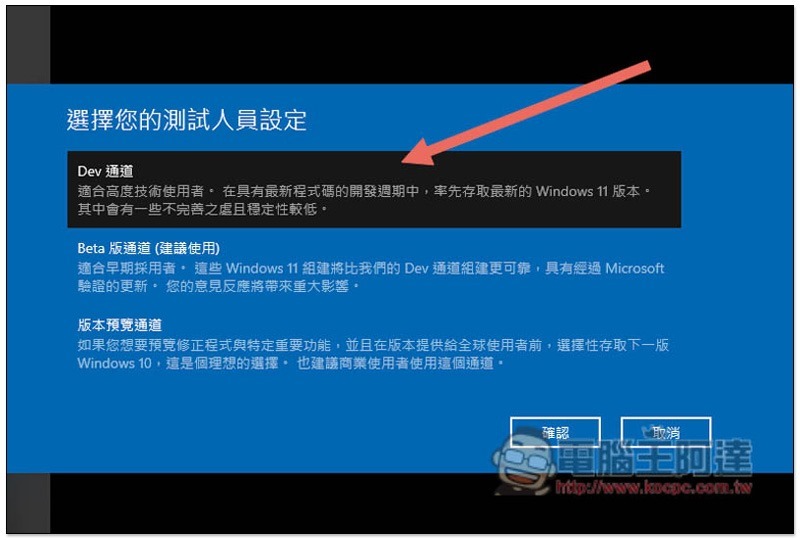
Then press OK again:
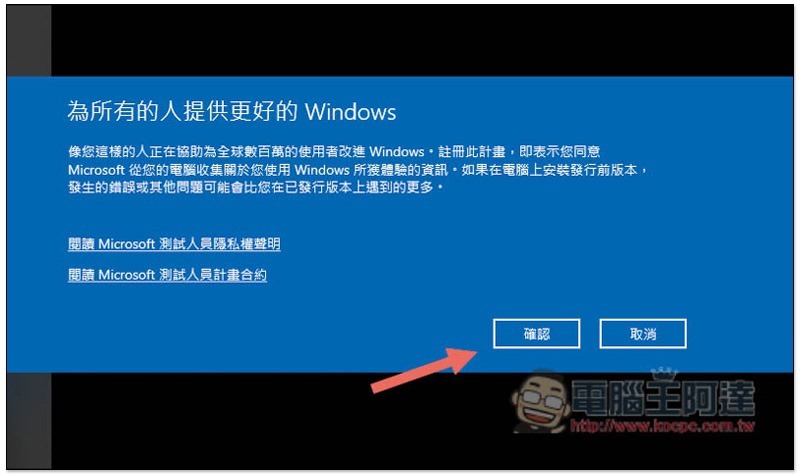
Finally, you will be asked to restart your computer. Once the restart is complete, your Windows will be able to apply for the tester’s internal version:
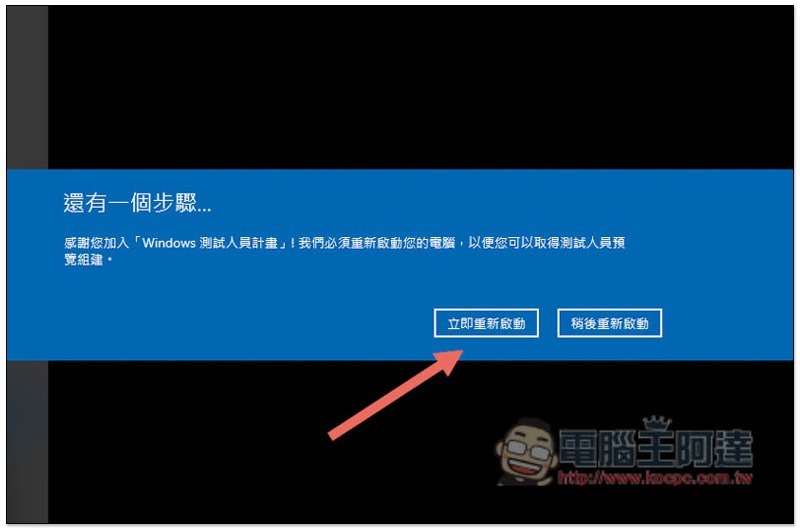
Finally, open Settings -> Update & Security again, manually check for updates, and the screen will appear with Windows 11 Insider Preview 10.0.22000.51 version available for upgrade.
Source: KOCPC Chinese