


Following up on Computer King Ada’s previous tutorial on how to play Stable Diffusion for free on Google Colab to create realistic beauty images without needing a high-end graphics card—which already shocked people with how quickly the barrier to AI image generation has lowered—there are now more and more online services that let you sign up for an account to generate images using various models, and some even allow you to train your own models online. Tensor Art, a service in this category, is today’s featured topic. Continue reading for the full tutorial on Tensor Art, a service offering 100 free AI image generations per day using the Stable Diffusion model.
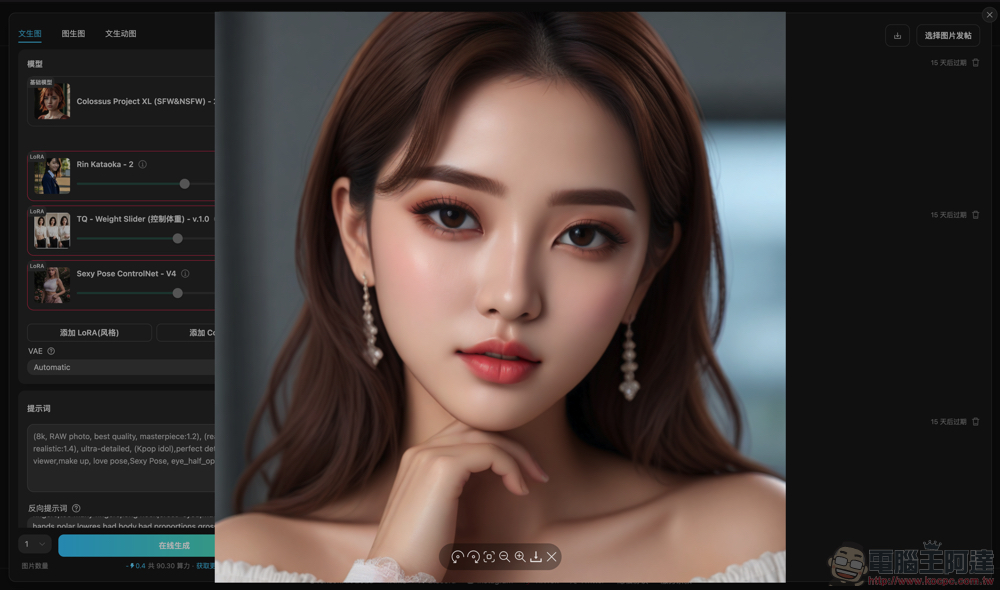
▲Image source:
Tensor Art Sign-Up Guide: 100 Free AI Image Generations Daily Powered by Stable Diffusion
As previously introduced by Computer King AdaNo high-end GPU needed! Tutorial on creating realistic beautiful women images with Stable Diffusion for free using Google Colab on any deviceThe sharing has already left people amazed at how quickly the barrier to using AI image generation has lowered. Recently, there have been more and more online services that let you simply sign up for an account to generate images through various models, and even services that let you train your own models online.
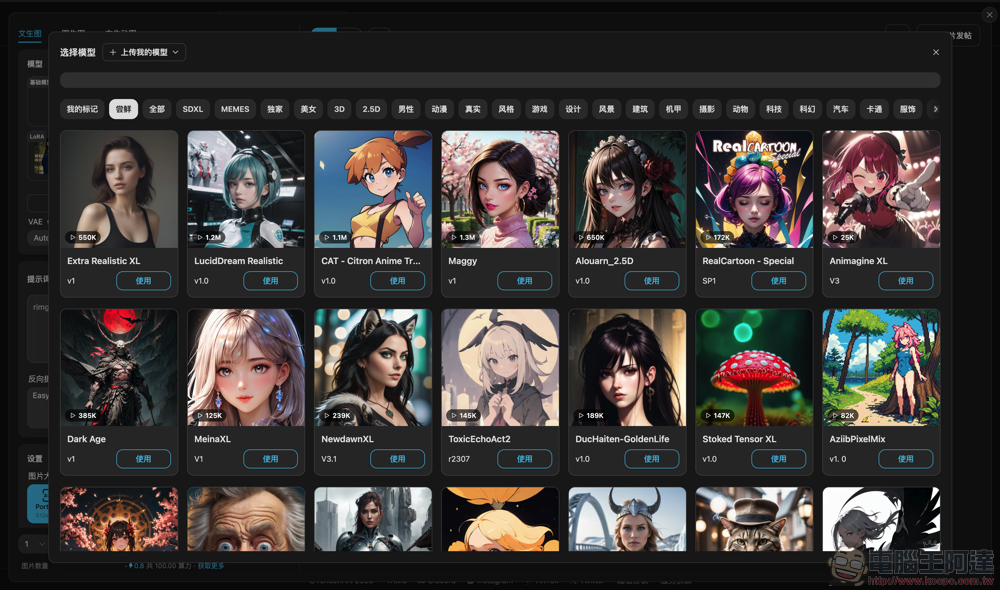
Tensor Art is the star of today’s introductionPortalIt reportedly uses Stable Diffusion technology but removes many of the technical barriers associated with adding extra models. While it operates on a subscription model, it also offers a free allowance of 100 credits per day (the official website describes it as 100 images, but in reality it deducts points from your daily balance based on the computing power used).
From a beginner’s perspective, this website offers a rich collection of models including LoRA and more, along with many experienced users sharing their settings and prompt examples directly on the platform. It also features advanced model training and the ability to upload your own models. Overall, it’s a solid choice for AI image generation services.
Application Usage Guide
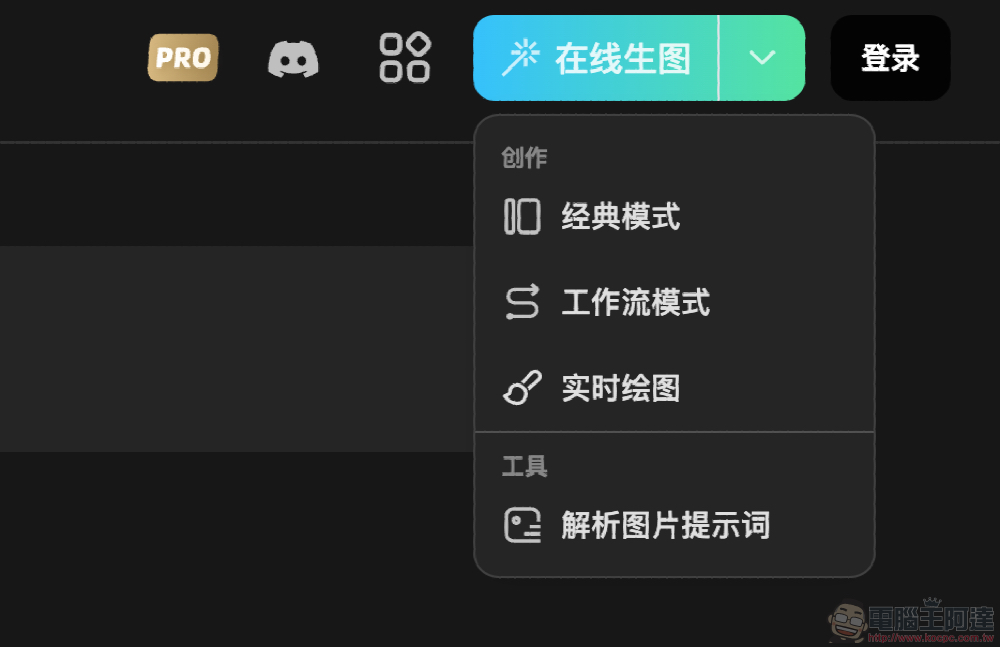
Creating a Tensor Art account is very easy. Simply click “Sign In” in the function interface in the upper right corner to launch the login screen.
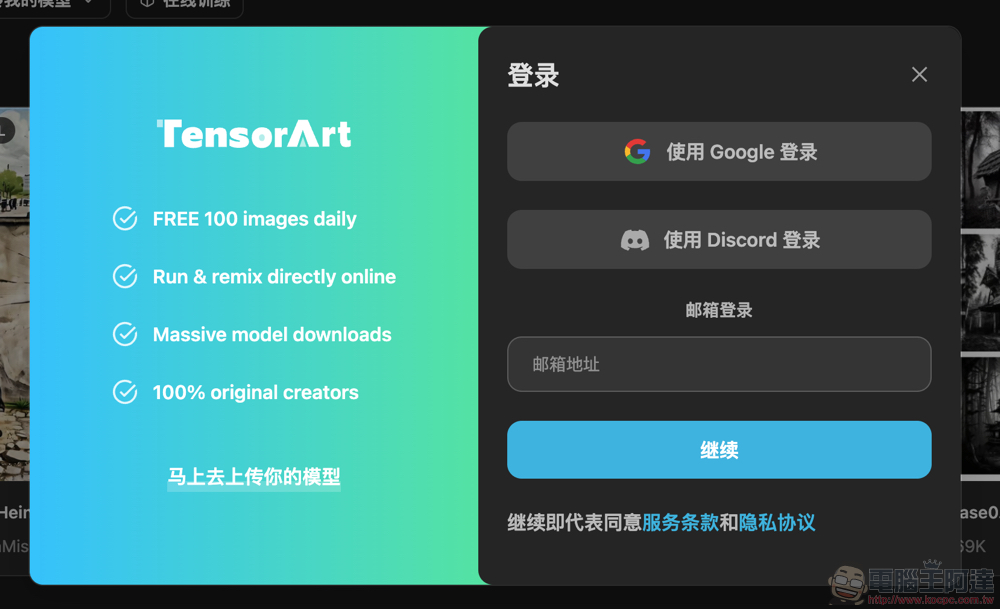
The signup process is quite simple. Besides signing in with Google or Discord, you can just enter your email to receive a login link directly—no password required to get started.
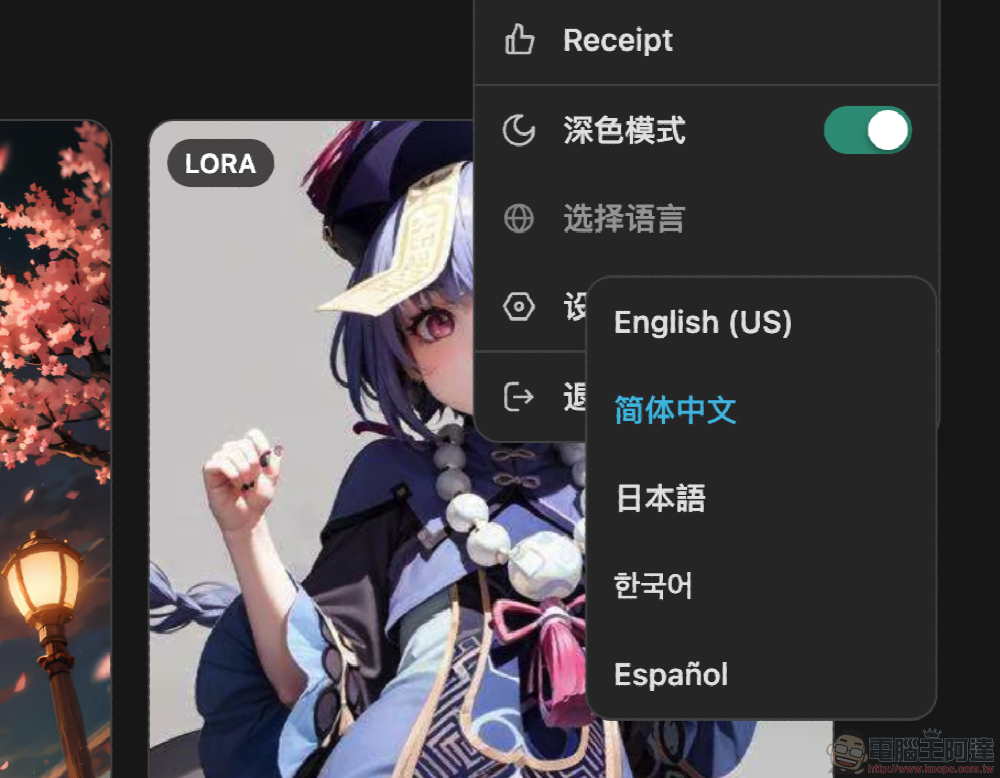
Tensor Art supports multiple languages. Though it doesn’t have Traditional Chinese, keeping it in Simplified Chinese still lets you understand most of the features.
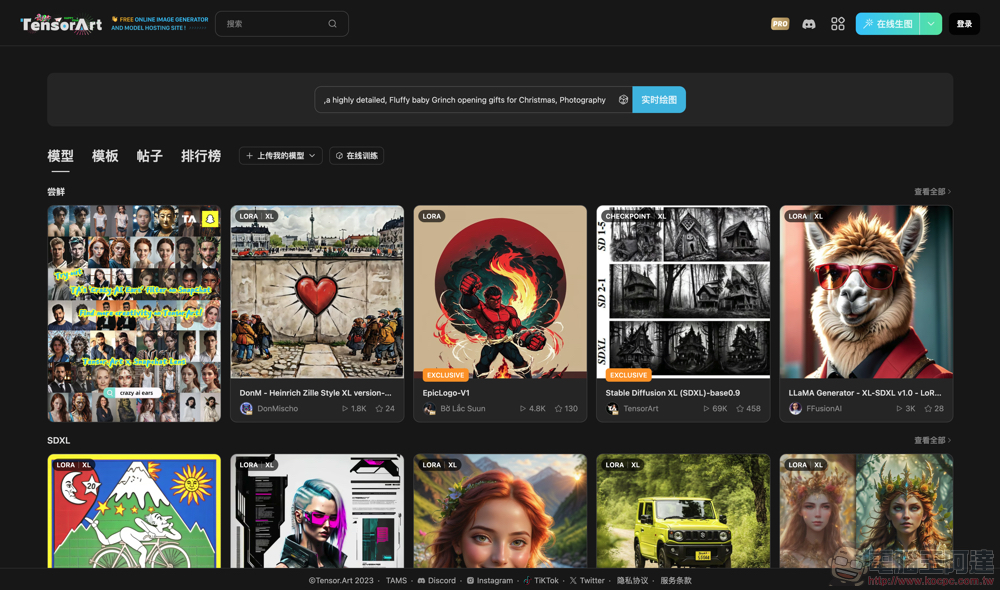
You can start generating images using the model (supporting text-to-image, image-to-image, and even animations).
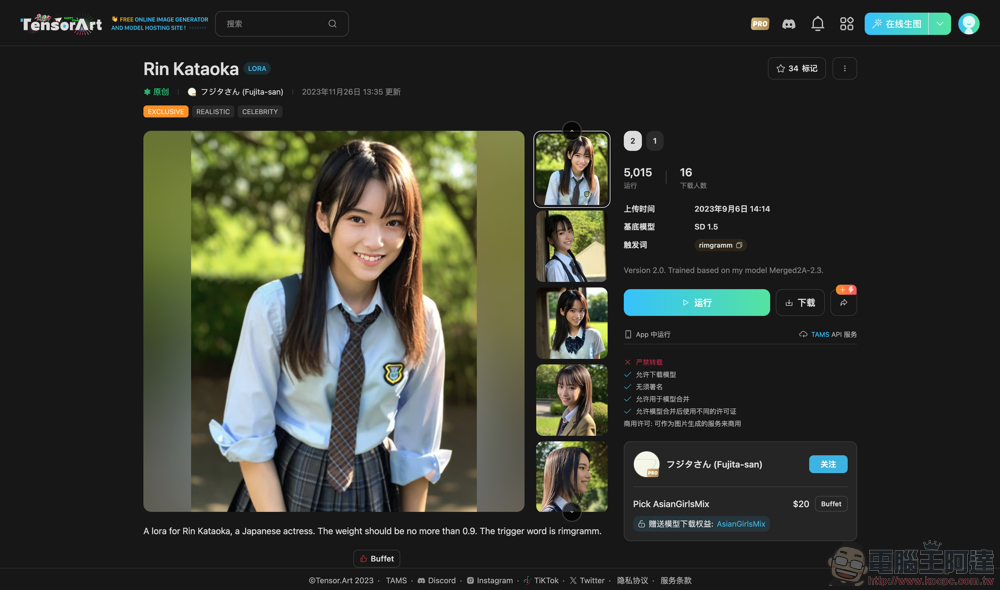
After picking a model, you can get started! Just keep in mind that each model has its own disclaimer—something like this one that mentions rules such as “no reposting.”
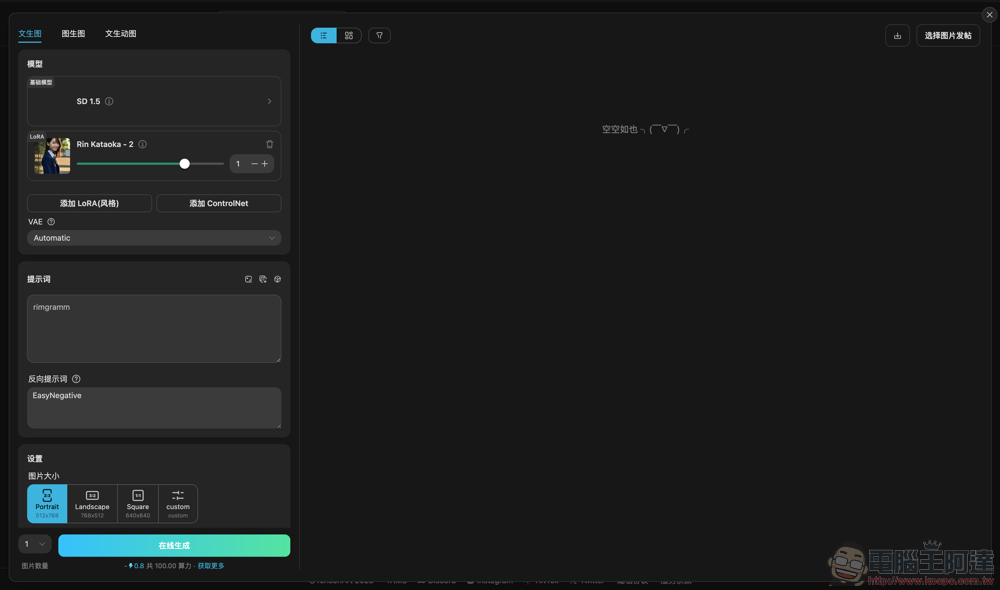
Of course, for beginners, having to deal with all those options and the empty prompt field can definitely feel overwhelming. Here, we can recommend…Our Prompting Instruction,
Or you could “check out” posts shared by the experts.
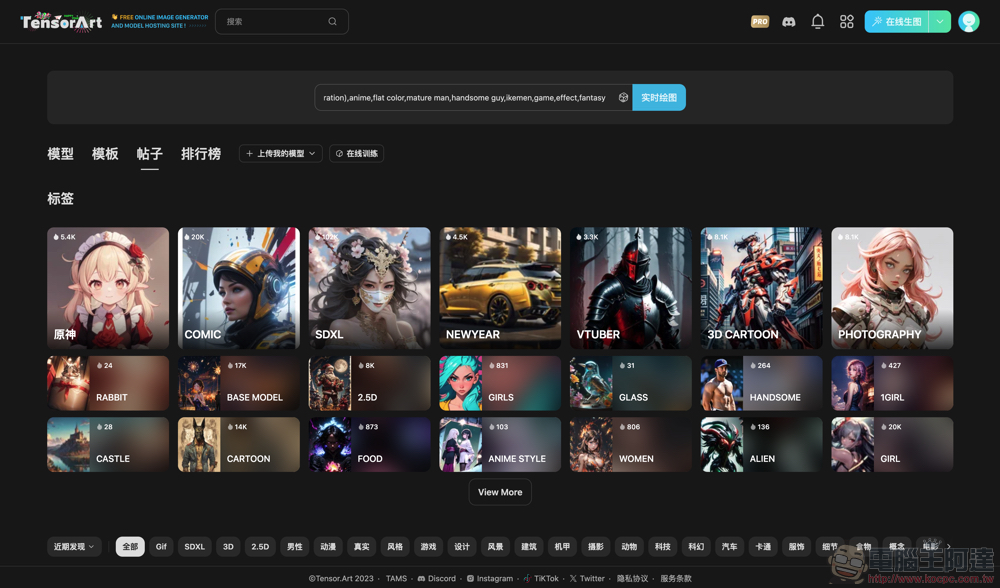
Tensor Art also offers “Make Similar” and “Copy” options, so you can quickly generate images you like based on what others have created.
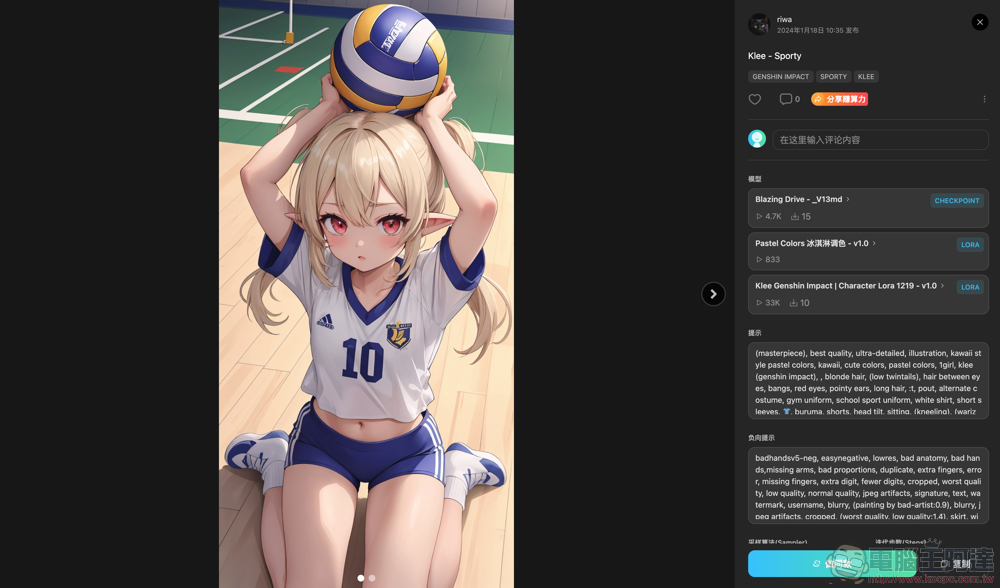
I tried it out briefly, and it’s pretty cool that even animated images are supported (can be saved as GIF files). I recommend everyone give it a try.
Further reading:

Source: KOCPC Chinese