


AI is getting more and more powerful. Now it can even directly cover songs with different voices. Replay, which I’ll introduce in this article, is a free tool that can AI-cover any song. It’s incredibly easy to use—just import a song or paste a YouTube video URL, choose the voice you want, then click process and it will start voice changing. It even supports Chinese songs.
Additionally, if you want to create karaoke tracks by removing vocals, this tool can do that too.
Replay – Use AI to cover your favorite songs, separate vocals from instrumentals, YouTube supported
Replay supports Windows and macOS. Click the link above to go to the official website and download the installer. If there are no special requirements during installation, just keep clicking Next. After installation, open the app and you’ll see this screen. Click CONTINUE:
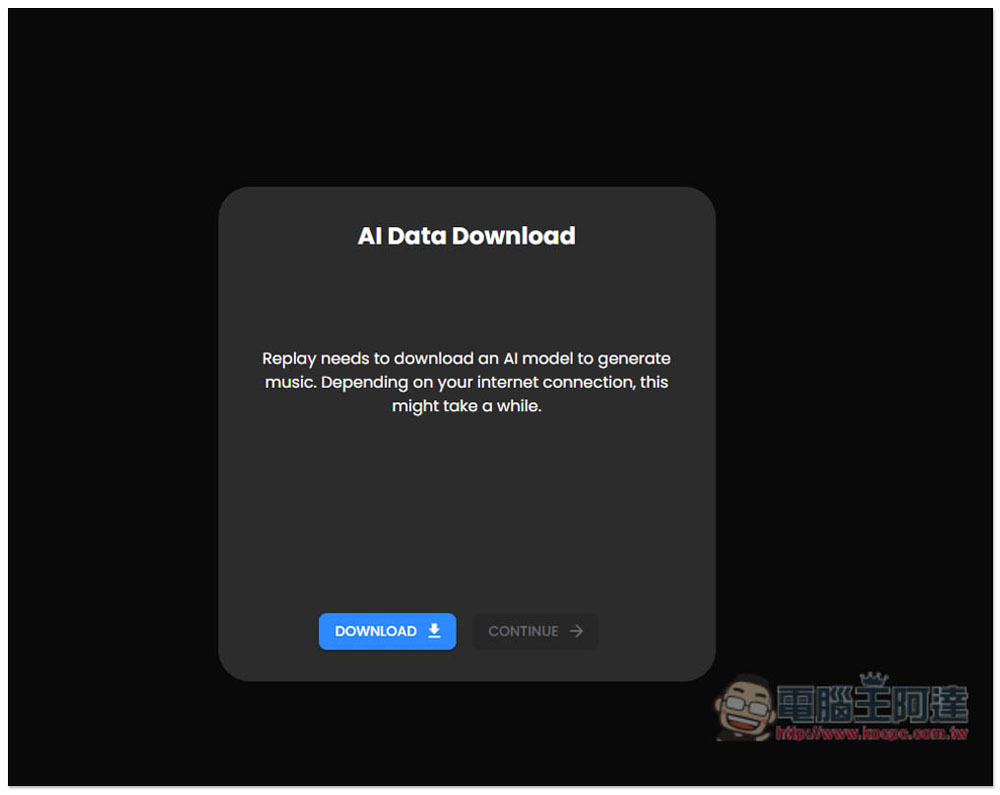
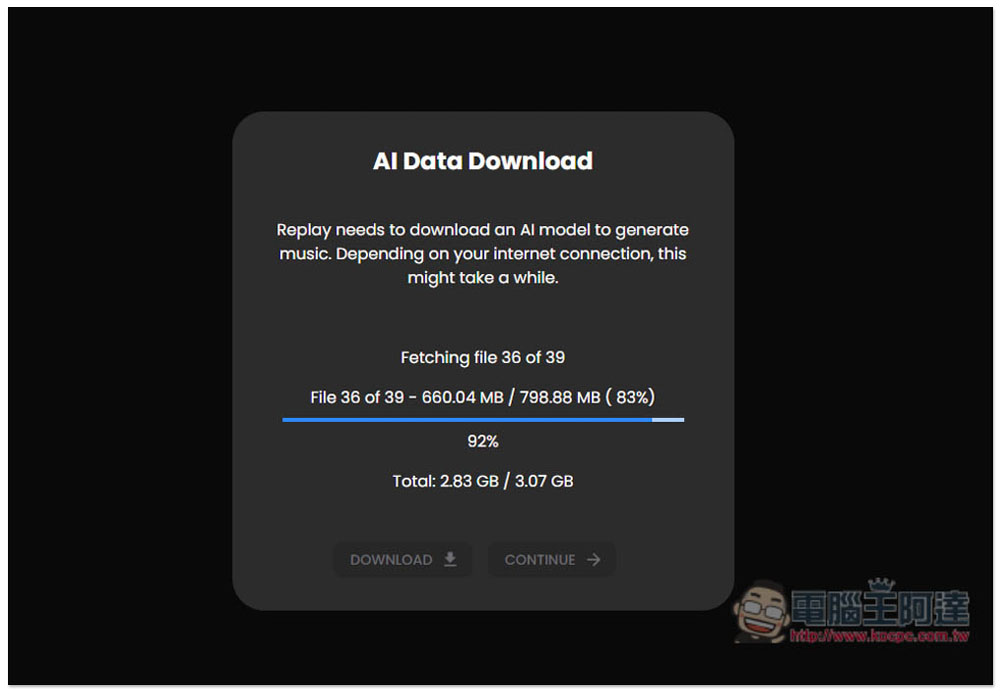
Before using, you need to download the AI model files. They’re quite large, and from what I remember, you’ll need at least 5~6GB of space. I’d recommend leaving over 10GB free to be safe:
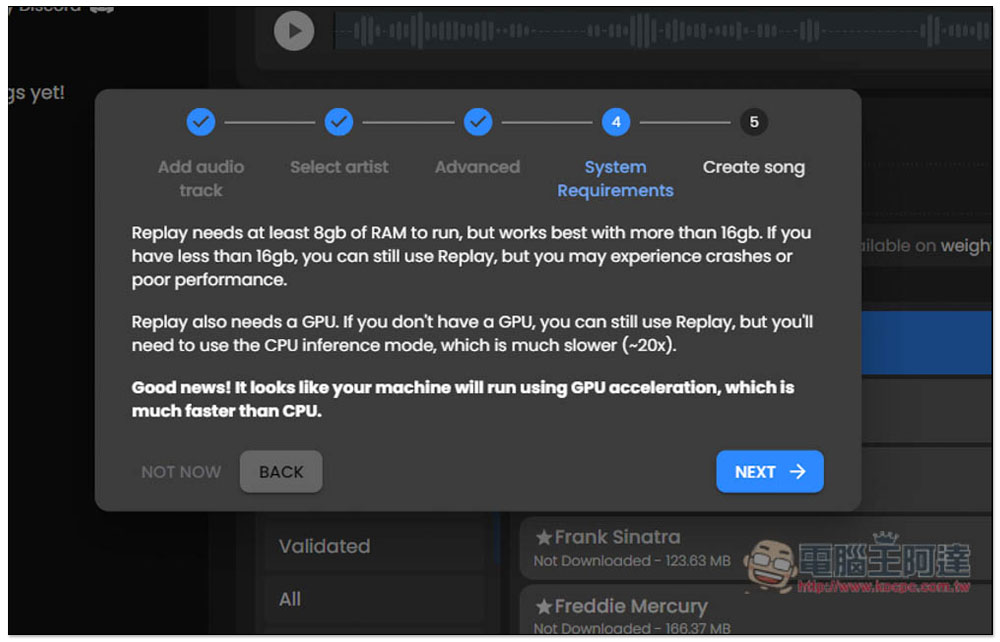
Also, one thing to note is that since the AI computation is performed locally, it will use your CPU and GPU resources. For those with lower-end hardware specifications, running it may be a bit challenging—it will take quite a lot of time and consume a significant amount of resources. Having a GPU is better, as the computation speed is much faster than with a CPU. You can still run it without a GPU, but it will just take longer.
Will download twice:
A minimum of 8GB of RAM is required, with 16GB recommended. Systems with less than 16GB may occasionally experience crashes.
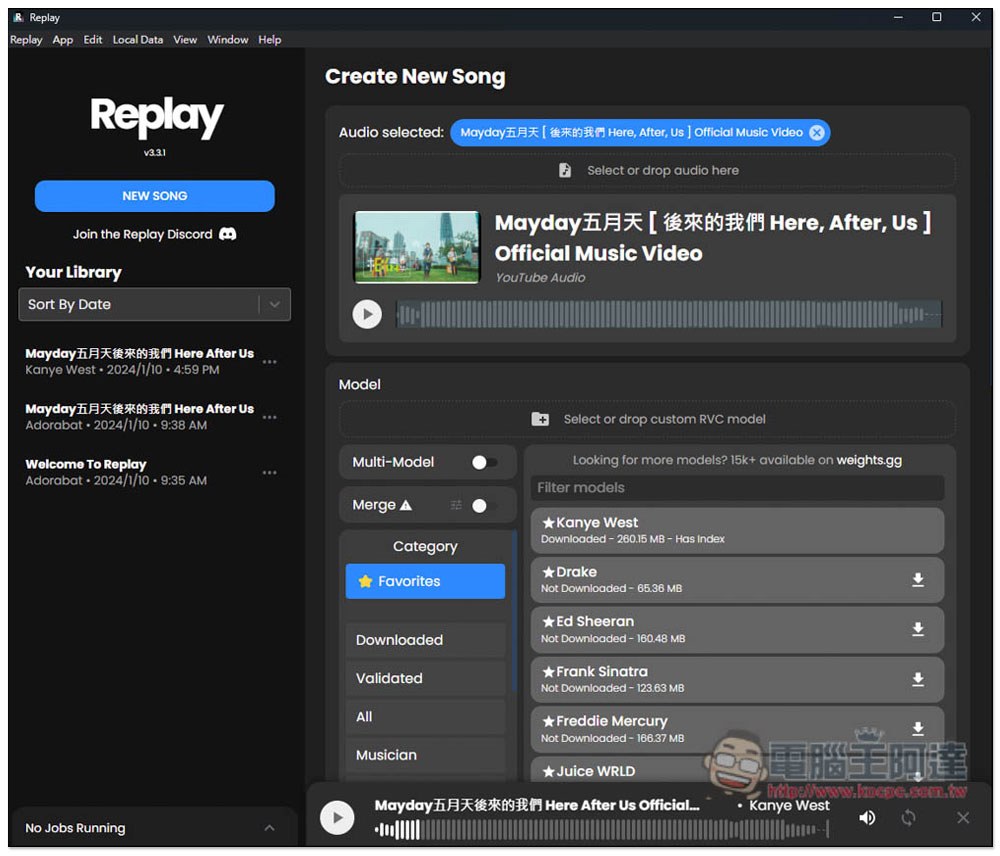
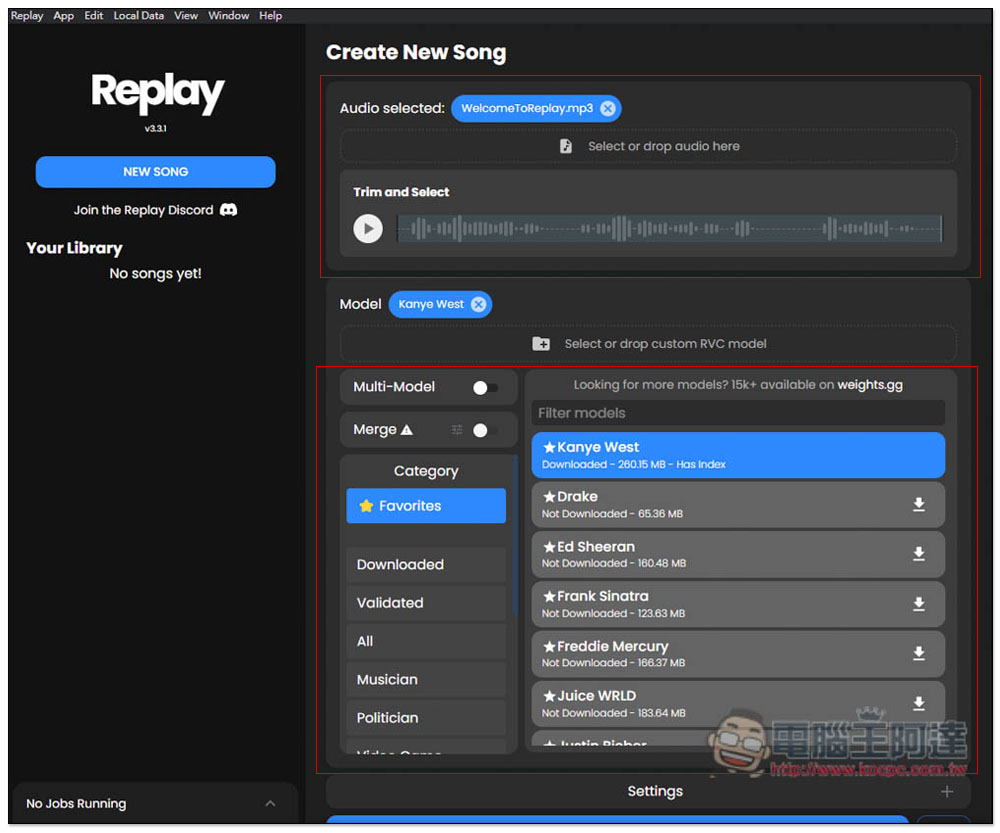
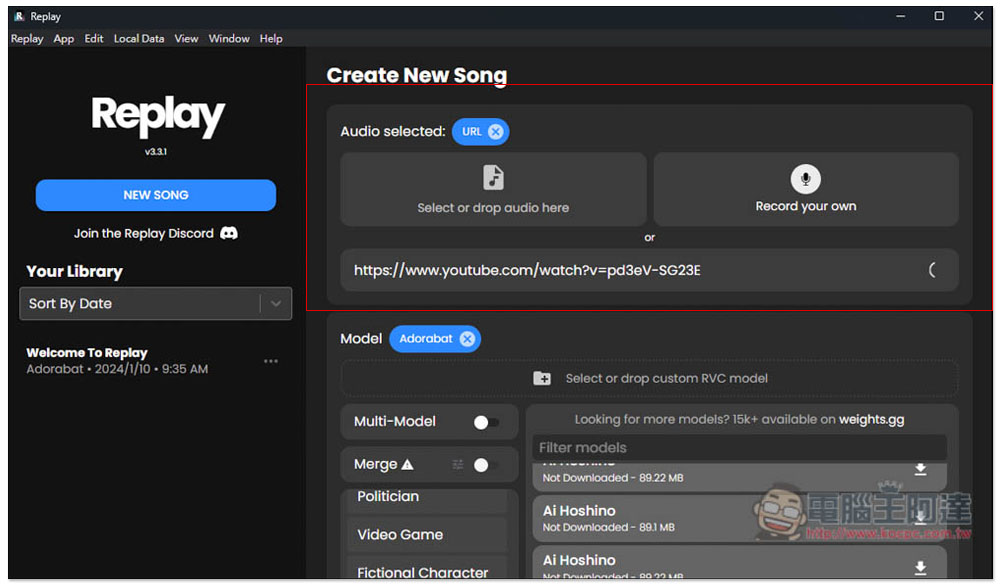
After entering the main screen, there are three main areas. The top right section is for importing songs. You can manually upload files, record your own voice, or paste a YouTube URL (a sample audio file is provided for free by default—press X to cancel). Below that is the voice model you want to apply. There are many cloned voices of singers, as well as some cartoon and anime character voices. By default, not all of them are downloaded. When you need one, click the download icon on the right to save it to your computer.
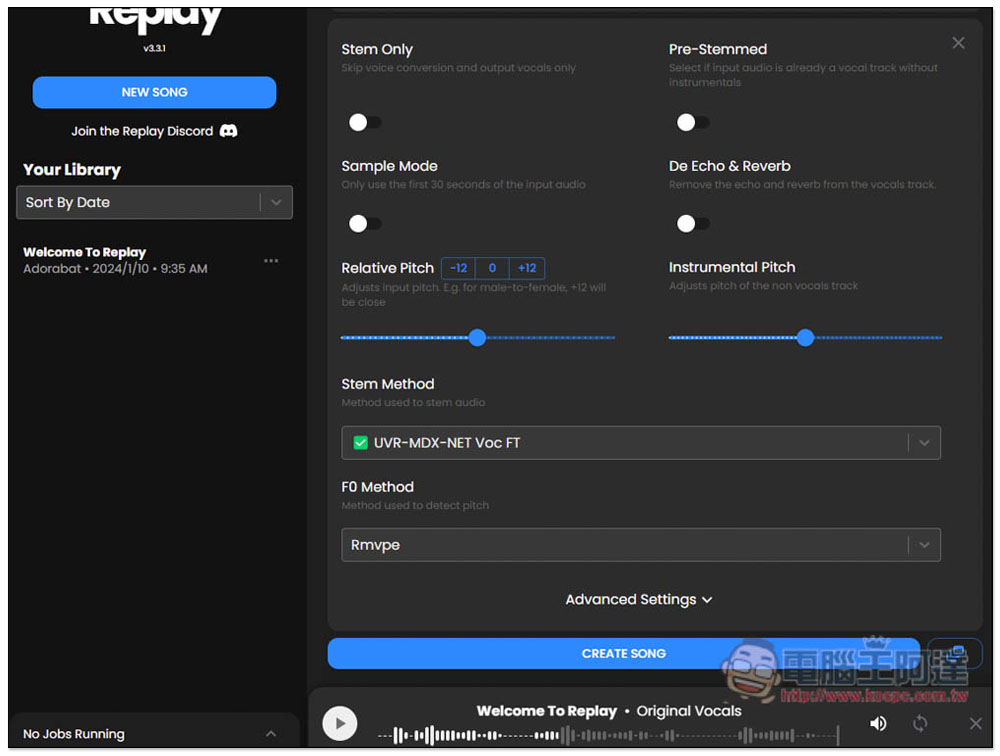
Settings involve more advanced adjustments, so it’s best to stick with the defaults initially. Once you’re familiar with everything, you can gradually try out each setting.
I’m testing sending a YouTube URL:
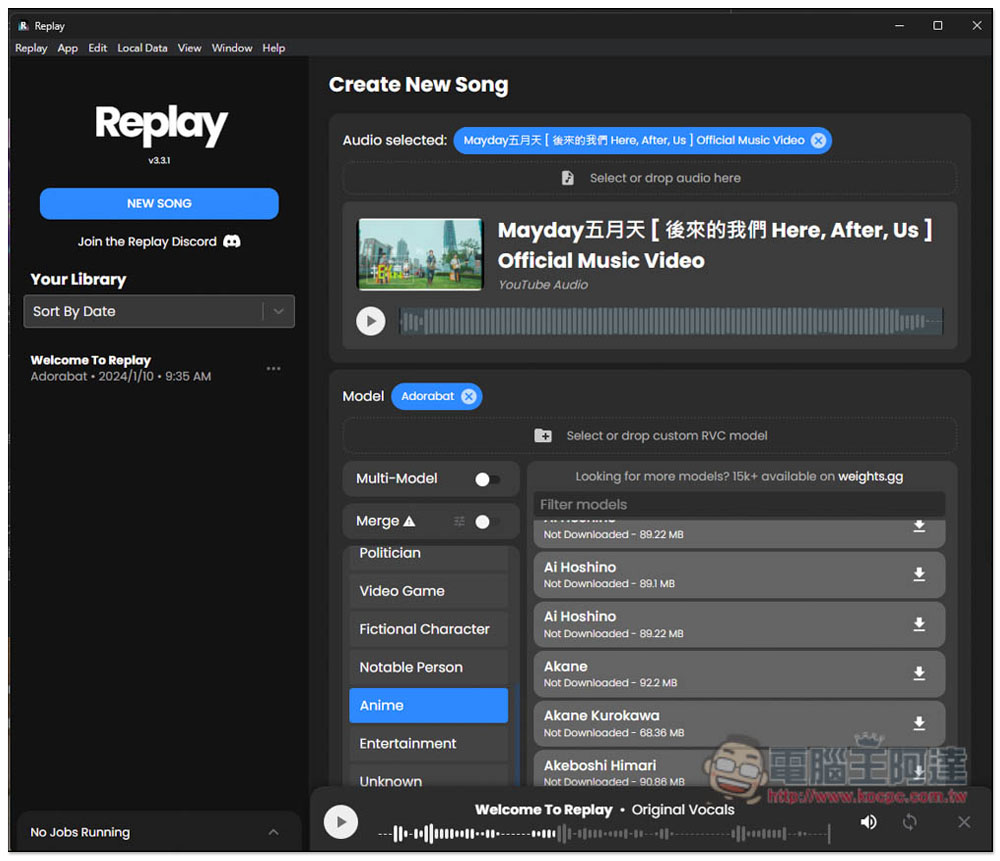
After it’s successfully loaded, there will be a preview image. Then I’ll use an AI anime voice to cover the vocals of this song. After selecting, press CREATE SONG at the bottom and it will start the AI cover.
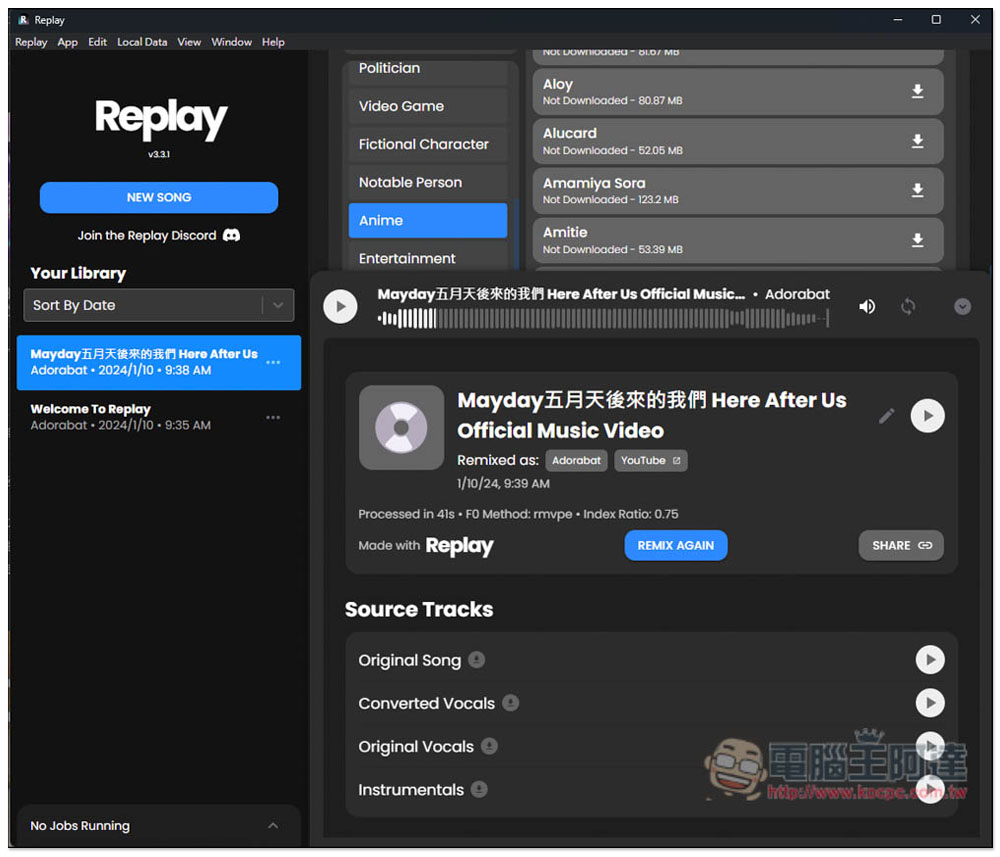
As for how long it takes, it depends on your computer specs. Having an NVIDIA graphics card makes it much faster. I use an RTX 3080, and this Mayday song took less than a minute to complete—it was very fast.
Once it’s complete, you can preview it, and the results are pretty good. You can even remix it again, and each version sounds different. The downside is there’s no download function, but you can create share links.This is the demo of my AI cover.:
Besides songs, as long as it’s an audio file, it can use AI to recreate the singing or speech. For example, if you have audio files where you don’t want to use the original voice, you can use this to change it. It’s actually a bit like a voice-changing feature.
In advanced settings, Stem Only is the function that separates vocals from the accompaniment.
Source: KOCPC Chinese