


Previously we introduced two types of devices that can be used in cars and machines Tips for playing YouTube videos in Android Auto, however, in addition to audio-visual entertainment content such as YouTube, in fact, through screen mirroring, drivers can also display the commonly used “Aegis Speed Camera” App on the car screen while driving. This useful app will surely make many drivers pay more attention to the driving speed limit and avoid the risk of speeding. If it can be mirrored to the car screen display, it will reduce the chance of looking down at the phone and improve driving safety. Today I will share how to make the car screen display at any time!
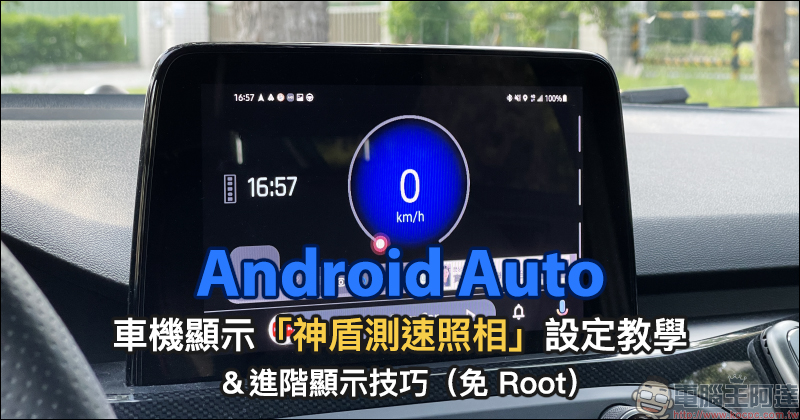
Android Auto car display “Aegis Speed Camera” setting tutorial and advanced display techniques are revealed! (Root free)
If you drive, you must have downloaded the “Aegis Speed Camera” app on your mobile phone, right? Regarding the two more well-known free speed camera apps on the market, “Aegis Speed Camera” and “Omnie Cue”, computer king Ada also made a video in the past to analyze the advantages and disadvantages of the two (Click me to review)。
However, the display of such apps still relies on the screen of a smartphone. If a driver wants to pay attention to the speed limit and speed cameras on the road, he must place a mobile phone holder in the car for easy viewing. However, looking at the screen of your mobile phone is inevitably distracting, and as of now, the Aegis Speed Camera App itself does not support Android Auto. Therefore, this time I will also share how to use some “little tricks” so that you can directly display the “Aegis Speed Camera” App from the car screen while connected to Android Auto.
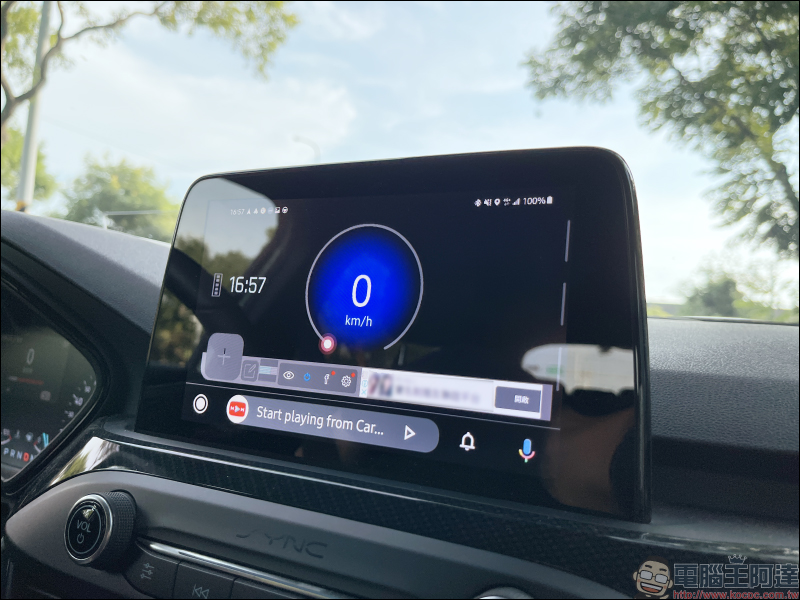
The method used this time is actually a continuation of the previous article “Android Auto Watch YouTube Video Tutorial Vol.2“The AA Mirror used. If you don’t know what to prepare for the pre-production work, please go toReview the previous teaching (click here to go)。
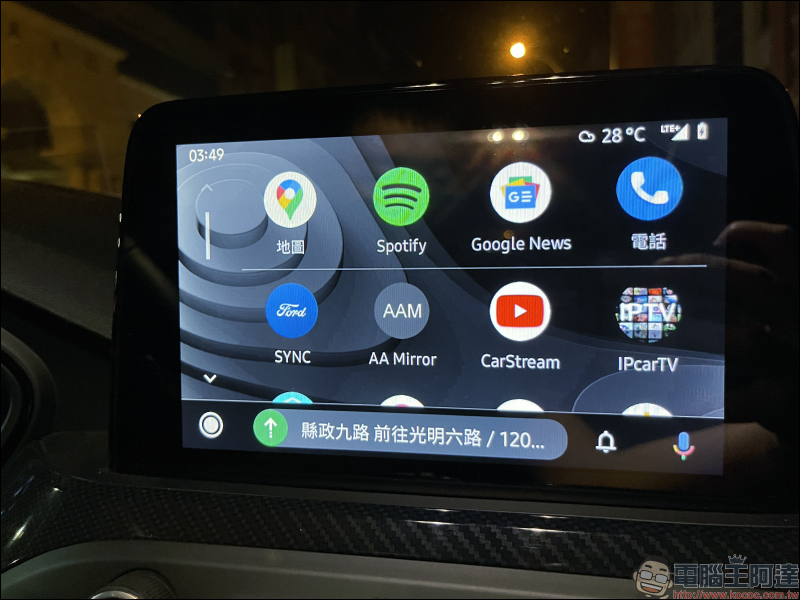
How to display “Aegis Speed Camera” on the car?
After the AA Mirror is set up, you must have learned how to use screen mirroring to play YouTube videos on your car synchronously after reading the previous article, right? So how to use the “Aegis Speed Camera” App on the car screen?
First of all, of course, open the “Aegis Speed Camera” App on your mobile phone! If you want it to continue executing in the background, you can return to the homepage after opening it or click “Background Execution” in the app.
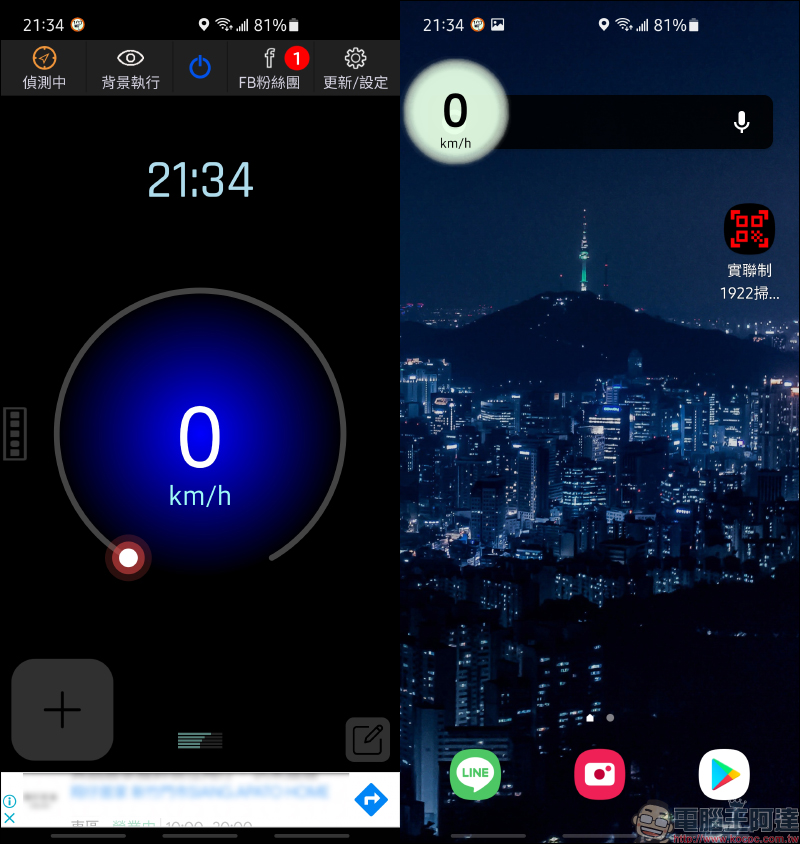
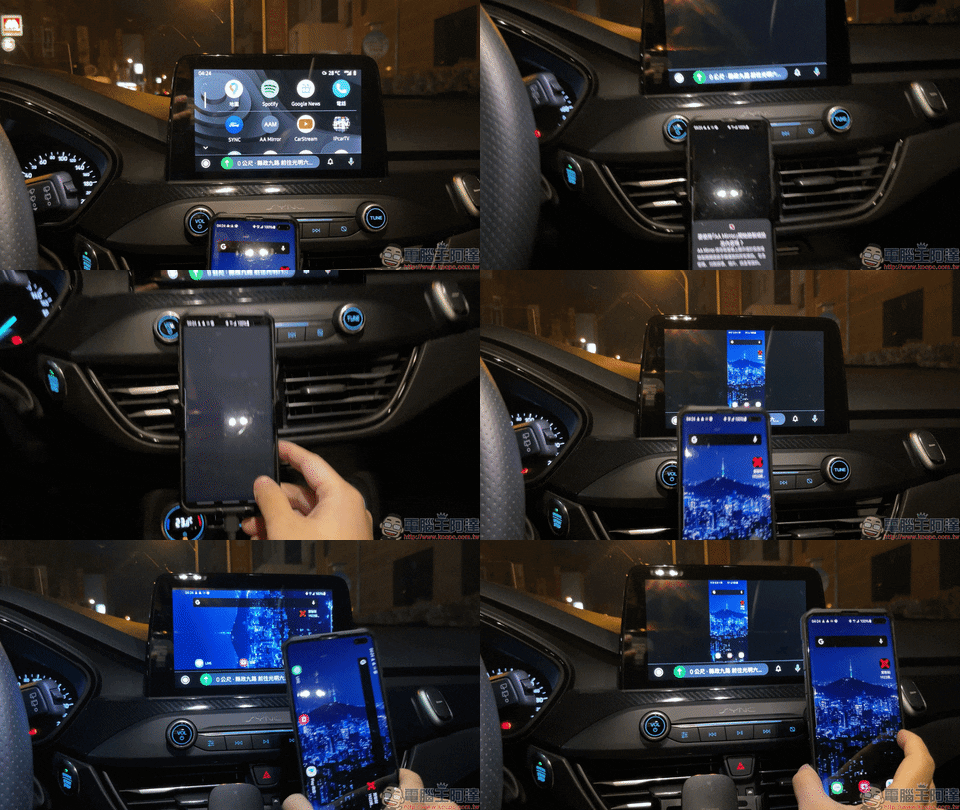
Then connect your phone to Android Auto and click the “AA Mirror” App on the car screen to mirror the phone screen to the car screen.
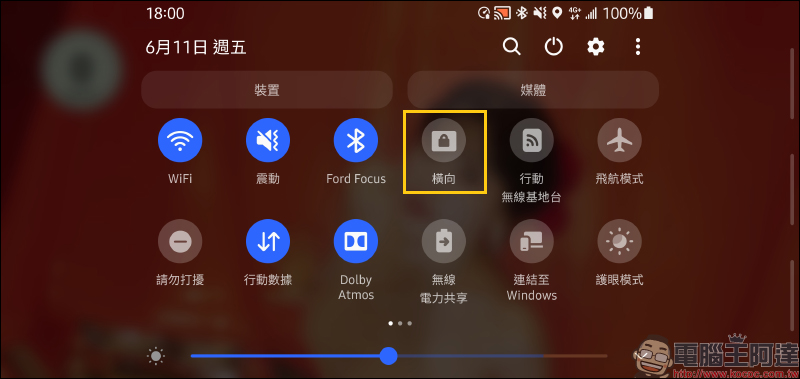
In order to prevent the screen of the mobile phone from rotating synchronously with the position of the mobile phone while the vehicle is driving, and to allow the SHIELD Speed Camera App to have a better display effect on the car screen, it is recommended to temporarily lock the mobile phone screen in landscape orientation.
In the next step, just open the Aegis Speed Test Camera App on your mobile phone, and the Aegis Speed Test Camera App will be displayed simultaneously!
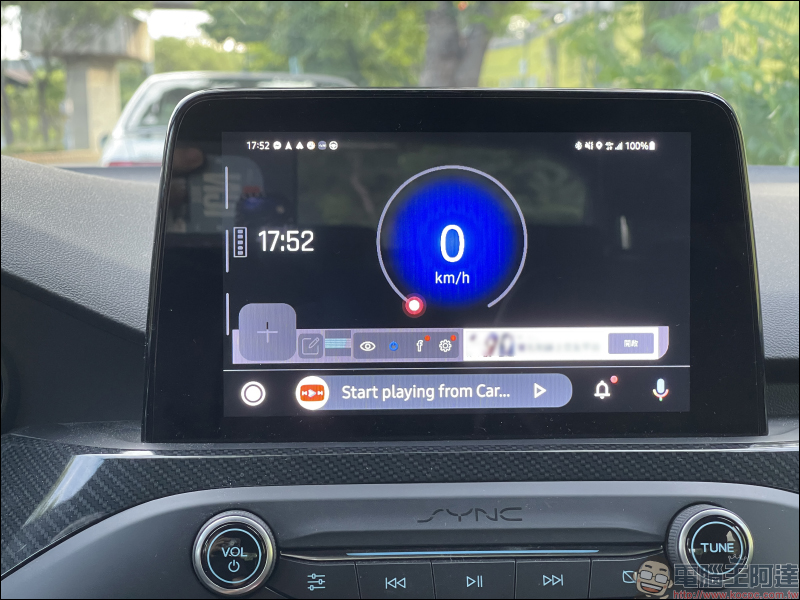
Since the SHIELD Speed Camera App also supports the background execution function, the speedometer can be displayed on the screen even when watching videos. The driver can also adjust the position of the floating window according to a convenient viewing position.
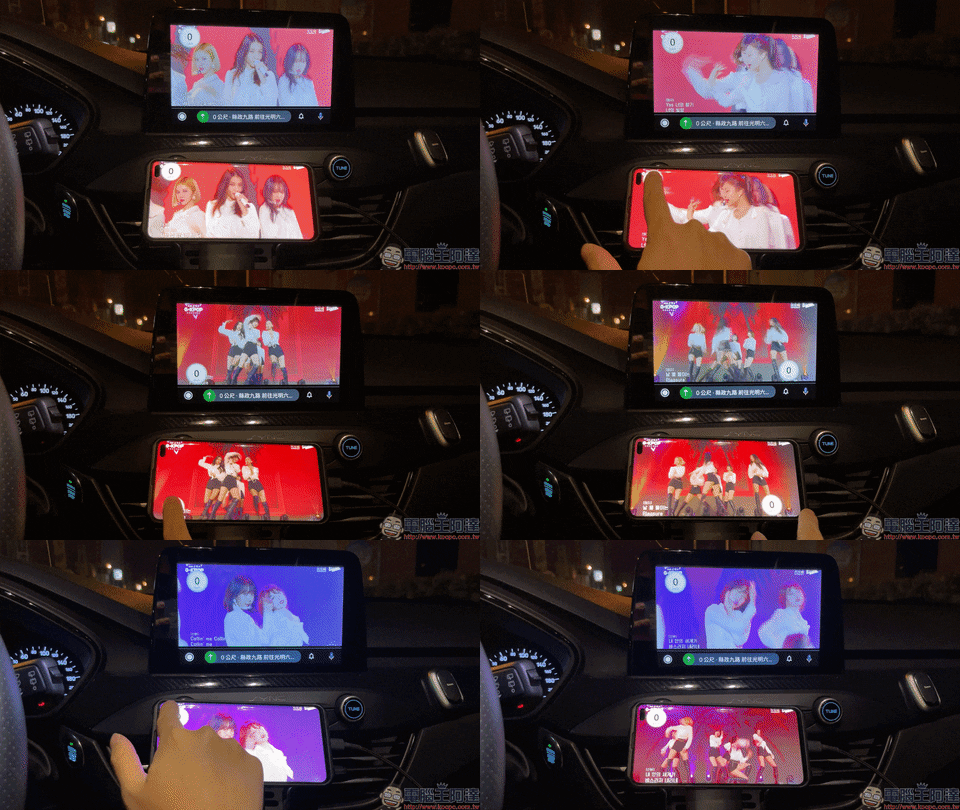
(*Tips: Do not use your mobile phone while driving. Please stop the vehicle before operating under safe conditions, or ask the passenger in the front passenger to set it up for you.)
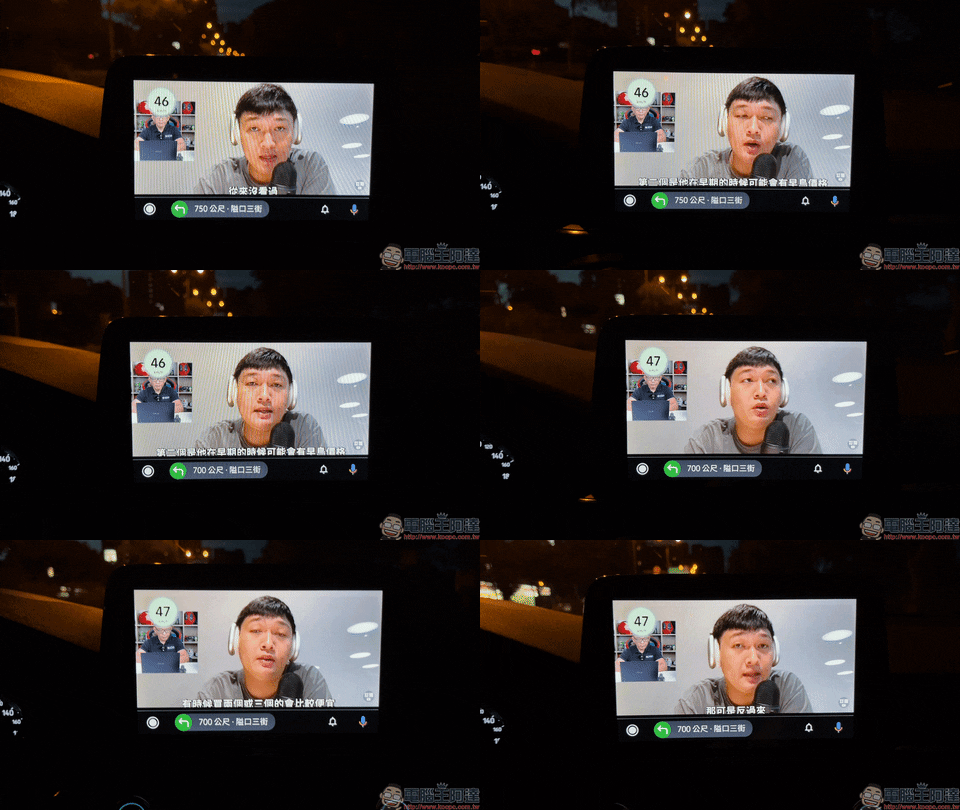
Of course, the purpose of this is to allow other passengers in the car to watch videos and relax, while the driver can also pay attention to the speed limit at all times! (The driving footage below was taken by passengers)
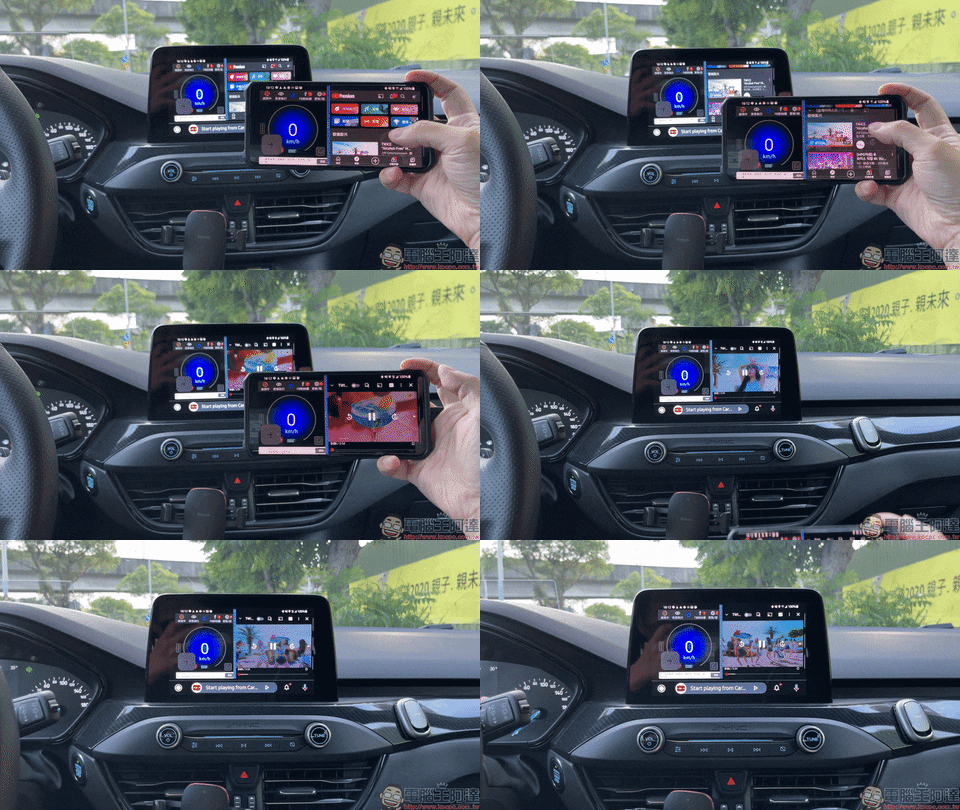
If you feel that the speedometer in the floating window is difficult to see clearly, many Android smartphones now also support the screen splitting function, and you can also use this method to display the Aegis Speed Camera App and YouTube on the car screen at the same time.
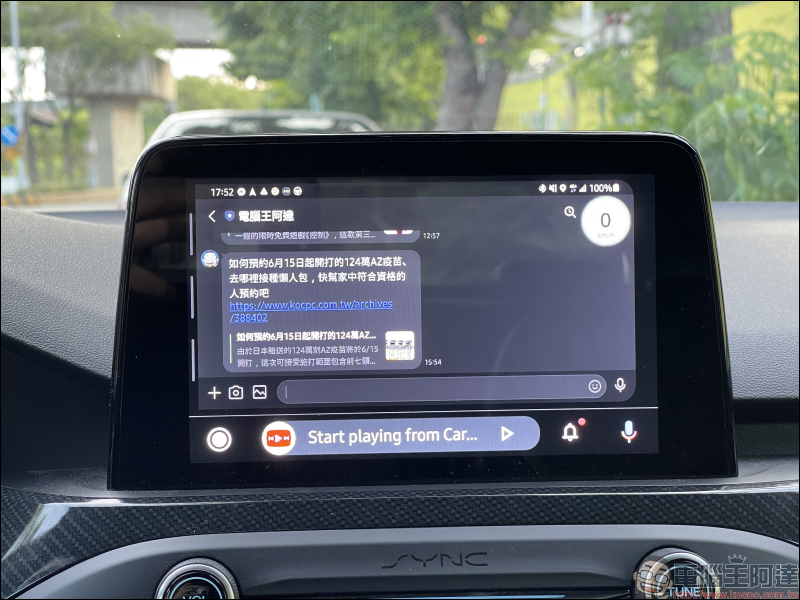
In addition, AA Mirror screen mirroring can also run apps on other mobile phones, such as LINE, Messenger, calendar and other applications. If the driver wants to view the content of the message in real time, he can also open the LINE App and mirror it on the car screen, and wait for the car to stop before replying.
Of course, if you want to view LINE messages, YouTube videos, and Aegis speed camera at the same time, you can also use the picture-in-picture to play the video, perform the Aegis speed camera in the background, and open LINE on the main screen. As for Google navigation, you can directly use the Google Maps App in Android Auto to execute it and display it at the bottom of the screen.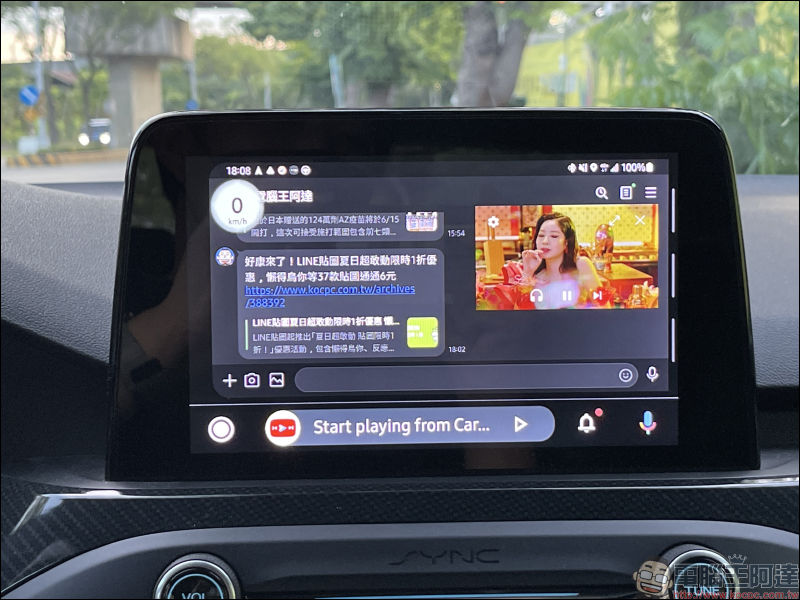
Some people may be curious, since AA Mirror can mirror the mobile phone screen to the screen, can everything be synchronized? In fact, even if mirroring is possible, the practical experience of some applications is not that good. For example, when you start a mobile game and mirror it on the screen to play, actual testing found that the screen and audio and video will experience delays and out-of-sync issues. In addition, audio and video platforms such as Netflix cannot mirror videos for viewing on car screens due to copyright restrictions.
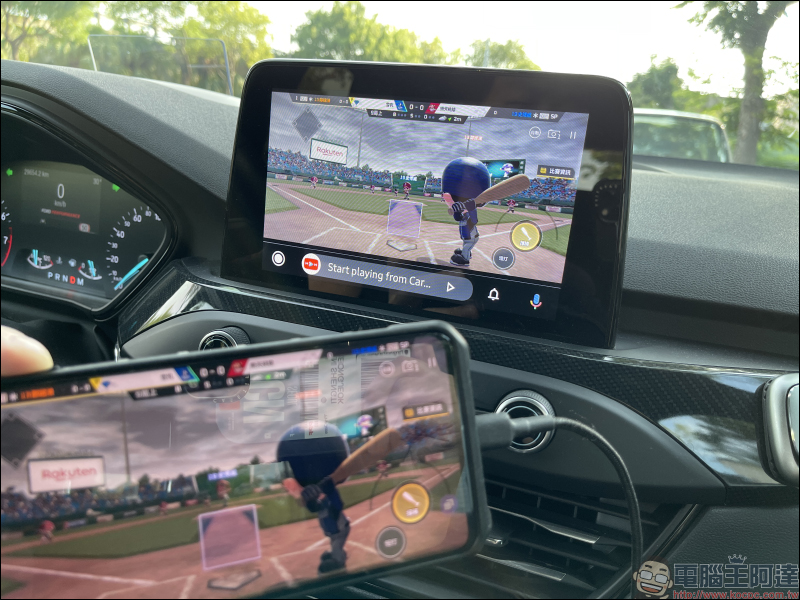
If you like this teaching, please share this article and tell other car owners!
Finally, I would like to remind you: “Please do not use your mobile phone while driving. Please concentrate on driving to ensure your and my safety.”
Further reading:
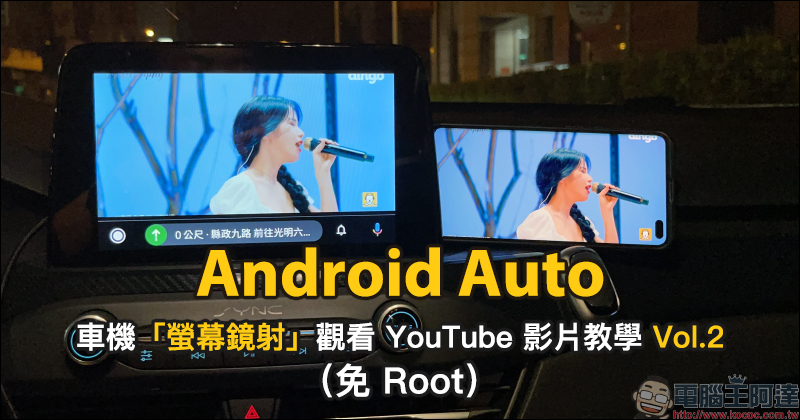
Use Android Auto “Screen Mirroring” to watch YouTube video tutorials for free, and your phone does not need to be rooted!
Source: KOCPC Chinese